Problems? See this thread at archive.org.
Background: XTU is unpredictable when undervolting. It is supposed to stay after undervolt profile is made, but this doesn't really work all the time. About 50% of the time I find I have to re undervolt my profile because it was lost or "quit unexpectedly". I got annoyed that I would have to launch XTU (or HWinfo64) every boot/log in to make sure it is working as intended
After much trial and error I have been able to undervolt in XTU without having to launch XTU every boot
Note: this allows Powershell to change/set core voltage without needing to start XTU at all
WARNING: only do this with a core offset that is RELATIVELY stable (or add a delay to task scheduler)
really easy to determine relative stability (i.e. it doesn't crash your computer right away, so you can change it or stop the scheduled task if you need to)
Just: Undervolt in XTU and run OOCT for 5 minutes
Or better yet, just use an undervolt that you have tested and used extensively
DIRECTIONS:
1) Copy this code to a notepad:
$status = get-service -name "XTU3SERVICE" | Select-Object {$_.status} | format-wide
if ($status -ne "Running") { start-service -name "XTU3SERVICE"}
& ' C:\Program Files (x86)\Intel\Intel(R) Extreme Tuning Utility\Client\XTUCli.exe' -t -id 34 -v - YOUR VOLTAGE OFFSET HERE
sleep 4
stop-process -id $PID -force
*Your XTU file path may be different*
EXAMPLE -0.150 offset (for clarity because you don't use decimal place in code)
$status = get-service -name "XTU3SERVICE" | Select-Object {$_.status} | format-wide
if ($status -ne "Running") { start-service -name "XTU3SERVICE"}
& 'C:\Program Files (x86)\Intel\Intel(R) Extreme Tuning Utility\Client\XTUCli.exe' -t -id 34 -v -150
sleep 4
stop-process -id $PID -force
2) Save file as "filename.ps1" to a known safe location (I saved as undervolt.ps1 and saved in a folder called boot in C:\)
3) run the file to be positive it works in powershell. I.e. set an undervolt of 0 in xtu, then run the file in powershell to make sure it changes
4) Search for powershell, shift-right click, run as administrator and run: Set-ExecutionPolicy RemoteSigned
5) Copy this code into notepad:
command = "powershell.exe -nologo -command C:\ Your .ps1 File Path Here"
set shell = CreateObject("WScript.Shell")
shell.Run command,0
6) Save as undervolt.vbs
7) You can run using Task Scheduler. Simply open task scheduler and create a basic new task. Your triggers are going to be, At log on (or whenever you'd like) but at log in seems to work best
Actions: For this brouse to your undervolt.vbs it is a script so no program needs to be run
Check "Run with highest privileges" in finish step
Note: the .vbs script allows powershell to run in the background without a powershell window popping up for a few seconds.
If you'd rather the powershell window pop up, you set action program as powershell.exe and put the .ps1 file path under arguments
The power shell window will then pop up for 2 seconds and show the undervolt
-
-
Amazing, brilliant, thank you!
I was having problems getting the script to run on startup, until I realised I was being silly and forgot the " after the .ps1 file path. Works brilliantly, thank you again.ThatOldGuy likes this. -
Thank you That old guy! Works awesome and hassle free.
ThatOldGuy likes this. -
somehow this doesnt work for me ps1 file works but the task not
-
Just make the powershell window open for a second and auto close and it will work all the time.
-
The task doesn't work if you don't do step 4:
4) Search for powershell, shift-right click, run as administrator and run: Set-ExecutionPolicy RemoteSigned
Otherwise, if you messed some other step up, usually you just get an error message. -
Had to re-run step 4 after Creator's Update, fyi.
Thanks again for this guide.ThatOldGuy likes this. -
This is really helpful, thanks! Side question - is it better to use Throttlestop over XTU? Been reading a bit about the two, and use XTU only because it was really simple to undervolt.
ThatOldGuy likes this. -
With stock bios I'd say XTU is better and easier to use, but with unlocked bios or unlocked processor TS gives more options to play with.
-
I'd only ever use XTU to unlock the power limits and Throttlestop to undervolt on all processors either locked such as the 6700HQ or 7700HQ or unlocked like the 6820HK or the 7820HK. Reason being there is Much more settings but also much more reliability with the settings sticking when using Throttlestop to undervolt. Also Throttlestop allows you to disable power and throttle stopping techniques used by Intel and also enable speed shift to allow you to get the best performance from your CPU.
Note, never run Throttlestop and XTU at the same time or settings will be a mess
Sent from my SM-G935F using Tapatalk -
but it cant auto overclock the cache, or the system agent voltage offset ... that works to me too
i have -72mv on core, -140mv on ache, and -100mv on system agent voltage offset
![[IMG]](images/storyImages/10z44yv.jpg)
-
Sure it can, options are in FIVR
Sent from my SM-G935F using Tapatalk -
Can I use those method to run a XTU profile on startup as well? And if so, how can I add other parameters?
Best regards
phila -
I don't see why not. I only know the voltage id's though. -id 34 is core voltage, -id 83 is intel graphics voltage, and -id 79 is cache.phila_delphia likes this.
-
yes you can. i've tried it before and it works. you only need to get the XTU ID as what thatoldguy mentioned, and follow his excellent op guide.
-
Thank you!
Unfortunately OP and the only mentions some parameters (undervolt).
Yet I found how to find the IDs:*
C:\Program Files (x86)\Intel\Intel(R) Extreme Tuning Utility\Client>XTUCli.exe -I ALL
will produce the following:
ID Name Value[Unit]
48 Turbo Boost Power Max 45W
47 Turbo Boost Short Power Max 56W
49 Turbo Boost Short Power Max Enable 1
66 Turbo Boost Power Time Window 28Seconds
110 1
80 Overclocking Lock 1
50 Package Turbo Power Lock 0
41 Enhanced Intel® SpeedStep Technology 1
26 Core IccMax 1
1 Reference Clock 100,500000MHz
2 Core Voltage 0,00000000000V
34 Core Voltage Offset 0,00000000000mV
102 Processor Core IccMax 85,000A
77 Cache Voltage 0,00000000000V
79 Cache Voltage Offset 0,00000000000mV
106 Cache IccMax 85,000A
103 System Agent IccMax 15,000A
109 1,0
29 1 Active Core 36x
30 2 Active Cores 34x
31 3 Active Cores 33x
32 4 Active Cores 32x
3489660933 Processor Core Ratio 32x
76 Processor Cache Ratio 36x
************ Monitoring Information *****************
ID Name Value[Unit]
1000 Package TDP 0W
1001 Core TDP 0W
2768240644 Core Voltage 0V
15 Reference Clock Frequency 0MHz
5 Core Frequency 0GHz
4 Active Core Count 0
3 Thermal Throttling 0
7 Core Temperature 1 0°C
8 Core Temperature 2 0°C
9 Core Temperature 3 0°C
10 Core Temperature 4 0°C
2701131777 Package Temperature 0°C
20 Processor Cache Frequency 0GHz
22 Power Limit Throttling 0
23 Current Limit Throttling 0
26 Motherboard VR Thermal Throttling 0
17 Memory Frequency 0MHz
Best regards
phila
*Thanks to Reddit User ICanSeeYou7867 -> https://www.reddit.com/r/Surface/comments/3vslko/change_cpu_voltage_offset_with_intel_xtu_on/Geforce2go and ThatOldGuy like this. -
Have you had any success with any of the other IDs?phila_delphia likes this.
-
Hi there!
I was not in need of them anymore, as I found a scriptbased workaround for my problem.
Best regards
philahmscott likes this. -
You found a another solution. Please post what it is! Letting us know you found something and not letting us know doesn't help others!hmscott likes this.
-
Ah, sorry. My bad: I do not need to "not open" XTU anymore. I arranged with XTU running at startup and closing it scriptbased when I need to. This "solution" therefore is has nothing to do with the qustion in OP.
Otherwise I would have posted it. I mentioned it only to explain whiy I have not played around with the XTU parameters yet.
Best regards.
phila -
Thank you. Check your undervolting. If your have XTU running and you do a restart couple of times you will see the undervolt value go back to stock and wouldn't stick. That what was happening to mine until the powershell function was added.
-
I wanted to point out that all power mode switching including sleep and hibernate have the possibility of cancelling the undervolt so in task manager if you set the trigger to "at log in" AND "on workstation unlock" you should have those possibilities covered.
-
That's why I disable hibernate and don't use sleep, I gave up on them many years ago, it's much more pleasant to use Windows without them for me.
As Administrator start a cmd window:
powercfg /h off
reboot, and you've gotten back GB's of free space on your C drive that was being used by hiberfil.sys - 64GB is a lot on a small boot drive - disable Windows VM too Eria Tarka likes this.
 -
Yeah for my desktop forgoing sleep and hibernate is possible but I'm moving all over the place with my laptop and don't want to lose the session I'm in the middle of. For this use case I just accept the potential instability lol.
I do agree sleep and hibernate really need work, especially in Windows, particularly from the driver manufacturers. My Mac (yus my Mac can crash its fun demonstrating that to fan boys lol) and Linux boxes have crashed during sleep altogether maybe less than 5 times over the last 5 years but I also don't push them as hard so that could be part of it.hmscott likes this. -
I have it set to "on log in" and I have to log in upon wake from sleep and hibernate (It logged me out automatically). It works fine. Recently disabled hibernate and sleep though. This thing only takes 6 seconds to boot; no need for them when I can just shut down when not using.shadowyani and hmscott like this.
-
Love this! Thanks so much for figuring this out.
-
Damn is everyone here running insomniac computers except me? I don't find SSDs THAT fast.
-
Time it, you might be surprised. You should be less than 10 seconds if it is working properly. If it is longer, disable as many startup programs as possible. Disable windows "Superfetch" and "windows search" (indexing). The biggest slow me down software is Killer Network Manager if you still have it.
-
Mine takes about 11 seconds.
-
Well its more than just the speed of the SSD its the time it takes for me personally, as a human being, to resume the last task I was working on. Sleep is crucial for this, and hibernate, since it saves the session to disk, it godsend for multibooting. In my experience not even OSX or Linux can save a session to disk, making multibooting much less convenient, at least for me and my use cases.
I can hibernate, run WinPE-based tools off USB, and then come right back to where I left off.
I don't know. I find hibernate more than really cool, despite being unreliable at times. I more than understand the frustrations with it, however.ThatOldGuy likes this. -
Never thought of it that way. I am incapable of leaving a task unfinished.
-
Were you watching me finish cleaning my house for the first time in like 5 years today? Hahaha.ThatOldGuy likes this.
-
I have been using IETU 6.2.0.19 since Jan on my AW15R3 and just have to load IETU on reboot and my custom values would get set automatically. But a week ago I upgraded to 6.2.0.27 and found the tool resetting my values on sleep or reboot and I have to manually reenter the values. I reinstalled both the version and can confirm that this only happens on the new version and not on the older version. Anyone else seen this happen?
-
Help! I am at step 4 and what do i have to do here? Yes?Eria Tarka likes this.
-
-
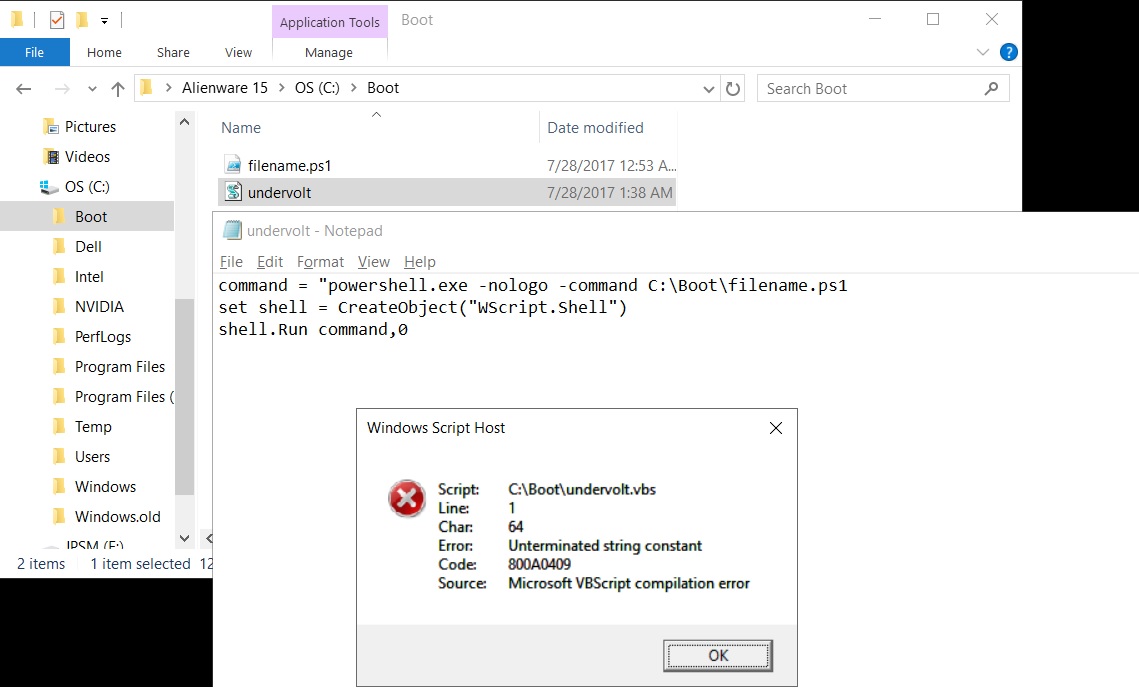
The filename.ps1 i set is working fine when i run it but i am getting this error when i try to open the .vbs file. i set my undervolt to -140 btw
Attached Files:
-
-
Error message is quite literal. Error is in line 1, 64th character (spaces are counted as characters). You are missing quotation mark after .ps1
command = "powershell.exe -nologo -command C:\boot\undervolt.ps1 "
Edit: it seems it looks like I did not make that visible in the guide to close quotation will fix, thank you for bringing it to my attention
Eria Tarka and jpsm like this. -
Yes you didnt but it was my fault too for being so bad at this. This is why i barely passed c++ and java when i took it in high school. LOL
Edit: seems to be working now! awesome job! thanks for the guide and patience!
Eria Tarka and ThatOldGuy like this. -
PFFF!!!
This works like a charm!
Thanks buddy. -
Im trying to set it up again on a new R3 and for the life of me cant figure out what am I doing wrong.
At the windows start the "how do you wanna open this file" message keeps pops up and nothing is done.
Is like the .ps1 file is not opening in powershell, though it should open straight up the notepad right?
I really dunno. First time I did it on the other R3 all worked like a charm.
Edit:
Neeeeevermind.
Started from scratch and it worked, still dunno what the hell.Last edited: Sep 11, 2017ThatOldGuy likes this. -
You can copy files and reuse them as long as directories are the same. Still never works for me the first try because I ALWAYS forget step 4
4) Search for powershell, shift-right click, run as administrator and run: Set-ExecutionPolicy RemoteSignedhmscott and Eria Tarka like this. -
I just wanted to say thank you for this. I hope you don't mind but I posted this helpful guide to us poor overheating Asus GL702 users in the Asus forum thread pertaining to this XTU application.
On a side note, I opted to not have powershell execute silently, per the instructions in the guide and it doesn't show for just a couple seconds. The blue powershell box literally stays on my screen for far far longer, about 20 seconds (non-NVMe SSD). The box remains blank as it waits for every last item in my sys tray to load, and then finally executes the vbs script and closes. I don't know if that's a Win10 "Creators Update" added issue or if I did something wrong. I mainly just want a visual confirmation that it is being applied but that's excessive... though I'd rather have that than nothing at all.
A video of just how long powershell lingers on screen upon login from a fresh boot:
Last edited: Sep 18, 2017ThatOldGuy and hmscott like this. -
It sounds like you have way too many startup tasks. Your system tray should be on in 5 seconds max with SSD.
You should try disabling almost everything on startup except for Audio, Antivirus, and your ASUS keyboard light drivers. You have no need for iTunes, Steam, Java, ONEDRIVE, or 3rd party apps to be on startup. (OneDrive and Steam are the biggest slowdowns)
Also, in control panel> AdminTools> Services, Disable Superfetch and WindowsSearch nonsense by right clicking and Properties, startup type to DisabledKVW likes this. -
I do have a lot of 3rd party apps unfortunately. I'm sure there's a few I can clean up (like Steam as you mentioned though I do actively use one drive) but there will be many that must stay such as MSI afterburner (GPU undervolt), RivaTuner (FPS cap), Google Chrome, Logitech software, etc. I made a video and added it to my post to demonstrate and it turns out it's actually longer than 20 seconds, it's 30 seconds! Yeesh. Anyway, I appreciate your wonderful guide & input. I was just wondering if there was a way to execute immediately vs waiting for all the other apps to finish or manipulate the script to launch at the end.
Edit: I removed some start up services (Steam, Origin, Superfetch,WindowsSearch, some Asus utilities, Foscam and Futuremark crap that I didn't even know was running, "Geforce Experience", and got it down to 21 seconds. I also tried changing the property of the service from its default setting "Automatic (Delayed Start)" under 'Startup Type:' to "Automatic" but it didn't have the desired effect. I can't find where I can manipulate the order these services load anywhere. Anyway, it's not too big of a deal. If there's a way I can just make the dialog box auto-minimize after it appears, that would also be a fine compromise and still sufficient as a visual cue.Last edited: Sep 18, 2017 -
You want to keep the RTSS, but the others you can exit after boot up - they do their settings and then afterwards can be exited safely - and by doing so you stop them sucking CPU for useless tasks - XTU, AB, Logitech, GFE, DVD stuff, and of course any background processes that just hang around after boot and don't do anything.
I stop most everything from starting at boot up, including XTU, AB, Logitech, Steam, anything I don't need to start up - that way I can manually configure my sessions use after boot.
Keeping a slim startup can help when debugging problems, and you'll find specific app problems as you start up each individually after boot.Last edited: Sep 18, 2017KVW likes this. -
The Full List Of ID (The previous one is not complete)
48 Turbo Boost Power Max 47W 1.000 4095.875 0.125 7994
47 Turbo Boost Short Power Max 58.75W 1.000 4095.875 0.125 7994
49 Turbo Boost Short Power Max Enable 1 0 1 1 2
66 Turbo Boost Power Time Window 28Seconds 0.25 96.0 0.062 35
80 Overclocking Lock 1 0 1 1 2
50 Package Turbo Power Lock 1 0 1 1 2
84 Processor Current Limit 85.000A 0.000 1023.875 0.125 8192
41 Enhanced Intelr SpeedStep Technology 1 0 1 1 2
26 Intelr Turbo Boost Technology 1 0 1 1 2
1 Reference Clock 100.000MHz 100.000 100.000 Less item in Supported value list. Item Count - 1 1
2 Core Voltage 0V 0 2.000 0.500 1538
34 Core Voltage Offset -120mV -1000 999 1 2048
81 Processor Graphics Voltage 0V 0 2.000 0.500 1538
83 Processor Graphics Voltage Offset -80mV -1000 999 1 2048
77 Cache Voltage 0V 0 2.000 0.500 1538
79 Cache Voltage Offset -90mV -1000 999 1 2048
87 Processor Integrated VR Efficiency Mode 1.0 0.0 1.0 1.0 2
86 Processor Integrated VR Faults 1.0 0.0 1.0 1.0 2
29 1 Active Core 32x 8 36 1 29
30 2 Active Cores 31x 8 35 1 28
31 3 Active Cores 30x 8 34 1 27
32 4 Active Cores 29x 8 34 1 27
3489660933 Processor Core Ratio 29x 8 34 1 27
76 Processor Cache Ratio 34x 8 36 1 29
59 Processor Graphics Ratio Limit 11.5x 0.0 28.5 0.5 58
************ Monitoring Information *****************
ID Name Value[Unit]
1000 Package TDP 6.003545654439001892142867264W
1001 Core TDP 1.9554628582580730397880863852W
1002 Graphics TDP 0.0795015291658683625521781709W
2768240644 Core Voltage 0.691V
15 Reference Clock Frequency 99.7690220041925MHz
5 Max Core Frequency 2.1468163650102894762754705818GHz
4 Active Core Count 0
3 Thermal Throttling 0
7 Core 0 Temperature 52°C
8 Core 1 Temperature 56°C
9 Core 2 Temperature 54°C
10 Core 3 Temperature 57°C
41 Core 0 Frequency 2.10507438636964GHz
42 Core 1 Frequency 2.11808256777512GHz
43 Core 2 Frequency 2.15178651838451GHz
44 Core 3 Frequency 2.03872352393357GHz
65 Core 0 Voltage 0.693V
66 Core 1 Voltage 0.691V
67 Core 2 Voltage 0.692V
68 Core 3 Voltage 0.691V
90 Core 0 Utilization 13%
91 Core 1 Utilization 9%
92 Core 2 Utilization 18%
93 Core 3 Utilization 12%
2701131777 Package Temperature 55°C
20 Processor Cache Frequency 2.2946875060964275GHz
22 Power Limit Throttling 0
23 Current Limit Throttling 0
6 Processor Graphics Frequency 598.61413202515500MHz
2768240652 Graphics Voltage 0V
2768240653 Graphics Temperature 53°C
Thank You OP, this is what i have done to apply all my profile, and it worked!
$status = get-service -name "XTU3SERVICE" | Select-Object {$_.status} | format-wide
if ($status -ne "Running") { start-service -name "XTU3SERVICE"}
& 'C:\Program Files (x86)\Intel\Intel(R) Extreme Tuning Utility\Client\XTUCli.exe' -t -id 34 -v -120
& 'C:\Program Files (x86)\Intel\Intel(R) Extreme Tuning Utility\Client\XTUCli.exe' -t -id 29 -v 32
& 'C:\Program Files (x86)\Intel\Intel(R) Extreme Tuning Utility\Client\XTUCli.exe' -t -id 30 -v 31
& 'C:\Program Files (x86)\Intel\Intel(R) Extreme Tuning Utility\Client\XTUCli.exe' -t -id 31 -v 30
& 'C:\Program Files (x86)\Intel\Intel(R) Extreme Tuning Utility\Client\XTUCli.exe' -t -id 32 -v 29
& 'C:\Program Files (x86)\Intel\Intel(R) Extreme Tuning Utility\Client\XTUCli.exe' -t -id 79 -v -090
& 'C:\Program Files (x86)\Intel\Intel(R) Extreme Tuning Utility\Client\XTUCli.exe' -t -id 83 -v -080
sleep 4
stop-process -id $PID -forceGeforce2go, ThatOldGuy and hmscott like this. -
Thank you for this guide! It worked perfectly for me.
Unfortunately however, it stopped working recently for reasons unknown. When I log in or when I run the task manually from task scheduler, Windows asks "How do you want to open this file?". I tried selecting wscript.exe as the program to open the vbs file and making sure the default program for .vbs files is Microsoft Windows Based Script Host, but the script still won't run on it's own. I haven't touched XTU, the ps1, nor the vbs but recently it just stopped working. Just wondering if anyone else ran into this problem due to some Windows update or if it's just me? -
-
I have never seen this problem. If selecting Microsoft Windows Based Script Host in your settings as default doesn't work; then there you may get it to work by changing the file type to a .VBE
This is done by encrypting the .vbs file.
Try this site (I am on my phone, tell me if it works or not, I cannot test):
https://master.ayra.ch/vbs/vbs.aspx
hmscott likes this. -
I know it was said earlier in the thread from the last time it happened , but in case anyone missed it. With the new creators update I had to redo step 4 in order for the auto undervolting to become active again.
hmscott likes this.
How to automatically under-volt in XTU without opening it
Discussion in '2015+ Alienware 13 / 15 / 17' started by ThatOldGuy, Mar 3, 2017.