 Problems? See this thread at archive.org.
![[-Mac-]](images/avatars/[-Mac-])
Are you talking of that for L521x?
Inviato dal mio GT-I9100 con Tapatalk 2
-
Received my Costco XPS top tier a couple days back. Looks good so far - haven't had much time to use it. hear minor whine, don't see anything else major. dell update doesn't work... keeps crashing.. after i rec'd my xps, got an email from costco support stating there is a delay and dell site showed in production... lol
QQ for other costco buyers, did your xps ship with usb network adapter and usb recovery disk? mine didn't. Also, can I get this for free from dell.
Thanks.
ps: system looks great, so far (cross my fingers) no major issues except for that stupid whine -
How can you get a Network Adapter free from Dell? I thought they are selling for $25? @.@
-
hi jphughan - i have the top spec (16gb/512gb) as above and have similar partitions - however i don't want the rapid start and want to keep the recovery partition (considering that dell didn't include the usb recovery with my package), what other partitions can i safely delete? also, do you know what is the 490mb recovery partition for?
Thanks a lot for all your help in this forum! -
My bad then - I thought they were bundling it with retail units and not with costco units. Maybe they're bundling it with m3800. Sounds like a poor decision on Dell's part on not including network port or adapter for a premium product.
Thanks! -
Can PM me a screenshot of your Computer Management > Disk Management screen so I can see the sequence of the partitions? The 490MB Recovery Partition is probably the WinRE partition which is required, but normally only 300. Dell might have added some extra tools to it or something.
The USB Win8.1 installer can be obtained for free from Dell by calling Customer Support. The USB network dongle is only included for free on the M3800 -- but it's a USB 2.0 unit anyway, so unless PXE booting is important to you, I'd buy a third-party USB 3.0 unit. I have one from StarTech that includes a USB 3.0 passthrough port so you don't lose a port by having the LAN adapter connected. -
I think its the same one but it fits the 9530 like a glove. Like it was made for this one and not the 521. I had the 521 and this would be a very tight fit for that one but its perfect for this model imo
-
Thanks... I figured as much.
I've had the fail to resume properly problems too.
What's the best way to get rid of rapid start without breaking anything? I guess I'll still have an unusable 8GB partition no matter what. I guess I could format it and mount it to a subfolder of the NTFS C drive. Why would Dell configure it this way? -
There's another review out, this one's from Hothardware and the xps 15 got their editors choice award, not bad.
http://hothardware.com/Reviews/Dell-XPS-15-Touch-Screen-Laptop-Review/?page=1 -
Without breaking anything, disable Rapid Start either in the BIOS or the app inside Windows, then uninstall the app. Then you can delete the partition. Unfortunately there's no ideal way to place the Rapid Start partition if you also want to keep the factory restore partition. For example, placing it between the OS and factory restore partitions would've created a problem if you upgraded your RAM and needed to extend the Rapid Start partition. I guess they could have put the factory restore partition before the OS partition, but then people who don't care about that partition couldn't reclaim that space for their OS. There's no way to please everyone.
Personally I always do a clean install so I never care about the factory restore option. -
Got mine this week. Dell included the wrong power supply though so I didn't want to use it for the first few days. Still waiting on a replacement power supply (!) but in the meanwhile I bought an XPS 12 charger off ebay for £10 which seems to be doing the trick.
On the whole really pleased with it, but quite a few high DPI issues with the different apps I use. Chrome seems to be the worst offender. Had to disable Windows own HiDPI mode for it, and then enable Chrome's own one with the chrome://flags page.
Quite surprised that I don't mind the trackpad. I upgraded from an XPS L502X and I usually much prefer to have actual buttons on the trackpad, rather than an all in one solution (I had a Macbook Air and absolutely hated the trackpad). Seems to work OK on this though.
Games though - Really not pleased about them appearing in a small window when they're supposed to be full screen. Tried Batman Arkham Origins and Saints Row IV so far and both of them are the same. Does anyone know if there is a fix on the way for this? -
As far as I know, Intel Rapid Start requires a different size partition, as Intel clearly documents that you need a partition equal in size to the system memory for Intel Rapid Start to work i.e. 8GB is not sufficient. You can check this post Dell XPS 15 (9530) Flawed mSATA Setup - Laptop General Hardware Forum - Laptop - Dell Community for more details.
Personally, when I receive my mid-spec machine - I am still waiting - I intend to do the following:
- Clone all the partitions on the 1TB drive to a 1TB SSD (Samsung 840 EVO, a great SSD drive BTW) using Macrium Reflect; will verify I can boot and do normal things. I usually do this step to save some time, as I do not normally need the ultimate control that a clean install gives you
- Follow the instructions in the above post; they look pretty straightforward and I will not need Rapid Storage, as it does not add anything appreciable to the user experience when you have a main SSD. However, I do like Rapid Start, as when it does work, it seems to work well. even with SSD onboard, and I would not want to "waste" the space on the 32GB mSATA drive
That way if I need more SSD storage in the future, I can replace the relatively small mSATA unit with something a bit more useful.
I will post back here once I have verified that these steps to re-size the Rapid Start partition actually work. -
Does anybody uses or know of a good trackpad protector? I think I would use it since the discoloration bothers me quite a bit...
-
If you'll be installing an Evo, I'd remove the cache unit entirely. Rapid Start seems to have trouble resuming on this system (kind of a deal breaker IMHO) and it doesn't start any more rapidly anyway now that I've been testing regular hibernation. And Smart Response (not Rapid Storage as you mentioned, which is just the name of the driver) might even slow your system down since the cache unit might be slower than the Evo.
EDIT: Thinking about it, cloning may not even be possible since the 2.5" drive will technically be part of a RAID array with the cache module, so Macrium would see the two drives as one unit. So a clean install may be your only option, but I'd strongly recommend that anyway. -
Thanks for the advice, appreciate it. Once I fire up Macrium on the unit, I will check to see what what it "sees" as the drives and then I can go from there. No biggie if I have to go the clean install route and certainly not hung up on using Rapid Start. I eagerly await my new laptop for sure!
-
I have the same issue with the non-full screen games. I believe the problem is with the Intel drivers - there's no proper display scaling mode when you're at 3200x1800 (and since optimus goes through the intel card, it's always an issue). The workaround I came up with was to install this: HotKey Resolution Changer Toggles Your Monitor Settings with a Key Stroke which basically switches your resolution with a hotkey. I set 3200x1800 to Ctrl-Shift-H (for high) and 1920x1080 for Ctrl-Shift-L (for low), and I just toggle to 1920x1080 before I play a game.
A little inconvenient, but it works. Also I think at anything besides 3200x1800 the drivers will scale properly, so just switch to any lower res before gaming, then switch back to 3200 afterwards. Hope that helps!ctafield likes this. -
Has anyone seen a review of the new XPS 13 Haswell touchscreen yet?
-
Check out the Zagg Shield line of products, Best Buy and computer stores should have them. I bought one intended for a tablet, mostly so I would have extra material to work with, and just cut it to fit and put it on the touchpad (dry, did not wet it). Works fine.
-
When updating drivers off the Dell site I accidentally installed the FHD Touch Panel Firmware Update rather than the QHD+. The version numbers are the same, and when I tried to install the QHD+ driver it stated that it was already installed.
I have not noticed any performance differences. Do I need to do anything about this or am I good to go? -
The updater file that gets extracted is the exact same size regardless of which you download. If you want to confirm that they are in fact identical, run a hash checker on each. If the hashes match you're fine. If not, you may have installed the wrong firmware, but I'm not sure what you could do about it at this point.
-
Sweet will go to an Apple store and bring my 9530 (that should get interesting!)
brenthaven collins - Apple Store (Canada)!
I actually bought the one below to have as a sleeve only in December but it was about 1/2" too tight lengthwise (wasn't super crazy about the exterior finish but liked the handle and interior)
BX2 Sleeve I - Black | Brenthaven.com
I also ideally want something I can leave my Logitech mini USB receiver plugged in when it slips into the case/sleeve. The Sleeve Plus looks like my Anywhere MX might potentially fit in the cell phone zipper (best laptop mouse ever IMO)
Collins Sleeve Plus - Indigo Chambray | Brenthaven.com -
Hi Guys,
I have a motherboard replacement, and something weird has been going on. Basically before I had the motherboard replaced, I could access the Color change option in the Windows Mobility Center. Now since they have changed the motherboard (same mSATA SSD with no change to the windows installation), the option has now disappeared AND the color mode has returned to splendid, and I can't change it back. Check it out:
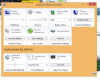
It's killing me... it's too colorful.
Please, any tips on how to get it back?
Many thanks! -
Make sure you boot with the built-in panel enabled. If you have an external panel connected and your Windows environment configured not to use the built-in panel in that case, either enable it and reboot, or just boot without an external display connected. For some stupid reason that option gets hidden if the built-in panel is disabled when Windows boots.
If that doesn't fix it, try reinstalling Dell Quickset? -
is anyone havin issues with wifi? my signal stays at 3 bars constantly, even right next to my wireless router.. its been working fine since I got minus few limited connections(connection with he yellow exclamation mark) and was getting 35+ down in this area. now I get 10 down and even next to the router I get 10 down. downloaded the most recent driver.. 16.8 still doesn't work.. hmm faulty wifi card?
-
Is there someone that has already tried this sleeve by Dell:
Dell Slipcase - 15" : Computer Accessories | Dell -
What router? Update its firmware? Use an app like InSSIDer to see whether there are new sources of interference around you on the channels you're using?
-
i believe it is the N300 wireless router by netgear. all my other devices are working fine. atm I still have 3 bars, I rolled back my drivers to 16.5.1.6.. im getting normal speedsbut 3 bars. but im sure its gona happen again where itll go back to its issues. tryna figure out why its doin this,,
-
Check the Wifi power savings mode in Power Options > Advanced. I wouldn't worry too much about bars, personally.
-
what driver are u using? cus idno before today my bars would move around to full to 4 to 3 , etc but now its basically at 3. internet doesn't work at times.. idno whats goin on..
and I checked and its on maximum performance.. -
Thanks. But I dont have an external monitor and have unistalled and reinstalled Quickset too.
It's still not appearing. Really frustrating. Any other ideas? -
I'm using 16.8 but I don't really bother watching my bars or Wifi speeds. I only ever browse and stream videos from my laptop to other devices via DLNA, and those never have issues.
Wow, that's a new one then. I'm still surprised this changed as a result of a motherboard swap, but then again I never did any research into how exactly the splendid mode changes are implemented, i.e. driver, GPU firmware, panel firmware, etc. I'm also surprised that you're now defaulting to splendid mode, because on a clean Windows install I did, it was in generic mode and I had to install Quickset AND manually enable splendid mode to trigger it.
Not sure what else to recommend at this point. A clean wipe should definitely fix it, but that's hardly a simple undertaking.
EDIT: Now that I think about it, I wonder if my clean install defaulted to generic purely because I set generic on the factory build before wiping. If that feature is implemented in firmware somewhere, that would be expected, in which case I imagine some clean installs might default to splendid. Would be worth testing if for no other reason than to learn more about how it works. -
Picked up the Sleeve Plus today I love it as well. I checked out the Collins Sleeve as well and while it's nice for a sleeve I just saw the Sleeve Plus being much more versatile (i.e. a shoulder strap, cell phone pocket, additional interior pockets) at essentially the same volume when just carrying the laptop by itself. Laptop slides in like a glove and also fits with a USB mini receiver connected (although quite snug and need to be careful putting it in). Likely I'll just remove the mini receiver and put it inside my Anywhere MX when I travel anywhere. The Sleeve Plus has enough room to carry the power cord/supply along with a few accessories as well. Well worth 60 bucks :thumbsup:
-preview.jpg)
-preview.jpg)
-preview.jpg)
-preview.jpg)
-
I'm trying to understand the touchpad discoloration that people keep mentioning. As far as I can tell from my experience it's not permanent damage at all. It definitely picks up finger grease etc which shows pretty easily depending on the light but every so often I literally get a cotton rag wet with water only and give the surface of the laptop a wipe. Looks like new afterwards and you'll have the same 'grease' on any laptop touchpad it's just much easier to see on this finish
-
Hi,
just received my top-tier model on Friday- ordered on 12/09/2013. So far, I am very happy with my new XPS, however there are a few issues I am currently facing:
Firstly, I am also experiencing the coil whine (It is audible the whole time and it is annoying unless I set keyboard Illumination to max. which consequently reduces usage time on battery). Had a similar Problem with my old Retina MacBook that's why I concluded to set Keyboard Illumination to max.
Secondly, I am not satisfied with the stock touchpad drivers the Dell ships with (17.0.15) that's why I tried to get the generic ones from Synaptics (17.0.19). Unfortunately Installation fails. Any suggestions on this?
One more question: Is there the possibility to somehow sharpen the picture on external displays? Whenever I connect my XPS (via miniDP to VGA) with my Dell Monitor (Resolution of 1680*1050) everything is blurry on the external Display. Note that I do not want to use external display and internal display simultaneously. I only want to use the external Display at an acceptable sharpness.
Thanks in advance for your support! -
You need to find somewhere they still hosts Synaptics 16.x drivers. This has come up many times and I've personally posted the exact version number in this thread to aid in Googling a few times, but I'm away for the weekend so I can't check again.
For bluriness, stop using VGA. Pretty simple. If it worked fine on other machines, maybe their analog circuitry was cleaner, but that's your problem. The only other possibility is if your internal panel is still enabled even if you're not using it and this you're getting per-display DPI scaling. You can test that by disabling per-DPI scaling and choosing 100%, then logging off and back on. If that does fix it and you want per-DPI scaling to avoid manually toggling when you switch displays, then remember you'll need to log off and back on every time you connect or disconnect the external panel (and disable/enable the internal one at the same time) so Windows can re-optimize for the new scale factor. -
I have just noticed that there is a big difference (average of 72 cd/m² ) in display brightness between EU model and US model, you can see in NotebookCheck Review:
Review Dell XPS 15 (9530, Late 2013) Notebook - NotebookCheck.net Reviews
I think is due to a simple tolerance in construction, maybe it's a different setting for US market, or simply they have forgot to disable adaptive brightness. -
Hi I just got my top tier on Friday. I kept having IRQL NOT LESS THAN EQUAL error message everytime I start. But will go back to normal after windows checking process...anyone got the same issue?
Sent from my SAMSUNG-SGH-I337 using Tapatalk -
Pease advise if I am doing this incorrectly, as I have not used checksum before and am guessing as to the "file" I need to run the checker on. I downloaded both the FHD and the QHD+ touch screen firmware files and extracted them. The extracted files are "install" (batch file), "mup" (XML document), "setup", and "version". The version numbers are the same for the 2 firmware files. I ran MD5 checker on both "mup" files and they matched. I am assuming that these files contain the firmware update based upon what I saw when I opened the XML document. -
Probably the latter, seeing that their calibration results (which they called out as mediocre) seem to have been based on the machine running in splendid mode given how their numbers compare to what others are reporting.
-
The firmware file itself is probably in the setup file; I'm not aware of executable code residing in XML files.
-
hmm turns out that my router had a firmware update available, I had to go through netgear website. crossing my fingers..
the interesting part is that if I use 16.8, I only get 10 down when my old drivers get 30+.. weird. so far no drops just dropped in signal strength slow in multiplayers -
Thanks so much for your help. Checksums for both versions of the setup files also match, so think I am good to go.
-
Thank you very much! However, unfortunately I have been looking for the newest Synpatics drivers (assuming that the ones, the Dell ships with (17.x.) are still better than the generic Synaptics 16.x. ones). Any idea on how I can get the newest Synaptic drivers working on my laptop? Deinstalling the stock drivers and trying to reinstall the newest Synaptic generic Driver instead did not work
What I've done now, is connecting the external Display via miniDP to VGA and (manually) change the DPI-scaling from 200% to 100%. If I do this, display quality on my external Display is as good as it has always been (even though I am using VGA). Is there any way to manually set different scaling profiles i.e. if I connect an external Display it automatically Switches to 100% scaling and as soon as I disconnect it, it reverts back to 200% scaling for the QHD+ screen? So far, I am only aware of the automatic per Display scaling Windows 8.1 offers (. However, the automatic adjustment doesn't seem to work for me as I only have the choice between "bigger" or "smaller" (recommended; unfortunately still blurry) elements on my external Display.
Hopefully there is an easy solution for my Problem. Actually I don't want to Change DPI scaling manually everytime I connect my Laptop to the external Display.
Thank you all for your Support! -
I can confirm that hashcode (CRC32,MD5,SHA1) for setup.exe and mup.xml are the same on both version QHD+ and FHD.
The difference are on install.bat and version.txt, but these differences are irrelevant.
So firmware updater for QHD+ and FHD touchscreen is the same file. -
I have to say that XPS cover is extremely delicate you can scratch very easily.
I really don't understand how people can use XPS15 with cover closed, the cooling system blows right in front to display, if you keep closed then you are blocking the exhaust air flow. -
I know this, but on my one does not go away with just some water, and I need to use some light soap as well. Since I do not think this would be too good on the long run, I am looking for a cover to put on it so that I will not have to worry anymore.
-
Hi,
i have my XPS 15 for about 2 months now and my display is already showing signs of burn-in. I noticed it on the gray windows 8 shutdown screen. I read that the sharp igzo panels had these burn-in issues and failed apple quality assurance tests for the ipad. I hope i just have a bad panel and will call the support to get it fixed.
Is anyone else having these issues? I really hope this isn't a problem on all panels and the replacement will have this problem again after a few months.
I uploaded a picture where you can clearly see the windows icon and system tray, taskbar. Even the addblock plus icon from firefox is visible.


-
The newest Synaptics drivers simply won't work on our systems. I don't know why, but they don't, and if you try to hack the driver to make it work, the signature check will fail, and running 8.1 with driver signing check disabled seems a little bit of an extreme workaround. The version that does work is 16.3.15.1, which you can download here: Download Synaptics Touchpad Driver 16.3.15.1 for Windows XP, Windows Vista, Windows XP 64 bit, Windows Vista 64 bit, Windows 7, Windows 7 64 bit. It's either that older version (with no subsequent upgrades) or the Dell version. Take your pick.
As for automatic scaling, no there isn't a way to do that -- yet. The reason is that Windows 8.1 is the first OS to introduce an API to notify applications that the DPI has changed, and thus most applications (and even certain elements of Windows) don't support it yet. Remember back in the Windows 95 days when even changing your screen resolution required a reboot? Well that was true for the same reason, and that requirement eventually went away because applications started supporting and responding to the resolution change API notification. In time the same will happen with this, but we're not there yet -- so in the meantime, your only way to deal with it is to log off and back on whenever you change your display setup.
You can make this (slightly) less painful by turning automatic scaling back on and then configuring your external panel as primary when it's connected, which will optimize scaling for that panel while it's available (at the cost of making your built-in panel look a bit worse if you use it at the same time). Then when you disconnect your external panel, all you have to do is log off and log back on for everything to be optimized for the remaining panel, rather than having to manually change the DPI scaling and THEN do the logoff/log on dance. -
Wow, this could be a deal breaker for me. The next months will show whether this is a general problem...
-
Yup it looks scary. Fortunately I have all 4 years straight complete care ^^
XPS 15 (Haswell) Owner's Lounge
Discussion in 'Dell XPS and Studio XPS' started by mark_pozzi, Oct 23, 2013.


