Problems? See this thread at archive.org.
The system seems quite capable of gaming with the stock drivers. And temps reported dont seem that bad IMO.
And hello there!
-
I have the lines on my display. I believe it is an unfortunate aspect of that particular display. I've had a couple other machines over the years with the same type of lines. It isn't a terrible problem...I have to really look closely to see them. If HP has multiple sources for the display then you may luck out and get one without the issue.
-
Serg,
Found a few more reviews of the Envy 15. They can be found with a Google search, but for the ease of finding info, it would be nice if you could add those to the OP. Links follow:
http://www.pcpro.co.uk/reviews/laptops/353455/hp-envy-15
http://www.laptopmag.com/review/laptop/hp-envy-15.aspx?page=1
http://www.pocket-lint.com/review/4459/hp-envy-15-1060ea-review
http://www.pcmag.com/article2/0,2817,2355836,00.asp
I noticed that in the pcmag review, the Envy 15 achieved kinda low framerates in Crysis at "high" settings. Could "very high" settings have been used in the test? That's the only explanation I can find. -
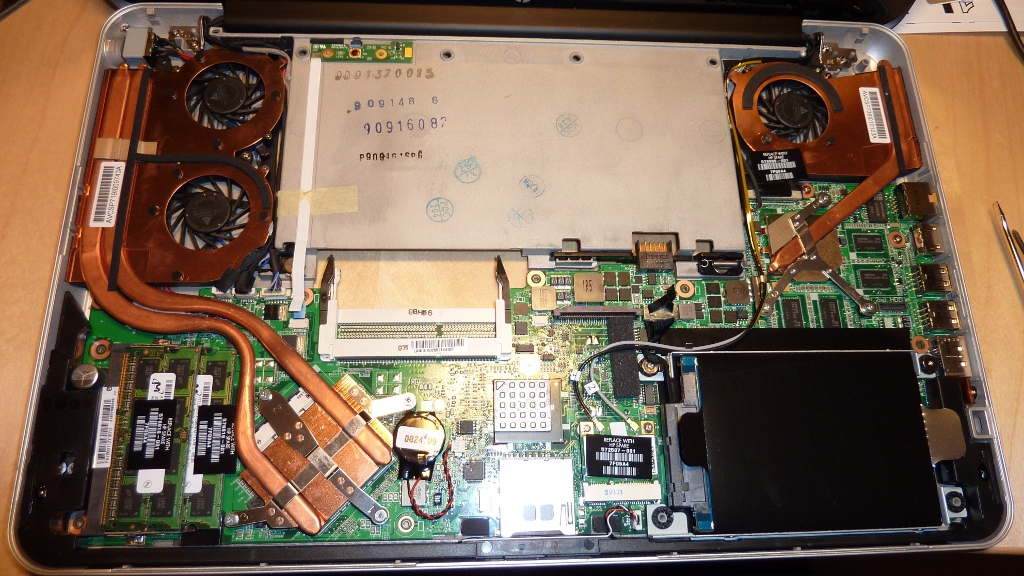
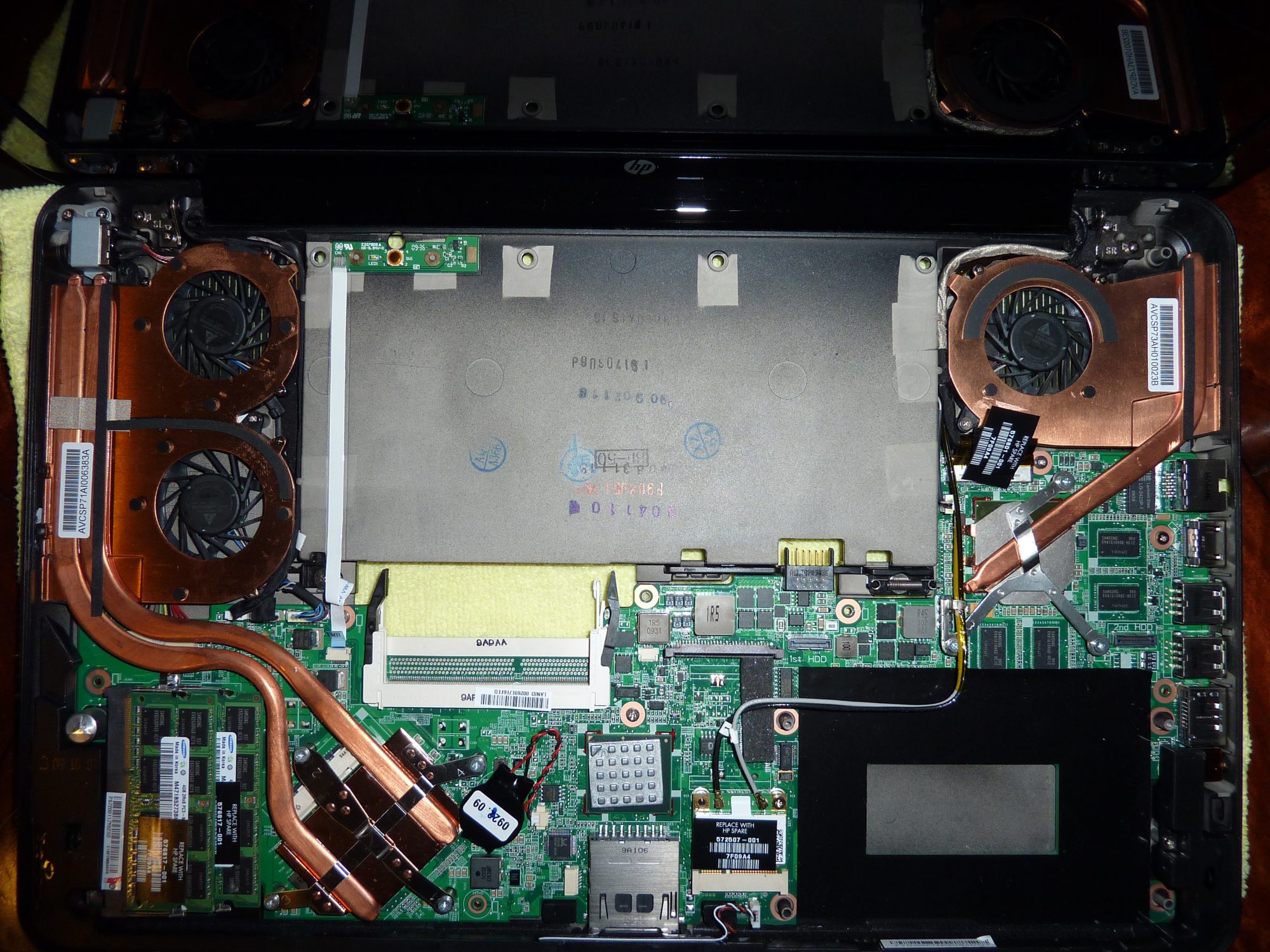
Here is a pic of inside the Envy.
Attached Files:
-
-
It is beautiful inside!!
Thanks webuster, updating now the OP.
Thanks KevinUK, I will put that in the front. -
I've decided to return mine. Got fed up with the crashes when gaming and the screen resolution was low with mediocre quality. Still love the machine though but I think I'll import the next one from the US to get the best screen resolution and the slice battery
-
Hi everyone I am new to the forum and am probably buying an Envy 15 soon...!
I am based in London/Hong Kong but the US price is really tempting so I am thinking of asking my friend to buy one for me (with educational discount as well probably) [Actually the price in Hong Kong isn't bad either, but I think we only have 1066 ddr3 rams instead of 1333 which sounds bad]
Does anyone have any news regarding the ENVY being discounted on Black Friday/Cyber Monday? (I can't even distinguish between the 2 unfortunately =( ) Apparently nothing has been related to the ENVY so far on that thanksgiving saving?
Cheers -
No, the Horizontal Lines have not been resolved. In fact, I went to Best Buy yesterday and their display model of the HP Envy 15 had the same Horizontal lines which leads me to believe that this defect effects most if not all of the Envy 15's.
-
Announcement:
I am sorry. Something is wrong with the OP, o so it seems. Report anomalies please to correct them.
In my PC seems like the post 3 and 5 are duplicated. I am working to sort this out. Let me know if this is an isolated problem or not.
Thanks! -
I wouldn't count on such a large discount again as last year because of how different the climate is for pc makers such as HP. Last year that deal seems to have been used as a way to clear out old stock of which they were sitting on excess amounts of, not to mention low pc sales overall in the market. This year things seem to be looking up, especially with the windows 7 launch and the holidays coming up soon. I wouldn't count on seeing a 40% discount, and even if you did it'll likely be restricted to certain laptop models (ie. not the envy). They make a nice margin on them which im sure they would like to keep.
There is a current promotion I believe that's giving some amount off (something like $150 off) which extends to all their product lines I think. Still worth waiting to see what black friday brings, but don't count on that much is my advice. -
My HP Envy 15 arrives tomorrow, AND I'd like to buy the biggest best monitor for gaming (at least 27-28 inches). What would you recommend? I'd love to get a 30" 2560x1600 monitor, but it looks like the Envy 15 maxes out at 1600x1200 for an external display???? I thought HDMI 1.3 went higher ... please help, this isn't something I've had success solving through blog trawling ... thanks!
-
Hi there brucehal.
I highly suggest the Accessories Forum here at nbr
http://forum.notebookreview.com/forumdisplay.php?f=17
People will be more than happy to help you there, and perhaps give a more educated response. -
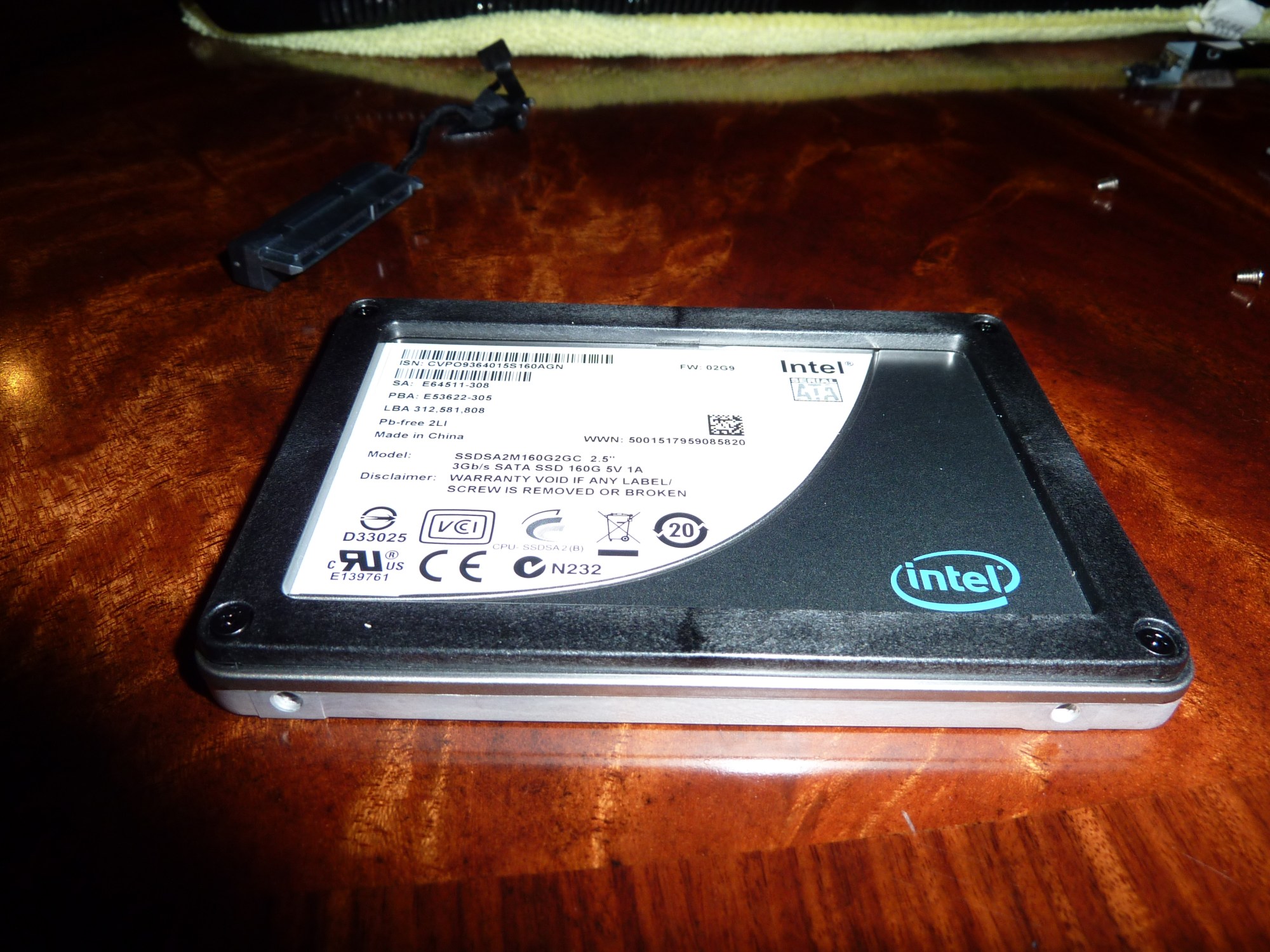
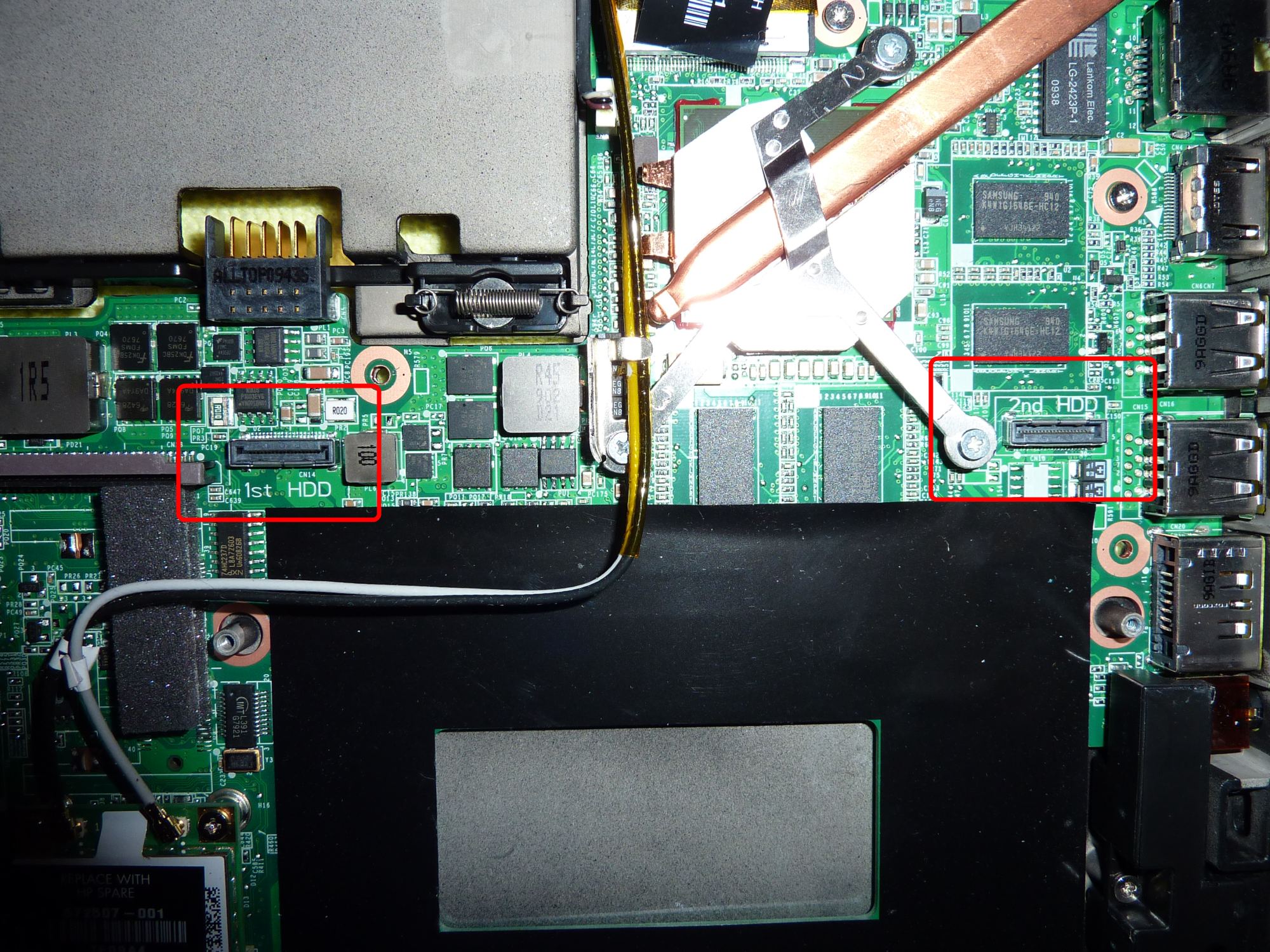
Here are a few pics.
Found out that the clicking sound I could hear under the right palmrest was actually the hdd. I thought it was a wire on a fan. It has been over a year since I used a spinning hdd, lmao.
The right side palmrest creaking is not fixable. There are no air bubbles in the silver tape. It seems that where the keyboard meets the front of the case has very tight clearance. The paint on the lower case seems to be thick enough to creak against the keyboard. I think, in time, these pieces will wear and the creaking will go away.
The Envy has really cooled down. It is very strange. Maybe it is because I have installed the ssd and uninstalled almost everything except the drivers or maybe there is a "burn in" period for the heat transfer paste on the cpu. Uninstalling everything unnecessary may have caused less load on the cpu hence less heat. I should have taken a screenshot of the processes before and after the cleanup and ssd install.
I am at a loss of words for how much of an improvement this trackpad is over any other I have used. It is simply a pleasure.
The keyboard, although not illuminated, is nothing short of fantastic. It is solid with plenty of feedback. Keyspacing is nearly perfect for my paws. I personally like the reversed function keys. I don't mind using fn when I need a f key. This has made operating the Envy more efficient for me.
The Envy's 1080p screen is beautiful. Luckily I have no visible lines as others have found. If you wear glasses don't expect to take them off while using the Envy. The text is very small. Thankfully, I don't wear glasses and I would not want the text any smaller. W7 scales nicely so it should be ok none the less.
A few tips for anyone installing an ssd:
1. HP's like the "reverse cloning" process, ssd in the computer, original hdd in an external case.
2. Use Acronis TrueImage(can be found online for $29) to make an image then restore that image to the smaller ssd. This worked better for me than cloning for some reason.
3. After cloning or restoring to your ssd make sure to boot the first time into SAFE MODE. This will allow w7 to install the necessary driver for your new drive.
4. Now your in w7. download, install, and run ssdtweaker. This is a handy little free program that will save you alot of time changing setings.
5. Go here and do most of these tweaks if you want max performance from your drive: http://www.ocztechnologyforum.com/forum/showthread.php?t=63273
**Be sure to disable defragmentation schedual and leave superfetch alone. Read the entire thread before you start tweaking!
6. Use MyUninstaller, also free, to get rid of those pesky hidden programs.
I'll have the vids up shortly. I still wish there was matte screen or e2e display and glowing/lit keys. That's about the only complaints I have left
Attached Files:
-
-
What is the actual finish of the black-paint like on the beats edition? From the pictures it appears as though it's a plastic shell on top of the original design, but it could just be black gloss paint in metal. Seeing you pictures makes me rethink going for the stock version haha.
-
I think it is powdercoated. I would be surprised if it were painted. I will try to find an inconspicious place to scratch it and see if it is metal or plastic.
-
I wish people would post videos of their envy 15 running games. I'd love to see it in action.
-
There are some gaming vids in the OP I believe.
-
Thanks, iTBaggedUrMac, for the info on your transition to the SSD. It'll definitely help me in a couple days when mine arrives!
Great pics too!!!
-
We have a 5 minute video of the Envy 15 playing games (including Crysis) in our review: http://www.mobiletechreview.com/notebooks/HP-Envy-15.htm .
-
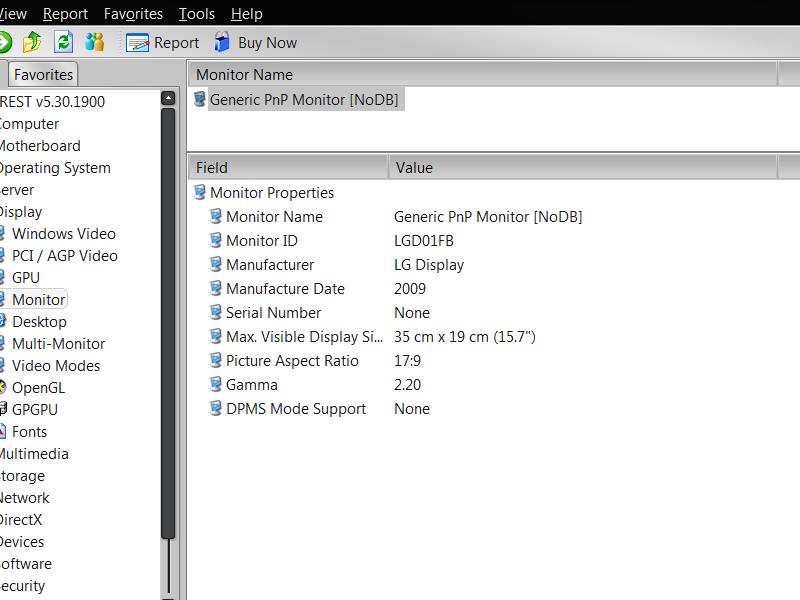
iTBaggedUrMac, if you get a chance, can you use Everest (trial version) and check what display ID and manufacturer you have? Yesterday I went to 3 different stores and all the display models showed horizontal lines, as does my unit, which has an LG display. I'm curious whether or not your display is a different model.
-
Thanks a lot for the info. I was just sort of regretting not ponying up the extra for the beats edition because I really do love the black, just was worried it'd be too glossy for me. Really it was the beats by dre headphones I liked too, but it's probably cheaper for me to get that on my own now. What made you go for the beats edition?
-
Can you guys keep us posted on when the Black Friday Bing Cashback will be on, and about any special discounts that apply to the Envy? Thanks!
I returned my 25% off and want to reorder when Cashback comes back with dual SSD's. -
Here are some more pics of my 15 open.
Also the screws are very straight forward just remeber to look under the rubber feet.
I decided to host my pics up on live since it was easier and I can post the original size images for anyone wanting a close up..
i will try to take better pics this weekend when I add my vertex to the mix.
does anyone know where to source the sata adapter and brackets for the dual 1.8in intel ssd drives? I could not wait for hp or intel to release the G2 versions of those drives.
http://cid-e3165a620fbd7bc3.skydrive.live.com/browse.aspx/hp envy 15?authkey=It1Gr!lNl*s%24&ct=photos -
I believe accessing the hard drive bay voids your warranty. Bummer.
-
If anything comes up for a deal I'll be sure and post it. Still I wouldn't hold out for too much more than the current $150 discount they have running on all their laptops. So far black-friday deals seem to be limited to the lower specced model lines (which have smaller margins on them).
If the cashback did come back though I'd definitely cash in on it to grab some accessories myself (maybe some beats headphones and the slice battery). -
I also upgraded to 12gb ram to mine.
so far my impressions are very simular to everyone else,
I do see the lines but have not noticed them in anything but some backgrounds and menubars.
I have also noticed the clips for the slice are not very good and if you move the laptop on a smooth surface, the slice will stay in place and the laptop will move causing the slice to short and the laptop will crash. some velcro might help but for now I am not using the slice much.
I almost didnt buy this laptop because of no backlit keyboard. the only reason i went with this over the dell studio xps 16 is that dell made me wait a month then changed my order number and to wait another month because the system would need to be reordered. needless to say i was using my macbook pro and could not wait any longer.
The touchpad is still a little too sensitive and when trying to click the left button the curser will zoom to the lower left of the screen but it has gotton much better after loading the latest drivers.
I don't seem to have the same heat issues as others unless i am playing a game or doing a lot (installing 3 operating systems at the same time in vmware workstation)
the dislpay is bright and the colors are good. I have not checked everest yet but it does look like a TN panel as viewing angle seems limited. but that is not a problem for me since I always sit in front of the laptop when using it
-
there are no stickers that would compromise this. just keep the old drive. also there is no way to change the memory in the first two bays if you do not open the case.
-
Nice to know!
-
Speaking of stickers, nobody has commented this, how many are there on the laptop?
I hate stickers, and the Pavilions come with loads of stickers. how bad is it here>> -
I've got the LGD01FB display (which I jsut got from BB), and I am looking hard to see what lines you are talking about. IF I turn up the brightness to 100% (not needed while inside my house), I think I see it...but then again, I feel like I am just psyching myself out too.
Are these lines very apparent and I got lucky, or are they very subtle and it doesn't catch my notice?
Just FYI, I have excellent vision...so it's not that.
-
There are no stickers anywhere on the case except on the bottom under the batteries.
-
And exactly what has led you to believe this?
According to HPs warranty statements it just won't cover if you break it while modifying it. The warranty will still cover you if you replace any parts inside it with official HP replacement parts and the laptop breaks down later on (and it's not because of something you did).
If you replace something with unsupported parts (e.g. different SSD drives that are not listed in the maintenance and service guide), the warranty will still cover you if you can show that whatever breaks is not because of what you did.
Basically: if you break it, it's your fault and the warranty won't cover it. If it breaks outside of your control, the warranty will cover it. -
Is it any harder than changing hard drives to access the two RAM slots that are supposedly non-accessible?
Also, down the road would it be very hard to upgrade the CPU? Or is it pretty much standard? -
On my display, they show up most on blue, like the Windows Aero default desktop.
-
ah okay. I see it with that...but only when I get fairly close to the screen. Well, at least what I consider close.
I probably wasn't' seeing it because my eyes are good and I put the laptop as far away as my knees or arms will allow. -
LG
I have looked at the screen VERY closely. I can see the pixel grid quite easily up close. There are no horizontal lines in the display besides the ones that make up pixel grid.Attached Files:
-
-
Thanks for the info, iT...that's exactly the same Everest info I had. I actually want to hear of more displays without the lines, because if they all have them then I would guess it's highly unlikely that HP would ever do anything about it, whereas if only some displays are affected it might be possible to get them to do a display swap in the future.
-
Here is the ssd install video:
http://www.youtube.com/watch?v=Y05sYNkzSLc
I had to edit it heavily to get under YouTube's new 10 minute limit.
Make sure you use a hair dyrer or heat gun to warm up the rubber feet before removing them with something dull and preferably plastic. This should help them come off easier, with the glue intact, and not scratch up the notebook or cut the feet. Although it may not look like it, I was very careful not to scratch the Envy while doing this. The glue/tape on these rubber feet is very strong. Be careful.
Here is the ssd boot to internet video:
http://www.youtube.com/watch?v=z5TFaE-2jIo
Yes... its fast. -
Thanks for the info and vids. Since you saw the insides, is it hard to access all four RAM slots (specifically the 2 non-accessible slots?
-
It is a very easy notebook to disassemble. Everything is easy to get to imo. I did not run into any snap together parts that always make me feel like something is going to break prying them apart. Just download the service manual and follow it. The hardest part, in disassembly, was removing the rubber feet safely. I will be upgrading to 16gb ram as soon as ddr3 prices drop.
-
Has anybody else had/fixed this issue?
-
I didn't think the rubber feet were any trouble taking off, I just gently lifted them off with my fingers. But using some heating is probably a good idea.
However, I got worried when I saw the 3 tiny miniature cable connectors on the motherboard. I didn't know if there were any clips that you had to press to disconnect the cables (like some desktop connectors) so I didn't even try to do it.
So how do those connectors work, are there any clips to press? Or do you just have to pull on the connector on the cable? Or can you even pull on the cable itself for some of them? -
I don't know if any laptop sends audio out trough the external video connector (VGA out, DVI out or even HDMI out). The video connector is attached to the graphics card and the audio is handled by a completely separate chip with its own audio out signal. The graphics chip doesn't know anything about audio...
I'm not a big laptop guy so I could be wrong, of course. But I did hook up a laptop (not an Envy) to my TV over HDMI once and it didn't have any audio signal either. I don't remember what I did then, but I think I hooked up the audio separately from the audio out. -
For the plastic connector with wires beside the card reader:
There is no lock on this socket. Do not pull in the wires. Pull on each side of the white plastic connector horizontally toward the RAM and it will come off. I used my finger nail to get between the white connector and its scoket. A small regular screwdriver will work if you're carefull. To reinstall just push the white plastic connector into its socket.
For the small white ribbon cable:
There is no lock on this socket. There is a clear blue plastic pull tab on the end of the cable that allows you to pull the cable out of its socket. It should come off very easily. This cable is a real pain to reinstall without some mini angled needle nose pliers.
For the large black ribbon cable:
THIS SOCKET HAS A LOCK! You will notice on the scoket for this cable a brown part with tabs on each side. This brown part of the socket locks the black cable into position. To remove the cable simply pull up on each tab of the brown socket lock and the cable will pull out with nearly zero force. Once the socket is unlocked, the tension of having the keyboard raised should pull the cable out of the socket. Reinstallation is just as easy. Seat the black cable into the socket and press down on each side of the brown socket lock. You will feel and hear a slight click when the lock is down securely.
SATA cable:
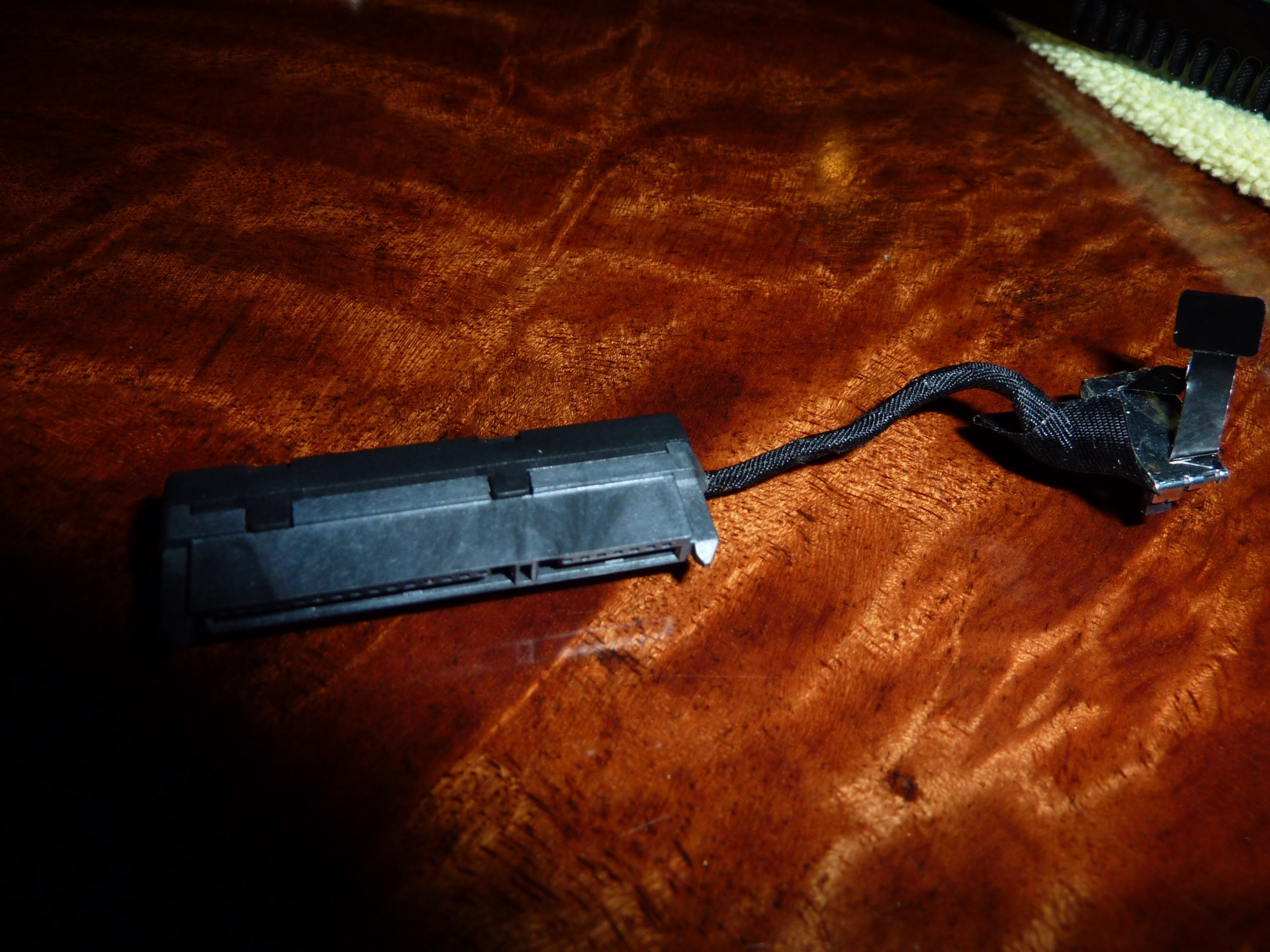
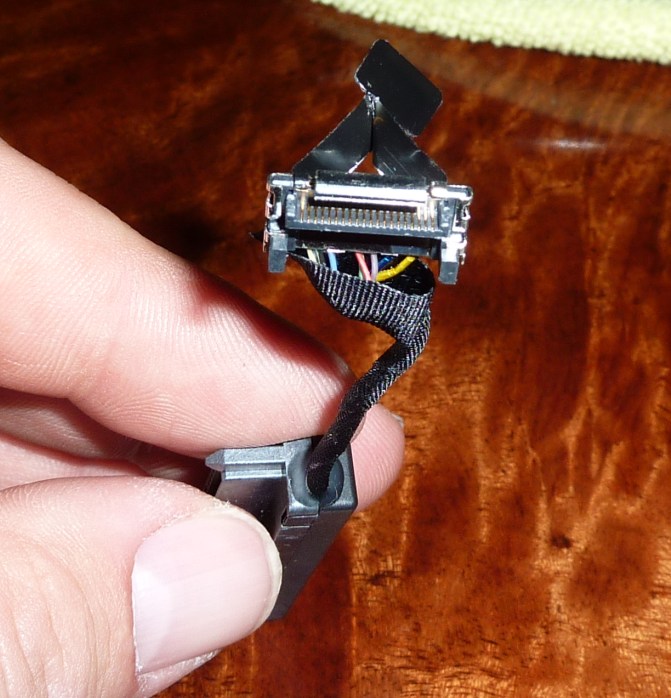
The sata cable pulls straight up with the black pull tab located on the top of the connector. I used my other hand to grab the sides of the connector to give it a little extra help while I pulled on the black plastic tab. -
Many computer HDMI outputs have sound output now (both laptops and desktop). I know of a couple laptops that do it for sure even though they are much weaker systems than ours. Also, my desktop does it too, but I have to connect a cable from the MB or sound card to the video card...and that video card is a couple years old now.
I haven't hooked mine up to my home theater system yet (I have to move my stuff to get to the back...and it's not an easy task)...so I can't say for sure. But I'll try it out first chance.
I thought I read somewhere that it does output sound tho...I'll have to search around. -
My Asus laptops all sent audio through the HDMI. Considering how much these laptops cost, I would be very surprised if it did not support that. I know there were issues and fixes with Vista, but nothing has worked for me. I am hoping it is just an HP driver issue, but I guess I will have to call HP.
-
Ah, well in that case there should be a setting to route the audio out through that HDMI connection instead of the regular audio jack. I guess it doesn't do that automatically since you normally just have an external monitor connected to it but still want the regular audio from the laptop. But you should be able to disable the regular audio out and enable the HDMI audio out in the sound volume settings. Check both the regular Win7 sound volume settings and the Beats audio settings for possible outputs. Make it show "disconnected devices" too.
-
Thanks for the detailed info. We should have this on the OP.
-
It sends audio to my monitor through hdmi.
-
Sounds like it may be a HDCP handshake issue. I have seen this exact behavior with some of the newer A/V recievers connected to TVs that are only 2-3 years old. The recievers will pass video to the TV but not the audio. I hope this is not the case with the Envy.
*HP Envy 15 Owners Lounge! PART 1*
Discussion in 'HP' started by Serg, Oct 21, 2009.