 Problems? See this thread at archive.org.
Hi, sorry if you talked about this already but I wanted to ask what driver are you using for the Nvidia card? I ran some tests using 3D Mark 11 on both the Sony provided drivers and the newer Nvidia drivers and did not see any big differences. I've been having a bit of luck with MrKazoo's overclocking settings but it would be awesome if i could run the card at its peak performance for more than 12-15 minutes.
-
-
MrKazoo's overclocking settings is obsolete. He suggests a clean install of Windows 8.1 Pro as a fix.
I'm doing my part by trying to isolate which Sony driver(s) is responsible for the throttling so that there won't be a need to install Pro. Until then, it looks like the throttling has been fixed through Win Pro according to MrKazoo and KjetilV who successfully ran a game for 30 minutes without any throttling. -
!!!!! EXCELLENT NEWS !!!!!
Ok, so I disabled all the Sony/Vaio services and background processes through Autoruns. I then moved the Sony folder in the Programs Files to the Desktop (it doesnt matter where I put it). I moved it in case some pesky Sony service managed to snake its way to starting up again. Then, I launched COD: Black Ops. And I was able to play the game for 50 minutes without any frame rate slowdown.
So the culprit is one of the Sony services. But its got to be a background service thats not listed on the regular services control panel. Now, I got to find the specific service responsible for this throttling.
I want to thank Cal for showing me the right direction about this. Without him I dont think I would've made such progress. I'll continue to experiment to smoke out the specific service. We're getting VERY close to a final solution here.Last edited: Jul 11, 2015 -
Thanks for the update and the quick reply! I have one more question: does disabling all sony/vaio services work on windows 8.1 or do you have to be on win 8.1 Pro? I would really like to test it out but I cant install a new version of windows right now. And are you still using throttlestop with BD PROCHOT disabled? Good luck testing and thank you for your hard work so far!
-
Hey wwwwasdwww its my pleasure. No, you dont need Pro. My testing was done on Home edition. And no, I'm not using Throttlestop or NvidiaInspector. I'll let everyone know which is the gremlin service causing all the trouble. Just a matter of having enough spare time.
-
The problem you announce guys which seems to be resolved, it's with all the flip model ? 13,14 and 15, with or without nvidia graphic card ? I have 13A fit so no Nvidia card and the fan start when it reachs 45 degrees celsius.
Is there a way to decide when the fan have to starts ? like after 50 degrees Celsisus for instance in the BIOS or anything else... The fan consumes a lot. -
BTW I got no throttling problem or lag, it can be resolve from the Vaio Control Center and you can modified the mode, ecoonomy, regular, performance, and in performance you can even change the throttling everything, the only problem I have is I can't decided when the fan has to start.
-
The throttling we talk about is not the "user-controlled CPU throttling" you describe (based on the Windows energy settings).
We mean the throttling of the Nvidia GPU that is automatically activated on the machine if it get's too hot.
Our last lead is that it is controlled by a service running in the background and as the services can be enabled or disabled individually, there should be a way to get rid of this automatic throttling.
Because the Geforce GPU is specifically put into some 15" Flips to increase graphical performance (and the machines were advertised as such!) it's is completely unacceptable that this GPU is clocked down so much that the frame rates get reduced to 50% after about 15 minutes.
As you have a 13" Flips (without a built-in Nvidia GPU) you aren't affected by this kind of throttling but *all* Flips suffer from the same fan problem you describe. The reviews and posts I read about the 13" Flip indicate that it suffers most from fan noise, though. :-/
The fan speed is automatically controlled by the BIOS of the Flip (depending on system temperature - CPU/GPU) and there are sadly *no* user settings.
As there is also no separate utility (like the kind that is supplied by mainboard manufacturers) you can't control the fan speeds or the temperature limits yourself.
This is the status quo.
Yes, the fan actually consumes energy like everything else on the machine so you need to decide what is more important to you: Performance (with cooling) or quieter operation and longer running times. -
Ok, actually my fan is quiet but running uselessly, I don't really mind, but just the problem is that 45 degrees celsius is not hot at all to start the fan and probably get better battery life (the fan start even with simple surfing on internet with Chrome or anyone else browser), without this problem, I love my 13A fit, and the only ultrabook which can replaces it, is the new one, Vaio Z only in Japan.
-
Just a reminder that I imagine most of you recall, but for those who don't you can reduce our even eliminate the fan on the 13A by setting the Vaio Control Center to "Silent" or the next setting up. Your fan noise will disappear though at the cost of throttling your cpy/igp, but I find that to have no discernable effect on 90%of my uses, including having a dozen or more browser tabs open s snd Netflix or Amazon streaming in hi Def at the same time. Since the 13 doesn't have a d-gpu it's unlikely you would run high stress apps on it, though if you do need to tax it to the max, just free up the fan noise in tune Sonny Control panel and it will maintain a clock of around 2.5 indefinitely.
Sent from my GT-N5110 using Tapatalk -
As you said we have "Silent" mode but yes it brings throttling, but if I sent my Vaio back to Sony Center Services can they fix it ? because the first month I call them they said we have to send them the computer but I needed it to study so I have never done that, If I do, the fan will be very silent ?? and no throttling at all without put "silent" mode and use "normal" mode ? If some people sent their Vaio back to Sony.
-
Can someone please help me disable "all the Sony/Vaio services and background processes through Autoruns" so I can test out the "fix" for the throttling, maybe I can find the process at fault and report it back here... (i know hot to get to services and task scheduler in"computer management" but i don't think i know how to find the background services)
-
Oh, and I would like to ask anyone who has tested the fix and concluded that it works:
Did you erase the recovery partition?
Is your cpu\internal gpu undervolted?
What is your internal temp after say 30min of gaming?
Is is constantly rising or does it stop eventualy?
And finaly, are there any settings that you have changed (eg. gpu power management or disabling the Nvidia PowerMizer)?
Sorry for the long list, it's for research purposes... -
In some websites with pictures and Chrome browser, it's laggy to down page with the touchpad but it's not if I down the page with the touchscreen... You noticed the same problem ?
-
Hey wwwwasdwww. In Autoruns look for any service or background process that begins with 'Vaio'. There are 2 or 3 others that begin with 'Sony', like Sony MPEG Video Decoder. Untick all of them. Save the file in Autoruns as a backup. Then, tick back each one before playing a game until you find the culprit.
I'll start doing my part as soon as I get enoigh time. Think I'll test it tonite.wwwwasdwww likes this. -
I don't think it can be fixed because I believe is normal.
Sent from my GT-N5110 using Tapatalk -
Ok, I've done some testing and I can't get the graphics card not to throttle. I stopped all the processes that begin with vaio or sony using autoruns (from sysinternals), I updated the nvidia driver and the intel integrated gpu driver to the latest version (not the sony one) but i can't seem to get more than 11 minutes without throttling. Can you give me any ideas? I tried to undervolt the cpu/igpu: the igpu can be undervolted safely to -80mV but when I try to undervolt the cpu something wierd happens: if i undervolt to -70mV everything is ok IF the cpu is under load. when it enters an idle state the whole laptop crashes and shuts down. (btw, i am using intel extreme tuning utility to undervolt) Any ideas are welcome! thanks!
-
I am suddenly having problems with Headphone Jack. I get a static noise which i can semi fix by putting a something like a pencil under the jack. Problem is the same with 2 sleeves or 3 sleeves adapters and right now i cannot send in the vaio for repairs, any one else experience this problem?
-
I sometimes hear static noise on my flip as well and found that it occurs when I touch areas of the laptop surface outside of the keyboard or touchpad. I guess static electricity runs through the aluminium or something like that. Easily avoided though. Maybe you're always resting your hands on it?
You're saying that you can fix it by using a pencil for support though, so I assume it's about poor connection. I think using this method - while it helps for the moment - will eventually worsen the problem. So you should perhaps send it in. -
Hi all, just wanted to link to this in regards to doing a clean install of Windows 7/8.1. https://community.sony.com/t5/VAIO-...GPU-throttling-while-gaming/m-p/349070#M24851
Has anyone tried to see if the machine throttles (CPU and/or GPU) in another OS like Linux? The only time it should throttle in Linux is if it reaches TJMax (Maximum Junction Temperature) when the TCC (Temperature Control Circuit) engages. I believe Sony has set this to... 95? I have to look at the MSR's to verify. TDP throttling will almost always occur since the TDP limit for this device is super low. What you should be checking is if the BC_PROCHOT MSR register is being asserted externally. If PROCHOT is asserted when temperatures are below TJMax, then it is being asserted externally. If this is the case, then the throttling is not being triggered by Sony software.
I think I'll revisit the throttling issue and look deeper into the services/drivers. From what I deduced last time, removing services only reduced the load on the system which prevented/delayed throttling. Though, thinking back and after having messed with the Embedded Controller and MSR's, I found that certain Sony applications do modify EC values. For example, certain settings in VAIO Control Center do write to the BIOS, like battery care (you can test this by enabling it to cap at 80%, and then running another OS). Another example is the fan test found in VAIO Care, starting it actually sets a countdown (hexadecimal) and then flip a bit in the Embedded Controller where the fan would run at Maximum speed until it ramps down when the countdown ends.
I also tried to view hidden settings in VAIO Control Center. I didn't have much success but if anyone is able to, you may be able to uncover some hidden thermal settings that directly write to the BIOS.
Oh also, you shouldn't need Windows 8.1 Pro, a clean install of any OS will do.wwwwasdwww likes this. -
Has anyone had any luck with finding the process that causes the throttling? I can't seem to disable the throttling even if I stop all of the sony/vaio processes (maybe I'm not doing it right?).
-
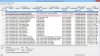
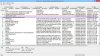 Wwwwasdwww.. Look at the images I’ve attached. These are the services that I disabled. I also disabled the following probably not shown in the images. These don’t have ‘Vaio’ at the start of their titles, but are still tied to Vaio and should be disabled as well:
- \Microsoft Office 15 Sync Maintenance for VAIO-al VAIO
- \USER_ESRV_SVC
- SampleCollector
- VUAgent
Hi MrKazoo (a.k.a. Steven Code).. I disabled all the Vaio services through Autoruns. I have had success in playing games like COD Black Ops without throttling. But, the problem is when I play scenes with heavily-intensive graphics, theres a frame rate drop. But this shouldn’t happen because on my friend’s laptop thats got an Nvidia GT 640M, this game doesn’t suffer frame rate drops, since gameplay is smooth. Given that the Flip has an Nvidia GT 735M and is superior to the Nvidia GT 640M, there shouldn’t be any reason why the Flip shouldn’t be able to play this game as or more smoothly than my friend’s laptop.
Can you point me in the right direction on how to do this? I’d like to take a stab at this.
Also, I visited bios-mods.com. I’ve been trying to get some guys on that forum to help me unlock the BIOS of the Flip. This would help us to tweak the BIOS to remove any throttling. But one of the files that they suggest I use has been detected as a virus by my antivirus program. So I don’t know if I should open it yet. I’ll let you know.Last edited: Jul 16, 2015 -
Thank you koolxxx for the extra info and the images. I've tried disabling all the services that have an image path linking to a sony folder or that are related to sony software. Basically I disabled everything i could find that was related to sony and still, the throttling is there (I am usning nVidiainspector's graph to see exactly when the throttling occurs).
-and yes, I did restart and checked that the services were not running and I even moved the sony folder from program files somewhere else, just to be safe(if i missed something please tell me). Maybe there is something that writes directly to BIOS like MrKazoo said and disabling a service isn't enough, you have to somehow change everything to stock (since for example you do not have to have vaio control center running or even installed to retain the battery care function).
I'll try the fresh windows method after the windows 10 update. Until then, any tips for making the card not throttle are more than welcome.
Edit.1
I noticed while trying to underclock that the throttling affects the internal gpu too. or maybe that is what triggers it. ( I tried disabling it from the device manager but it still throttles. Windows installs a generic graphics adapter instead. Also, the nvidia control panel doesn't work. it says that there is no display conected to the nvidia card)Last edited: Jul 16, 2015 -
If you tried everything suggested then the only thing that I can think of is that youre not dedicating the game to the Nvidia GPU itself. Its probably running off the integrated Intel GPU. Go to the Nvidia control panel. Under settings, make sure that your game is listed there and running under Nvidia. Thats likely it.wwwwasdwww likes this.
-
Thanks for the suggestion!
The nVidia card is set as the preferred graphics processor in global settings. I tried using auto-select graphics processor under global settings and set the game I was running to start using the Nvidia card but as i expected, the throttling issue is still there.
Are you sure you didn't do anything else to stop the throttling except disabling the sony services? (sorry for being so insistent but it's just frustrating that this fix doesn't work on my system). -
Hi wwwwasdwww. Other than turning off those services, I also disabled all the Vaio services in the services control panel (services.msc in 'run') in addition to many non-Sony services (to make my laptop run smoother). Additionally, I disabled several start-up programs from boot where I got only 2 programs that start up. Hope this helps.
Worthy to note is the fact that MrKazzo (a.ka. Steven Code) mentioned that it doesnt matter what version of Windows to clean install. This is good news.
Cal and MrKazoo, hope you can answer this for me. As we know, the Nvidia GPU has a max clock of 889 MHz. But Sony limited it to 628 MHz. Can it be maxed to 889 MHz? Can the fix max it out to 889 MHz or do I need a program for that? -
not quite, Steven Code would be hacktheplant...
in any case, i'll try to answer some of the question as best i can.
The big difference between the two is that the 735M has a much lower memory bandwidth due to the fact that it only has a 64bit memory bus. I've overclocked the GPU's memory clock to 1000MHz to alleviate this issue. The 730M is actually the better card despite the lower number.
This might help: http://www.micropctalk.com/forums/showthread.php?t=7732. Though this really didn't get me anywhere but it did give me some ideas on how to potentially do it.
The GPU clock actually runs at 941MHz during GPU Boost state. I like to keep mine locked at 745MHz in the event that it throttles so I don't get a display driver failure due to severe undervolting. I use NVIDIA Inspector for this. Scroll down since I've written out in detail what I do on this page: https://community.sony.com/t5/VAIO-...PU-throttling-while-gaming/td-p/298758/page/7
One change, I've stopped using Intel XTU for undervolting in favor of ThrottleStop 8.0.Last edited: Jul 19, 2015 -
Sony has announced some info about the Windows 10 upgrade in Europe as well now. They will publish their reports in August, followed by upgrade instructions and drivers in October.
-
Excuse the confusion. I thought you were Steven Code all along. Apologies.
Is it possible to install the Nvidia 730M then?
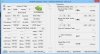
I tried using your method in overclocking the GPU according to your instructions using a .bat file. But when I check Nvidia Inspector to confirm that changes have taken place, the values stay the same. Theres no change. How do I fix this? I attached a pic showing you that no changes have been made after I double-clicked on the .bat file.
-
Unfortunately, there's no way to install a 730M as the GPU is soldered into the board. Even if you do have a BGA station, the 730M might not compatible with the board.
Couple of requirements before you overclock:
-Make sure you're on AC power
-Try to put a load on the GPU before running the batch file or have NVIDIA Inspector use the High Performance GPU when it is run, you can set this in NVIDIA Control panel.
You want to set P0 first and work your way down to P8. Clocks on the lower states cannot be set higher than clocks on the higher states. So if you want to overclock the GPU Memory to 1000MHz, you have to add an offset to P0, then set P5 to 1000MHz, and then set P8 to 1000MHz. I suggest doing this manually prior to using the a batch file. One thing to note is that you don't want to set the P8 GPU Clock too high as the voltage gets locked at that state. This will cause driver failures since the GPU requires a higher voltage to sustain a higher clock speed. Also, if you don't lock your P-state, then you need to put load on the GPU to have it switch to a higher state. If you've done everything right, make sure you're running NVIDIA Inspector and the bat file using administrative privileges (right-click bat file -> Run as Administrator).Last edited: Jul 20, 2015wwwwasdwww likes this. -
Hi, MrKazoo.. Looks like I fixed it. I got the bat. file to run.
But I dont understand what you mean by adding an offset to P0. How much do I offest this by? I see Base Clock Offset and Memory Clock Offset in P0. Which one is it and by how much do I offset it?
In both P5 and P8, I see GPU Clock (745 MHz) and Memory Clock (set to 1000 MHz). I assume here you mean to change the GPU CLock to 1000 MHz, right?
I'm not using ThrottleStop because I disabled all the hidden Vaio services through Autoruns. So far, I get no throttling when playing a game. But I may use it as an experiment to test further, just to let you know.
I got Nvidia Inspector to start at boot up through Task Scheduler. But now when I boot up, Nvidia Inspector and the command prompt start up also. Is there a way to hide these items at boot up? Its very annoying.
Just to let you know, I'm going to be using a couple of tools to unlocking the BIOS through help on Bios-Mods.com. I'll keep you posted of my findings when this happens.
Thanks man and I look forward to your next reply!!Last edited: Jul 20, 2015 -
The P0 setting page only takes offset values. In order to overclock the Memory to 1000MHz, you need to set a Memory Clock Offset of +144 since the base memory clock is at 856MHz. I assume you're using my batch file which sets 745MHz GPU, 1000MHz Memory, and locking the GPU to P5 state. Note the order on how the commands are run. The last line in the bat file can be omitted if you want to be able to use 941MHz for P0.
As far as preventing the command prompt from showing you can look into creating a VBScript (vbs) and loading that at startup instead of using a batch file.
Source: http://superuser.com/questions/140047/how-to-run-a-batch-file-without-launching-a-command-window -
Hi MrKazoo. Before I respond to your last reply, please note that I got a problem with how the .bat file is executed at boot up. I followed your instructions on how to boot the .bat file at start up from your Sony forum link. When its executed, I get a command prompt with the following:
C:\Windows\System32>C:\Users\al\Downloads\nvidiaInspector\nvidiaInspector.exe -setMemoryClockOffset:0,0,144
C:\Windows\System32>C:\Users\al\Downloads\nvidiaInspector\nvidiaInspector.exe -setGpuClock:0,1,745 -setMemoryClock:0,1,1000
C:\Windows\System32>C:\Users\al\Downloads\nvidiaInspector\nvidiaInspector.exe -setGpuClock:0,0,745 -setMemoryClock:0,0,1000
C:\Windows\System32>C:\Users\al\Downloads\nvidiaInspector\nvidiaInspector.exe -forcepstate:0,5
C:\Windows\System32>C:\Users\al\Downloads\nvidiaInspector\nvidiaInspector.exe
See that " C:\Windows\System32>" is added before: " C:\Users\al\Downloads\nvidiaInspector\nvidiaInspector.exe"... I dont know why it adds this as a prefix. Very weird. As a result, the .bat file cant execute because such a path doesnt exist. How can I remove this prefix? -
The prefix "C:\Windows\System32>" is normal, it just tells you what directory you're currently looking at (If you don't think this is normal, try launching command prompt as administrator and you'll see what I mean). The problem is where nvidiaInspector.exe is located. Check that that's the correct path to the executable.
PS: You can omit the second to the last line so you don't force P5 state. -
Hi MrKazoo. I deleted the task that starts on boot. So now I have to manually click on the bat file to get it to work properly. I also deleted the 2nd to last line in the file to looks like this below. See also a pic of Nvidia Inspector to show you the result of omitting the 2nd to last line. Is this correct?
C:\Users\al\Downloads\nvidiaInspector\nvidiaInspector.exe -setMemoryClockOffset:0,0,144
C:\Users\al\Downloads\nvidiaInspector\nvidiaInspector.exe -setGpuClock:0,1,745 -setMemoryClock:0,1,1000
C:\Users\al\Downloads\nvidiaInspector\nvidiaInspector.exe -setGpuClock:0,0,745 -setMemoryClock:0,0,1000
C:\Users\al\Downloads\nvidiaInspector\nvidiaInspector.exe
I got 4 questions:
1) I'm not versed in P0, P5, etc. What do these states mean?
2) You said to omit the 2nd to last line to force a P5 state. Why is this important?
3) By omitting this 2nd to last line, will I be able to use 941MHz for P0?
4) I will use your VBScript but I think Task Scheduler needs to boot up the bat file properly first. Is there a way to do this without the prefix showing up in the command prompt?
Excuse the many questions, I just want to get this right.. Thank you!Last edited: Jul 21, 2015 -
P# states are performance states. Each state dictates the performance level of your GPU. P8 = Idle/Throttle, P5 = Normal, P0 = Boost.
I force P5 state because my machine throttles and P8 state can only take 745MHz GPU Clock. I prefer consistent performance and I don't like my machine throttling from 941MHz to 745MHz.
You want to create a *.vbs file. Task Scheduler needs to run the vbs file containing the script, which will then run the bat file without the command prompt showing up. The prefix IS NOT a problem, your path to the executable is wrong. Have you worked with MS-DOS or Command Prompt before?
You can actually remove everything but the first line in the batch file. The only thing you want to do since your machine doesn't throttle is overclock the memory for a higher memory bandwidth. Since you're only going to be using one line, you don't even need to run a batch file. Just use task scheduler to run NVIDIA Inspector with " -setMemoryClockOffset:0,0,144"
To check to see if the setting stuck, run a game and load up GPU-z to check if your Memory Clock is at 1000MHz.
EDIT: Also, the bat file doesn't complete until you close NVIDIA Inspector since the bat file also launches the application (last line). I use this to verify that the clock settings were applied. Removing the last line will still display the command prompt but will automatically close it.Last edited: Jul 21, 2015 -
Hi MrKazoo. The path is correct. I've dabbled with MS DOS before. But I'm no pro.
Something weird is going on. I got Nvidia Inspector to run at boot up using Task Scheduler. It boots at start up and is confirmed running in Task Manager and Task Scheduler. But when I click on Nvidia Inspector the program to see if the values have been modified, the program disappears from Task Manager. In Task Scheduler, it says "ready" although previously it said "running." And when I open the program again, the values change to the modified values after 10 secs (thank god!). Is all this normal? Will the values stick even if I start the program? Attached is a pic.
Btw, this is the program path in Task Scheduler:
C:\Users\al\Downloads\nvidiaInspector\nvidiaInspector.exe
And this is the argument in Task Scheduler:
-setMemoryClockOffset:0,0,144
Also, I'm confused as to your last post. You said to use the batch file. Then you say not to, to instead use Task Scheduler with an argument. Can you clarify this?
Finally, I'd still like to use the full bat file as a shield to any throttling possible, even if I dont have throttling. -
If the batch file works as is, it may be an issue with the task you've scheduled to run at startup (make sure "Run with highest priveleges" is checked). Try to simplify the task and only launch NVIDIA Inspector (no arguments) at startup. If it launches, the command prompt window should show up and stay until you close NVIDIA Inspector. A way to make sure your settings stick is to have an application run in the background where it's forced to use the NVIDIA GPU.
Try pasting this to command prompt (admin): C:\Users\al\Downloads\nvidiaInspector\nvidiaInspector.exe -setMemoryClockOffset:0,0,144
You shouldn't see NVIDIA Inspector open up, verify your setting worked.
The reason for the batch file is so I won't need to chain tasks in task scheduler which is more difficult to do. Since you only needed to run NVIDIA Inspector with one flag to set the memory clock offset, then the use of a bat file is excessive. -
Any updates?
Has anyone tried installing a fresh version of windows without any other Sony drivers except the Sony control center? I suspect it is the only thing responsible for throttling.
Oh, and what bios version are you guys using? I am on the latest one from Sony and I don'the know how to downgrade (or if it is safe) since the only thing posted on the Sony website is an update patch for this version of bios... -
Hi, MrKazoo.. I'm confident that the values load in Nvidia Inspector at startup. While playing a game, I switched to GPU-Z and it showed clock memory at 1000 MHz, but for only 3 secs. Then it went to 0. Then I checked Nvidia Inspector and it showed values at 1000 consistently. So everything is running ok.
But I want to run games at the highest speeds possible without breaking my machine. Can you provide commands for a bat file or single argument to make games run at highest frame rates possible in Nvidia Inspector?
Thanks!!!!
-- EDIT --
I noticed some throttling when it comes to playing the same scenes in a game. After a while it returns to smooth game play. Its annoying since I want consistently smooth game play. Do you think I should install ThrottleStop? And again, please advise what commands for a bat file to use for smooth and consistent playing throughout a game at the highest clock speeds possible.
I appreciate all your help big time!!!Last edited: Jul 24, 2015 -
If you want consistent performance you could set the power management setting to ”prefer consistent performance” in nvidia 3d settings. if you are bothered by the throttling you could disable the p0 state so you are left with p5 (but a max of 760Mhz). Also, if you want to enforce a p0 state you could run the batch file with the command ”-forcepstate:0,16” or ”-forcepstate:0,0”
I've had some luck with ” Nvidia PowerMizer Manager” to set max performance\ min powersave and to disable overheat slowdown.
-Edit1: added link.
-Edit2: I'm sure overclocking the memory should help the performance a lot but from the tests I ran (using 3dMark11) there was no significant difference between the overclocked test and the stock test. -
Hi wwwwasdwww. So, if I want games to run in boost mode consistently all the time I got to run the batch fine with command: "-forcepstate:0,16” or ”-forcepstate:0,0". Is this right? But doing so will create throttling. Right? Can you please write this out so I can copy and paste it in the bat file since I dont understand commands that well?
And is there a way to enforce P5 but with more than 760 MHz?
Overall, I want to run games at the highest clock settings consistently. -
Hi koolxxx. If you solved the throttling issue ( by disabling the right vaio programs in autorun) you should not encounter any throttling (unless you reach a really high internal temp) My suggestion is to start throttlestop, open the graph feature (the button is in the upper left) and leave it run in the background while you play a game. you will see that the gpu clock does not change, just the gpu usage. If you see the gpu clock drop and the pstate change from p0 to p8 then the throttling issue is still there. Some games (eg. GTAV) drop the gpu clock when you are paused or in a menu but when you play, the clock goes back to max... that is why I use the graph, so I can see the last few minutes of gpu usage.
No, you can't go past 760MHz in p5 or p8 because of voltage restrictions. If you find a way to also overvolt the card you could in theory set any frequency in any pstate (although this is dangerous and might fry your gpu)
I found that after setting max performance\ min powersave and to disable overheat slowdown in Nvidia power mizer manager, my gpu usage stayed at 100% all the time and my gpu clock dropped only when throttling.
You can test different settings in the nvidia control panel ( prefer maximum performance\consistent performance\adaptive\driver controlled) see if any one of those works for you.
Also, you could try sony's gpu driver ( I know, its old but it might interact better with the internal gpu and in my testing, it got a couple more fps in 3dmark11, but I didn't see any real world benefit). -
How are you wwwwasdwww? First off, please excuse my delay. Its been a hectic week with family and work.
Anyway, I have ThrottleStop v6.00 but I dont see a graph.. just a table on the middle right part. Are you using a different version?
Also, I'm having a hard time understanding P states (P0, P5, P8). I want to understand them. Even though MrKazoo gave a brief overview, I'm still lost. Can you provide a more in depth explanation please?
1) Can you please look at the settings I inputed in Nvidia PowerMizer Manager. Below is a pic of my settings. Please let me know if they match what you have.
2) Also, will Nvidia PowerMizer Manager somehow reduce performance when playing games?
-
Hi there. Just what I came back to ask about. A long time owner of a first gen 13A, I've stayed away from the forum and the initial debates over whether the machine's just total rubbish or a godsend. It's fair to say that it's neither, and my experience has been OK with it, especially since most of the early issues have been fixed. And since all my stuff is in the cloud (two stupid resets later).
So that said, I'm wondering what Win10 has in store for us. I crave the fixes to 8.1's shortcomings, but I'm also worried about a) drivers b) backing up and resetting my system again c) the gains vs. the annoyances. How's it been for other owners? Has anyone updated their system yet? -
Same question, been checking this thread for a while now to see if anyone's updated to Windows 10 yet. My only concern are the drivers, and if someone can confirm that the day-to-day running of the system isn't affected by the update, I'd go for it right now instead of waiting till November like Sony suggests. I don't particularly care for stuff like bluetooth and NFC, as long as display and touchpad drivers seem to remain unaffected.
-
Hi,
please excuse me, I meant nVidia inspector not ThrottleStop.
The p states are "power states" you will find your card in P8 state when it is throttling or in standby (not used) this limits it's performance A LOT but it uses little power and produces almost no heat. The problem is that in this state the graphics card is verry limited and is outperformed even by the integrated intel card.
p5 is the "normal" state. You will not usualy see this state unless you specifically force it using a batch file. The performance in this state is also verry poor.
p0 state means "auto overclock" a feature a lot of new nvidia cards have. It clocks your card at the max safe frequency it should operate. You should see this state when gaming or when your card is in use.
Forcepstate16 is a command that enables the auto switching of pstates (for ex when you force p5 and then want to undo that command). This is the state where your card has the most power and you get the best fps... the problem is that it also produces A LOT OF HEAT and our ultrabooks were not designed for this (this is sony's fault) so we get that awful throttling and the card turns to p8 to cool off.
Your NPMM settings are ok. Make sure you aply and restart.
Powermizer will not reduce performance. The only things that reduce performance are switching to a lower p state (5 or 8) and lowering your clock speed intentionally.
The forcepstate command does not produce throttling, the high temperature combined with some sony driver causes throttling.
In p5 or p8 you can't get past 760Mhz because the card is limited to 0.81V and to safely set a higher clock you need about 1.008v like in p0. And no, we can't change this since it ia locked by sony.
P0 does get you the BEST performance but it is not consistent. Overclocked P5 gives you less performance but consistent...
I really hope this answers some of your questions.
About windows 10. I've been using it for about a day and everything is working great (haven't tested the throttling issue yet) all drivers work and all of my files are ok. I didn't do a clean install, it works great over my old win 8.1 even the settings were not changed.... I'll let you know if I encounter any problems but so far it works great!!fl0werstar likes this. -
Windows 8.1 worked pretty decently on the Vaio 15A without any of the custom Sony drivers - that probably means Windows 10 should work pretty well with the standard drivers. No promises of course. Sony said they should be done testing this month, with drivers being released in October.
If you use your Vaio primarily in a mouse/keyboard fashion and spend most of your time on the desktop I think you'll have a very pleasant experience with Windows 10. I currently have it installed on an older Core2Duo with a spinning disk, and the thing is just blistering fast.
If on the other hand you used it primarily with touch in modern apps and took advantage of all the gestures and charms Windows 8 had on offer it's a huge letdown. All flow is gone, replaced by poking at tiny buttons placed in awkward places. It's a throwback to how they though about tablets in the Windows XP era, with slightly larger buttons.
Regardless of which way you're used to working though, the thing should still be considered a beta version. Not in the sense that it will completely crash on you, but the amount of smaller bugs, quirks and lack of polish is astounding. Live tiles stop working, notifications show up without there being any, scrollbars disappear while you're hovering over them, etc. etc.
Within the apps you also have some setbacks. OneDrive is pretty much non-functional on smaller devices as they've both removed the placeholders (so you can't see files that aren't already stored on the drive), and they've removed the application. The people app has been completely gutted - you can no longer sync up a person to their facebook, linked in or twitter account, and you can no longer pin the people to the start screen/menu. Skype is for the time being, only available in a touch-hostile desktop application (but then, you're no better off on Windows 8 since they discontinued support for the touch app there as well), but there should be a preview of the new messaging services this month. Edge is far too basic as it is now, very basic stuff like dragging a tab into a window and have it snap doesn't work. File downloads just save automatically (no choice where to download them). The reading mode doesn't import any of your previously saved articles, and it now seems to be an Edge only feature (previously you could save from all different apps, like the New York Times, or your RSS reader in addition to the browser). Reading mode is now limited to a single narrow strip in the middle of the screen instead of the multi-column layout used previously (this might not batter much on a 13 inch screen though). The News app has similar features, multi-column is gone, replaced by articles with pictures that doesn't even fit on a single screen in 16:9 mode, so you get to see the top part of his face, scroll down to see his mouth - and then you can start reading.
... so, all depends on your viewpoint : ) -
OK, quick update. I have installed a clean copy of windows 10 ( but not deleted the OEM partitions). The drivers that are automatically downloaded indeed work great. The problem is that the Battery Care function is still enabled ( I can charge only up to 80%) and the throttling is still there. Please help me erase these sony settings. I would like to keep the oem partitions but if necessary I will erase them. Are the battery care function (and maybe the throttling flag) written directly to the BIOS as MrKazoo said? And the most important question: Can they be reset/erased??
fl0werstar likes this. -
Based on the last three responses, seems like I will jump to Windows 10 too then.
Quick question: I'd like to do a clean install too, and I have changed the OEM partitions. How would be the best way to go about this? There are tutorials online for this but do they get rid of all the Sony stuff too? (Control Center, Vaio Update etc). I was thinking of doing a complete factory restore, then upgrading from Windows 8 to 8.1, and then to 10. Will doing a restore change the partitions?
Official Sony Vaio Fit multi-flip PC Owners' Thread
Discussion in 'VAIO / Sony Owners' Lounge Forum' started by big_boss, Oct 13, 2013.


