Problems? See this thread at archive.org.
Part number is 427655211 and description on the invoice and box is V030 ODD BEZEL (BLACK)(HOT)
-
-
Putting together a quick guide now. Did break the face plate as I expected, but It isn't enough for me to buy a new one. Hardly visible in daylight, although in the pictures it is more so.
-
Alright, so I'm going to try and walk those of you who might be interested in swapping your Optical Disk Drive for a Hard Drive or Solid State Drive.
First you will need a compatible caddy, the best fit right now is a fenvi caddy that can be purchased off E bay from a few different sellers. I went with this one ( HERE)
You will just need a screw driver, maybe some glue, and a little patience to get this finished.
Before switching the faceplates you will need to follow this guide to remove the Optical Drive from your SA/SB/SC/SD series Vaio. ( Guide Here)
Once you have removed the Optical Drive you need to carefully work off the curved plastic face plate. Opening the drive with the manual release by way of a bent paper clip makes it easier.
Try to gently work it off until the clips have released.
I did crack it while trying to do this so you may wish to skip the swap all together and purchase a spare face plate from Sony.
The part number is 427655211. Make sure you get the correct color.
You then need to remove the face plate from the fenvi caddy. It very easy, just pry from one end, and then the next. It should not put up a fight and you should be able to remove it without breaking any pins.
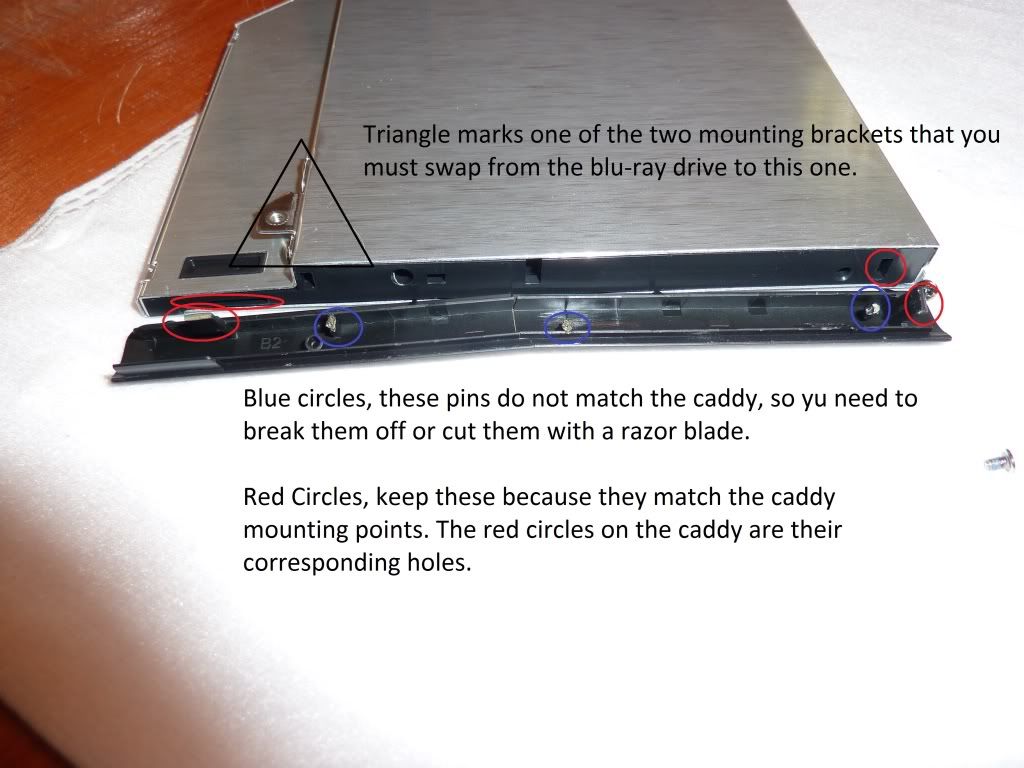
Once you have it off you will see that the Sony face plate and the Fenvi Caddy do not match up exactly. Look at the photo below for more detail.
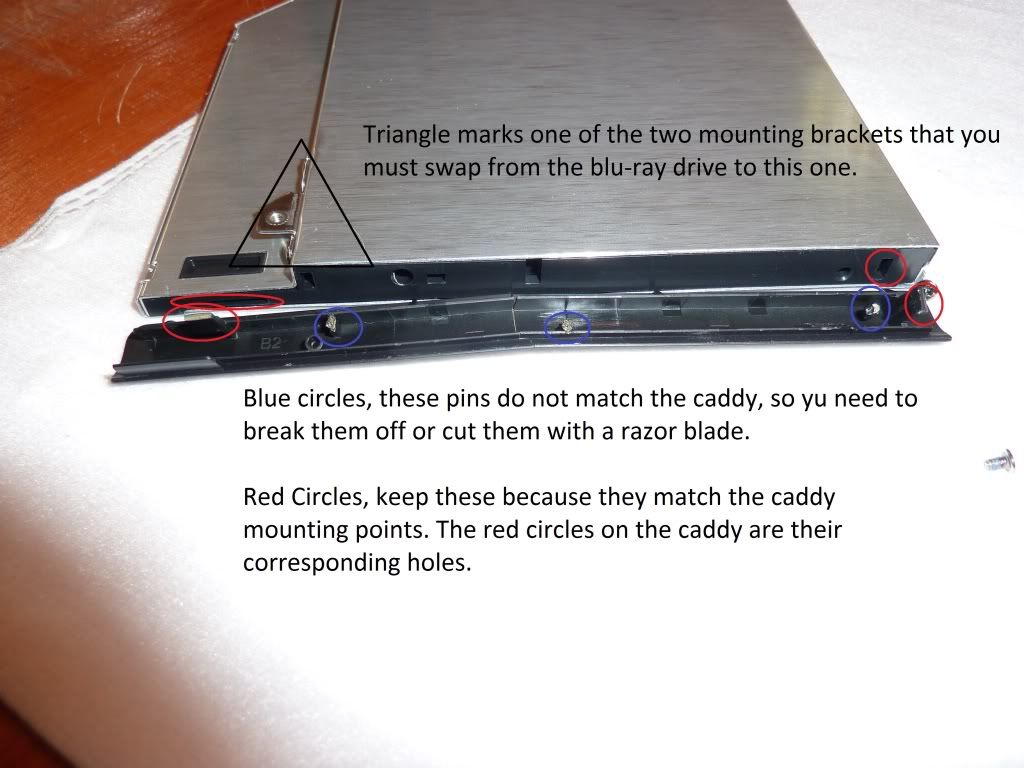
You will need to break off or cut off three of the existing plastic pins/latches ( marked in blue) from the Sony face plate.
You then should be able to comfortably attach the Sony face plate to the caddy without any obstruction.
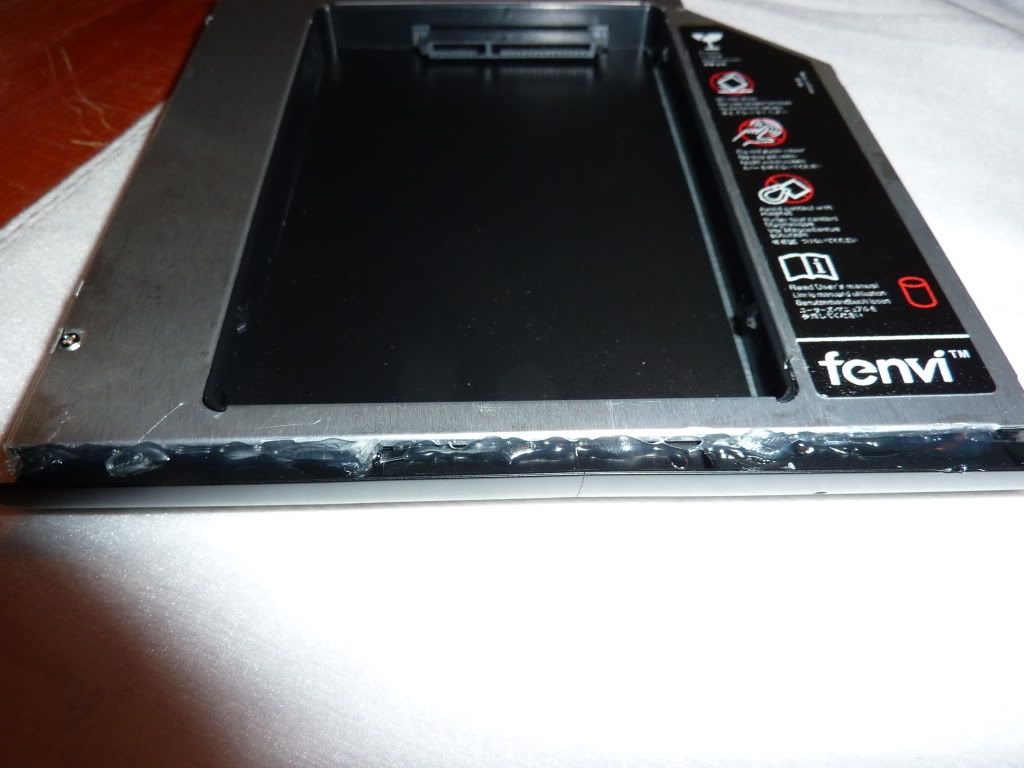
To secure it I used hot glue. I'm unsure if it is possible for the face plate to stay attached without glue. Since the caddy is not a moving part, nor does the face plate serve any functional purpose I can't see why it wouldn't be prudent to glue the face plate on tightly. It is very secure and
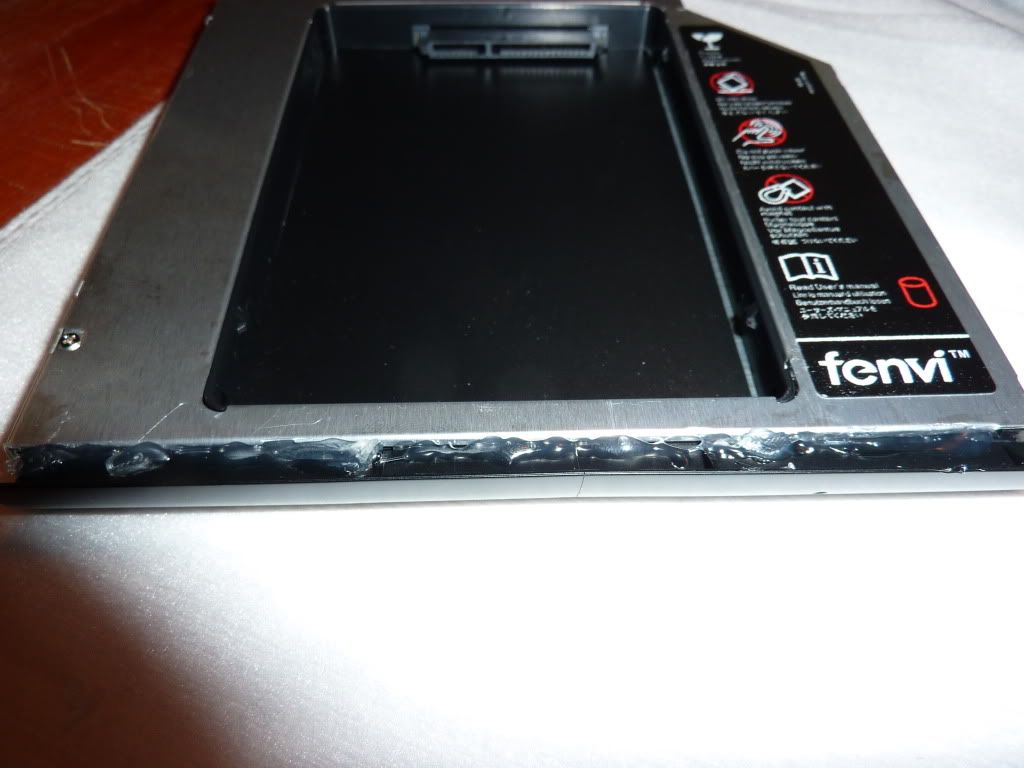
Make sure that no glue is on the top / bottom / side of the caddy or it will be difficult to seat inside the computer.
It is not ideal, but it does function and look quite fine once it is all back together.
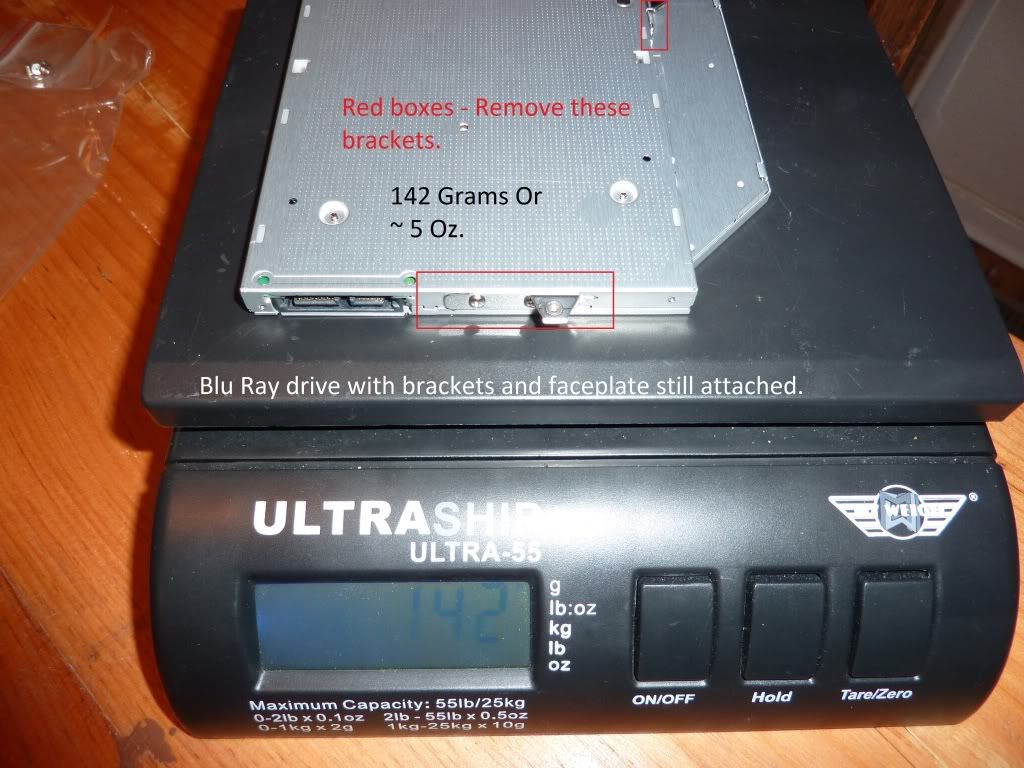
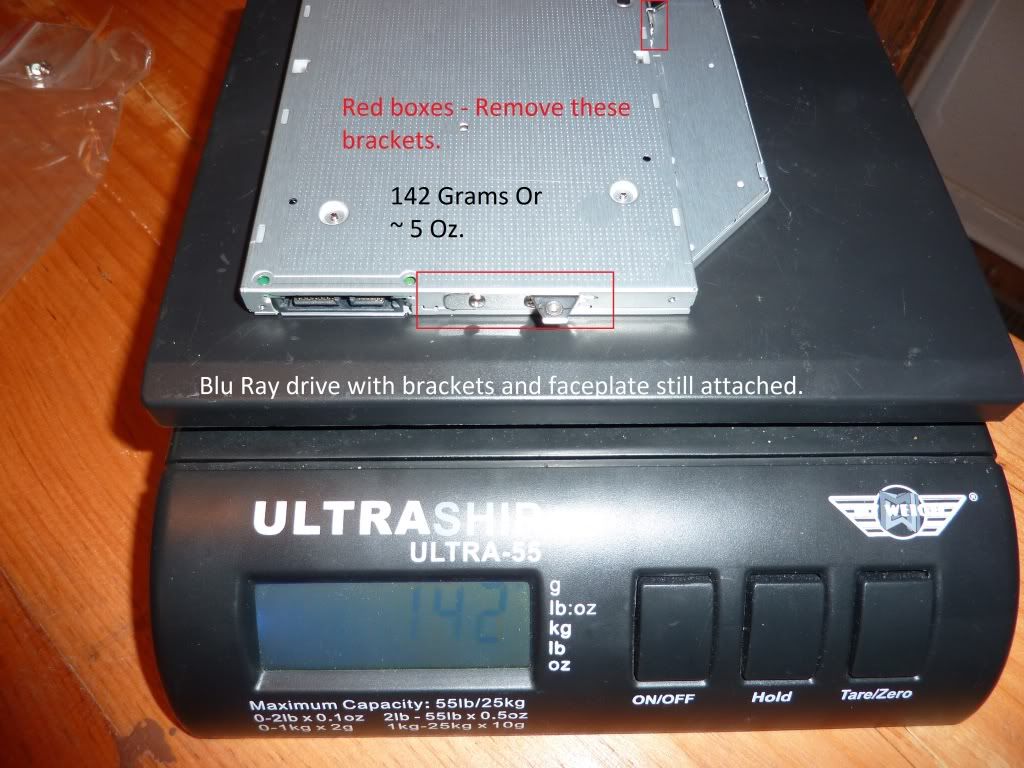
Do remember to reattach the mounting brackets from the ODD. It should be 4 screws to remove and replace.
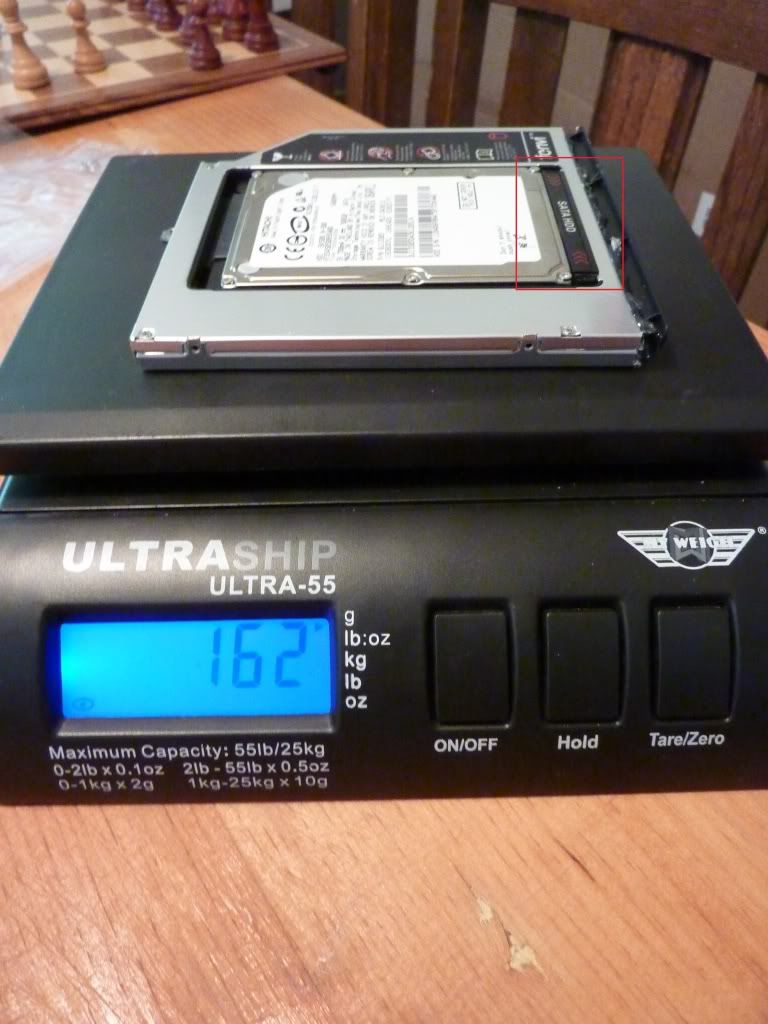
The hard drive attaches very easily, set it inside the caddy and push in into the SATA connectors. There is also a small plastic piece that fits behind the hard drive to secure it in place. Make sure to push it down with the SATA label facing the top. (RED square in photo)
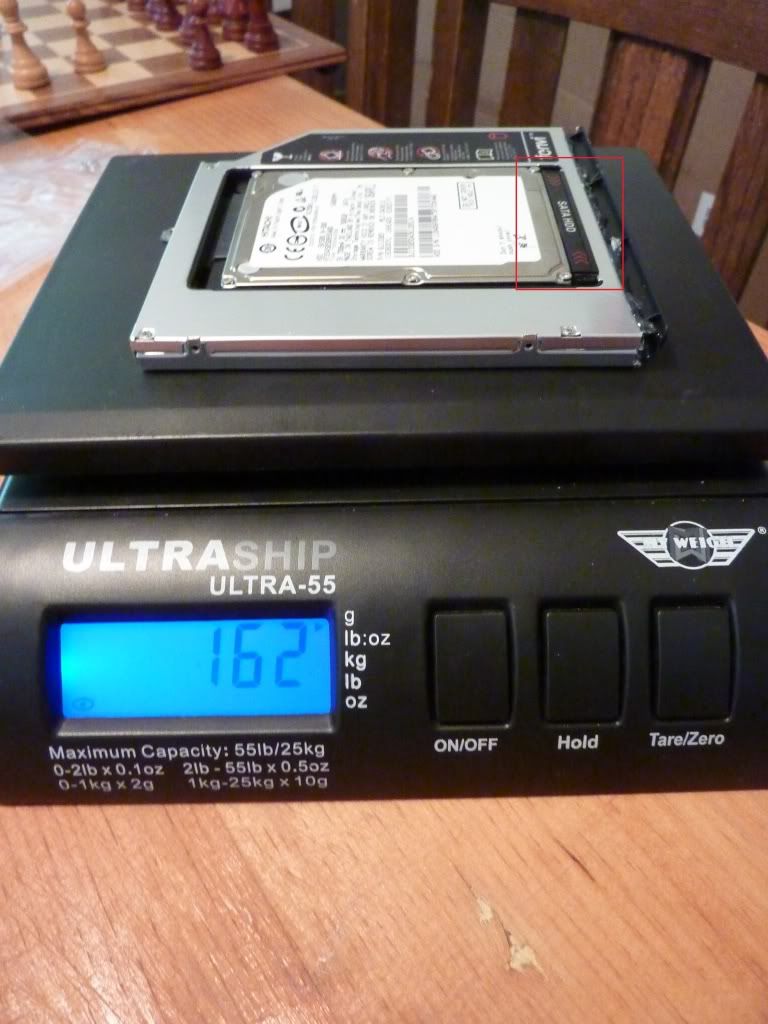
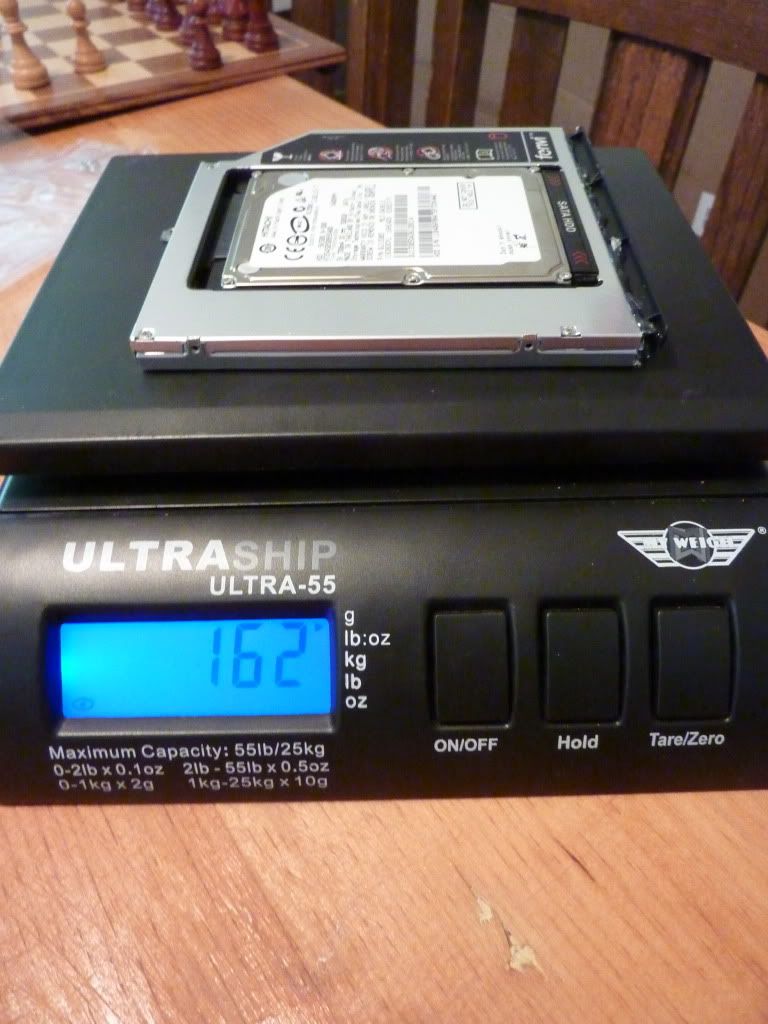
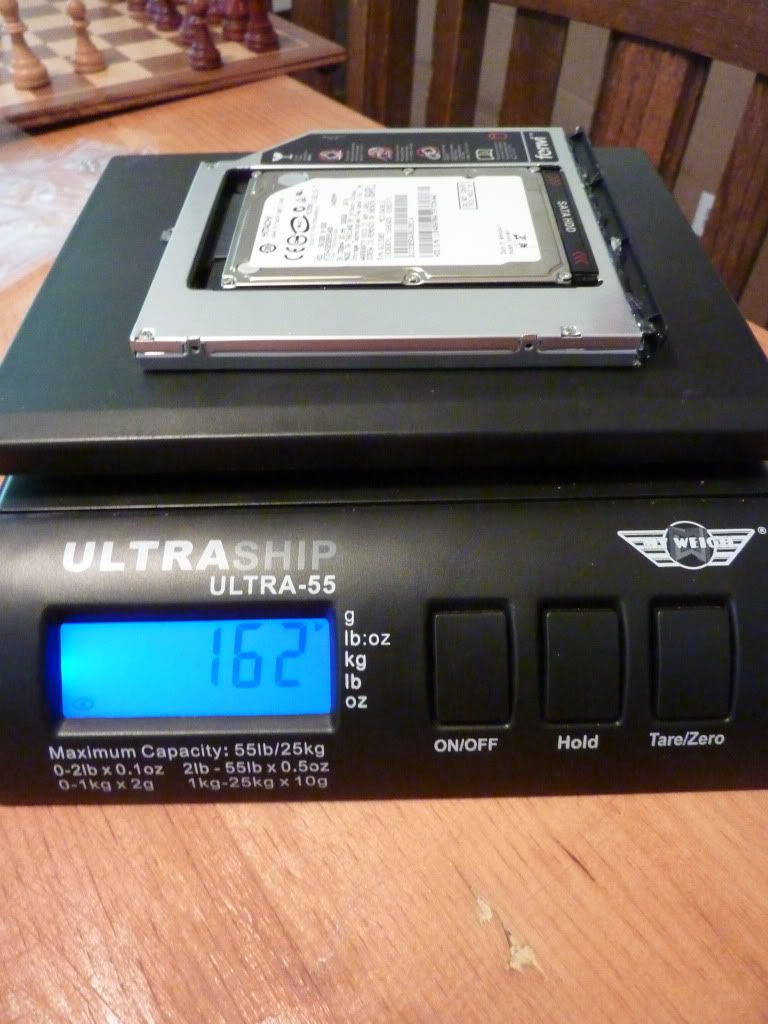
So, for those concerned about adding weight I did some comparisons between the caddy, optical drive and caddy with hard drive.
To sum it all up, the caddy with a hard drive adds a total of ~20 grams or .7 Oz.
The Optical Drive weighs 142 Grams
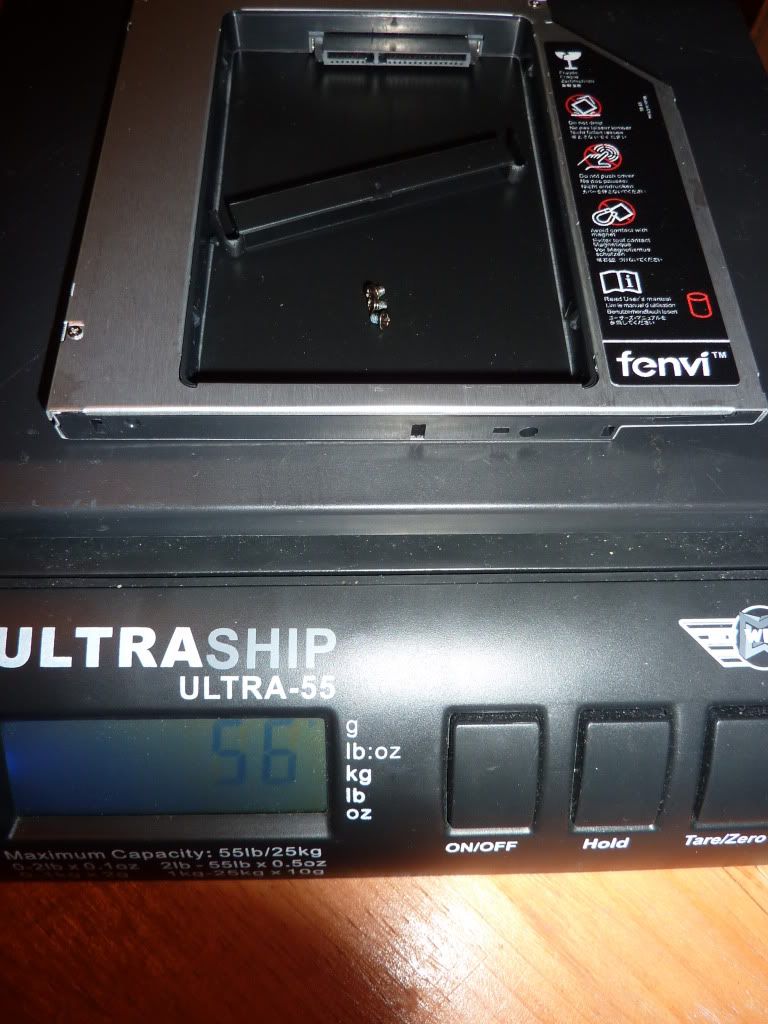
The Caddy weighs 56 Grams
The Caddy with Hard Drive weighs 162 Grams
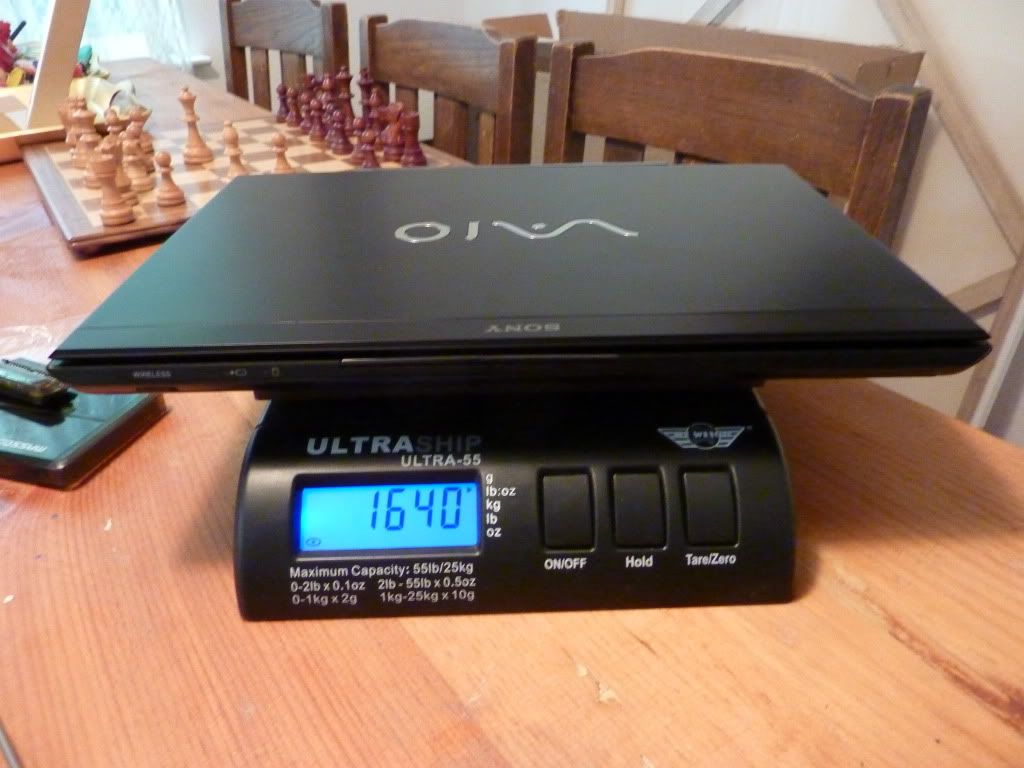
Vaio SA with the caddy installed. Weight 3.62 Lbs or 1.64 Kg.
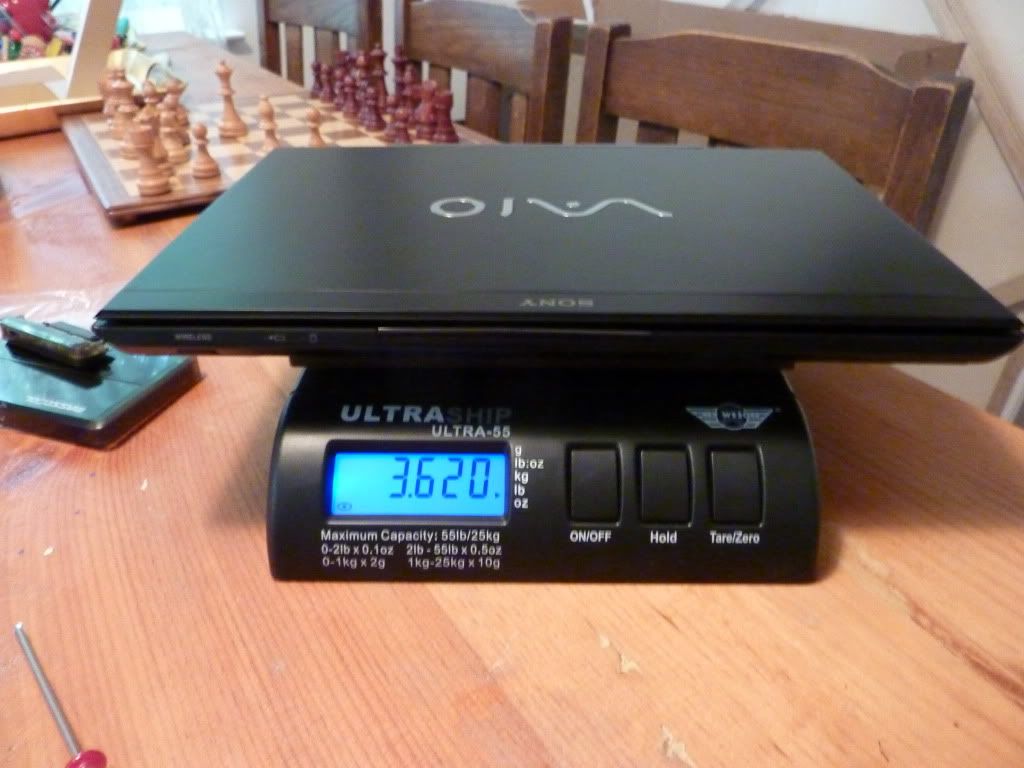
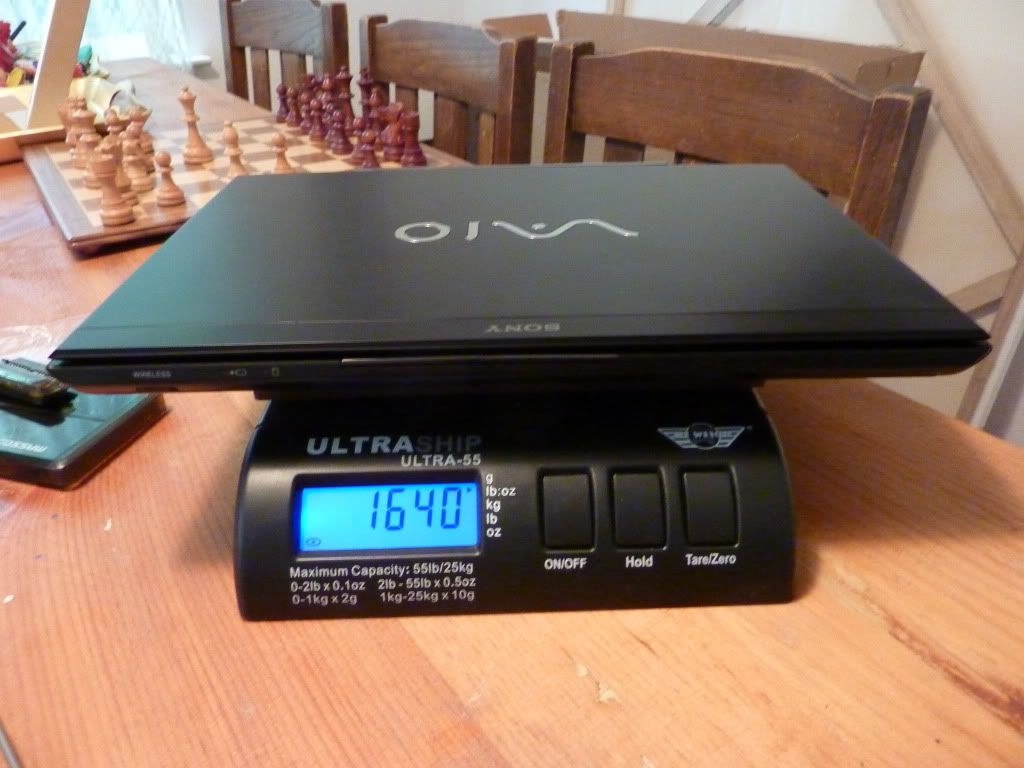
I think it is a worthy investment for anyone who dosn't use an optical drive on a daily basis. You can easily get an external enclosure for the optical drive off E bay for a small sum. Search for "Slim DVD enclosure 9.5" make sure it is SATA to SATA connection. Some may be for older drives and will not function properly with the new optical drives. My SA ended up weighing 3.62 Lbs. with the caddy and hard drive installed. About a tenth of a pound more than with the optical drive.
Thanks to niebyl2002 and everyone else who helped to make this work.
If you have anything I should add please let me know.
- - - - - - - - - - - - - - - - - - - - - - - - - - - - - - - - -
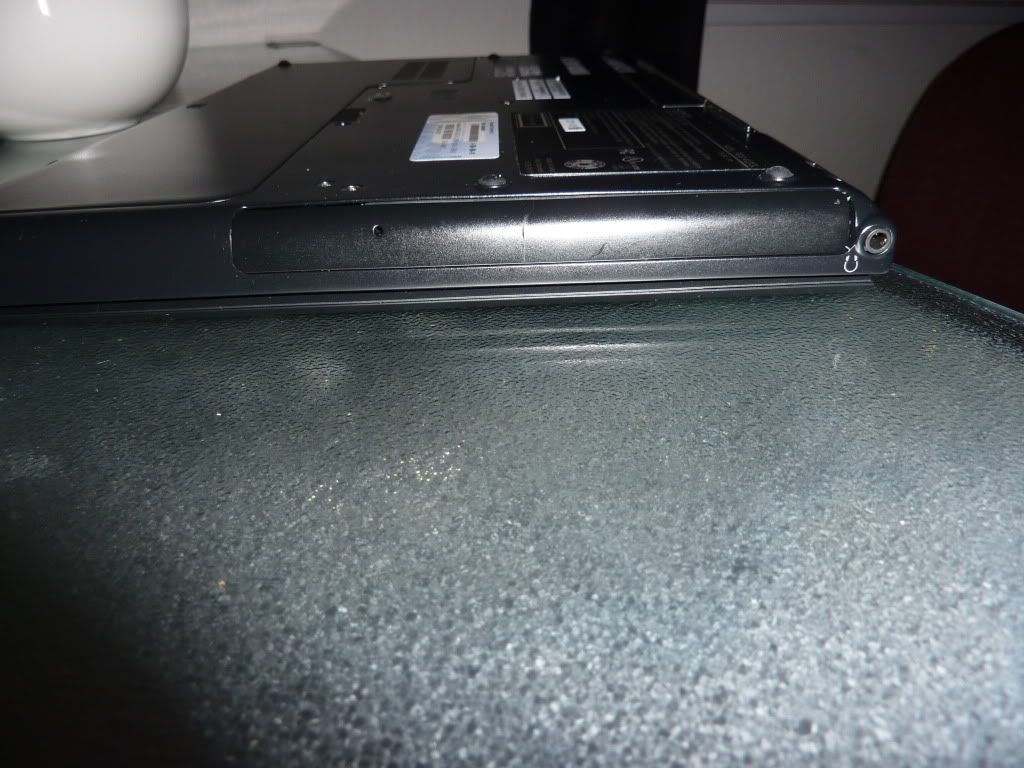
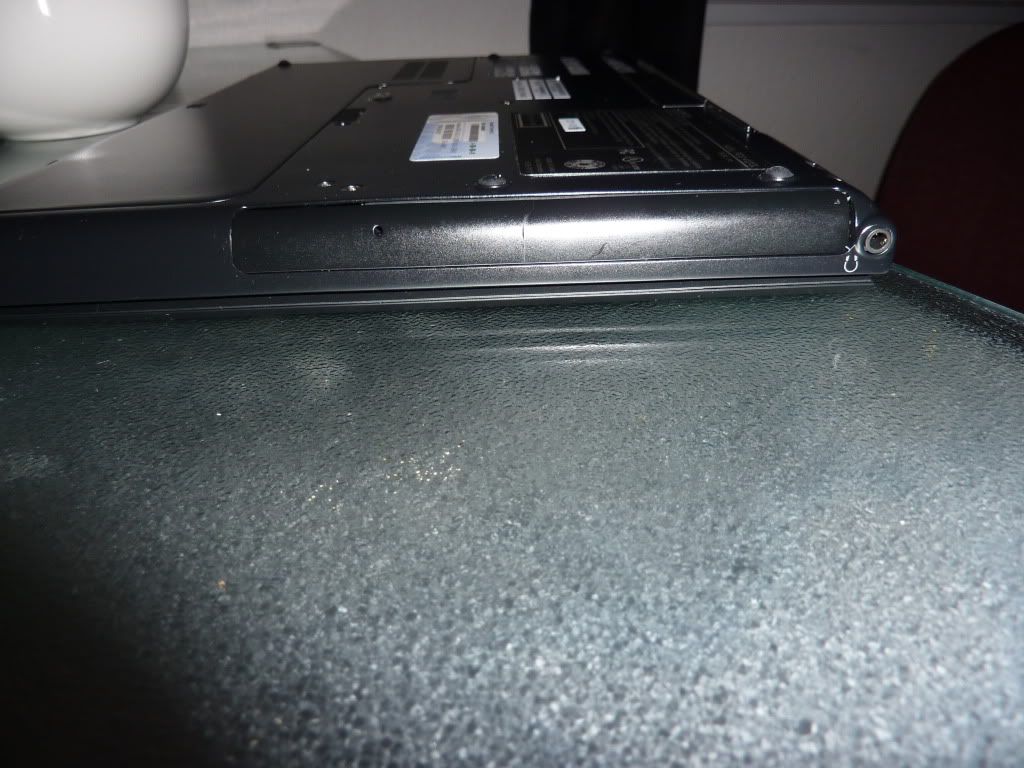
A few photos of the final result. Very good fit, and it actually makes the laptop seem a bit stronger and removes any flex in that area.
- - - - - - - - - - - - - - -- - - - - - - - -
On another note, the hard drive stays much cooler than when in the normal bay. It runs all the time at just under 30 C -
@Lazybee: Could you please post a picture of how the final result looks on your Sony SA? The pictures don't show how the caddy fits inside the SA. Other than that really a good guide!
-
I added a few photos at the end of the guide. Hope that is what you wanted. I didn't take any before photos, but it looked the same.
-
@lazybee
Thank you for a very good guide!
-
Yes perfect! Thanks very much! It looks really good. I just have to see where I can get a caddy like this here in Germany and how I can get a spare Faceplate from Sony Germany.
-
According to the ebay link; they ship "worldwide" so i dont think that will be a problem.. Of course would be nice not have to pay shipping fees..
-
Awesome tutorial lazybee! It looks like you broke the faceplate in exactly same location as me.
I already received two spare faceplates and I'm suprised 'cause I didn't change it yet. The crack isn't really visible. I will probably change it over the weekend.
Pretty cool that you weighted parts before and after. THANKS -
I got an other caddy from a retailer here in Germany and i just got my SSD five minutes ago. I'll try to install it tonight. When it works, i'll give you the link to the shop here in Germany.
Also for the faceplate i send a request to Sony's official german spare part distributor. I'll keep you informed on this too. -
Great guide Lazybee, I was glad to hear that the weight difference is minimal. Still that crack bothers me, I don't to mar my new beauty.
Stradevarius -
Thank you very much that would really be great!
-
Does anyone know if the vaio SA supports SATA 6? I'm thinking of following Lazybee's guide to put in a HDD and add a vertex 3 SSD in place of the ODD, but don't want to spend on the vertex 3 if my speeds will be limited to sata 3.
btw, thanks Lazybee! -
Happy to be of assistance!
The SA does support SATA 6 in the HDD bay. It does appear, from what I know so far that the ODD bay is limited to SATA 3. You could make the vertex 3 work, but would have to swap it for the HDD to take full advantage of it. -
Hmmm.
Main HDD is SATA 3 - 6Gb/s
ODD bay is SATA 2 - 3Gb/s
Never heard of SATA 6 . I think you meant 6Gb/s.
-
Just do it the other way round. Swap the ODD with your harddrive and put the Vertex 3 in the original hdd place. Then you will get maximum speed on your ssd and the bigger capacity of your HDD at the same time.
-
is the ODD bay swappable easily between the HDD caddy and the ODD? You'll need an additional face-plate for that, right?
-
You would need an additional face plate, however I don't believe it would be advisable as the internal Sata connections are not made for hot swapping or multiple re connections. I also found that the caddy was a tighter fit than the odd and was somewhat difficult to re-seat. Perhaps you will have more luck with it though.
-
For a fraction of a second I had same idea but then (lize lazybee said) internal sata connections wasn't meant for repeating use.
My caddy also fit tighter than odd but still was very easy to install. -
For anyone else thinking of ordering the spare bezel, I called in my order since the Sony Parts store was down yesterday. I paid the $2.49 for 5-7 day ground shipping for a total of $12.14 with New York tax. It arrived via fedex next day. One of the fastest orders I've ever received actually - less than 18 hours since the time of the call.
Unfortunately, the rep couldn't tell me which color silver I needed for my "platinum silver" Vaio SA. They had two options: "Silver" and "Light silver". Light silver was backordered, so I took a chance with the regular silver one. It's several shades too dark though, so I'm going to exchange it. -
I'll probably swap the drives then. Thanks for the info!
-
Hey guys,
thanks for all the info, I'm gonna do the OCZ Vertex 3 + HDD-in-the-ODD-bay setup in my SA.
I'm not sure I gonna be able to order such a faceplate here in Germany... www.servicesplus.sel.sony.com seems down for quite a while. takeshi84, can you share where you placed your faceplate-order?
In case I'll have to use the faceplate of the ODD -- can anybody who has removed it describe how to do this with minimal risk of breaking it?
Thanks a bunch!!! -
While waiting for my faceplate on backorder I successfully got the one off of my ODD without breaking anything. Here's what I did:
1) Take the ODD out following the instructions in lazybee's post. Use a paperclip to open the tray
2) On the bottom of the opened disk tray, use a small Philips (+) screwdriver remove ONLY the darker-colored screws. I think there were 6 of them. (Don't take off any of the lighter silver screws or the blue screw. I made this mistake and had one heck of a time reattaching things.) Carefully pull back the cover to the expose the internals, being careful not to dislodge any of the tiny springs.
3) Start left-to-right (smaller clips toward the larger clip), using a small flathead screwdriver to assist you in pushing the clips back while you pry the cover off.
4) The largest clip (the on the thinnest part of the drive that isn't normally covered) is a bit of a pain. It took me probably 30 mins to figure out a way to get the thing off without cracking anything. What finally worked involved using two small flathead screwdrivers, one pushing down on the clip to release it from the catch, while putting the other at the end of the clip and using a twisting motion on the screwdriver (as though you're unscrewing an imaginary screw directly in front of where the clip ends) to apply outward force on the clip.
Let me know if you have any questions about the steps above. I'd post a pic but don't have the drive with me.
Also, regarding ordering the cover, the Sony US site has been down too. (maybe hackers again?!) I placed my order by calling it in. -
Hi,
long story short: It is NOT POSSIBLE to order Vaio Spare Parts in Germany. I contacted Sony, they told me to ask their "Servicepartner". Asking the service partner ends in an e-mail: "Sony does not allow to sell us Vaio Spare parts, but if you want a repair send your device in."
I'm very, very angry. If i'd known, how crappy Sony's service is, i'd never spend 1800 for a product of them.
Plus the US-Site does only deliver to US adresses. -
That's what I thought. Do you know the URL of the US-Site? Because some of my wife's family live in New York.
-
Thank you!!
Hey,
googling for "427655211 sony" (the part number of the faceplate) you'll find a link to www.servicesplus.sel.sony.com, where you can order this part. I guess it ships worldwide (??). The site is down until July 18th though. So I guess I'll go with mitpianoman's description...
Edit: Ahh just read up takeshi84's info, that www.servicesplus.sel.sony.com does not deliver to Europe... Too bad
-
According to niebyl2002 it is possible to order via telephone in the U.S.: Sony Parts 800-282-2848
Part number is 427655211 and description on the invoice and box is V030 ODD BEZEL (BLACK)(HOT)
@Stormblade83 I wrote you a private message -
Yes it is, and even though Rep said that the part was backordered I received the faceplates in less than 5 days. I paid $20 and some change for two faceplates.
-
i want to swap the hdd with an ssd. now, for windows install, do i need to burn recovery dvd, or can i simply install MY win 7 copy and then the drivers and programs from sony's website?
thanks -
You can use your own version of Windows 7 if you wish. The Drivers and Software that you need are all available on the Sony website.
A clean install like that does wonders for the speed of the laptop. -
ok but do i get all fn keys to work, and all vaio softwares, like vaio gate, vaio easy connect etc? i ask this because i read a lot of topic referred to other vaios, where users couldn't get a lot of things to work (fingerprint reader for example),unless they restored with vaio recovery.i thought it was the same with SA.
-
All my keys and everything work fine. The list of Sony software I still have installed is:
Vaio Control Center
Vaio CPU Fan Diagnostic
Vaio Event Service
Vaio Smart Network
Obviously specific drivers for devices such as the fingerprint reader need to be installed, but those are all on the drivers page on the support website and pretty self explanatory. I actually went and just installed everything and then uninstalled the stuff I found useless or annoying. -
Hi Guys,
first of all thanks niebyl2002, lazybee and mitpianoman for sharing your experience. I managed to take off the faceplate without breaking it, following the mitpianoman's advice on removing the cover of DVD (by 5 darker screws) and accessing the latches from the bottom.
I now have the following:
- SSD with the System/Windows and the small Boot partitions (I don't have the the 20GB Recovery partition there)
- HDD instead of ODD with (for now) all the three partitions as they came with the notebook (System, Boot, Recovery).
- Windows booted from the SSD shows three disks now - SSD's System one & 2 from HDD - Boot (~100MB, D: ) and System (~440GB, E: )
I want to format HDD before using it, but want to do it so that:
- I'd use SSD for the system
- HDD would serve for data (preferably shown as D: ), but could also be used to restore the whole system (if I press the Assist button or boot from HDD or so), i.e. would keep it's 20GB Recovery partition visible to Vaio Care/Assist
- I don't mind about where the 100MB partition is, could be on both disks - but I understand that it is necessary for launching the Vaio Care, right?
Does anybody of you have an idea how to achieve that please? -
@petibear: I wanted to keep the partitions and the data I had put on the main partition of the HDD in the week or so that I waited for my SSD to arrive. I got a 240GB Vertex 3, so it wasn't too big of a deal to shrink the OS partition so that it's small enough with room to spare to fit on the SSD directly (shoot for ~25GB or more under the stated capacity of the SSD). First I defragmented using Auslogic's free disk defragmenter, which I found to be much more effective than Windows 7's own. Then I resized the partition to ~195GB under Disk Management (Admin tools).
After that it was just a matter of cloning the HDD and all its partitions to the SSD. I used the free Easeus Disk Copy to create a bootable USB stick to copy and resize the partitions to take up the full space of the SSD in one operation.
Plan to allow for 24-48 hours for the full process. If you have any data of importance on there, you'll want to back it up since dealing with partitions can be fraught with errors. -
@mitpianoman: Thanks, but I meant something different. I already have everything I need on SSD (I replaced HDD with SSD on the very first day). I would only want to format the original HDD that I have now instead of ODD, so that I keep the Recovery Partition to be able to install Win7 if needed. But in a way that Vaio Care recognizes it there.
-
If I'm understanding correctly I don't think you'll have to do anything too special. If you format the original drive by right-clicking on its drive letter and selecting 'format', that leaves the vaio partition in-tact. To activate the recovery though, you'll need to use the boot menu (F2, F10 or F12 at boot? can't recall) to select that you want to boot from the HDD instead of the SSD. Upon recognizing that there's no OS on the larger partition on that drive, you should get booted into recovery. Haven't tested though.
-
That sounds about right. I'm somewhat unsure if Vaio recovery will boot from the physical disk drive however. It should work, however the vaio recovery will likely attempt to 'recover' the physical disk drive and not the SSD as you would want.
What may be better is to create a rescue flash drive. Not the best situation but it still works well. -
Hmmm, perhaps that's indeed the easiest way, I might do that, thanks. Two more questions:
- is it normal that the HDD is shown now as an optical drive in BIOS? (it's recognized correctly in Windows)
- do you use hdparm or a similar tool to turn off HDD when idle?
I guess that's all
-
In Disk Management remove letter D: from 100MB so it won't show up anymore in Windows Explorer.
My main SSD drive has a fresh W7 install. My ODD has OEM 500GB drive. I kept it as it came from factory. I created ne folder called "_OLD SYSTEM" and moved all folders and files that were on this disk. Remember your ODD HDD will serve as a storage only. No need to format it unless you need all that space.
My C: has 40GB left out of 120GB (fresh install and all necessary software), my D: drive has 425GB left out of 500GB (kept recovery partition and all Windows 7 Home files).
If I ever have to restore laptop to factory settings, all I have to do is to copy files back and replace drives. Voila!!!
Yes, you replaced it with HDD. It's ok. I keep the HDD drive in ODD on at all times. I still get almost 12h on both batteries. -
That's an idea! If only I didn't format the HDD's system partition yesterday .....
If I run into problems, will find a different way out, I kept the recovery partition on HDD & I still have the recovery DVDs. But simply copying everything from _OLD to SSD to restore W7 sounds awesome, will remember the trick. Thank you all guys. -
Sorry if it has been covered before, but I was wondering if instead of using the optical drive to install a SSD.
Could I instead buy my VAIO with an SSD already installed, and then swap the optical drive for a HDD instead? Are they the same dimensions?
Thanks in advance! -
Yes, that should work fine. The optical drive is a standard 9.5 mm type. However if you ever chose to replace the ssd you may need to purchase a msasta cable as I believe the ssd models use a proprietary cable to connect the ssd to the logic board.
-
Could someone provide an updated link to a caddy that would work with the SA? I contacted Newmodeus yesterday and they are now estimating their caddies won't be ready till mid-August.
-
brokejumper, check PM.
-
Okay I just ordered this ssd for my SA: Newegg.com - Corsair Force Series GT CSSD-F120GBGT-BK 2.5" 120GB SATA III Internal Solid State Drive (SSD) and I'm going to put it in the HD bay and then put the HDD in the OD bay.
That ebay caddy is gone but I found this caddy, it should work right? Amazon.com: NEW SATA 2nd HDD caddy for 9.5mm Universal CD/DVD-ROM ACER BENQ HP DELL ASUS: Electronics
All should work well together right? -
SSD is great, caddy will not fit right...it does not have a removable faceplate.
I checked through amazon but didn't see a suitable one...
Best bet is this one,
http://cgi.ebay.com/ws/eBayISAPI.dll?ViewItem&item=310281612281#ht_4423wt_922
It will fit well, I ordered one a ways back and am using it as I write this!
For a USA seller -- same caddy but more expensive... This one is also good. Very fast shipping as well. HERE -
I bought the caddy from Amazon. Works fine, though you may have to work with it a bit for some reason to get it all the way in.
-
I stand corrected! Does the one you got from amazon have a removable faceplate? The pictures would seem to say otherwise -- at least for the one linked above.
-
It did, but I actually technically bought this one. Looks more or less the same though.
http://www.amazon.com/gp/product/B004WYW7U6 -
Here are a couple suggestions to add to the guide at the beginning.
1. The direct number for Sony Parts and Accessories is 800-488-7669. This will keep you from having to wade through phone menus.
2. The part number for the platinum silver faceplate is 427655221. I had to talk my way through the Sony rep to figure out the correct part as the previous number obviously would not work.
Replacing Optical with HD/SSD in SA/SB/SC/SD series
Discussion in 'VAIO / Sony' started by bla1011, Jun 20, 2011.