Problems? See this thread at archive.org.
SZ Series Windows 7 Clean install (32bit and 64bit)
Primarily for the SZ750, but works most other SZ models.
Yes, it's long, but it goes click by click so anyone can follow it.
Contributors who helped fine tune this guide:
Rachel, James007bond, Jtravers, Jupillam, Aralos1999, CKF92, probably a few others I'm missing.
Printer Friendly View of this post:
Laptop Forums and Notebook Computer Discussion - View Single Post - Sony SZ750 Win7 64bit clean install (should help on other SZ's)
2011 SZ guide in RTF format – http://www.mediafire.com/?hoi7ioacj5irxus
Status:
Use at your own risk (!), I have personally been using and testing this, as have others, but nothing is 100% foolproof,
32bit 100% working
64bit 99.% working - See issues for an explanation.
Software used, troubleshooting and Change log are at the bottom.
Issues and important notes, Please Read:
Very few issues for the most part
Keep in mind that each model is slightly different, while this works 100% for the SZ750, I cannot guarantee it will for every other.
WWAN – is iffy in 64 bit depending on model.
FN Wireless key – is not going to work in 64bit unless you install the perfect matching SmartWi. Goodluck. For WIN7 RC and Betas, the situation is even worse.
FN Brightness keys fail after resume on early models (SZ1-SZ5), the software here may deal with it, if not. Sorry. Even the new Sony Win7 stuff will not fix it.
A Note about the "new" Sony utilities on their website.
Don't bother, you end up with FAR less functionality than you will with this guide. Sony simply put up utilities that work with Windows7, they didn't check to see if there is a driver to allow them to work or if the software worked well for our devices. If you call and ask, they “officially do not support Windows 7, despite posting the software.
Let's get started shall we?
Download these (Note, no Sony utilities verify model any longer, these are the raw programs found on various Sony sites around the world):
2011 SZ driver pack Essentials 72MB - 2011 SZ driver pack Essentials.rar
2011 SZ driver pack Options 62MB - 2011 SZ driver pack Options.rar
2011 SZ guide in RTF format – http://www.mediafire.com/?hoi7ioacj5irxus
The appropriate pre-patched Drivers | drivers for mobile cards and laptops | laptopvideo2go.com Nvidia driver
Nvidia 267.31 32bit 72MB - Nvidia 267.31 32bit.rar
Nvidia 267.31 64bit 96MB - Nvidia 267.31 64bit.rar
I recommend placing a copy of the guide in with these, as well as putting the Nvidia drivers into the appropriate folder, backing all of these up, and storing them in a safe place.
The Install
Step 01 - Preliminaries and Tweaks
First off, of course, do your install of Windows 7 if you haven't already, I recommend starting in stamina mode, as this is the perspective the guide is written from. Also, make sure that you are online. Wireless and wired networking works out of the box.
Go into control panel, at the top right, on the “View by:”, change it to “small icons”. When that is done go into “Folder Options”. Click on the “View” tab, change “Hidden Files and folders” to “Show hidden files and folders”, then uncheck the “hide extensions for known file names” (very bad to leave checked). Click Okay.
Now go to “System”, and then from the left menu, select “Advanced System Settings”. In the new window change to the “Hardware tab” then select “Device Install Settings”. Select “Yes, do this automatically” then select save changes.
Go into “Sound”, select the “Recording Tab”, you should see two microphones, one is disabled. Right click on it and select “Set as default device”, (Windows defaults to the mic input is the problem). Now click “Okay” but leave Control Panel open.
Step 02 - (Driver) Texas Instruments PCIxx12 Integrated FlashMedia Controller
In “Device Manager”, you should see Mass Storage Device Controller with an exclamation point. Right click on it, select “update driver software, then select “Browse my computer for software driver”. Select “Let me pick from a list of device drivers on my computer”. Click the “Next” button and then “Have Disk”
Point to the appropriate Texas Instruments driver, labeled “Step 02 (Driver) Texas Instruments PCIxx12 Integrated FlashMedia Controller” in the driver and software package. Don't close Device Manager just yet.
Note: 32bit users can use the original Sony Vista Business Driver, however this is newer.
(Taken from a late model FZ series w/Win7)
Step 03 - (Driver) Camera Drivers
In Device Manager, look for “Imaging Devices”, click the arrow key to open that section or double click it. Now right click on “USB Video Device” and select “update driver software, then select “Browse my computer for software driver”. Select “Let me pick from a list of device drivers on my computer”. Click the “Next” button and then “Have Disk”. Point to the folder labeled “Step 03 (Driver) Camera Drivers” from the driver and software package. Open the folder named “Ricoh-MotionEye 64 and 32”, and select the file.
If that fails, try the folder labeled Sony “Alternates”.
If that fails, then you will need to go on a hunt. You can try the links at the bottom or browse the thread.
Camera drivers were taken from:
Camera Drivers
32bit Original Sony Camera Driver
Sony eSupport - VGN-SZ750N - Software Updates & Drivers
64bit drivers (and 32bit) (unofficial)
Index of /public
Alternate site:
VaioCams.zip
Note: 32bit users can use this driver or the original Sony Vista Business Driver. Using the Ricoh driver will make the original Sony Camera software to no longer work, but other programs, such as Skype will.
Close out control panel.
Step 04 - Update Intel Drivers at Intel.com
At this point it's a good time to update anything Intel.
Open your web browser and go to Laptop, Notebook, Desktop, Server and Embedded Processor Technology - Intel. On the Intel site, hover on “support”, then click on “Automatically Detect and Update My Drivers and Software” and then follow the prompts. On some web browsers you may need to scroll down a bit, and don't forget to watch for the yellow bar at the top on Internet Explorer if you are using that.
Download and install any drivers that you need, and reboot as necessary. If you do not need to reboot, or didn't update any drivers, do it now anyway. Warning – Do not rely on Windows update, I have had several bad Intel Wireless drivers this way (corrupted all sorts of files). Get these from the source.
Step 05 - Bluetooth drivers - Use only if needed.
The Microsoft 64bit drivers for the bluetooth radios isn't stable. If yours is unstable, try these drivers. Open the folder labeled “Step 05 Bluetooth drivers” and run the applicable setup file. You may need to use Device manager to install.
Note that at least one RC candidate has severe bluetooth issues and this may not fix it.
(Taken from a late model FZ series w/Win7)
Step 06 - Intel Driver Power Management Correction
In battery saver modes (particularly, when you switch from AC to battery) the screen will flicker as the Intel Power management kicks in, and can crash the driver. Windows 7 handles it fine, so we need to disable the Intel Power Management.
Go into Control Panel and open the Intel® GMA Driver for Mobile applet
Go to “Display Settings” on the left side/
On the lower right corner, click”Power Settings”
Move the slider up to “Disable Power Settings”
Press Ok
Press Ok
You can close out any open windows now.
Step 06 - Sony Shared Library 4.1.00.09190
Open the folder labeled “Step 06 - Sony Shared Library 4.1.00.09190”.
Right click on the setup file and select “Run As Administrator”.
(Taken from SZ7 Series Vista Business Software)
Restart, or don't.
Step 08 - Sony Control Center 2.1.00.09190
Open the folder labeled “Step 08 - Sony Control Center 2.1.00.09190”.
Right click on the setup file and select “Run As Administrator”.
(Taken from SZ7 Series Vista Business Software)
Restart
Step 09 - Sony Battery Control 1.2.00.02130
Open the folder labeled “Step 09 - Sony Battery Control 1.2.00.02130”.
Right click on the setup file and select “Run As Administrator”.
(Taken from SZ6 Series Vista Business Software))
Step 10 - Vaio Settings Utilities Series 3.1.00.09240
Open the folder labeled “Step 10 - Vaio Settings Utilities Series 3.1.00.09240”.
Right click on the setup file and select “Run As Administrator”.
(Taken from SZ7 Series Vista Business Software)
Step 11 - Vaio Event Services 3.3.00.11020
Open the folder labeled “Step 11 - Vaio Event Services 3.3.00.11020”.
Right click on the setup file and select “Run As Administrator”.
(Taken from SZ7 Series Vista Business Software)
Step 11B Beep Removal (optional)
If you would like to disable the beep that occurs when you change a setting:
Open Windows Explorer and navigate to C:\Program Files (X86)\Sony\Vaio Event Services
Look for pi.wav, right click, and rename it to pi.bak.
Step 12 - Vaio Power Management 2.3.01.10310
Open the folder labeled “Step 12 - Vaio Power Management 2.3.01.10310”.
Right click on the setup file and select “Run As Administrator”.
(Taken from SZ7 Series Vista Business Software)
Step 13 - Nvidia Registry Patch
Open the folder labeled “Step 13 - Nvidia Registry Patch”.
Right click on the Nvidia.reg file and select “merge”.
(Taken from the SZ750, this fixes brightness controls, however it may not work after waking from standby on some. RC and beta candidates, need not bother, it will not work. Period)
Restart
Step 14 - Webcam Companion (optional)
Open the folder labeled “Step 14 - Webcam Companion (optional)”.
Double click on the setup file and follow the prompts.
(Taken from the Sony SZ7 Series Win7 files)
Step 15 - Alps Driver (optional)
Open the folder labeled “Step 15 - Alps Driver (optional)”.
Double click on the setup file and follow the prompts.
(32bit has been taken from late model Z w/Win7)
(64bit has been taken from late model FW w/Win7)
Step 16A - Disk Drive Protection Driver (optional)
Open the folder labeled “Step 16A - Disk Drive Protection Driver (optional)”.
For 32bit, double click on the DPInst 32.exe file.
For 64bit, double click on the DPInst.exe file.
(Taken from the Sony SZ750 Win7 files)
Step 16B - Disk Drive Protection Software (optional)
Open the folder labeled “Step 16B - Disk Drive Protection Software (optional)”.
Double click on the setup file and follow the prompts.
(Taken from the Sony SZ750 Win7 files)
Step 17 - Switch to Speed Mode and restart
Select Speed Mode, restart and then wait for Windows to load the generic driver.
Step 18 - Nvidia Driver 267.31
Open Control Panel, then “Device Manager”. Look for “Display Adapters”, click the little arrow to expand it or just double click. Right click on “Standard VGA Graphics Adapter” and select “update driver software, then select “Browse my computer for software driver”. Select “Let me pick from a list of device drivers on my computer”. Click the “Next” button and then “Have Disk”. Point to the appropriate Nvidia driver. It will give you an error that says “Windows can't verify the publisher of this device software”. This is because of using the modded INF that allows it to work with the newer driver. Select “Install this driver software anyway”.
Note: How to get the newest driver when this guide becomes dated..
This is not as simple as downloading a simple driver so please read all of this.
Go to NVIDIA & Laptop News | Latest NVIDIA drivers and related news | laptopvideo2go.com, at the top click on drivers.
Scroll down and find the newest driver and appropriate operating system. Click on it.
Click the “Click here to download driver and inf file” link
Scroll down and click the “Click here to download the modified inf file.” link.
Note we start with the INF file, not all drivers have the inf file, if this one does, save the inf to your desktop then download the driver. If the INF file link errors, you need to go back and try the next driver from the list on the drivers page. When you find one with the inf, download it to your desktop.
Now download the driver and save it as well to your desktop.
Run the driver setup, it will ask you where to extract it to, leave it on the desktop, it will create a folder with the driver number as the name, such as “267.31_win7x32”.
Right click and “Copy” the inf file you saved earlier.
Now go into the Nvdia directory, then into the Display.Driver folder.
Right click in here and select “Paste”, it will ask you to overwrite the current inf file. Allow it.
You now have a modified, up to date driver. Just follow the steps above to install it.
Note: You only need the Display.Adapter directory, the rest is the install program that we aren't using, this was what was included in the packet you downloaded.
Step 19 - SmartWI Controller (optional)
Warning, trouble ahead!!!
Open the folder labeled “Step 17 - SmartWI Controller (optional)”.
Open the appropriate folder for 32bit or 64bit.
32bit is the default 32bit version that ships with the SZ750, use which ever software came with your model to control the wireless and bluetooth if one was provided. No sweat.
Double click on the setup file and follow the prompts.
64bit is where trouble begins.
The SmartWi that comes with the SZ750 is designed to run on Sprint. However, that software was designed ONLY for 32bit and will crash 64bit windows, BADLY. So what we have done here is used the SmartWi from the FW486j/h or z520 model, unfortunately, I have been unable to replicate these experiments. This software will turn on and off each system, however, it shows Verizon logos and more than likely will not dial the card. Your mileage may vary.
Double click on the setup file and follow the prompts.
(32bit taken from SZ750n Series Vista Business Software)
(64bit taken from Z520 w/Win7)
Remember, even EU variants were different here.
Step 20 - WWAN drivers (must be hand installed through Device Manager) (optional)
32bit, once again, use any drivers provided. Odds are, Windows has them, or Sony does.
For 64bit...
Warning, SERIOUS crazy stuff ahead!!!, not for amateurs or those without a lot of willpower to get things done
If you need this function, consider 32bit or getting a USB card or tethering your cell phone instead.
For the really brave, consider replacing the card inside. This requires almost total disassembly of your notebook, which is A LOT of work and at risk, so go the external route. This information is provided for adventurous people only.
The SZ7 uses the same card as the Vaio FW, so the drivers are from a later model, that has a 64bit OS option. I can verify the card coming on, I even managed a short term GPS signal from it. I cannot verify that you will get it to work though. Because of this, I am only going to describe how I got this to work, not in depth step by step. If you can't figure this part out, you shouldn't bother. Open Device Manager, and put it to one side. Now open SmartWi on the other side. Toggle the WWAN, now QUICKLY, right click on any new devices that popup, and point to these drivers. Repeat as necessary until all are in place. Fun huh? Now, get frustrated and just go buy an external card or tether (unless you are one of the few who get it to work and want to use it). You now need a dialer, good luck.
Here is more help:
Laptop Forums and Notebook Computer Discussion - View Single Post - Sony SZ750 Win7 64bit clean install (should help on other SZ's)
Laptop Forums and Notebook Computer Discussion - View Single Post - Sony SZ750 Win7 64bit clean install (should help on other SZ's)
Laptop Forums and Notebook Computer Discussion - View Single Post - Sony SZ750 Win7 64bit clean install (should help on other SZ's)
Remember, even EU variants were different here. You are pretty much on your own here.
Troubleshooting:
Function Keys stop working after waking from standby
This is a known problem, and one no one has an answer to, the only fix is to restart. Hopefully someday someone or Sony will deal with it. I don't have the issue so I can't do much from my end, not that I would know how. This is a Sony driver issue, probably something not designed for 64bit.
Function keys not working at all.
This is a COMMON problem. Two things cause this, the first is you didn't follow the guide. Drivers must be in place and running before you install the utilities and they need to be done in a certain order. The second happens when people are trying to fix a notebook where they tried to tackle this on their own. Again, it's a matter of making sure the drivers are running first and the order of install. The solution is re-install the utilities. Order this time is irrelevant, HOWEVER, notebook utilities has twist to it. The first time you run the installer, it installs, the second time it UN-installs. It alternates each time you run it. Pay attention when you install it.
Brightness (only) adjustment not working. Possibility #1
Install the Nvidia registry patch.
Brightness (only) adjustment not working. Possibility #2
Try installing Sony Shared Library, Vaio Settings Utilities Series and Vaio Event Services from your specific model. Note, this could be risky, but not likely. These may be included in a program of different name for your model, so you may need to search them out. On the SZ750, the latter 2 are included in Notebook Utilities.
Brightness adjustment not working. Possibility #3
There was a Release Candidate (RC or Public Beta) of Windows7 that no matter what I did, it would not allow brightness to work.
Noisy Fan
Remove the bottom cover and clean out the fan and heat sink.
This may or may not help.
My screen is black, and the system will not boot.
First off, don't panic!
Sometimes this occasionally happens if the system overheats, but also seems to just be a problem with Sony in general. It's really rare though. Many times, you can simply unplug it, and remove the battery. This will reset things. If that fails, repeat, but hit the power button while everything is disconnected, this drains any leftover power. If all of this fails you will need to unplug or replace the bios battery. If it was running recently then the battery is likely fine. To do this, you have to remove the keyboard and palm rest, the battery sits just above the front rubber pad on the bottom of the laptop. If you look through the vent on the front with a flashlight you can see it (it's a thin black disk). There is a connector right below the touchpad buttons to plug and unplug it. This resets the bios to factory and will fix most Sony systems that refuse to even boot into bios. Many have bought Sony notebooks off eBay in this condition for cheap because the owner was unware of this.
I upgraded to a ______ wireless card and now I have a lot of static.
Fear not, I have your answer! See this page:
Stopping wireless static in Sony SZ series (after upgraded wireless)
Intel Switching Popups – should be fixed now.
I HATE THESE, they popup and will over a large chunk of your screen for up to 3 minutes.
It was designed for the Z, I think, my quick tests showed it was helping speeds on the SZ models since we cannot enable hybrid with out a reboot. Z's can. Unfortunately you cannot adjust this until we have installed the Nvidia driver or I would have done it sooner.
First switch back to stamina mode and restart.
Go into Control Panel, Power Options, then click “change Plan Options”. It doesn't matter which.
Now click “Change Advanced Power Settings”.
Note, the drop down will allow you to change for each different power system, unfortunately this means you have to change this setting for any that you use.
Scroll down to where you see GPU Settings and click the + sign to expand it.
Now click the plus to expand Nvidia Hybrid SLI Graphics,
Next to “Battery”, change both settings to “Save Power (motherboard GPU)”.
Now repeat on “Plugged In”.
Repeat this process on every power profile you want then click “OK”.
You can now close out the other windows.
Required for things to work:
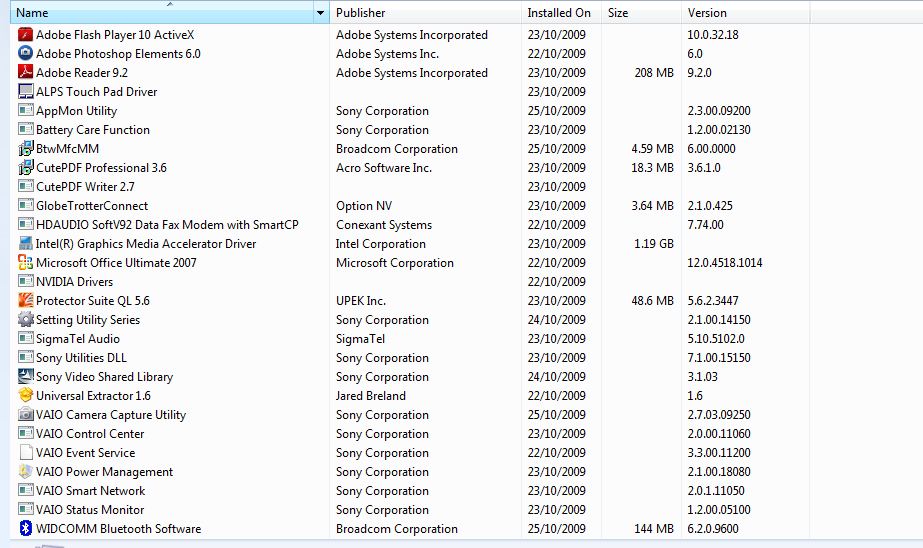
This is what is listed in the Programs And Features in control panel. I include this because the utilities are not the same from one model to another. However, most models can use the utilities listed here regardless if they have an SZ750 or not.
Note: The exception is the original Sony Nvidia registry patch, which I provide stripped so any SZ can use it.
Notebook Utilities (This installs includes Event Services, Setting Utility Series, Battery Checker (On this model this includes battery care), Camera Capture Utility, Power Management, VAIO Launcher)
TI flash driver for the memory stick slot, this removes the last exclamation point in Device Manager
Sony® Shared Library
HDD Protection Driver (Optional)
HDD Protection Software (Optional)
POINTING_DRIVER_ALPS (Optional)
Nvidia Registry Patch (enables brightness controls for Nvidia, people tend to skip this thinking it's not important)
Nvidia driver
I had to also use
SZ6 Utilities (only needed the battery care function from it, the SZ750 one does not work in Win7 64bit)
Helpful Links.
Some of which were used in the creation of this guide.
Drivers | drivers for mobile cards and laptops | laptopvideo2go.com
Sony eSupport - VGN-SZ750N - Software Updates & Drivers
ftp://ftp.vaio-link.com/PUB/VAIO/ORIGINAL/
http://www.vaio-link.com/os/vista/64bit/ (direct link VAIO | Support )
~Sony SZ Owners Lounge~ (check the 64bit guides as well as Win7)
Laptop Forums and Notebook Computer Discussion - View Single Post - ~Sony SZ Owners Lounge~
http://vaio.sonyelectronicscommunity.com/vaio/forum/
100% Working Clean Vista x64 Install on SZ6
100% Working Clean Vista x64 Install on SZ6
Windows 7 Build 7000 on my Vaio SZ680
Windows 7 Build 7000 on my Vaio SZ680
SZ6 W7 32bit
SZ650N/C with Windows 7
SZ7 webcam alternative post
My camera is working on Windows 7 64bit !!! (VGN-SZ750n)
VGN-SZ71 WN/C with Windows 7 x64 (64 bit)
VGN-SZ71 WN/C with Windows 7 x64 (64 bit)
Change Log:
Version 4.0 Last Updated 10Mar11
Added more info, fresh drivers, stripped the model checks in Sony software.
Version 3.3 Last Updated 22Mar10
Added more troubleshooting and more info in a few places.
Version 3.2 Last Updated 22Mar10
Fixed broken links and removed redundant text.
Version 3.1 Last Updated 21Mar10 (afternoon)
Added SLI popup step.
Version 3.0 Last Updated 21Mar10
For a complete list of prior changes, see the end of this guide.
Details:
Added info for other SZ models
Added troubleshooting guide
Updates:
Mouse Gestures – working
Web Cam – working (the light does not) (May no longer be necessary)
Annoying Intel and Nvidia popups – gone
Changed to latest Sony updates – (these need testing by others, I include the old ones just in case)
-
Hi!
Did you get your laptop with HDD anti shocked feature to work
Thanks. To check whether it works or not, just tap your finger on the palm rest on the left side. -
This is fantastic, thank you very much! I followed your instructions on I'm quite happy with the useability of my SZ750 running Win7 x64.
Here are some issues that I have noticed (and couldn't readily find a solution for):
- Green light doesn't turn on when using camera
- Microphone doesn't work
- Brightness function keys don't work for Stamina Mode
- Wireless function key doesn't work
Also, for the previous poster: HDD protection does seem to work fully (had to "tap" quite hard to engage even with the more sensitive "protection mode"). -
Thanks, for taking the time to do this. I'm sure it will help others. That webcam driver never worked for me.
I used this here for my driver on my SZ7/C and just manually updated the driver in the device manager.The green light is working and everything, i don't have any problems with it.
Ricoh Camera Driver - 6.210C
http://support.vaio.sony.eu/computing/vaio/downloads/preinstalled/index.aspx?l=en_GB&m=VGN-SZ71WN_C
My capture utility works as well. I can't remember what i installed for that although it probably was my 32bit drivers. You can put this into google to find out 2.7.03.09250
I own a EU model.
For my Nvidia drivers i used 64bit drivers that is specified for the SZ.
EP0000139786.zip
http://dls.update.sony.net/pub/oth/64/EP0000139786.zip
http://vcl.vaio.sony.co.jp/download/unofficial/64/001.html
There are other drivers for the SZ there as well. I manually updated my extension parser and PI using the drivers from the above link. You need to update two of the unknown devices.
For the smart network i just used the updated file on this page.
http://support.vaio.sony.eu/computing/vaio/downloads/updates/index.aspx?m=VGN-SZ71WN_C&l=en_GB
This is the driver
http://support.vaio.sony.eu/computi...165709.exe&m=VGN-SZ71WN_C&ip=EP0000165709.htm
I got nearly everything working bar my card readers a couple of days ago.
To get your brightness working you will need to install Sony DLL, Event Service, PI and the firmware extension parser. You may also need to install Sony shared library although i never needed to do that. -
Hi I have a SZ670N/C, and when I try to install Sony Shared Library I get a message, "This update is not intended for use with your computer model."
Can someone please help the noob find Sony Shared Library for SZ670 model?
Thank You
-
Another question, I need to follow your steps in sequential order, otherwise some drivers may not work properly? Is that correct? Because I am stuck at Sony Shared Library, and was wondering if I can skip that and continue go down the list? Thanks again for your help!
-
Good stuff, thanks. I am going to test this out on my SZ680 this weekend.
Just wondering whether the Sony Battery Checker app is really necessary though...I may just leave that one as is.
Btw, no BSOD's yet? I remember I got what seemed a fully working Windows 7 installation working early August, but I did still get a couple of random BSOD's quite often so switched back to my Vista backup.
And is the Battery Checker utility really necessary? As well as the other utilities? I don't really think so. -
You need to install a universal extractor and save and then select and extract that file.
http://legroom.net/software/uniextract
-
You are quite welcome everyone.
Yes, the feature works, and is even adjustable.
I completely forgot about that light, but I have never had any use for the webcam. The light isn't that important really though.
Shoot, I forgot about the microphone, I fixed the guide, see step 13.
Brightness and sound adjustment work fine, as does the works fine for me.
You are correct on the wireless function button, I always just used the slider switch so I didn't notice. All of the rest seem to work, this leads me to think it is a wireless driver issue. As with the light, it's a minor issue.
Without Sony support, some of these things may never work absolutely 100%. I'm quite happy with this though.
Update, after more thinking, I am sure this is the wireless causing it, I will look for a different driver instead of the default WIn7 one and maybe I can find one that will respond to the function switch. I'm sure there is one. -
Rachel, thank you for all your contribution to help with the W7 x64 installation on the SZ6/7. The Ricoh camera driver in your link is for 32 bit, how do you manage to get it to install on x64 system?
-
Some models need the shared library, some do not. Sony is inconsistent with naming drivers, much less how they were bundled.
Check your models Sony support page. Make sure you use Vista compatibility mode.
Look around, someone may have done a Vista 64 guide on your model with will have your answers. Some things MUST be done in order, some do not. It depends on the model and what is being installed.
On the many SZs, the PIO and Firmware Extension must be in place before the other programs as they need these in order to operate since they interact with the bios.
If no one has done your model and the original will not work, try this link ftp://ftp.vaio-link.com/PUB/VAIO/ORIGINAL/ and start with the closest to your model and newest. Then work backwards until one version works. -
You are welcome and thank you.
ftp://ftp.vaio-link.com/PUB/VAIO/ORIGINAL/ try that link, as I mention above, start with your model or as close as possible and work backwards, next model and older in date.
I will try the camera driver mentioned, if better I will change it out. Each model is a bit different in places so what works on yours may be different. I tried many that others claimed worked, and I couldn't get them to work either. This one did. It would be nice to get the light and Webcam software working though.
Update,
I just tried the driver, it works, which is great, it even allows you to use the Vaio camera utility. However, on mine, the light still does not illuminate.
I'll change the guide to reflect this later tonight.
Thanks, we are that much closer. -
Some drivers claim to be 32 bit, but contain 64bit drivers as well. Also in some cases Windows 7 can use a 32bit driver.
-
No crashes. No BSOD's. I have been running Win7 since early in the beta program. It is VERY stable.
Battery checker is not necessary, however I like it and think it is good to use.
Battery checker is just the battery care function, though on some models it serves a different function. On some it gives you detailed battery information instead. In this case it serves to enable battery care.
I believe Sony basically over charges the batteries (this is one way to get more from them), this was why so many blow up or die early. Using battery Care keeps that from happening, yet allows you to do so when you need it when you travel. -
Save the file and go to your device manager and where you see imaging devices where the usb webcam is or whatever is there select the driver and install it manually.
Mine shows up as Sony Visual communication camera VGP-VCC7
-
@Rachel Thank you soooo much! That worked!
I've encountered one one problem (not really a problem), in step 12 the Registry Patch, I did a universal extract, but there wasn't any exe file. So I clicked on the Reg file instead. And it prompt me am I sure I want to make changes to registry? I clicked yes, but nothing seemed to have happened or changed. Is the patch for using the fn key for brightness on the vaio?
Last but not least, my Windows experience index is 2.9 for Desktop Performance for Windows Aero. While the Gaming Graphic scored a 5.3?? Does that sound right? Did I properly install the correct Video Driver? My Nvidia Hardware ID number is exactly the same as Leslieann, therefore I simply just installed the driver and followed the "Let me pick" instruction provided by her.
2.9 score sounds more like a netbook score? Is that why Sony says our SZ does not meet the minimum system requirement for Windows 7 therefore refuse to provide support for it?
Thank you everyone in advance! -
Oh! Almost forgot! Did anyone get the WWAN working? Thanks!
-
Hi Rachel
I have a UK spec laptop same model as yours and i've just installed WIN 7 PRO 64bit. I would like to install all the drivers now and the apps but to tell you the truth I am lost regarding which ones to install and in what order. I have read many posts on here and I still am not able to get my S1 and S2 or my brightness control keys to work.
May I kindly ask, could you possibly put together a dummies guide/list on what to install and in which order for the SZ71.. On the Sony FTP site, there are so many drivers it's like a needle in a haystack job..
p.s. apologies leslieann for hijacking your thread. I figured to keep my question here as it's relevant to your topic. Am happy to open a new thread if you want me to.
My understanding is the following sequence:
1. Nvidia Driver
2. Sony shared libray
3. Settings Utility Series
4. Viao Event Service
5. Vaio Control Centre
6. Vaio Power Mgt
7. Firmware extention parser.
Kind Regards -
The driver installed and as I expected, a 32 bit driver will not work on a x64 system, the camera does not work with Live Messenger. Did you do anything extra besides installing the driver to get it working?
-
No worries.
I would be putting the Firmware Extension Parser (FEP)first. The shared library and Settings Utility need that to interact with the bios.
Also, go into device manager and make sure you have no exclamation marks. If you do, there is a good chance the (FEP) is not installing. This is a problem on the SZ750. You have to manually go in and install that driver as well as the Programmable IO driver. Yours may be doing similar. -
james007bond you can follow leslieann's guide. You can just substitute your own drivers that you can get from the Vaio link eu website if you want. You can also use the universal extractor.
Apart from the smart network and the wwan modules these models should be the same.
aralos i got my webcam working yesterday. I used it quite a bit with the Vaio camera utility. However, today when i went to use it not working anymore. I don't know what happened or may be i changed something without knowing. Some people are using this driver though in 64bit.
I need to figure out a solution or work out what i did differently.
May be it is best to not add that webcam driver to the final driver list.
-
Mine is a bit modded see my sig.
My sz pulls:
3.1 graphics/3.5 gaming in stamina mode
2.9 graphics/5.3 gaming in speed mode (?! shouldn't the Nvidia card run better?)
The Z750 meets the minimum requirements according to Microsoft. The worst is the graphics obviously, but MS states you only need a WDDM 1.1 capable video card. Which the Intel video card is. We also have the 8400m GS.
As for the netbook comment, Sony in their infinite wisdom put Windows Vista on an ATOM for gods sake. I think we can outperform an Atom based netbook. I think my HP Mini netbook pulled 2.3 with 2gigs ram and an Atom processor and solid state hard drive. -
This thread may or may not help.
http://forum.notebookreview.com/showthread.php?t=242431 -
Rachel, please check device manager and see what is happening with your camera. If things look okay, go back to the Ricoh one I posted in the guide and try Manycam, see f you get a picture (you may need to adjust it in video source). I am curious if your camera died or if the driver just suddenly decided it didn't want to work.
I seem to be having the same problem with the 1394 driver today. Grrrr. -
Something people need to keep in mind is that while you see a single INF file and driver, it may cover several different models. Nvidia on occasion used to include the sz750's model in it's inf files, now it doesn't. There is something like 20 or 30 different 8400m gs models, all with minor differences. Each one has to be included in the inf file or it will not work. They all work the same, just some minor labeling differences in the firmware.
Let's use Nvidia for example, my video card is:
VEN_10DE&DEV_0427&SUBSYS9008104D
Yours could be:
VEN_10DE&DEV_0427&SUBSYS9008104E
The only difference is the E on the end, but without an inf file saying the E model is compatible it will not work. The driver may be 100% compatible, but because of that inf file missing that information, you can't use it. This is what we fix when we replace the inf file in the driver we download from laptopvideo2go.
My camera may be a slightly different revision than some others even though we use the same driver. All it takes is someone being lazy and it no longer work. People referred me to a similar webcam driver, and yet it while it was labeled the same (VCC7), it refused to work on my laptop. The one Rachel mentioned works.
Point is, if one doesn't work for you, you can try a few others and maybe get it to work. -
Thanks ladies, will try the drivers in the morning and report back. Additionally, I have to make sure i'm using the correct inf file too for my graphics card....
-
Both of those drives for the webcam and software (SCU and the Manycam software) do not work for me. I installed the Sony webcam driver and the driver you listed i got no video source for both of those drivers with the Manycam software. If i use the SCU write now i get-
An attempt to initialize the camera failed. Please check if software is using the camera.
It could be that my hardware has a problem. I probably will sort it out in the week.
-
I think the low graphics score (2.9) is definitely a driver issue. If I remember correctly, the graphic score in Vista was 3.5, and the highest score in Vista is 5.9 where as Windows 7 is 7.9. Since Windows 7 is more "for giving" on lower spec machine than Vista, naturally, given the same graphics card, Windows 7 should score higher than 3.5.
Hopefully one day we will be able to find a better driver for the Nvidia 8400. Because 2.9/7.9 is just not a very respectful score.
Thanks! -
It sounds like your webcam died.
I wonder if was caused by a wrong driver (unlikely) or it just decided to die today. I ran mine with your driver for several hours today with no troubles.
The good news is you can get them on Ebay for $13 including shipping.
Can I facepalm now? My 1394 driver was disabling because I turned it off in power management. -
It may be a driver issue.
Keep in mind that Win7's hardware scale is a bit tougher than Vista.
Maybe I will throw the 180 driver on and see. I have another I can try as well. -
Oddly I installed a 2 year old driver for Nvidia and got this:
Graphics 3.5
Gaming graphics 4.1
So yes, there is something wrong with the driver. -
In Vista, I've found the best drivers for the 8400 to be some of the older ones -- usually ones WHQL certified. The latest drivers are usually geared to the newest GPUs. There's a good chance that there have been regressions in the stability and/or performance of the older GPUs in the latest drivers.
Of course, "best" is all relative. One set of drivers may be better for gaming performance while another may be better for desktop/aero performance. And then, of course, there's the problem that performance and stability often do not go hand in hand. -
Regarding the graphivs driver, I used the 190.40 driver and I too got the same result as Leslieann as 2.8 for my aero graphics. My original older WHQL driver for my SZ71 gave a graphics score of 3.5 also.
Anyway, onto my original question..... unfortunately I am still not able to get the S1/S2 & brightness keys to work. Also, I noticed that in the Vaio Control Centre, when I try and click on the 'S Special buttons' option, the program stops responding...... interesting.... back to the drawing board....
Rachel> May I ask, you couldn't put up a list and sequence of your drivers could you? I tried Leslieann's method, but no avail.....
-
Okay my cam died on me as well.
I loaded the Ricoh driver I posted in the driver pack, then the one Rachel posted again and it works fine now. I think something is not right with it though.
Hopefully this will help you get yours working again but I may go back to the original driver I posted. The fact that it was able to re-initialize it makes me think it may be the better choice. -
Hold the press.... stop the news..... bring out that champagne.....
I got it working.....! Those pesky small buttons work!!! yippee..
What did I do, well I used my original S71 drivers stack from nearly 1.5 yrs ago..... fingers crossed it's table... phew
Now it's time to get everything else to work...... will report back soon... -
Oh, I went driver hunt
I was hoping to get a wireless driver that responded to the function key but I had no luck. I am still convinced that it's the wireless driver that is causing it though and not the function key system.
I also went on a driver hunt for the video card and have come to the conclusion that the Nvidia driver in the pack is the better option to go with. In Stamina mode the Intel Driver works great for general desktop use. The Nvidia driver in the pack offers the best gaming performance of all of the drivers tested. If you use each mode for it's intended purpose, that driver makes the most sense. -
Congrats.
A lot of this is just lots and lots of trial and error. -
Just completed the whole installation and the hardware works but it wasn't 100% successful on an SZ680. Brightness is not working, volume Fn keys are working but when changing the volume the Sony buttons don't appear (but the Fn keys for volume already work natively in Windows). Switching graphics does not work either.
I'm going to attempt a combination of my old 99% successful installation of Windows 7 on the SZ6 and this version. I used to get a few BSOD's with the previous installation though every single thing would work (all buttons, switching graphics, etc.). I think it has to do with the versions of the Sony Utils, Shared Libraries, etc. installed.
Also I'm wondering whether installing a new SPEF or SPIC driver affects how good the installation will work too - or should one stick to the versions of these drivers that came originally shipped you think? -
Also, so you didn't install a separate driver called the Sony Shared Video Library? (which does seem to come on SZ6 systems)
-
Thanks..
Agree it's trial and error...
However, my camera's not working either, so it's time to investigate that...
Funny thing is, to get the S buttons to work I used your settings utility together with my originasl settings utility (version 2x)... very bizzare... lol
On a side note, i still need to install my Norton Internet Security....(yes I use Norton... hehe) but I have NIS2009 with 180days of subscription remaining so i'm thinking it's a waste of money buying NIS2010, hoping NIS2009 is WIN7 X64 compatible...
Also, i've decided, this installiation is my sandbox.... i'm writing everything down so when I reformat I know what to do.... lol -
Leslieann, thank you for your contribution to try to get everything working in W7 x64.
Regarding the Ricoh camera, here is my 2 cents worth and may explain why it works sometimes and it does not another time.
The Ricoh camera in the SZ series is fully USB Video compliant, meaning the native x64 driver from Microsoft can be used. The problem is that the firmware for the camera is stored in volatile memory in the camera and must be reloaded after each cold boot. Once the firmware is loaded, then each subsequent warm reboot, the camera will continue to work until you turn off the laptop. The x86 32 bit driver from Sony does not work in x64 environment, period. Some users reporting that it is working must have previously rebooted their system in a 32 bit environment and therefore the firmware was downloaded to the camera.
This is how I get mine working using the native Microsoft driver, and it is not ideal at all. When I need to use the camera, I will start a VMware virtual XP session using the Sony XP driver to download the firmware to the camera, once this is done, the camera is good to use in native x64 mode until I turn off the laptop. The same can be achieved probably with W7 XP mode (not tested). -
I don't really bother about my WI scores but mine is 3.9 using my Nvidia graphics and 3.1 using stamina mode. My highest score is 6.7 for my HD. When i switch the stamina speed settings my computer recognises it and a message pops up asking me if i want to reboot. I went from Vista Ultimate 32bit to W7 Professional 64bit. I could not upgrade and had to a clean install. Opting for an upgrade is the easiet path to take with these Sony's.
No way am i going to offer to upgrade anyone else's computer in my family.
Has anyone tested their battery life? My power management is working ok and i have change my fan settings.
I just timed my laptop booting up and it was 23-24secs to my desktop and 26-27secs until i had a usable mouse. I think it might be 1secs better than i had before lol. I do have an SSD drive installed.
I do have my brightness keys working and volume buttons. I posted this attachment in another thread but i've changed a few things. You can search on the version to find out what i used. I do have the shared library installed but for some reason it does not show up in my list of installed software.
These are also some 64bit drivers, this is combining some other posts and posting direct links because that Sony webpage often will not work. This might be useful if you own a EU model and cannot get some of the drivers in the first post to work.
It would be great if Sony could provide us with the webcam drivers because right now i cannot use my webcam.
Fingerprint coprocessor- you need to manually update this
http://dls.update.sony.net/pub/oth/64/EP0000139775.zip
You need to install the software though.
Texas Instruments
http://dls.update.sony.net/pub/oth/64/EP0000139787.zip
EP0000140021 : SFEP(Sony) sz6-7
http://dls.update.sony.net/pub/oth/64/EP0000140021.zip
SPIC(Sony)
http://dls.update.sony.net/pub/oth/64/EP0000140022.zipAttached Files:
-
-
I couldn't get the fingerprint reader working from the driver you have mentioned. However, I was able to get it to work by going to device manager, click on update driver and have Windows automatically look for the latest driver for me over the internet. Now it's working properly for me.
Driver Version: 1.2.0.151 from Upek -
Why not download the latest W7 x86 and x64 WHQL driver from Upek directly:
http://www.upek.com/support/downloads/windows7/learnmorew7.asp -
Have drivers from the following site been tried?
http://www.vaio-link.com/os/vista/64bit/
Maybe something there will help with the webcam. I haven't had a chance to try Win 7 x64 yet on my SZ730, but I should be getting a copy in about a week and am looking forward to joining in on the fun (if you consider scavenger hunting for working drivers fun). -
I'm so happy to see other SZ owners getting involved, I have little doubt we can get everyone up and running if not 100%, at least enough to be happy.
You're all very welcome, and thank you all for the contributions.
I didn't intend for this to become a gathering place for so many, SZ owners, but I'm glad it did.
I am still working on making things a bit better. I am going to put a list of links in the original post of places to dig so others can help further in the hunt. Also some notes of things I have and have not tried, and the results.Last edited by a moderator: May 8, 2015 -
The first post is exactly what I am using, nothing less, nothing more.
Sony likes to rename things here and there and combine and separate things.
Always a good idea.
You should see the pile of drivers and notes I have collected in the past few months starting with Vista x64, up through the beta Win7 x64 to the retail version.
Estimates...
Windows installs - at least 30
Webcam drivers - 10
battery care - 5 (close to 100 install, remove cycles)
Nvidia drivers - well over 20
Yes, I'm persistent.
-
You may very well end up with a hodgepodge in order to get things going. I have an HP/TI driver, Fujitsu/Ricoh Driver, and SZ6 battery care.
I might experiment with the IO drivers, but at this point I'm quite content with how things are working.
Thanks, and yes I have been there!! I will be adding it to the list I am collecting of driver picking grounds (websites).
I will be posting a list of places to find drivers soon. -
I think this is a problem, but not knowing how to explain it exactly. I feel like there some quirkyness to the keyboard. Sometimes when I'm typing, the cursor would randomnly jump back to a word I typed earlier in that same senence. For example, as I am typing now the cursor may jump to "as I am typ(_)ing now," and as you continue to type it totally mess up your train of thought. Also, I feel like the computer is not registering as fast as I am typing. Missing a letter here and there...hmm...now I think back, this is the same problem I had with Vista.
Am I crazy? Are any of you guys getting ths also? -
Interesting! And oh boy, did you open a can of worms.
I can confirm this to be the case. At first I didn't think that was happening, but it does have to do with COLD BOOT only, not a reboot, which explains things.
As for short term fixes
I can load the driver pack driver, then switch to Rachel's Sony driver and re-initialize it that way. No need to boot into Vmware. Windows seems to prefer the Sony driver over the MS driver, so I suspect that is what will be the best choice.
For some reason my system also seems to have found a dislike for Manycam now. It worked fine the first few times I used it, now it shows a few frames then sops, regardless of compatibility mode or driver.
This is going to take some work I think, there has to be a way to re-initialize it. Time for more research.
Sony SZ750 Win7 64bit clean install (should help on other SZ's)
Discussion in 'VAIO / Sony' started by leslieann, Oct 24, 2009.