Problems? See this thread at archive.org.
I was wondering if anyone has put a guide together yet for performing a clean install of Windows 7 32bit on a Sony Vaio FZ from Windows Vista.
I have searched the forums and have only found guides for performing an upgrade install to 32bit and a clean install to 64bit.
I will put one together if people who have performed a clean install can tell me what can tell me what they did.
-
-
Upgrading from Vista 32-bit to Win7 32-bit is fairly straightforward. I've been meaning to do a guide on how I clean installed Windows 7 on my FZ290 after I made sure everything worked great. So far, everything seems fine. Here are the basics, and I'll update with links and more detail later:
1. Disconnect all usb devices and ethernet cables. A usb mouse is fine. Install Windows 7.
2. After setup is complete, connect to internet. Win7 comes with compatible drivers for the Marvell Yukon ethernet adapter and Intel Wifi Link 4965agn. Run Windows Update and install all available updates. One of them should be "Sony Firmware Extension Parser", this eliminates one exclamation point in device manager.
3. I personally recommend updating the Intel Chipset Drivers (9.1.1.1025), then Intel SATA driver (8.9.0.1023). This is optional though, Win7 drivers work fine too. Download these from Intel's website.
4. Download and Install Nvidia Graphics Driver from laptopvideo2go.com. I recommend 195.62. You need download both the driver and modified inf. Now you can have Aero enabled.
5. You can download the latest driver for Marvell Yukon ethernet controller off of marvell.com. Again, optional
6. Same with the Intel Wireless WiFi Link 4965agn.
7. Install your official Windows Vista compatible drivers for your camera, alps touchpad, TI PC1xx12 Flash Media controller, Conexant modem driver (if youre gonna use it). Download these from esupport.sony.com.
I personally like to extract the core driver files from these downloads using Universal Extractor 1.6, and manually updating the device drivers in Device Manager.
8. I choose not to install the Sony Shared Library, Wireless Switch setting utility, Vaio event service, vaio power management, vaio launcher etc. because I don't really need them. If you need the S1 button, FN Brightness keys, etc to work then go ahead and install. They worked fine in Win7 for me once. You must install these Sony utilities in correct order beginning with Sony Shared Library. Ill look up the proper install order for these and post later.
I hope this helps for now, sorry if im not clear or if I missed something i typed this up fast. Ill update it and clear it up later. Any questions let me know.
Credit to coolguy for pointing me in the right direction. His Win7 64-bit guide for FZ190 can be found here:
http://forum.notebookreview.com/newreply.php?do=newreply&noquote=1&p=5779949 -
Thanks this is really helpful, a bit of cleaning up and it will all be done.
I probably won't be doing my install for another two weeks or so (don't want to do an OS upgrade when I have a very important essay to write and I can't haveany notebook trouble in that time). I'll get back to this when I do my clean install. -
1. Sony Shared library
2. Setting utility series
3. Vaio Event service
4. Vaio Control center
5. Vaio launcher
That order worked for me, but since taken them off as Win key + X does the job for me. -
Where is the best place to download each of these from?
-
I got mine from - ftp://ftp.vaio-link.com/PUB/VAIO/WIN7UPGRADE/
-
Specifically which ones did you get, since there are multiple versions of them.
-
The ones with the highest version number.
-
Hi,
I've just installed windows 7 ultimate, and it doesn't recognize my graphic card model (I've FZ290 too). In device manager, under display adapters it's said standard VGA graphics adapter. I've downloaded the last NVIDIA driver, the setup says "it cant find any drivers that are compatible with my hardware and will now exit".
Any Idea? -
Download a modded inf from - http://forums.laptopvideo2go.com/forum/159-19x-series-geforce-driver-releases/
Then follow this - http://www.sevenforums.com/graphic-cards/26710-nvida-driver-install-start-finish.html -
Thank you, that did the trick! Now my card is recognized.
But still I can't use FN keys to adjust brightness. The WINKey+X works although. I couldn't find the Vaio launcher from the site you mentioned, is it the problem? -
Have you already installed these?....
1. Sony Shared library
2. Setting utility series
3. Vaio Event service
4. Vaio Control center
Launcher can be found here....
- ftp://download.sony.com/US/pc/SOAOTH-70193336-US.EXE -
I have, with the exact order, I also installed the launcher with the link you provided. But it doesn't work yet...
The files I used were:
1) 7UPG_SONY_SHARED_LIBRARY_5.4U_5.4.0.05200.ZIP,
2) 7UPG_SETTING_UTILITY_SERIES_5.0U_5.0.0.08060.ZIP,
3) 7UPG_VAIO_EVENT _SERVICE_5.0U_5.0.0.08040.ZIP,
4) 7UPG_VAIO_CONTROL_CENTER_4.0U_4.0.0.07280.ZIP,
5) SOAOTH-70193336-US.EXE.
I chose the versions with highest numbers. These files were installed prior to the graphics card, I'm going to check if that's effective at all...
Arigato. -
Well I tried to uninstall and reinstall all the Sony related files (in correct order)
but the fn keys for brightness won't work. What do you think? -
Did you reboot after each one?
-
Yes, this is the correct order. But yes they are useless as I use Win Key + X as well (Windows Mobility Center).
Sohrab, if those updated ones don't work, then try to use your official Vista ones from the esupport.sony.com page for your specific model. Thats what I did and they worked fine for mine.
It takes some experimenting to get everything working and in the end you will have a great laptop with windows 7. My guide is coming soon... -
I have an FZ190 and did an in place upgrade from Vista to Win7. But after that the brightness controls would not work after a sleep/wake cycle. Coolguy (Rajesh) and I worked through a bunch of trials to see what we could do to get it to work. In the end here is what I did:
I uninstalled ALL of the old versions of the items below, execpt for the Sony Shared Library as it has no uninstaller. Make SURE your delete the Nvidia drivers when you uninstall them, there is a check box for that. Reboot after you do this and make sure you are using the standard VGA driver. (BTW you can change the resolution of that driver to 1280x800 while you do the rest of the stuff.) I uninstalled EVERYTHING before I started installing new items. Then I installed:
1. Sony Shared Library – 5.4.0.05250
2. Nvidia driver - 195.62 with modified INF file (ignoring the unsigned warning)
3. Sony Firmware Extension Parser – 8.0.1.1 installed this via device manager. (Got an error that the device could not start, rebooted and it was fine.)
4. Setting Utility Series – 5.0.0.07280
5. Vaio Event Service – 5.0.0.07130
6. Vaio Control center – 4.0.0.07130
7. Vaio AV Mode Launcher – 3.0.0.07150
8. Vaio Power Management – 5.0.0.11300
Brightness works even after a sleep cycle! AV button worked. S button did not. It brings up a balloon “Shortcut Key is pressed”. If you click the balloon Vaio Control center pops up. There is no setting function for the S key. The AV key interface for addung apps is in Chinese.
9. Installed the original version of Wireless Switch Setting Util. ver. 3.6.00.14270. It has 2.4ghz and 5ghz controls but still no Bluetooth control.
10. Used Ramesh’s trick to set the functionality of the S-key to do something. HKEY_LOCAL_MACHINE\SOFTWARE\Sony Corporation\Setting Utility Series\SButton\AppPath now contains: C:\Program Files\Utilities\NirCmd\togglemute.bat That batch file has one line in it.
nircmd.exe mutesysvolume 2 I had tried to put the command line in the registry key, but the parameters didn’t get passed.
Gary -
I've seen you mention that a few times and thought I'd ask what you mean?, as my switch turns both on or of.
-
The PHYSICAL switch turns off both. But the green icon in the system notification area has only the two WIFI options nothing about Bluetooth. I wanted to be able to use the icon to turn off JUST the Bluetooth radio as I never (or rarely) use it.
Gary -
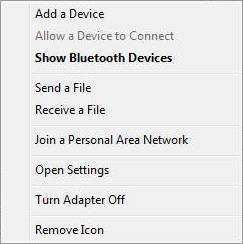
My driver version is "7.2.7001.1" which gives the option....
Attached Files:
-
-
I installed sony extraction point, and reset. The fn keys for brightness now work. Thanks anyone.
-
Wrong Icon! You clicked on the bluetooth Icon. I have the same interface as you if I do that. I am talking about the GREEN Wireless Switch Icon (aka Switcher.EXE). It was the one that had the ability to turn on or off the two WIFI frequency modes and the Blutetooth radio. Now it only has the two WIFI mode selections.
Gary -
"Sony extraction point"??? What are you referring to?
Gary -
I know, the point was you can still switch it on or of independently of the wireless, but I know some of the newer drivers don't give the same option.
-
Oh, wait!!!! I didn't read all the way down the list of options in that image you included in your post. My interface does NOT include the turn off the adapter option. I will have to create a restore point and try that driver version! Does it also turn off the blue light on the front edge of the laptop???
Where did you download that driver version???
Gary -
Gary, I think that UserofFZ21Z has Broadcom bluetooth adapter, for which Sony provides driver updates. Our bluetooth adapter is Toshiba's.
-
Rats! Have you seen any Toshiba drivers that offer the option to turn off the adapter that UserofFZ21Z has?
Gary -
It had the option to turn off the radio, but the utility is only a 30 day trial.
-
No, I knew that. I mean any Sony drivers for the Toshiba Bluetooth we have. Have you seen any of those with the radio on/off option like the one shown in the picture UserofFz21 posted?
Gary -
No, the older utility didn't have that option.
-
Hi.I have a fz21m and i perform clean install win 7 32.Everything works except S1 button.When i press it i saw the balloon message but don't response to anything i select.
Any ideas?
Thanks. -
The info you are looking for is right here in this thread, here is a link to the specific post:
http://forum.notebookreview.com/sho...&highlight=Setting+Utility+Series#post5801954
Gary -
I read that but still the S button doesn't work.
-
Did you do the bit about setting the registry entry to have the S button do something???
What is it that you want the S button to do?
Gary -
1.Yes
2.To run an application like "Turn off Lcd" -
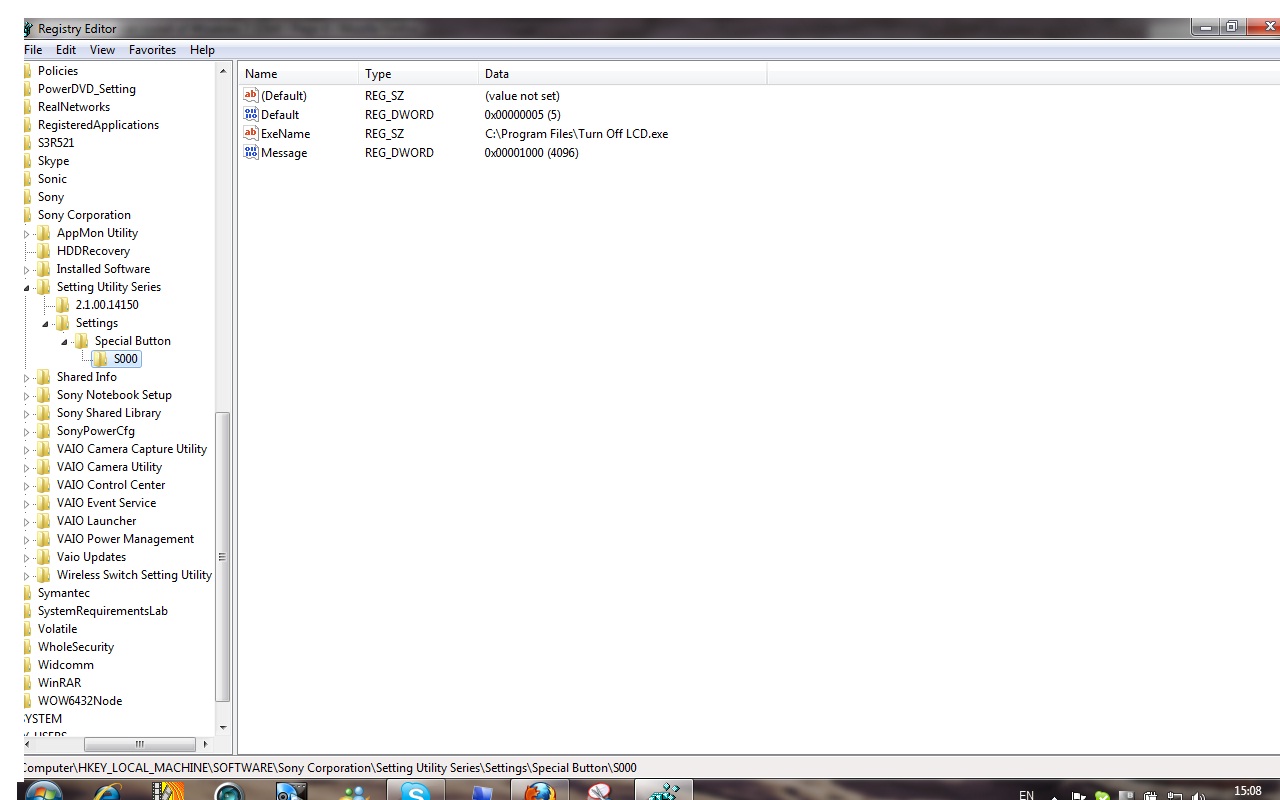
Could you be a little more specific? Exactly what did you put into the registry entry?
Gary -
I did this.Please tell me that i'm wrong.
And thank you for the help.Attached Files:
-
-
What is "C:\Program Files\Turn off LCD.exe"? Do you have some program with that name? The only thing you can put into the registry is an actual program name, a batch file name or shortcut link name.
Gary -
Yes it's a program shortcut.
-
A program or a program short cut? They are not the same thing. A program would have an .EXE extension like you have here. A short cut should have an LNK extension.
Gary -
It's .EXE
Tell me how to fix it.
Thanks -
So it REALLY is a program and not a program shortcut as you originally said? I assume you have tested the application and if you run it it does turn off the LCD? (BTW What turns the LCD back on after you run it?)
If it really is a program, I am not sure what the issue is. What happens when you hit the S key with the registry entry set to run this?
Try setting the registry entry to do something else like run NOTEPAD.EXE, see if that works first before we proceed.
Gary -
I try with notepad nothing happen.
Next? -
You should install the right version (5.X.XX) of Setting Utility Series for the S button registry tweak. Refer to earlier post by Gary for the version number below
http://forum.notebookreview.com/showpost.php?p=5801954&postcount=17 -
In addition to what Rajesh said above, tell me EXACTLY what you have in the registry now to try to get it to run notepad.exe
Gary -
Thanks for this mate. FZ345D up and running on Win7Pro, just sorting out S1 button. Any guidance would help.
-
It's all right here in this thread.
Gary -
I just performed a Windows 7 Ultimate 32 bit on my FZ-290 But my touchpad doesn't work even though I already downloaded and installed the windows 7 compatible driver from sony support website.
Can anybody help me?
Note: The Fn button and the volume control do work, the only problem I encounter with is the touchpad... -
Download and use the Vista driver for your specific FZ model. The problem you are having is that as far as I aware Sony doesn't have a driver for the Alps touchpads on the FZ, only for the Synaptics (or whatever the brand that is now used) for the newer Sony laptops.
-
thanks guys for the details. painful upgrade and i dont have any bdrom since i installed win7 ... installed intel drivers, sata, nvidia ... still no drive. i have fz21s. can anybody pls help?
Sony Vaio FZ clean install of Windows 7 32bit
Discussion in 'VAIO / Sony' started by scadsfkasfddsk, Jan 25, 2010.