Problems? See this thread at archive.org.
I use CrystalDiskInfo to monitor SMART status on my 9550 with a PM951 and everthing works very well.
I did have problems early on as the 9550 came configured with RAID (rather than AHCI) disk mode and CrystalDiskInfo at that time couldn't access the SMART data. I believe the current version of CrstalDiskInfo now 'plays nicely' with the Intel RAID driver but I've not tested it myself.
I'm not familiar with GSmartControl but if it doesn't work, I'd suggest checking you're using AHCI or try using CrystalDiskInfo.
Good luck.
-
-
I tried using CrystalDiskInfo along with a few other SMART data reading programs and none of them can read it... These were all tested within Windows in RAID mode. I also made a bootable USB drive with GParted on, and booted from that with drive mode set to both RAID and AHCI and it can't read SMART data in either mode.
I'm not too worried as I keep regular backups and would expect an SSD to easily outlast my use of the laptop given how little I write to it. -
Try to update your Intel rapid storage driver.
-
That won't do anything as I don't have the RST interface installed. Also this occurs when booting onto a GParted USB drive in RAID and AHCI mode. I've decided it's probably a firmware issue as another guy on reddit recently made a post describing the same issue.
-
Hate to bring up an old issue, but I think I've tried everything on this end. I have the THNSN5512GPUK_NV toshiba 512gb drive, and am getting the BSOD with the unexpected store exception and critical process died errors. So far, I've updated the RST driver to the newest 15.x version, and I've also tried the AHCI fix by switching to AHCI and then installing the ocz driver. When I'm in RAID mode, I get those BSODs. When i'm in AHCI mode, everytime my computer boots up from sleep, it restarts.
Any ideas on a fix here? I still have extended protection with Dell, should I get them to switch the drive to the samsung?Last edited: Jul 24, 2018 -
I have the Toshiba XG3 THMSN5512GPU7 and used the Toshiba drivers posted here in the forum. I have had no issues. Did you use them or get yours from the OCZ website?
-
I think my drive might be the XG4? Not sure how to check. I got them from OCZ website under RD400. Is there a better link to go to?
Edit: More research has me believing that this has something to do with Windows Update 1803, where they had issues with Toshiba drives. I updated to that around June 22nd, exactly when I started having issues with my laptop. Apparently they've issued fixes in updates since, but nothing has solved my issue.Last edited: Jul 25, 2018 -
The driver for my XG3 posted here was right around the time Toshiba bought OCZ so I'm not sure where it came from and I don't know if it pertains to the XG4. Gonz or one of the other techs here might know. As I understand, MS is still rolling out fixes for the breaks that 1803 caused. Good luck.
-
Yeah it looks like that's the same driver from the website. I'm gonna try the switch to AHCI again and see if that does anything. Hopefully someone else has found a solution/has any idea. Might just go ahead and request the Samsung.
Edit: Made the switch to AHCI again, and this time tried selecting "XG3" in the drivers instead of "RD400". No longer crashing after sleep, this might be the fix!Last edited: Jul 25, 2018 -
Nope. Crashed again after sleeping on battery. -
Did you try uninstalling the RST drivers completely?
-
Nope, how do I go about doing that when I'm in AHCI mode?
-
Generally, after backing up all your critical stuff and creating a restore point in System Restore ( a full system image backup is always preferable), look in Apps & Features under Settings and find the entry for Intel Rapid Storage Technology and uninstall.
Then after rebooting, reinstall the latest RST drivers. If that does it, your home free. If not, 1803 did something else and your going to have to think about rolling back out of 1803 to see if that helps. -
Have you updated your X3 firmware?
https://www.dell.com/support/home/en/en/debsdt1/Drivers/DriversDetails?driverId=2N42W -
Yeah, I got the firmware update at the same time as the driver that was posted here in the forum when I got my 512 GB XG3 to replace the 256 PM951 that the machine came with.
I'm using the OCZ SSD Utility which is supposed to notify me of any new firmware updates, but nothing so far. -
My X3 firmware is updated, but it looks like that wasn't the issue! About 36 hours in without a crash (a new record), and I think that's because I reflashed the BIOS. If anyone can't seem to solve their BSOD, try switching to AHCI, installing the XG3 driver, and then reflashing the BIOS. For now that's been working fine for me. Thanks all for your help.
-
Hey so I've been having the same issue with it crashing when resuming from sleep. the solution has been to reflash the BIOS like you found but that didn't seem to be a permanent fix, this last time it took only 2 days for the issue to pop up again.
After speaking to Dell on the phone today they said they don't support having 2 operating systems (Windows 10 stable and insider builds) so I did a clean install and switched from RAID to AHCI mode.
It's fixed the issue resuming from sleep but I've just had my laptop lock up just like it used to do a year ago when 1703 came out in AHCI mode, the fix was to switch to RAID... (Samsung PM951 drive btw)
I just don't understand what's going on anymore, maybe there is some hardware issue with my laptop? I'll reinstall in RAID again tomorrow with a single OS version and pray the sleep issue was fixed by the clean install, not AHCI mode.
If it's a choice between sleep issues in RAID and freezing in AHCI I might go insane. -
If your lock up was similar to this thread: http://forum.notebookreview.com/threads/xps-9550-win-10-creators-update-random-freezes.803412/ then my solution was to use the following drivers:
- "IDE ATA/ATAPI controllers"->"Intel(R) 100 Series/C230 Chipset Family SATA AHCI Controller": Use version 15.7.*.* or 15.2.*.* (but not 15.5.*.*)
- "Storage controllers"->"Samsung NVMe Controller": Use version 2.0.*.* (not 2.2.*.*)
-
Thanks for the tip! I remember reading about using the Samsung NVMe 2.0 driver now, I'd forgotten about it in the last year.
One difference is I haven't installed the Intel RST drivers (should be unnecessary in AHCI mode right?) so under ATA/ATAPI controllers I have "standard SATA AHCI controller", do you know if it makes a difference leaving this device on the Microsoft driver? -
I think you might see a performance improvement but I don't have any hard data to support that.
-
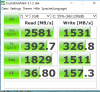
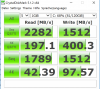
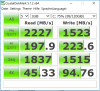
Not much difference, please find enclosed my benchmarks:
Attached Files:
-
-
My wifi suddenly slowed down... I noticed the speed is slower by 50% compared to the speed of my phone and other pcs. Whenever I turn my 9550 on, it will take a couple of minutes for it to detect the wifi. Then it will have a hard time connecting.
Hope you guys could help me fix this. Thanks -
What wireless card is in your unit?
1. If you have Support Assistant installed run a diagnostic test while connected and see what results come back. if it comes back passed or it's not installed move to step 2.
2. Uninstall the wireless device and delete the drivers under network adapters in Device Manager and see if windows recognizes it after the required reboot. If it does try it with the windows assigned driver and if not download & install the correct driver for it.Last edited: Aug 6, 2018 -
I had a similar problem after a windows update. Turned out the update had turned on network discovery. After turning that off, things returned to normal.
-
Hey all. I use my dell xps 9550 laptop connected to an external monitor which is my primary monitor. The laptop screen, i do use it as secondary monitor but rarely as the size is very small. Current monitor im using is a 24' 1920x1200 resolution monitor. If i were to get a 1920x1080 monitor and want a dual monitor, what would i need to buy? Do i need another video card or anything like that or is my video card in my xps 9550 good enough?
Currently its connected via hdmi to hdmi from my laptop to my monitor. So if i get a 2nd monitor, what other things would i need to buy? The other thing is this. I have my laptop screen extended where i could drag a window from my monitor to my laptop screen. If i get a 2nd monitor, how would that work then? Could i make my primary monitor that main screen and then when i drag a window to left, it goes to my laptop screen and when i drag it to the right, it goes to my 2nd monitor? I would put the second monitor to the right of my current monitor so i like to know how this would be done. Also if i were to ever buy say a 27' or 30' monitor or bigger, would i need any special video or anything else? -
I use: https://store.google.com/product/usb_type_c_to_displayport_cable to connect to my external 4k monitor at 60hz. This will leave your HDMI free to connect to a "lesser" monitor.
pressing likes this. -
I would recommend to use DisplayPort and not hdmi.
Buy a USB-C to DisplayPort cable, there are a few available both in 1m length and short 1dm adapters.
Daisy chain the second monitor using DisplayPort. This require that the monitors, or at least the first monitor is DisplayPort 1.2 compatible.
This way you only need one cable to your laptop.
This does probably not work with two 4K monitors, but it works fine with two 2.5K monitors (this is our standard setup).
What matters is resolution, not screen size. So for two 4K monitors you would need the TB15 docking station which has some extra graphics.
Use intel display software to setup your multi screens. You can extended your screen over all 3 displays, which may have different resolution as well. You can configure the screen so they match the physical position, so you can drag windows across your screens in a natural way. You can even position the laptop screen relatively lower than your monitor so the cursor enter and exit seamlessly between screens at different heights.
You can also set which of the screens are your primary...
Good luck!
Sent from my iPad using Tapatalk -
New Bios is out
Dell XPS 15 9550 1.8.0 System BIOS
Fixes:
1. Update Intel ME Firmware to address security advisories INTEL-SA-00125 (CVE-2018-3655), Intel-SA-00131 (CVE-2018-3643 CVE-2018-3644) & INTEL-SA-00141 (CVE-2018-3657 CVE-2018-3658 CVE-2018-3616)
2. Updated CPU microcode to address security advisory Intel Security Advisory INTEL-SA-00115 (CVE-2018-3639 & CVE-2018-3640)
3. Fixed the TPM configuration on a TPM startup error during S3 resume
4. Fixed the internal LCD display stays on when LCD display closed
Enhancement:
1. Improved startup stability when Thunderbolt Technology Support is enabled
2. Prevent ghost key trigger while pressing multiple keys at the same time.
3. Improved system enter Hibernate duration time when Dell Thunderbolt Dock TB16 is connectedpressing likes this. -
4. Fixed the internal LCD display stays on when LCD display closed ...... Took them long enough
-
I say, we truthfully need to be grateful for these updates, patches & fixes as the unit took a backseat with the new refresh's and they really don't have to do it.
-
How are folks finding performance?
Having updated to 1.8.0 and received the last Tuesdays patches (specifically: https://support.microsoft.com/en-ie/help/4343909/windows-10-update-kb4343909) my lappy is feeling slower - I am hoping its just a placebo affect of some sort, but suspect these CPU security workarounds are starting to be noticeable.... -
I have not found any clear indications of a performance hit yet. I updated one machine and left the other at 1.70 to compare. So far, no noticable difference.
-
Same for me as MikeBravo, as I honestly don't do anything intense on my laptop yet I really see absolutely no difference in performance with the update as well.
-
After few days, I've found that the laptop runs good. Better performance in desktop 4K (I have to switch for programs, that don't scale well). Sometimes the scrolling would be laggy, but it's not anymore. Everything up to date.
-
Hey everybody! Just joined in order to ask something!
I have been trying to undervolt my xps 15 9550 with the i7 6700hq, which I heard is pretty good at undervolting. SO i have been testing and I had -150.4mv in cpu and cpu cache and ran prime95 for 2 hours and a half. No problems.
When I tried to go into unigine it crashed. Is there any influence from the GTX960M gpu when doing undervolt on the CPU? -
The 6700hq is not a great CPU for undervolting and the 9550 has some heat issues.
Reduce your undervolt and try unigne until there is no crashing.
Have you repasted the CPU and GPU? That improves performance significantly for many users.
Undervolting the "Intel GPU" and "System Agent" may cause latency issues so you might remove any undervolt there.
Are you using Intel XTU or ThrottleStop for your undervolt? Intel XTU is rather unstable. Do not run both at the same time.
Do you have recent drivers and Windoze updates?
-
I'm running throttlestop and a clean windows install.
I heard people getting -190mV on i7 6700HQ that's why I said it was a good cpu for undervolting.
Max i've got so far running during 30 minutes in Uningine was -125mV which I feel is quite low?
Also yes, I repasted, in idle after turning computer off I'm having 28-30ºC. 100% Load seems to give me 62ºC (no turbo) -
hahaha.
Nobody is getting stable undervolts at -190mv on the 6700HQ. Search the XPS threads here and you will probably see the 6700HQ closer to -130mv to -150mv. There are a lot of data points. As your CPU is a few years old, it probably needs a bit more voltage than it did when new, so your stable undervolt range might be lower now.
The 6300HQ was more amenable to undervolts, frequently stable at -170mv.
Idle temps are not very helpful, unfortunately.
This thread has all the thermal and undervolt data you could want for the 9550:
http://forum.notebookreview.com/thr...rature-observations-undervolt-repaste.785963/
Good luckSDeP58 likes this. -
Apparently Dell did decide to update their support site yet they still didn't do anything with the Drivers & downloads section to let you know when a update was actually updated and this I just don't understand.

-
I see so basically those bigger undervolts are generally CPU only, without running the GTX960M?
How long should I run unigine for to test stability under 3D Applications? -
For general use, I don't think the CPU undervolts should be correlated with the nVidia GPU use.
Regardless, 6700HQ was a new generation CPU so was immature and not very amenable to undervolting. It might work at -190mv for a few people who are just surfing the internet. Or they might be misreporting (sometimes the undervolt does not stick, user error, etc.). Stable undervolt range is well documented here and I don't see any reason you should ignore that data.
No idea. I run Prime95 overnight. And I run a bunch of other stress tests as well. Then put it thorough some games and some tasks that mirror my personal workflow.
From a practical perspective, you should not be undervolting near instability. You don't want your laptop crashing during critical gaming or critical work. I find most aggressive STABLE undervolt, then reduce undervolt by another 10mv for safety. YMMV.
You will see all types of stress testing methods in the 9550 thread I linked above. -
Yeah, I've been running uningine for almost 1 hour now. No freeze ups or anything. Running with -125mV in cpu/cache/igpu and so far so good!
I can run Prime95 no problem with lower undevolts, but it crashes when using the gtx960m. I might just make two profiles, one for general, light use and another for gaming/3d applications.
I was able to run Prime95 for for 2 hours and 30 minutes (I stopped the test after that as I wanted to test other undervolts) @ -150mV, but it crashed on unigine while running with the GTX960M, which is why I was questioning! -
Hey all i got a dell xps 9550 from a while back. I connect a monitor to it as my primary monitor and use an hdmi cable. I like to know... could i connect an additional monitor to it and thus have dual monitors? There is only one hdmi port on my computer. So how do i do this?
The thing is i do use the laptop screen as well as sometimes i drag a few chrome windows to that one to look at. Thus imagine youtube videos on that screen while using my main monitor screen.
The screen is extended where i could drag window from the main screen to laptop screen and vice versa etc.
But if i could do this, could i also use my laptop screen as a 3rd screen similar to like how its a second screen now? But i like to know mainly if i could use both monitors at the moment as that is the most important thing. And what cable would i need to buy? I have one hdmi cable that i use with my laptop with my main monitor. The other screen, i used the same hdmi cable while unplugging the other monitor and that works.
hi there. Could you explain this? My monitors are samsung and asus and both are 24' with 1920x1200 resolution.
Hi there. I posted a few responses above on the situation. So i would need to but that cable you mention? I named those 2 monitors that i have. These are higher resolution than the 1080p 1920x1080 as its 1920 x1200.
These are the 2 monitors i have
https://www.amazon.com/ASUS-VS24AH-...r=8-2&keywords=asus+24+inch+monitor+1920x1200
The other is an old samsung syncmaster t240hd
Also another thing i want to add. The asus monitor that i connected to recently to my laptop, it previously didn't work a long time ago so i went and got another monitor which is this samsung syncmaster. But i tried the asus recently and it surprisingly worked which surprised me. I had it put on the shelve for a long time and was going to actually throw it away but didn't. However, i notice a few issues with it. There are like these dark spots on the screen that seems to be inside of it. I googled and apparently this is water? So i can't get these dark spots off the screen? I have a lot of these spots on the screen. The other issue seem to be there doesn't seem to be any sound at all. Is there a reason for this? A while back i brought this asus monitor to a few computer shops and they all told me it didn't work. But not it works? However, sound doesn't work?
So if thats the case, could i still use the asus monitor as a dual monitor if the sound doesn't work? But make my samsung monitor as my primary monitor if that makes sense?Last edited by a moderator: Sep 1, 2018 -
Hey all. Just notice something. There is i believe a thunderbolt port on this laptop correct? I take a look and i think thats what it is? If thats the case, wouldn't that mean i use the hdmi cable with a monitor... then buy a thunderbolt to hdmi cable and then plug that into the other monitor... that way i have 2 monitors connected? Or would that not work? I want to know what are my options to be able to connect my dell xps 9550 to 2 monitors... the samsung syncmaster and the asus monitor... both are 24' and 1920x1200 resolution. Someone in another forum suggested buying a usb to hdmi cable. Would that work as well?
Thanks. -
@Drew1, please try to not keep posting message after message without giving people some time to try to help you. If your Asus monitor has black spots that are always there then there may not be anything you can do about it. In regards to the sound, I know on my Asus monitors I have to turn up the volume using the menu. Also you can use it as a 2nd or 3rd display. Yes the laptop can run three displays. You can use the HDMI out and then get an adapter for thunderbolt to HDMI or DVI since your syncmaster supports both. The cable Schmoo2k was talking about goes from thunderbolt to displayport which sadly your monitors don't support.
SDeP58 likes this. -
Hey custom. Thanks for that information.
Okay so i would use my current hdmi to hdmi cable from my laptop to the asus monitor right?
The adapter for thunderbolt to hdmi to DVI... so you mean that cable would be plugged in from laptop to the syncmaster? So i have to search on amazon thunderbolt to hdmi or thunderbolt to dvi and get that cable?
So this is what i need right? And in the first link, it would be both the adapter and hdmi cable? And thunderbolt and mini displayport means the same thing right?
https://www.amazon.com/AmazonBasics...1632&sr=8-3&keywords=thunderbolt+to+hdmi&th=1
https://www.amazon.com/AmazonBasics...535811632&sr=8-4&keywords=thunderbolt+to+hdmi -
No neither of those will work. Sorry I should have specified it has to be a usb-c not the old mini-displayport cable. The older thunderbolt connections were minidisplay port connections, the newer one uses usb-c.
Just a random search shows something like this that should work:
https://www.amazon.com/uni-Thunderb...&qid=1535813092&sr=1-4&keywords=usb-c+to+hdmi
That is the adapter and cable all in one. You could probably find a cheaper or better one, sadly I don't have any real input on what would be the best. -
hey there im going to take a look now at places for this.
So just to make sure of this. Buy a usb-c to hdmi adapter OR thunderbolt 3 to hdmi adapter right? Thus make sure its not thunderbolt to hdmi adapter? Also is it adapter or cable?
And i have to buy another hdmi cable since i have 1 cable only right? And when i get both of these, then i connect the usb-c to hdmi adapter to my laptop... the connect the new hdmi cable i bought to the other laptop i have. While my current hdmi cable is connected to my current monitor right?
Wait im a bit confused here. The usb-c to hdmi adapter or cable is basically all in one right? Thus thats all i have to buy and don't need to buy a separate hdmi cable? Im confused here with adapter vs cable.Last edited by a moderator: Sep 1, 2018 -
USB-C to hdmi will work just fine. I think you are just confused on the terminology.
An adapter changes one thing to another (ex USB-C to HDMI).
A cable connects two things together (HDMI to HDMI).
You can get an adapter that is also a cable like the one I listed. If you look at the picture you can see one end is a usb-c connection and the other is hdmi. It is 6 feet long so it functions as both the cable and adapter.
Or you can get an adapter that will allow you to attach an hdmi cable to it (these are typically short, often <4 inches).
Again, I encourage you to edit your previous post instead of posting multiple times within the span of a couple of minutes. -
hi there. I went to a place that has it but i think they only have 1 model only. Its called manhattan usb 2.0 to hdmi adapter. When i looked at the details online, it says only supports up to 1920x1080. So that would mean my 2 monitors which i use 1920 x 1200 resolution won't work then?
There is also a website where im located at which is like ebay in the us where ppl sell electronic products. Can i post links of some of those usb c to hdmi and you could tell me if that would work or not? Because i cant buy things from amazon.com where im located.
Dell XPS 15 (Skylake) 9550 Owner's Lounge
Discussion in 'Dell XPS and Studio XPS' started by T2050, Oct 30, 2015.