Problems? See this thread at archive.org.
Hi there. The hub is not a dell port hub. Its the one bought on amazon sabrent is the brand.
Well here is something that i just thought about. One of the 4 port hubs that is connected to my usb port... i always have 3 of them connected to the 4 port hub. One is my wired keyboard, another is that cable where i connect my internet wired... the other is a usb stick, datatraveler 16gb stick... that stick has had problems. Many times i would hear like a sound and that it shows a message on bottom right there is something wrong with the usb stick. Thus it ask me to scan it for errors. I notice many times it would say it won't recognize it, then i would click my computer and it isn't there. Then i would power off that specific power hub from the 4 port hub off and then press it back on to turn it on, then on my computer, it recognizes it. Could that have anything to do with it? Such as a damaged usb stick potentially causing this? I notice i recently got the message you have to scan the usb stick to fix the issue and then it said i have to restart computer. I didn't do that yet because i was worried if there are issues and i have to restart laptop, then issues. But i should do that then right?
There is another thing that happened. When i posted about how the laptop wouldn't get off that dell logo screen and i had to restart laptop 7 times or so...when i clicked shut down to turn off the computer, it would not turn off. I then waited a few seconds and then clicked shut off again. It felt like the first time i clicked shut down did not even work. Then the following night same issue. Clicked shut down and nothing happened. Then i waited a bit and nothing happened. Maybe i should have wait longer? Then i clicked on shut down again... this time it took a while but i noticed the same sound like when my usb stick suddenly stops working and i get that message your usb device is not working properly... i believe i heard this sound... then right afterwards my computer finally shut down. Im not 100 percent if i heard this right before my computer turned off or it was turning off and then i heard the sound. So could that possibly be the reason for this? Thus if you connect anything to a usb port whether its the actual port or a 4 port hub to it and its damaged or not working correctly, it could cause this? The thing is my usb stick has been like this for a very very long time though. But i never tried to fix the issue because it seemed whenever i got that message, i just power off hub and power on it and it shows on my computer. But many times a bit later on it would get same message etc.
I also not that long ago had connected another external monitor to my laptop. Previously it was one monitor and it was the hdmi to hdmi cable only. The 2nd monitor i connected, i used a usb-c to usb 3.0 adapter. So that could possibly be a cause of it as well?
I like to mention that a while back, i had an issue where i could not shut down the computer. I recalled i clicked shut down and it never shut down. Only way was to hold power and turn it off that way which isn't good. Then i recalled someone on the forums suggested me to do something with the settings... im not sure what these settings were but when i did that, basically it shut down everytime. Does anyone know what setting this was? Of course this setting is still the same. I do not think it affects this though.
I will check back on this thread a bit later on.
-
Let me try my best and answer all these questions one by one yet first & foremost, Thank you kindly for the Like yet PLEASE make sure that you acknowledge and do the very same for all the GREAT members of this invaluable venue, who in fact use their precious time to try and answer yours & everyone's questions, which we are all so fortunate to have.
OK,
1. I just assumed it wasn't a Dell hub yet regardless, sometimes these generic electronic add-ons unfortunately don't play well with other manufacturers so that's why I outlined for you to trouble shoot them in my previous response and make sure without anything attached to them your issue doesn't happen. Then one by one add a external device and check it and you should be able to determine which device is causing your boot-up & shut-down issue.
2. Yes, my guess after your recent information I would definitely disconnect the error causing USB Flash drive first and then see if you encounter any issue.
3. Powering the USB hubs off & on and rebooting numerous times is just bypassing the issue e.g. putting the proverbial band-aid on the wound, yet you need to get to the source of problem to correct it permanently.
Finally, if that error causing USB Flash drive is in fact your issue and you have important & needed information on it then BACK IT UP NOW before it fails for good, as those so-called error messages your receiving is the Check-engine light telling you that it eventually will.Last edited: Sep 22, 2018 -
Hi there. Well first off, do most of you even have a dell hub? How would you even get that? Buy it from dell.com? Because to me, that would seem like any of those ports you buy would come from amazon. Such as imagine you want a wireless mouse, and most likely best is logitech but you get it at dell.com. I never heard of dell making their own hub ports..,
-
When I said if your USB hub was a Dell I meant, did you purchase it directly from them. I believe that Dell uses a lot of 3rd party manufacturers for their accessories offerings and member Schmoo2k wanted to know if you in fact were referring to an actual hub or a Dell docking station instead.
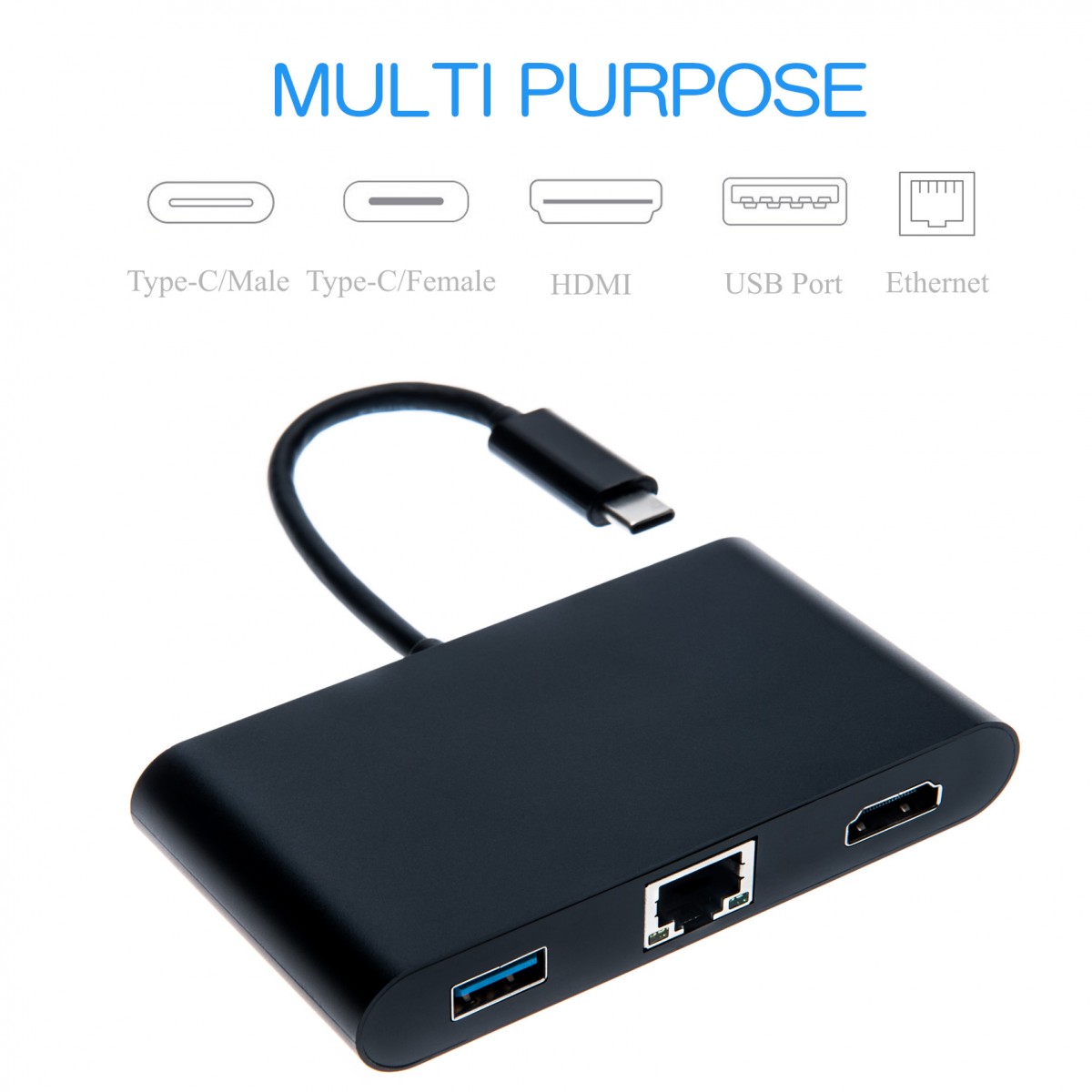
FYI - Yes Dell does make some accessories for multi-purpose (See Below) yet I don't think they make strictly a USB hub yet I can definitely be wrong.
Yes you are correct, many Dell computer customers buy their accessory needs through available online retailers as well as brick & mortar stores, as Dell's prices are greatly inflated for the naive & novice consumer.Attached Files:
Last edited: Sep 22, 2018 -
-
Hi there. Well i had no idea dell made something like this. And i believe very few ppl would buy something like this from dell if they needed a hub as oppose to buying it from amazon. The other issue is if you only need that... i can't imagine someone buying it and paying for shipping for that dell hub only.
-
Hey all. So whenever i open chrome, i have lot of chrome tabs opened so it opens from where it left off. Anytime i do this, the memory immediately goes to close to 100 percent and so does cpu. I recently decided to close a lot of the chrome windows i have... i would have like 6 of them and each one would have at least 15 chrome windows on each... yes i know a lot. Thus i have close to 100 chrome windows opened.
I recently just decided to close a lot of these chrome windows and notice when i did this, im down to 6 chrome windows but the total is around 65 total chrome pages. Memory dropped to 78% and cpu is 10%. First off, is this normal? Thus if you have over x amount of chrome tabs opened, this will happen? Usually the memory i have used is at least 85% to like 93%. This is when i have like 100 chrome pages opened through like 7 chrome tabs etc. Not sure if using right term but im sure you all know what i mean.
I have 8gb ram. So would i need to upgrade to 16gb ram? Someone mentioned there is no purpose of having so many tabs opened because i dont even look at those. And to only open them when necessary. First off, how do i do this? Example one chrome tab that has say 15 chrome tabs within it. How do i close it and then only open it up when i need it? The other thing though is there are certain chrome tabs where i have like 10 tabs within it that i do need it to be on all the time as i have to look at it throughout the day. So would you recommend me to upgrade the ram? The thing is when i immediately close all my chrome pages, memory drops to under 35 percent. But when i left one chrome tab opened but that tab has say 10 pages total, my cpu dropped to 2 percent and memory is 40 percent. Is that normal for 10 chrome pages opened?
I then reopened all my chrome tabs/pages where i have 6 chrome tabs shown on taskbar... but i have total of 85 chrome windows opened through out. Memory used is around 88% and cpu is 25 percent. Is that normal for any computer if you have that many chrome tabs opened? So i have this many open, how much memory percentage would i be using then if i have say 16gb ram? Would it cut the 85 percent to like 42%? Or would it be like 60 percent?
Now i know people say dont open so many chrome pages at once. But imagine you have to check on a lot of things on certain sites throughout the day and thats necessary. Im sure there are ppl whether its a trader that need lot of windows opened. And thus they have to have say at last 30 tabs open minimum. So what do they do then? So for RAM, is 16gb pretty much a must here? However the thing is im curious what is my memory usuage if i double the ram. Its using like 6.6 of the 7.9 gb etc. So if i upgrade to 16gb, will it be using 6.6 of 15.9gb ? Or would it actually go to like 10gb of 15.9gb? I notice everytime i open chrome and like 100 chrome tabs open... computer lags and you see cpu and memory is at or close to 100 percent. But that is normal no matter how much ram you have and you have 100 plus tabs right?Last edited: Sep 28, 2018 -
Doubling your memory will always help - but - you actually want the OS (and Chrome) to be using close to 100% of memory as long as it is playing nice with other programs (and giving memory back as needed) - this is how the OS helps improve performance.
If you do upgrade your memory, don't be surprised to find that Chrome and the OS is still using close to 100% memory, but now there will be far less swapping of "frequently accessed" data which makes everything feel faster.
Upgrading to 16gb and upgrading to a SSD (if you have a spinny disk) for an older 9550 is a very cost effective way to get a nice speed bump and well worth doing.
tl;dr: Don't get too fixated on the memory usage unless its going over 100% and paging active memory. -
Hi there. I have an ssd already. Well i do notice lately that when i try to visit other sites, there is lagging because i have like 100 plus tabs opened through like 7 google tabs from the task bar. And when i want to refresh one of those tabs, it lags quite a bit.
But when i open a new tab and go to sites or do other things, i don't notice much issue at all nor lagging though. So how do i know its playing nice with other programs. As long as no lagging?
Yes that is what im confused with upgrading memory. So going to 16gb of ram... when i open the same 100 plus tabs i have... what would you say memory usage would be... would it be between 85-92 percent while just having those tabs opened while not doing anything else. Basically thats how much percent ram its using even when im not doing anything on the computer... its always at least 80 percent minimum ram being used. Its more like 85-93. And when im doing some things that use memory, it definitely hits 90 percent memory while im doing a bunch of things on it. Because i had thought if i upgrade the ram to 16gb... instead of 6.6gb being used of 7.9gb... i thought it would be 6.6gb used of 15.8gb or something like that... so that is incorrect then? Because i thought would my ram be less than 50 percent being used since i make it 16gb? It has went to 100 percent before but this is only when i start up chrome. But sometimes it does hit that 100 percent but rare. How do i know if its paging active memory? -
When you upgrade the memory you won't suddenly have >50% free - and like I said above - you don't want to have free memory, you want the OS to use as much memory as it can to speed up application switching and pre-emptive disk caching.
Chrome in recent years has become a resource hog and it aggressively requests memory from the OS, so it can appear to be a "faster" browser (at the expense of other apps on your PC) - and you are a "Chrome" power user.
The good news is that you will see a nice performance boost if you do decide to upgrade your memory as Chrome will be able to "hog" 8gb more memory (which given your usage pattern, would be a good thing). At the moment its probably only getting about 4gb as the OS is probably using the rest.
For reference here is what my machine is sitting at (with 16gb) - worth noting that VSCode + Node JS server are both also running the Chrome JS Engine (the V8 engine) - my machine does not feel like it is "laggy":
HTHDrew1 likes this. -
Drew1,
It's this simple. First, there's no special or secret way to have endless browser windows & tabs opened and expect that you can FREEZE system resources until when needed.
Next, If your computer is not throwing up warnings asking for memory then you're staying within your available memory, but if you insist to have all these browser windows & tabs opened then like Schmoo2k graciously told you, upgrade your memory and you will see much better performance & response times or switch to a different less resource hog browser.
This is the REASON why refreshes & new computers are available & made. When you max out your present unit & configuration and it still doesn't suffice for what you're doing & need then it's time for either a new unit or stay within the boundaries of what you have and what it can & cannot do.
E.g. if you need to go from 0 - 60mph in 3 seconds don't buy a Smart car.
Finally, don't get too crazy with monitoring EVERYTHING unless you're definitely seeing dramatic slowdowns in your everyday tasks.
Regards,
SDeP58Drew1 and custom90gt like this. -
32gb here, 2 pages with 8 tabs and it is on 2.5gb
-
Hey SDE, what kind of messages do you mean the computer will show when asking for memory? I don't believe i ever seen something like this ever.
-
Drew1,
The messages SDeP58 is referring to look something like these: http://bfy.tw/K7FZ (after the tutorial of course ). It's likely you've never seen it before as it isn't too common these days with normal/everyday computing.
Having 100+ tabs open at once in Chrome does seem a bit excessive. You could bookmark/favorite them so you can find and re-open them easily later. If you don't know how to do this, I suggest Googling how to do it.
Also, as others have mentioned in the past. Just enjoy using your computer and don't be looking for something to be wrong. Things are never perfect and can ALWAYS find something that could be better.SDeP58 likes this. -
Hi there thanks. But based on that, would you say then its just unnecessary to upgrade to 16gb then? The other thing is this. If i do make it as a bookmark, is it possible to have that specific chrome tab which could have 20 tabs within it... as like the 1st chrome tab on my screen or make it the first one? Because for example i have 6 chrome tabs that are opened that are visible in the task bar but each one contains at least 10 tabs in each usually. And i want them in exactly the correct order from left to right. Also i assume its not possible to move the a chrome tab on the task bar to the left or right side of the other chrome tabs? Imagine i have 7 chrome tabs shown. Each one has at least 10 chrome pages within each. Could i move the last one to the 1st one etc? I tried doing this but didn't work and don't think you could do this?
-
Your question was superbly & graciously answered by member codester.
Here we go with another redundant (already covered) question. Only you can truly answer this with your wants & needs. Like I already said, if you want to go from 0-60mph in 3 sec's DON'T buy a Smart car.
If you insist on having these endless browser windows, tabs and apps opened at one time then you NEED to upgrade your memory if you are actually seeing & experiencing slow-downs, lags and just lack-luster performance, as I and many of the other members have already graciously told you. On the other hand, which I'm just real hesitant to say, if you are really not experiencing slow-downs, lags and lack-luster performance and are just getting TOO wrapped up in Diagnostics, Numbers and etc....just ENJOY your computer.
Finally, I really wish I could help you out with your Chrome questions & issues yet I unfortunately do not use it for my browser needs.
Regards,
SDeP58Last edited by a moderator: Sep 29, 2018 -
Haven't been watching this thread too closely, but it seems to me Drew1 that based upon your stated needs, you might as well save your bucks and invest in a new 8th or even the very latest 9th gen. processors as a start. Maybe even give one of the new AMD cpu's a try. Couple that with the latest Samsung NVME. Considering the way software is advancing and how complicated web pages let alone photo or video editing software are becoming, 16 GB of memory would be the bare minimum. Soon, 32 GB will be the standard.
In this way you can future proof yourself for a good long time. -
I don't think I agree with this for just web browsing - but if you are going down this road Chrome OS may be a good choice?
Have you tried any of the "Work-space Manager" extensions for chrome - they should allow you to save and restore "sets" of tabs very easily: For example: https://chrome.google.com/webstore/detail/workspaces/eehocaoejekpmecmfecdkpohdkgkmoee?hl=en
As it stands its pretty clear that your usage pattern with Chrome + 8gb ain't working - therefore one of those two things needs to change!Last edited by a moderator: Oct 1, 2018SDeP58 likes this. -
Dell XPS 15 9550 1.8.0 System BIOS
https://www.dell.com/support/Home/us/en/04/Drivers/DriversDetails?driverId=4GDY8
Fixes & Enhancements
Fixes:
- Updated Intel ME Firmware to address security advisories INTEL-SA-00125 (CVE-2018-3655), Intel-SA-00131 (CVE-2018-3643 and CVE-2018-3644) and INTEL-SA-00141 (CVE-2018-3657, CVE-2018-3658 and CVE-2018-3616).
- Updated CPU microcode to address Intel Security Advisory INTEL-SA-00115 (CVE-2018-3639 and CVE-2018-3640).
- Fixed the TPM configuration on a TPM startup error during S3 resume.
- Fixed the internal LCD display issue where it stays on after lid is closed.
- Updated Intel ME Firmware to address security advisory INTEL-SA-00118 (CVE-2018-3627).
Enhancements:
- Improved startup stability when Thunderbolt Technology Support is enabled.
- Prevents ghost key trigger while pressing multiple keys at the same time.
- Improved system enter Hibernate duration time when Dell Thunderbolt Dock TB16 is connected.
Version
Version 1.8.0, 1.8.0
Category
BIOS
Release date
05 Oct 2018
Last Updated
05 Oct 2018
Importance
Urgent -
I just checked my computer and I'm already using Bios 1.8.0...What's going on with Dell as they put a release date of 05 Oct 2018, which I've had since 7/2018, and they send it urgent to my email to boot!
-
Hey all like an opinion on monitors and cables connected to this laptop as i usually connect 1 monitor to it as my main display and want to use dual monitor.
I always used 1 monitor and then when an old monitor worked again, i used dual monitor until it stopped working. I have a samsung t240 monitor old one connected via hdmi to hdmi to laptop. Other one is an asus that stopped working and worked again so i bought a cable... usb to hdmi and had dual monitor. Then the monitor stopped working. I have to get a second monitor now and looking at the prices and choices... i could get one where it has hdmi but it cost a bit more than getting one with no hdmi. The asus monitor im looking at has displayport, dvi and vga. Of course i know vga is very old and should be avoided.
So i have 2 cables... hdmi to hdmi and usb c to hdmi. Either cable would work with my samsung syncmaster t240 because my laptop has 1 hdmi port and 1 usb c port. So if i get the 2nd monitor, this is the one
https://www.amazon.com/gp/product/B01AY7V1SI/ref=ask_ql_qh_dp_hza
Is it better for me to get hdmi to dvi cable for 7 dollars or usb c to display port for 15 dollars?
hdmi to dvi
https://www.amazon.com/gp/product/B014I8UQJY/ref=ox_sc_saved_title_2?smid=ATVPDKIKX0DER&psc=1
usb c to displayport
https://www.amazon.com/gp/product/B01N11K30W/ref=ox_sc_act_title_2?smid=AONZ4ZXCX5VHY&psc=1
1. Would the hdmi to dvi cable support 1920x1200 resolution? My monitor is 1920x1200 and so would be this monitor. I cannot use 1920x1080 and need 1920x1200. The usb c to displayport for sure would support that right? But is quality the same with dvi vs displayport? I read dvi is the same as hdmi. Its just avoid VGA?
2. I would like to eventually resell this asus monitor i like to buy. Now would the resale value of it be lower because it has no hdmi port? Almost all laptops have hdmi ports right? But most laptops don't have usb c port? I have a dell xps 15 9550.
Im trying to decide if i should pay say 55 dollars more or not getting an asus monitor with hdmi... or just getting one cheaper with no hdmi like the one i posted and having to buy that cable which cost 7 or 15 dollars.
This would be the monitor i get if i wanted to pay more for it and it DOES HAVE HDMI.
https://www.amazon.com/PA248Q-ProAr...F8&qid=1538845699&sr=8-1&keywords=Asus+PA248Q
So in terms of cost and being able to resell it back, should i get more expensive monitor and don't have to buy any cable since already bought a usb c to hdmi cable already? Or get the cheaper monitor and just buy another cable whether its the hdmi to dvi or usb c to display port? But most importantly, resale value should be very important right? Thus do most laptops even have a usb c port or not? Most laptops almost always have hdmi right? Because imagine someone wants to buy monitor but i say it has no hdmi port, would that turn them off? I assume not if i just buy the hdmi to dvi cable and provide them with them AS OPPOSE TO USB C TO DISPLAYPORT which they might not even have this port on their laptop? -
They pull this stunt after removing the BIOS due to it bricking systems, they then find the problem and release it again. Look at the file hashes and chances are they are not the same.
-
Sorry GoNz0 but the 'new' 1.8.0 BIOS has exactly the same checksum as that which I downloaded on 15th August following an email advising it's availability on the 14th.
The release details in the email have changed from
to
BIOS
Driver and description: XPS 15 9550 1.8.0 BIOS
Download URL: www.dell.com/support/Home/uk/en/ukdhs1/Drivers/DriversDetails?driverId=4GDY8
Criticality:Urgent
Release date:8/14/2018 3:42:16 AM
Description:
BIOS
Driver and description: This package contains the BIOS version 1.8.0 for Dell XPS 15 9550. The package contains Intel ME firmware update to address Intel security advisories INTEL-SA-00125 (CVE-2018-3655), Intel-SA-00131 (CVE-2018-3643 and CVE-2018-3644) and INTEL-SA-00141 (CVE-2018-3657, CVE-2018-3658 and CVE-2018-3616). The package contains update for CPU microcode to address Intel Security Advisory INTEL-SA-00115 (CVE-2018-3639 and CVE-2018-3640). For more information regarding fixes and enhancements click View full driver details.
Download URL: https://www.dell.com/support/Home/uk/en/ukdhs1/Drivers/DriversDetails?driverId=4GDY8
Criticality:Urgent
Release date:10/5/2018 6:03:40 AM
Description:
No idea why Dell persist in this perverse practice but I've been running 1.8.0 on my 9550 since late August with no issues. -
FYI for others that may be taking their time to answer this...don’t bother, it’s been cross posted and answered in at least a few other forums, which is typical behavior for this user. (Thanks @SDeP58 for catching this earlier.)
https://www.windowsphoneinfo.com/threads/monitor-recommendation-for-dual-monitor-with-displayport-hdmi-dvi.109262
https://www.sevenforums.com/graphic-cards/416663-usb-c-displayport-cable-vs-hdmi-dvi-cable.html
https://www.tenforums.com/graphic-c...dation-dual-monitor-displayport-hdmi-dvi.htmlSDeP58 likes this. -
Thanks but as PhilTheHill said, they are exactly the same and Dell really needs to Stop this ridiculous garbage.
I really hate to say this yet I truly believe you hit the proverbial nail right on the head when you classified this individual as a "user", as he/she refuses, for whatever reason, to rightfully share their found solution(s) & fixes so others can prosper as well.
I know that this is not mandatory yet in my BOOK, it's just plain outright selfish & wrong.
I just wanted to help out all you great members yet I had absolutely no idea that I was referring to an update that has been disgracefully out and being used since this past August and I just couldn't agree with you more.Last edited by a moderator: Oct 11, 2018 -
Hi there. First off, that person posted their recommendation. But i didn't order that cable and will be ordering another cable. I have not received the cable yet. When it works, i will post that it works. What is the purpose of me saying okay this cable will work if i haven't tried it yet?
I also did not order the 2nd monitor yet as well. I wanted to see what others say before i buy it online. I have many times ordered something and then it didn't work and i had to either return it or couldn't return it anymore.
Okay this is frustrating. I was out and had shut down my computer before i left. I sometimes leave computer on sometimes don't. I came and noticed when i opened my laptop it was powered on which made no sense. I was close to 100 percent sure i shut it down because when i did, i made sure power was off before i closed the lid to my laptop.
I then used it for a bit and then decided to power off my laptop... it did... but then like 2-3 few seconds later it automatically powered back on itself. I had this happen once or twice months ago. However, i think when i click shut down... it actually restarted as oppose to shutdown. This time.. it shut down... then few seconds later powers back on. Has anyone had this happened? I googled this and saw a few people having this issue but when i clicked on those sites, others said they could not fix the issue. Last time i think i fixed this issue ... the one where i click shut down but it restart instead...someone told me to do some fast shutdown where doing it would immediately shut computer down when clicking shutdown. But the issue was if i do this, when i start up my laptop, it would not be as fast. Does anyone know what im talking about here? Someone on this thread mentioned this to me months ago. So i did this and my laptop had no issues turning off when i click shutdown.
So after it just powered back on, i decided to click on the windows defender security center and check for viruses. The first one i did was the basic one which was very quick. Then i did the full scan which took few hours. After each one, there were no threats, scans. However, say 15 minutes later or a bit longer, i get a notification windows defender has detected a threat. Many times my dell xps laptop would just have these notifications like windows defender scanned computer and found no threats randomly even though i never clicked on scan. Well this time, it said i had a threat and when i clicked on it, it was a trojan. The date showed today as well. Does that mean it came from today? Yes i do visit websites but not sure if that is the case. But i then removed the trojan/threat and it shows no issue there now. So when i remove it, then its fine and i don't have to worry about that anymore. So how do i fix this issue of the laptop turning off and restarting like 2-3 seconds later? When i click shutdown, thats what it does now. I know i could just hold power for a few seconds to turn it off but i know doing that is not good for laptop because that is improper shutdown.
Okay i think the trojan was something called bitrep but im not 100 percent sure. But if i removed it... is that good enough?
Could that have caused this? When i turned on my laptop earlier today, there was no issue at all.Last edited by a moderator: Oct 11, 2018SDeP58 likes this. -
That's all we are ALL saying just let us know how you made out with your posted questions & issues so others can hopefully prosper as well.
custom90gt likes this.
-
-
Drew1, I just couldn't agree with custom90gt more, as I really think it's definitely now time with all of your ongoing issues to backup all your important data and do a complete fresh install of Windows 10. Now you're starting out fresh with a good restore point and you yourself will be able to determine what program(s) could be causing your issues as you one by one install them back.
I'm really very surprised that all that was found on your system is just a Trojan, especially with all the endless websites & tabs you open and personally I think you can definitely benefit with a good malware program as well. All your power and other system issues can easily be caused by malware, viruses and etc. and a clean install will eradicate it all and you now start FRESH!
custom90gt likes this. -
Okay so after i posted that, now i don't have this issue. However, what i did was before i clicked shutdown... i unplugged my charger first. I read something about this when googling so i tried this and it worked. I will probably go back to just shutting it down as normal but if that is an issue, don't mind unplugging charger before shutdown. Has anyone heard of this?
I'm very hesitant on doing a windows reinstall. I have done this a few times with old laptops like windows 7. I never done it correctly as everytime i did it, say its a 500gb hard drive thats in it. Or a 250gb ssd etc. Everytime i did this, it would still show like i used up 50gb and old files were still found in it. Thus i done this many times with old windows 7 laptop and desktop and never got it right... remove everything fully.
I never done this with windows 10 and if i did this, i would be very hesistant. Im someone that gets very anxious when having to do things like this. Even when i get battery change or if i need ram change, i don't do it myself because i dont want to risk breaking something. -
If i back up everything, does this mean if i use another laptop or the same laptop, then i transfer everything back into it and everything would be the same? Thus the same logos on the desktop, all the files etc? If i do this, you recommend me to back everything to ... an external hard drive? I do have one that is like 1tb i believe.
i have 232gb in my ssd. It shows about 70gb free. So that should take how many hours to do it? So when i back up everything, don't touch the laptop and just let it do its your until done? Im guessing it would take say at least 6 hours minimum? What worries me is if something goes wrong in the backup etc. What do i do there? So people who do backups, thats in case something happens to their computer ... and they can take everything into a different computer? That computer has to be also windows 10 correct?
Do you have link on the direct steps to do this? Such as i would want exact detail steps because many times i do things and then it ask me do i want to do this or extract it to which disk...im not sure so i pick on recommended or whichever looks correct. This is probably why i never clean reinstall correct every won windows 7. -
Drew1,
I would never want nor expect someone to do anything that their just not comfortable doing and FYI you can in fact skip the fresh install and just use the recovery or system restore built into Windows yet in the end it's ultimately your call.
What I can answer for you is, No, when you do a complete fresh install of Windows you don't get the exact icons, wallpaper and etc. as you have now as you more than likely installed other added programs and etc. which were assigned icons & shortcuts for quick launch or whatever, yet if you so choose to go the Windows recovery route you get the option of keeping all your files or wiping it clean. I still very STRONGLY encourage you, if you choose that route, to still backup EVERYTHING that you need in case something does go wrong, as remember, man made the computer and not the other way around!
Member GoNz0 once had in his signature (at the very bottom) a gracious Bloatware (Unneeded Garbage) free install of Windows 10 yet you have to check to see if he still does as I honestly don't know any longer.
Yes, whatever accessory you choose for your backup be it a flash drive, external hard drive or etc. you just need the necessary available space on it and don't think by any means it's overkill if you back your important stuff up on a couple of things as in my Book, you can never have too much backup on the things you really need.
If you do decide to do it what I suggest you do is, first thoroughly read the link I provided below until you greatly understand it and whatever you don't understand of course feel free to post in this great venue and forum as that's what it's all about here, you helping others & others hopefully helping you.
You just need to backup your needed files for your needed programs along with pictures, movies and whatever and not the entire program(s), as once you do the fresh install you have to reinstall all your needed programs and files back into Windows.
FYI, there are in fact great clone programs available such as Macrium that will enable you to do just that and clone your entire system onto another peripheral accessory yet just between you & I and especially with your understandable limited ability & fear, just stick to the aforementioned and provided link.
Finally, make sure if you go the fresh install route that you make a copy of the network driver if you in fact have the default Broadcom DW1830 wireless card in your system, as for whatever crazy reason the fresh install media doesn't include it, and you need it to access the Internet once you're all done and up and running to get your needed updates, drivers and whatever.
Best of Luck,
SDeP58
https://www.howtogeek.com/224342/how-to-clean-install-windows-10/custom90gt and Drew1 like this. -
Hi there thanks for the response. I am definitely not comfortable doing a clean restall of this laptop even if i backed everything up correctly.
Well the thing is this. I did back up my important documents... example my documents/pictures and any important files already in a usb stick. I even saved them to a cloud service as well in case something goes wrong with my computer. Thus imagine i have say 100 documents to make it simple that are important to me.. those documents are already on my usb stick and cloud service.
Obviously that isn't anywhere near the amount of gb that is used on my laptop. But when you say backup my computer, what programs exactly are backed up that are important for others? Example your documents and pictures you back them up... and assuming you use say axcrypt to encrypt it etc. Then say you use a password manager for example. You want a backup of that as well with all your passwords.
So if something goes wrong with my laptop and i have to do clean reinstall or get a new laptop, i transfer all the important files/documents from either my usb stick/external hard drive/cloud service back to my laptop. But if i backed up everything on my laptop to a hard drive, am i backing up all the programs like say itunes winamp etc? Because even though that is annoying i dont mind having to download say itunes, winamp, skype etc on my computer again. But when you say backup whole laptop, im backing up every program i ever downloaded on my computer right? Thus when i transfer everything from external hard drive to clean installed laptop or different laptop, those programs will be already there? Im curious what programs ppl have in their computer where it is very important that is NOT DOCUMENTS/FILES/PICTURES that they back up to say hard drive or cloud service. Because aren't those 3 things really the most important thing? The thing im thinking about are like say if someone uses photoshop or has a lot of games on their computer or something like that... then thats important? Like if they have to reinstall photoshop, well arent their photos already saved though? Also say you have lof of music on your computer. Well if you just transfer it to your external hard drive like drag that folder or songs to external hard drive, well you already did it right? -
With the system restore point, i have done that back in windows 7. I think i also did this with windows 10 as well. But this would probably be the best option for me right? Last time when i had an issue, i recalled i just clicked on system restore and it went back to certain time and then computer was fine and i still had programs that i did not delete. But do i have to create a system restore point? Or does it automatically does it for me? Example say later on i want to system restore, how far/early can i go? I believe windows 7 gave me lot of choices as how far back i want to do it.
-
You are very welcome and like I said, that's quite alright if you don't feel comfortable doing something as believe me, EVERYONE does at one point in their lives as well.
A BIG KUDO's to you for already backing up EVERYTHING you need as that is the smartest thing we all can & should do.
I cannot really tell you what is important to others yet what I meant is, you don't have to back up the entire program(s) you installed on your computer such as, MS Word, Excel, Outlook and etc. you only need to backup the FILES (Documents) you generated with them. Yes definitely make a backup of your important & needed passwords and even go one BIG step further and go the Old-fashioned way and WRITE them down on a pad or sheet of paper as well.
The programs wil not be there if you didn't CLONE your system (Making an EXACT Duplicate of it) with programs such as Macrium.
You only back up the FILES that are used by "itunes, winamp, etc." Not the actual program & apps. FYI - itunes, cloud, skype and etc. are apps that are automatically installed on the computer attached to the Windows installation. I'm referring to added programs that YOU install from a setup file that YOU purchased either on CD/DVD or USB or directly Online such as, MS Word, Excel, Outlook, Adobe Lightroom, Adobe Photoshop, Quickens and etc.
Like I already said, I cannot tell you what's important to others and what's important to you may not be important to them and Vice versa!
They backup their needed things to whatever they have or choose so in the event of a BRICK or complete failure they have EVERYTHING
they need to move on, Documents, Files, Photo's and etc.........
"Also say you have lof of music on your computer. Well if you just transfer it to your external hard drive like drag that folder or songs to external hard drive, well you already did it right?"
That's A VERY BIG RIGHT.
Last edited: Oct 11, 2018 -
I been using computers for a while already. But doing reinstalling etc is not my thing. Any type of installation where it requires more than novice would be something i dont want to do.
Well when people say back up your important files and documents, so there isn't a button out there like when you go to start and then click on this and that, that it backs up your entire computer? Because THAT is what i always thought people meant by backing up any important documents. For me, i basically just either drag files that are important to the usb stick or external hard drive. Like say i have 30 documents on my documents i want to backup to a usb or external hard drive. I would just select all those... then copy into the usb or external hard drive. Thus im like MANUALLY backing up my important documents to another hard drive. So does that count as backing up or not really? As for having a backup of my important documents online, i would do similar except when i go on cloud service, i would click on select file or files or folder and then choose all the files i want to be stored in my cloud account. That is what is meant by backing it up documents to a a cloud site correct?
Well that is what i mean... like those programs like ms word, excel etc. The thing is on my computer, i do have a copy of microsoft office i believe where a few years ago, i brought laptop there to have an old hard drive taken out and a ssd put in. I bought this laptop on ebay few years ago that is new... but im not sure if was or not but it was pretty much spotless condition. And i had old ssd so a repair shop i go to took out the hard drive it came with it and put in this one. Then i believe he installed windows 10 pro for me free and gave me microsoft office with it? Im pretty sure he helped me upgrade it to windows 10 pro. And he installed a copy of microsoft office as well. So if i dont backup microsoft office, then i wont have it if i do a clean reinstall in future? But what about windows 10 pro? Because i believe my laptop is windows 10 home but he upgraded it for me there. Again this was 2 years ago so i dont remember details exactly but im positive he upgraded me to windows 10 pro and installed microsoft office for me.
I never installed any program from a cd etc.
So based on all this i mentioned, does that mean i basically did enough as for backing up my important files? My important files are basically documents that are important and also pictures/music but of course that isn't that big of a deal but i did back that up as well.
When people backup their computer, do most make clones or not? That is much more complicated and longer right? Thus for most ppl, they dont bother with this?
I just clicked on start and typed in excel and word and i do have excel and word 2016. But im pretty certain that guy at repair shop installed that for me... most likely with a cd? So if i do clean reinstall in future, im guessing i lose the windows 10 pro and the microsoft office 2016? -
System restore will automatically periodically create a new restore point when you do things like install or uninstall software, do Windows updates, etc. Also, you can manually create a restore point at any time you choose to do so.
How many restore points are available and how far back you go depends on how much space you have allotted for restore points. The more space you have allotted for restore points, the more restore points you will have available. When the space you have allotted is used up, the oldest restore points will automatically be deleted. You can check how much space you have allotted by typing "create restore point" in the Windows search box at the bottom left side of the screen. Then, in the "Protection Settings" box, highlight OS (C) (System). Then, click on "Configure Settings". There, you can adjust the slider to increase or decrease the amount of space allotted for restore points.
In the past, I've found System Restore to be hit and miss with regard to solving problems. Instead of relying on System Restore, I prefer to have a System Image of my entire C drive to use if I need to fix a problem. You can create a System Image either with Windows Back Up and Restore or with 3rd party software. The System Image will be an exact copy of your C drive, including all programs, files, and settings that were in place at the time when the System Image was created.
It is important to note, though, that, if you want to be able to use a System Image to fix a problem, the System Image needs to have been created at a time when everything was working properly on your computer. Since restoring your computer with a System Image will restore all of your programs, settings, files, etc. to the ones that were there when the System Image was created, if you created the System Image at a time when you had a virus, driver issue, or other problem, using that System image will just put whatever caused the problem back on your C drive.
For me, after I make any changes in the computer and have made sure that everything is working properly, that is when I'll make a new System Image that I can use if a problem develops in the future. In between the times when I make new System Images, I will also regularly back up my documents, pictures, and other files.custom90gt and SDeP58 like this. -
Drew1, member lesz couldn't of graciously said it any better or detailed it any greater.
Yes you definitely did backup all your needed files and Yes it definitely does count as backing up as well. There are different ways to backup your needed data & files, as member lesz has graciously outlined, yet in the end as long as you have what you need then you are backed up.
Try the free version of Macrium and just play with it, with unneeded files of course, as in my Book, the way to learn ANYTHING is with OJT (On Job Training)
Like I said, if I were you I would go First the System Restore route and check things out for awhile or use the Recovery option in settings. This will keep your presently installed OS and most programs and be the EASIEST way for you.
If you did a FRESH install and not a Windows Recovery option or complete system backup then Yes you would lose anything that your tech installed on your system for you such as Microsoft Office and anything else. I don't think you would lose Windows 10 Pro because I believe once it's installed it now becomes your default OS.
Best of Luck!!!Drew1 likes this. -
Nothing personal but I didn't read all of the last 3 posts after starting the 3rd up, just to chip in I use Macrium reflect home edition (paid version) to backup over the network. I create a master image soon after installing windows (I reinstall every 6 months once the latest large update or RS release comes out) and then do a daily incremental saving the last 30 save points before the master copy is merged with the next in line (synthetic full backup)
This means that a balls up or problem that isn't worth spending more than 10 minutes on is fixed via a USB network dongle and running the restore to the previous day (or earlier if needed) as it only takes minutes to restore due to Macrium using the changed block tracker and only replacing changed parts of the drive unlike other solutions that restore the entire drive taking hours. This is why I say a problem that takes longer than 10 minutes isn't worth troubleshooting as a day rolld back is quicker!
On top of this important stuff (especially priceless family pictures) is also backed up online and old images stored on my network drives.
You can never have enough backups and a backup is only a backup when you have a backup of that backup.
Some of the features I use are only in the paid version but the free will allow Grandfather, Father and son backups (master, weekly and daily backups)
If you want a proper backup solution give Macrium a go as you get a free trial https://www.macrium.com/products/home
Also office 365 is a no brainer as you get 1tb of space per account so a home version has 5 1tb accounts to make use of.Last edited: Oct 13, 2018JaTXaR, custom90gt and pressing like this. -
Hey all.
1. Is there a reason why f5 doesn't work to refresh the page? I rarely use the keyboard on the laptop as i connect it to external monitor and use a wired keyboard
2. I never done this before on the dell xps but you could actually make screen brighter or not brighter and/or increase the volume and vice versa with the function buttons? I never tried to click any of the function buttons because i dont want to mess anything up. But if i do this, i could just press the button as is or i need to hold shift? Can someone tell me what function button is for increase/decrease brightness and volume?
3. Is there a way to get better battery and what tips what you suggest? I get about 2 to 2.5 hours battery max usually as i am doing something where it uses decent amount of ram etc. And of course i have lot of chrome tabs. I checked youtube and some things they mentioned that could make your battery last longer on laptop include
1. Turn off the backlight on the keyboard- I noticed there is a backlight on this keyboard a while back. I always thought hey thats kind of nice but it serves me no purpose. Can you turn it off and if so, does it preserve battery? The youtube video i saw says it saves like 15% battery.
2. Power saver mode- I'm bit confused on this. When i click on battery i have option to make brightness 0, 25, 50, 75 or 100 percent. So you can't make it say 35 percent or any other number correct? So here, i guess make it 50 percent if want more battery? There is also option, battery saver mode, better battery, better performance and best performance. I almost always have laptop connected to outlet even when battery is 100%. That is fine right? Or its best to unplug it every 2 hours and when it drops to say 20% battery, then plug it back again? That to me is a bit annoying. But when i unplug battery, i only unplug it from the battery port on my laptop, im obviously not unplugging the whole thing from outlet. But do most of you just leave it plugged in? And for the battery options, do most of you just make brightness 100% and best performance while plugged? But if its not plugged, make it 50% brightness and better battery? What confuses me is in the video, it shows how you could pick your battery plan as it showed that laptop battery as Balance. But how do i know if im on balance nor or not? Because if you click on battery icon on the right, if you change it to battery saver, well could you still be on balanced?
Related to this, if you are doing something where it uses decent amount of memory, just keep it better performance or best performance right? Otherwise it would lag quite a bit? I recalled i made it power mode on battery and made it battery savery or better battery but it lagged a little. But when i made it best performance it was lot better.
3. What about all the things in the background? Example when laptop starts up, i know there are lot of programs that start up as well. But how do i know which one i don't need etc. Thus, do all those programs make battery worst?
How many hours do you all get on your dell xps 15 9550? When i got it new, i say it would get close to 3 hours. But after a while it was much less. I even got a new battery. But i say if im using it at say full brightness and max performance which i almost always do... let say i dont have it connected to outlet, i say 2 hours is how much it typically gets. That is around right? I have had quite a few laptops. Even have a chromebook. And whenever they advertise okay this dell xps gets 7 hours or battery... and the chromebook gets 10 hours of battery... i dont know where they get these numbers from. Do they assume you are not using the computer every minute or something? Because xps gets max 2.5 hours. I mean i could possibly be 3 if you are say not watching video or anything intensive. Even when browsing, i dont get 3 hours. On chromebook, if you watch youtube or something, you get probably 3.5 hours max. Even if i web browse, i never get that much hours. I mean are all these advertising fake? If you are an intensive user like open like of chrome tabs and watch video all the time, i guess that don't apply to you? Still, i dont know how anyone get 10 hours of battery unless they have everything brightness low and they are typing something on word or excel etc... -
Yes it's the Fn (Function Key) and F5 pushed together.
2.
F11 & F12 without the Function Key.
3.Great using the Internet search is what you want to do FIRST.
1.Yes push the F10 key without the Function key until it cycles through to OFF.
2.Here's another series of questions that is individualized to the certain individuals need. Users choose their power scheme and etc. based on what their doing and what they do & don't need and this is something that you have to find out for yourself on what options yields you the best life & performance for your needs.
Do an Internet search for this question as there are ENDLESS sites that tell you what you can do for best performance such as turn off all the default Bell's, Button's & Pretty Whistles and etc. If I get some free time today I will gratefully post some links for you to look over.
Unfortunately my unit is Strictly a Desk Top Replacement so I cannot help you here as I don't use the battery at all yet I'm sure some of the GREAT members will chime in and graciously answer this question for you correctly.
Finally, I cannot begin to tell you how much not only I yet I'm pretty sure others GREATLY APPRECIATE you numbering your questions instead of putting them in and endless long post , as it's just SO MUCH EASIER to address them individually, so A BIG KUDO's to you!!!
Best Regards,
SDeP58
PS - Remember: No one is born knowing EVERYTHING and case-in-point, I read and read and tried and tried the gracious provided instructions until I could understand and get the multiple quotes within one post working, which you can see I was obviously successful doing with the reply to your post.
Now trying to learn how to Multiple quotes in Multiple posts well that's probably going to be another BIG lesson for me, especially with my very limited abilities.Last edited: Oct 15, 2018Drew1 and custom90gt like this. -
Drew1,
As promised, Below are some links chock-full of Windows 10 Tips & Tricks. Some might be redundant yet you definitely get enough information to Tweak your system to your liking & needs.
I don't know if it's included in any of the links or not yet I personally like the Quick Launch on the taskbar Tweak, as it doesn't speed up the physical system per say, yet it definitely speeds up ones production working with and needing multiple applications.
Hope they help & All the Best,
SDeP58
https://www.cnet.com/how-to/easy-ways-to-speed-up-windows-10/
https://www.makeuseof.com/tag/speed-windows-10-boot-shut/
http://www.itpro.co.uk/operating-systems/26138/how-to-speed-up-windows-10
https://fossbytes.com/speed-up-windows-performance-tips/
https://www.techzac.com/increase-internet-speed-in-windows-10/Drew1 likes this. -
By default Fn keys are locked to their secondary function, you can change this behaviour pressing Fn + Esc then you will be able to use F5 to refresh a page (but you have to press Fn + F1,F2... to use their secondary functions that are labeled on the keycap).SDeP58 likes this.
-
Everyone,
There is a new BIOS version 1.9.0 on Dells Support site. (See Below)
Regards,
SDeP58
Fixes & Enhancements
Fixes:
- Fixed a potential issue where system stops responding when an incorrectly formatted password is entered at the BIOS Security Manager (BIOS pre-boot password) prompt.
Enhancements:
- Enable WSMT security enhancement for Windows 10 Creators Update.
- Added TPM PPI Bypass for Clear Command support.
- Added BIOS Password Feature: Master Password Lockout.
https://www.dell.com/support/home/u...P&osCode=WT64A&productCode=xps-15-9550-laptopLast edited: Oct 25, 2018 -
Not the type of stuff I would like to see improved...
boidsonly likes this. -
Maybe yet I still & firmly believe that as long as something in the way of drivers is occasionally going up and being updated that we're thankfully still alive and in the loop and in my Book that says an awful lot, especially with all the new refreshes since the onset of the 9550.
-
OK, like member Techland said, the updates that have been at least posting on Dell's support site unfortunately aren't the ones that many of the owners are obviously wanting & looking for, yet I firmly still believe it's a real good thing that they're still thinking of & including the 9550 in the whole scheme of things at all and especially since the new refreshes, so on that note; whoever is using their Support Assistant for updates, troubleshooting & recovery options see the latest plugin link below.
https://www.dell.com/support/home/u...H&osCode=WT64A&productCode=xps-15-9550-laptop -
Hey all. So currently i have 2 monitors connected to my dell xps. Both are 24' inch monitors and are 1920x1200 resolution. One of them i use hdmi to hdmi cable. The other one... i use usb c to displayport.
Im curious but would it be possible to have 3 monitors connected to this laptop or that is not possible? I would assume you have to buy a cable... or 2 cables? And which ones would they be? Or would this laptop not support it because graphic card? I know there are only 2 spots on the laptop... hdmi port and usb c or thunderbolt port. But are there laptops 3 ports? Thus if you had 3 ports, you could connect a 3rd monitor?
Thus its max 2 monitors you can connect only? But if it was a desktop computer, then connecting 3 monitors would be very easy? But it depends on graphics card? I will most likely not get a 3rd monitor but im curious if this could be done though. 3 monitors would be very nice.SDeP58 likes this. -
As mentioned before, Display Port is your answer.
Using Display Port enables you to daisy chain monitors. I.e one cable from you computer to monitor #1, one cable from monitor #1 to monitor #2.
Your monitor providing a output to the next monitor need to support Display Port 1.2 .
I’m not sure how many monitors you can daisy chain, if there is a limit in the Display Port standard, there probably is and that is related to the total resolution/bandwidth.
We do this as standard set up with the laptop screen + 2 dell 2.5K monitors.
So USB-C to Display Port should be the only cable you need from your laptop.
There is probably screens accepting ThunderBolt 3 as input that would also allow Dasiy chain, but those are probably fewer and in the 4K segment.
Sent from my iPad using TapatalkSDeP58 likes this. -
Besides member jasell's gracious input & suggestions check out the link Below as well.
http://forum.notebookreview.com/threads/dell-xps-15-with-3-external-monitors.790788/
Dell XPS 15 (Skylake) 9550 Owner's Lounge
Discussion in 'Dell XPS and Studio XPS' started by T2050, Oct 30, 2015.