 Problems? See this thread at archive.org.
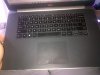
Actually it's not from greasy hands. It does look a bit greasy on the mousepad but that is actually just wear and tear + the brightness of the flash.
-
considering I can clean mine up with isopropanol it is grease from my skin.
-
After using my computer for a couple hours, they disappear (see pic)
-
Two things guys:
1) Has anyone noticed that since updating to new wifi drivers the laptop won't connect to wifi networks when coming out of sleep etc and requires a restart
2) Sounds like a fix to coil whine (which i actually hardly notice anymore) might still be a few more weeks away -
I think I need some help. I have a top-tier configuration from May.
So I reinstalled my OS using an ISO that I got from DreamSpark. I installed all of the following drivers and this is exactly what I installed.
From Dell:
-Touchpad
-Audio
-Cardreader
-Motion
-NFC
-BIOS
-Management Engine
-Airplane Switch
From Intel:
-Wireless driver
-Bluebooth driver
-Rapid Storage
-Chipset driver software
-Intel HD Graphics
From nVidia:
-nVidia driver
But I seem to have one unknown device listed in my device manager.
The other thing was I got a replacement SM841N SSD from Dell to replace my PM851. I installed the driver without any problems and followed the User Manual. But after trying to boot up the laptop. I was getting beeps. I held the power and shut it off, then I powered it on and it worked (no beeps). I put back my PM851 and got the same beeps, then it never appeared after I shut it down during the beeps. Anyone else got this problem and should I be concerned?
The last thing is that I can't tell is if "Splendid (Vivid?)" mode is enabled on the display. Again, this was a fresh install on a fresh SSD and I didn't install the Dell QuickSet, so would this mode be enabled? I remember that somwhere in this thread someone mentioned so like not having the ability to turn it off until they install QuickSet. But I don't think they did a fresh install. I would like to not install the QuickSet tool if possible.
Anyone know what's the difference between the SM841 and SM841N? Haven't found anything yet and would like to know how the performance of the 841N compares to the 841 since the PM851 had a slower writing speed. -
Kind of funny. After 601 pages and 160 posts, and 6 months with the laptop, last night I discovered that the GPU of one of my PCs is faulty (I didn't have much time for games until now). I always had glitches and crashes when using the Nvidia GPU, but assumed it was due to using Bumblebee in Linux, and just hoped for a later version of the Linux driver with native Optimus support.
However, after reading the posts on the cooling I decided to test how my systems were doing (I own 2 XPSs). Yesterday I installed Furmark in Windows, and besides showing graphic glitches, it always crashes within a few seconds. Nvidia driver 337 installed. In the other XPS I own this works perfectly (16-17 fps, starts at 81 degrees, lowers to 75-76 later, using 5 minutes of the "burn-in benchmark 1920x1080 15 min").
I encourage everybody to run the FurMark test. It will take just a few minutes, and you will know if your GPU and cooling are fine.
I will call Dell later today or tomorrow and open a ticket, but I won't ask for a replacement motherboard until late August, once I know whether there will be a fix for the coil whine or not (so as to avoid switching my motherboard twice within a couple of months).
By the way, I bought the computer in Spain and am now living in Ireland. Can I expect Dell Ireland to support my PC under warranty, or should I contact Dell Spain whenever/if I travel back there? I know Dell Ireland don't have computers with Spanish keyboards, as I tried to buy it from here in the first place. But the motherboard should be the same for both countries. -
This is exactly what happened to me . I had a problem where the nvidia card used to disappear from the geforce experience and after spending a lot of time I realized that it was a bad card.
So i then went ahead and updated the XPS15 wiki here with the step to perform the dell diagnostics at the dell site. Run the tests at the dell site mentioned relevant to the Graphics card and see if it fails and then call Dell support . They were fast to send me a replacement after that. I had a lot for blue screens and in the end it turned up that it was a bad card. The bad card doesn't show up on the Dell Diagnostic mode, it shows up when you run the specific video tests on the Dell diagnostic site. There is one other person I remember on this forum who also had the same problem with the bad card.adlerhn likes this. -
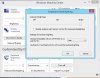
As I said, you need to click the Keyboard Backlighting tile (read: icon). It's poor UI design, but as you can see in the screenshot below, it's there.

 Ashers and turkishdelight like this.
 -
I'm surprised the reference Intel GPU drivers installed. But you're missing the Intel Chipset driver and Intel Dynamic Platform and Thermal Framework driver, both from Dell. Get those.
Why do you want to avoid installing QuickSet? It doesn't install any background tasks; it just expands Windows Mobility Center options and provides a battery health checking tool you can run when desired. But Mobility Center is required in order to adjust splendid mode, which is a hardware-level setting, so if you didn't turn it off before doing a clean install, it will still be on. But again, QuickSet is hardly an app to worry about.
For the unknown device, if it's not addressed by those Intel drivers I mentioned above, it could be the Smart Connect device unless you've installed that app or disabled it on the BIOS level. If that's not it, go into its Device Manager properties, go to Details, Hardware IDs, and post its VID and PID. -
The Dell Outlet is still a no go for the top tier model. So today I could get the 4702HQ from Microsoft for $1999 or the 4712HQ for $2199 from Costco.
Any opinions on whether the CPU is worth $200? It seems not, but maybe I'm missing something...
(Note: I corrected a typo in the CPU type) -
If any, the 4710HQ seems to be 200MHz faster, and to consume up to 10 W more than the 4712HQ:
ARK | Intel® Core i7-4710HQ Processor (6M Cache, up to 3.50 GHz)
ARK | Intel® Core i7-4712HQ Processor (6M Cache, up to 3.30 GHz)
I was not aware that the XPS was available with the 4710HQ CPU. Are you sure it is not an errata? -
Sorry, typo, The less expensive one is the i7-4702HQ. -
Hello Gonzo,
I just got my repair (new motherboard and heatsink) and I have been running non stop tests since this morning. I'm glad to report that the GPU runs stable at 940Mhz and 77 degrees, while sitting normally on the desk (room temperature 23-25 degrees). Unfortunately the CPU runs much hotter than before and never goes below 50 degrees, so the fan runs all the time.
I also just noticed something very weird: as soon as I pick up the laptop during a stress test, it hibernates or blacks out within a couple of seconds. I also get the same report in the event viewer:
Is this what happened yo you as well? I can consistently replicate this behavior, maybe it has something to do with some internal sensor or some BIOS feature. Having changed the entire motherboard I will need to run through the BIOS settings and ensure everything is as before.
To replicate the issue I start FurMark burn-in and immediately place the laptop sitting on the table like a triangle: (screen) -> /\ <- (bottom). After a couple of minutes, when the temperature gets higher, the laptop stops.
UPDATE: Unfortunately this happens consistently even if I use a laptop stand. As long as the laptop is not perfectly flat, it will restart or stop within minutes from starting FurMark.
From time to time I also get these warnings in the event viewer, just before the laptop stops for temperature:
Let me know if you can replicate the issue as well!
Best regards,
Marco -
Sorry for a double post, but I wanted to separate the content of this from my previous one related to GPU stress test.
I want to report that today the Dell rep changed my motherboard and heatsink. The new motherboard is the same as before (I asked the Dell Rep) but I got the CPU refresh (i7-4702HQ). Unfortunately I have to say that I still got the coil whine, so changing the CPU doesn't solve the issue, as expected and known.
Just wanted to add my experience.
Best regards,
Marco -
Dell let's you change country and owner quite easily. Get in touch with a Dell Rep and he will explain the process, or check out this video.
Best regards,
Marcoadlerhn likes this. -
I think that I actually needed to install the Intel HD Graphics driver because I think I couldn't adjust the brightness until I did.
I turned off splendid mode on the original ssd and swap that ssd with a new one, will it still be off then?
Sorry, I forgot to mention in my post that I did install the Thermals from Dell. As for the Chipset driver, I installed the one from Intel ( here). After that I thought maybe I do need to install the Chipset Driver from Dell and it mentioned that I would be installing an older version.
I don't have the laptop with me now, so I will get its VID and PID. But for the Smart Connect, I didn't install the app and I checked the BIOS and it was enabled. I was going to disable it, but it got late and I gave up.
One thing that I didn't notice before reinstalling was that after I installed the airplane switch, there was a Dell Package something HID listing in the Programs and Features. Is this normal because I don't remember seeing this on the original ssd (with the Dell image).
Unrelated, but how do we do a Secure Erase on the SSD to restore performance? Something for the future. -
Wow, I never knew you could click those icons. You learn something new ... Thanks!
-
I didn't say I was surprised you installed the Intel graphics driver, I said I was surprised you were able to install the reference driver. When I tried to install the Intel graphics driver available from Intel, it failed. Only the Intel driver from Dell worked.
I think that splendid mode will be off if you turned it off before you wiped your system, but I'm not 100%. Again, I don't understand why you're so worried about installing Dell Quickset, if only for the peace of mind of knowing whether you have splendid mode on. Then again, if you can't tell the difference just by using your system, maybe it shouldn't matter to you whether it's on or off.
If you have Smart Connect enabled in the BIOS but don't have the Smart Connect application installed, that's almost certainly the missing device in Device Manager.
I had an airplane mode switch in my HID list in Device Manager before and after my clean install. You probably just didn't notice it.
Modern SSDs don't require periodic secure erasing to recover performance. Windows and AHCI drivers have supported TRIM for a long time, and SSDs have internal garbage collection routines that also run periodically. But if you're also curious about Secure Erase for security, that's performed using the SSD vendor's tools. If you use hardware-accelerated BitLocker though, there isn't a good way to do it because Windows doesn't provide a mechanism to do it and the regular vendor tools don't work; you need a PSID Revert tool, which is created by vendors but which vendors for some reason aren't making easily available online. I already wrote a long post about that either here or in the M3800 thread. The bottom line is that I recommend avoiding hardware-accelerated BitLocker; either use software BitLocker (in which case formatting the volume will wipe the key for secure erase) or Class 0 ATA password hardware-accelerated encryption (in which case vendor tools would perform the secure erase). -
I see, I will try to disable the Smart Connect in the BIOS and see if that fixes the problem.
As for the airplane mode switch, I was talking about a Dell Package something HID entry in my "Programs and Features" found under "Control Panel -> Programs and Features". I know that it was in my Device Manager, but I don't remember if there was an entry in the "Programs and Features" since I downloaded the Dell Package version rather than the file that extracts everything.
I was asking about Secure Erase in the event that I notice a very big performance decrease so that I can recover performance as I read online.
Last thing is that I can't find anything on the Samsung SM841N mSATA 512GB drive. Do you happen to know the difference between the 841N and the SM841?
Should I be concerned about this, I got a replacement SM841N SSD from Dell to replace my PM851. I installed the drive without any problems and followed the User Manual. But after trying to boot up the laptop. I was getting beeps. I held the power and shut it off, then I powered it on and it worked (no beeps). I put back my PM851 and got the same beeps, then it never appeared after I shut it down during the beeps. -
Sorry, I am not prepared to run that test again, I got the cpu warning and you saw the message I got. I can't see the point in risking breaking the laptop as it needs to last me until dell release the new motherboard and build me my 3rd laptop. I idle below 50, check you have the latest bios installed and go into power setting to enable another power profile then go back to the one you normally use as it may need to tell the BIOS what settings to use. I updated the bios to A05 and the CPU refused to throttle at idle until I changed the profile to another and back so I expect you are seeing the same.
-
Not sure about the HID entry in your Programs and Features, but again I think you're obsessing a little too much here. I appreciate a clean install with as little junk as possible just like anyone else, but worrying about an extra entry in Programs and Features for a piece of software that's required anyway is a bit extreme.
Secure Erase and the performance recovery mechanism you're referring to are NOT the same thing. Secure Erase is a function for encrypted hard drives that quickly renders all of the data inaccessible by overwriting the key multiple times, which is all that's required on a properly encrypted hard drive. The performance recovery program you're referring to is an application that individually goes through each cell on the SSD and clears it, which takes a long time. While that type of application can be considered a secure erase, not all Secure Erase applications can be used to recover performance because they don't wipe out individual sectors, so you should not use those terms interchangeably. In any case, those utilities would have to be supplied by the SSD vendor; applications that simply write zeroes to the entire drive are NOT the same thing. And as I said, vendors don't supply them for modern SSDs because modern SSDs have technology that makes those programs unnecessary. You might find this shocking, but consumers didn't appreciate having to wipe their entire drive periodically just to keep their SSD performing the way it should be, so vendors figured out how to remove that requirement.
And if I knew the difference between the SM841 and SM841N, I would have answered that the first time you asked. But if Samsung is following industry convention, little model naming deviations like that are usually to differentiate OEM units from retail units, or different units provided to different OEMs that are otherwise identical.
As for the beeps, I can't explain why your system beeped a few times the first time you tried to boot your system after you swapped the hard drive, but if the problem hasn't returned, I don't see why you would worry about it. But why did you have to get a replacement for your PM851 in the first place? -
I don't have smart connect in my bios.... anybody else have this issue
-
Thanks! I feel like that would have taken me a long time to find if you had not told me where to click... hope that's not a comment on my intelligence =P. Thanks again!
-
I guess you mean i7-4712HQ.
-
The picture has become a bit clearer this morning: Dell raised the price about $300 when they changed the CPU! Microsoft Store this morning lists an XPS 15 15-8947sLV for $1999 and an XPS 15 15-8949sLV for $2299. Amazon lists the same two models with small price differences. Dell still lists the top tier (with no model number that I see) at $2508. The specs suggest it is the same as the 15-8949sLV. They show old reviews, suggesting that this is the same model they've been selling all along.
This is stupid. Those two CPUs are supposedly nearly identical. Are these things selling so well that Dell can afford to bump the price that much? -
Del puts up the price when they have issues sourcing parts to slow down sales, old trick that works well.
-
Dell has raised the price to $2500+ a while ago. Its been like that for about a month now.
New models at Amazon and Microsoft Store are just the new configurations with the Haswell refresh.
At this point I believe it will make sense for Dell to just discontinue the model and just move on with the refresh for an early Fall release and of course proceed with the new motherboards so they can finally fix the problems of the existing users. The new XPS 13 has already been leaked with Broadwell CPU, QHD Display in a new Black colored body.adlerhn likes this. -
CPU-Z says it's a i7-4702HQ, I forgot that the refresh is th i7-4712HQ. Nothing new then.
Best regards,
Marco -
looks like you got a recycled board then, or 2nd hand but dell call that "refurbished"
-
I have spoken with technical support, and if the issue in the damaged graphics card doesn't show in the official tests in MyDell, they basically "don't support 3rd party apps", even if there is a fault in the system that does not arise with the MyDell application. I have run those tests and they don't show any issue, but I do have it with Furmark (in both Linux and Windows) and some other programs/games. Everything runs perfectly in my other XPS.
"Luckily", as I also have the coil whine (in both systems), the technician has offered me the possibility of getting a refund, "as the new motherboard with the fix for the noise is not yet available". He has said that once the new motherboard is available it will be made public in the Dell website, so that affected users are aware of the fix. I guess he was probably refering to the Dell forums.
By the way, I forgot to ask about an ETA. Sorry
-
Did you run the diagnostics from here as this provides some extended tests than the My Dell does.
In case you are not sure if your graphics card works or not try out the video stress test under Hardware and also run the Motherboard test. If anything is wrong will pop up.
In my case PCI express failure used to pop up in the motherboard case only later I realized the card was faulty. -
On Dell forum, one of the forum users report that his premium rep told him that Dell never looked into the coil whine problem from the very beginning. I would say don't count on that. Regarding ETA, a month back, on the Dell forum, the rep said mid June to early July.
-
FYI, here's a tool that should allow one to perform a PSID revert: http://www.r0m30.com/msed
It was originally written with Crucial/Micron drives in mind, but it supposedly now works for other drives too. I've never used it. More info here: http://forum.crucial.com/t5/Solid-State-Drives-SSD/PSID-Revert-tool-alpha-release/td-p/148982 -
This is the samsung one. https://dl.dropboxusercontent.com/u/62276273/Samsung PSID Revert.zip
-
has anyone tried running this with windows 7 pro?
it seems dell doesnt offer a downgrade to win 7 pro.
also, for those who tried a clean install of win 8.1 or win 7 and installed some drivers, are you able to use the shortcut keys, fn keys, OSD, etc just fine ?
If I cloned the msata SSD to a larger or similar sized SSD, will I be able to retain the recovery partitions? If not, how do I reinstall the original image?
Are there are programs experiencing problems with the scaling? I saw this review that briefly mentioned that on youtube, the words appear fine but the progress bar still appears small.
I am planning to use it for trading (candlesticks, etc) and not sure if it will appear too small. -
Hi, everybody.
I want change my frequence of my PLL whith SetFSB.
What is the name of the clock generator of the XPS 15 (9530) ? ICS......., or other ?
Sorry for my bad english, i'm french
-
Dell offers Windows 7 on the Precision M3800, which is nearly identical, so if you go to its Support page, you'll find the drivers you need. The only thing that won't work is NFC. That said, I would encourage you to try 8.1 if you haven't before. I tried 8.0 and hated it, but after trying 8.1 I haven't gone back. A few things irritate me, but there are a lot more things that I like over Win7.
Yes, the Fn keys still work after a clean install as long as you install the required drivers. Dell Quickset may also be required for some of them. All of that is available on support.dell.com.
Maintaining the functionality of the diag and recovery partitions after cloning seems to vary. But the diags are embedded onto the motherboard (at least if you're in UEFI mode) and if you're doing a clean install, why would you want to restore the factory image?
Yes, scaling is still an issue with some applications. There's no way to know in advance how your application will behave unless you can find someone else who's tried it. I suppose you could crank up your scaling to 200% on an existing machine and see what happens in your app, but I'm not sure how that would look in general on a standard display. -
Actually i am not in the US. so the only option that i have is the 61whr with 1tb HDD w/ 32gb msata. for the clean install/factory image part, . i currently have a hp envy 17. I cloned the original drive onto a SSD and didnt know the recoery partitions were lost. one day i had some windows registry problems due to antivirus and i had to reinstall the OS. despite installing all the drivers, the OSD never worked. Since it isn't fully supported here by HP as it was only briefly sold before it was withdrawn. they refused to fix it despite having intl warranty.
so if I clone the 1tb's paritions and shrink it to a 256B ssd, I might lose the recovery partitions? -
My Samsung Galaxy S3 (running CM11) keeps on disconnecting/reconnecting to my xps 15. This does not happen with other windows 8.1 computers with same cable and same software so I'm pretty sure something is wrong with my xps. The xps is running stock windows8.1, i.e., no clean install.
I have tried installing Samsung USB drivers, Google ADB drivers and also uninstalling system usb drivers from device manager then rebooting, but the situation seems to be the same. I remember(long time back in this thread) someone was unable to connect his Galaxy S4 to this laptop. Did you find any solution? Or has anyone else encountered this situation? Help would be appreciated.
Thanks. -
Yes, if you clone that setup, you might lose the recovery partition -- or even if it clones, it might not work. But I also don't recommend cloning a setup intended for a spinning hard drive + a cache module onto a full SSD setup. Windows sets itself up differently depending on whether it's installed on magnetic or flash storage, and I'm not sure it will make the required changes if it's cloned over. At the very least you'd need to disable Intel Rapid Start Acceleration and you'll want to run "sysprep /generalize /oobe /quit" immediately before cloning to maximize your chances of reconfiguring for an SSD, but if you're confident performing a clean install, then I would strongly recommend that. If your OSD didn't work after a clean install, it would've been because HP didn't provide all of the required software on their download page. Dell does. Several people here, myself included, have performed a clean install with zero loss of functionality.
Also, make sure you remove the cache module when you install an SSD. -
I know this might sound stupid, but I had this issues a number of times. Have you tried different USB cables? I got the exact same issue with a Lumia 920 using a Nexus 5 USB cable, while no issue at all using the Nokia cable or an LG cable.
Best regards,
Marco -
I'm running Win 7 Pro on it right now. I replaced the 32Gb mSATA with a larger one and clean-installed Win 7 on that. (BTW, I bought the 1Tb/32GbmSATA version intentionally....its cheaper to replace the 32Gb mSATA with a Crucial 512Gb SSD than to get Dell's config with a 512Gb Lite-On SSD, plus you're left with a 1Tb WD Blue HDD to use for data. The smaller-capacity battery doesn't matter to me because I use it on AC most of the time.)
I had no significant issues with drivers, which I sourced directly from the manufacturer in most cases. The FN keys didn't work without the Dell Quickset application, and for reasons I haven't yet discerned, the generic Synaptics TP driver has refused to install. I'm using the Dell version, and it seems to work fine, but I'll probably still try to resolve the Synaptics driver problem as I think it's a more full-featured driver.
The OS and recovery partition are on the 1Tb HDD in the 1Tb/32Gb config....the mSATA is just used as a cache. There are a couple options for preserving the original software configuration:
(1) Create external recovery media before you install the new SSD & OS, and then format and re-task the entire 1Tb HDD as desired.
(2) Shrink the OS partition on the 1Tb HDD, so that you're leaving the OS and recovery partitions on it, and then partition the remaining empty space to use for data with your Win 7 install. (Change the boot priority in the BIOS to the new SSD.)
Yeah, at the native resolution, it's kind of hit and miss. Most things scale fine, but I was getting annoyed with things like miniscule dialog boxes. So I played around with a variety of different scaling options, usually between 150-200%, but finally settled on running it at 2048x1182 with 125% scaling. That may sound like a waste of the super hi-res display, but it's actually not. I have several other monitors and laptops, most with excellent 1920x1080 or higher output, and this panel at 2048 blows them all out of the water. It's super clear, everything is a good size for me (and my middle-aged eyes), and I get none of those weird scaling glitches.
All-in-all, I'm very happy with Win7 on this thing. Yes, I did try Win 8....again....and I simply don't like it. Perhaps MS will right the ship with Win 9 next year, but for now, I'm amongst the 85+% of Windows users who are content to stay with Win 7. :thumbsup: -
Find Synaptics driver version 16.3.15.1. It will install on this system with no issues or workarounds.
-
Hey, thanks much for the tip! I'll give that a try.
Any idea what the issue is with their later driver? -
Haven't looked into it, but from reading here, it seems they either removed support for the specific touchpad model in our systems and/or the new release of their drivers isn't signed, and 64-bit versions of Windows by default won't install unsigned drivers.
-
On a less serious issue, how should one go about cleaning the silicon finish around the keyboard? Rubbing alcohol?
-
Every time someone has asked this question in this thread, the answer has been water. Haven't done it myself though.
-
I had the same issue with a Samsung S3. Tried about 5 different cables. The only one that worked (kind of) was a cable that had a ferrite magnet on it. However, now that there's been a few bios updates (i'm on A05 now) it seems to work with all usb cables. It's still not 100% (i still have the odd disconnect) but it's useable now.
-
Hello there!
Just got my top-tier XPS 15 last week and i love it Just to let you know, the coil whine still is not fixed.
As for now i have a few trackpad issues (i installed the latest synaptics drivers) and i wanted to know if maybe someone got the same problem or a solution to it:
1. It is really hard to click the touchpad in the upper left and the upper right corner, is this normal behaviour?
2. Really often, when i click on the touchpad, the cursor jumps away from the area i wanted to click on. Then i have to put the cursor on the area again and retry to click.
Another issue i have is that the right fan has started to grind a little bit, maybe i have to call dell to replace it. But i think i ll wait for the coil whine fix and then do both together. -
I haven't noticed the click issue myself because out of habit I click in the lower corners (since that's where dedicated buttons used to be), but given that the touchpads with integrated click functionality are "hinged" at the top, it makes sense that pressing down on the top edge would be the most difficult place to execute a click. It would be like trying to open a door by pressing on the edge with the hinges rather than the edge with the latch. If you're clicking there, it sounds like maybe you're used to using laptops that have pointing sticks and dedicated buttons immediately below the keyboard and above the touchpad? If so, you'll probably either need to retrain yourself to click in the lower edge or use tap-to-click instead, which should work normally even in the top edge.
As for the cursor jumping, do you use a different finger for clicking than moving the cursor around? If so, if you touch your click finger down before removing your mousing finger, that may be causing your cursor to jump. That's just a guess though. But in any case, the standard advice of going into the Mouse settings and disabling any gestures or extra features you don't want or need applies; the fewer things the touchpad has to think you might be doing, the more likely it will register your inputs as intended.
XPS 15 (Haswell) Owner's Lounge
Discussion in 'Dell XPS and Studio XPS' started by mark_pozzi, Oct 23, 2013.


