 Problems? See this thread at archive.org.
looks as if a new BT driver is available..
Code:Intel Dual Band Wireless AC7260 Bluetooth Driver This package provides the driver for Intel Dual Band Wireless AC7260 Bluetooth and is suppported on XPS 15 9530 that are running the following windows operating systems: Windows 8.1 64-bit. Version Version 17.0.1403.442, A02 | Other versions available Other versions 3.1.1309.0390, A01 1/9/2014 2:18:24 AM Compatibility Systems XPS 15 (9530, Late 2013) Operating Systems MS Windows 8.1 64-bit Applies to Intel Dual Band Wireless AC7260 Bluetooth Date Release date 6/19/2014 Last Updated 6/28/2014 Importance Recommended. Dell recommends applying this update during your next scheduled update cycle. The update contains feature enhancements or changes that will help keep your system software current and compatible with other system modules (firmware, BIOS, drivers and software).
-
-
Yeah, I've been running the A02 Bluetooth and A04 Wi-Fi driver for a few days now, no issues. Bluetooth just says it added new language support and Wi-Fi brought some performance & stability improvements.
-
When you hear the issue are the fans always on?
-
if there's anyone who's having wireless issues like I was for a while now, the culprit that I found was the intel wireless pro set drivers that dell provided.
issue:
my wireless internet connection would go to crap after 2 or more minutes of usage.
i'm in the same room as the wireless access point and it would sometimes drop a bar from full connection
this is when on my 60mbps connection I only get 5 or 10mbps.
thought it was my router so I replaced it, but he problem still persisted
used the hotspot on my phone, and the problem still persisted
this is when I realized it was the computer that was having the issue.
-
the problem started after installed I used dell update to update the wireless driver around 2 weeks or so ago
I didn't notice it until recently when it got really bad.
-
solution:
I used the My Dell app to find the latest network drivers from the dell website, manually downloaded
the wifi and bt airplane mode drivers which currently for me are the:
1) Network_Driver_90M6T_WN_1.4.1_A00.exe (airplane mode driver)
2) Intel7260_WiFi_W8.14_A04_Setup-750M7_ZPE.exe (wifi driver)
3) BT_Intel_W8.14_X17_A02_Setup-V7V7Y_ZPE.exe (Bluetooth driver)
I installed them in that order, restarted the computer, then run the wifi driver again. when it ask to repair, modify or remove I chose the remove option.
this fixed my wireless issue.
-
I was getting speeds like
Speedtest.net by Ookla - My Results
Speedtest.net by Ookla - My Results
after the little process above that I did, I started getting my rightful speeds again
Speedtest.net by Ookla - My Results
Speedtest.net by Ookla - My Results
-
hope this helps anyone who's having wifi issues.turkishdelight likes this. -
I installed the 17.0.1403.442,A02 bluetooth update, and it messed up bluetooth completely. The update seemed to work fine, but on reboot, bluetooth had disappeared. It's caused by a device problem and is described here (though for the desktop version of the card):
https://communities.intel.com/thread/45971
I've tried system restore, uninstalling and reinstallng different bluetooth drivers, and installing the intel chipset driver. That didn't work. The device still had the error message "Unknown USB Device (Device Descriptor Request Failed)" and there was no bluetooth device (though wifi is working fine):
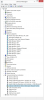
So, I would warn against installing the new bluetooth drivers.
EDIT:
Tried installing the old bluetooth drivers again, and this time it has worked!! Problem solved. Will avoid updating the bluetooth in the future, even if it does occasionally drop out! -
-
Anybody having issues with games not scaling across the whole display or at all? Games like Skyrim scale across the whole screen fine at 1080p, but games like Just Cause and Far Cry 3 just occupy 1920x1080 pixels in the middle of the screen and have giant black boxes all around.
Here's an example: http://i.imgur.com/uOftgzn.jpg
I have the latest nVidea drivers. I never even tweak them hardly.
Again this is only for some games, namely Far Cry 3 and Just Cause 2 so far I've noticed. -
This is a bug that has been in the Intel video drivers since day 1. What people are doing is to switch the desktop resolution to the same as the game before they start the game.
It was said that latest drivers fixed something, but I haven't seen a confirmation that that version is out or that it actually fixes the issue.
That problem is not present in the Linux driver. -
hey good day does any know if there are dell representatives in these forums still ???
i have a serious issue apparently DELL has decided that XPS laptops are not longer needed in my region or in Trinidad at least .... so they XPS 15 is being replaced by the Inspiron 500 series. Thats what A sales rep told me and if i order my pc from the us i wont be able to transfer my warranty.
any ideas as i really would like an XPS for my needs else ill have to go with Apple or lenovo
dell's warranty means more to me and the build quality of the XPS
so would like to know the issues people are still experiencing and what has been fixed thanks -
Updated from Intel site too.
-
So they took it down, meaning they're working on a fix?
-
Today there are no refurbs in the Dell Outlet and the top tier XPS15 at Dell is $2508!!!! Amazon has it for $2283 and the "older" one with the i7-4702HQ for $2118. The Microsoft Store has only the i7-4702HQ version, but for $1999 with free shipping. So, the question is: is there any good reason to pay the higher prices? Has anybody here bought from the Microsoft Store?
-
So my right fan under the backspace key has started GRINDING at idle. It's pretty obnoxious. Anybody else have this issue?
-
Not really. It's a holiday weekend, I'd wait for more deals and inventory next week.
Nope. Could be some debris caught in there or its just going out. You can run diags to make sure you know which fan as well. I'd then pull the bottom cover and take a look.
Sent from my SM-N900T using Tapatalk -
Crazy thing is that I did that, took both fan blades out, canned air sprayed the inside, put the fans back in, reassembled, and the fan still grinds.
-
this is driving me insane. why is the airplane mode function button right next to the brightness function button? am I the only one who is extremely frustrated with accidentally hitting the airplane button when adjusting the brightness? is there a way to ensure that function-printscreen does not perform any action? the rest of the function buttons are fine. this issue is nigh-ungoogleable because there are a million useless answers about how to swap multimedia/f1-12 behavior.
-
Hello forum dwellers,
I am writing again about GPU throttling in this laptop. I'm very satisfied with may things, but the GPU throttling is a complete deal breaker for me as I'm trying to program with Unity and the GPU throttles to 405Mhz after 2 seconds at 100% load. This effectively makes the dedicated GPU less powerful than the integrated one, with which I get better FPS.
If you don't believe my words, here are the results with FurMark 1.10.0 and "Benchmark preset: 1080p" (0xAA):
- nVidia - 306 points (5 FPS, 60000 ms) -FPS: min:6, max:7, avg:5 - Max GPU Temp: 65°C
- Intel - 321 points (5 FPS, 60000 ms) - FPS: min:6, max:7, avg:5 - Max GPU Temp: 58°C
Before you point out that my version is outdated, here are the results with the latest one, I use the previous one because it correctly tells me the GPU clock speed:
- nVidia - 304 points (5 FPS, 60000 ms) - FPS: min:6, max:7, avg:5 - Max GPU Temp: 78°C
- Intel - 322 points (5 FPS, 60000 ms) - FPS: min:6, max:7, avg:5 - Max GPU Temp: 62°C
All runs were repeated 3 times, results are consistent after each run. Laptop is running on AC power, energy profile is set to "High Performance", all drivers are updated and I kept the laptop standing vertically, i.e. the bottom of the laptop was perpendicular to the table (I was holding the laptop). I also run the tests after a restore to factory settings (and all updated drivers) with the exact same results. BIOS is version A05.
Would you mind the same benchmark on your laptop? The test only takes 1 minute for each run. I want to exclude an issue in the thermal components, such as a bad thermal paste application.
FurMark is very lightweight, spamware free and can be quickly downloaded here: FurMark: VGA Stress Test, Graphics Card and GPU Stability Test, Burn-in Test, OpenGL Benchmark and GPU Temperature | oZone3D.Net
Thank you all for your help!
Best regards,
Marco -
As far as I know you cannot disable the media keyword behavior, i.e. you cannot selectively disable "Airplane Mode" associated with PrtScr key.
What you can do, although a bit drastic, is to uninstall the Airplane Mode drivers. This way you won't be able to use airplane mode, but it will also prevent PrtScr to activate it.
I personally prefer my keys to behave normally instead as media keys. From the BIOS you can change the default behavior from media keys (e.g. adjust brightness just by pressing the keys with the sun) to normal keys (e.g. the sun keys will function as F11 and F12 if pressed). This way to adjust brightness you will need to press FN+F11/F12 which maybe will make you less prone to errors since you'll have to pay more attention.
Best regards,
Marco -
If you're a Costco member, they sell the XPS 15 at better-than-Dell prices, though availability and configurations come and go without warning. Currently, they are selling two versions of the 2.3GHz 4712HQ....differing only by storage config. The "top tier" with 512Gb SSD is $2199.99, while the 1Tb HDD+32Gb SDD option is 1699.99.
Hope this helps. -
Latest version, 15fps. GPU, OpenGL and OpenCL database
old version 16 fps throttled to 792mhz 82 degrees on lapdesk.
holding off desk 17 fps, 805mhz 80 degrees.
I use my own thermal paste applied properly unlike the dell assembly line. -
Hey guys,
I got my XPS 9530 a few days ago and i am extremely pleased with the laptop and the display is a charm. I would like to ask you a couple of questions about it.
1) Do you think it is worth it to open it and re paste it now, I have seen the inside and it seems really easy and straight forward. Will this void my warranty assuming i don't break anything?
2) The display seems so crisp that i can see the detail (pixels) of the word characters also some of the programs shortcuts seem to not have high analysis. Is this to be expected in that kind of display?
3) Could someone recommend a light program to monitor my temperatures
Thanks -
My results are also similar to Gonzo. min:15 max:20 avg:15. My score is here.
Note I did not do any modifications to the thermal paste and am using the dell factory application of thermal paste . -
I had similar GPU throttling on 1 of 2 XPS 15 systems. I had Dell repaste the cooling system under warranty and it was then about the same as the other one. I think the cheap thermal paste/assembly is to blame.
Good luck! -
Thanks for the answers!
It seems that my laptop doesn't have the thermal paste properly applied. I failed to mention that before running the test I opened the laptop and completely cleaned the fans and ducts from dust, so that is not causing the problem. From Gonzo's answer it's clear that the laptop will throttle down no matter what, and considering that the benchmark was only 1 minute long, I wonder how severely will it throttle with prolonged stress. Gonzo, would you let the benchmark run for a couple of minutes?
Also, the stock thermal paste doesn't necessarily provide bad results if it is properly applied but I have still some Arctic Ceramique that I could use, what was the one that you used, Gonzo? I also share Ramaya's doubt, will it void the warranty?
Thanks again, at least I can sell the laptop without having to say that it has a severe design flaw. I can just say that nVidia GT 750 is just an average card which bites the dust very quickly...
MarcoRamaya likes this. -
it got to 792mhz after about 3 mins then the screen went black and it put itself into standby :|
event viewer shows the following
it is about 25 degrees in here though and the laptop was sat on an angle on the lapdesk so that wouldn't help matters.
I used ceramique iirc, might have been MX2 as I have both.
it doesn't void the warranty. -
You will find a benchmark list here for the cards. The 750M is perhaps one with a trade-off for the chassis,weight, battery and heat . In your case perhaps you would be better of looking at laptops with GTX cards provided you can live with the weight and other trade offs.
-
As far as I can tell the airport key works when you are using it while pressing the Fn key while the brightness and others will work without pressing the Fn down (option in BIOS to treat Fn keys). So there shouldn't be the case of accidentally hitting the Airplane key.
-
well no... I use the f-keys by default (fn-f12 = brightness up, fn-prtscr = airplane) so that's not really a solution, just a kind of awkward workaround. is this sort of customization possible with autohotkey maybe by setting a null hotkey? I don't use the program so I don't know if that's possible
-
Just press the brightness keys without the Fn it will increase and decrease your brightness . The Fn keys are only required to be pressed for the airplane switch .
Sent from my iPhone using Tapatalk -
not sure what you mean. I use function keys frequently so I have f-lock enabled. pressing the brightness buttons without fn will trigger the f11 and f12 functions, not brightness up/down.
-
Does this happen with anyone else ? What have you done to remedy it?
http://forum.notebookreview.com/del...chpad-bottom-left-corner-stick-sometimes.html -
If you have set the Function Key behavior to Multimedia key in BIOS then you would be able to change the brightness settings with just the brightness keys.
But in that setting you cannot accidentally hit the Airplane mode switch as it wont work as it would require you to keep the Fn key pressed and hit the Airplane switch to toggle the Airplane mode.
I hope this makes it clear.
If you have set the behavior to function keys then there is no way of discriminating as you always have the Fn keys pressed to access the brightness or Airplane mode. -
Yes but only when I lean on the palmrest more heavily than normal. I noticed the problem, but it happened only once or twice when the computer was on a low table and I was phisically leaning on the palmrest on the left of the touchpad.
Normal use of the laptop won't cause the problem, it is likely due to the fact that the laptop body is not as rigid as a rMBP.
Best regards,
Marco -
Still surely this needs to be fixed will put in a support request
-
Was thinking about buying it but it has so many issues. 0 QC at the factory?!
-
Just ran on my system. Didn't show the clock, but this is with ambient temps of 78° F, Nvidia Driver 337.88. I re-pasted with Arctic MX-4 when I got it.
SCORE:1034 points (17 FPS, 60000 ms)
Max GPU Temp: 81°C
Resolution: 1920x1080 (FS) - AA:0 samples
FPS: min:17, max:20, avg:17
And here is my FurMark 1.13 score.
UPDATE: I ran the 1080p burn-in for about 10 min, and FPS did hit 15 after 2-3 minutes, but only got down to 14 at the end. Per GPU-Z log file, GPU core clock also seemed to level out at 810 MHz, holding at about 80° C.
As a side note, when moving from Arctic Silver to MX-4 and doing some 3DMark tests, I did notice the peak temps on extended testing didn't change much, but did delay how quickly it took to get there. -
Thanks omegafiler, I am now convinced that the thermal paste was not properly applied on my laptop.
The normal behavior looks like 790-810Mhz at 80°C even with prolonged use. Using high-end thermal paste might improve the clock slightly, so it is not something one should do at all costs.
Thanks for the tests, these might prove helpful to people who want to ensure that their systems are not faulty. I will add a note in the XPS wiki.
Best regards,
Marcoadlerhn likes this. -
No problem Marco. And based on my personal experience, I would also have to agree with that as well. I've done quite a bit of pasting with notebooks when rebuilding or servicing them. I've used everything from OE thermal paste to the high-end good stuff (i.e expensive paste). The key is definitely a good proper application. Beyond extremely minor improvements with different pastes, you're mostly looking at physical limitations of the notebooks cooling and heat dissipation ability.
Fortunately for my use, I'm not really doing anything with this guy that maxes the GPU or CPU all that much. Still handles gaming, multi-tasking, and VM's like a champ. An M4800 or similar full-size notebook would still have been a bit better in this regard, but portability was a priority for me.
Bottom line, if your temps and clocks don't look right, re-paste with whatever you can get your hands on. Unfortunately most OE manufactures are known for lazy application and don't always get applied properly. Not to mention after service that requires removal of the heat sink, where they may not even bother doing so.
-
Any guide on what a good proper application is? Ideally, step by step with pictures or video, and not necessarily for the XPS.
Maybe the next XPS owner that does this can record or take pictures of the process and post it in the wiki? -
First, a disclaimer: properly applying thermal paste is not as easy at it might seem. If you are getting average clock at 80C, then you're already good enough and it might not be worth the risk.
If you still want to go ahead, you can follow the instructions provided by Arctic and this instructables guide (with pictures).
Good luck!
Marcoadlerhn likes this. -
Also, if somebody isn't comfortable with any of this, you can just ask Dell to send a new heat sink along with a tech. The heat sink will already have paste applied to it. Just need to make sure the tech cleans off the old stuff.
Of course they'll probably want some basic trouble shooting to be done, but it is another option.adlerhn likes this. -
happens to me all the time.
luckily i figured out that if you press the bottom of the laptop where the mousepad is supposed to be up, it will release it. Basically push up from the bottom of the touchpad. Dont know if this warrants a return/replacement if that helps. -
So I have noticed that after like 20 seconds the backlit keyboard sleeps until I touch the touchpad or press a key. Is there away to prevent this sleeping so that when I turn on the backlighting it is always on?
-
You have to press FN+one of the function keys (sorry, not in front of my computer right now). It's around F7 or so.
-
Install Dell Quickset, go to Windows Mobility Center, and click the Keyboard Backlighting tile to set the timeout. Or just save your battery and wake up your keyboard backlight by pressing something innocuous and easy to feel for like Shift or Ctrl.
-
Doesn't work for me. I just have a slider with the positions of "Off", "Dim", and "Bright". Nothing to set a timeout.
-
I have tried all the keys and nothing seems to do the trick. I know that the turn on and dim backlighting function key is f10 but that still doesn't fix the backlighting "sleeping".
Already have it installed and tried to find advanced settings in power options and Windows Mobility Center. Just like the function key Windows Mobility Center only has "Off", "Dim", and "Bright" settings none of which prevent the keyboard lighting from turning off automatically after 20-30 seconds of inactivity. It's not a big deal but something that I noticed which I'd like to have control over
-

Hello,
After not using my computer for a while, when I start to use it, there are these weird spots on the computer below the keyboard on both sides of the mouse pad as you can see by the pictures. Not sure why they show up but they disappear after about an hour of using my computer.
Anyone know what is causing these? -
your greasy hands.
XPS 15 (Haswell) Owner's Lounge
Discussion in 'Dell XPS and Studio XPS' started by mark_pozzi, Oct 23, 2013.


