 Problems? See this thread at archive.org.
RT11_UK,
The fluctuating shades of white/color you are experiencing are most likely due to the program called Dell "True Color".
Check your system tray to see if it is running - and if it is, you can disable it.
I found it completely useless (and annoying) so I simply just UN-installed it.
Regarding the display panel - you can check the hardware id as follows:
Device Manager, Monitors
Double-click Generic PnP Monitor, then Details Tab
Under the Property drop-down, select Hardware Ids
The Value box will display the result.
Mine says MONITOR\SHP13F8
Good luck with your replacement !
-
-
Hi SD
Thanks.
Can confirm that my faulty XPS unit has the SHP13F8 screen. Will check against what the replacement unit has when it arrives.
Cheers,
R -
Thanks for the heads-up. I actually found that same advice earlier in this thread (may have been your post) and have uninstalled TrueColour. Unfortunately, it has made zero difference to this 'fluctuating shades of white' issue. I have also toyed with the Nvidia graphics driver, updated it, rolled it back and tried all different combination and settings but this problem still persists. Dell advised that the screen may be faulty which seems to be the case as I have tried all the advised solutions to no avail.
The Hardware ID for my current unit is SHP13F8.
If you need any other hardware information before this unit goes back to Dell, please let me know.
Cheers,
R -
Regarding your continued fluctuating shades of white - I have another idea.
Does the fluctuating whites issue happen when plugged in or on Battery ?
On BOTH of my laptops, (only when on Battery), I had noticed that the brightness level of my screen would (sometimes) dim/get brighter based on the brightness of the image taking up most of the space on the screen.
On (both) my laptops, the Intel Graphics software has a few configuration options.
If you open its properties, you'll see Power settings - where you can set different things up based on if you are plugged in versus on battery.
I usually have my "On Battery" set up on Balanced Mode (or Maximum Performance), and the other three options "disabled".
For some reason, when on BATTERY, the brightness of the screen will slowly DIM or slowly get brighter - depending on what is on the screen at the time.
For instance, if the background is very dark, the brightness of the screen will slowly get more dim. (look at any white icons you have on your desktop, for example).
If you then open an explorer window (with a lot of white filling up your screen) I will notice that the brightness of the screen will slowly get brighter (to match whatever brightness level has been set for the laptop).
I have found that it does not seem to matter what I set up in the Intel Power settings (for On Battery).
Eventually, this issue will come back on its own - and I fix it by going back into the Intel Display Power settings again (Battery settings) - choosing some arbitrary change of a setting, saving it, then changing it back. This will fix it again for a while.
And, since this behavior was present on both my laptops, I believe it to be a common issue that affects all the XPS's using the Intel HD display driver.
Perhaps a future driver update may fix this.
I can live with this weird behavior, though - as it pales in comparison to the issues I was having with my first laptop - what a nightmare ! -
You are Very Welcome and if I can be of any further assistance in your Unfortunate scenario Please do not hesitate to let me know!
Best Regards,
SD -
Had my screen, motherboard, and internal ac adapter replaced.
New Screen has 3 dead pixels, old one also had 3.
Power adapter still not charging
New screen also seems to have much more of a colour cast than my old one (I used a Spyder to calibrate, and have tried to new screen with and without my calibrations, so it needs a recalibrate), and also seems to suffer from poor vertical viewing angles.
I have to admit I haven't been able to test properly as my battery isn't charging.
They've sent me an external ac adapter/charger which should arrive tomorrow, so I'll have a proper look at the screen afterwards, but what's the consensus? Try for another screen or stick with it?
Re: talk of different screen models, would that not require touchscreen firmware changes? -
Thanks IMK.
Actually, this issue occurs when on battery and on AC. I have found the frequency of this problem is exacerbated when the laptop is plugged in.
You mention brightness levels change depending on what's on screen - for me, the issue is less to do with brightness fluctuating but more that the laptop cycles through different shades of white with no apparent change in brightness. For example, this morning the same issue occurred and the screen decided to settle on a white hue with a blue tint.
I adjusted the power settings as you mentioned, I found this tip on XPS 15 Wiki but it doesn't seem to have made much difference.
This may be common behaviour but I really hope not as it gets very irritating. I have received my new unit this morning and will set it up tonight and fingers crossed, all the issues I mentioned aren't present on this new laptop. I will provide an update if any of the issues resurface.
Thanks for all the advice and input, much appreciated - a really excellent forum!
Cheers,
R
-
Thanks SD, much appreciated mate

Cheers.
-
Wow, this is the Exact reason Why I did not buy my computer from DELL because it is just Pure GARBAGE that they are allowed to Sell and Replace displays with a certain amount of Dead Pixels as I for one would Never accept nor tolerate it.
If you are still Hopefully within your Return period then send it back to them for a Refund and tell them to Stick it Where the Sun Does Not Shine!
If you unfortunately are not, tell them to get a display over to you without Dead Pixels as you Paid Good monies for what you believed was a New computer and this is just Pure BS to pawn your Defects and obvious Returned Service removed parts on me.
I wish you The Best of Luck in your Sheer Disgrace,
SD -
I thought practically every laptop and computer monitor manufacturer has a dead-pixel tolerance level - i.e. a maximum number of dead pixels that would be considered acceptable. Here's Dell UK's policy on the matter:
Dell LCD Display Pixel Guidelines | Dell UK
However, it looks like three "always-on" pixels would be above the tolerance limit and warrant a replacement.
Separately, I find the viewing angles of my XPS 15 to be not as a good as a typical IPS panel - whites change to yellow when you look from the left and the right and there is colour inversion when looking from above. It's not as bad as a TN panel but it definitely shows some TN-panel traits. -
Thank You For your Luck in my "Sheer Disgrace"...
Kind Regards,
DaRrEn HaM -
You are very Welcome and I Sincerely Hope you get what you Want and Rightfully Paid for, as this is really getting Truly Shameful on DELLS part!
Best Regards,
SD -
Hey guys. I recently had issues with gpu throttling. After 10 minutes of Call of Duty Ghosts Play Time the game became unplayable. I used GPU-Z to check out the GPU core clock speed and its showing 135MHz. I updated my bios to AO6 and I"m getting 405MHz gpu clock speed at like 77 degrees celcius. Is this normal please? I just want to know what the normal functioning range is. Also how many Frames per second should I be getting. I'm not very tech savvy so please don't eat me alive. lol
-
afraid you will need to take the heatsink off and "do a proper job" of replacing the thermal paste on cpu and cpu to allow better cooling.
-
Is there like a guide or video to show how to go about replacing the thermal paste? And if i do this myself would I void the warranty. I also have extended warranty from futureshop so maybe I should just take it to them.
-
it will not void the warranty and you can download the instructions from the dell support page.
-
I had an XPS 15 that was doing similar GPU throttling and I got Dell to repaste it under warranty (they also changed the whole cooling assermbly unnecessarily) and the problem was corrected. It helped that I had 2 of them and could show a major difference between them. Pasting the CPU is normally easier because it is likely a direct contact whereas there may be a gap to the GPU that Dell will put one of those crappy pads in and a custom thermal solution usually involves getting the right thickness copper shim, lapping all the surfaces, and pasting it on both sides. My point is that this is non-trivial, but possibly fun.
Good luck! -
You totally lost me after 'direct contact'. I'm not a complete moron I promise. So you're saying I should apply the paste myself or contact Dell support?
-
cpu and gpu are direct contact.
-
if you want it doing right then do it yourself. buy some decent paste (not amazon marketplace or ebay) and go for it.
by direct contact it is the fact neither cpu nor gpu have heatspreaders and neither use any form of spacers. -
Buy something like Arctic Silver, follow the manual to remove the thermal assembly, wipe the old thermal paste completely clean off the bottom of the heatsink contact points and the chips they were resting on, then apply a thin film of the new paste uniformly to the heatsink contact points and reattach the thermal assembly. Thermal paste is one of those things where you can absolutely have too much of a good thing, so don't overdo it. If you have doubts about what's too much or too little, I'm sure YouTube can help you out.
-
Hey guys, are there any issues with the BIOS AO6 update. I am noticing rapid battery drain after the update. I updated the BIOS to fix my gpu throttling in the first place.
-
I've been using A06 for a while now and not noticed any battery drain.
-
I am having a bizarre issue when resuming from a sleep after closing my laptop.
Maybe once every 5 times I do this, the main screen is unresponsive. If I have multiple monitors plugged in (like at school where I keep two external monitors), the other monitors are responsive, but the primary monitor is unresponsive. Its quite bizarre. Plugging and unplugging monitors does not seem to help and this happens sometimes when using no monitors as well (at first I thought the computer was frozen because i had no external monitors plugged in, but when I do have other ones plugged in, they continue working fine, just the primary one is unresponsive). Has anyone ever seen an issue like this? -
I don't know if it's quite the same issue, but sometimes when I resume from sleep, the screen remains blank. (I haven't yet connected an external display, so I don't know if that would work.) The system still seems to be up and running, but I can't see anything. If I put it to sleep again then wake, all is well. It seems more likely to occur after long sleeps (overnight, maybe ~ 8 hours), but I never noticed a definitive pattern.
My issue was reported by others much earlier in this thread, but IIRC it was supposedly resolved by disabling Intel Rapid Start. But, that didn't help me.
My workaround is to avoid sleeping -- I hibernate instead. It's slower, and puts more wear-and-tear on my SSD, but it's a trade-off I prefer over the alternative. -
My battery wear level is at 7% after 5 months of usage; is that too much? I mostly keep it plugged it on my desk while using it, could that be the reason? I haven't modded any default charging settings in the bios...
-
Battery wear isn't linear, and 7% after 5 months doesn't sound too bad. But if you use your system primarily attached to AC, you might consider switching the BIOS settings. I manual settings to wait until 50% to start charging and then stop charging at 80%. Theoretically I could get caught needing the battery on short notice and only having 50% capacity, but even 50% capacity will usually be plenty for the rare occasions I use the battery. Still, I wish Dell had the "Charge once to 100%" button that appears in Quickset on some of their other systems, since easy one-time top-offs would make AC-centric charge policy settings even easier to live with.
-
Hello,
I just received my Dell XPS 15 (9530). I have a few questions.
1) I have some software compatibility issues with the 3200x1800 resolution (especially, with software from Adobe). The icons are not scaled and are really small. I browsed the internet and people using Windows on a Mac Book Pro (also with high resolution) seem to have a similar problem. Moreover, scrolling down in a PDF document (with the down button) is laggy and slow. It takes 30 seconds to go down 2 pages (normally it takes 2 seconds). Consequently, I cannot read PDF documents smoothly with acrobat reader.
2) When I use the resolution 1920x1080 the problem seems not to exist. Since I don't need to do graphic design or intensive gaming, my question is "what do I lose by reducing the resolution?" I don't see a huge difference -- at least, when changing the resolution settings + changing the scaling settings. Maybe my eyes are just not that good, but I just feel a bit uncomfortable of reducing a "superior screen" to "ordinary settings". What about the 1080p option? What about the QHD+ option? What would be the impact be on watching a Bluray quality movie?
3) Perhaps some happy users of the XPS 15 can advice me a resolutions & scaling combinations they especially like? I have been trying many combinations: each options has some upside and downside. The scaling option is ranked in Win 8 discretely from smaller to bigger. Sometimes (for example with the 1920x1080 resolution) it is divided in 3 subintervals (probably, 100%,150% and 200%). Other times it has 5 subintervals (for example with the 3200x1800 resolution). Other users may always tell me some resolutions and number (for example the number 3/5) which they found especially comfortable.
4) Lastly, does someone have any experience with downgrading to windows 7? I read on the internet that Win 8.1 does a relatively good job on scaling. Windows 7 Ultimate, however, was not yet anticipating high resolutions screens. Not sure how bad it does the job. On the one hand, I don't feel comfortable working with Win 8. On the other hand, I don't want to downgrade to Win 7 if this messes up the scaling. Does someone have any experience on this, and perhaps can prevent me doing something stupid?
Thanks in advance -
I recommend StartIsBack and win8aero and your user experience will be just like Windows 7 while retaining the performance and compatibility benefits of Windows 8.1. These are what I use and everything looks and runs great on my xps 15 9530 top tier.
-
1. Some Adobe apps are definitely problematic, though I'm told HiDPI support has improved on the Creative Cloud versions. However, I doubt that HiDPI support will be backported to earlier versions of the apps that didn't already support it decently, such as Acrobat. What version of Acrobat Reader are you running that scrolls that poorly? I haven't used my built-in panel for a while, but I don't remember problems that severe. I use Acrobat (not Reader) XI. There are also free third-party alternatives such as Foxit Reader, which I use on other systems where I don't need full Acrobat because I can't believe how bloated the latest versions of Reader are.
2. If you can't see a difference between 1080p and QHD+, then I guess you don't really lose anything -- and in fact you'd arguably gain things like not having to worry about applications not supporting scaling and not having to deal with the issues inherent in per-display DPI scaling when the two displays have vastly different pixel densities. I sometimes drop my built-in panel down to 1080p or 1600x900 (for perfect 1:4 logical to physical pixel mapping, ignoring some things like ClearType subpixel rendering) when I'm working with an application that is unusable at QHD+ due to non-existent scaling support. Text still looks very good, but I can still tell a difference between 1080p and QHD+, particularly when using Firefox or Word. There wouldn't be a meaningful impact while watching a Blu-ray movie because no matter what resolution you're running, somehow a 1080p video stream is going to be scaled up to the physical resolution of the panel. The only question is whether that's done by the GPU (if you're running QHD+ resolution) or by the display's scaler (if you're running 1080p), but I doubt any differences between those two types of scaling would be noticeable on a 15" panel.
3. When I use QHD+ resolution, I believe I only have four scaling intervals, which I presume are 100, 125, 150, and 200; I'm not sure why you'd have five. Anyway, I use 150, which creates a size and real estate slightly higher than 1080p. 167% would be almost exactly 1080p, but you'd need to disable per-display scaling and then set that as a custom scale factor to achieve it. 150 definitely makes things rather small, but I still have great eyesight. My parents on the other hand can't believe I can read what's on the display. There isn't a great answer here. You just have to figure out what works best for you in terms of usability vs. real estate, and of course for applications that don't scale well in general, they will likely be worse as the scale factor is increased.
4. Downgrading to Win7 is definitely a possibility. You'd need to obtain a license (the Win8.1 license that this system ships with does not include downgrade rights) and from there you can find all of the drivers you need on the Precision M3800 page -- except NFC, which is only supported by Win8 and not present on the M3800, so Device Manager will always have an unknown device there. Windows 7 doesn't have a 200% scale factor by default, but you can configure it as a custom scale factor. However, the major difference is that Win7 lacks per-display scaling, so forget about using the built-in panel at QHD+ resolution and also using non-4K external displays at the same time, because there's no single scale factor that would work reasonably for both of those panels simultaneously. Even per-display scaling in Win8.1 isn't great, but it's certainly better than not having it at all if you absolutely must use the built-in QHD+ panel and external "regular" displays at the same time. More information on this topic here: Multi-monitor Setup - XPS 15 Wiki.
But before you jump ship, what is it about Win8.1 that makes you uncomfortable using it? -
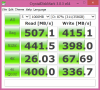
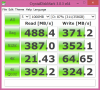
I have got here an original system with the SM841 (and one year of usage) and a new one with the PM851. So, I executed the CrystalMark test. and the results were pretty similar for both, with one exception: my SM841 was way slower than yours (the 512K write was about 150 MB/s).
May the slow performance of my SM841 be due the data being misaligned for some reason? I reckon I should have formatted both SSDs in order to have a fully trusty comparison.
I think I'm going to keep the PM851, mostly because it's already inside the new computer and I don't need to operate, but also because it seems to have faster writes than my original one.
Update: repeated the test in the SM841, and it's not as slow as the original test. It seems to be actually a bit faster than the PM851, still don't know if enough to grant a switch.
SM841:
PM851:
-
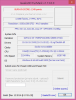
Also on the new vs. the old system. I executed both 3dmark and furmark on both computers.
In 3dmark, the 4712HQ came ahead by just 3 points (even though it was consistently faster in the physics piece, it was actually sometimes getting lower FPS).
In furmark, the 4712HQ got one or two extra fps over the 4702HQ. Again, not something anyone would notice outside a benchmark. It did seem to run cooler tho, even though it may be due to differences in the thermal paste.
4702HQ:
4712HQ:
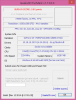
So, on the 4702HQ vs. 4712HQ: nothing to see here, move along. -
Is this considered a good deal for this laptop?
15.6 inch LED Backlit Touch Display with Truelife and QHD+ resolution (3200 x 1800) with Camera
4th Generation Intel (R) Core (TM) i7-4712HQ Processor (6M, up to 3.3GHz)
16GB Dual Channel DDR3L 1600MHz (8GBx2)
1TB 5400 rpm SATA Hard Drive + 32GB mSATA Solid State Drive
NVIDIA GeForce GT 750M 2GB GDDR
Windows 8.1 Pro 64-bit English
130 Watta AC Adapter
Near Field Communications
Brand new for $1350 total. -
Ever since February, my xps has been running FLUID... PERFECT.... but since last couple days I have noticed that when I unplug the hdmi from my external monitor and use the laptop screen, the brightness is really high. I cant change it with the keys nor the brightness settings within the control panel. This is very very frustrating because I am usually up late at night and that high brightness is killing my eyes.... anyone else notice this?
-
I wonder if Dell would refresh this model with new GPUs.
-
Not sure why this would be tied to having an HDMI display connected or not, but make sure adaptive brightness is disabled under Power Options > Advanced > Display. This and other helpful tips are written up in the XPS 15 Wiki.
-
This also happens when coming out of standby for me sometimes.
-
I already tried that. I dont think this has anything to do with the HDMI.. it happens regardless of anything.. whether i reboot or whatever. brightness is stuck at high all the time and i cant change it. i tried everything from changing the intel and nvidia drivers.. resinstalling.. everything.. the high brightness still sticks.
-
I've had sleep/hibernate issues on and off since I got this laptop (and eventually came to the same conclusion - hibernate was stable, so just went with that), but things have settled significantly since I uninstalled my Intel WiFi and Graphics drivers, NVIDIA graphics (from device mgr: keep uninstalling with "remove..." checked until you on windows default drivers) and installed the latest mfg versions listed in the XPS-15 Wiki (just updated it today).
I think I was able to uninstall wifi drivers 3x before getting back to stock windows drivers....really surprised this is a problem in 2014... -
I have a question.
I have the new i7, before ive had the same model with the i5. I noticed that the fan is working way more on the new machine. The CPU Temperature is always around 50-60° while surfing the internet.
Intel GPU is the same.
Is that normal? My fan almost never goes off. With the lower model with the i5 it was definetly different. -
I don't know about the exact temperature, but my fans don't fire while browsing. Only when gaming or doing some heavy processing.
-
what do you mean by fire? are they completly turned off? Mine arent very loud as well, but they are turned on to some extend.
-
I have ~50 tabs open in Chrome as well as modern Skype, and a few other apps (nothing warranting the nvidia gpu) - and don't hear the fan AT ALL. Maybe use Task Manager to see what is consuming the CPU?
-
I sometimes get 70 during Flash Video Streaming? Is that normal? It seems to be quite a lot.
-
Flash video is a lot more processing-intensive than just "web browsing", so if a good number of those tabs are video, it makes sense that the fans are running (if you're playing a bunch at the same time - which would be a little odd....)
That being said, I don't think I have any programs that cause the fan to run constantly - save maybe a few VM instances. Launching some apps will cause them to kick on for a minute, but usually just while everything's loading up, then it's back to quiet. Core temps report around 50*C and no fans are running, fans seem to start up around 60*C. -
Fans running will also depend on if you are blocking the air vents or if it is on a surface that is reflecting or holding the heat the laptop is generating. Eventually it will heat up needing the fans if it does not have adequate clearance for natural heat dissipation.
-
I think i found the cause for my fan problem. I still have coil whine - even after countless calls, replacements and new machines. Well, not exactly coil whine, but that scrachy sound that the Dell's are making these days. That dissapears if i just turn on something that "activates" the Nvidia Graphics card. So, i constantly have GPS-Z running. That does not produce GPU load, but none the less it activates the chip. The chip is running with around 235Mhz wich produces lots of heat on the graphics chip...
I think im just going to get a refund... its too much for my nerves... -
Hi guys, I've been gaming on and off for a couple months, more off than on because I never get good a constant FPS and I have no idea why. I have the top spec XPS and I set the detail to low and I play 1080p or 900p. The game (usually warthunder) randomly switches every minute from 120fps to 20fps and back and forth. I downloaded gpu monitors, and apparently the gpu is usually at 99% usage, and is between 60-80 degrees. When the game runs well, the GPU is usually around 1ghz, but then for some reason, even if the temperature doesn't increase, the clock speed drops down to around 135mhz and I get horrible framerates. I've tried using throttle stop, rebooting it, and downloading new drivers. Any ideas?
-
Garbled Audio Issue
Hey,
while my coil whine problem got fixed by a motherboard replacement, my XPS15 is now affected by the screeching sounds while browsing/scrolling/GPU Load. I think I'm kinda getting used to it.
My main problem now is the garbled audio issue that some others have mentioned earlier in this thread. My motherboard was replaced two times and the input-output board was replaced aswell, so the problem is not with the hardware.
It seems to only appear in way to high heights of various songs and radio streams. I've found a way to ALWAYS reproduce this issue with this song: https://soundcloud.com/grey-scale/zere-greyscale-sepia
This is what it sounds like: Garbled Audio
After the replacements, I tried to deinstall the audio driver completely and surprise: the sound errors were gone! But I still miss some of the connectivity options of MaxxAudio...
Maybe some of you could just listen to the song above for a minute or two and tell me whether you can hear those strange distortions, too? They mostly appear after 0:30
I think it's a bug in the driver, but even with the latest audio drivers from the realtek website, the distortions persist. -
Like I have said repeatedly, unfortunately I am not able to checkout this GREAT site and Forum daily, yet I Always would Love to help out others if I could, just as I have been very graciously helped as well, so if you can provide the link to the regular recording of this distorted song of yours, I will download it and see if it happens on my end as well, and I will do whatever I possibly can to Help?
Best Regards,
SD
XPS 15 (Haswell) Owner's Lounge
Discussion in 'Dell XPS and Studio XPS' started by mark_pozzi, Oct 23, 2013.


