 Problems? See this thread at archive.org.
Ok, but I was going by what Kizwan posted from the x2E info listed below.
x2E being similar but requires a port1+port2 setup, with either lane3 or lane4 or both having physical device attached to them. port1 is set to x4 mode, running with only the first 2 lanes.
So after checking and if I got all 3 wired plus express card slot then I can do x2E wired with 1,2 and either 3 or 4 disabled to use the E portion. So why couldn't I use the wifi in one of the 3,4 none E ports? Or if 3 turns out not to be wired then I can do x2E with 1,2 wired and 4 disabled(which is prob. the express card slot since I'm pretty sure it isn't 1). I hope this makes sense. Just want to cover all my bases. Thanks
-
I kinda mentioned before, but those of us who need to take off the whole bottom, how are they handling this. They just leave it off and it sits kinda crooked because of the wires. Or do they have a set up to prop it up around the under edges. I thought about if it was possible to cut the spaces needed for 2 or 3 mini hdmi cords to enter allowing me to keep the bottom on just with the added holes. It just doesn't seem safe to leave the bottom off if I need to run 3 cords there for x4 in addition to the one on the side which isn't the problem?
-
I put something at the bottom (left & right), so my notebook elevated a little bit. So, no harm to the cables & the notebook itself.
-
Yeah I used to pop my old laptop up with CD cases (and put a Pentium 1 HS and a fan on the CPU). Was too lazy to make anything for it. There were times where I just let it sit uneven on the cables though.
-
Atticus182,
I have a x220t with 6 gb ram using GTX560 (just flashed to 1.23) however I am still getting a Code 12 if I just boot up the computer with the card plugged in.
Setup 1x doesn't work anymore as it says the TOLUD is still 3.5 in this program so 32bit compression doesn't work and 36bit compression causes it to hang
Our config is similar I thinking maybe it may be a driver problem
1) what driver are you using for your video card? Are you using a laptop video driver with a modified inf or the newest desktop GPU drivers? Did you have to reinstall these drivers after flashing your BIOS
2) do you do a cold boot with the card in the express slot or put it in during hibernation mode? and do you even use Setup 1x -
Hi,
I have a problem with my eGPU (ATi Radeon HD 5770). My system (Thinkpad L520 with Core i3 CPU) always tells me: "This device can not find enough free resources (Code 12)". How can I solve this problem?
Greetings,
ibmthink
P.S.: Sorry for my poor english, it isn´t that good. I´m from Germany. -
Hi, I have the x220 with BIOS 1.23.
I installed the latest Nvidia driver 285.62.
I boot with the eGPU on in expresscard.
Everything fonctions without Setup 1.x, it is plug'n'play. -
well, I got the new PSU today. I'm not happy to say that after all this work, three PSU's, i still can't get the GTX560 to be noticed by windows. I have no idea what's up with this setup. It doesn't make any sense. Anyone else with an x220 / GTX560 want to share their secret?
My 9800GT works fine in this setup. With any of the three PSUs. The GTX560 works in the desktop. with any of the 3 PSUs. I'm about ready to just give up! -
I wanted to try out DIYeGPU-Setup-10f-pre28, but I realized I can't figure out how to remove the previous version 1.0e8 already installed on my system.
I checked the folder and it doesn't include a friendly uninstaller like the 1.0f version.
I assume I would need to get rid of the previous version, before I can install the new version.
Can someone tell me how to do it?
I am running Windows 7 Ultimate x64 CHS.
Thanks. -
I'm having the same problem as pathres with my x220. Error 12 when I plug in.
i5-920
8gb Ram
Gtx 560TI
I've been going at this for hours, tried plugging the egpu in different ways already with different combinations of nvidia drivers and optimus drivers to no success.
Some problems encountered
Plugging egpu after boot:
Sometimes when I do a fresh reinstall of drivers, the monitor will turn on briefly when I first plug it in after booting, then switch back with error 12. <- the monitor switching stops happening after plugging in a couple of times and just stays on error 12.
Plugging egpu and cold booting:
When it reaches the 'starting windows' screen, it hangs indefinitely.
If I force reboot, it'll boot but might blue screen or just error 12 again.
Anyone know what's going on? -
what is everyone else with an x220 and GTX560 doing right that i'm doing wrong? Can anyone map out their procedure step by step? This is what i'm doing:
- PSU to wall
- PSU to GPU via adapter (2x 4pin to 6 pin PCIe
- PSU to PE4H via Floppy power
- PSU to Power Switch via 24 pin
- GPU in PE4H
- Adapter plugged in to Express Card slot
- mSata cable in adapter (not yet in GPU)
- Power laptop on, login to windows
- flip switch on PSU
- flip switch on 24 pin power switch thing
- at this point the GPU is powered on, fan spinning, PE4H shows 3 green LED's.
- plug mSATA cable into PE4H. Fan on GPU spins up faster, LED on PE4H that was red goes green. HDD light on laptop flickers for a second, then. . . nothing! -
One thing, I power on the eGPU before I power the X220.
Try this! -
Nope, no change.
I see our setups are very similar. Which version of the PE4H do you have? -
Ok i don know if u tried this method but give it a try :
First plug in the express card adapter into its slot without micro hdmi connected to it from PE4H...Then, power on ur laptop, press F8 as soon as possible and windows will give you a set of options to start windows... at this point of time, power on your PSU and gpu fans should be spinning at this time with green lights lit on your PE4H...Now Plug in the mini hdmi cable to the express card adapter from the PE4H... after doing that, from the given options on the screen, select 'Start Windows Normally'.... and now when the laptop boots into windows it should detect your VGA card and install drivers thereafter... anyways this method worked for my Toshiba R840 (instructed by nando ).. try it maybe this will work for you. -
My version is 2.4
here's how I did it:
1. Plug the eGPU power on in the expresscard.
2. Power on the laptop.
3. Install the nvidia driver
4. Restart de laptop
5. That's it.
After that, just plug the eGPU power on and power the laptop after.
Be sure that in the BIOS, the expresscard is set to generation 1 and not on auto.
I can't tell you more... -
No change. same thing.
my version is 2.4 as well.
Expresscard is set to Gen1 in BIOS.
I can't even get to the "install the nvidia driver" stage because it doesn't get detected
Any other suggestions? i'm up for trying anything at this point. If i can't get it to work, i guess it's all going to ebay. -
Hi Kizwan,
I have run through the faq without success. To make sure I don't have a hardware fault I hooked everything up to my Toshiba L500D (Vista 64) notebook on an mpcie x1 link. It worked first go without any configuration. As soon as I start the Toshiba it disables the notebook lcd and all output goes straight to the external monitor via the egpu (including egpu boot message and post detail). Once up I was able to install the latest x64 modded drivers. Works perfectly and actually makes a big improvement even over x1 on this notebook.
Should my eee netbook be behaving more or less the same? The eee goes straight to its own lcd at boot and never looks like sending any output to the external monitor via egpu. I guess my concern is that the Toshiba fired up the egpu way before Windows or anything else comes into play. I'm thinking this may sway the issue away from Win 7 Starter a bit and perhaps back to hardware / bios?
I also think this netbook has an EFI partition. Did I read somewhere that that might be an issue? I can remove it / reinstall Win 7 Starter as the the whole EFI / fastboot thing hasn't worked on this machine for ages.
Any thoughts would be greatly appreciated.
Mark -
The method below will confirm if you have a successful link between your notebook and your eGPU. This has always worked for me when using the expresscard slot:
1) Unplug the mini HDMI cable from the EC2C.
2) Power on the eGPU. Ensure you have the floppy molex connected to the PE4L/PE4H AND the pci-e power connectors to the video card.
3) boot Setup 1.x, plug the mini HDMI cable into the EC2C, hit F5. The eGPU will appear in the Status window.
If this doesn't work, then there is some hardware problem. The most likely being the mini HDMI cable is faulty.
UEFI makes chainloading from Setup 1.x more difficult. In fact, only an unreleased forthcoming version has a UEFI boot option. So I'd suggest revert to BIOS boot if you have the option. Also, your mPCIe configuration may not be seeing the eGPU if it's using whitelisting. The way to check is to boo Setup 1.x with the wifi card in the slot, then carefully swap in the PM3N and hit F5 to see if the eGPU is shown in the status window. Once you get it detected, then it's a matter of testing the anti-whitelisting methods in Setup 1.x until you get it to work without needing to hotswap the PM3N. -
You have to update your UEFI-BIOS to the newest version 1.23:
BIOS Update Bootable CD for Windows 7 (32-bit, 64-bit), Vista (32-bit, 64-bit), XP - ThinkPad X220, X220i, X220 Tablet, X220i Tablet
Sadly, there ist no change like this in the newest version of the BIOS of my L520, and I have problems with the setup 1.x software. I still get the code 12
-
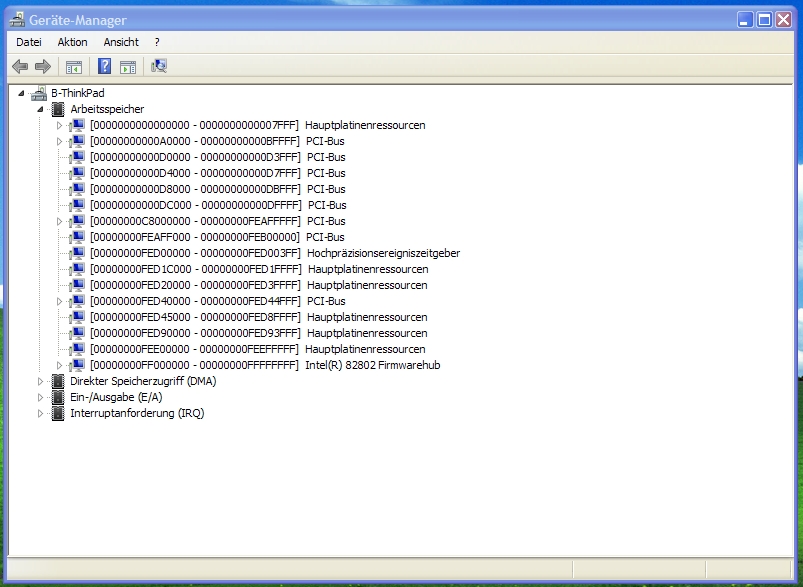
Did you try PCI compaction using Setup 1.x? Please post screenshot of Device Manager (set View to " Resources by connection", expand the Memory tree & take the screenshot).
I have no idea what wrong with yours. 9800GT is detected which clearly show the PE4H kit is OK. It's weird GTX560 is not detected at all.
You can removed it manually. Please follow this procedure.
i5-920?? Make sure you already updated BIOS to latest version (v1.23). You'll get Error 12 if you connect eGPU after windows loading. Before power on your notebook, connect the eGPU. After that, power on eGPU & then power on notebook.
Please use Windows 7 Home Premium at least. Windows 7 Starter might too basic (allocate resources, etc) to handle eGPU. -
Quote: i5-920?? Make sure you already updated BIOS to latest version (v1.23). You'll get Error 12 if you connect eGPU after windows loading. Before power on your notebook, connect the eGPU. After that, power on eGPU & then power on notebook.
I am in the exact same boat as cookie jam. We have updated the bios but there is no way to connect the eGPU before power on the notebook because it hangs on the windows screen.
If I use Setup 1x 32 bit compression wont work because it still thinks the TOLUD is 3.5 even though i flashed to 1.23. And 36 bit compression doesn't work, it hangs on windows start screen -
11-10-2011: Update from Masaharu Adachi at BPlus added to the Thunderbolt, USB 3.0, PCIe 2.0 eGPU update
Last edited by a moderator: May 7, 2015 -
@kizwan
Sorry I meant, i5-2520m.
I've already updated to 1.23 as pathres. No success as of yet. -
I've tried it, but I have problems with the program structure (it ist a bit difficult). I am using the old version of setup 1.x, because the newer version always said: "-my User-Name- is not an admin".
Here is the screenshot (in german, I´m using Windows 7 Pro 64):Attached Files:
-
-
imvho they should just focus on this products first. even of a economic POV it makes much more sense. That's what will make them earn more money. Really, how many notebooks models have thunderbolt? 2? even if they were massive selling models. it doesn't make any sense.
An enclosure? really? is it really needed now?!?! people are using older models without enclosures.
They really need some business strategy -.-
Focus on those products, sell them, THEN just make other stuff... -
Was looking through this thread and got pretty confused. I have a Lenovo ThinkPad T420. I am running Windows 7 Ultimate 32-Bit OS. I am looking to get a ViDock from Village Instruments and hook it up via my Express Card Slot (obviously). I'm confused as to whether or not this will be possible with my 32-Bit OS or will Ihave to upgrade to 64-Bit? And if I can stay on 32-Bit (this would be ideal) would I have to download a new BIOS or something? Just confused as to how I should go about this eGPU upgrade, any help will be greatly appreciated, thanks!
-Jordan -
![[IMG]](images/storyImages/72501d1320929568-diy-egpu-experiences-picture-1.jpg)
Referring to screenshot, the first PCI bus with 8 digits memory address is 0xC8000000 which means TOLUD is 3.1GB. TOLUD already low. You can use Setup 1.x to do 32-bit PCI compaction to solved Error 12. It's not too difficult. Recommend to use latest Setup 1.x. The "not admin" error might be because the script unable to read non-English letters but the installation should be successful.
I think you should ask this question to Villagetronic support. DIY eGPU doesn't use Villagetronic ViDock hardware.Last edited by a moderator: Feb 6, 2015 -
Thanks, submitted a support ticket to them but any further information would be greatly appreciated. The Dock they sell is essentially the same thing an a DIY project, just a little more polished.
-
PLX Technology : USB Controllers : USB 3380
PLX Technology
so no video cards for this, yet. just for other type of pci-e cards.
usb3.0 solutions also have the problem of the controller. this is, a controller that controls for example 3x usb3.0 ports is going to divide the bandwidth by the the 3 ports.
There's even pci-e to usb3.0 that uses several controllers to overcome this problem.
Since controllers and chipsets are inside the notebook and can't be changed I don't see a scalable solution for usb3.0 for a long time. So, limited to pci-e 2.0 x1 or x2 at most.
Of course this is in a perfect world where usb3.0 could route the pci-e 2.0 signal. No go for usb3.0 solutions.
The future is really in mini pci-e 2.0 / tunderbolt since we can't expect a mxm to pci-e or cabled pci-e implementation until the next millennium. -
The more reason why you should consult with them since DIY eGPU is a little less polished than Villagetronic ViDock.
-
Hi,
If it hangs at windows loading screen, there is maybe a workaround for it. Please try this:-
- Make sure notebook is in power off state.
- Connect eGPU to notebook. Power on eGPU.
- Power on notebook.
- Before windows loading, press F8 to bring up windows boot menu OR if Setup 1.x is installed, boot into Setup 1.x.
- Power off eGPU.
- Resume boot into windows OR from Setup 1.x screen, chainload windows.
- If it successfully boot into windows, put notebook to sleep.
- Power on eGPU.
- Resume your notebook from sleep.
Good luck! -
Problem description
1. What's the problem.
After running compaction with the DIY Vidock setup, and chainloading, I get a message stating that the OS is missing.
Platform Description
1. OS: Windows 7 x64
2. System: Lenovo Y650
3. RAM: 4GB
4. eGPU usedE4H ver2.0 with EC2C
I had it up and running for a good while and then it just crapped out on me. I want to get it up an running again. Any help would be appreciated thanks. -
Hi,
I have a NEC Versa E6500 with GMA graphic accelerator.
I have a GTX 460 with a 620W Seasonic PSU together with a PE4L.
I installed Verde 270.61 + MikjoA's nvam.inf (32-bit) as in here
http://forum.notebookreview.com/6542661-post1222.html
I unplug the EC2C, boot my Windows 7, and Sleep my Win7, plug my EC2C into my laptop, then power on the eGPU. Now I can see my graphic card driver as in here:
http://imageshack.us/photo/my-images/442/capture2yj.png/
However, my problem is that the eGPU does not output into my 23" LCD, my 23" LCD is all black. I try to change the display setting, but my LCD is not detected
http://imageshack.us/photo/my-images/210/capture3fv.png/
and http://imageshack.us/photo/my-images/269/capture4df.png/
Please let me know what should I do, I tried many ways but I still stuck.
In addition, when I power on my eGPU, plug my EC2C to my laptop, and boot my Windows 7, I got BSOD (blue screen). Can we fix it?
If we can, I think the problem can be solved, I will always plug my EC2C card to my laptop.
Thanks all your kind helps -
Ok so after some work, I have 1-4 ports available for a x4 setup. But I'm seeing a problem on my computer. Compared to the 1645 above, on the 1640 they worked the mini WLAN slot between the other 2 in a row and I think the mini HDMI cord end wont fit into the half mPCIe slot, the space stops right at the end of the half miniPCIe card pretty much. What are others doing about that since it looks like the end of the mini HDMI cord isn't flexible and goes past a half mPCIe card lenth?Last edited by a moderator: Feb 6, 2015 -
You can cut all the hard plastic off of the mHDMI connector to make it smaller and flexible. Under the plastic there's still a ton of glue and some solder holding everything together so you don't have to worry about things falling apart.
-
Hi all, I have the 'ExpressCard to PCIe adapter (PE4H)' setup with a 9800 GTX+. I'm getting the 'This device cannot find enough free resources that it can use. (Code 12)' issue in Device Manager. In the troubleshooting page for eGPU, where the fixes are listed, one is to run eGPU Setup 1.x. I've been going over the instructions on how to run eGPU Setup 1.x and I have to admit that I'm very confused - as they seem to be written for people who are familiar with the software. Are there any stright forward instructions that tells you 'step by step' how to run this software in order to fix the Code 12 issue? I've tried booting to the software and looking at some of the menus but I have no idea what I'm doing. Any help would be great. My system is an Acer 8940G, Win 7 64bit, 4 GB ram, with a GTS 250M dedicated gpu.
-
what's with those unsuccessful x220 egpus? I thought x220 was sure thing :O So with new bios were there any successful attempts with high-end graphics card?
-
Ok, that sounds like it should work. I'll try that and then wrap it with some electric tape. I found a flexible extender for mPCIe ports but the cheapest I found was 55 dollars. This sounds like a better option. Thanks. I'll post with my results and some pics when I get it all set up. I just hope I can get it all together and running with no errors. -
Still havn't gotten the x220 to work with the newest bios, but for those who are still trying looks like Lenovo are going to release a new bios with a TOLUD change in the future.
-
Did you tried the workaround in my previous post?
-
Please check your HDD partition layout (post screenshot here - "Computer Management" \ Storage \ "Disk Management"). Is there any active partition other than "System Reserved" partition before OS partition?
Does Nvidia control panel detect the external monitor? I noticed the "Base System Device" have exclamation mark on them. What are those? Also "System devices" tree is expanded. Is there any device with exclamation mark on them in "System devices" tree?
You just need to run 32-bit PCI compaction. There is simple installation instruction (labelled with "How do I install this software?") in Setup 1.x page. Just three steps. Then reboot & enter Setup 1.x (choose no.2 in Setup 1.x menu). In Setup 1.x screen, choose "PCI compaction" & choose "Run". Follow the on-screen instruction. After finish, choose "chainload mbr". It will bring up Windows / Setup 1.x boot menu. Just choose Windows to boot into windows.
Please post screenshot of the Device Manager (set View to " Resources by connection" & then expand the Memory tree). -
Thanks for your reply
No, Nvidia control panel does not detect my external monitor... It is the same as before "I sleep my laptop, plug EC2C, turn on GPU, wake up laptop". Nvidia control panel does not change after I plug my eGPU in.
In "Base System Device" those 2 exclamation marks are not related, I got those long time ago. It does not affect my system, so I leave it there.
In "System devices" there's no more exclamation mark.
I don't really understand Setup 1.x, do I need to do that? What does the "Chain load mrb" do? What does the "setup.bat" will do?
Thanks
-
It might preventing eGPU from working properly. "Base System Device" sounds like chipset related. When you leave like that, it doesn't get any resources which means eGPU might occupied wrong resources.
-
Many thanks kizwan
I installed drivers from my NEC computers website. Now those "Base System Device" problems are gone.
ImageShack® - Online Photo and Video Hosting
I reinstalled graphic driver with
285.62-desktop-win7-winvista-32bit-english-whql.exe
Now I am able to Unplug EC2C, Turn On Laptop, Turn On GPU, Plug in EC2C. The laptop screen gone dark, but nothing appears on the LCD connected to my GPU.
I capture the screen shot when my laptop gone dark, and I see:
ImageShack® - Online Photo and Video Hosting
My GPU driver is detected, but my LCD screen is still dark
I guess my laptop screen gone dark, it try to route the display to my LCD, but for some issue there is nothing appear on the screen...
Please help... -
OK. At least there is some progress. If you can access your computer when the screen go dark via remote desktop or VNC, try open Control Panel to check whether external monitor is detected or not. If detected, try manually setting main display to external monitor. OR try use keyboard hotkey/FN keys to set display output.
-
Hmm..seems like there is another partition before it, how do I fix this?
-
I have this exact same issue as Mavericko93 as I also have a ProBook 4525s (albeit with different specs: Athlon II P340, 8GB RAM, integrated Radeon 4250, Windows 7 Pro 64-bit). I'm running a PE4H 2.4+ setup with an HIS Radeon 5770.
Here's what I've done so far:
1) Despite not having my eGPU detected, I still went ahead and did a 32-bit PCI compaction and chainloaded to Win7. The result was a blank screen.
2) I then tried the 32-bitA compaction, followed by a Win7 chainload. The result was that it booted into Windows 7 normally, notified me that an AMD High Def audio device was successfully installed. I then looked in Device Mangaer under Display Adapters and it shows the 4250 working properly and a Code 10 for the VGA Compatible Device (i.e the 5770). I then realized that I only had the drivers for the 4250 installed and not for the 5770 so I downloaded those as well. Upon restart (via startup.bat & eventually through another 32-bitA compaction), it again boots into Windows normally but this time the 5770 doesn't show up under Device Manager (not even as a VGA Compatible Device).
3) I then tried the 36-bit compaction and the only sub-option it gave me was for the dGPU. Upon chainload, Windows booted normally but with low resolution graphics.
I even tried to tinker with manually allocating resources via the 'iport bridge' command, but I have no idea how to find and figure out the correct value to put in.
Any guidance would be awesome
-
<strike>Look alright to me.</strike> It works before, right? Does it suddenly stopped working OR you reinstall windows & it doesn't work anymore?
EDIT: Actually, the partition layout is a bit odd; primary - logical - primary. Did you create new partition? -
Yep it worked before but after not using it for a month it stopped working after decided to use it again. Maybe an update problem? -
While you stop using eGPU, did you create new partition or change the partition layout? I'm assuming GRUB chainload to the 3rd partition (OEM partition) which might explain why you got "missing operating system". <strike>Try to make the partition layout as simple as possible. You might need to delete "OEM partition". As always do backup first.</strike>
DIY eGPU experiences
Discussion in 'e-GPU (External Graphics) Discussion' started by master blaster, Sep 18, 2009.




![[IMG]](http://forum.notebookreview.com/attachments/gaming-software-graphics-cards/72501d1320929568-diy-egpu-experiences-picture-1.jpg)


