Problems? See this thread at archive.org.
I ordered an Envy 17 3D last week, and am anxiously waiting for it. In the meantime, I have a couple questions.
I have two 1.5TB hard drives which I'm carrying over from my desktop, so I'm looking at dual eSATA docks. It looks like some of these require two eSATA ports unless the motherboard supports some kind of advanced dual output? Any idea whether the Envy can utilize any dual HDD dock? And/or whether there's a feasible USB 3.0 alternative?
Regarding SSDs, is it worth getting a drive large enough to hold games/applications as well as the OS, or will performance be the same since games run in memory? I don't know if increased load times are worth springing for a larger SSD.
I bought this so I could play BF3 when I'm away from my dorm on weekends, so any experiences you guys had with the beta or BFBC2 would be fantastic.
Thanks!
-
Hi guys.
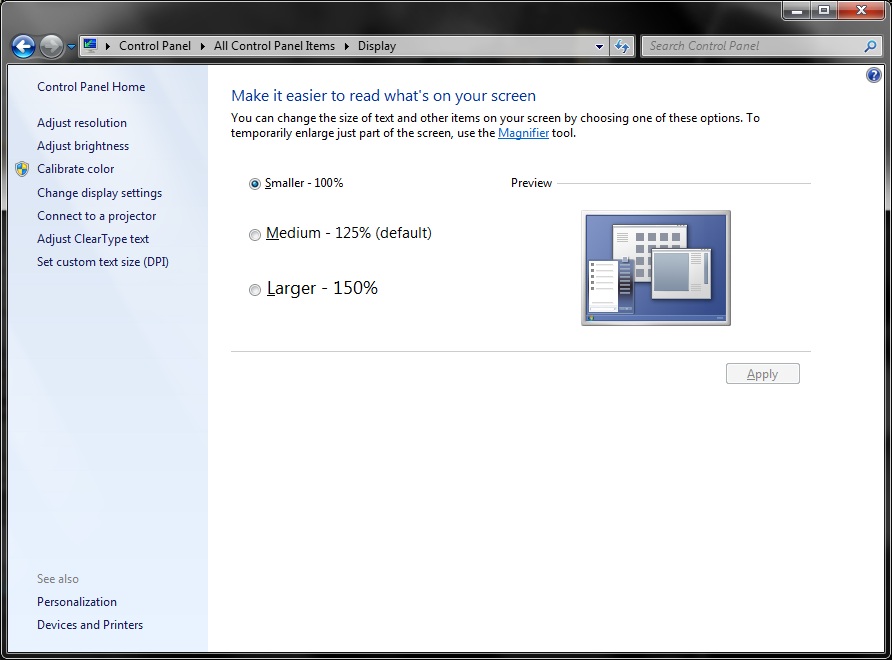
I was wondering if you guy go to Control Panel Large/Small Icons then Display.
Where do you see your defaulf? Is it on 100%?
Mine is on 125% which I don't really like. Obvousely I've changed to 100% since day one, but I'm wondering why it choses 125% as the default.
Check attachment. thx.Attached Files:
-
-
Can't tell you what my Envy 17 is set to...until it comes back from repair...but my desktop is defaulted at 100%. If that is where you are comfortable...leave at 100%
-
My Envy has the 160 GB SSD / 640 GB HDD combo. I have my OS and apps like Adobe Photoshop Elements / Premiere Elements, Nero, Office 2010 and the like all on the SSD. I have what games that are on the machine on D: along with some other apps like HWinfo32, Crystal Disk Mark and other utilities. I install every day programs on SSD. You might do well with a 240/256GB OS, app drive and them put games and other programs on D:
SSD does make a big difference in the overall performance of the machine...they are well worth it and the prices are beginning to go down -
If you had an Envy 17-2070NR, that was cosmetically flawless, that operates flawless, that has never had a single hiccup, came with 2 batteries (6 & 9 cells) and was just stellar in each and every way, if you had all of that, would you return it to acquire an ENVY 17-2290NR (3D/single 6 cell battery)??
This quagmire has just presented itself to me within the last several hours. When I purchased my 17-2070NR, they did not have the 17-2290NR in stock and didn't know if they would be getting them again. Now they have them in stock......................
So, what would you do guys????????????????????? -
Guess it comes down to what you really want. I have the Envy 18 3D (btw...back on it's way to me as I type...)...some people view the 3D part of the equation as a gimmick. I happen to really like Movies in 3D and gaming in 3D is exquisite when TriDef gets the settings right. Also...the screen refresh rate on the 3D model is 120 HZ...suffice to say the clarity and freshness of the screen are wonderful. That is the main advantage. If these two options are attractive to you...remember...you get this chance ONCE. Don't do it because of pressure. Do it because it is something you WANT. Remember...not even I needed the 3D model...but I wanted it. Would I backtrack to the non 3D??? NO!
Just my 2 cents -
Well the only thing that a little bit bothers me is that when I restart my computer, the login screen gets back to 125% (I know this because the user picture is bigger and pixlated) and once I type my password and hit enter the screen flashes quickly and windows realizes that this user (me) is on 100% setting.
-
Here are my thoughts, all of which are not so much the 3D aspect, but that is a great add on. So what attracts me; Faster CPU (from 2.0-2.9 to 2.2 -3.1. Although I doubt the speed increase is at all noticeable), 8GB of RAM, 1.5TB Hard drives, Faster refresh rate. My current Envy attractions; Everything is flawless and there is a big chance that the next unit just may not be so perfect. Plus I got the 9 cell battery and since I plan on bumping up to 8GB of RAM next month that scratches even. The fact that I will be adding an SSD in Dec kinda scratches the hard drive difference. The refresh rate is something that will ONLY happen with the 3D version. Currently I have no games or movies that are 3D. So I'm not sure how much of an impact the 3D aspect will hold on me. Other than the fact it is HP's Top Ranking King...
My biggest fear is that I won't get another unit as perfect as this one. Some little thing may be off, but enough to wish you just left well enough alone..
So with the further clarification, thoughts?? -
Going for another machine is always a risk! The quality of the machines coming out of the Chinese factory is all over the road. Go back to the beginning of this thread. I was there with my first machine...don't ask...long story...had nothing to do with the machine...but with borked warranty. Anyways...there have been people who received machines with gaps in the bezel...scratches, etc. Now...the upside of your quandry is that you are talking about a "Ready to ship" model. Most times, those machines are better...because they are shipped from the factory to HP. HP does quality control, as they do in the retail channel. Ever see a bad machine in the retail channel? I have not.
Now...as far as processor...not a biggie. The best thing you can do for your Envy is the SSD first and foremost...and then upgrade to 8 gb of ram. The only real CPU upgrade is to the 2820, because in order to run it...the bus speed of the machine goes from 1333 to 1600. That is also very costly. If 3D is NOT a big thing for you...I would pass. I wasn't sure if it was something you felt compelled to have. No matter what you choose to do, you win. The odds in your favor that if you HOLD what you have...you will win! You already are guaranteed with your machine...perfection! Are you a gambler? -
I use a custom 135%.
My only gripe with this machine when I first got it was that I had to strain to read text. This baffled me as the screen was BIGGER than my old laptop.
With a DPI scaling of 135% on this screen, items appears actual size. That means items 1" across will be displayed as 1" across (I measured this with a caliper). -
Does anybody have 3D glasses they don't use and want to part with? I would like a second pair. Please let me know a price with shipping to either Reno, Nevada 89521 or Hungary if somebody in Europe has a pair.
-
I've scoured this thread and havent seen where people are claiming it's the routers, and which routers dont work with the stock 6200 card. I can freeze my Envy using My-Wifi (intel), wireless display, or wireless connected to any router I've used, especially when watching HD video. Every issue goes away when using an ethernet cable, including freezing with wireless video. I've tried it with every driver between 13.5 and 14.2 using 2 different linksys routers at home, a netgear n series router at home, the mywi on my iphone4 and the ad-hoc connection on my iPad MyWi as well as the ad-hoc connection the wireless display uses. HP really needs to fix this.
-
Unfortunately a lot of us here gives tips when we can as this is not our primary form of income, but all I can say is trust me when I say there are a lot of posts and problems with the Intel 6200 series and specific router chipsets. This is NOT an HP problem. It affects every single laptop that has one of these chips. Just go to Best Buy's website and read about the Samsung laptops that use the same wireless chipset. Dell's (and others) are reported to suffer the same issue. THIS IS AN INTEL PROBLEM and one that appears will NEVER get resolved because this has been happening for over a year now with no resolution in sight. Other members of this board have successfully upgraded to the 6300 card and all their problems went away.
Check out these links for more info:
Alienware - http://forum.notebookreview.com/ali...i-fi-card-intel-wifi-6200-system-freezes.html
Alienware - http://forum.notebookreview.com/alienware-m11x/550038-crashing-related-intel-6200-r1-3.html
Asus - http://forum.notebookreview.com/asu...m/617172-intel-6200-causes-my-g73-freeze.html
HP - http://forum.notebookreview.com/hp-envy-hdx/574885-new-envy-17-sb-freeze-have-searched.html
HP - http://forum.notebookreview.com/hp-envy-hdx/570182-envy-17-sb-keeps-freezing-up.html
Intel - http://forum.notebookreview.com/har...uire-connection-after-waking-up-computer.html
Google Search: Intel 6200 freeze
... I'm sure you can find more... -
Okay, so anybody could help me ?.. What is the PCI Vendor ID for Centrino 6300 cards, confirmed that works in Envy 17-2000 without BIOS blocking ?
H/
Envy 17-2000 3D CTO
6560b | P100-324 | 5100-503 -
Hi guys, I need some help..
I recieved my envy 17 3d today and two things..
Its brand new from hp, but the screen was a little popped out from the left top corner, and i snapped it back in.. is that normal?
second, I cant watch 3d on youtube with the glasses on, or any 3d content online i cant see it. is there a trick to this? -
Youtube uses the ancient comic book style color filter 3D.
Watch 3D Videos on YouTube - YouTube -
Thanks for your info. Will try the factory reinstall approach as you suggest just in case as it will be quicker.
-
Hi All - I have a rookie problem when using my Envy 17 3D with an external monitor. I use HDMI out to a 27" LCD screen at my desk, with a wireless USB keyboard and mouse. I would like to primarily keep the Envy closed and use it as a desktop machine that can go places if it has to.
My problem is that when I put the computer into sleep mode, it defaults to using the internal monitor after waking rather than sending a signal to the external monitor. I have to open the laptop, then switch via the function key or the "screen resolution" window. I've tried setting the Envy to both "projector only" and "duplicate" modes, but these result in the same problem.
I had a non-3D Envy at first that I only had for a week before exchanging it for the 3D version. I could have sworn that I had it set up so that it would default to the external monitor when waking, but I may be wrong on that. Any ideas on what I'm forgetting here?
Thanks!
Kevin -
Hey Bob,
You couldn't have worded that any better! NO I am definitely NOT a gambler and that was my main point, since I have, for all intensive purposes, a perfect Envy, I really don't want to lose it and risk regretting it.. So I have decided (Thanks Bob) to let perfection remain in place and to continue to enjoy the best PC I have ever owned, my ENVY! -
I have a problem that _seems_ to be related to temperature, but apparently not in an obvious way. I have an ENVY 17 3D 2000 CTO with all the performance options (CPU, RAM, SSD + HDD) and I have a problem that seems to be made worse by high system load and is alleviated by blowing air from a fan under and around the laptop.
For example, if I turn the pedestal fan off and turn the computer on and start watching a DVD, the DVD typically gets about half way through, or perhaps 45 minutes, and then I get choppy video and sound, progressively getting worse as time goes on. If I then turn on the pedestal fan to blow air under and around the machine (the back is propped up on an older notebook) the system will improve its behavior over time until it is playing correctly. (It takes about as long to bring it back as it has spent misbehaving.)
The problem may be getting worse; lately I've had to turn up the fan to 2 or 3 instead of 1, which used to work for me.
Has anyone else experienced or heard of any similar phenomena? -
I'm doing the same thing as you and I posted the same question a month or so back with apparently no way to configure it this way. Seems weird that my 10+ year old Thinkpad has an option in the bios to choose the default video out option but a brand new Envy doesn't. I personally think manufacturers are becoming lazy in their programming. Granted HP does OEM this bios from another company, but they also have the ability to pressure the OEM to add in such options. I'm a little jaded about this, but in 3 years time we'll all have tablets so maybe the point is moot...
By the way, I don't have to change the configuration of my video out when I wake from sleep, I just need to open and shut the laptop screen to get it to kick in the HDMI display; so there is something slightly different with your configuration. It's still not ideal, but at least it saves me the need to hit a key press after I open the display. I honestly don't know what I did differently other than to switch to the external display with the function key. -
Hey Cam121,
I'm going to be adding my HP 22" external HDMI via the HDMI port, but I have a question, with the screen closed on the Envy, will that increase the heat, or will it have no effect. I'm thinking it may actually run cooler, but hey I'm a newbee. Regarding "Performance", what are the pro's and con's when running the external HDMI?
As always, Thanks! -
I honestly have no idea how it will affect your temps... one could argue the lack of heat being generated by the LCD will cool the envy, but the counter is lack of airflow through the keyboard may increase temps. All I can say is that under normal load, my temps stay around 50-60C with the top closed. However, if I push the CPU (flash loves to do this), then the laptop will quickly reach 90C and the fans kick on to max. I actually purchased a small USB fan to place next to the vent to help increase airflow just in case...
As for performance, it shouldn't matter whether you are on an external monitor or the LCD. Given the hardware inside the laptop, your FPS should be high on most games. Of course, this also depends on your external monitor too (don't expect a 10ms LCD to not blur - lol).
P.S. BTW, if somebody follows my example and purchases a USB fan, common sense should tell them to have the fan blowing the hot air away from the laptop; don't angle the fan to blow hot air back into the vent. You have been warned! -
Thanks Cam - I think I remember your question from before, but I thought it had more to do with how to wake from hibernate without having to open the cover and press the power button each time. Unfortunately the "just use sleep instead of hibernate" solution doesn't really work for us either!
I tried just opening and closing the cover, and you're right, it does result in signal being sent to the monitor. Unfortunately this creates a problem for my desktop configuration. I'm trying to use a laptop stand called Bookarc, which holds the computer vertically, in order to save some desktop space. This stand holds the computer shut though, so if I want to use the external monitor I guess it's back to the ol' drawing board. Prior to the Bookarc, I had used a traditional monitor stand with the Envy underneath, but this just made the monitor sit too high, giving the same effect as sitting in the front row of a movie theater.
Any thoughts on just keeping the Envy on all the time (no sleep, no hibernate) and just shutting the monitor off when I'm not using it? I realize this will probably shorten the overall life of the machine, but would it be a significant reduction in lifespan? Are there any other things to consider? Would setting the hard drive to shut off after a certain period of time help extend the lifespan with the proposed configuration? I've always kept my desktop machines on all the time, but this is my first laptop.
Thanks,
-Kevin -
I'm interested in this aspect of the posting as well. Since I had always kept my Desktops on 24/7 and with this being my first "REAL" laptop. So far I have been pretty much running it 24/7, but in the evenings it does cycle down and go into "Sleep" mode for at least a couple of hours.... I do LOVE my Envy, as such, I want to ensure she is properly cared for...
I am also considering this purchase ( http://www.amazon.com/Cooler-Master...?s=electronics&ie=UTF8&qid=1317686889&sr=1-1). Would this work well with the Envy? -
Hey BOB,
Have you received your Envy back from the service depot? If so, how is the new Mother Board working? Did your Envy come back in the same condition it went out in (meaning did it get any blemishes, dents, scratches, scrapes, or anything similar)?
Waiting to here back on your status.... -
Came back with a different issue. HP replaces New MB for New MB...now I have a power up issue, where to get the machine to run...I have to power up, power down, and power up a second time...then it starts. They also neglected to re-attach my HDD LED light in the front. They did, however, fix a slight imperfection in the back of the main deck just under the HP log....the case looks good...works once it powers up correctly. I am working with a Case Manager now...hope to get it resolved very soon. I give service Depot a D
-
WOW and OUCH... Hate it when all of that happens.. They depots need to do much better Quality Care Inspections! Are you able to connect the HDD LED Light, or will it need to go back for that and the power up problem? What does a case manager actually do in a case like yours, where everything is pretty obvious? Please keep me apprised!
-
Will do...
Thanks for asking... -
I feel your pain... I purchased a laptop desk that keeps the laptop in a slim drawer under the desk top. It has a built in USB2 hub and cable management for items placed on top of the desk. It works great except for the fact that I have to pull out this drawer, open the envy to wake it from sleep, and then close the drawer EVERY time I want to use my computer. It sucks and not what I intended seeing as how my desktop configuration didn't require me doing this.
Generally speaking, keeping the machine running and not in a sleep mode is a waste of electricity and wear. I can't say how much lifespan this sucks from the laptop as I personally wouldn't do it but that's really up to you. I prefer to place my laptop into sleep mode but as it has been discussed, this is useless when using the laptop as a desktop replacement.
If you have a HDD, having it spin down during non-use can save some power and heat, however windows will usually wake it up to do "something" so YMMV on the "savings". I never (intentionally) left my desktops running unless they were performing a task (like an overnight defrag). -
Ah, the great debate, is it better to leave the PC running or to turn it off when not needed. Which way is better and which way saves the parts from ware. I can remember this desktop debate going on and on and never being really answered. Since this is my 1st true laptop, I just need to get into a laptop frame of mind. I'm so use to having a screen saver running on the desktop and really never shutting it down, but my HP desktops did last 7-8 years on average, which is pretty good considering they were running 24/7.... My school of thought was it took a lot of resources, both mechanical and non-mechanical to start up a PC from a shut down, but that may be a little archaic... So I guess with Laptops, it is better to go into a sleep mode, something I never used with a desktop. I will have to reevaluate my power schemes and structure them accordingly...
So, is this the general consensus folks???? -
Electrical failure on modern electronics containing ball grid array IC's is almost always due to thermal cycling (repeated on/off situations).
-
So it's better to leave a unit on than to continue to turn it on and off... The debate continues, and this one is older than dirt, LOL!
-
Not necessarily.
Leaving it running can cause other issues like fan bearing wear and faster build up of dust and debris in the heatsink fins which will eventually lead to overheating problems. -
Yeah, that would explain the 6 month unit take down, that would become a repetitive cycle, so I could blow out all of the dust which had accumulated via hi-pressure air...
So if the laptop goes into "SLEEP" mode, does the laptop generate the same ware as if it went through the shut down cycle? I would think the "SLEEP" mode would be the best of both worlds?
THOUGHTS?? -
Sleep is the same as a system shutdown as far as thermal cycling goes.
Personally I just shut down when not in use, or the machine ends up going into sleep mode eventually anyway.
If I ever end up with BGA solder joint failure in the future I'm pretty confident I can fix it. Just recently fixed 3 bad TX1000 motherboards with bad GPU solder connections. -
Well, I am sorry to say, I am no where near your level of expertise with hardware. I'm a software type guru geek, if that makes any sense.. So since as I have said, I'm new to the Laptop world, I guess I really have some adjusting to do.. I guess no more long running screen savers, eh? So before I readjust all of my power schemes, let me ask you this, how long of a period would you allow your laptop to run before you put it into shut down? Since I don't think having it shutting down and restarting several times a day is the right mix, so what is a good general rule of thumb to go by?
-
I have two internal hard drives from my old Desktop that I need to connect to my laptop. Which hard drive enclosure would you recommend? Are they are easy to use as they appear?
Thanks! -
Micro Center - Kingwin 2.5" & 3.5" SATA to USB / eSATA Docking Station w/ One Touch Back Up EZD-2535
Micro Center - Inland u-Jam Pro IDE/SATA to USB Adapter 382085
I have these two, but use the dock more than just the adapter. If you end up needing to keep it connected for a long time and transfer a lot of data you need to put it in front of airflow or the drive will get hot. -
So with the dock, you just slide the ole' internal desktop hard drive in and away you go? Unbelievable, I thought for sure it would be expensive and very hard to do, that was my initial main intent in getting another desktop unit instead of the laptop, but when I saw the Envy, I fell in love and figured I would work around the hard drive issue later. Anyway, these are the hard drives I will be connecting; I have 2 Seagate Barracudas', ST3500630AS, 7200.10, 500GB. The two were connected via a RAID 0 array. Does that make a difference connecting?
Thanks for all of the help! -
Hey Bob,
Any update on your Envy? I know you must be frustrated on this one.... -
Case Manager still "Investigating"....
Meanwhile, still have to power up...power down...and power up again to get it running. No HDD LED and not my recovery partition won't recognize the machine...they changed the motherboard, put my serial number on it but for some reason all my recovery media doesn't recognize the board. This is turning into an adventure -
There are dual external HDD enclosures on ebay for cheap. Here is one that is eSATA and RAID......
http://www.ebay.com/itm/220484834327 -
I don't think it's going to work. The RAID controller determines the format of the stripes on each independent disk in the array. The RAID controller in your desktop may not be compatible with the RAID controller on the Envy or in one of those enclosures. Chances are high that when you place those disks in a chassis, it will detect them with an invalid format and ask if you want to reinitialize the disks for use in a new array.
Sorry to rain on your parade there... just something to consider before you start dumping money into this project.
P.S. If both (new and old) raid controllers are from the same manufacturer, then there is the possibility it will work. For example, a RAID array created on an ASUS M2N32SLI motherboard should work on an ASUS Crosshair II. -
Since my now defunct HP desktop used the same "Intel Rapid Storage Technology" for the RAID 0, that part is an exact match. I don't believe the versions are going to be the same since there has been a new version released after my desktop fried, but they are the same controller. My only question remains about the which device to use to accomplish this. I liked the "Docks", but they are not RAID and the limited ones I did find that offered RAID, really didn't have great reviews. So I'm open to any and all suggestions...
PS: What do you guys think of this unit: ( http://www.amazon.com/Cavalry-CAHDD...?s=electronics&ie=UTF8&qid=1319503805&sr=1-25) The reviews are very good.. Do you think this would work.. Mind you I only need it to connect/recognize and transfer files from these to my Envy, which would take about 2-3 hours, depending on speed. After that I can format them and continue to use, or just self them for spares.. So, THOUGHTS?? -
I googled the HP 3D DriveGuard, just to read up on it and have a couple of questions:
1. Do the Envy's have this: The professional and workstation series HP Business notebooks include a magnesium drive cage, which adds an extra layer of protection.
2. Do the Envy's have this: The External LED Indicator: This light lets you know your hard drive is parked when it matters most—when you’re on the move. • Amber: Hard drive parked.
I have never tried this, but I'm sure others have, so, does it change colors as indicated above? Thanks! -
It's called HP ProtectSmart on ours. Don't know about the LED; the feature is useless for SSD's.
-
Strange, but on my Envy, it is called 3D DriveGuard, which I discovered via the "Windows Mobility Center". After I accessed it, I noticed that I did not have the System Tray Icon Enabled, which it is now. The help section says this:
To determine whether drives are currently protected or whether a drive is parked, use the icon in the notification area, at the far right of the taskbar:
● If the software is enabled, a green check mark is superimposed over the hard drive icon.
● If the software is disabled, a red no circle is superimposed over the hard drive icon.
● If the drives are parked, a yellow cone is superimposed over the hard drive icon.
The LED indicators don't change on the Envy, but the icon overlay on the System Tray icon changes to reflect the current status of the Hard drive Protection. The only thing I don't know, but I can imagine it is, is what material the drive cage is made out of. The 3D DriveGuard says it is made out of magnesium, so since I have everything else, I guess it would follow that I have that as well.. Can anyone verify that aspect?
Thanks! -
Ah, I guess the program is called "3D DriveGuard", but the feature is called HP ProtectSmart.
-
Upgrading to a new version of the same RAID technology usually works as the hardware can sometimes update any formatting non-destructively; but once it upgrades the format, you usually can't go back to the old controller (which is fine in your case). Your best bet is to probably get a friend to load up the disks on another computer and save your files to a USB backup drive to transfer to your new machine. When my ASUS MB died in my desktop, I purchased a used one from eBay just to get the RAID0 stripe up so I could copy off my files to USB. Surprisingly, that used MB still works so that desktop is now my backup computer.
I really can't say for sure but I can say that for long term storage options, I'd go for a NAS and bypass the tethering of USB unless you want the local speeds of USB3.
Good luck.
*HP ENVY 17 & 17 3D (2XXX series) Owners Lounge*
Discussion in 'HP' started by 2.0, Mar 14, 2011.