Problems? See this thread at archive.org.
I love this Series 9 but the constantly changing brightness is driving me nuts. If I can't figure out how to disable it I'm going to have to get rid of it.
So far I've done the following 3 things but the damn thing persists:
1) Disabled the radio button in the Samsung Control Panel
2) Disabled the light sensor in the Windows Control Panel
3) Disabled the adaptive brightness option in the Advanced Power Options.
Yet is STILL DOES IT!!! Is it hardwired in?
I'm losing it here people.
-
I have a series 7, so it could be totally different. But on the series 7, I just went into easy settings and switched it off...
![[IMG]](images/storyImages/Capture-21.jpg)
-
Function key + F1 to open the control center on the series 9. From there you will see an option for adaptive brightness.
-
As stated in the original post, I've already done that. Made no difference.
-
It exists in all notebooks with iGPU.
-
The Intel graphics control panel (right-click on desktop and select Graphics properties) contains a couple of options:
1. Under Power there is Automatic Display Brightness and, in the battery profile, Automatic Display Power Saving Technology.
2. Under Media > Image Enhancement there is Automatic Contrast Enhancement.
Do your problems occur under all operating conditions or battery only or only when playing media?
John -
This doesn't seem to mitigate the issue. All the Core i gen notebooks with Intel HD graphics I have used seem to exhibit this issue only on battery.
-
Disabling adaptive brightness was one of the first things I did on my Series 7 700Z5A - using the del/home/end/pgup keys would cause the screen to dim because my hand caused a shadow over the ambient light sensor. The setting works for me on battery and plugged in.
-
The problem still occurs even if I disable adaptive brightness and completely cover the sensor.
-
If the sensor is completely covered, then that shouldn't be causing the change in screen brightness. Did you change your Windows power plan to have the same screen display intensity on battery as plugged-in?
-
Yes. I use lowest brightness - ie 0% even on dim.
-
put electrical tape over the sensor?

-
I tried that. Doesn't seem to be the sensor since my ENVY14s have been doing that too.
-
Hi yknyong,
Have you found a solution to this annoying problem yet to either of your laptops? I too have this issue and same laptop as you, and it is driving me mad as well >.<
Tried all sorts of things like what others suggested in the forum like disabling adaptive brightness etc but it still persists. It may be an INTEL issue since its a problem present across different laptop manufacturers.
But havnt found a fix yet. I was hoping you have found a solution since you've stopped posting in this thread? Any help would be much appreciated
-
found solution, maybe it will be useful for someone who will find this thread in google like me
Attached Files:
-
-
So...let me get this straight. The automatic brightness thing is not fixable with unchecking the box in Intel's Graphics Properties? Because that's what fixed it on the VAIO SE.
-
Nope, my laptop is about to take flying lessons. This is ridiculous. How did they think that this would be a great feature.
-
Turning off the auto display brightness in Easy Settings > Display disables the ambient light sensor. Slightly further down the same page is the auto movie color enhancer which can also change the display. Then there's also any settings in the graphics driver.
John -
I have the same problem on a different laptop (thinkpad x230) with an hd 4000 gpu. I don't have that checkbox in the intel graphics control panel. I think I used to, but it disappeared either a driver update or the upgrade to windows 8. Anyone found a way to turn it off? (Note: I don't even have a light sensor--it just changes brightness based on the average brightness of what's on the screen.)
-preview.png)
-
The other place to look for Adaptive Brightness is Power Plan > Advanced Settings > Display (find the power icon then right click to get Power options). In Windows 7 there is an Adaptive Brightness entry (separate for both mains and battery). I can't vouch for Windows 8 but it's worth searching for.
John -
To all having the adaptive brightness problem-- The checkbox for "display power saving technology" will only appear if the selected power source is "on battery" in the drop down menu at the top. Once you have revealed the checkbox, uncheck it. Also make sure that the auto adjust brightness and movie color settings are disabled in Easy Settings.Xero likes this.
-
This doesn't work for me - no "display power saving technology" check-box appears regardless of the selected power source.
-
I don't have this setting in Windows 7. Still suffering from irritating brightness adjustments between light and dark scenes when watching full screen video.
-
Here is the setting that worked for me:
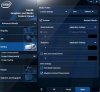
Turn that darn thing off.
Under Easy Settings, also turn off the following:
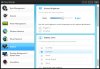
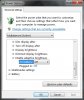
Windows Control Panel | Power advanced settings:
-
This is the same on Windows 8. That's what I did too, but the adaptive brightness thing still does it. However, it's more subtle and light now compared to when the options were ON.
-
Thanks for posting these screens. I have the first two set to off already, but the 3rd setting in control panel doesn't exist:
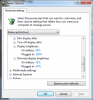
-
Hey all,
Adaptive brightness is driving me CRAZY! Sometimes I have done ALL the recommended tricks, with power management, and the Intel graphics setting. And also found this trick: http://www.alltechtalk.net/2012/09/18/fix-permanently-disable-windows-8s-adaptive-brightness/
You can disable the light sensor, and it should solve your issues mostly.
My problem though is that when I watch movies, the adaptive freaking brigtness keeps on coming back. Damn Windows, I have no clue of why, but it resets some of the Intel settings, not all, but some. Damn it, this is why I hate Windows. I have Linux on this computer, and I rather use that, but since I need to edit video, I'm forced to use Windows. Yeah and the video tearing issue in Linux as well, but I'm at the point where I'm gonna devote a day to solving that problem so I don't have to use win8.
Anyways do you guys have any idea why the Intel settings would change on their own? Are they connected to something else that could somehow override them, or !? Really, I'm so frustrated that I set something and it doesn't stay the way I want it... Damn I'm going back to Linux... -
Run Easy Settings > Display > Go to bottom of Display page and find the Display Color section. Deselect Auto Movie Color Enhancer.
John -
I'm still having the exact same issue - I don't hvae the "display power saving technology" box, even when I select the battery drop-down.
I'm on driver version 9.17.10.2932, video BIOS 2098.0
Does anyone know the driver version I should use to get that checkbox back? Thank you (seriously to anyone that tries to help THANK YOU!!!! - this is driving me nuts.) -
Perhaps it is easier to try the alternative fix of a small piece of black tape over the sensor (most likely next to the power on LED) so the computer permanently thinks it is in darkness.
John -
But it's not the sensor. The adaptive brightness is off, it's the power saving technology "feature" that I can't seem to switch off. Here is what I did, I made a all black image in MS Paint, then (still in Paint), put it on full screen. As soon as I take my mouse off the screen, it auto-dims. Bring the mouse cursor back, screen brightens up again. This only happens on the battery, and I'm convinced it's the Intel power saving issue. I just need to figure out a way to turn it off - I currently don't have that option in my graphics properties window (even when I check "battery").
Alternatively, I know it can be switched off by editing the video bios, and I've located and downloaded a copy of the Intel BMP tool, so if anyone know what files to edit and can help out, I'd gladly do it that way too. Anything to get rid of this!
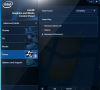
As you can see, the option is just not there. -
Try the adaptive contrast. -
Hey everybody. Certified Samsung technician here, been working on their notebooks since January 2011.
I've been lurking these forums for a while. John Ratsey seems to have pretty much everything covered. But regarding this adeptive brightness.
Do this. My W8 isnt In English but Im sure you get the idea and can figure this out.
![[IMG]](images/storyImages/4eHyhh9.png)
EDIT; Oh yeah, the screengrab went fast so forget about the Reddit stuff on the sides -
AssyMother, thanks for the advice, but even though I've put my question in an "adaptive brightness" thread, the issue is not the adaptive brightness. The issue is the power saving technology (see my test with a black image in MS Paint). It has nothing to do with the ambient light sensor - I've turned that off. I just don't have the option in the Intel HD control panel to turn off the display power saving technology (see my other post with the screenshot).
-
1. Have you tried the newest driver from Intel to see if they put the option back again?
2. Have you run the BIOS Update to see if there is a newer BIOS.
John -
I have dissabled it on the "Battery Settings".
You have to right-click on the Battery Icon, open the "battery options" and then click on the "change plan settings". Inside "plan settings" open the "advanced power settings". There you have to find the "screen" option, open it, and there you can disable the "adaptative brightness".
My laptop is in spanish, so the "names" of the options I've gave you may differ as i've translated the spanish options into english. -
Yes to both, BIOS is current version, biosupdate.exe confirmed it just now. For the Intel HD 3000, I'm currently running version 9.17.10..2932 and no luck. I'm trying to figure out if there is an older driver I can go to, or some trick to getting it to display in the Intel Graphics control panel. -
Sorry, I didn't read this message before posting my answer.
I realised now what I've answered was not what you were asking for. -
No problem. Thanks for trying to help.
-
Did you try what I suggested?
-
I had already followed the steps you recommended - so yes. That does not solve the issue.
-
There are three areas that allow you to control adaptive brightness and contrast:
- Intel GPU properties via the Intel application
- Samsung "Easy" Settings
- Windows
-
The problem is clear, the Intel GPU is using the "Display Power Saving Technology". I am unable to switch it off, because I don't have that option in the Intel Media Control Panel (I know to switch to "battery" mode, it's still not there). It's obvious that this is the issue as it only happens on the battery, and only happens when displaying a dark image.
I want to find a way to either 1) get a driver to give me the option to switch it off in the control panel; 2) find someone who knows how to edit the video bios (I have a copy of the Intel BMP tool) to switch this off; or, 3) a workaround. -
I have the same issue. I did all the required steps in the power manager and intel graphics drivers, yet the issue was still present. At last, I've found the solution:
1. Press Win+R key combo
2. Type and run: services.msc
3. Find "Sensor Monitoring Service"
4. Right click and select properties
5. Select "disable" under "startup type"
6. Finally reboot your computer.
It did the trick for me. -
I thought for sure this was going to work. Nope. Glad it worked for you!
What even, Samsung? WHAT EVEN. The way I sit on the couch with my laptop (living up to it's title) makes the keys impossible to read with the backlight due to the screen reflecting off the keys. Silver was a poor decision if they also decided to take choice of backlight usage out of our hands. -
I re-read this a few times but still don't understand the problem. Is your complaint with the backlight brightness, chassis color, or the finish of the keys?
-
I believe snosamie6 is referring to an issue on the new Chronos, which has been discussed a few times now: The silver keys provide very little contrast to the letters on them, making them hard to read.
I always had that problem on my old (and otherwise excellent) HP HDX18: Silver keys with dark gray letters that turn bright when backlit. It looks quite elegant, but in daily use keys are often hard to read, regardless of whether backlight is on or off.
@snosamie6: Please correct me if I misunderstood you there
-
Under control panel->power settings -> advanced power settings:
- There's a "Adaptive Brightness" which you can set (works in win8 at least). -
Yes, thank you. That is not the issue I was commenting on, though. My comment was about the physical contrast of silver keys (as on the new 15" Series 7).
But you are right, adaptive brightness IS the topic of this thread. I have to believe most people here found that setting in the power profile (or the one under Charms > Settings > Change PC Settings > General). But some users have continued to experience problems with adaptive brightness even after disabling that setting, and ended up having to cover the light sensor with tape. -
I don't have a "Sensor Monitoring Service" listed there.
Adaptive Brightness Driving Me NUTS. Unable to disable. Help!!
Discussion in 'Samsung' started by Pizpump, Jan 5, 2012.