 Problems? See this thread at archive.org.
I tried all drivers and still had this issue. I changed the wifi card to the 7260 dual band with bluetooth. never have a problem since.
-
Hi there cl320 ;
I've created recovery USB sticks for 2 Flips, both were used to do Recovery installs to a new SSD. Success both times on the first try. One thing that might have gone wrong in your case : the thumb drive itself, not being compatible for booting on the Flip. You have used the right size drive (32GB) and have used the VAIO Care software (that's good). Is the Toshiba drive USB 2.0 or 3.0 ? If it's a 3.0, that's most likely the problem right there, as some USB 3.0 drives cannot be used for booting. If it is USB 2.0, then perhaps it is simply not compatible for booting on the Flips. My advice : if you have an extra $15 bucks, get a new cheapo USB 2.0 thumb drive and try again.
Another thing I remember (I think) : when the recovery stick creation process was done and there was a prompt to test the drive, I remember doing it this way : shut down the Flip, connect thumb drive and hit the Assist button to boot up the Flip in Recovery mode. I'm almost certain this mimics booting up and hitting F11 though, but the Assist button makes it easier.
So... before going out to buy a new drive, try booting via the Assist button first (thumb drive connected). If that does't bring up Recovery, then try with a new stick. The ones that worked for me were cheapo 32GB Lexar USB 2.0 drives I got on sale for $12-$14. I'm sure other brands will do just fine as well, just get the cheapest one you can find (2.0).
Good luck... -
Thank you very much Mark. I went for it, even though I couldn't confirm that I had the restore on my USB, which is a 32Gig 2.0. So I can confirm that the theory I read stating that if the machines sees your USB as a lettered drive it won't properly restore is false. My back up worked very well. So far I'm really loving this computer, it's a shame it's no longer going to be made and improved on, I would imagine the new version of this would be pretty bad to the bone, maybe another convertible maker will pick up where Sony left off, until then I feel I have the best convertible machine money can buy.
-
I managed to find a fix, although not an optimal one. I had to go into device manager and change the power management options of the wifi card. I unchecked the option for 'Allow the computer to turn off this device to save power' which fixed the problem for me. Now I no longer have to troubleshoot to reset the the wifi everytime

-
A little follow up on my battery tests with the undervolt. It seems I have something happening (most of the time) while running Battery Eater when the computer hit's around 18% battery. Something then starts to drain the battery quickly until it reaches around 9%. Sometimes this doesn't happen and I get a clean run where it uses more or less the same amount of energy all the time. I've tested again today, every test has had the same issue (with or without the undervolt) towards the end (so at least they are consistent) - running undervolted gives about 20% more battery life in this high usage scenario. Screen was at 50% brightness, and WIFI on. Not sure how much more testing I will do with Battery Eater since it doesn't seem very relevant to - at least, my usage scenario. Coupled with the slightly finicky nature of the program (sometimes the log file comes up empty, so unless I was sitting there looking at it - I'll have to run the test again).
-
I wouldn't be too worried about the results of synthetic tests like these. As you say your usage scenario may be completely different.
Also: AFAIK batteries aren't discharged in a totally linear fashion from 100% to 0%.Depending on the type & model of battery the discharge could accelerate on the last 20% for example.
I also doubt that one can really control the discharge in Windows to be identical every time - with background tasks like indexing, optimizing processes, antivirus, programs looking for updates or trying to transfer usage data etc. -
The thing is though, those long runs I had earlier didn't have the spikes in power use at the end, just a (mostly) smooth falloff till almost the very end where it seems to kick into some more extreme power saving (or, perhaps as you say, the battery falloff simply isn't linear). I'd reckon that means it's more likely to be software than hardware (battery) related. Do you know any good battery monitoring programs? Nicest thing would be something that was linked together with which applications were running at the time - and then run some tests during normal use to see if it's just a Battery Eater issue. The battery life I have now is satisfying for my use, but if I can eek out a little more I wouldn't mind : )
-
Sadly not. I would have mentioned it already... :-(
The Flip is my first notebook after three/four years of having none so the whole "biosphere" has changed... -
Seems there's some pretty nice battery diagnostics tools built in with powercfg. Was a good guide over here. On average my battery lasts about 5 hours, and at the most pushing towards 6 hours. Too bad we don't have connected standby, or it seems this would be all we'd need. Gave detailed stats on both hardware subsystems and applications.
-
5 to 6 hours - when used without running high-power apps or massive drive access - seems realistic with my 15" Flip (i7, 16GB, hi-dpi LCD, 1TB Evo840), too.
To be perfectly clear: 5-6 hrs only when not using *any* kind of power hungry apps or not using CPU-taxing tasks!
The "easy" stuff includes regular web browsing, reading documents, email, drawing with simple brushes etc.
With more "normal" use including file operations like packing/unpacking, watching hd videos etc. (but not including gaming which I haven't done much on the Flip, yet) I get only around 3 hrs.
I don't consider this bad per se, though, as I never even got that four years ago with my first notebook (a much weaker spec'ed machine with a dual core CPU, 4GB RAM, 250GB hard drive, 15.6" TN LCD 1366x868 or similar) but of course there's a lot of improvement possible...
I assume that the maximum power consumption of a "big Flip" can exceed 40 watts and you can imagine that with a 48 Wh battery this will lead to only a single hour of usage... -
I don't suppose or anyone knows of a general app that can control a Windows laptop keyboard brightness? Or if we could install a keyboard software/driver from another OEM and use that instead?
And yes, the hole on the right of the camera is an ambient light sensor, as it is labeled in the user manual. Unfortunately, I have yet to see it work with the keyboard brightness or general screen brightness (I tried enabling Automatic Brightness in the Windows 8.1 PC settings, but that did nothing other than lower my maximum brightness level). -
I have the same problem here:
I bought a multiflip 11A and used the feature of windows to add additional features to upgrade windows 8.1 to windows. 8.1 pro (with a new key) so that i can use bitlocker. This worked.
But i dont have the option to use bitlocker only with a password. Even after a clean install, it is not possible . Is anybody using bitlocker only with a password (without usb or tpm) ? -
New display driver from Intel. They're claiming up to 30% better performance. Tested out with Manga Studio where zooms and rotation have been a pretty choppy affair - now though, it's silky smooth (not fully Photoshop silky smooth, but to the point that it makes no difference for actual use).
That's all I've tested though (haven't had any performance issues with anything else). Had to re-disable the adaptive brightness it's using for power saving. -
Frys has Samsung msata hard drives 500 gb for $279 & 1 tb for $479. Thinking about upgrading my Flip 13.
-
I just installed the driver and it didn't help at all with Clip Studio Paint ("CSP"): Touch-zooming is exactly the same as before and *far* from silky smooth.
Moving and rotating the canvas works fine, though, but they did that before the driver update. I had tweeked these settings:
- Preferences / Tool: Option - ENABLE Show fast preview mode when dragging viewing tool
- Preferences / Canvas: Angle - Step(A): 1 degree
Because zooming is so essential I'm still quite disappointed, especially given all those videos of CSP or Manga Studio in action on the newer - and weaker - Vaios like the Tap 11, using the same Ntrig digitizer tech.
Oh, and by the way: I of course tried using CSP with the Nvidia chip - which is speedier and still has better drivers - to no avail.
I'm very open to suggestions! -
Try disabling the title/menubar (second last in the Window menu).Calibrator likes this.
-
Sorry to be the bearer of bad news, but those drives don't fit the 13A Flips. The drive you need is not msata, it is "M.2 type 2280" ; they are quite different from msata when you look closely. The M.2 2280 drives are narrower and longer than the regular msata form factor. There are similar drives in the MacBook Air. An example of the M.2 2280 here : Amazon.com: Crucial M550 512GB SATA M.2 Type 2280 Internal Solid State Drive CT512M550SSD4: Computers & Accessories
Look at the form factor difference, and the connector layout. Crucial were the only ones to sell the M.2 2280 drives when I last researched about 2 months ago ; perhaps others are selling them now, but I haven't looked since. The 512GB M550 was the largest capacity. I've installed one of these Crucial drives in a 13A and I can confirm they fit and perform flawlessly.
Edit to add : just to clarify on terminology, "2280" means 22mm wide by 80mm long. I've also just discovered that Kingston should have some on the market by now : http://www.kingston.com/us/company/...e-Title=Kingston-Digital-Ships-M.2-SATA-SSDs-
Plextor too ? These are super fast drives : http://www.plextoramericas.com/index.php/pcie-ssd/m2/m6e-m2-2280
(not sure because these seem to be PCIe interface, not SATA...)
Can't go wrong with the Crucials though. Good hunting
-
Thanks for clearing that up.
-
Thanks - this indeed works! A massive improvement, I'd say it's about five to ten times quicker now.
IMHO a case of "W T F?", though.
Now I only wish there would be a combination of zooming and rotating the canvas. This would not only be quicker but also feel more "natural"... ;-) -
Nobody with an idea?
Egal: I bought an surface pro 3 pen and it works like expected. Even the bluetooth connection works, but then klicking on the button on the pen has no consequences (it should open onenote, wich is installed). Also the buttons for delete etc are working if one uses the right software (e.g. onenote/vaio something).
Are you using a screenprotector?
Greetings
Cubii -
Question for KjetilV or Calibrator : daughter has full control of the Flip here now so I get to relay information, and my question is how/where do you get this new Intel display driver ? It is offered via VAIO updater ? If not, how did you hear about it ? Version # ? Inquiring minds want to know...
Thanks.
-
This one perhaps? Wintab - N-trig
-
Thanks cubii. The Wintab drivers are a different beast. The guys were discussing a new Intel graphics driver for the onboard card. Something like this :
Intel Launches New Graphics Driver for Iris, Iris Pro -
Can't really come up with any reasonable explanation for it, and couldn't find anyone else with similar problems - but since the solution includes more space for the canvas I'm pretty happy : ) I think I prefer that it separates between zoom and rotate. Both Sketchbook Pro and ArtRage combines them which I find a bit fiddly - but perhaps that has more to do with the lack of snapping than the combo - it gets very hard to get back to 100%.
Afraid I have no experience with BitLocker, but the pen you can make work with AutoHotKey. Single click registers as Win+F20, double-click registers as Win+F19 - so just assign whichever commands or programs you want to those keys. There's also another method using EventGhost (haven't tried it myself yet) - there's a tutorial here. Have not had much time to play with it yet, assigned undo/redo for now, but there is a bit too much of a delay for it to be useful. It's probably better as a launcher as originally intended.cubii likes this. -
@KletilV Thanks for the links!
@~Mark Sorry, but seems to be interesting, i also want the driver ;-) -
It's on Intel's site (menu/support/download & drivers). I just let them do an automatic search, but if you're still running the latest Sony drivers I think you have to do it manually first time around. If so you need to download the .zip version of the driver, unpack it - go to device manager, find Intel HD Graphics, right click, choose update display driver and point it to the right place (and that right place is in a subdirectory... if you flip back a few pages there should be a post about it). Only downsides I've had switching to the Intel drivers (not just the latest version) is a bit more delay in the mode-switching when unplug the power (but perhaps it was always like that? Had some idea it was a bit smoother in the beginning).~Mark likes this.
-
Hi Mark,
Kjetil was quicker but I have complete instructions:
Getting the drivers is actually quite easy, it's installing them that needs a bit more work than simply starting an executable.
- First go the Intel Download Center: https://downloadcenter.intel.com
- Then enter the model name of the Intel graphics hardware the CPU of the Flip in question has.
(Example: For the Core i5-4200U and Core i7-4500U you would enter "HD 4400")
- This will lead you to a download page where several drivers are being offered (new/old/different OS).
- Select the topmost (=newest) driver for your OS - but get the ZIP file!
(For Win7 & Win8 x64 the link should be this: https://downloadcenter.intel.com/Detail_Desc.aspx?DwnldID=24245 -> second download link!)
Download the file and unpack it into an empty directory.
Now, the more difficult part - for me to translate into English ;-):
- Go into the device manager, select "Intel(R) HD Graphics Family" under the graphics card section.
- Click on the driver tab and choose the "Update Driver Software".
- Click the second option "Browse my computer for driver software".
- Click the bottom option "Let me pick from a list of device drivers on my computer".
- Click the "Have Disk..." button on the right.
- Click the "Browse... " button on the bottom right.
- Now lead the file selector to the directory you unpacked the driver into and choose the subdirectory "Graphics".
- A file called "kit64ib.inf" should be listed (or not: Intel apparently uses different names - but it must be a file ending with ".inf")
- Select this file and click on "Open". (some people claim that Windows uses the data from all .inf files so don't worry).
- Close the small window you opened earlier with "OK".
- Choose the newly added driver version in the list box and continue.
- The Intel drivers are signed but there could be other warnings. Try to continue by clicking ignore or OK or whatever seems appropriate. In the case of a severe problem the driver installation will simply fail and no harm done.
- In my case the driver installation hung for several minutes at this point and then claimed that the installation wasn't successful. I don't believe that as all diagnostics confirmed it and my graphics programs work well.
- Restart the computer.
- Check the driver version in the device manager. The newest version should be 10.18.10.3907 (dated 5. August 2014) at the moment.
I hope this was a good enough explanation for your daughter to follow!
Edit: I see now that Microsoft Update offers new Intel graphics for my Flip - ha ha! -
Guys, thanks a whole bunch for the info
After reading Calibrator's detailed How-to, I remembered that post from a little while ago, though I hadn't realized it was a *must update* for all Flip owners. That is quite a method for a driver install, which kinda throws me back to Win98 years ; only thing missing is the floppy disk lol. Conventional wisdom says not to get drivers from Microsoft/Windows Update, but I've done it more than once over the years and have had few problems. I'll do the updating on the Flip because our daughter has little interest in those sort of things, you know the type... heheh.
I've said this before, but I really like this thread. Great contributions. Thanks to all who participate
-
Yeah, it's probably a must because Sony will stop supplying driver updates sooner or later.
The method is exactly the same except you have to browse the directory instead of simply confirming drive A:.
In this regard it's even *more* complicated than in the Win9x years.
Me too - until the desaster two weeks ago when a failed update (which Microsoft withdrew and corrected) forced me to all kinds of "magic" and thankfully I have both the equipment and enough knowledge to seek help on the net for such specific cases. I can't imagine what I would have done without that as I needed to extract the boot SSD from my main PC, connect it via a SATA-USB3-adapter to the Flip and hack several obscure console commands into the Flip to get rid of the last Windows updates. Yes, it worked, but it was far more annoying what I had to deal with in the good ol' DOS days.
Since this day I'm very careful and disabled automatic updates again. I now wait two days until the dust has settled and watch news portals closely if Microsoft (or somebody else) has screwed up again.
Yeah, kids: All fun and no work! Back then we had it of course much much worse! ;-)
I think exactly the same! That's why I'm still here... ;-) -
Can't really confirm that, Kjetil.
When I unplug the power the screen immediately begins to dim down (I use a slightly lower brightness setting when on battery).
I'd say that it's finished after about 1.0 to 1.5 seconds (at the most) and I think it was the same before the driver update.
Sometimes we are overly sensitive after such software installs, I guess... -
I can live with that, too! Thanks again!
CSP snaps pretty well, I guess. Rotation isn't a problem at all and I'm very neurotic in this regard (I want clean pixel lines, LOL!). -
Hey guys,
I bought my multi flip 15 this spring. It has been working pretty ok so far but Im experiencing weird issues lately.
1) Sometimes Im not able to my laptop on without resetting it. even if plugged in it doesnt seem to charge until reset has been done. happened like 3 times in 3 month
2) There are some weird beeps once in a while duuno what is that but sounds like hardware, sometimes if I carry it that happens.
3) just lost my mic, built in mic just doesnt work, when I plug in headphones half way thru I can see it working and when plugged completely it stops
4) Notice that latley its been getting louder and heating up every now and then. Do you thing there might be some dust around the fan?
Not sure if anyone can help me but sound is really bugging me and I cannot do my job with out it.
Would appreciate any help.
Thanks -
Hello suhre,
sorry to hear that you have so many problems while others have only the regular "niggles".
This alone worries me: "Sometimes Im not able to my laptop on without resetting it."
That's definitely not normal and losing the mike is equally bad. In fact I haven't read about a similar case here (regarding the Flips) so you have a pretty unique problem.
If a reset doesn't work - you have tried the reset via the hole in the bottom, right? - you can't do much except restoring the system to factory defaults to see if the problems persist.
If the mike is still dead after such a restore then you definitely have a warranty case, IMHO, and even if you need the Flip for your job you should let it get repaired/replaced. Rent/borrow a replacement notebook if necessary.
I know that this doesn't sound easy and/or costs money but if it's a hardware problem we can't do anything about it here and the longer you wait the more it will cost you. Nobody can predict if and when a defective notebook will stop working altogether!
And think about it this way: The longer you wait the smaller the chance that you get a correctly working Flip again as Sony will at some point in time give you only money (and probably not the purchase price!) for it as their support is dwindling rapidly now that they sold-off their Vaio division (if you don't believe me: In a recent German poll Sony among computer professionals Sony was placed last among all(!) notebook manufacturers - they don't even have a reputation to lose anymore...). -
Hi all,
Havent visited the Vaio forum for a while as my laat one was a TZ and I hap HPs in between.
Now I just acquired a new to me Flip 13A, its used but looked in as new condition.
I have a problem - the machine always goes to sleep (screen off, green power led off) if I flip it into tablet mode.
If I lift the screen a few centimeters in the tablet mode the screen will come back on and Windowa must recognise it as tablet because the virtual keyboard comes default and works.
Screen does not rotate to be the right side up in the viewer mode. Nor can I enable auto rotate (icon pad locked)
Checked power settings and it made no difference when I set power to remain on if screen is closed.
Is this a driver issue or a hardware problem? Hard to imagine such a new looking pc had developed a hinge problem - previous owner only had it for couple weeks.
Anyone having similar experiences? -
Oh, that is pretty different from how mine is behaving right now. When I unplug the power the screen does dim right away like yours, about 2 seconds later it blanks out for a second, and then resumes.
-
Hi Katsura, welcome to the forum!
Did the Flip first work correctly when you got it or did it already have the problems you describe?
Did the first owner have the same problems? You can't return it, right?
Hardware can always be broken but unless the hinge or the cable connection inside it are mechanically damaged it is less likely than a driver problem (of course it could be a manufacturing problem but then the first owner would have had the same problem, probably right from the start, which would mean that he sold you a defective device - but let's see first if it's only a configuration problem!).
The first thing I'd check would be the Tablet settings in the system settings.
It contains a link to a small window where the screen alignment can be controlled.
This windows contains four settings (which I can only guess how they are called in English as I use a localized German Windows 8.1):
1 - Primary landscape format
2 - Secondary portrait format
3 - Secondary landscape format
4 - Primary portrait format
Try to set them up this way if they aren't (they usually are as nobody can find those settings and change them ;-)).
The next possibility could be the Intel video driver and the display rotation settings.
Go to the "Intel HD Graphics" settings and check the "Video" settings.
Can you manually rotate the screen with the control by setting it to 180 degrees for example?
If this works the graphics driver isn't the problem - it only needs to get told to rotate the screen...
The next step would be checking the device manager.
Under "sensors" there should be two driver/device entries, At least that's the way with my Flip 15" and while the larger models has some differences this hardware sensor should be identical.
These devices use standard Microsoft drivers, copyrighted 2009 or so. In other words: They are proven to work.
Are those two devices OK? No problem detected?
If there isn't a problem you can still try the following: Delete the devices!
They should then be found again and the drivers should then be installed automatically. Sometimes this tactic helps to reinitialize hardware you can't set up directly.
On the other hand: If the devices you saw earlier aren't automatically installed again you may indeed have a serious problem. -
Nope, definitely no blanking here.
-
Hi Calibrator,
Thank you for the very detailed diagnostic walkthrough.
Everything checked out fine as your list. So this could indeed be a damn hardware issue.
I just wonder if anyone else experienced this issue, if it's a rare manufacturing issue or a wear and tear issue that may manifest itself with prolonged used.
Thanks!
-
Figured it out. If running the refresh rate at 48hz on battery and 60hz plugged in it will blank out as it switches refresh rate. If both are at 60hz there's no blank out, just a smooth fade between the brightness settings. Wonder if how much of a difference that actually makes to the battery life.
On another note, thought I'd get rid of Vaio Update, but there was actually a new update there : ) Not a new solution as such, but a registry fix that turns off the touch-sensor sleep mode for those who randomly lost touch functionality (applied the fix manually long time ago). -
There was a bunch of setting in that walk-through I wasn't aware of : ) Haven't had anything similar happen with the sleep mode. Just a thought for a quick-fix though, if you can't return it, nor are able to hand it back to Sony for warranty... go to advanced power settings and find "Lid close action" and set it to "Do nothing". Then you'd be fine right? It's not hugely satisfying since you would no longer be able to just slam the lid shut in laptop mode to have it sleep... but it might be a fix of sorts.
As for "nor can I enable auto rotate (icon pad locked)". Did you try clicking on the pad-lock? That would normally disable the rotation lock. This sometimes happens here too, if I flip the screen around to "presentation mode", the screen will rotate and the lock position - when I then lay the screen flat for "tablet mode" the rotation lock will still be on. I can then either just tilt it up a bit, the rotation lock turns off and comes into the desired position, or I can manually tap the lock icon. -
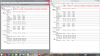
So I tried undervolting my CPU and this is the result.
-
Hello,
I'm new to this forum. I bought my flip 15a i7 about 3 weeks ago.
It was almost like a new. They said it was Open Box.
So everything works fine, except the FAN voice, it's terrible.
I won't be lazy to read all of the pages when I get time, but you guys have written over 265 pages, and maybe you found some kind of solution to the fan voice? -
You should install the most recent BIOS update for your machine if it hasn't been already done.
You can download it from the Vaio service page if the supplied update program doesn't find it.
The BIOS contains the fan profile for the Flip and it sadly can't be modified manually.
The best way to avoid fan noise is to keep the processing demand low... -
You can't control/lower the fan-speed (someone in the computerbase-forum found a workaround, but it is risky due to overheating). Anyway you can reduce the temperatures of your flip if you undervolt your CPU/GPU. This results in lower fan-activity -> lower overall noise output.
source computerbase.de/forum:
[Vorstellung] NoteBook FanControl (NBFC) - Seite 41 - ComputerBase Forum
As the author says: The Vaio Flip Notebooks need active cooling or they'll run very hot, which can damage your notebook! If you watch the temperatures and undervolt+change the fan behaviour you may be safe under light workload. Anyway i would stick to undervolting in the first place and won't mess with the fan-settings. -
That's some pretty decent results. Your high numbers, are those running the XTU stress test? I've taken my undervolt a bit further, now running offset at -80/-130/-70.
Like the others here have mentioned, undervolting does help a lot, it gets your temperatures below the threshold where the fan kicks in. If you also run it in balanced mode (on battery) you'd be hard pressed to ever spin up the fan. Intel XTU seems to be the best tool for now. Undervolting (offset) at -50 for the CPU, cache and GPU seems to be pretty safe numbers to start with. If you go too far you might have to reboot in safe mode and uninstall Intel XTU (haven't had that happen yet). -
Yes, I used the XTU stress test.
-
Personally, I also think that undervolting is a good method as it has a low risk of breaking anything (except data, that is...).
I also tried XTU yesterday and tested the settings both with the built-in benchmark and 3DMark - in "Performance Mode" to get as close to the maximum performance as possible, testing the max CPU setting both at 99 and 100% (to see how the impact of the Intel turbo mode would be, which is disabled at 99%).
My Flip is also 15" model with i7 and 16GB RAM and also the hi-dpi LCD and Geforce chip but I don't talk graphics here.
Obviously, one cannot compare the results of a 13" and a 15" Flip so be careful when drawing conclusions!
Here are the results of my quick tests which were conducted with a room temp of around 20 degrees and aren't scientific by any means:
With -50 mV core voltage everything was stable but temps still reached 62 degrees and the fan was quite loud but while not as loud as with the fan test I think it's still unbearable for regular use unless you are either deaf or working with a jack-hammer.
With -70 mV core voltage the 3DMark "IceStorm Demo" made the Flip reboot!
So, obviously, -70mV isn't sufficient to keep my machine running under massive stress.
That's where I left off and I then set it back to -50 mV as I still want some head room to be on the safe side.
After the benchmarks I tried to get the temp down again (to around 45/46(!) degrees which is my *normal* temp in "Balanced Mode" with low CPU use and very little fan activity) which happened eventually. However, the fan kept spinning until I switched to "Balanced Mode" where the CPU clock got lowered to mostly 0.8 GHz (in Performance Mode it was usually at 1.8 GHz even if only the desktop was running).
Turns out the Windows energy setting with the most impact is "Intel CPPC Energy Efficiency Setting". Enable it to keep the CPU clock as low as possible! When it is disabled to get the maximum performance the CPU gets hot very quickly and the fan keeps spinning, even when there is very little to do except the usual background tasks.
My conclusions:
- Until now I mostly failed at trying to undervolt or, perhaps, my Flip CPU isn't much of an undervolter...
Note that I haven't conclusively tested the energy savings as I don't care much about them right now (the lower the CPU temp the less energy is used, anyway) -- my main goal was to drop the temperature and therefore the fan noise.
- Even when the Flip CPU is at 62 degrees for prolonged time the machine doesn't get very hot at the bottom. Granted, it gets warm, but not very hot.
- This is an old one, confirmed again: The fan spins gets activated too quickly and spins very loudly even though the CPU doesn't get really hot (> 70 degrees). 62 degrees isn't much, even for a notebook, IMHO (I know that there other opinions).
- If you are after a long battery time then use *every* option Intel gives you and keep the CPU clock as low as possible most of the time. Yeah, this is mostly also only a confirmation but the advanced Intel energy settings are critical in this!
My advice is to stress test your Flips *thoroughly* with the voltage settings you apply and not only with the XTU benchmark.
Also: Don't lower the memory voltage too much as memory errors occur more rapidly - with unforseeable results! -
I think "balanced mode" is always the best profile to use, because the CPU will ajust it's clock dynamically. As far as i know Windows does clock down the CPU in "Performance Mode". This produces unecessary heat and does not improve system performance.
-
Has anyone experienced random screen dimming? I have the brightness cranked to 100% on both battery and corded modes, yet out of nowhere all the sudden the screen decides to dim on me. This happens every hour or so throughout the day. After about ten minutes the screen returns to it's sharp bright wonderful screen, one of the main reasons I got it.
Any solutions to this annoying problem??? -
Yes, this is a well known issue, discussed here on quite a few occasions. But not recently and I don't blame you for not reading all 2650 posts in this thread, haha.
It's a *feature* known as adaptive brightness. There is an ambient light sensor on the Flips so when the light is sensed as dimmed, the screen brightness is dimmed forcefully, meaning you can't see the change by looking at settings (which might say 100% but that's not true) and you cannot manually override this simply by upping brightness... because you can't with the *normal* buttons. In order to gain control over brightness, you need to disable adaptive brightness or, at least, tweak its settings to your liking, for battery and AC power conditions. It gets more interesting : adaptive brightness control depends on the graphics card you have, and you may have two or three different ways of getting to it. Windows 8 (8.1) has settings for it, Intel has settings for it and so does nVidia (I believe - don't have nVidia graphics myself). On my daughter's 14A with Intel graphics, I disabled it via Windows, by setting its levels at 100% for AC. Daughter wanted 30% on battery so I didn't modify that one. Since I don't have the Flip in front of me, I can't tell you exactly where to look, but it's in the Windows power settings somewhere.
Good luck
Official Sony Vaio Fit multi-flip PC Owners' Thread
Discussion in 'VAIO / Sony Owners' Lounge Forum' started by big_boss, Oct 13, 2013.


