 Problems? See this thread at archive.org.
Wow thank you so much for the great response Mark,. I'm on it now. With your help I think I can dial it in.
Thanks again
-
Thank me when you find it lol. And if my directions take you nowhere, someone else who actually has a Flip might give you real instructions, heh. Anyway, I remember when I first noticed this adaptive brightness thing and thought... there were gremlins in the notebook
Just remember not to get discouraged if you find some settings that don't work, because others will work, Eventually ! -
If anyone else thinks there's gremlins screwing with their sceen's brightness here's a video on how to disable this not-so-good feature.... https://www.youtube.com/watch?v=tdJ6isxapQU
Slowly but surely tweaking this Vaio 15A into the best notebook I've ever had, and I've had quite a few. -
I've undervolted my Flip as well. It's 15" with i7, 16GB RAM and GF735 (I believe it's a refreshed version since I bought it in Sony store 2 weeks ago). I keep it at -50mV for the CPU core and I haven't noticed any difference in performance nor in fan spinning speed. The temperature is about 3-4 degrees lower though and I think it's always something.
Among many activities I use this Flip for heavy gaming as well. It was throttling in the beginning (max 0.8 GHz) but throttlestop worked like a charm for this. No more throttling while playing DOTA 2 with mid details and full hd resolution! Will test it on full hd+ today.
I believe that 800 MHz is a magic throttling frontier. There is something in BIOS (mine is R1100DD), which sets the "Thermal Throttling" flag true for particular temperature threshold. I wish that could've been changed since the Flip wasn't very warm when throttling was occurring. -
Ah, that's too bad - does seem like your CPU might not be the best sample (but I suppose that's why they don't undervolt by default).
Ran the IceStorm test here without issues (-80/-130/-70). Temperature peaked at 56 degrees (although with that test I'm guessing the GTX is the main heat generator). I've been running the XTU memory test for half an hour without issues - hoping that confirms the cache undervolt should be ok, but perhaps I should find a more extensive memory test? The fan still gets loud during IceStorm, but that's to be expected with both the GTX and CPU running at high speed in a thin chassis. As with yours, mine also took a long time before it turned off the fan after the test... one of the few scenarios where Sony could have been a bit more aggressive with the fan speed : )
The Intel CPPC settings was a great tip btw!
On another note - new Clip Studio version out today, and now (at least here) there's no difference in speed with the title/menu bar hidden or not (still prefer to have them hidden though). -
Have been using the Surface Pro 3 pen for the last couple of weeks on the Flip and thought I'd write down my experience so far.
Comparing it to the Sony pen (with grey tip - softer than the Sony black tip), the Microsoft pen is even a bit softer giving a more velvety feel with slightly more resistance (getting closer to that pen-on-paper feel rather than hard-object-on-glass). The tip sits a little further into the pen obscuring your view a tiny bit more.
Pressure curve is a little lighter - meaning you need to press a harder for thick strokes, but also making it slightly easier to do light strokes. In something like Manga Studio, this isn't an issue for drawing as you can calibrate the pressure curve - but for clicking on interface elements I do have to press harder than I'd like to (or perhaps, just harder than what I'm used to).
The tips are unfortunately not interchangeable between the Microsoft and Sony pen. The Sony has a thin metal stem with a plastic tip on the outside, while the SP3 pen-tip is plastic all the way with a slightly thicker stem. This leads to the Microsoft pen being a lot quieter though (if, with the Sony pen you draw many quick lines, lifting the pen between each stroke you get the tap, tap, tap sound every time you hit the surface).
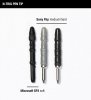
Front button is a little longer, but I found this made no difference. They both have the buttons a little further back than I would have preferred (if you have shorter fingers though, perhaps it's ideal).
The Bluetooth button on the back of the pen is easy to pair with the Flip and reconfigure with AutoHotKey (or similar). Single click is the same as Win+F20, while double-click is Win+F19. It does have a bit of a delay between pressing the button and something happening (I suppose this is from establishing the Bluetooth connection first as it's not continuously connected). That means it's not very useful for something like undo/redo which needs to happen fast and often. I've got mine configured for the Tab-key right now, allowing me to hide/unhide all the interface panels in Clip/Manga Studio (one of those functions one strangely can't put in the command bar).
My conclusion after a week was that it was a bit of a toss-up between the different pens (Sony, Asus Taichi, HTC Flyer), but the feel of the tip has grown on me, and going forward I do think this is the pen I will be using, despite the downside of the pressure curve.
Pro: Tip is softer (feels smoother), quieter
Minor pro: Configurable Bluetooth button (but with delay)
Con: Lighter pressure curve (requires you to press harder)
Very minor con: Obscures your drawing ever so slightly more -
Thanks for the nice review and the photo!
I didn't know that there is a metal rod inside the Sony nibs. I just hope that it isn't too long! ;-)
Good to know that the back button on this pen can be configured with AutoHotKey as this makes it universally usable.
While the delay isn't really great it's better than having to replace the knob cells all the time as a steady Bluetooth connection would eat them away quickly, even if it's a low-power BT 4.0 connection.
I would still prefer protruding "rocker-type" sidebuttons like on the Wacom pens but we can't have everything, can't we?
That being said I already prefer drawing with the Ntrig pen on the Flip than on fairly recent Wacom Intuos tablet.
As for the command bar in CSP / Manga Studio: I also missed some icons/commands but was able to finde most:
I had to add several icons/commands via "Configure Command Settings" (in the File menu) to optimize the screen.
- "Show/hide title and menu bar" - of course!
- "Show scroll bar" - to get rid of those tiny scroll bars one can't hit anyway
- And the best: "Show menu" - which enables the touch-based menu system of CSP which can is much nicer to operate. It's buried in the "Help" section in the Configure Command Settings. Note that it only works if you have a touch screen, otherwise it shows the usual Windows pull-down menu!
In this video - which shows CSP running on a Vaio - the touch menu functionality can be seen well:
VAIO x CLIP STUDIO PAINT (draw as if using fingers and a pen on a paper.) - YouTube
Download the 100+ MB PDF manual from the CSP-website - there is a lot to discover in there!
chapter about "Touch Operations in Windows 8".
While the "Hide all tool palettes" icon still eludes me, too, the command bar is now mostly comfy to work with.
Hmmm, as this command can be invoked with the TAB key I should perhaps add it to my Playstation Move Controller config... -
Hi there, thanks for the suggestion. Unfortunately as I stated - changing the power options and select "Do Nothing" for lid closed does not make a difference - the Flip still goes to sleep.
And of course, the padlock for screen rotate is greyed out click does nothing.
-
Katsura,
make a backup of your data/system and then restore the Vaio from the recovery partition to the factory default.
See if this helps. If it doesn't you may really have a hardware problem. -
I need some serious help. I decided to swap to an SSD. Vaio Flip 14 (i5, 8gb ram), and I went with a Crucial MX100 512gb and purchased Acronis to clone the drive. I HAVE WORKED ON MANY LAPTOPS BEFORE. After watching an SSD/Vaio Flip-specific DIY video on Youtube, I carefully removed the bottom panel to take the HDD out. Cloned it successfully. Put the SSD back in.....and INSTANTLY the system turns itself on upon connection of the SSD. Battery was NOT removed at this point (the video said don't touch it), & the system turns on to the Vaio recovery screen. with the system's guts still not all put away. I turn off the system via the touch screen, swap the drives, and the same thing happened (Vaio recovery screen).....so cool, I think "lets turn it off again & put the SSD back and be on our way".
Didn't work that way.
At this point I plugged the SSD back in, thinking the Recovery screen would show back up.....& NOTHING. No power, no power button response, etc. Did one more swap to see if the HDD would act similarly....and it did. No power. So I plug in the sytem to the AC power supply.....and now I'm getting an orange flashing light. I read about how to press the battery button with a paperclip (didn't need to do that since the bottom was pulled off), and attempted to reboot the system with the Assist button....but none of that works now.
Is there ANYTHING I can do to rectify this problem? The SSD is an exact mirror, and I've used Acronis successfully before for other cloning instances. The computer is still covered by the 1yr manufacturer warranty, but I would prefer to fix the problem myself (of course I know to put the original HDD back in if I'm going to be sending it in). ....but I hope someone can tip me off with helping me diagnose the issue.
Since all of the above, I decided to pull the battery to check terminals (clean), and put it back in, pressed the paperclip battery button, waited 5mins to turn it back on, and attempted the standard power button as well as the Assist button.....and still nothing!
I sure hope someone can help. I will provide more info if needed. Thanks -
If you remove the hdd/ssd and try to power on your vaio without a connected drive, does it boot or show you a disk-error? Although i'm not sure, if the Flip has a sensor that it won't boot until you close the bottom cover.
Anyway, you should always be able to enter efi/bios.
btw: Crucial offers a free acronis license for their MX ssd-drives to clone your System. -
No, it does NOT boot up in any way, drives in or out. This is extremely weird, because all I did was pull the HDD, clone on another system, walk the SSD back, install...then it magically turned on while it's guts were on display. After that first time, I pried the lid open just enough to touch "turn off system" so I could finish putting it together. After sealing it up and pressing the button...nothing happened. Tried cycling the battery with a paperclip, swapping drives......I may be repeating myself, but one thing of note is when I attempted to put the HDD back in for troubleshooting, it woke itself up like magic again. So the system did that ONCE for each drive, and it never happened again.
Here's a small update, though. The flashing orange light that came on when I plug in the AC adapter is now SOLID when plugged in. That just happened overnight, with the unit just sitting alone in the dark. lol -
For your auto rotate issue, I ran into it today for the first time after owning my flip 13. I googled the issue and stumbled on this:
Auto-rotate screen on Flip 15 not working - Sony's Community Site
Here is what I did to fix the auto rotate issue:
(Note: You might able to just complete steps 8-13 to fix auto rotation. The previous steps what I just happened to do before I tried steps 8-13. I'm not sure if they are relevant but I decided to list it regardless.)
1. Press Windows Key + R
2. Type msconfig
3. Navigate to the Services tab
4. Tick "Hide all Microsoft Services"
5. Click "Disable All"
6. Click OK
7. Reboot
8. Repeat steps 1-3
9. Click "Enable All"
10. Untick (Disable) "Vaio Event Service"
11. Click OK
12. Reboot
13. Auto rotate should work.
Optional:
I noticed that after doing the above and then re-enabling Vaio Event Service auto rotate still worked so I re-enabled it.
Other things to note:
The laptop will not rotate if you have the screen propped up in Laptop mode. In this state, the auto-rotate key in the charms bar will be greyed out. If lay the screen flat (on the keyboard), auto rotate in the charms bar will now be adjustable.
Also, you might need to either tip the device a bit forward for the Laptop to detect the rotation or try redoing the gesture slower and sharper. When you can rotate the device a message will be displayed stating "Auto rotate on". You will notice that the same type of message is displayed in laptop mode when you re-enter Laptop mode but instead it will say "Auto rotate off".
Hope this helps. -
Hi there ShreddyM ;
Sorry to hear about your problems. I upgraded our 14A to a 480GB Crucial M500 last November and it all went without a hitch. I did things differently though :
1) Upon removing the bottom case, I immediately disconnected the battery.
To me, this is a * computer repair 101* step. Never leave power connected (AC or battery) while the guts are exposed. Don't know who made that video, but they need a good spanking. In my humble opinion of course...
2) I did a Recovery install, not a disk clone. But this is user choice and many here have reported successful clones to SSD. Not sure how many used Acronis though (paid version or free from Crucial).
I'm no hardware expert. I'm no laptop dismantling expert either. Sounds to me like you may have fried something though...
Did you create Recovery media before you opened the Flip ? In this particular case, not sure it would be helpful as you can't even boot with Assist, or go into BIOS if I read all that correctly. Is there a CMOS battery in these ? If yes, then I would try removing it for 15 minutes (or however long they should be removed for...) and reinstall, with the original HDD plugged in. If resetting the CMOS doesn't change anything and you still can't boot or even get into BIOS, then you'll probably need to pack her up for warranty repairs.
Unless others have ideas.
Good luck.. -
You wrote that you have already removed the battery... maybe you should try it again:
First remove the battery and then press the power-button for some seconds while the battery is still disconnected. (don't use the "disconnect-button") Connect the SSD to the system, put the battery back in and try to turn it on . -
Hi ShreddyM,
IMHO Mark has analyzed the situation quite well and I have not much additional advice - your Flip could very well be fried. There are still some things to try, though.
I also have a different opinion about powering open devices like computers/notebooks:
- Remove the power if you connect or disconnect internal stuff.
- Powering an open computer should be no problem if you don't change the electronics in any way or touch the circuits. In addition of sustaining personal injury or causing a short in the circuits another possible problem is static discharging and killing the electronics that way - even if they aren't powered up. Sadly, there is no way for us to diagnose this here.
About the flashing LED - which is our best "life sign" from your Flip right now:
15" Flips have three LEDs: A green one (power), a red one (charging) and an orange one (drive access). The light of red LED is more orange than red and the light of the orange LED is more yellow than orange.
Are the LEDs of the 14" Flip the same in this regard? Was it really the charging LED or the drive access LED that flashed?
The manual suggests that if the charging LED flashes rapidly the system could have rejected the battery.
Pressing the "battery button" for five seconds could resolve the problem.
If it doesn't Sony recommends replacing the battery. This could help - but won't if something is indeed fried and then only produce additional costs.
A problem with notebook diagnostics is that you naturally can't remove as many components as with a desktop PC - for example the graphics card or even the CPU - to see how the board reacts.
Apparently the Flip also neither supports a visible BIOS boot process and beep codes because of its custom BIOS - both of which could be very helpful now (I'm not even talking on-board POST-code LEDs...).
However, I think, now that the thing is open anyway that you should remove as many parts together as possible to see if the system reacts differently. This includes the main battery, the HD/SSD, the RAM, the Wifi card and the CMOS battery (connected with a red/black cable to a socket near the Wifi card).
The let the system rest for at least five minutes and after that try powering it up using the external power supply and see how it reacts (or if it doesn't). -
I agree with your way of doing it. I cut explanations short of that to make a point, but yes, I do leave power on desktops when the sides are off sometimes, depending on what I'm doing. If I am removing or installing components, then the power is shut off and any residual juice is drained before I handle sensitive stuff. I've only opened a couple laptops in my lifetime and battery/AC was removed/ disconnected because I couldn't trust myself to be careful enough. I just can't understand why someone would post a video on YT and encourage working with power on electronics so fragile and... expensive [insert face palm smiley here].
I should read the manual to learn more about how these machines work.. -
Haven't followed this thread for a while, great to see some fantastic new tips being shared even now.
The conversation has turned to undervolting again, and after considering following through with it several times, I have decided to take the plunge and just installed the Intel XTU. Problem is, I have little idea of what I'm supposed to do. -50mV seems to be the consensus here for the safe side. I can see a menu for Core, Cache, and Graphics, with several options therein. Which ones should I be messing with?
I'd like to reiterate that this is well beyond my understanding of computers, and my primary purpose for undervolting is to squeeze a bit more juice out of my battery, particularly for simple tasks like word processing and web browsing. So I'd appreciate a one-time-only setting that I just make and forget about after that.
I run the 'balanced' power mode but I have manually changed every setting for maximum battery life while on battery mode (and vice versa for plugged in). This includes setting the minimum processor state to 0% and the cooling policy to Passive. Thought it would be relevant to mention this. I've also tweaked the Intel HD Graphics settings, disabled almost all scheduled tasks or changed them to run on AC power only, and even disabled hardware acceleration for Chrome. I'm still only getting 4-4.5 hours on light use, and I feel the laptop does not sip power while being relatively idle, as it should. -
Every processor/board is different and if you're lucky you can go even further than -50mV. Of course you can undervolt your intel hd graphics, but someone wrote that his graphic-driver kept crashing after doing this. Basically you have to try and error and revert to previous setting when your flip gets unstable.
Have you already got a ssd in your vaio? Swapping from a hdd to ssd can improve your battery life. Samsungs ssds seem to have a very low idle power consumption. -
I did notice that KjetilV mentioned going as low as -80mv, but again, I'd just like something stable that I don't have to tinker around with or live on the edge.
I do plan to get an SSD, but only from the Black Friday sales, since I'd be shopping for a 750GB one and they are pretty expensive right now. -
Most of the user-posts I read, ran stable at -60 to -70. Did you already gain some battery life with your current settings?
If you really want to get maximum batterylife, then you have to test the limits for your notebook.
I got an SSD last year from Amazon Black Friday deals and you have to be really really fast. The Crucial M500 960 (not so efficient) was sold out in less than a minute. At the current prices in Europe it looks like, the 1TB drives are cheaper than the 750GB drives, so don't focus on 750GB drives.
-
Guys, I've just replaced the HDD in my Flip 14A and the keyboard is kind of raised in the area where the HDD is. It's flexible, so it doesn't seem like the HDD is too thick (it's a 7mm Samsung 840), but it's annoying cos there's a lot more give/flex in that part of the KB.
Anyone have this problem, and how did you sort it? -
The ones you want to adjust are the Dynamic CPU Voltage Offset, Processor Cache Voltage Offset and Processor Graphics Voltage Offset. If you want that fire-and-forget setting then -50 mV on all of them should be pretty safe. You should still run some benchmarks though. So far it seems what you will get is lower heat, less throttling and less fan activity. With my tests on battery life I wasn't really able to conclude anything, initial tests were very promising, but upon further testing it was all over the place. Probably the impact on battery life if you're letting the CPU idle most of the time will not be the greatest, but if you're running a lot of sustained CPU heavy tasks (you mentioned video editing) the difference could be well worth it. Remember to quit XTU after you're done. The settings will stick.
You might also be able to eek out a bit more battery by running IE instead of Chrome (at least till they fix the timing issues - which they are reportedly working on). Not sure if disabling hardware acceleration is the best idea (have not tested the difference though) - your CPU will have to work much harder than the GPU to accomplish the same. -
A heads up for those of you with Samsung 840 EVO drives.
They have some massive speed drop-offs with older files. Fresh files still run at full speed, but as the weeks go by they start to degrade in performance (to the point where might become slower than mechanical drives). If you head over to the Overclock.net forum they've been doing some fairly extensive testing.
The temporary solution is to run a MyDefrag on your SSD with the 'Data Disk Monthly' setting (this is obviously not something you should make a habit of as it rewrites everything on the disk wearing out your SSD). The 1TB in my Flip went from an average read speed of 203MB/s to an average of 504MB/s (if you chopped off the fresh files and only looked at the older files though the difference is much larger, files older than 13 weeks were reading at between 50 and 110mb/s before and between 400 and 500MB/s after. The difference on my desktop where I have 2x 750GB EVOs in RAID was even larger (probably because I have more older files stored on it. Average read speed was 85MB/s before and 1069mb/s after.
Samsung is said to be working on a fix - hopefully it won't be more complicated than a firmware update. For those of you considering buying an EVO, it might be a good idea to hold off for a bit, or just choose another brand (tested on an older computer with a Kingston HyperX which exhibited none of the issues with an average read speed of 503MB/s throughout the disk).Calibrator likes this. -
Thanks for the hint! As far as i read, only the TLC models are affected by the bug. At least it looks like Samsung is aware of the problem and hopefully fix it soon:
AnandTech | Samsung Acknowledges the SSD 840 EVO Read Performance Bug - Fix Is on the Way -
Yes, thanks for the info! Wasn't aware of that and haven't noticed the problem - yet (I have a 1TB EVO840).
I'll wait for new firmware (which I'm sure will come as the EVOs are very popular), though, instead of trying the tool.
By the way: I had two reasons for getting an SSD - speed *and* mechanical robustness (no moving parts). At least the latter won't need a firmware update! ;-)
AFAIK those would be *all* EVO 840 without the "Pro" suffix - which means the vast majority of drives sold will be affected. -
Thanks for the tip, I'll make sure I keep an eye out for any deals as they come along.
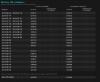
I found a great link that explores some commands of Powercfg. I've attached the results of my battery usage report. As you can tell, it's consistently averaging around 4.5 hours. To be fair to Sony, that is exactly the same as advertised, but with my extreme power saving settings, I was expecting a bit more.
-
Thanks, I've just set all those to -50mV. If I do want to mess around with this in the future, I'm assuming I'll have to do a trial-and-error in steps of 5mV to see how low I can go? And what happens if I go too low and know that I've reached the limit for stability?
In my last post I've included a screenshot for my average battery times. I'll go with the -50mV for a week (during which my usage will more or less remain the same) and see if there is any appreciable difference in battery life, and post the results here.
About the Chrome timing issues - it was widely reported on back in June, but Google released Chrome 64-bit a few weeks ago in which the issue has reportedly been fixed.
EDIT: Ran the benchmarks after tuning to -50mV and near the end of the test my laptop just shut down on its own. I think I just answered my own question there. -
I still think -50mV for the CPU is pretty safe. Revert the settings for the cache/graphics and run the benchmark again. Personally I would not undervolt the cache at all, because I don't think it will make a huge difference.
-
Hi there fergusstrachn ;
I checked on Newegg and the specs for the 840 EVOs say 7.11mm
We have a few members here who have installed 840s in their Flips and none (that I remember) have reported a bulge or increased keyboard flex following the swap. As long as you haven't installed the EVO with the 2.5mm black spacer provided in the kit, you should be fine thickness-wise. The spacer is intended for drive spaces where 9.5mm drives go, for a tight fit.
I installed a Crucial M500 SSD in a 14A with no bulge. -
btw: A smaller SSD drive consumes less power. (biggest difference under load) The impact on battery life will be small, but if you want to squeeze out every minute -> take a smaller ssd. ^^
-
Hey guys,
My vaio flip has really been giving me a lot of headache recently. I bought mine from best buy. The model number is SVF15N17CXB. It came in with 8gb ram which then I've upgraded to 12. I've been using my flip for about 4 months now and it was working perfectly. I even bought the vaio active pen to use with it. And after just a few days of using the pen, the touchscreen started acting up. It would go crazy and open and close programs on its own. I tried everything and reset the laptop to factory settings. The touchscreen became totally unresponsive now. Then I noticed the display going off and on as I moved the laptop lid. The webcam would stop functioning time and again...the drivers would go missing and then get re-installed again. Now I even get blurry colors and lines when starting the laptop. Last two days there was no display at all, the laptop would power up.... but no display. I am in southeast Asia right now and there is no authorized Sony service center here. I took it to a laptop repairing shop and they hadn't seen a hybrid before and were too wary to open it. When I powered it up today I got the display but it keeps flickering and I have to keep adjusting the lid to make it stop. Everything else seems to be working fine. In fact i'm using the same laptop to write this. Any ideas what's going on? -
Reverted everything to default, then -60mV for the CPU only. Ran a benchmark test. Laptop restarted. Then tried again with -50mV and the benchmark test completed successfully with a score of 383 or so. 10 minutes later, while doing nothing more than opening a couple of tabs on Chrome, the laptop restarted again. Not quite sure what to make of this.
-
You have to go even lower (-40, -30...) until your Flip doesn't restart anymore.
The -50mV aren't guaranteed to work - in fact some people claim that Haswell isn't a good undervolter compared to other CPUs. -
Touchscreen, display, camera - all those components in the lid are connected via a flatcable to the base.
My guess would be that this flatcable connection is simply defective. Could be a manfacturing error.
I don't think it's an USB problem as you get blurry lines on the display and there is no USB controller involved in this.
The drivers going away (or is it really the devices?) is another thing that points to the connection being faulty.
I don't think that there is way to repair it without a Sony service center (or perhaps get the machine replaced if there is still warranty on it). -
Yes there is still warranty left but i'm going to have to ship it to US and it'll cost me about 200 dollars. So I thought I'd rather have it repaired if it's a minor thing. There is a Lenovo service center here....and since they also have hybrid laptops, I'm thinking maybe they could look into it.
-
I'm not really optimistic but I'm the last person to stop you!
Perhaps it all comes down to a defective connector and they can indeed repair it.
If they instead want to replace the whole display unit then it may be better to send it on its way... -
Just a heads-up for EVO 840 SSD owners:
Samsung has announced that they plan to offer a firmware update on October 15th on their website for the speed issue that was publicized recently.
If I'm not mistaken that's pretty much three weeks from now. -
Do you have more information on this? I have a similar problem to Cincinnati where my display would turn off if I move the laptop lid. I have to put the laptop to sleep and back to get the display on again (which will work in the same position that it turned off, odd). I opened my laptop to replace the wireless and HDD and installed a fresh version of Windows 8, but I really don't think i messed with the flat cable. Looking at the laptop lid when I open and close it, I can't figure out what part of the lid is touching the cable that could cause this issue. This is driving me crazy!!
Can you point out where the flat cable is? Just in case i did touch it..
Update: I fixed it, turns out since I didn't put all the screws back, the laptop case would pop out a little while opening the lid. That probably shorted something out. -
Hello!
It seems like I've run into a big problemon my 15A. I was away for about ten minutes and it turned off during that time. It had not overheated, so I don't know the reason.
But when I turned the laptop on, I noticed an unusual crackling noise. I'd guess it's from the harddrive. It also took ages before the log in screen appeared and it was rather unresponsive. And the screen didn't respond to touching at all.
It became worse once the start screen loaded. Any kind of action would result in several minutes of delay and it was absolutely impossible to start up Vaio Care or anything else.
I rebooted and this time I got an error message instead of seeing Windows start up.
This is when I turned it off and hit the assist button. The Vaio Care Rescue Mode menu actually appeared instantly and was very responsive, but once I chose to start troubleshooting, each step in the navigation literally takes 15 minutes or more.
At one point I got a message stating that a device could not be found (it didn't state which, but maybe the HDD?) and the laptop had to be sent for a repair. I was still able to restart and get deeper into the same menu though.
Anyway, I suppose I really do need to have it repaired, but I can't get support until Monday. So I might as well ask if anyone here can tell what the problem is, how it can be fixed and whether I could have prevented it. -
Hi there Siskan,
I'd like to ask you a few questions, if you don't mind :
- Which drive do you have in the 15A ? (hybrid, regular HDD...)
- Have you opened the Flip for upgrades or any other reason ?
- Have you created Recovey media for the Flip ? (on USB stick or DVDs)
- Did you write down any of the error messages you got ? If so, could you write them down here please ?
Thanks. And if I had to guess, I'd say it's a hard drive problem. -
Hi Mark!
Thanks for the response.
- I went for the regular HDD.
- I have not opened the Flip, although I was planning to buy an SSD next month. I wish I would have done it sooner (if the HDD is indeed the problem).
- Unfortunately I only have backups of some important files, not the Windows installation or anything like that.
- I wasn't smart enough to write the error messages down. But I know that the one I got stating the laptop needs a repair really didn't go into any more detail than stating a "device" couldn't be found.
I'll try to recreate the other message if you think it would be helpful.
Also, is it wise to keep troubleshooting, or should I keep the laptop off in order to prevent further damage? -
Like Mark I also suspect the harddrive - or the drive controller on the mainboard (in the Intel chipset but that doesn't really matter) - is defective.
The combination of "rattling", "no booting" and "device not found" points in no other direction, for example fan failure.
I also think that it doesn't matter at all that you haven't created recovery media. If the controller or anything but the harddrive is the reason the Flip doesn't boot then the recovery media wouldn't matter anyway.
How to prevent something like to happen? Depends:
If only the harddrive is defective then three possible explanations come to mind:
a) Disk died of age: A consumer drives fails after several years if treated well. Obviously this doesn't apply here.
b) Manufacturing error: Quite common as far as harddrives are concerned. Most of my drives that went bad in the last 20 years were defective in the first week of usage.
c) Maltreatment from the user: Very common with notebook or external harddrives - because they are more mobile than desktop or VIVO drives. Many users run around with their notebooks in their hands, external drives are dropped etc.
Even though modern harddrives like the ones in the Flips have accelerometers that *should* prevent a head crash this tech is no absolute guarantee.
With a) and b) you can't really do a thing but c) means: Be careful, treat your drive well and especially don't move it when it spins!
This is why I replaced the harddrive as quickly as possible with an SSD - now I *can* run around with it and use it as a big tablet... ;-)
Do I assume that c) is the reason your drive died? No - because it says "device not found". If you had a head crash then you would probably have gotten a different message as the drive is still there and "only" the data either lost or inaccessible. This is speculation on my part as I assume that the error message comes from the BIOS in the Flip, which is a custom one.
With the information you gave us I think that a manufacturing error is the highest probability right now.
In other words: Your best bet is sending the Flip in for warranty repair. -
Thank you for the comment, Calibrator.
What bugs me is the fact it doesn't seem completely dead. I don't necessarily get a failure. Booting up Windows worked two times out of three (but took ages and I can't really do anyththing). And the "device not found" message appeared once, but not the next time I tried.
Also, I don't think I've ever moved the laptop while it has bee on.
By the way, I have noticed that the disk usage often hits 100% for quite a while before this happened (months?), despite not writing or reading at high speeds. But apart from a number, it never acted like anything was wrong. -
Hey guys,
Returning the Flip under warranty is the safest thing to do right now, indeed. Reason why I asked if you had created Recovery stick : if you had for instance a spare drive (or new SSD), you could have attempted a drive swap and then a Recovery install on the second drive. This would have gotten you up and running without having to send the machine in for repairs ; but this is assuming that the HDD was (is) the problem. If the problem comes from the motherboard as Calibrator suggests, then only Sony can fix/replace that. But since you don't have Recovery media, your best bet is to send the Flip back.
Once you get the machine back and healthy, stop by and we'll guide you for Recovery media creation, as well as tips on how to back up or *image* your installation. With free tools of course... -
Very much appreciated! Thanks to both of you.
-
Hi again!
I've talked to the support now and they suggest that I would buy the recovery discs myself to make sure it's a hardware problem and not a software problem as they would charge me if it was.
As the discs aren't cheap either, I wonder how likely it is for it to be software related?
Also, would it be possible for me to install an SSD and use the recovery disc similar to how Mark described it?
I have one more question. Since the 15A doesn't have an optical drive, how do I use the discs? If I borrow or buy an external drive, doesn't it need drivers on the computer?
Or would it be possible to copy the content to a USB stick through my old laptop which does have an optical drive? -
Hi Siskan,
How much are the Recovery disks going for ? Just curious...
Well, I don't think your problem is Windows (software) related myself. I hear what they (support) are saying, but let's be smart about this : I would send the Flip in for troubleshooting and let them know you do not want them to reinstall Windows if they don't find a hardware problem, because that would cost you more indeed. IF (slight chance) it is not hardware, then you purchase the Recovery media.
I get a sense that the repair folks are in a spot right now, because they would probably need Recovery media themselves to rule out hardware issues, or to reinstall Windows on a new drive (for some extra $$ of course). Now they're trying to get you to buy it for them (so to speak) because they may not have it handy. What they CAN do is test the hard drive even if the Flip doesn't boot.
I would first ask them : how much will they charge to troubleshoot if they don't find a hardware problem. Get this in writing.
About a Recovery install : yes, it is very doable. That's how I reinstalled Windows on a new SSD. The procedure is quite simple : replace the internal drive (there are videos on YT for this), and then simply connect the Recovery USB stick (or the external DVD drive with disk #1 inside if using DVDs), then boot the Flip up with the Assist button, then choose the correct Recovery option to reinstall Windows. This is a factory-type install so the system will be as it was when you unboxed the Flip.
I don't know if Sony only ships Recovery media as DVDs, they don't say on the support site. If DVDs is all they offer and you end up purchasing them, then yeah borrow a cheap USB 2.0 external drive from someone, or buy one on special for like $20.
No drivers needed for external DVD drives ; they are plug-and-play.
Could you create a Recovery stick from DVDs ? I've never done it that way myself, but I guess it's possible. An example here :
How to create a USB recovery media flash drive from recovery ISO images- or discs (DVDs)
If you do it that way, you'll need a USB 2.0 stick with 32GB capacity. Get a cheap one on sale ($12-$14).
Perhaps other members will have ideas as well. -
He said he would get back to me when he knows which recovery disc to order, but he already named the source.
I suspect it's one of these: Resultat för “sony recoveryâ€
And as Swedish is a minor language, it seems like I will have to pay quite a bit extra. Unless I could go with English and install a Swedish language pack for free afterwards?
It seems like this is the one I'd have to get normally anyway: Sony EUAE750AC Windows 8, Consumer, 64 Bit Language Pack
Note that prices are in SEK.
Also in case you're wondering what the cost would be if you or someone else needed one, all these prices include 25% Swedish VAT.
The support said I would have to pay 1400 SEK (about 215 CAD for your reference) if it turns out to be a software problem, regardless if they fix it or not.
They also said there are only DVDs.
Thanks again. -
Darn. $215 (CAD) is what I would pay for a brand new Crucial MX100 512GB SSD (total of about $260 with taxes). That service center isn't doing you any favors. All of this does put you in an awkward situation.
As far as Recovery disks go, I hope they are contacting Sony to get the disks specifically made for your Flip. You could contact Sony Europe yourself and ask them which part# fits your Recovery disks - Swedish and model# specific.
Support for Sony product | Technical Support
As far as getting English disks and then getting a language pack : I would avoid doing that, just to be sure you have the right disks for your Flip. Besides, you may not be able to activate Windows if your install doesn't match OEM parameters set in BIOS, which probably include language.
Let's look at a few scenarios to try and make sense of this :
1) You purchase Recovery DVDs for roughly $55 (I used an online converter) and try to reinstall Windows yourself, on the original HDD. You'll need an external optical drive ($20-$30) or a 32GB USB stick if you choose this method (roughly $12). If Windows was the problem, you'll be fixed up. For about $80 and no visit to the shop.
2) You purchase Recovery DVDs ($55) and send it in to the shop. They find it's hardware, get you a new HDD. At this point, I'm assuming you will not be charged for anything (warranty). You reinstall Windows yourself, via Recovery. You will need either an external DVD drive ($20-$30 or just borrow one if you can) or a USB stick ($12).
In this scenario, if it is hardware, you're looking at approx. $80 out of your pocket (Recovery DVDs + either external optical drive or USB stick).
You would now have a Flip with a new HDD, back to factory state (well almost).
3) Same scenario as above BUT the problem is Windows. Now you're out $215 for diagnostics, + $55 for Recovery disks, + external optical drive or USB stick. You still need to reinstall Windows yourself from Recovery (if the shop does it, they'll charge lots..).
This scenario would cost you roughly $300. Yikes !
4) If you like to live a little dangerously : buy the SSD of your choice (let's say $300 roughly, give or take depending on size and prices where you live), + Recovery disks ($55), + external optical drive or USB stick.
Remove original HDD and install SSD. Boot with Recovery media via the Assist button. Keep your fingers crossed the HDD was the problem. If yes, then you'll install Windows on the new SSD and start fresh, for roughly $400 total.
This scenario actually covers two possible failures : HDD or Windows. If it was the HDD, the SSD will fix it. If it was Windows, the new install will fix it. If the problem is *other hardware* (like motherboard), then you'll need to send it in for warranty repairs (no cost).
=================
So... In my opinion, scenarios #2 and #3 stink because you could be charged in excess of $200 if the problem is Windows.
Scenario #1 does the same thing and you avoid the shop (if the problem is Windows).
Scenario #4 : let's look at this one a little more closely. You need to open the Flip yourself and swap the drive ; if you are comfortable enough to do this, then it's even more appealing, because you get your desired SSD and chances are you'll fix the problem (likely HDD, much less likely Windows) and avoid the shop altogether. Some drawbacks : you may never know what the original problem was. If it was a failing HDD, doing it this way will not get you a new HDD under warranty.
#1 or #4 ? You'll need to purchase Recovery disks either way, so why not try with #1 first. Unless you are in a hurry to get the Flip back in action and have the extra money for the SSD right away, then #4 directly might sound good right now.
I hope all of this isn't too confusing ?
Official Sony Vaio Fit multi-flip PC Owners' Thread
Discussion in 'VAIO / Sony Owners' Lounge Forum' started by big_boss, Oct 13, 2013.


