Problems? See this thread at archive.org.
Welcome to the forum!
A "bad disk" error is always a bad sign - and also a textbook example why you should backup your data on a regular basis. Depending on the nature of the data this could mean daily, weekly or monthly.
First of all: Forget the recovery options for a second!
We first need to make sure that the hardrive is actually getting recognized by the BIOS:
- Enter the BIOS setup again.
- You should see a grayed entry for "Hard Disk Drive".
- What capacity does the BIOS say next to it?
If there is a capacity like "1000 GB" then the BIOS can recognize the drive or at least the drive electronics give an answer.
If no capacity is given, tell us what the BIOS says!
-
-
Thank you for the answer,
According to BIOS data:
- Hard disk drive: 1016 GB
- System memory: 8192 MB
-
That's good news as it means that the BIOS does recognize the disk, or at least the drive electronics answer the correct capacity (it should be a 1TB hybrid drive with 16GB flash = 1016GB).
This still doesn't mean that the drive is healthy but if the BIOS hadn't shown the capacity we would already have come to an end...
The next problem is that you got an error message trying to do a recovery installation.
Now, a recovery installation puts the drive back to its factory settings.
This means that everything else on the drive - including your data - will be gone!
So we don't want a recovery anyway, at least not until you got your files.
(The big problem with this "recovery" is that the name is misleading and suggests that you can simply recover everything - they should have called it "re-animation" or something like that...)
However, the fact that you can't do a recovery is a big problem as it *should* work if the drive is OK.
What we should try next is the "Refresh" option instead. A "refresh" puts only the files of Windows back to a known working state - and it leaves your files on the drive.
(This name is also misleading as it puts *old* files back - hardly a "refresh" - and you have to run Windows Update again with possibly many updates to install again...)
This is what the instructions say:
1) Press the ASSIST-button while your computer is off.
The VAIO Care (Rescue Mode)screen appears.
2) Select Start troubleshooting (recovery).
Follow the on-screen instructions until the Choose an optionscreen appears.
It takes some time before the Choose an optionscreen appears, so wait for a while.
3) Select Troubleshootand Refresh your PC.
If the refresh option doesn't work either your Flip can't help itself (as you also can't boot into "Safe Mode") but there are still options. So report back! -
One last thing. I uninstalled Office 364 that came pre-bundled with the Flip by mistake. How do I get it back?
-
"Office 365" is available for download in a free but time-limited (30 days, I think) version, probably directly from Microsoft. This should be the same version you got with the Flip (to the best of my knowledge no full licenses of Office 365 were given away by Sony with the Flips).
If you absolutely need Microsoft Office but only on a single PC (your Flip, for example) then I would suggest getting a version that isn't time limited (like "Office Home and Student 2013" with Word, Excel, PowerPoint and OneNote). This will initially cost you about 50% more but redeem the cost after about 1.5 years.
Of course it also depends on where you live and what the pricing is but I would either strongly consider the costs or - if possible - use a free office suite like "Open Office" or "Libre Office" (both free for home users). -
Thank you Cal. I got everything under control now. Thank you once again and hope youre doing fine with that new TV!!!
-
Everything is fine - I'm super happy with it. Just saw "Interstellar" on it. Just WOW!
Definitely made the right decision there! Thanks for caring!
Had a bit of trouble with the recent big 720 MB Win 8.1 update from Microsoft (cumulative patch), though.
Resolved it with the SFC-tool included in Windows after x failed attempts. Still not sure what made the update fail but all is well now. -
Hello everyone,
Has anyone else had an issue with the vaio care program not being able to find the recovery partition, even though it hasn't been deleted? -
Hi Cal.. Hope youre doing well. I tried to use NFC after I turned it on the Flip and on my Samsung Galaxy S3. I wanted to share files between them. But nothing happens. I dont get a message sayhing theyre both connected or anything.. Am I supposed to install a 3rd party program that uses NFC so devices can connect?
Last edited: Apr 21, 2015 -
I think the SUSSoundProxy module is causing my sound issue. I checked Common Files/Sony Shared/VAIO Entertainment Platform/SPF like you suggested and I don't have a VAIO Entertainment Platform folder under Sony Shared. The only thing in Sony Shared is Sony Utilities. Do you think copying that folder in from my old harddrive image may help?
I initially had Vaio Control Center installed before the realtek driver. I'll try uninstalling and reinstalling it to see if that will fix it but I doubt it will. I may not have done the initial Vaio Control Center install before the realtek driver but I know I ran several of the updates after the Realtek driver was installed.
The VAIO Event Service is shown as running under the Services section of windows.
I tried clicking SUSSoundProxy.exe to try to get it running inside the Vaio Control Center folder but it didn't seem to do anything and no new services appeared.Last edited: Apr 21, 2015 -
I assume that the latter is the case as I also haven't gotten NFC to work with my Galaxy Note 2 and the Flip only comes with software for the Sony Xperia Android devices.
While there is some vibration and acustic feedback the Note 2 when it interacts somehow with the Flip, I can't send files or contacts to the Flip. The app you are running on the phone must be able to support NFC and decides what you can do with it. For example, the Contacts app would send contact data and has a "starfield" animation when trying to send the data.
However, I suspect that the Flip doesn't send an "I'll accept what you want to send!"-message back to the phone so the phone prompts me to "connect" both devices again (even though I haven't separated them).
Whatever the case: If you only want to transfer files to and from your phone then a simple USB-to-Micro-USB cable should do the trick - and much faster, too, as the S3 supports USB 2.0 and both the S3 and the Flip come with the necessary drivers.
Yes, you need a cable for that but on the other hand it's much more comfy than the weird location of the NFC module under the Flip's touchpad. It really is only good for reading/writing NFC tags. -
No, I don't think that it would help. Tasks and especially services need to get started by *something* and just copying a folder won't notify another program to actually start a service based on files in this folder.
Normally, a software installation would do the trick - create a folder, copy the files into it and then start the service - but I don't know *which* software needs to be installed.
It's worth a try and shouldn't break anything. You can do a system recovery point (or how they are called in English Windows systems) before you attempt that to have a little bit of extra security...
Not surprising. Installing a service usually requires a bit more. Problem is I don't know how to start that one. Of course you now have some new keywords to do a Google search for yourself... ;-) -
About NFC, the drivers don't seem to support accepting image files. There are a bunch of other features which do work, such as opening a tab of your phone browser on the PC browser by touching, or setting up actions to occur when you use NFC tags and such.
The reason you two have been unable to get anything to work is likely due to the poor NFC range. I know it has pretty much been advertized as the NFC chip sitting right below the touchpad. With my old phone, I didn't get anything to happen when I touched them together apart from the sounds and stuff you described.
However, if you flip your Flip over, you will see the NFC symbol underneath. That's where it's really located, closer to the bottom. Try lining up the NFC symbol on the back of your phone (if there is one) to the bottom of your Flip. That worked for me. I have since gotten a new phone with better range and I can now put it on top of the touchpad and actually make things work. It's still not as stable as putting them together the other way though, especially not since I got a cover for my phone. -
Hi Siskan. Thanks for the reply. Youre right, I actually got the phone to vibrate by touching it to the underside of the Flip. But sadly, as you said, its not possible to beam images. When I try it gives an error saying:
"The recipient's device doesnt support large file transfers via beam."
I even tried to beam a small-sized pic and it didnt work either. So, what good is the NFC for anyway if we cant beam over pics? Why didnt Sony know about this before? DO you know of any fixes available?
Thanks and i look forward to your next reply. -
Anyone know what the wires from the motherboard to the screen and webcam look like, or where they are (on the 15)? Or how to get to the connections on the screen or webcam? Or if getting to any of these connections is even possible? My screen will periodically flicker, and the webcam won't work at all now (it started by the cam going on and off rapidly when I tried to use it, and now it doesn't work at all, reinstalling drivers didn't help). I suspect some kind of loose connection but don't really know how I'd go about finding it.
-
Technically, NFC has very low capacity when it comes to tranfer speed and file size. What actually happens when you tranfer large files such as photos between phones is that the NFC simply transfers a string which tells your device to initiate a transfer over bluetooth. So all that's technically sent through NFC is a few bytes of text.
In this simple fashion, Sony has supported similar features on our Flip, such as tapping wireless headphones or speakers to instantly connect them. This is of course done by bluetooth as well. Again, NFC only serves like a convenient way to send the instructions. I'm nowhere near as techy as Cal, so I can only guess why image transfers don't work. Basically, if I'm not mistaken our phones send instructions for accepting a photo which is meant for another android device.
The reason why it works to send links between phone and PC browsers is that you don't need to establish a file transfer via bluetooth. An URL can simply be sent as a text string within the NFC capacities and any PC recognizes an URL and knows what to do with it.
This being said, I'm almost certain that our Flips support image transfers on the hardware side. Other Sony products already use the same kind of bluetooth establishing instructions as mentioned. So, I imagine that there could be a way to make things work if you you write some kind of software which translates the android instruction into something Windows can handle. There is already software which easily lets you make instructions for NFC tags and such. -
I also can only guess why some transfer features don't work but it largely appears to be similar to the early Bluetooth adapters for PCs: Bluetooth also features lots of different communication types (like file transfers, music or audio streaming etc.) but both the sending and the receiving device must support the feature you want to use. The Bluetooth hardware may be fully functional but without the drivers that support the features you want you simply can't use them. In fact I had to buy a second USB Bluetooth dongle to get the features I wanted as the drivers of the first dongle weren't able to.
With NFC it's more or less the same: We have full NFC hardware in our Flips (it's really only an antenna and a regular NFC chip that is connected to the rest of the system like it would be in a smartphone) but we need software that provides the file protocols we want/need.
As for NFC itself a quick look into Wikipedia gives us this:
- It really is "near field communication" as it has a typical reach of about 10 centimeters (4 inches) or less - very likely drastically reduced if metal etc. is between sender and receiver (like in the Flip if you try to connect from the keyboard side)
- "rates ranging from 106 kbit/s to 424 kbit/s": This means the transfer speed is about 10 to 40 kb per second - or 0.01 to 0.04 megabyte per second. In other words: It's even slower than Bluetooth.
Like Siskan wrote it's not only for near but also short communications: The slow transfer speed is no problem if you don't want to transfer much and a quicker connection is more important to you. A popular example is sending Wifi-configurations so that two devices are able to easily set up the much quicker Wifi communication. This is often done with routers or cameras now.
The reason we have NFC in the Flip is mostly because it is cheap to integrate (cheaper than GPS units, for example) and Sony wanted to cross-promote their Xperia devices ("I could connect them easily thanks to the handy NFC feature of my shiny new Flip - so I will buy an Xperia smartphone!").
Personally, I don't really have a use for it in the Flip. Not only because of its stupid location under the touchpad but also the slow speeds. Like I wrote before I'd rather connect the smartphone with an USB cable (and when I travel I always have the charger of my Note 2 with me that has the USB cable I need).
With USB 2.0 you get transfer speeds of up to 30 megabytes per second (depending on the phone/tablet you use) - you can guess which method I prefer when I put ebooks on my phone or save the phone contents as a backup to my Flip. And I'm not even speaking about USB 3.0 here...Last edited: Apr 22, 2015 -
Hi Cal and Siskan. I appreciate your answers. I think the reason why it didnt work was because I had bluetooth off while NFC was on. I'm not sure but I'm too tired to try it now. But in any case, I'll still to bluetooth. One thing about it is, the usual way to connect with bluetooth in windows 8.1 doesnt work. theres a workaround that involves using, 'fsquirt' as a command to properly transmit through BT.
Also, I tried to uninstall a program called, "Sony Improvement." I get the following error:
"An error (-5005 : 0x80070002) has occurred while running the setup."
I tried the Microsoft troubleshooter to fix it. But that didnt work. On another forum, it was suggested that the -5005 part of the error signifies that the program couldnt uninstall correctly because it wasnt installed correctly. But I re-downloaded it from the Sony website, I ran clean boot and the same error pops up. What do you suggest at this point?
And as always, I hugely appreciate all your replies and look forward to them.Last edited: Apr 22, 2015 -
Some "short" answers:
- You don't need Bluetooth for NFC to work. NFC *replaces* Bluetooth in a specific scenario (short distance, low amount of data, quick connection) and many devices with NFC don't even have Bluetooth in the first place.
- Sony Improvement: Good choice to uninstall it but I can't say what the error message means, either. The latter part (0x80070002) seems to indicate a problem with the Windows file system and nobody except those in the deepest recesses of the Microsoft development labs could answer that. The "help" available in the Microsoft "Knowledge Base" is unprecise as unusual and only offers patches for some old server software.
I'm pretty sure that not even Sony is able to help you with that (except restoring the whole Windows system but that of course doesn't solve the problem) and hoping that the Microsoft Troubleshooter solves a problem is like playing roulette and hoping for a specific number.
In other words: You need a new strategy.
As my system is clean (at least I think so ;-)) I can't pinpoint the specific files you need to remove but can only give hints where to look.
Usually software that collects usage data (how long is your system running, do you use online services, files transfers etc.) runs a Windows process or service in the background.
If a deinstallation fails for some reasons (shoddy programming not excluded...) you would need to close or disable the processes and services first. Then you could retry a deinstallation with the program manager and if that fails, a manual one.
Open the task manager using CTRL-ALT-DELETE and search the processes and services tabs for everything associated with Sony or VAIO (make sure you read the description fields).
Then report back what you have found before you attempt to disable anything!
- Also: What exactly did you re-download from the Sony site? -
Hi Cal.. I always look forward to your replies like the sunrise.. lol.. I disabled all services pertaining to Sony (as you suggested) then I tried to uninstall it. But that failed since I get the same error. I dont understand what you mean by uninstalling it manually. The only uninstall option for this program is the one in Programs and Features.
To answer your question, I re-downloaded and installed the Sony Improvement software in an attempt to uninstall it entirely afterwards. But as I said, that didnt work. I get the same error.
I downloaded Revo Uninstaller. I tried its basic uninstall feature. But I still get the same error. I then clicked the Advanced uninstall feature. But I get a bunch of registry lines pertaining to Vaio Improvement. But I dont know if its safe to remove. I think I'll go to the Revo forum (if they got one) and post this situation about the registry lines to see about removing them.
Lets see what happens. -
Koolxxx,
I never wrote that you should disable all Sony services as this is NOT a good idea. See my post above: I wrote that you "report back what you have found before you attempt to disable anything!".
You will lose some functionality of your Flip if you actually managed to disable all services and you may notice some of the problems only at a much later time - when you won't remember anymore that you disabled the services...
The key to success in dealing with such software is wielding a scalpel and not a broadsword!
At this point I think you should do a check what actually works on your Flip and what does not before you continue. -
Hi Cal. Excuse the ambiguity. I actually meant that I turned off the processes for each Sony service in the task manager. They all became enabled automatically when I restarted my computer, so its all good.
While we’re on the topic of services, I see that all my Vaio services are disabled. I didn’t disable them, so I don’t know if that’s normal. The services in question are listed below. Since I like to disable some services to enhance improvement, do you think some of the Sony ones should be disabled? If so, which ones?
Vaio content folder watcher
Vaio content importer
Vaio device searcher
Vaio digital media server
Vaio entertainment common group
Vaio event service
Vaio power management
VC service -
Yes, good idea to only disable the services and not delete anything (yet).
Not all services run all time, in fact on most systems the majority of services are not running concurrently.
Some run only at system startup and the stop again, for example. Others are invoked by other services or events.
However, it's not normal that all VAIO services are disabled (unless one of your tools or reinstall actions caused that). Let's see what you have:
- Vaio event service
It's descriptions says that it's necessary for special key and hotkey support and "original VAIO power saving functions".
This one should definitely run, IMHO. Start it manually to see if that helps.
Starting type should be "automatic"
- Vaio content folder watcher
- Vaio content importer
- Vaio digital media server
These are for the Sony media database, IMHO. This is used by the MediaGO software (as far as I know!). However, it's also possible that other Sony software uses this service. A candidate would be the Xperia support tools to transfer media to smartphones and tablets.
If you use this any of these apps you should have the "folder watcher" running, the starting type is "automatic".
Personally, I don't see much harm in having them running in the background. These don't seem like resource hogs (memory and processing time).
- Vaio device searcher
I suspect that this is also needed for Xperia support.
Leave it disabled until you need it.
- Vaio entertainment common group
(or rather "common service"?)
We are not 100% sure what this service is for but I recommend enabling and starting it.
Starting type should be "manual".
- VC service
This is for VAIO Care, if I remember correctly. As I wrote earlier I don't have it installed anymore as I don't see any advantage. This is a very personal choice, though, as people have different experiences and knowledge. If you still use VAIO Care you should probably enable it.
- Vaio power management
Can't say what that is for - I don't have it on my machine.
Maybe it's also used by VAIO Care? Perhaps somebody else can help?
A final word about making a system lean: The list you gave us shows system management services (which you really shouldn't disable), application services for the media database and the communication and data transfers to and from Xperia devices - all of which are optional.
I don't see harm in letting them in the system as they have a relatively small memory footprint (RAM usage) and most of them don't run all the time anyway.
I do not see a service that looks like it's intended for information gathering, though!
So that is good news as we now don't need to do a manual deinstallation. You asked what that is earlier and it simply means to stop the processes and services manually, then deleting the directories where the files are actually in and then finally cleaning the registry - so that Windows doesn't attempt to start a service that isn't there anymore (this *can* slow down the system bootup). -
Hi Cal. I went ahead and disabled all the Vaio services except for 2 listed below:
Vaio Event Service (set to auto)
Vaio Power Management (set to manual)
Funny thing though. When I first checked and saw that all the Vaio services were disabled, most of them were actually running. How is this possible since they were all disabled? VERY weird! -
Hi guys,
I have some problems with my Filp 15, moreover related to the touch screen, the pen and the bluetooth.
I suffer of random switch off of the pen and touch screen; the only way to wake them up is to go in the contro panel, disable them and eneble them again. Annoing but at least I've a solution.
The bluetooth problem is more interesting, because each time i put the flip in aiplane mode, once switched off the aiplane mode the blutooth is not more present in the deivces... I mean also restarting the laptop the bluetooth interface is no more present!
Anyone has an idea?
Thank you very much for any help! -
Hi,
there was a problem early on with the touch screen hardware going into power saving mode and not getting out of it. This has been solved with a BIOS update, though.
Do you already have the newest BIOS?
I have no idea for the Bluetooth problem, though. :-/Last edited: May 2, 2015 -
This is a follow-up to my negative news regarding the Samsung SSD 840 EVO and its problem with older files getting slower transfer (read) speeds over time - and because of which I couldn't recommend the 840 EVO any longer.
This is a long text - you can skip it completely if you don't have this SSD!
The reason I'm particularly interested in the 840 EVO is simply because I put the 1TB version in my 15" Flip and the 512GB version in my main PC. Even though I didn't experience massive slowdowns in my machines, yet, the problem *does* apply to all 840 EVOs as apparently the TLC flash memory chips Samsung produced and used in this drive are the root of the problem. This was indicated by the fact that Samsung SSDs without this particular memory type weren't affected (840 PRO and 850 EVO).
While Samsung quickly acknowledged the problem and provided a new firmware and an optimizing utilitiy it turned out after some months that the problem came back in full force. This was a further proof that the memory chips were the cause of the problem - and thus the problem is really grave!
Still, after a while Samsung announced that they'll provide a new fix in April and they indeed delivered, even if it took three more weeks.
I waited a few days to see if other owners had problems with the new firmware and what their experiences were before I downloaded the new 4.6 version of the "Magician" tool from the Samsung support site and installed it. This tool then downloaded and installed the new firmware after I triggered that (you can now install the firmware separately - if you only use Linux or a Mac - but this isn't recommended for Windows users. Read on why!).
Before I updated the drives I benchmarked them with "HD Tune Pro 5.5" to see how the old firmware performed. Immediately after the update I ran HD Tune again to see the differences.
The results:
- The new firmware increased the average read speed from 480 to 520 MB/s (512GB PC-drive) and 480 to 500 MB/s (1TB Flip-drive). This is no big deal, but:
- The minimum read speeds increased massively: From 270 to 512 MB/s (512GB PC-drive) and 421 to 484 MB/s (1TB Flip-drive). Obviously my PC-drive had already developed bigger problems!
- Also: Before the update the read access was uneven across the whole drive - some sectors were as slow as 270 MB/s while others had no problems at all! The new firmware smoothed the read access and now I have read speeds of at least 500 MB (512GB PC-drive) and 480 MB/s (1TB Flip-drive)!
So the new firmware was already a massive improvement over the older one - the read speeds are like "factory new"!
But the new firmware now also has an optimizing feature built into it which periodically refreshes the contents of the drive (it apparently tests for slow access and, if necessary, writes the contents again). This is an automatic feature and independent of the operating system.
I didn't give the drive time for a fresh immediately after the firmware update but with the Magician utility the user can now initiate this refresh manually ("Advanced Performance Optimization") and I already tested this on my Flip. I let it run during the night as it took quite some time, even though it apparently only refreshed the stuff that needs to be refreshed and not the whole drive.
The results:
- The minimum, average and maximum read speeds practically were the same - still about 20 MB/s under the speed of the SSD in my PC. This is still not bad, though, as I didn't expect the Flip to perform faster than my PC and apparently the drive interface is maxed out at about 500 MB/s.
It would be interesting to see how the performance of other SSDs in the Flip would be, though.
- However: The read access time decreased from 0.22 ms to 0.13 ms - and this is a great result and very important for non-sequential read access (database accesses like the Windows registry or reading many small files)!
Are there any downsides? Yes, but they are acceptable, IMHO:
- The drive can only refresh itself when the computer is turned on (don't laugh: Samsung actually uses this disclaimer! ;-) )
- The refresh happens in the background and will decrease machine performance when it runs. Therefore the drive waits for low activity and then does the trick. This is as good as it gets and should pose no problem - except for people who do Bitcoin mining all the time...
- The refresh cycles decreases the lifespan of the drive - but only by a tiny bit. Tests have shown that a regular consumer SSD like the 840 EVO can endure hundreds of terabytes written to it (sometimes even petabytes). This is far far more than even a "power user" will write to his drive.
See here: http://techreport.com/review/27436/the-ssd-endurance-experiment-two-freaking-petabytes
Will this be the ultimate solution to the problem? Only time will tell!
In theory this is a great solution and will have 840 EVOs perform great until the end of their lifespan.
It remains to be seen if this is indeed the case but right now the drive performs great.
Do I now recommend the 840 EVO again? No. ;-)
If you are in the market for a (new) SSD then get a better, more modern one with different memory chips (SLC or MLC - but not TLC!) - and *warranty*!
The 840 EVOs should have vanished from stores by now, anyway, so for example get an 850 EVO or a similar product from the competition.
If you can avoid it: Never buy used drives! This applies especially to regular hard drives (you don't know how the former owner handled the drive!) but also to SSDs. -
Thanks for the update Calibrator! Haven't updated mine yet, but will do so now that it seems solid (the ones in my desktop is still on the very first firmware since they're in RAID). Ran manual refresh on the data a couple of times since I got it. First time the difference was massive, second time not so much (less time had passed then).
-
I changed the network card of my Flip today. The old one has worked perfectly since the last driver update though, but I wanted 5Ghz support. And this is almost as much of a no-way-i'm-ever-going-back-moment as when I installed the SSD.
-
Can anyone comment on this?
-
Hi Xaio,
to the best of my knowledge there is no known public tool to easily test the orientation sensor itself.
But of course you already tested the "functionality" which consists of the combined work of the sensor (the chip itself), the driver (to read the data from the chip), the operating system (Windows) and the graphics driver (to display the rotated image).
But which element in this chain is broken or at least non-functional?
First, go into the hardware device manager in the system settings. There'll you see entries for the CPU, the drive, the USB devices etc.
Among the entries you should find a "sensor" category (note that I use a Windows set to German language so I can only assume how the English names are!).
In this category you should find two entries:
- "HID sensor collection" (or something like that)
- "simple orientation sensor" (this is the one we want!)
If you only have one entry (HID sensor collection) then there is a problem with the orientation sensor or it is deactivated! In this case double click this entry and the message field should detail what is wrong (or rather what Windows thinks is wrong).
I just tested this mechanism by disabling the orientation sensor (the symptoms are exactly like you describe above: tablet mode has no orientation functionality but presentation mode still works).
If you have both entries then double click the "simple orientation sensor" one and see if it has any trouble. Tell us what you see or make a screenshot. -
Hi Calibrator. Thanks for your excellent reply. I have both entries and neither are reporting problems in Device Manager. I wonder why the Simple Orientation Sensor isn't working.
Would anyone be able to use Double Driver to backup their Simple Orientation Sensor driver and share it? Maybe the version I have (from an update?) is problematic. There is no Roll Back option available in Device Manager.Last edited: May 9, 2015 -
Personally, I would assume that such sensors are relatively "immortal" (they aren't "high performance chips" that need lots of energy, get hot etc.) and if the driver is working correctly the problem is either with the operating system or the graphics driver. Given the those two choices I'd first examine the operating system...
Have you already checked that the screen rotation isn't disabled in Windows itself?
Just to be sure: Check the appropriate setting in the Windows display settings (where you set the resolution) and *not* with the tool for the Intel graphics driver.
If it's enabled there try to disable and enable it back again to see if the correct behaviour returns.
---
If the rotation is indeed enabled and stays that way in Windows we'll have to go back to the sensor entry in the hardware manager.
If both sensor entries are visible then the sensor driver thinks that the sensor chip is working.
This could be because of two things:
- The sensor is in fact working correctly
- The sensor isn't working correctly but reports that it does
So it's still possible that the chip is defective but we still have some testing options at this point before you need to contact the support again.
Try to disable the Simple Orientation Sensor and then enable it again. This option is available in the context menu of the entry, for example.
It's possible that this entry will vanish entirely if you do that (it did that on my Flip) and then only the "HID sensor collection" will remain. The entry for this will then say that it is disabled so just enable it. The "Simple"-entry should return then.
---
If this doesn't help you could try to refresh the driver - and you do that by deleting the entry instead of just disabling it (this is also available in the context menu).
Make a "system restore point" with Windows before you do that, though! (I think you know what I mean - if not: Ask!)
When the driver is deleted you do a reboot. The Flip should then reinstall the driver as it will find the sensor when booting up (one could do this without rebooting but this is safer).
The question is if this will also reactivate screen rotation... -
I decided to do a full factory reset, because that seemed guaranteed to make the sensor work properly again. I've just done this, and the sensor is still broken.
I have noticed that in Windows, the "allow screen rotation" setting keeps unchecking itself (but this doesn't affect presentation mode which still works correctly). -
There are some applications that allow you to test the sensor, like this one (have not tested it personally). I've sometimes had a bit of trouble when I connect it to a projector and the image is upside down. In all cases that has been the Intel driver doing things it probably shouldn't, and I've had to flip it back manually.
Update: or this one. Did actually test that long time ago, and seemed to work well.Xaio likes this. -
With SensorInfo:
The orientation sensor has 3 lines. The blue line is lower than pink and yellow all the time (laptop mode, presentation mode and every other position), except when the tablet is about 2 inches away from being in tablet mode, then the blue line moves towards the middle. In tablet mode the line is in the middle.
The blue line on the Inclinometer is level with the yellow line in tablet mode, and above the yellow line in other modes. It has a delay. Sometimes half a second, sometimes 10 seconds.
Picking the tablet up and moving it around lots causes all lines on all sensors to move lots, except the yellow line on the compass.
I thought the laptop would have actual magnetic switches for each mode. I'm sure it has that for presentation mode. There is however no indication of these sensors in the app.
Perhaps I've applied a BIOS update in the past which caused this sensor to stop working correctly.
---------updates below---------
Updating the BIOS again didn't help.
I've found something called NXPProximityInstaller. This sounds relevant. It's in C:\Program Files but when I run the version check utility in there I get an error.Last edited: May 9, 2015 -
The NXP driver should be either for the proximity sensor that sits in the lid next to the camera or the near field transmitter under the keyboard - both *not* related to your problem.
Edit: Had a quick look at the sensor test programs but the more detailed one immediatedly complained that my compass needed calibration...Last edited: May 9, 2015 -
On a different topic, does anyone know how to use the Recovery partition after a clean Windows install? I founds steps here, but the last two steps fail because of EFI:
http://daily-grind.net/solved-cant-access-my-recovery-partition-i-dont-have-any-recovery-cds/ -
Has anyone got a factory restore disk for the Sony Vaio Flip 15A? I could do with one quite urgently.
-
First download all drivers from sony.com and then get the Microsoft Media Creation Tool to create a Windows 8.1 ISO.
I did a clean install myself several months ago (deleted all partitions in my case) and no issues so far... except i had to install every driver myself, because the Sony Update Tool did not work. Except the tool for the function keys, i didnt't install any sony utilities or other preinstalled bulkware. -
Thanks man. The clean install is running much better than the Sony install. Drivers have been problematic though, even with everything from Sony downloaded (but still my tablet mode sensor isn't working).
-
I'm sorry, i didn't read your recent posts and wasn't aware of your problem.
The changelog of the latest Bios Version:
- Some USB devices are not recognized or detected after upgrading to Windows® 8.1
- The touchscreen may not function after upgrading to Windows 8.1
- The battery icon in the notification area is not available (grayed out)
- The Home button does not function after the computer is switched to Tablet mode
- The key combinations Ctrl + Shift + Arrow (left or right) do not function
- A black screen may occur
- The computer may not be able to power on after pressing the power button
Maybe you can find an older driver in the austrian download portal: http://www.sony.at/support/de/product/SVF15N1C5E/updates (it's a model of the first generation!) -
I have a Flip 13 which is a little over a year old. I have never had any problem with it and never any of the fan noise problem. Then one day it started making a loud noise and vibrating really strongly. This would be constant from when I turned it on until I turned it off. Changing the fan settings did nothing to stop this. I called Sony and they said they would send me an authorization letter to take it in to Best Buy for warranty repairs. This problem went on for about 3 or 4 days, however before I received the letter it stopped doing this. Now it has been about a week since I have had this problem and the computer seems like it is back to normal. I know from experience with taking things in for repair, they will tell me that unless they can see the computer having the problem, they can't diagnose or fix it. Has anyone else had this problem or know what could have caused it?
-
I have a flip 13 and had the loud buzzing and vibrating from the fan every now and then, I would tap the back of it to try and stop it and it did often work. However today it seems to have gotten much worse. Tappin the back no longer fixes it, it just comes right back. It almost sounds as if the fan is jamming or stuck or spinning twice as fast, its a higher pitch buzzing and the whole computer vibrates from it. I really dont know what to do from here. I'm in another country from where I bought it and no longer have the warranty papers.
-
Has anyone had problems getting bluetooth to work under 8.1 after a fresh windows 8.1 install? Ever since reinstalling windows 8, bluetooth doesn't work anymore. Wifi is fine but there are no options to turn on bluetooth anywhere like there used to be. Do fit 15a vaio's have a bios whitelist for things like wifi cards? I swapped my wireless card out for an intel 3610 dual band ac card. It has bluetooth but like the original card ever since I reinstalled widnows bluetooth has never worked even though I have all the correct drivers.
-
@kerodean & rvb1:
"Tapping" (or otherwise hitting) a computer is never a good idea if it has a regular harddisk spinning in it!
You could provoke a head crash which can lead to massive data loss or even make the drive defective (yup, speaking from experience...). The shock protection in the drive is not a perfect safeguard!
If you have an SSD, however, then obviously you don't have this risk.
That being said, all Flips have only one or two mechanical things inside that can vibrate the machine: The fan and the harddisk (if not in an SSD-configuration).
Given the descriptions of your problems I'd say the fan is the most likely candidate for replacement. Therefore I don't cover the harddisk in the following text.
What will happen if you don't replace the fan?
Given enough time it will fail.
The Flip should shut down if the fan is not rotating at all (the Flip reads the rotation speed). If you reboot the machine the Flip should immediately power down to protect itself and the data on the harddisk/SSD. If that happens you get nothing out of the machine until the fan is replaced...
But it's also possible that the fan is still rotating fast enough for this emergency scenario to happen but not fast enough to cool the machine when the CPU is producing much heat.
In this case the CPU *should* throttle to protect itself. You will notice this when the performance of the machine is severely limited. In an extreme case the CPU should come to a halt. It's not defective but can't work and the Flip will likely power up again when it has cooled down enough. Nobody can tell you how long the machine will be able to function with a damaged fan. Perhaps a few minutes, perhaps an hour? Perhaps it will last longer but not function at maximum performance.
In other words: There is no real alternative to replace the fan. It's a fairly inexpensive replacement part (compared to the display or the logic board), but the biggest cost factor will be the manhours. I can see a repair like that easily cost $200 + shipping (fan about $50, repair $100, profit $50) - but what is the alternative? :-/
Also: The fan is an exclusive Sony part (you won't find it in a general computer store) and Sony is known to not supply/carry spare parts for a long time - and this had not become better when when they sold their whole Vaio business...
What would I do?
I would bring in my Flip to get the fan replaced ASAP, even if I had to pay for it.
If the service center complains that the fan is doing great I would let them replace it anyway (and demand that the old fan is given to me!) . -
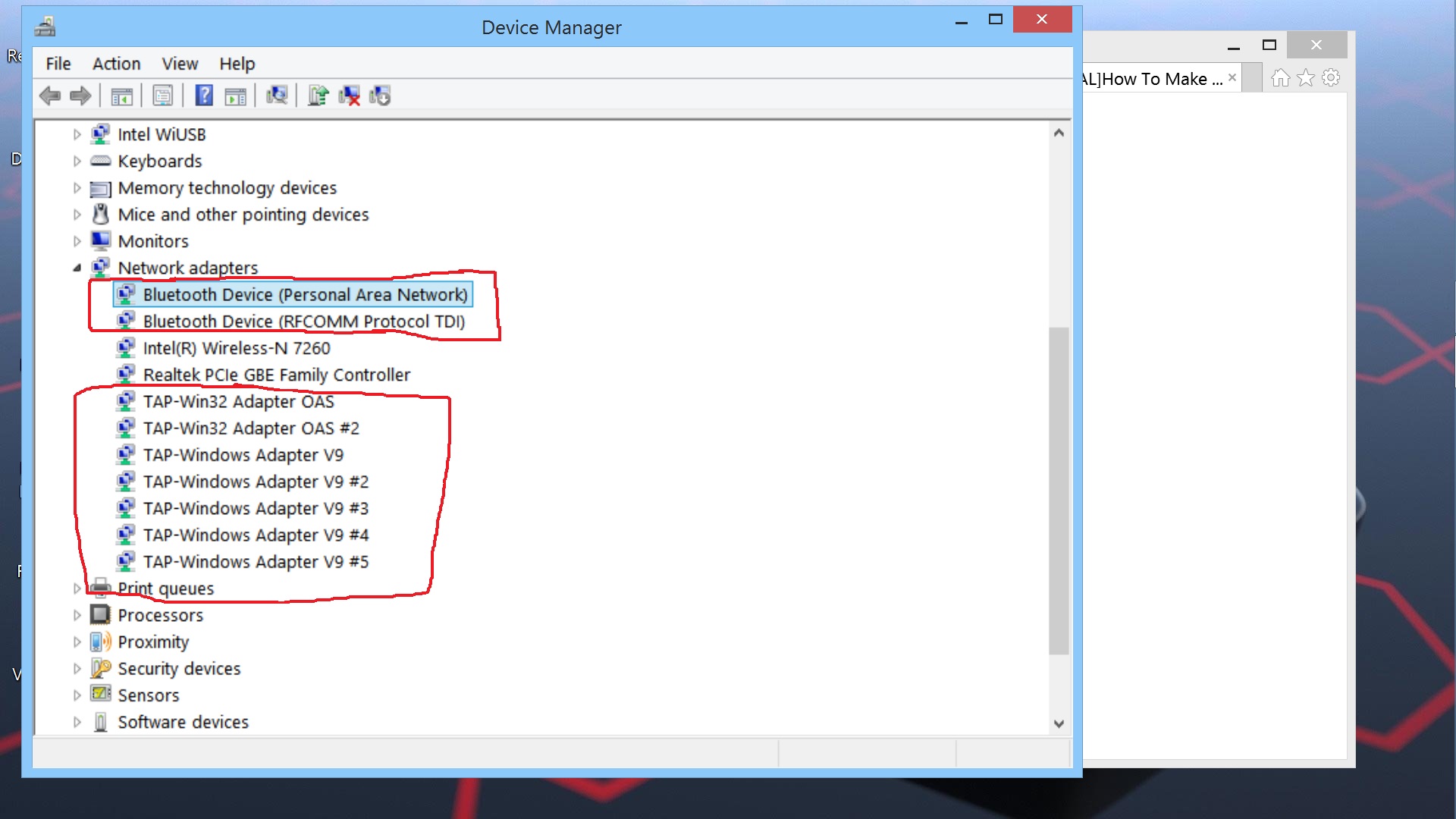
Hi Cal and everyone!! I got an issue hope you can help me with. In my device manager under network adapters there are a list of "bluetooth devices" and "TAP-32" and "TAP-Windows" devices that were not there before. Last week I installed an Intel bluetooth software without realizing it, which I mistook it for an upgrade. I deleted the Intel bluetooth pro/wireless software which I think was this software. But I'm not 100% sure.
Please take a look at the screenshot attachment I posted. Circled in red are these devices. Anyway, how do I remove them completely?Attached Files:
Last edited: May 25, 2015 -
-
Good choice to add a screenshot!
Have you tried to "deinstall" these drivers in the Device Manager? (use the right mouse button to get the context menu)
Apart from that: Where exactly is the issue?
Do you have problems with the machine not booting or booting very slowly now? -
What are the chances of finding a mint high end Flip15 with 2K screen? I can get 2K screen fro $250 but I prefer not to mess with it.
-
Hi Cal. I'd like to uninstall them., But I want to know which are the ones to uninstall so I that I dont uninstall the wrong driver. So should I uninstall all the TAP drivers?
The issue is that I'm not getting good wifi reception. Is is possible to uninstall my wireless driver then re-install it? If so, how?
Official Sony Vaio Fit multi-flip PC Owners' Thread
Discussion in 'VAIO / Sony Owners' Lounge Forum' started by big_boss, Oct 13, 2013.