Problems? See this thread at archive.org.
Hi Kool,
you do get both Bluetooth drivers when you activate Bluetooth on your Flip. The Bluetooth hardware is included on the Intel 7260 network adapter card (I have exactly the same) so when you disable Bluetooth in the system settings both driver entries will vanish automatically.
But without these drivers the Bluetooth adapter won't work at all so don't delete/disable them yourself!
The TAP-drivers are something I haven't seen on my Flip, yet, but I have seen other threads concerning those and folks wanting to get rid of them.
You should be able to "deinstall" them in the Device Manager but if that doesn't work follow the advice posted on April 25th in this thread (see bottom!):
https://social.technet.microsoft.co...as-drivers-installing?forum=w8itpronetworking
The Wifi reception shouldn't be affected by both the Bluetooth and the TAP drivers, anyway (completely different frequency range and separate antennas), so there must be some other reason for it.
Some Flip owners were never happy with their Wifi connection but other never had a problem. I'm not a good benchmark here as I always had a router close to my Flip when I used Wifi.
I also strongly doubt that your Wifi driver installation is the culprit and if you have installed all Windows updates then you should have the newest drivers for the Wifi-adapter (this is the "Intel(R) Wireless-N 7260"-entry).
You could also try to manually update the driver with the Device Manager (see the driver tab).
Or you could try to deinstall the Wifi-driver in the Device Manager, then hit "refresh" and it will be found again. Then Windows should proceed to re-install the driver. But don't uninstall the Intel Wireless Software in the program manager unless you have the full package to re-install them again!
Will this solve your reception problem? I honestly can't say but it's worth a try and doesn't take too long.
If everything listed here fails you could replace the Wifi card with another one but I haven't done that (yet) so I have to refer you to the search function as other folks here have experience with that and done that successfully. A more modern card will produce higher transfer speeds, too, at least if you have the infrastructure (AC-capable Wifi router).
This obviously requires you to purchase a Wifi-card and open up the Flip to replace the old card with the new one.
Personally, I see this as the last option.
-
-
Hey Cal.. Always appreciate your feedback! Yeah, I think the culprit here could be my router. But I got to test this to make extra sure. I'll be uninstalling the TAP drivers for sure since I get bothered by seeing them on my system.
I got a question for you regarding faxing. I'm sure that the Flip has no fax modem. But I do see a Microsoft Fax and Scan program installed. I guess its just there as default across all systems regardless if theres a fax modem onboard or not. That being said, do you recommend any good, free online fax services?
Also, h do I permanently stop unnecessary services that run in the background? Every time I stop a service through task manager, it restarts after I boot up. For example, when I stop Maps it comes back to life after I reboot. Is there a program that can do this that stops these background services permanently even after rebooting?Last edited: May 29, 2015 -
Regarding fax: Yes, it's a standard Windows program and yes, the Flip has no fax modem installed (these were often included in notebooks when they still had analog modems including the line connectors). Using an online service is perhaps the only reasonable choice you have but I can't recommend one as I haven't used one for years, sorry.
In fact I can't even remember, when I have used a fax machine the last time. It's probably been three or four years now...
Services: You handle them in the Service Manager which you can find in the system settings.
Before you stop/deactivate a service you should have a pretty good idea about the consequences.
You can restart the service, though, so you shouldn't be able to damage something.
Stopping a service is better than killing it with the task manager as it's a well controlled program exit.
This however is not everything you must check: There's also the "starting type" which you have to set to "deactivated" (or something like that) to prevent them from starting again (at Windows start or otherwise).
Finally: Write the settings you have down before you change them so you can set them back in case you should need to! -
Hi Cal. I'm not talking about services like, "Windows Image Acquisition." I'm talking about background processes that work in the background.. They're the ones that you find as a long list of processes in Task Manager.
I read about a program called Autoruns that kills these processes permanently from starting even after rebooting until you decide to restart them again. Have you read about this program? If so, which background processes do you suggest I kill off?
Appreciate your feedback as always!! -
If you don't mean Windows services but other stuff that runs in the background the registry is indeed the first place to search for automatically started programs.
"Autoruns" is probably "the" standard program for this and I use it on all my machines. It's not only used to disable starting but also checking if there is something that shouldn't be there in the first place! So it's also good for analysis.
It's very simple to use: It lists all entries in one long list or separately in categories (I recommend that you use the latter to learn what belongs in what category). Then you decide which program should't have autorun capability and then you remove the checkmark on the respective entry. Bingo - the next time Windows starts the program won't be started again. It won't kill running processes, though.
I really can't recommend the stuff you should disable with it - there are way too many possibilities and it's also very subjective. Here are some general ideas:
- I don't like automatic updates on certain software because I want to keep the choice (Java runtime, Google Earth...).
- I also never use certain functions so I disable stuff that won't ever be used ("InstantBurn", "LightScribe" or similar products).
- Finally, I don't like registration reminders for paid software/drivers that pop up two weeks after I installed the stuff because the manufacturer likes free personal data. In the time of smartphones this point is moot for many people, of course...Last edited: May 30, 2015 -
Ahh.. sounds good. Thank you Cal. I'll be installing Autoruns soon.
On a side note, what do you think of the upcoming Win 10? Read that it will enable the ability to run android apps on it. I want to see how 10 works and looks on the Flip. Cant wait.
I almost forgot to ask you something. I got a 'Vaio Update' shortcut on the start menu (I installed Classic Shell for a Start menu). Anyway, I deleted that shortcut from the start menu. But it keeps popping on there after I reboot. Is there a way to permanently remove it so it doesn't come back on?Last edited: May 30, 2015 -
VAIO Update also has a service and I suspect that it tests for the shortcut being on the start menu.
I have experienced that with several programs and you usually have three options.
- Ignore it
- Disable the service and hope that the general function of the program isn't damaged
- Deinstall the program
As VAIO Update is a pre-installed system tool I don't think that you could get rid of the icon by logging into Windows with a non-administrator account.
Personally, I deinstalled VAIO Update as Sony hasn't provided updates for a long time and as I already wrote I like to control updating my system.
My - mostly off-topic - take on Windows 10:
I'm not interested. And I'm not even discussing if Win 10 will actually run hassle-free on the Flip (Will all devices like the orientation sensor be supported? Will Sony supply new drivers if they are necessary?).
IMHO there's so much fundamentally wrong with the software business right now and it gets worse and worse each year. This is not only Microsoft who has been more conservative in the past but their new CEO tries to transform the company from a software supplier into a software service provider.
That's the same tactic we saw from Adobe (Photoshop being their flagship product) and the console games manufacturers (of which one incidentally is Microsoft...) and others.
The users have few benefits (more features - which they often don't need/want) from this but they pay on a regular basis. It's really only about maximizing profits and my estimate is that they try to at least triple them (you don't uninstall Windows or Office when you are used to it and especially not the business users). They think this business model is so good that they invest in it by initially losing some customers.
With Windows it's been up- and downhill: XP was great, Vista was ****, Win7 is great, Win 8 was ****, Win 8.1 - with the right tools - is usable. I was able to skip Vista and 8 but that option will be gone: You'll simply pay Microsoft and you'll have to use what you get...
So a service massively limits your choice - you are either in or you are out.
But because I left the mainstream PC gaming (believe it or not I don't have Steam on any machine) I have actually few reasons left to stay with Windows.
Personally, I'll probably use Win 7 on my main PC and Win 8.1 on the Flip as long as possible (end of critical patch support). I don't believe I'll have or need the Flip after that, anyway.
Afterwards I think it will be finally time to switch over to Linux and the bonus will be that it's much less susceptible for attacks (whether from criminals or from the Big Brothers).
Getting rid of certain software also has its benefits. For example:
Three weeks ago I deinstalled Adobe Flash on all my machines and while I couldn't watch a handful of videos my browser has been getting a true speed increase (not only on the Flip)!
Best of all, though: I don't have to install the monthly updates anymore because they found new security risks. Many of those updates had broken video playback in the past and this buggy security **** is getting out of hand.
My general opinion is still: The less system tools/drivers you have on your machine the less problems you get.
But that has been enough off-topic for me (in this nearly dead thread). -
Hi Cal. I went ahead and installed Autoruns and disabled several background processes. I'm not in any rush to disable all of the ones that I deem to be unneeded. Each day I disable a few to see how my machine reacts. If I notice something not working right, I just restore to the previous day's backup/save. After that, I'll be backing up the Flip as a whole image with Macrium Reflect.
Yes it's a dying thread. I cant believe it's survived that long. This thread started just about the time when the Flip was showcased in Japan and I was dreaming about owning one. Well, I finally got one and so far I'm loving it. I'm loving the sound coming out of the Flip. Playing songs and videos by Duran Duran on it is amazing.
But since I'm a gamer, I was thinking about selling the Flip to then buy the Lenovo Y50 since its a budget gaming machine. But wisdom has taught me that even gaming laptops are subject to technological change and never stand the test of time. Plus, the Lenovo Y50 isn't that great a gaming machine. This is why I'll be buying a good upgradeable gaming machine. I'll most likely keep the Flip, unless owning a desktop convinces me that the Flip isn't needed anymore.
I tried messing around with Ubuntu myself 7 years ago. It was a total disaster for me, which is why i switched back to XP. This was my bitter experience with Linux flavors. There were few drivers for it back then, so I'm sure things are different now. Still, I'll be using Windows. But you're right, the less drivers an o/s has the faster and better it runs.
It's always a pleasure exchanging ideas with you. I can't thank you enough for all your help Cal. You're the heart of this thread, hands down. Without you there would be far more unanswered questions and unsatisfied Flip users.Last edited: May 31, 2015 -
good morning, I own a vaio multiflip 15a svf15n1c5e with 2880 x 1620 resolution display.
what is the highest resolution output hdmi?
if I connect it to a TV 4K UHD 3840 x 2160 is supported?
than will actually be output? 2880 x 1620? or more? or less?
thanks -
The maximum HDMI resolution of the 15A is still something of a mystery (and it's really a pity that Sony didn't include a mini display port connector in all Flips!).
While some people reported early specs from Sony stating more than 1080p via HDMI output (Hz unknown, though) the most recent specs from Sony USA don't agree:
http://store.sony.com/vaio-fit-15a-flip-pc-zid27-SVF15N14CX//cat-27-catid-Collections-New-Products
So, officially it's 1080p only (at 60 Hz maximum).
This is a bummer since the Intel HD4400 graphics unit itself does support 4K resolutions.
However, I've read reports from several people claiming that they were able to get 2560x1440 with 40, 59 or 60 Hz with custom settings and HDMI-1.4-cables (HDMI to HDMI connection, not HDMI to DVI !).
In this forum we find this:
http://forum.notebookreview.com/thr...it-multi-flip-pc-owners-thread.734539/page-82
And Google spat this out:
http://forums.whirlpool.net.au/archive/2037954
http://www.notebookcheck.net/2560x1440-or-2560x1600-via-HDMI.92840.0.html
http://www.designstudioschool.com/setting-hdmi-resolution-for-2880x1620-t259528.html
Some of the folks used this tool:
c:/windows/system32/CustomModeApp.exe
Others used newer drivers and simply set custom resolutions there:
See here for a description:
http://www.intel.com/support/graphics/sb/CS-029478.htm
In theory 4K/UltraHD could be doable but only with 24, 25 or 30 Hz maximum because of the HDMI 1.4 specs of the connector. The display also has to support the frequency, naturally...
Lacking a 4K display I couldn't confirm that, though, so you could do some pioneering work here! ;-) -
thanks so much.
then it is certain that there is a HDMI 1.4?
because the TV 4K UHD I still buy it ... -
No!
It's in fact not even absolutely certain that the Flip has 1.4 - what I meant was that it probably has 1.4 as 2.0 wasn't out then, yet, and the Intel HD 4400 unit doesn't support 4K at 60 Hz (as far as I know!).
Even though I type this on my Flip right now the machine can't even say what HDMI standard it has!
This is what the Intel driver reports on my machine (I have no better way to check right now):
------------------------------------
Intel(R) HD Graphics 4400
Report Date: 6/1/2015
Report Time[hh:mm:ss]: 19:30:35
Driver Version: 10.18.10.3355
Operating System: Microsoft Windows 8.1 (6.3.9600)
Default Language: German (Germany)
Installed DirectX* Version: 11.2
Supported DirectX* Version: 11.0
Shader Version: 5.0
OpenGL* Version: 4.2
OpenCL* Version: 1.1
Physical Memory: 16279 MB
Processor: Intel(R) Core(TM) i7-4500U CPU @ 1.80GHz
Processor Speed: 1800 MHz
Vendor ID: 8086
Device ID: 0A16
Device Revision: 09
* Processor Graphics Information *
Processor Graphics in Use: Intel(R) HD Graphics 4400
GOP Version: 5.0.1029
Current Graphics Mode: 2880 by 1620
* Devices Connected to the Graphics Accelerator *
Active Notebook Displays: 1
* Built-in Display *
Monitor Name: Generic PnP Monitor
Display Type: Digital
Connector Type: Embedded DisplayPort
Serial Number: MEI96A2
Gamma: 2,2
DDC2 Protocol: Supported
Device Type: Built-in Display
Maximum Image Size:
Horizontal: 13,39 inches
Vertical: 07,48 inches
Monitor Supported Modes:
2880 by 1620 (48 Hz)
2880 by 1620 (60 Hz)
----------------------------------
Because I don't have an external display available right now (I'm not at home) I can't say what information the report will output in that case.
Don't buy a monitor/TV without somebody confirming that 4K does in fact work with it.
From what I gather from the links I gave you some displays don't even work with the 2.560 resolution, even though they should (for example because they don't support 40 or 59 Hz). -
Could anybody with a SVF15N28PXB tell me the size of their recovery partition? Thanks.
-
Hey Cal. I just got a notification that Windows 10 will be installed on my Flip come July. But when I read more on further details, it said that since I got Intel HD graphics that I'll experience problems with Windows 10. That makes no f***ing sense. This is just a 2 - 3 year old premium, top of the line laptop. I got a friend whose laptop is much older with lower specs than my Flip. And he didn't get this advisory. WTF??!!
-
I'm also curious whether the Flip may output higher resolution than 1080p. I hope someone can look into it as I don't have a suitable monitor either, but considering to get one.
I noticed that as well. But I guess it may not be as bad as it may sound. Look here: http://www.reddit.com/r/Windows10/comments/384xbt/windows_10_intel_hd_graphics_compatibility/ -
First of all, Win 10 will only be installed if you actually reserved a download ticket and when it got downloaded completely (around 3 gigs, I read) then it will ask you before it gets actually installed.
So if you have a notification but haven't reserved this ticket, yet, this is only a "reminder" that you can upgrade to Win 10. This reminder has been installed by an optional Windows Update but as most people have automatic updates activated they get this automatically...
There are also ways to get rid of the notification if you don't want to be reminded the whole time as you can "upgrade" to Win 10 for free for a full year after it has been made available.
If you already have reserved a download ticket you should be careful when the installation prompt pops up and asks for a final confirmation. Don't even install a new operating system without making sure that you have a) saved all your important data and b) checked if all necessary drivers are included!
That brings us to the drivers topic...
The compatibility checks from Microsoft were never reliable which is why I don't trust them. I rather wait for people who couldn't wait. ;-)
To be serious again: The problem is that the Microsoft database of supported hardware *never* contains all available hardware devices on the market, like for example the special sensors included in hybrid notebooks like our dear Flips. Post the report and I'll tell you what is missing...
Also: The Microsoft Surface Pro 2 tablets which are about as old as the Flips have the same combined CPU / Intel HD graphics units. These Intel HD units are the only graphics units in the Surface Pro 2 machines as they don't have additional ATI or Nvidia chips installed. So *no* way will Microsoft abandon support for these popular and still not very old expensive machines! I therefore expect Win 10 to contain a basic graphics driver for these popular graphics units (there are literally millions of machines with it!), even if Sony itself won't offer certified Win 10 graphics drivers.
However, my biggest worry is that other features of the Flip won't be supported because Sony won't offer Win10-drivers. Of course I'd like to be proven wrong, even if I'm currently not interested in Win10 at all.
That being said, while the Flip series is actually less than two years old this is no argument when the manufacturer includes several specialities (like orientation sensors, case lid sensors etc.) and won't support new operating systems. What this *could* mean is that the notebook will still largely function but certain features could be gone like presentation mode or switching into hibernation if the lid is closed... -
While I'd surely wish for more when it comes to Sony providing drivers (I've done a lot manually), the last driver update for my model was released in January of this year, which isa while ago but still about ten months after Sony sold their PC division. So I wouldn't rule the possibility out quite yet. If I'm not mistaken, the Vaio Update software itself was also updated some time after that event.
Sony still owns 5% of Vaio. And let's not forget the similar Flip models available in Japan. We could possibly borrow drivers from those if all else fails. -
What driver update did you get in January?
While I'm not very optimistic that the Sony share of the "new Vaio company" is sufficient to get new drivers for our old machines it's indeed a good idea to keep the "Japanese Connection" in mind!
Regarding nTrig (pen/digitizer) drivers the compatibility to the Surface Pro 3 may be an advantage.
The last driver revision for Windows 8.x available on the nTrig website does indeed work beautifully with the Flips. It will be interesting to see if Win10 recognizes the nTrig pen right out of the box... -
The January driver update was for the Intel network card. There was also a BIOS update in December.
Edit: I was curious and checked the support page for the Japanese models. Not the new ones, but the Sony branded Japanese versions of our models. There have been two graphic card drivers released in March, and one for Realtek ethernet.
Edit 2: Here's a way old NFC stability update which was never offered in the west (not on the Swedish website anyway). It may be of interest as it's a driver I wasn't able to find on my own. http://www.sony.jp/support/vaio/download/EP0000317701.html (Hit the button at the bottom)Last edited: Jun 4, 2015Calibrator likes this. -
for the 2880x1620 screens, Can you lower the resolution to fhd 1080p and how does it look ? does it look and feel ok ? rather than tiny icons.
-
Of course you can do that and in my opinion it's OK if you watch a movie or play a game but for regular desktop work a non-native resolution (everything else than 2880x1620 on these models) is not optimal.
If you set the screen resolution to 1920x1080 everything gets rescaled by the display itself (like an external monitor would do) and the result isn't super sharp anymore.
If you view photos, for example, you will lose the resolution advantage of the 2880x1620 display.
The lower the resolution gets the more problems with sharpness you get because, honestly, this display hasn't exactly good scaling capabilities. Even lower resolutions like 800x600 (for old games) are even worse...
But here's an alternative:
Have you tried to increase the size of the elements on screen instead? You can do that in the Windows display settings (*not* in the Intel driver settings) and use, for example, a setting of 150% (personally, I even use 200%). When you do that the elements (like icons or text) stay sharp. Photos also keep their resolution.
The problem with that is that many applications still don't support this type of display scaling well. Personally, I try to only use applications that do, like for example Firefox or Notepad++. -
This 317701 update ("EP0000317701.exe") was on the German support page for my model since March 2014. There they call it "NFC Driver - 6.5.9.0" and the descriptions begins with " What does it fix?
Improve the NFC performance." (in English on the German site, of course...):
http://www.sony.de/support/de/content/cnt-dwnl/prd-comp/EP0000317701_9456/SVF15N2Z2E
Apparently there are differences between different countries - the usual Sony support quality, I guess...

All downloads on the German page appear to be international versions anyway.
Perhaps you find something new:
http://www.sony.de/support/de/content/cnt-dwnl/SVF15N2Z2E/list
You may have to click on "Alle Downloads anzeigen" (Show all downloads).
Finally, I got several updates for the network driver via regular Windows Update. The last one is only a few months old so I think I'm pretty current (even though I never noticed any improvement in my home network),MrSL likes this. -
Wow! Very good point! And just to add to it, I feel that Sony in callaboration with JIP (Japanese Industry Partners, the company to which Sony sold their PC unit), will extend driver support to Win 10. This is compunded by the fact that warranties come into play with service agreements.
-
Ok guys, info directly from Sony concerning Windows 10 support is as follows. The URL is listed below, FYI:
Sony recommendation:Regardless of the Windows 10 upgrade availability, Sony recommends you WAIT to install Windows 10 on your VAIO® PC until after our testing is completed for supported VAIO models.
Upgrade information is expected to be posted on our HYPERLINK " http://esupport.sony.com"support web site in mid-July, before the release of Windows 10, and then later updated with detailed compatibility information, upgrade instructions, and drivers as soon as they become available.
https://us.en.kb.sony.com/app/answers/detail/a_id/59560/c/65,66/p/48903,49902,90995,92164/KjetilV and Calibrator like this. -
Seems like I wasn't too optimistic then! Thanks for the info, koolx.
-
Calibrator Thank you for your reply, My last question is about the pen use, do you have pressure sensitivity in photoshop cs6 64 bit ? i am about to buy 15" flip for photoshop use.
-
Yes, Photoshop CS6 is supported but you may need a pen driver update.
See here for more Info regarding the pen drivers:
http://surfaceproartist.com/blog/2014/3/20/n-trig-releases-64-bit-wintab-driver
http://surfaceproartist.com/blog/2014/6/20/n-trigs-wintab-driver-update-now-available-for-download
"Adobe Photoshop CC and earlier versions are noticeably absent from this list, but that may be because that software has functioned correctly with N-Trig's drivers for some time."
While this link is mainly for the Surface Pro 3 tablet the nTrig drivers for the Flip are in fact identical - at least up to revision 17 which was the last I could download from their site - and you can in fact also use the Pro 3 pens on the Flip like the original Sony pen.
Personally, I can confirm that Photoshop Elements 12 and Lightroom 4.4 work with the newer drivers but not with the original ones (no pressure sensitivity with them).
The only problem is that Microsoft bought the nTrig pen technology and apparently nTrig closed their website at www.n-trig.com so that you can't get driver updates from there anymore.
While drivers for Sony notebooks were absent for quite a while on the nTrig site, one could always download Surface Pro 3 drivers and use these as they were identical!
You can read more about that and get a download link for the drivers from here:
http://surfaceproartist.com/blog/2015/6/2/new-download-link-for-n-trig-wintab-driver
Personally, I recommend to install this revision 17 driver immediately as it works beautifully with the Flip and the programs I mentioned above (there may be still "Wintab" apps that don't work but I don't have more).
Hope that helps! -
Hi guys.
I've been struggling with some gfx issues for couple of days. The problem is that it's impossible to run some games in fullscreen mode on highest desktop resolution. All the options are set to fullscreen, but the game screen isn't scaled when I lower the resolution in-game - I get small game window and black border around it. This happens for Civilization Beyond Earth, The Witcher 3 and Hatred. I've tried updating both nvidia and intel drivers, running the game in compatibility mode (with Windows XP and 7). The only thing that helps is lowering windows resolution each time I want to run the game or setting max resolution in-game (this makes the games unplayable, obviously).
Anyone have similar problem? -
Have you tried the scaling settings in the Intel driver for the mode the game runs in?
This means you set the *desktop* to a resolution you want to use in the game and then change the scaling option to your liking. I assume that you currently have the "centered" option selected but you can then change that to "full screen scaling" or "keep aspect ration" (I use the German language version of the driver so the wording will be different). The driver will then remember these settings the next time you set the desktop to that resolution or an app/games uses it.
Then you can set the desktop back to your usual resolution (1920x1080 or 2880x1620) which will be displayed normally.
(This does only work with the resolutions shown in the driver but not, for example, 800x600 mode!)
That being said, with some resolutions you may run into massive performance problems, even though the game has to render fewer pixels!
My theory is that either the vertical sync signal is the problem (perhaps the game waits needlessly for the signal but it comes only every 5th time or something like that) or that the driver "emulates" the low resolution on the "dumb" 2880x1620 panel which itself is unable to scale itself.
You can get a report of the driver what resolutions the built-in panel supports and I posted mine on the last page in this thread. Apparently this hiDPI panel isn't gamer-friendly at all: Only 2880x1620 is supported - at 48 and 60 Hz - so perhaps every lower resolution is created by the Intel driver (AFAIK the Geforce chip only delivers the pixel data and does not create the video mode!),
For example "Eschalon Book I" (an indie RPG from 2005) runs in 800x600 and slows down to an unbearable crawl when run in full screen mode (black borders right and left to keep the correct aspect ratio)! From what I read the Flips aren't the only machines that have this problem but the common elements seems to be the Intel graphics (hardware and/or driver).
For this game I have basically two ways to run it and both aren't optimal:
a) Set the desktop to 1024x768 and run it in windowed mode (compatibility settings set to 100% scaling). Then the game windows is about 8.5 inches diagonally (of the 15.5 inches of the panel!)
b) Leave the desktop at the usual 2880x1620 (with 200% scaling) and run the game in a windows (not scaling at 100%). The the game is about 8.0 inches diagonally, which is even smaller!
Eschalon Books II and III don't have this problem as they use a 1024x768 resolution...
Edit:
I haven't tried external displays, yet, as I mostly use my Flip on the road when I don't have access to one...Last edited: Jun 13, 2015 -
Yes, I've tried this trick already and it doesn't work. Interesting thing is that I have this problem only on max desktop resolution (2880x1620). When I scale desktop down to 2048x1536, in-game scaling for 1600x900 works just fine (no borders). BTW I've noticed that "full screen scaling" option is greyed out (disabled) for 2880x1620 in nvidia settings panel. It seems the display driver doesn't support scaling for this res (?)... But how is scaling possible in other games? For example StarCraft 2 has no problems with scaling on 2880x1620 when game resolution is set to fullhd...
Magic
Thanks for your input. -
Hi Cal. Hope youre well out there in Germany. I got 3 questions for you that I'm hoping you can help me with.
How do I get a resolution of 2880x1620? I dont see an option for that.
And sometimes I notice when I move the Flip around a beep goes off, like 3 or 4 short beeps. It sounds like the accelerometer. I turned off Hard Disk Protection in Vaio Control Center which disables this beep. But do you think its not wise to disable this feature?
Lastly, the Flip heats up strangely. Just to let you know, I've disabled many services and used autoruns to disable several background processes. So heat should remain low, but it doesnt obviously. I also ran Malwarebytes and got rid of 3 viruses. I also dont go beyond 30% screen brightness and mostly run 1 or 2 programs like Internet Explorer and Word.. But I continue to experience this heat. Is there a program to find out whats causing this much heat?Last edited: Jun 13, 2015 -
Hi Kool - all is well at my end!
You only get that option if you have a 2880x1620 panel. So if you have the FullHD panel you will be limited to 1920x1080 on that.
No, it's not wise.
See, what the Disk Protection does is moving the harddisk heads into a parking position to prevent a head crash (the head hitting the disk surface) which could lead to total data loss, for example.
This protection mechanism is done by the harddrive itself and only enabled by the Control Center.
However, you shouldn't really move your Flip at all when the drive spins. Even if this protection works correctly the minimum consequence you will experience is performance loss.
Of course people will continue to "abuse" their hardware like this and this is exactly why this protection was included in the first place.
If you love to move your notebook like a tablet then you should think about replacing the hard drive with an SSD like I did. This will of course also increase performance as you know...
And you are sure you got everything?...
Screen brightness has absolutely no influence on fan noise in my experience. A brighter display will only drain the battery faster...
We can't possibly guess what happens on your machine without more details.
So it's back to the old "take a screenshot of the running processes"-routine... -
A quick question guys: did you find any solution for keyboard not responding? Very seldom but also very annoying issue...
-
I can't remember anything about problems like that and I certainly didn't have any with my keyboard.
Have you tried the "search this thread" function? -
Hi Cal.. Excuse the little late reply. I usually reply to this forum through Tapatalk. But its update omitted the reply button for some stupid, unknown reason. So I had to download the app from android and use it from there.
Anyway, It looks like the heating problem isn't that bad. It's usually warm and doesn't heat up while on battery. But while it's charging, it heats up somewhat. This makes sense I guess. But I wish it were as warm as while it's on battery.
I turned Hard Disk Protection back on after reading your warning on it. I don't move the Flip around like it's a freebie. But at times I have to move it to get into a comfortable angle. But the important thing is that it's turned back on.
One thing to note, when I got a document or browser with a dark background, the screen gets annoyingly dim. To remedy this I had to go to the Graphics Control Panel and on the Power tab I turned off Display Power Saving Technology. I didn't want to do this since I want the battery to last. But I'd rather not get stuck with a dim screen. Have you come across this? Is there a workaround that allows one to set this setting without experiencing dimness? -
Can't find it in this thread. I can find some similar problems by googling it, but there are no solutions.
This is very random issue, can't reproduce it since it happens once a month (the physical keyboard doesn't work at all for couple of minutes).
Anyhow, I still get strange metallic noise (also random issue - can't find a way to reproduce it) from somewhere on the right hand side. It's not HDD protection "beep" - the one I observed sounds more subtle and "metallic". It's audible under both, light and heavy load. Also, I don't have any problems with HDD/fan/graphics.
Another thing: screen "white blood stains" started to be visible in the corners. I was afraid of this one, the day I've read about the issue in this very topic. I don't really know if replacing the screen will change something since this might be some kind of engineering flaw.
Another thing: when I grab the laptop, I must be really careful not to push/squeeze its front (in the middle part). I've noticed it's possible to press space key this way, when the hinge is closed.
Those little things, when sum up (together with gaming capabilities, which are really poor - even in comparison with my older laptop) born quite negative experience when using this machine.
BTW JIP released Flip's refreshed version (13 inch for now, renamed to Vaio Z). I hope they will also continue 15 inch model. To be honest - the 15 inch graphical tablet function is the only thing that prevents me from selling this pc. -
I don't think you have to worry about it. This "Power Saving" technology is just a gimmick (quite unpleasant for human eyes) - it scales the screen brightness according to amount of dark/light pixels that are being displayed in particular moment. In other words: this dimming suppose to save your battery. It's similar to the situation when you want to pay lower energy bill, so you dimm your lights in the apartament.
If you want to save the power this way when working on battery, you can always lower your screen brightness manually to the lowest, acceptable level. -
Check your energy settings and see if they are different for battery and mains usage.
Often the notebook spends more energy (and is more powerful) when *not* on battery...
Very good! But remember that it can't protect you against everything. It's more like an assisted brake on a vehicle. You will still have to drive carefully...
Many have indeed had the same "problem" (it's a feature, not a bug) and have turned off the power saving feature. There is no workaround as this function is exactly the feature many users don't want.
Let me explain: What it does is dimming the LED backlight and thus saving energy. The backlight is one of the major energy consumers on a notebook (after the CPU/GPU) so one can in fact save precious energy by turning it down.
The problem is that if you can't see everything properly (which is the purpose of a display) it makes no sense to save energy. And of course manufacturers use a relatively low brightness when they publish battery times...
So I' afraid you will have to compromise here and make it as bright as necessary (for you) but not too much. -
Hmmm...
I've had problems with failing keyboards entirely or temporary until the next reset but never for a couple of minutes. If the Flip had a Logitech keyboard with special drivers (which they suck at) I would expect *everything* but here I'm out of ideas!
I also don't think that it makes sense to refresh the basic Windows keyboard drivers but if you want to I won't stop you, though...
When you look from above the keyboard fan is on the left and the harddisk is on the right side.
If you hear something from the right and you don't touch the Flip in that moment it's likely coming from the harddisk.
As I have pulled the hybrid harddrive out of my Flip more than a year ago I can't say how it sounds under normal circumstances but I think it's rather quiet, even when doing head movements (it's the WD 1TB hybrid with 16GB flash cache).
As there is nothing else on the right side - no "transformers" etc. - that could do the sounds you describe I would bet on the harddrive. Sometimes a drive failure announces itself by massive head movements (when the disk uses replacement sectors from the end of the drive, for example), but it's not a guarantee that it *will* fail.
I would suggest you keep up your backup duties and see if this noise comes up regularly or more often.
I treat my Flip like an unboiled egg so I haven't had any hardware-related problems until now. I'm eager to see how long it will stay that way...
I understand you perfectly - the Sony Flips could be fantastic in theory but they remain uneven designs, even if everything works. At the time they came to the market there was nothing better, though, so I bought one myself - also especially for using it as a 15" graphical tablet. But even then I'm not fully satisfied as the HiDPI screen - while having a really nice resolution - has worse viewing angles than expected (and as reviewed - but most reviewers only had the FullHD versions...).
I'm also not really satisfied with the pen feel on the display and while the Surface pen is a tiny bit better I'm still not really good with it.
I therefore see myself getting a better tablet in the future, too, but not for "hard core gaming". In fact the performance of my Flip is sufficient for me - what's bad is that it can't run at full steam for more than three seconds without producing extremely loud fan noise...
As I doubt that JIP will bring anything to Europe I do have my eyes on the other companies on the market but each and everyone hasn't brought anything that I like, yet. The closest has been HP with their 15" slate but their pen digitizer sucks. I also don't know if the harddrive is user replaceable but perhaps future models are better. -
Similar here. From the very first day I've installed key stickers on a keyboard and a screen protector.
Yup, the pen should be better, it doesn't give proper resistance against the screen (the experience is not even close to the pen and paper). And, of course, my screen protector makes it worse. I've read somewhere that Microsoft's pen actually works really good. All in all I've learnt to use the Sony's just fine. The problem is - it's not as comfortable as good old pen and paper
-
I have both and the Microsoft Surface 3 pen is different only in details but not an entirely new beast.
(Note that the Surface 2 pen is not compatible as it uses Wacom technology internally!)
Here's a comparison review I wanted to write the whole time since I got the Microsoft pen a few weeks ago:
Optics:
Both pens look nice and professional, not playful at all. The Sony pen is designed more like an old school inking pen while the Microsoft pen looks a bit more like a regular ballpoint pen. The designs are mostly clean and they don't look like computer pens at all.
The Sony pen is black while the Microsoft pen comes in - I think - six different colors including silver and black. I got the black one to match my Flip and I think it looks the best but this is of course highly subjective.
The buttons on both pens are always black so if you have a non-black Microsoft pen they are easier to find if you don't use the pen a lot. Thanks to the color selection the Microsoft pen has a clear advantage.
The Sony pen, however, sports a fairly large Sony logo (why didn't these dolts at Sony put a nice VAIO logo on it like on the Flip itself?) and on the other side is a ****load of useless data in a muted gold tone including a big CE sign. Very annoying!
The Microsoft pen has no printing or branding on it of any kind - much nicer, IMHO! Depending on your taste this can be another quick advantage for the Microsoft pen.
Construction:
Both pens are made of metal and feel solid. One can expect that for their prices (about $50 or 50 Euros). I suspect both are made from aluminium but the Microsoft pen could be made out of magnesium from the feel of it. No clear advantage here.
Both pens use a single AAAA-type for their nTrig technology (position, pressure and the two side buttons) while the Microsoft pen sports two additional tiny batteries for the Bluetooth button at the tip.
Both pens are about the same weight, if anything the Sony pen actually feels very slightly heavier, even though it doesn't contain two additional batteries. I can't measure this, though, as I don't have access to a precision weighing machine but I don't see an advantage for the Sony pen anyway.
The Sony pen is actually longer, too: About 1.0 to 1.5 millimeters but this also has no discernable effect on the user. No advantage here, too.
Functionality & Performance:
Yes, the Microsoft pen has the now well-known Bluetooth button at the other end, but you can't really use it, even though the driver for it is installed automatically. There is no program that "listens" to this button data (butoon pressed!) and starts an application like OneNote. Perhaps OneNote itself does this but I don't need it and don't have it installed but perhaps there is a solution out there somewhere that isn't common knowledge around here, yet...
Advantage for the Microsoft pen if the button has a use. If not then it's a disadvantage because of the additional non-rechargeable batteries that will likely run out of power someday and end up polluting the environment.
The Sony pen is slightly smoother than the Microsoft one and the latter is therefore slightly grippier. I would say the Microsoft one has a slight but definitive advantage here.
Another "real" difference is that the Sony pen has a rubber ring around it about an inch from the tip while the Microsoft pen does not. In theory this ring is a good idea as it prevents the fingers from getting too close to the tip - but if the user actually has the pen in his hand like this he needs to slide his thumb up to reach the two buttons along the pen.
In practice I never held the pen in a way that the rubber ring had any use to me. Still, this is can be a tiny advantage for the Sony pen depending on how you use it.
The next difference is the clip. The Sony clip is both shorter and about a centimeter "into the pen" compared to the Microsoft pen. I don't know if it's simply a question of aesthetics or if the Sony pen is designed for shorter Japanese breast pockets but the Microsoft pen feels more at home in Western breast pockets and doesn't stick out as much. Advantage depending on your pocket size.
Another difference in usability is the design of the two side buttons. On both pens they are equally distant from the tip. As both pens are using the exact same nTrig version both buttons have the same functionality - so no difference there.
However, the buttons on the Microsoft pen are indeed quite different, mechanically:
- They protrude about half a millimeter while the Sony pens are flush with the pen and need to be pushed into it. I often had to "finger search" for them as the pen rotates more easily in my hand than the Microsoft pen.
- The Microsoft buttons are less smooth than the pen while the Sony buttons are even smoother! The Microsoft buttons are therefore definitely grippier!
- Finally, on the Microsoft pen the lower button (nearer to the tip) is oval and as large as the upper button while on the Sony pen it's circular and therefore smaller than the second button. This makes the handling of the lower button easier.
All three differences make the Microsoft buttons way more comfy than the ones on the Sony pen. Personally, I'd say that this is the biggest difference of the two pens and this is a definitive and clear advantage for the Microsoft pen.
I saved the most important question for the end: How do they feel on the surface of the panel?
Both pens are absolutely equally precise and both have about the same distances they are registered by the digitizer, including lift-off distance. All in all the performance in this regard is absolutely the same on the Flip. So no advantages here.
The Sony pen tip ("nib") feels smoother, more plastic-like and the Microsoft pen tip, while a tiny bit thinner in diameter, feels a bit like rubber and it has significantly more resistance. The differences become more apparent the longer the pen-strokes are or the more you press the pen down.
The Microsoft pen also has a slightly more springy tip but the difference is negligible in my book - the real difference lies in the material of the tip. Depending on your "taste" this can be a massive advantage for either pen but I suspect more people will prefer the Microsoft pen here.
And then there is the problem with "hand oil" (a mixture of sweat, old skin and who knows what): When you press part of your hand against the screen there will be some residue left, even if you clean your hands like crazy. The human skin eventually oozes out something that will stick to the shiny, smooth screen surface and make it uneven.
The Sony pen sometimes produces gaps in the strokes on such uneven surfaces but the Microsoft pen handles this slightly better thanks to its rubbery tip. Both pens are still much more affected to this than, say, a Wacom pen by a Wacom tablet surface that is rough and will suck up this hellish mixture and still give you a feel that is more like paper.
If you keep your screen shiny (because you wear a thin cotton glove on your pen hand like many professional artists) then the difference isn't that big but otherwise the Microsoft pen has a clear advantage.
However, both pens don't feel at all like Wacom pens on the "rough" Wacom tablet surfaces. Both feel like being pressed against a smooth glassy surface and not like anything paper-based. So if you don't like this none of these pens will make you happy!
So what is the summary?
For most users the Microsoft pen will probably be the better choice, IMHO - but it's not cheap, especially if you already have the Sony pen.
If you don't have a pen, though, or you want a backup pen the Sony one is nearly impossible to get now while the Microsoft pen is readily available and comes in - I think - six colors. So while it has its price (like everything Surface-related from Microsoft...) there is definitely a selection to choose from right now.
For those who don't like to shell out as much: There should still be compatible ones available on Ebay. In this thread there are a few posts with more information about which models work and which don't.
I hope this clears some of the questions, even if the thread is not very frequented anymore.
If I find a way to use the rear button on the Microsoft pen I'll post it but I won't be angry if anybody is quicker!
PractiseMachine likes this. -
Thanks for the review! It confirms what I read before about the pen comparison.
-
Hi Cal. I caught a little snag, maybe you can help. I'm trying to update my wireless driver through the Vaio Update program. It downloaded but it takes forever installing. I then downloaded the .exe file itself. But when i click on it to install, the Intel logo flashes for a sec then disappears. And it doesn't install. What could be wrong and what do you think is the remedy?
--- EDIT---
I tried to install the .exe driver (version 17.13.1) that I manually downloaded. When I try to install, I get a popup window message saying:
"A newer product version is already installed."
So I can't install this driver. I then rolled back the driver to an older one dated 9/2013 which is quite old. I then try to install version 17.13.1 but I still get that stupid message. What do i do?
-- EDIT AGAIN --
Ok, looks like its fixed. What I did was reinstall the wireless driver. Hopefully this will stick.
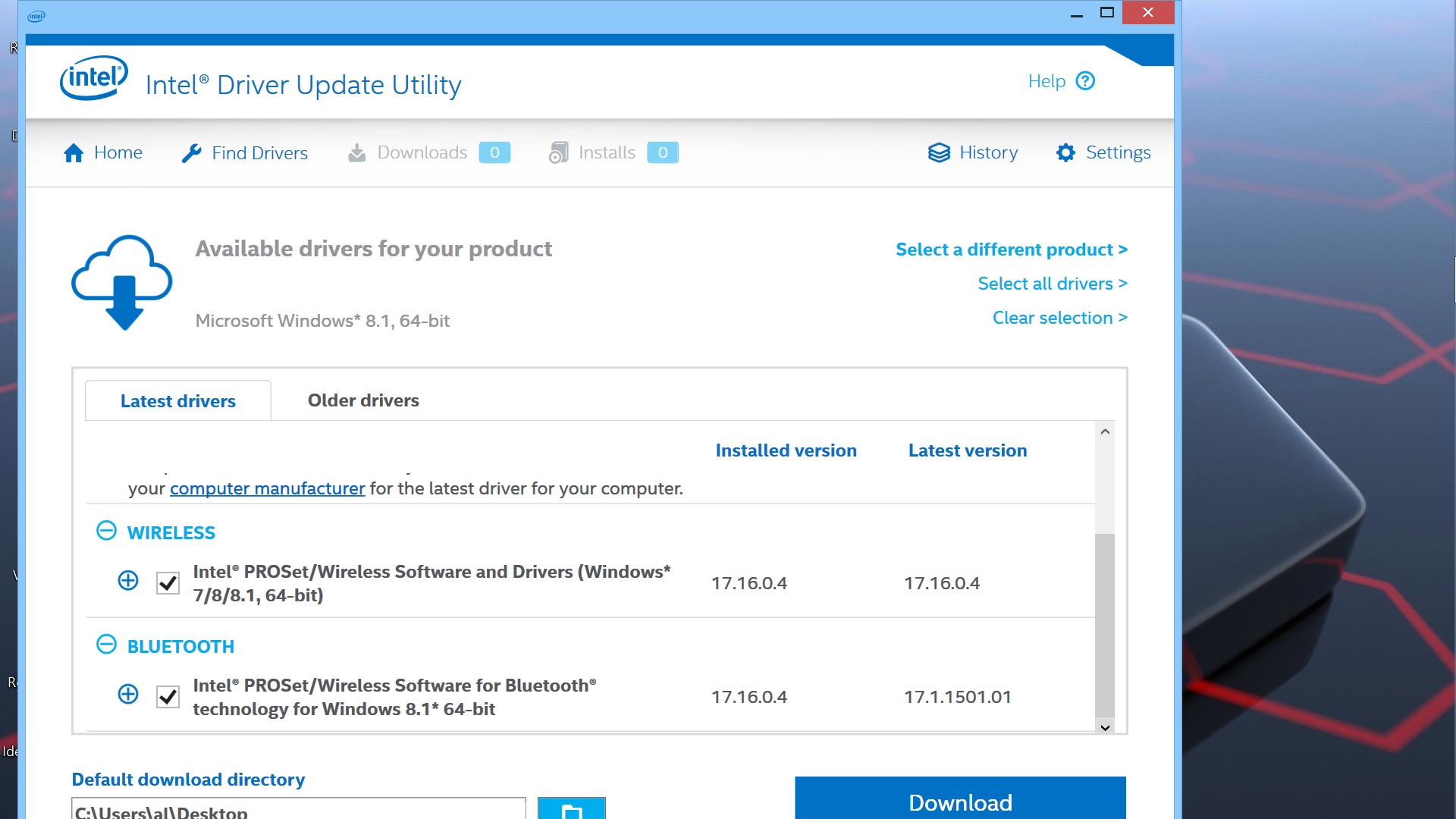
I got a new issue. I checked the driver info for my bluetooth under Bluetooth Adapters in device manager. Its a generic driver from 6/21/2006, which is old. The version is: 6.3.9600.17673. And I don't see any updates for it in the Vaio Update program. But I then ran the Intel Driver Update Utility. It says the current version installed is: 17.16.0.4. Coincidentally, its the same version as my wireless network driver. So I'm confused about this. Hope Cal or someone can help me with getting the most up to date bluetooth driver.
Last thing, on Windows update settings, should I enable the feature: "Give me updates to other Microsoft products when I update Windows"?Last edited: Jun 20, 2015 -
Cal: The Microsoft pen returns F20 for a single click, and F19 for double click on the back button. Just use AutoHotKey to remap them to whatever you want. In my case though there is a little delay which didn't make it terribly useful (I originally wanted to map undo/redo to the button). How it works in the Surface is pretty neat though, since it can wake it up and have a blank sheet in OneNote right away.
One negative part about the Microsoft pen is that the nibs wear out more easily. I let a person who's a bit more heavy-handed than me use it for a day - was not the greatest of ideas : ) Other than that the back is interchangeable between the Sony and the MS pen - so if you prefer the Sony pen with the Bluetooth part, you can do that - or if you just want it to be really long (or the MS pen to be really short and don't care about Bluetooth : ).
Noticed someone asking for 4k support with the Vaio... can give that a go. It should work at 30hz. Perfectly usable for watching video, but not very enjoyable if you want to use it as a monitor for your every-day tasks.Calibrator likes this. -
Just tested 4k at 30hz - works just fine. Loaded up a 4k MP4 file - looks gorgeous and plays smoothly (this was on a Samsung 4k monitor), while general UI interaction leaves something to be desired.
Calibrator likes this. -
So there is truth in "wait long enough and the problems fix themselves" after all...
Then there are none available.
However, I don't have a generic entry in my device manager. My (only) Bluetooth driver says "Intel(R) Wireless Bluetooth(R) 4.0 + HS-Adapter" and its version number is v3.1.1309.390 from 19.09.2013.
I assume that mine is different because I didn't install a newer wireless network driver directly from Intel like you did in your driver reinstallation antics...
I guess that this is completely correct in your case if you have a N7260 wireless adapter in your Flip like myself.
The reason for this is simple: The very same wireless network adapter card with the Intel chip also provides the Bluetooth hardware - there is no separate card for this!
The only question that remains is: Does Intel provide separate driver downloads for both the Bluetooth and WLAN functionality or do they combine the drivers into a single package.
I think that you got such a "unified driver package" (similar to those Geforce drivers that support many different chips and functions like 3D glasses etc.) and therefore you get the same version number from the Intel utility.
To confuse you even more: The driver version the Intel utility tells you is a driver *package* version that actually contains different drivers with different driver versions!
This means that the actual Bluetooth driver (file) can have a higher or lower number than the 17.16.0.4 you have mentioned...
As long as the Intel utility says you are good with the wireless driver I wouldn't change a thing now (hint hint!).
What other Microsoft products do you have? Office? Then it will give you updates for it, too (*if* there are any, obviously). If you have no other MS products this option simply has no function. -
Thanks!
Can you tell us the model of the Samsung monitor, too, please?
In this case we would have a known "is compatible" entry... -
Are you saying that the Flip is powerful enough to run a 4K video smoothly, but not the UI? Or is it a scaling issue or something like that?
Which player did you use for the video by the way? -
Thanks! That's saving me a lot of experimentation time!
I can imagine that but I always have the undo right under the thumb because I use it a lot! ;-)
I also don't like using the back of the Wacom pen as an eraser like on a pencil. Takes too much time...
Therefore I'm perfectly content to use it for starting programs or other things that aren't as time critical.
Another question would be why it's slow. I never had speed problems with Autohotkey, which I use for an old game ("Thief - The Dark Project") to map the mouse wheel. So perhaps it's its funky low-power Bluetooth 4.0 connection that re-connects every time one presses the button?
This is similar to the pen in my Galaxy Note 2: When I take the pen out of its silo it wakes up the Note and starts a blank note - even when the phone is locked. This is tremendously handy, obviously, to quickly jot something down.
I imagine that without OS integration and only a "simple utility" like Autohotkey (and F19/F20) this is impossible on the Flip to recreate. I can live with that, though, as the Flip isn't as handy as a Note or a Surface anyway.
I can imagine that! I'm not exactly a "power user" but my pen usage is increasing and I hope Microsoft will provide nibs in the future. At least I have a better feeling with that than with the Sony nibs...
Good observation but I think I leave it the way it is. -
Thanks for the reply Cal. I also have the N7260 wireless adapter. I attached a pic showing that indeed according to Intel's Update Utility that Intel provides different bluetooth drivers different from that of the wireless adapter.
At this point I'm tempted in downloading and installing this bluetooth driver from the utility. I know, I know.. you mentions the hints.. but I'm that adventurous fool who likes to always find the best ways to cover s many corners as possible to make things better. But I'm also cautious. So given this new info what do you think?Attached Files:
-
Official Sony Vaio Fit multi-flip PC Owners' Thread
Discussion in 'VAIO / Sony Owners' Lounge Forum' started by big_boss, Oct 13, 2013.