Problems? See this thread at archive.org.
Hi all!
I've been away for some time now and only make a brief visit every now and then as I'm in the process of moving (and building a new life in a different town) right now. Much buying new stuff ($$$), much packing, getting rid of stuff, renovating the new home etc. etc. You know the drill!
Still, I of course follow events as best as I can and while I won't install Win10, yet - and probably won't for quite some time - I'm very much interested in how our little Flip buddies cope with it.
As most of you know, Sony announced that they test Win10 running on Vaio and will report in October.
Well, in fact they did just that on October, 15th.
If you choose your Flip model on this page (UK page for easy international reading as an example here - check your local Sony support page!) you get upgrade information related to it:
http://www.sony.co.uk/support/en/windows10#product-selector
So you select (Example):
- "Vaio"
- "SVF"
- "15N2Z2EB"
Right now you'll probably be redirected to this page:
http://www.sony.co.uk/support/en/windows10/1
On this page they have Windows 10 upgrade instructions but before you do that you should read the "October 15th update - Windows 10 limitation information for VAIO PCs" which is also linked here
http://sony-eur-eu-en-web--eur.custhelp.com/app/answers/detail/a_id/94494
For example, according to Sony, some Vaios (likely including the Flips) will lose the "Multi-touch gestures" on the clickpad if you upgrade to Win10:
"The click pad, multi-touch gesture function is not supported in Windows 10. The multi-touch gesture setting will be disabled and removed from the VAIO Control Center during the upgrade process. This is applicable to systems that originally came with the multi-touch gesture function."
There are some more but not everything applies to the Flips.
If you still want to upgrade - and hey after all this hype you NEED TO DO IT, don't you?
http://sony-eur-eu-en-web--eur.custhelp.com/app/answers/detail/a_id/94495
This is generalized but pay attention to what they recommend - especially if you don't install operating systems regularly:
"Create Recovery Media (Strongly Recommended)"
"IMPORTANT: If you back up your files, make sure you copy them onto external media, such as a USB Flash drive or CD/DVD discs, for use during the installation process."
"NOTE: You need at least 20 GB of available space on your hard disk or SSD. The required disk space may differ based on your PC configuration."
etc.
Also, their "notes" at the end of the page are important:
- Sony has confirmed the Windows 10 upgrade process after performing a full system recovery of the VAIO factory image.
The first bullet point means that you *MAY* have to do a full system recovery if the Win10 upgrade fails on your current configuration! Take this into account and do a full backup before attempting the upgrade!
- Several Sony exclusive store applications might not be able to be installed from the Windows Store on Windows 10 due to a Windows Store limitation. If you are using any Sony apps from the Windows Store, it is recommended not to uninstall these applications as you may not be able to reinstall them.
The second one means that you won't get certain software back in Win10 if you uninstall it!
If you want this software back you probably need to do a full system recovery, going back to Win 8 / 8.1 (!), install the stuff and then upgrade to Win10 again!
So make double sure you don't need stuff before you uninstall it.
I haven't tried the new utility they link to on this page but it seems to me they take the middle road:
They provide their former Vaio customers with a (relatively easy) way to install Win10, but they won't go the extra mile to keep all of the old functionality. As the latter is pretty minuscule deficit I think this is a good compromise for the users.
Hope this helps!
Edit / Addendum:
As far as I can see there are no separate driver downloads for Win10 (yet). At least I haven't found any on the UK and German Sony support sites.
-
-
Calibrator, according to Flip owners who upgraded to Win10, the muti-touch function on the click pad is working with no issues. Is this issue youre talking about applicable to non-US Flips?
-
For you US guys the info from Sony is no different:
http://esupport.sony.com/US/p/support-info.pl?info_id=1610
My guess is that the testing team offers generalized help is more careful than not.
The US support page also says this:
You do not need to download the following drivers, they are included in the Windows® 10 operating system.
- Front Camera
- TPM/PTT (boot security)
- USB
Please use Windows Update to download the following drivers for Windows 10.
- Audio (sound)
- Bluetooth
- Ethernet
- Graphics (video)
- HD Audio
- Memory Card
- NFC
- Touchpad
- Wireless LAN
This means that Sony recommends the generic drivers from the chip/hardware manufacturers. This may or may not hamper functionality or performance.
So if the touchpad drivers support all functions under Win10 - fine.
But don't forget that Sony used two(!) suppliers for the touchpads on the Flips!
This means that both manufacturers should offer drivers for Win10 - and if one doesn't support full functionality (yet) you may end up missing functions. -
Just wait November for Windows 10
Does the pencil still works correctly after all the last updates of Windows 8.1 ? -
Question to those who upgraded to Win 10:
Does the click pad multi-touch gesture work? -
My Vaio Control Center is not working. So I uninstalled it through Control Panel. I then downloaded and tried to install the latest VCC update but I get the following error:
"No software version applicable to this update is installed. The update will be cancelled."
How do I install and get VCC back? -
Hi so first you have to download "Revo uninstaller" use it to uninstall Vaio Control Center properly and choose in advanced mode, because if you uninstall with Windows in regular mode it will always says " "No software version applicable to this update is installed. The update will be cancelled." , that's why you need Revo uninstaller.
After that you need your USB key when you had saved Windows 8.0, and use it with Vaio Care (desktop) > Advanced Tools > restore and recover > reinstall software and drivers > then it will ask for your USB key of Windows restoration that you did. Then follow the things...Last edited: Nov 4, 2015 -
Ok I already reinstalled Vaio Control Center. But I dont see Power Management > Battery Maintenance > Enable Battery Care Function on it that limits battery to 50% or 80%. How do I get this option back?
Last edited: Nov 5, 2015 -
You didn't do what I told you...
-
I did do what you asked. But it never asked me for a USB key of Windows restoration.
-
It will ask when you go to Vaio Care (desktop) > Advanced Tools > restore and recover > reinstall software and drivers >.... here it will ask you, it's not automatic...
But first, you have to uninstall properly Vaio Control Center, and it's cool if you have reinstall it as you said, because now you can uninstall it very properly grace to Revo.
If you don't understand this, I can't do more for you... read and read again... -
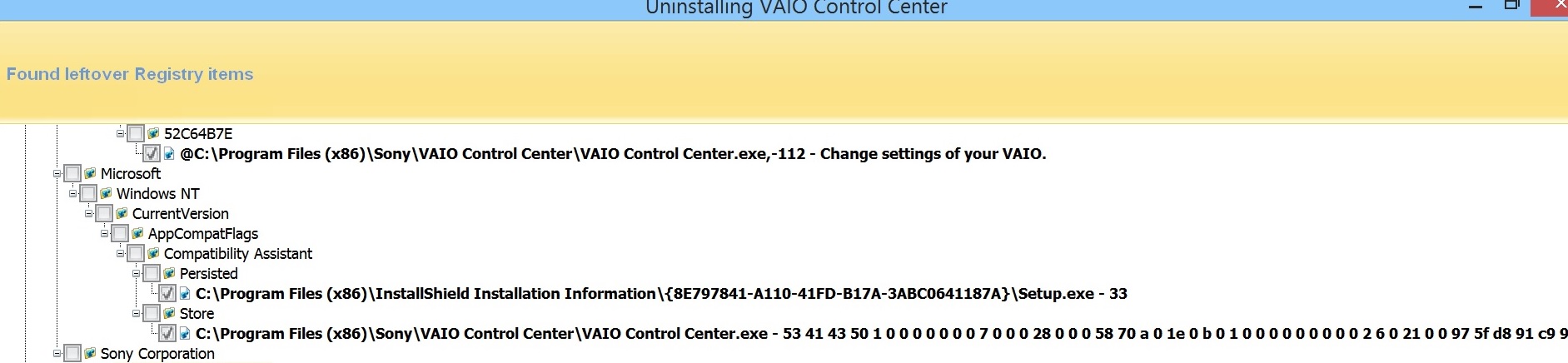
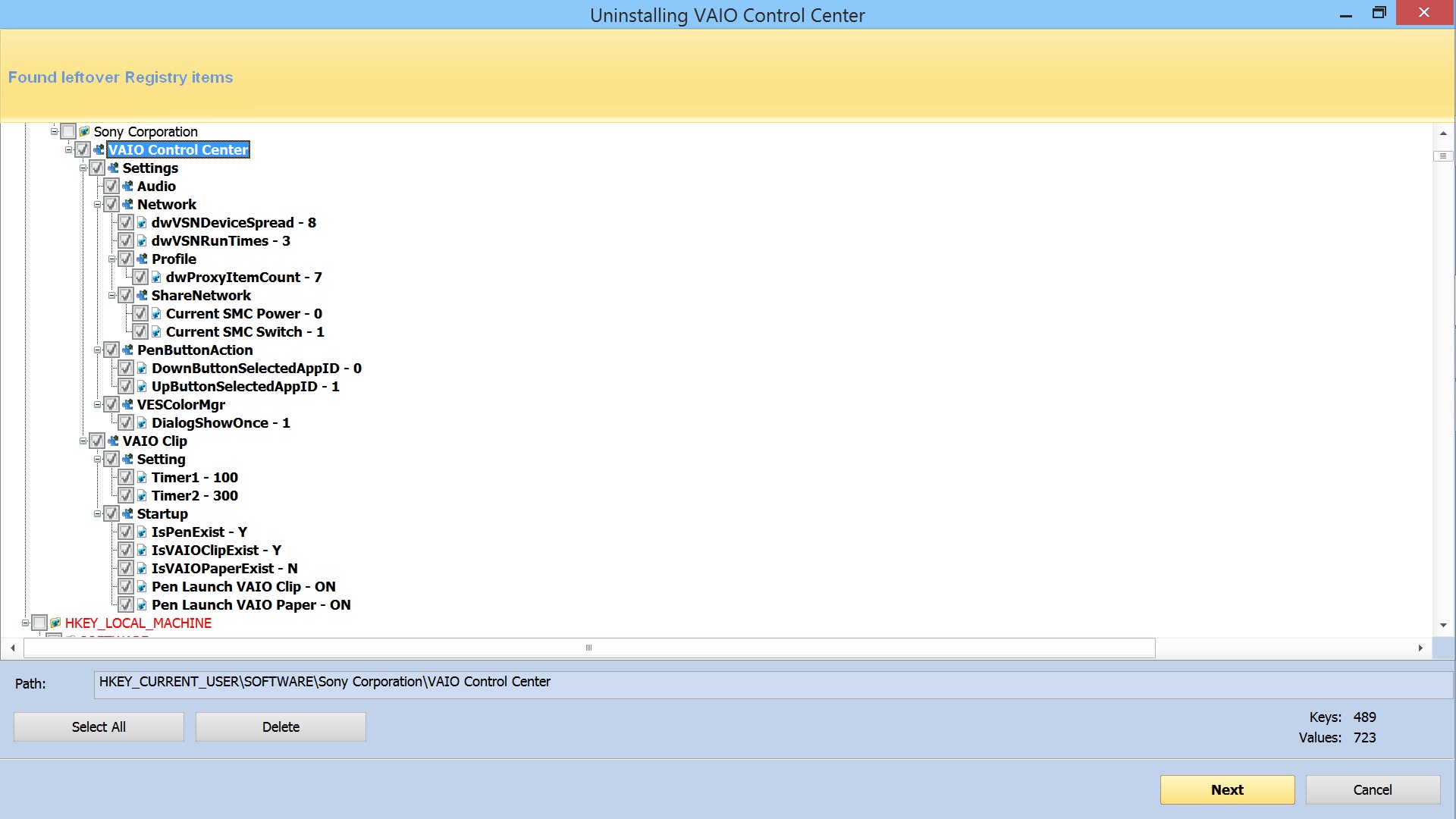
DoKaTSuYa, look at the 2 pics from Revo uninstaller in advanced mode I uploaded. I checked off the items in Revo that I think need to be uninstalled. Are these all the items that I need to uninstall? I want to make sure so that I dont accidentally remove the wrong things and mess up my laptop.
-
To be honest I deleted everything lol, and apparently, no problem ? Maybe one, the pen ? but I don't know if it's the pen which has no more battery so I have to put new Energizer or I deleted something about the Pen. I have to buy some new battery for the Pencil. Because sometimes it works sometimes it doesn't and in 2 years, I've never changed the battery.
But you must can be allow to deleted everything, because it's all about Control Vaio Center, and you will install it right after properly.Last edited: Nov 7, 2015 -
I removed all of Vaio Control Center through Revo. Then I reinstalled it. But I was never asked for a USB key. Nonetheless, I still dont see the battery option to limit the battery to 80%.
-
You have to reinstall it from Vaio Care (Desktop) !!, go to this software, I told you to reinstall VCC from the USB key, do not download it from internet..., so look in Vaio Care (desktop) > Advanced Tools > restore and recover > reinstall software and drivers, did you do that ?
So now you have to uninstall it again with Revo before reinstall it with Vaio Care (Desktop)
It will not ask you after you uninstall, you have to go and find the ask in Vaio Care (DESKTOP)Last edited: Nov 8, 2015 -
AGAIN,I told you I uninstalled it completely with Revo using advanced mode which also removed all entries. Then I went to Vaio Care Desktop and reinstalled it through Advanced Tools > restore and recover > reinstall software and drivers. I didnt download VCC. I reinstalled it directly from Vaio Care (Desktop).
You keep mentioning 'USB key' for some unknown reason. If you mean to say Vaio Care Desktop, then say that. Otherwise its very confusing. -
But how did you reinstall Vaio Control Center again ?
Because me, I reinstall it with Vaio Care Desktop, and after I go where I said you, and it asked me to put my USB key, because in the USB key there is the original Vaio Control Center.
Edit : USB Key = Windows 8.0 restoration that you did when you've just bought the computer. There are a lot of softwares included the original Vaio Control Center for the Vaio Flip...Last edited: Nov 8, 2015 -
I really think youre playing games. I answered this question to you before in detail as to exactly how I reinstalled it.
[quote)]I reinstall it with Vaio Care Desktop, and after I go where I said you, and it asked me to put my USB key.
Edit : USB Key = Windows 8.0 restoration that you did when you've just bought the computer..[/QUOTE]
It never asks for a USB key. You said the USB key was Win 8 restoration. I dont know what youre talking about since I'm not restoring my whole system.
Theres a huge communication problem between us. I think youre from another country and youre trying to find the right words to explain yourself but its difficult for you to. -
I reinstalled it directly from Vaio Care (Desktop)
I reinstalled it directly from Vaio Care (Desktop)
I reinstalled it directly from Vaio Care (Desktop)
?????? that' what you said, who the **** are playing a game
So you put your USB Key but for what if it didn't ask you ??? that's I don't understand... Oh you didn't
I didn't say to reinstall the whole system, when you put the USB Key you can choose, whole system or only one software in particular, so you can choose only Vaio Control Center.
If it didn't ask so you gone to the wrong place, it has to ask you...
Show me a picture when you go to Vaio Care Desktop and reinstalled it through Advanced Tools > restore and recover > reinstall software and drivers
Did you find this at least ?
Because I repeat, if it never ask you to put a USB Key but it calls it ( Recovery Media), the Recovery Media you have it in your USB Key... and inside you have Windows 8.0 and the whole softwares like Vaio Control Center... First time someone didn't understand me even if my english is not perfect....
So what's the problem ? You didn't find when it ask you to put the Recovery Media (USB Key) ? it that the problem ?
I tell you once again :
go to Vaio Care Desktop and reinstalled it through Advanced Tools > restore and recover > reinstall software and drivers -
Hopefully this cools down the exchange a bit...
I confirm DoKaTSuYa's instructions are spot on. Thanks DoKatSuYa. If I had known about that I can easily grab the drivers in the Flip's Win8 USB recovery media, it would have saved me from the numerous clicks I had to do to download all the pre-installed drivers and software from the Sony UK site.
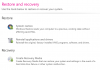
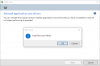
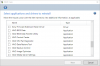
koolxxx, some screenshots for you...
For me, there was a slight delay before the pop-up in vcc_03 was displayed after I selected "Reintall applications and drivers" from the "Restore and Recovery" screen - vcc_02. If the USB is already attached, then the vcc_03 prompt is not displayed - it goes straight to vcc_04 instead.
The test was done on a Flip15A running Win10 upgraded from Win8.1 clean install. There are no Sony recovery partitions in the SSD - the Win8.1 clean install wiped the SSD. The USB key was generated from the factory image of the Flip - 1st thing I do with new PCs is to create recovery media if they don't ship with physical recovery media.
-
You're violating forum rules by cursing in the forum. If you do this one more time I will report you to the moderator. There's no need to do that. It's disrespectful and you may get banned for it. The last time.
I've already answered all your questions and followed your instructions to the letter. It hasn't helped. -
I do too. Its getting out of hand here.
I can confirm that I went through all the steps needed according to your pics. Still, I don't see the battery option to limit battery to 50% or 80% on the Vaio Control Center. This is very weird.
On a side note, you mentioned that you clean installed Win10. How did you do this? And are you able to play games without throttling because of this?
Also, let me know if you know of any options to fix this my VCC battery issue from above.Last edited: Nov 9, 2015 -
I clean installed Win8.1 a few weeks after I got my Flip. A few weeks after Win10 officially came out, I upgraded from Win8.1 to Win10.
You can read post 1207 ( http://forum.notebookreview.com/thr...pc-owners-thread.734539/page-121#post-9512935) where I posted instructions how I did the Win8.1 clean install.
I refer to it because when I was researching how to do a clean install, one of the issues I became aware of was that some of the devices are proprietary to Sony - hence, the drivers can only come from them. I had a section in the instructions where I listed specific device drivers to install. I just reviewed it now and one of them was the Battery Calibration Diagnostic. Maybe you are missing that.
And no, it doesn't show up in Programs and Features as an installed app. Device Manager doesn't list it under Batteries nor reference it as a driver. And I don't know what it is for. I mention it because (a) since I referred to it in my install doc, I must have read about it from somewhere; and more importantly (b) it is not listed in the list of apps and drivers in the USB recovery media. So maybe that is the piece you are missing. You can get it here - http://www.sony.co.uk/support/en/content/cnt-dwnl/prd-comp/preinstalled_drivers_win8_9096/SVF15N15ST. Try installing it after you uninstall Vaio Control Center but before you re-install VCC.
So just to re-iterate, what I have now is a Win10 upgraded from a Win8.1 clean install. Yes, I did mention some posts ago that I will attempt a Win10 clean install, but after exhausting experience of making the upgrade work, I don't want to go through the install process again.
Also, the battery option you're looking for is 2 levels deep in the UI. From the Vaio Control Center top level screen, select Power and Battery on the left frame, then on the right frame, select Details under the Battery Care Function section. And then you'll see the charging options. Just making sure that you didn't miss it. Maybe worth checking before you go through the uninstall/re-install cycle.
Throttling... I haven't noticed any slowdown or skipped frames to make me resort to using diagnostic tools to see if throttling occurs. As I've mentioned in previous posts, I was pro-active in making sure not to tax the NVidia card.
When I did experience the slowing down in the early days, I tracked it down to Metro apps being so chatty and carefree with the network bandwidth. For that reason, I don't use Metro apps. I nuked them all. The only Metro app in my system now is the MS Store. Getting rid of the Metro apps removed the excessive load on my system which also solved the fan/temp issue.
So now, the fans only kick in when the antivirus does a quick or full scan, or when I play games. The fans seem to manage the temp ok because I don't notice any throttling - just noisy fans which get mostly drowned out by the game audio anyway. -
I installed the link you provided about Battery Calibration Diagnostic. But I still dont see the option to limit battery to 80& in Vaio Control Center. Look at the pics of my VCC and battery options.
-
Try the other drivers listed in the Win8.1 clean install doc. It's probably of the other Sony stuff. Sony Shared Library looks like a good candidate. Another is the Sony Firmware Extension Parser.
Your VCC Battery section should look like the attached pic if you have the correct drivers installed. The % charge is in the Detail of the Battery Care Function section.
Good luck.
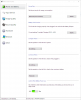
-
bc4m5, the doc youre refering to is for clean installing 8.1. But I want to clean install Win 10.
I assume that you 1st upgrade to Win 10 before you clean install it. Afterwards, I assume that you clean install it from a USB flash drive. Is this correct?
Will all recovery partitions from 8.1 be permanently deleted through this method? -
Yes, the doc is for Win8.1. The point I was trying to make is that Win8/Win8.1 Sony drivers can still be used by Win10. But I guess you prefer a safer path.
You're correct, if you want to re-use your Win8/8.1 license, you need to upgrade to Win10 before you clean install it. And yes, you can do it from a USB drive.
Yes, the Win8/8.1 recovery partitions will be deleted. So make sure you have the partition saved using the Vaio Care application - Create Recovery Media. -
bc4m5, I dont understand what you said. If I delete the recovery partition by clean installing Win 10, how would it be possible to save then transfer that partition?
Why would I need it even if Win 10 may have its own recovery partition?
I also read that deleting the partition eliminates game throttling. -
Of course, as with anything software or data related, you save something before you do anything that may possibly change or erase said thing. Especially if you are not comfortable with what you are about to do.
So if you haven't backed up the Sony recovery partition to USB using the Vaio Care tool when your PC was fresh from the factory, then prepare for the possibility that your current system image is the only one you can go back to. Better back it up before you do anything. -
bc4m5, if you mean to say that I should back up Win 8.1 in case Win 10 messes up on me, then I can confidently say that I already got a 3rd party image recovery tool for that purpose. Its called Macrium Reflect. To date, I've already made a complete image backup of my entire system. As a result, I'm ready to clean install Win 10 so long as time permits me the opportunity from my busy schedule.
-
bc4m5, I got 2 questions..
1) After you clean installed Win 10, did the multitouch feature of your track pad stop working?
2) Can you list the drivers you installed for Win 10? -
I'll keep this one short so you won't miss the point... I did not go through with my plan to clean install Win10. I'm sticking with my current image which is an upgrade from a Win8.1 clean install.
Trackpad... I did not lose multitouch. I'm using Synaptic's generic drivers for Win10 and set up Win10 to not apply driver updates from Microsoft.
Driver list... Because I didn't do a clean install of Win10, it is the same list as the clean install I did for Win8.1. You should be able to use this site's search function to get them. -
Ok I see now. You clean installed Win 8.1 then upgraded to Win 10 from there. But I wonder which would be easier, to do what you did or clean install Win 10.
As for drivers I think all that would be needed is for display, audio, bluetooth, wifi, Intel processor and Synaptics trackpad generic drivers as you mentioned.
On that note, has anyone done a direct clean install of Win 10? That is, upgrading from 8.1 to 10 then clean installing 10?Last edited: Nov 16, 2015 -
the CPU fan on my 14a doesn't turn on anymore. Made some strange noises intermittently over the past few weeks. Doesn't turn on when using Sony Fan Diagnostic. Laptop shuts down when under load. Anyone else had this problem, and was able to source a replacement fan?
Edit: After opening the Vaio up yesterday, I just disconnected and reattached the connection between the fan and the motherboard, and was able to get the fan up and running again. Still, picked up a spare Vaio CPU fan/heat sink assembly from Ebay in case this current one goes belly up for good in the future.Last edited: Nov 18, 2015 -
Has anyone managed to install the Windows 10 November update? I keep getting a bluescreen and video_dxgkrnl_fatal_error every time I try. After reverting and turning on the computer again I also get the following informaton:
0xC1900101 - 0x3000D
The installation failed in the phase FIRST_BOOT with an error during MIGRATE_DATA
I have tried with the latest drivers, beta drivers, no drivers at all and USB installation. Nothing helped. -
Same problem here, bluescreen and the mentioned error.
Seeing as MS apparently pulled the entire update ( http://betanews.com/2015/11/21/microsoft-pulls-the-windows-10-november-update) I guess we'll just have to wait and see. -
According to updates to that post, it only affects the media creation tool. And it also seems to have nothing to do with our error.
In fact, if you google it, it seems like nobody has the same problem as we do. I could find one single case which was with the initial upgrade to Windows 10 rather than this update. And their solution didn't work in my case. -
Which one you have ? SVF13, 14, 15A ?
-
I have 15A.
-
Thanks for the link. At least now, I know that I wasn't alone in my grief with the update. I have a 15A. I got the update on Nov 13. I just checked and yes, my build# shows as 10586. I was lucky though because I got through the "upgrade" without any BSODs.
I mention "upgrade" instead of "update" because that is what it was. It installs a new build of Win10 in a similar fashion as when you upgrade from Win7/8/8.1 to Win10. For reference, this is the MS faq on it ( http://windows.microsoft.com/en-gb/windows-10/windows-update-faq).
Some details from the faq... start quote...
- The download is about 3 GB. If you use a metered Internet connection, connect to an unmetered network in order to avoid any extra charges.
- After the update has been installed, when you sign in, you’ll see screens indicating that your PC is completing setup. These screens are shades of blue and similar to when you installed Windows 10 for the first time.
- Your settings will stay the same and you won’t lose any data.
- After setup is complete, your PC will be running Windows 10 Version 1511. To see what version your PC is running, select the Start button
![[IMG]](images/storyImages/851aefc6-d9e7-41b6-a160-2a5e45499b33_17.png) , then select Settings
, then select Settings ![[IMG]](images/storyImages/5d39d4c5-9d22-4b29-af02-df416d341a19_91.png) > System > About.
> System > About.
"3 GB..." The update is large. Yes, because it's practically the entire installer.
"After the update...". Yes, it behaves that way because it "upgraded" your entire system.
"Your settings will stay the same...". Lies! Some settings, the eye candy personalizations are the same. But ALL, yes ALL your privacy settings are hosed. Each and every one. All the bloat you uninstalled - if you took that route like I did - they ALL get shoved back. Yes you won't lose data, but they made sure that if you weren't looking after your privacy, they'll get to grab everything all over again.
I noticed because right after the update, my Flip just flipped! The fan started getting noisy again. Why? Because Cortana and all the MS bloat was busy indexing the drive and drumming up lots of network traffic while they can.
So I had to got through everything again to remove the bloat, set up the privacy settings, and re-install some drivers and software that Win10 decided, on its own, to wipe off my system. So CPUID has a new version. That doesn't mean Win10 can wipe it out without my permission. The Synaptics driver wasn't the Sony official one (I use the Synaptic generic drivers which has a better UI). Win10 decided, on its own, to wipe out the generic driver and replace it with the Sony one. I promptly added the Synaptic drivers to the exclusion list - drivers that Win10 is not allowed to update and re-installed the generic drivers.
After the cleanup and re-instating my custom settings, my Flip went back to its normal quiet self.
At the time, I was still thinking of the exercise as a large update. 2 days later, I found out that my system image backups are failing. Reason? The "update" created a new recovery partition which the backup doesn't know what to do with. I had to reset the backup to pick up the new partition. So when do you get a new recovery partition? When you upgrade/re-install. Not when you update.
As I have said before, Win10 is exhausting.
So it looks like this is the MS way from now on. Shove everything they can and wipe your privacy settings every once in a while hoping that you tire out and drop your guard. However, I sincerely hope that they pulled it because they realize their mistake. - The download is about 3 GB. If you use a metered Internet connection, connect to an unmetered network in order to avoid any extra charges.
-
Hi guys, I'm an owner of a 13A and I had no problem with my pc until september (I upgraded to Win 10 in august) when my fan began to act irrationally: if I put silent mode and if I just browse the web the fan goes on for 5 sec, then stops for few seconds, then starts again for few seconds and so on, it's really frustrating! If I put normal mode the pc does the same exact thing, if I go on performance mode the fan is always on (which it's cool, as long as it doesn't goes on and off) but the problem is that sometimes it's really loud! The problem gets bigger, because if the fan goes on and on and so on, after a period of time the fan shuts down making a strange noise and if I don't shut down the pc fast, it will shut down itself probably because of overheating.
What do you guys suggest? It's still in warranty for a month, should I send it to assistance? Or should I just wait for drivers?
Thank you -
Thanks for the thorough report. I'm guessing you don't have the Nvidia card in your flip?
-
I do have Nvidia. And it's running on drivers taken directly from Nvidia's site, not Sony, ever since I did a Win8.1 clean install almost 2 years ago.
Right now, I'm on the latest version - 359.00. When I did the Win10 Nov update, my Flip was on last October's Nvidia driver hotfix. -
Ok. I tried with both Sony and Nvidia drivers, bluescreen for me in both cases.
-
There is another video device, the Intel GFX. If you don't mind having another go, you can try, as they say in chess, to "simplify the board". Usual disclaimers... Only proceed if you have a reliable backup you can fall back on.
Try uninstalling the Intel GFX and NVidia software from Control Panel/Programs and Features. Then uninstall the Intel GFX and NVidia drivers from Device Manager. Make sure the box to delete the driver is checked. Repeat the driver uninstall from Device Manager until the check box disappears. This means that Win10 has reverted to generic SVGA drivers.
Then try the update. Hopefully, it will complete without issues. Once complete, then you can replace the Intel GFX and NVidia drivers. -
I think I'll stay with Windows 8.1, it is perfect with my 13A...
-
After extensive testing I have come to the conclusion that the throttling in this laptop has little to do with the actual temp of the cpu and gpu. I have managed to keep my temps below 63 degrees MAX by disabling CPU boost and running a barebones system. I have seen throttling start in the high 50's. This would be my last laptop if I could just manage to get through a game of NBA2k14! lol
-
Hello. Has anyone tried using external gpu with the pic-e slot where the wifi module is connected? I want to get more performance but I want to make sure it actualy works with this laptop. I have the 15a model with nvidia 735m.
Thanks -
Hi. I just saw a new problem on my 13A which was working fine a few months ago last time i used this capability. when i flip the screen and close it then the screen becomes black instead of behaving as a tablet and i have to re-open it to get to normal. it's as if it considers i close the lid ! Maybe it happened when i started having the problem with the battery icon. I already tried to put to do anything when closing in control center but no effect.
Anybody has an idea ?
ThanksLast edited: Nov 26, 2015 -
Hi guys.
Coming back with some game performance testing on clean Windows 8.1 system (Flip 15):
Unfortunately I've noticed throttling when playing Fallout 4 (low settings). The game is playable (about 24 fps) BUT after 10-11 minutes of playing the frame rate drops to 12-14 fps. After 2-3 minutes (while still playing) the throttling stops and the game gets back to 24 fps. The fan is on max level of cooling (all the time), so CPU/GPU cuts the performance to lower the temperatures.
Crap, it seems the temperature threshold for throttling isn't a matter of the system at all. I wish I could somehow change it, since the laptop isn't that hot.
Official Sony Vaio Fit multi-flip PC Owners' Thread
Discussion in 'VAIO / Sony Owners' Lounge Forum' started by big_boss, Oct 13, 2013.