 Problems? See this thread at archive.org.
ilvecchio
Just sign them, you can find the guide on 1st post in this thread.
But i suggest you to wait for a new build, coz it will surely be better than everything before.
-
Hello,
my VPC-Z12 is currently up for a new screen at sony (it cracked or something) but I would really like to help out for a new driver. Any idea about a 300+ nvidia driver coming without the bios mod?
Also I might be able to provide a mirror for the files.
Grtz -
Andrew's 263.08 drivers for VGN-Z are signed. More accurately, the package is built using files taken from signed drivers, so all the files in the driver package are signed either by nVidia or by Intel (except for the .inf itself (duh) which has been modded). So, the driver will run, once installed, without your having to disable driver signature enforcement. You will only need to disable driver signature enforcement while you are installing the driver. This is a bit of a pain on Windows 8, but it works. I'm using the driver for VPCZ1, but I'm sure the procedure will work for your VGN too.
Win+I > change PC settings > general > advanced startup > restart now
then, when you restart, press the number for the menu item of your choice, in this case 7 for disable signed driver enforcement. -
Hey guys, I just made an account to thank you for your excellent work.
I have a VGN-Z56GG, with 9300GS 256MB I'm currently using the driver by Andrew 263.08, it's not allowing me to adjust brightness. Is this a known bug or an issue only I'm facing? -
anytimer
You're not right, old vgn-z Andrew's NVIDIA 263.08 - Intel 2020 was NOT actually signed. But they will be.
ryanmetalman1
Usually that happens because of wrong driver (not only video) installation process order.
Don't worry, tomorrow Andrew will upload new driver and i already got guide of installation process and endless list of real life benefits for this driver. -
thank you so much for your efforts! can't wait to test them with windows 8!

-
Andrew08/ failure13: Tell us more about this 'new' driver? Is it really new(er), or just the same drivers tweaked a little to provide better multi-monitor support? I'm asking because I thought we had hit a brick wall modding newer drivers for the Zs.
failure13: like I mentioned, I'm not sure about the drivers for VGN-Z, but I am using Andrew08's VPCZ1 drivers on my Windows 8 x64 and I only had to disable driver signature enforcement during installation of the driver. Windows 8 does indeed indicate in device manager that the driver is unsigned, but it loads the (signed) driver files and runs the driver without problems even in normal mode, whereas a truly unsigned driver will not even get loaded, let alone run. -
Thank you failure13. I hope it work fines with Windows 8 too, hopefully I can finally play a few games.
-
anytimer
Before this driver haven't been working as it should at all.
It's technically will be same NVIDIA 263.08 - Intel 2020 for old VGN-Z, but it behave totally different even in terms of temps and fan noise, and of course screen flicker
In general it feels like totally different driver now.
Because Andrew have modified it slightly different (we've found a lot of new stuff related), there are some specific data about our very specific monitors on old VGN-Z's and it's working timings, which have basicly restricted the normal work of driver before this modifications.
But yes, yet we can't modify newer versions.
I will write other benefits later.
P.S. Well, now it's fully signerd, you will need just to install
-
updating...
edit: updated -
MY TEMPORARY FIX OF SCREEN FLICKER ON OLD VGN-Z
First you will need to install drivers in the right order, to get everything working.
Please, before installation make sure that switch is on SPEED mode, and also that network switch is on.
Notice that you will have to reboot after each installation of each driver, and can not check in process if switch, volume or brightness is working, until you will install everything - don't touch switches, or whole process can go wrong and introduce some unwanted bugs or issues.
Installation order:
1. Install R2170M3 BIOS (recommended) or higher, if you want.
2. Clean install Win 7 x64, disable UAC (or install all the next steps as administrator),
install SP1 (if you need it), reboot.
3. Go to Windows updates, update every driver that's in there except Intel / Nvidia driver.
---Must (at least for my model) are:
---1) Sony corporation - Input - Sony Firmware Extension Parser Device
---2) Sony corporation - Other hardware - Sony Programmable I/O Control Device
4. Sony_Shared_Library_5.4_5.4.0.05200
5. Setting_Utility_Series_5.0_5.0.0.07300
6. VAIO_Event_Service_5.0_5.0.0.07010
7. VAIO_Control_Center_4.0_4.0.0.06120
8. VAIO_Power_Management_4.0_4.0.0.08240
9. VAIO_Smart_Network_3.0_3.0.0.09080
10. Memory card reader writer driver Ricoh MS # SD
11. Install ! new ! Andrew's NVIDIA 263.08 - Intel 2020, reboot ( do NOT use reg with enableGoldOnHybrid, it's already applyed)
12. Go to Nvidia control panel - Change resolution - Customize - Create custom resolution - Accept agreement - open Timing dialog - Choose standard - CVT, apply and reboot.
Drivers are fully signed, so forget about test mode.
Working (even after switching to STAMINA and then back to SPEED):
OpenCL
CUDA
PhysX (can see in GPU-Z only if enabled to be processed by videocard in nvidia cpl, but it's anyway working).
DirectCompute
--------------------------------
Switch between cards
Brightness on STAMINA and SPEED
!!!!!! No Flickers (include fullscreen applications / games) !!!!!
Lower temperatures and noise
THIS FIX WON'T FULLY WORK WITH ANY OTHER VIDEO DRIVER
Please note that if in games you're using not only native resolution - you will have to repeat creating custom resolution step for any resolution you want to use without flickers.
This drivers are fully tested by me, numerous times (include this build), on Win 7 x64, each time i was making clean installation between new builds, so everything should work at least on old VGN-Z with 1600x900 screen and 9300MGS 256Mb, i'm 100% sure.
This clean installation scheme will 100% guarantee the result of everything working, but it's not must as Andrew said.
Though i have personal experience of not working Switch / Brightness / OpenCL after non clean installations.
Simple update procedure: Uninstall - Restart - Restart (yes, 2nd restart is MUST) - Driver sweeper - Restart - Install new one.
This is not complete solution yet, but it will help you all meanwhile.
Our perfectionist minds are not completely satisfied yet with flicker solution, but it is working solution.
Thanks to Andrew for amazing work, i was waiting this moment for years!
You can find more information and links in this Andrew's post here -
Thank you good Sirs!! Your hard work is greatly appreciated! This with Windows 8 will surely make my laptop feel brand new again.
-
Thanks, Andrew08, for your hard work and perseverance in creating this driver. :thumbsup: Thanks, too, to failure13 for bugging Andrew08 until he did.
EDIT: yes, you will have some issues if you have previously installed a newer driver (e.g. if you were trying Optimus on hybrid graphics and installed the latest drivers). The installer normally doesn't overwrite newer files with older ones, so you end up with a mess of old files and new. Clean the files copied to your system by the old driver (use NFR - Nasty File Remover or Driver sweeper to get rid of all traces of the previously installed driver). -
[edit, edit]
i adressed the issue of switching between stamina and speed mentioned below. when no external monitor (using a vga-cable) is connected everything works like a charm. even switching after sleep mode works! nevertheless i can only access my external monitor when stamina mode is enabled. is it possible that speed mode is only checking the hdmi-port (since hdmi is only available when being in speed mode) for external devices or something? [edit(-madness)] started up the nvidia control panel and came up with the information that when switched to speed my gpu only supports one monitor. now i can use my external monitor but not my laptop monitor, which is currently no big deal, but somehow weird.
[edit]
okay, got it working. thanks to anytimer for his hint! i'd recommend adding this hint to the installation guide. unfortunately the switching between stamina and speed (i can switch from speed to stamina but not vice versa, laptop is always booting with lights on stamina even when the switch is turned to speed) occurs to be broken now, but i guess that is because i didn't perform a clean install. will do this the next few days and report if everything is working. but nevertheless a big thank you to all of you!
hey there,
unfortunately i wasn't able to install the drivers. the installation exits during installing the display drivers. i checked for log files and came up with:
sig: Key = nvmvsz.inf
sig: FilePath = h:\backup\sony\porno-gfx\display.driver\nvmvsz.inf
sig: Catalog = h:\backup\sony\porno-gfx\display.driver\NVMVSZ.CAT
! sig: Verifying file against specific (valid) catalog failed! (0x80096002)
! sig: Error 0x80096002: The certificate for the signer of the message is invalid or not found.
at least i think that this is the problem. i'm running windows 8 64bit on a sony vaio vgn-z41md/b (geforce 9300 with 129 mb and intel chipset). i did not perform a clean install, i just removed the old drivers with driver sweeper. i also tried to install in test mode, but with no luck
-
Ryam BaCo
Try the new Andrew driver http://forum.notebookreview.com/sony/342947-my-discoveries-vaio-z-s-hybrid-graphics-74.html#post8936281 this is the only complete working solution by now.
Just updated today, so
anytimer
haha yeah)
It all have started with few shared ideas, so now we got awesome driver to use
-
a lot of people posted that it actually works with windows 8, but I never tried them personally so i can't comment on this.
-
There are some issues with Windows 8 fast start feature that mess up the switching. It seems that when you shut down Windows 8, it saves the drivers etc. that are currently in use, so that it can restore them quickly on reboot. Unfortunately for us hybrid graphics users, we need the entire graphics driver to be reloaded on startup, not just the parts that were in use when we shut down. Restarting does not have this problem, so until this gets fixed, just restart and everything will be fine. Or you can disable fast start.
-
Dear failure13
I've followed all the steps above, but I wasn't able to install the drivers. the installation exits during installing the display drivers.
Any other solutions ?
Tks -
Hey!
Thanks for the efforts you contributed, that's amazing! I have VGN-Z11 (1600x900) and Win8. I'm glad to confirm the updated driver is ok so far.
For those who can't install it (as did I in the beginning) - here is the way I did. Actually I don't know what exactly helped. So, I restarted the OS in the driver enforcement mode (Win+I, Power menu, click restart with the Shift key pressed, choose advanced settings - don't remember the exact name, sorry. After the restart begins, the option list will be shown. Hit F7) and started the installer as Administrator. By doing so, you'll be told that driver is not signed instead of the total failure. Confirm the further installation and you'll get the driver installed. Restart.
Cheers! -
Mvbittencourt
As reykjavi already mentioned - you should either install as administrator, either disable UAC totally (i was doing it so constantly, that even forgot to write about it, sorry. Already fixed in the list)
If you'll install it as administrator it should work, without signing and anything like safe mode / driver enforcement mode. -
Hello! Bit of an amateur so please bear with me....I have an older VGNZ26GN but running windows 8 32bit, and I am experiencing display problems when switching between metro and the desktop...will these drivers work? Are there any 32bit specific drivers, or should I just install 64bit W8 and then install these? Thanks in advance!
-
Hello,
first I would like to thank you for your job!
Unfortunately, I have some serious troubles with hybrid drivers with my VAIO. Could you help me please?
I have VGN-Z11XRN notebook with 1600x900 screen resolution and NVidia card. I'm trying to get it work with Windows 8/64bit but unfortunately with no luck. I have recommended BIOS with patch, tried the following configurations:
1) First, I switched VGA to Static (in BIOS) and tried to install latest NVidia drivers with patched .inf-s for my video card. Drivers were installed successfully but picture on the screen looks really distorted.
2) I have also tried many other variants with hybrid or non-hybrid drivers (different versions, taken from different sites) and got the same...
3) Then I enabled VGA to Dynamic (in BIOS) and tried newest driver downloaded today from this site. Of course I uninstalled previous drivers (and even wiped out NVidia files with Nasty File Remover) and tried to install your hybrid driver (also did it with "clean" install option). And I got exactly the same distorted image. I also tried to play with custom resolution settings but also with no luck. I have attached two pictures to this post.
Is there anything I can try to fix the issue?
Thank you in advance.
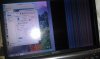
-
temporarytemp
Hi!
Split screen - is known bios issue, we have seen this before when using older bioses.
Since you use almost exactly same model as me, i would suggest you to flash bios for R2170M3.
Here i've uploaded it for you Download R2170M3.exe from Sendspace.com - send big files the easy way -
Exactly. SONY crappy bios incorrectly reports driver properties of LVDM connection. Driver decides that there's doubled lane data width, so half of row data is cut by hardware.
If BIOS update doesn't fix this, only Intel Embedded driver solution will help... but this way you'll loose backlight management and nVidia graphics. -
Hale_ru
But i think bios update have helped everyone, no? Was there cases when after bios update it was still split screen? -
I have been following this thread and despite trying driversweeper and logging in with disabled signature checking, I have not been able to install the 263.08 drivers from Andrew08. I keep getting the error "This graphics driver could not find compatible graphics hardware". I have a vpcz1190x with the 330m graphics card. Am I using the wrong package? Does anyone have any recommendations to try? I didn't want to do the bios hack. I just want to fix a few of the display glitches that annoy me with the Sony drivers. Thanks for any help.
-
I am having trouble installing the graphics drivers on my vaio vpcz1290 on a fresh install of windows 8
i downloaded nvidia 26314 - intel 2266 signed
running the setup.exe in the folder give the following
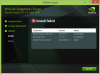
-
Which OS are you using? Instructions for Windows 8 are below; instructions for Windows 7 are very similiar, just the driver name is standard VGA or SVGA or something like that.
During Windows setup, the Intel driver gets installed. Before installing the new driver, you need to go into device manager and change both graphics adapters do that they say Microsoft Basic Adapter (one with an exclamation mark indicating that it has a problem). (You can click properties, update driver, browse computer for driver, choose which driver to install, etc. ). Only when both adapters show Microsoft Basic Adapters should you install the new driver. If you need to reboot in between before installing the new driver, go back to device manager and confirm that the graphics adapters both show this.
You need to have disabled driver signature enforcement in order for the driver to install. Once the driver is installed, you can use normal mode (no need to disable driver signature enforcement after installing, because all the files in the driver package are signed). -
The driver is installed now except the hybrid switch does not work and the computer runs rather hot. If booted in auto the computer stays in speed.
-
Yes, that's the Windows 8 fast startup feature issue. Startup, after a shutdown, will show these issues. After a restart, the switch should work properly. If this is important to you, turn off fast startup.
http://www.eightforums.com/tutorials/6320-fast-startup-turn-off-windows-8-a.html
Maybe Nautis or Andrew08 can figure this out. Seems that the fast startup is not loading the graphics drivers properly (or not loading part of the driver that controls switching). -
failure13
Thank you again, I confirm that "Split-Screen" issue was resolved after flashing BIOS provided by you. I didn't install R2170M3 BIOS because my local SONY Support site allows to download version R2169, which still has a problem.
So, the driver was installed and it works, but sometimes it goes to strange state when switching between STAMINA-SPEED is not working (brightness control by buttons also malfunction that time). Also I have sometimes color "artefacts" appear on the screen in SPEED mode.
But I really feel happy regardless these small problems, thank you guys! -
temporarytemp
hmmm...But there shouldn't be this problems with switching and brightness on your hardware, it's really weird.
Are you sure you did all of the steps right?
P.S. Could you explain more what exactly is color artefacts and in which cases they usually appear?
One thing i'm not sure in your case - Win 8 x64, coz i couldn't test it. But as i remember Andrew have said that it should be similar with Win 7 x64.. -
failure13
I can't say I did all the steps in accordance with your post, because that was not "Clean" Windows install (I didn't reinstall Windows after trying to setup other drivers and updating BIOS), but brightness controll still works for me most of the time. But sometimes after some hours it stops working, I still can't figure out circumstances leading to this situation.
About artefacts - I can get them randomly in any program I work with. I have attached two screenshots of my Firefox (excuse me for Russian version). Note strange "blue" background that appears on new tab and "back" button. The color of this "background" is actually random (not always "blue", sometimes with random-colored lines passing through it), and Firefox is not the only program where I can see this. When I switch between tabs the color can change or even become normal. The most strange for me is the fact I can see these "color bugs" on my screenshots made with "PrintScreen" button.
Another "artefacts" are very annoying, I can see them when trying to watch a video from remote PC via RDP connection. I don't have a screenshot, but I can try to describe... Imagine about hundred of random pixels on your screen randomly changes their colors twice a second... And they are still present even when you close RDP connection - until reboot.
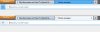
And one more strange thing: I was unbale to install these drivers in Win8x64 until I switched off "signature checking" for drivers. Moreover, now Windows shows "Driver has no valid signature" message in the properties window, but I have now "signature checking" switched ON and drivers are loaded correctly. But, when I open driver files' properties (via regular Windows Explorer) I can see them signed by NVidia. -
Turn off fast startup in Windows 8 power settings and you should be fine.
Power options> choose what the power button does> change settings that are currently unavailable> uncheck 'Turn on fast startup' -
Any idea why on my VGN-Z51 the NVidia drivers installation would break off right at the beginning when the actual graphics drivers are to be installed?
Trying this on a clean Win 8 Pro installation, following the above procedure to a T. -
Have you disabled driver signature enforcement? This is a little unusual in Windows 8. Win+I, change PC settings, general, advanced startup> restart now. Then after restart press 7 to disable driver signature enforcement.
-
That worked in parts: the drivers installed fine now, but on restart both graphics adapters show yellow triangles and the drivers didn't load. Neither with normal reboot nor with the driver singing disabled.
UPDATE: uninstalled and reinstalled. Drivers now properly working, but brightness keys and stamina/speed key not working (green light properly showing mode though). Any ideas? -
Which procedure are you following to a T?
Set the switch to auto and leave it there until the driver is installed.
1. Get NFR or DriverSweeper.
2. Disconnect from the internet (turn off Wifi).
3. Uninstall the current driver.
4. Run NFR or DriverSweeper to clean any remaining traces of the old driver. Reboot.
5. In Device manager, make sure both devices show 'Microsoft Basic Adapter' or 'Standard SVGA adapter' depending on your OS, with one showing the yellow exclamation mark.
6. Disable driver signature enforcement. If you have to reboot for this, recheck the graphics adapters in device manager to ensure that Windows hasn't installed some other driver.
7. Now install the new driver. -
I did all this, driver works fine, but switch, brightness and DVD eject buttons don't work - which makes me think whether the problem might be elsewhere?
-
You'll need to install Sony specific stuff like SFEP, etc. Get them from the Sony support page for your model. Windows 7 drivers work fine. Just look for the clean install guide for your model and install the drivers in the correct order.
-
Blast! I forgot about the SFEP! The guide from p. 367 didn't mention it either.
Anyway, all up and running now and super happy. Thanks, guys! -
naujoks
3. Go to Windows updates, update every driver that's in there except Intel / Nvidia driver.
How about that?
It's in there -
Not really. This thread, and failure13's post is for the display driver and how to install it. naujoks was clean installing Windows 8, which is a different problem altogether.
Everyone who is clean installing Windows 8, please follow the instructions for performing a clean install of Windows 7 for your model, as linked to in the sticky thread on this forum.
http://forum.notebookreview.com/son...rces-vpc-z1-faq-windows-7-install-guides.html
Do everything the same way, except for the display driver, which you will get from this thread and install as per failure13's or my instructions. You may also skip installing certain common drivers, like those for your network adapter. If certain drivers don't install properly, run them in compatibility mode for Windows 7. -
Windows Update doesn't install the driver for the SFEP. Instead of recommending to install the card reader drivers, this one would be far more useful to include in the guide, as it's actually directly related to the graphics when trying to change the brightness.
-
AFAIK the brightness controls in Windows power options do work after installing the driver. The function keys, however, are a Sony feature, and need Sony's laptop specific drivers (SFEP etc.) to work. Ditto for the battery, and anything else that needs the VAIO Control Panel. If you want to be able to switch Bluetooth on and off, the VAIO Smart Network is also needed - note, however, that the laptop stays in the selected state even when this turkey is uninstalled, or even after a clean install.
So, to sum up, do whatever you normally need to do to clean install Windows. It is not straightforward - for each device you need to make intelligent choices whether to install the Sony driver, or an updated generic driver, or stick with the driver installed by Windows during setup. To further complicate matters, some of the drivers need to be installed in a specific order. There are entire threads devoted to that process. This particular thread only looks after the graphics driver portion of that entire exercise.
I hope this has cleared up any confusion. -
naujoks
Ok, sorry, it must be Windows update offers different things for Win 8, so my guide is for Win 7 only, or i should detail later all the drivers that needed to be updated. -
VGN-Z17GN, Win8 Pro
Installed Andrew08/failure13 driver ok, had to disable signature enforcement (thanks anytimer).
All fn keys, s1/s2, speed switching work ok. But the screen flickers! Is there something I can try (eg in inf) to get rid of the flicker? -
cc9cii
Have you read step about creation of custom resolution with CVT?
If this haven't help, then i don't know...Which screen and videocard your laptop got? (couldnt find your model in google, weird) -
Oops, forgot about that part. Will test and report back.
EDIT: Only just did that 10 minutes ago, but it seems better
For others who might want to try it out, what I've done:
- VGN-Z17GN (Asia-Pacific model)
- Windows 8 Professional fresh install, using recommended Windows 7 x64 drivers from Windows 7 Individual Drivers and Utilities (32 Bit and 64 Bit) : Download : Sony Asia Pacific, including the video drivers (i.e. not Andrew08's one).
- Test function keys, S1/S2, speed switching, power management, etc. All appear to be ok, except CD/DVD drive "Auto Off" message does not show (but device manager reports power state D0, so maybe it works silently?). Used daily for several weeks. Experimented with newer Alps drivers, updated Protector Suite, etc.
- Tried installing Andrew08's driver ignoring failure13's instructions as I didn't want to do yet another fresh install. Didn't work. Also wouldn't boot properly until I powered down fully and took the battery out. I guess the fast boot option in Windows 8 kept some files even though the installation failed.
- Re-installed original Sony supplied drivers (version 8.15.11.8684). Reboot.
- About a week passed, still using daily. Then I read anytimer's hints.
- Speed mode. Removed drivers using Sony utility here Windows 7 Upgrade NVIDIA Graphics Driver Uninstaller version 1.0.0910150 : Download : Sony Asia Pacific Reboot.
- Still in Speed Mode. Restart with driver signature enforcement off. Didn't do any other cleaning of drivers.
- Install new drivers. Forgot to switch off the fast boot option, but didn't seem to matter in the end. A warning comes up saying that the driver is not signed (or not trustworthy? can't remember exactly what it said) - continue. I used Custom/Clean install, which means all boxes are ticked. Screen goes black a couple of times. Reboot.
- Test - all seem to be working ok, except for the flicker mentioned above. Driver version 8.17.12.6308, but also says "Not digitally signed".
- Tried to change the resolution but the option is no longer in the Nvidia control panel! In fact the control panel is no longer in the context menu. Might be something that happens during speed switching? Need to test more. Reboot.
- NVidia control panel is back to normal after the reboot. Create custom resolution as per failure13's instructions. Only a short amount of testing but flicker free so far.
Many thanks to everyone. I'll continue testing and report back what I find. -
cc9cii
Hey man, glad that it solved problem
I have written everything in there for a reason as you can see
My discoveries on Vaio Zs Hybrid Graphics
Discussion in 'VAIO / Sony' started by Nautis, Jan 16, 2009.


