Problems? See this thread at archive.org.
Are you a troll ?
I have the feeling that you're not reading our answers, you're asking the same questions over and over and you have the adapter to test.
So for the last time :
- USB is different to HDMI
- 9550's native HDMI port is limited to 4k@30Hz (even with a HDMI 2.0 cable !!!!)
- if you connect to your 9550's thunderbolt usb type-c, an adapter thunderbolt usb type-c to HDMI, which support 4k@60Hz, then you can connect your 9550 to a TV 4k@60Hz with 60Hz support.
- HDMI cables versions are not very important is this case, but maybe an old one or a very very cheap one or a long one (10 meters and more???) can have problem to display properly on 4k@60Hz.
- when you plug HDMI cable either from native hdmi port or from adapter on your TV, if you don't see the difference between laptop screen and tv screen, then you don't car about frequency, and next time buy a cheaper laptot to save money
-
-
Hi. I did read your post. Someone else mentioned to me that even though the 9550's native HDMI port is limited to 4k@30Hz and because it only has hdmi 1.4, and the TV or monitor will have 4k@60Hz or 120Hz, getting a HDMI 2.0 cable would fix the Hz issues and thus any lagging issues on scrreen.
I said could i still that cable I already have with it? That person or few other person said it would work with the new TV or monitor with 4k@60Hz or 120Hz.... BUT... you will see ton of lag with mouse movements due to my hdmi being only HDMI 1.4 since my laptop is older and most laptops nowadays have HDMI 2.0 which I don't have.
But you say otherwise?
The thing is I do not have a 4k TV or monitor to test right now with my laptop and the cable I have. I do have a 1080P TV though that is a big screen TV but it isn't 4k so I can't try it.,
Thus when I buy a new 4k TV... I want to know if I also need a new cable for it. I ask this because the TV I buy will be in another country... but I want to buy the cable that I might need right now in the US... because that cable in the other country will be either hard to find maybe... or and it will cost a lot more since electronics there are much more expensive. -
A better cable can NOT fix a hardware limitation from 9550. Native HDMI port is limit to 4k/30Hz.
But adapter thunderbolt usb type-c to HDMI with 4k@60Hz support will work at 4k@60Hz on a 4k@60Hz tv.
You will see lag if you work on 4k@30Hz but if it is for movies, you'll not. Movies are very often in 24fps.
So, buy a 15$ cable to be sure. -
When you say lag if you work on 4k@30hz, you mean doing pretty much anything on my laptop except watching movies? You mean lagging on youtube as well?
Okay but do you know which cable I need specifically though? So the one I posted earlier doesn't work? -
yes everything will lag except movies. But some movies and a lot of youtube video are in 48fps or 50fps or 60fps so they will not be smooth at 30Hz.
This one : https://www.amazon.com.mx/gp/product/B06Y6448WB/ref=ppx_yo_dt_b_asin_title_o00_s00?ie=UTF8&psc=1 ??
the price is no sense ! very very very too high.
just buy an adapter thunderbolt usb type-c to hdmi 4k@60Hz for 15$ and a regular hdmi male male cable for 15$ -
Dell updated the BIOS for XPS 9550 to 1.14.0
***Note the plundervolt patch will disable undervolting; not sure if that could be undone.
Fixes & Enhancements
- Firmware updates to address the Intel Security Advisories INTEL-SA-00289 (CVE-2019-11157) and INTEL-SA-00317 (CVE-2019-14607).
- Fixed the issue where the SMM Security Mitigation gets disabled while loading BIOS defaults.
Version
Version 1.14.0, 1.14.0
Category
BIOS
Release date
06 Oct 2020
Last Updated
06 Oct 2020 -
Hi,
my 9550 just died from one day to the next.
The last thing it did yesterday was installing a Windows 10 Update.
Now it has the exact same symptoms as here: https://www.dell.com/community/XPS/Dell-XPS-15-9550-Black-Screen-on-Boot/td-p/7189829
In short: Turning it "on" just leaves you with a no backlight black screen, no fans spinning.
After some while, or if you press power again, the fans spin up and it turns completely off.
SSD, CPU, GPU and Chipset do get warm, no output via HDMI whatsoever.
I took the notebook apart and unplugged the BIOS Battery, but that did not help.
It was working without issue the day before. Replacement motherboards are sadly
sparse and it's in otherwise really good condition so I'd really like to repair it.
Any hint would be really appreciated. Maybe it doesn't boot with no/empty CMOS Battery?
Edit: After more digging it seems to be nearly unfixable. Some people suggest to heatgun GPU and CPU. Really disappointing.
Last edited: Oct 27, 2020 -
Not sure. Do you remember what BIOS you were running and what Windoze update - so we can steer clear!
Some quick ideas. @GoNz0 might have some better advice.
** In the NorthbridgeFix YouTube video, he is looking at a short on the VRM related to the CPU. He wrote that was a bad power module (mosfet) by Alpha Omega Semi (labeled PU1202 on the motherboard) and replacing it did not help. My 9550 has a slightly different p/n zs019qi-tasx13 (I think these are Dell proprietary numbers but might just be relabeled ala Apple). His bad mosfet might not have been the root problem but without the schematic it is tough to be 100% sure. There were some XPS schematics floating around the internet but I don't think for the 9550.
Anyways you might replicate his test of the caps around those mosfets with a basic multimeter to see if you have a similar hardware problem (I think you should have the power off and the battery disconnected). If you have those VRM caps shorted, I suspect only a hardware fix would work.
** Are you getting any error codes flashing under the trackpad?
** Did the CTRL + D testing work?
** Try removing the RAM and reseating it. Try swapping the modules. Try with just module A in the first slot. Try with just module B in the first slot. Do NOT touch the delicate pins in the RAM slots. You should NEVER touch the gold contacts on your RAM modules (contamination is a popular failure mode in "server farms"); you might be able to clean them with iso alcohol (preferably 99%+). Can you borrow some known good ram modules (preferably that worked with the 9550 as some don't lol).
** Try removing the m2 drive and gently reseating it. Check the SSD gold contacts are immaculate. You must use a JIS screwhead or you risk stripping the head and will be in a world of trouble.
** The screen cable came loose for a few of us; but the HDMI out worked so I don't think that is your issue.
** This firmware thread might have some ideas if they replicate your problem and assuming your hardware is not shot
http://forum.notebookreview.com/thr...-rom-hdr-extract-reflash-black-screen.810845/ -
I had a very similar issue about a year ago and I posted earlier in this thread.
I sended the XPS 15 to a company that does repair on chiplevel base. They could repair it and I have been told that the BIOS was corrupt. Anyhow, since I am living in Thailand and the Dell was repaired in Germany, my XPS could not make it back home due to corona. I do not know if the BIOS chip was just externaly flashed or if the chip was replaced (soldered).
Good luck! -
Error Codes: No
CTRL+D: Yes
RAM: Tried everything
SSD: Yes
Screen Cable: Yes (and no HMDI Output)
BIOS: I was on 1.13.1
I will try the BIOS recovery flash procedure that you linked.
Thank you very much for your extensive answer, I really hope I can bring it back and I will report back when I got something... or nothing.
Also thank you to Chang_loo, this makes me hopeful the BIOS recovery might work.Last edited: Oct 28, 2020pressing likes this. -
@Splitframe - I hope you get the 9550 running.
It might be easiest at this stage to check for shorts with a multimeter as done in the video above. If the caps related to the 3 mosfets test without shorts, that gives you some level of confidence that those are not your issue. Failed caps probably won't magically recover after a BIOS recovery hehehe.
I am running that 1.13.1 BIOS. 1.13.1 is the latest that does not block undervolting as far as I can see. I might consider flashing an older BIOS but that video and some forum posts with the failure were before the release of 1.13.1. And there is always a small risk of bricking a device with BIOS flashing. Sometimes, devices can be unbricked. There is a potentially "safer" BIOS update method but nothing is guaranteed.
EDIT - what Windows version (and update) were you running at failure?Last edited: Oct 28, 2020 -
So the last thing you did was install a Windows 10 Update... I wonder if Windows Update also updated the BIOS and potentially corrupted it? I was thinking this sounded like a corrupt BIOS as well.
There is a setting in the BIOS called "Enable UEFI Capsule Firmware Updates". If this is enabled, it exposes the BIOS to Windows / Device Manager, and Windows Update can download and install BIOS updates if it detects there's a newer version. I don't like the idea of Windows automatically updating the BIOS for me, so I have disabled it. Would you happen to know if you had this setting enabled or disabled?
FWIW, I am running the latest version 1.14.0 from Dell with no issues.pressing likes this. -
codester, Dell told me, that in case the BIOS chip is corrupt, they have to change the mainboard what would have resulted in a bill around or even higher than USD 1.000,--, which would not make sense to invest.
For this reason I sended my XPS the a repair shop in Berlin, Germany were the solder a new BIOS Chip (or flash the BIOS chip soldered on the board if possible). In case it my help you, here is the link to the https://www.electronicloop.de/Dell-XPS-15-Mainboard-Laptop-Reparatur-LA-9941P-LA-C961P-LA-C361P repairshop that helped me.pressing likes this. -
That price of 179,00 € (only payable for successful repair) is very good, even for older computers. Especially since they have identified specific failure modes in the description so this is not some generic tech work. I haven't seen any other shops offering that specific service.
Similar to the NYC Louis Rossman services for MacBooks.
There is an ENglish translation button at the top left of the page.
For foreigners outside Germany or the EU, it might be possible to avoid the VAT (16% included in the price) but a small shop may not have the administrative ability to exclude VAT, so I would not expect that. -
I am not related in any way with the mentioned company, but since they repaired my XPS for a reasonable price, I recommended the compay to other folks who posted similar problems in the german Dell forum. At least, this helped three other people whos XPS could be finally repaired sucessfully.
It is a pitty that Dell only swaps boards and calls it repair.sumsum likes this. -
Sorry for the late replies, but I was not able to continue working on the notebook.
It sits disassembled at my project desk.
Sadly I cannot remember, I didn't change many options in the BIOS so if it is on by default there is a high chance that it was enabled.
Thank you for this! I will try to get in touch with them. The price is reasonable, too! -
Had my swollen battery changed free of charge about a year ago as a goodwill gesture from DELL. Got a report to say it was in day 1 condition. Went into hospital more recently for a quadruple bypass, while leaving my stuff with other people. I got multiple vertical lines on the screen since, say 12 pixels wide lines on the left side of the screen and 48 and the right. more recently though I only had 2 on the left and 3 on the right. WTF? Any suggestions?
-
Not sure. You might try running ePSA (Dell system diagnostics).
You might try using an HDMI cable to a monitor or TV to help narrow down the problem.
Alternatively, the screen cable came loose for a few of us. If you open the laptop, there is a connector hidden under a silver-coloured Metal cover (located between the battery and the "right" side fan. That metal cover has 1 black JIS screw. You must use a JIS screwdriver to remove the screw; if you use a normal philips screwdriver, you risk stripping the head. After removing the Metal cover you can try to CAREFULLY reseat the screen cable. That is incredibly delicate so use extreme caution. Do NOT touch any of the pins. Dell has an online PDF manual that shows how to do this.
https://www.dell.com/support/manual...563f10-3aaf-48d6-bf40-55f030805c00&lang=en-us -
I tried the dell diagnostics and it passed without any issues, and the lines aren't there when connected to an external monitor via HDMI. I also tried reseating the screen cable and using switch cleaner on both sides of the connections. It seems very odd that the vertical lines are decreasing in numbers over time.
-
When the Dell diagnostic ran (there should have been a specific screen one) I assume it looked ok (it should cycle through flat colour patterns)?
-
Yes, that it correct. Even though it was in a Moko sleeve, within a Dell slim rucksack, I'm left assuming it is/was caused by moisture on the motherboard/screen connection. The room it was stored in for about 2 months does have know very minor condensation problems. Initially I thought it had been dropped but since each time I turn it on there are less and less lines. Bizarre!
-
Just booted it up and this is what it is like tonight. Just 3 lines..?
Attached Files:
-
-
Odd.
Sometimes hardware develops faults when they idle for long periods of time. Sometimes those faults sort themselves after a few power and/or heat cycles. I battle that with some ageing audio equipment, on the amp power supplies and LED displays.
I can't see any lines on your image (maybe it is a screenshot). -
If it is caused by mild condensation and is slowly recovering then you have just got very lucky!
-
Lol, because I could see the lines on the screenshot I took last night I thought I thought anyone viewing the image would too. But I just viewed it on my new dell xps 13 9000 and there are no lines.., so here's a photo on the screen instead.
Prior to me going into hospital it was always turned on for all for all the years I've owned it. The problem does seem to have occurred due to it being switched off for a long period and stored in a cooler environment. I wonder if it is a poor connection on the cable going to the screen itself? I'll just keep power cycling it on and off in the hope the lines eventually go away. -
Sometimes older caps (and other components) that have been powered off for a while just need to be used for a while to "bounce back".
It also could be a coincidence that your screen or connections just happened to waver this autumn.
The screen cable is uber-delicate but very tightly wound around the laptop's chassis; when I was having screen issues, I might have tried a few things. I surely thought of them but can't remember if I ever tried them:
- Gently open the screen to max extension and gently close the screen a few times
- Gently disconnect the screen cable, gently pull it out of the clips, (very) gently wiggle it, and (very gently) return it to its home. -
Ok so as I only discovered the problem about 6-7 weeks ago and each time I power it on lines were decreasing in number until there was only 3 left, if figured I just have to keep doing what I have been doing. But then I realised I only had the laptop on for a few minutes each time, so was hardly warming up. So tonight I powered it up and it still had 3 lines so then I put a 4k video on and just 25 minutes later I only have 2 lines!
-
Great. Rather than disassemble then, Why not run the laptop for longer periods of time. I might run some intensive benchmarks to ramp up some power and heat a bit also.
Paul67 likes this. -
So happy days it's working. Now I only have one line on the right hand side of the screen.

.
-
Hey all. Im going to soon get a 4k TV most likely as a monitor. I currently have 2 monitors that are 24' 1920x1200 resolution and connect both to my laptop. One is the usb-c to hdmi and the other cable is hdmi to hdmi from my laptop.
I want to get a 43' 4k TV... and I will most likely just use the big tv as my monitor... i won't even have enough space to put one of my 24' on my desk.
Now... can anyone here confirm i need a hdmi 2.0 cable connected from my dell xps 15 9550 to the 4k tv?
So this usb-c to hdmi cable won't work right even though its 4k?
https://www.amazon.com.mx/gp/product/B06Y6448WB/ref=ppx_yo_dt_b_asin_title_o00_s00?ie=UTF8&psc=1
When I read the details of this istem, it says it support up to 4k at 60hz. But this won't work because its not hdmi 2.0?
So any tv that i get that is 4k resolution... this cable I have won't work?
This is the tv im planning to buy and use as my monitor
https://www.amazon.com.mx/Samsung-C...-Crystal/dp/B085B7X2Z9/ref=sr_1_4?__mk_es_MX=
My usb c to hdmi cable below would work with the TV above to get 4k resolution right? Thus its only if i want to use the hdmi to hdmi my from xps 9550 laptop to the TV... then i would need an hdmi 2.0 cable?
https://www.amazon.com.mx/gp/product/B06Y6448WB/ref=ppx_yo_dt_b_asin_title_o00_s00?ie=UTF8&psc=1Last edited by a moderator: Dec 1, 2020 -
You are correct. The difference between the usb-c adapter and built in hdmi port is 4k @ 60hz v 4K @ 30Hz (and it is a noticeable difference).
-
Okay thanks. So because i have this, cable, i could use it with a 4k TV/Monitor. But if i want to use another tv/monitor that has 4k... then i would need an hdmi 2.0 cable right?
So right now, i could connect just one 4k TV/monitor to my laptop. And i could use the other cable i have hdmi to hdmi and use my 1920x1200 monitor right?
Hey all. Someone mentioned the issue with using a 4k tv as a monitor is 4:4:4 chroma. Can anyone here confirm there is no issue with this on the dell xps 15 9550?
Someone mentioned it might require a new video card in another forum a while back. Does this apply to the dell xps 15 9550?
Hey all one other question I have. How would one connect 3 external monitors to the dell xps 15 9550? I currently have 2 monitors 24' 1920x1200 connected to my monitors. One is the hdmi to hdmi to a monitor, the other is the usb-c to display port on the other monitor. I also have a 3rd cable... usb-c to hdmi as well.
I will most likely buy a 32' 4k monitor and considering using 3 monitors. But I would first plan to use the 32' 4k monitor with one of my 24' 1920x1200 monitors in the meantime.
I would need to buy a docking station for this ... correct? Anyone can post a link on amazon of what i would need? Because the dell xps 15 9550, while using the ports on the laptop, you can only connect 2 monitors right since it has 1 hdmi port and 1 usb-c port? So if you want 3 monitors or more, docking station is what you need to buy?
Also, are the new dell xps laptops or laptops now in generally have more than 1 hdmi port and 1 usb-c port so you could connect 3 monitors? Example a laptop with a usb-c port and say 2 hdmi ports on the laptop? Or is that not possible?
But would I also need to check if my graphics card supports 3 monitors? I also it does? Anyone with the 9550 can confirm?
Thanks.Last edited by a moderator: Dec 1, 2020 -
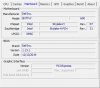
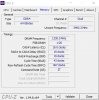
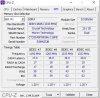
Is it known that you can upgrade to 64GB RAM (not only 32GB as stated in the manual)?
-
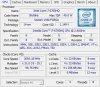
Which model CPU is that?
I know some Skylake CPUs ran up to 64 GB but I thought only a few laptops could run more than 32GB of RAM until recently. -
Old news.
Dell XPS 15 9550 - 64GB (2x32GB), 2666 MHz memory....
Dell gave more love to the XPS brand than for the more expensive gaming sibling, Alienware's. Although Azor was the cofounder for the AW gaming brand and stepfather for XPS He finalized his job at Dell with killing ram slots for the newer Aw models.
Last edited: Dec 15, 2020 -
What are the options to add a second Thunderbolt port? Ideally, I'd like something compact.
-
It is the i7 6700HQ.
I was quite surprised that it did work.
 pressing likes this.
 -
Hey all. So my current setup is two monitors of 24' 1920x1200 side by side with my xps laptop.
So I bought the 32' 4k monitor online and it will take a while for me to receive it. Decided on it as oppose to the 43' 4k tv.
Now i know i could connect it with one of my current 24' 1920x1200 monitors side by side. Thus using a usb-c to display port 60hz 4k cable with it... and using a hdmi to hdmi cable with my other 24' monitor.
Now if i want to use both my current monitors... with the new 32' 4k monitor... what exact product do i need to buy? Is it a docking station or can it be something cheaper?
I am planning to use only the 32' 4k monitor and 24' 1920x1200 monitor side by side... but i kind of want to use all 3 monitors. Thus imagine the 32' 4k in the middle and a 24' 1920x1200 to the left and right of it. Im not sure i would have enough space though on my desk for this as if i do this.. i would need to put my laptop somewhere else.
Is the dell xps 15 9550 strong enough with the video card and everything to handle 3 external monitors? The processor is an i5-6300hq if that matters... since many seem to have the i7-6700hq.
Would something like this work or not?
https://www.amazon.com/Display-Dock...qid=1608262863&sprefix=docking,aps,256&sr=8-3
Thanks. -
I have a 3 year old 9550 with 16gb of ram, 1080p, and new battery, with the i7 chip and an extra brand new battery from dell. Motherboard died on me, but otherwise in great condition. Anyone need it for parts?
-
If you are located in the EU https://www.electronicloop.de/ could help you for a reasonable price.
-
I have 16GB RAM now. Would battery life or heat be noticeably different with 32 or 64GB of RAM?
-
My xps 15 9550 i7 has the headphone jack problem. Speaker audio works, headphones work, audio dead after unplugging headphones until next reboot. I read several postings online saying that the issue was resolved by replacing the audio daughterboard. My question is whether there are different revisions of the mainboard and/or audio daughterboard of the 9550. I bought a daughterboard on eBay, listed as a new pull, not sure how that is possible but it was only $12. But it is a lot of work to swap this daughterboard. The part number I got is P1GM9. If there is a newer revision I would rather spend my time installing that. On the software side, all I've tried is forcing the audio driver to the Microsoft High-Definition Audio driver, which did not help. I have not yet tried disabling the MaxxAudio because I read convincing postings that this is a hardware problem rather than a driver or software problem. Also when Dell issues a new board revision, does the part number change?
-
I did a clean install of Windows earlier 2020 with and it is pretty reliable with headphones now.
In device manager I see a Microsoft driver 10.0.19041.1 dated 6 december 2019
For years, I had major issues with the audio. A 2016 audio board replacement by Dell didn't seem to do much. I tried a lot of driver reinstalls, clean installs of Windows, the drivers directly from RealTek, etc. The 9550 works quite well now but it took a long time to sort. -
Following up on previous post: a clean install of Windows 10 on another partition exhibited the same dead audio after unplugged 3.5mm jack headphones, which convinced me it was a hardware problem. Today, I exchanged the audio daughterboard in my xps 15 9550 with the one from eBay. Everything works perfectly now!
Sent from my SM-G986U1 using Tapatalkpressing likes this. -
Do most of you use the dell power manager for your battery usage? I mentioned how a while back, i use my laptop plugged in almost always. I use it like a desktop and connect it to 2 external monitors. I also have it plugged in all the time. My first battery was the original 56wh battery, then after maybe 1 year or so, battery worn out and got replacement 56wh on ebay. Then after a while, battery went bad but also bloated. Then i replaced my 250gb ssd with a 1tb m.2 ssd and took out both the 250gb 2.5 inch ssd and the 32gb nvme cache ssd in order to put in the 84wh battery i bought.
Can someone tell how me I only charge it up to 80% battery with the dell power manager? Do i need to first make the battery drop below 80% to do this? I'm looking at the settings on the dell power manage and don't see this option. Right now its 100% available, not charging when i see it on charge status on the battery information. But of course it says not charging since its 100%. If its 90%, it would show plugged in and charging.
Also can others here confirm you make the battery last longer if you only have it max charged to 80% or 90%? Again im using my laptop as a desktop basically connected to 2 monitors... so i would like if the battery last me say 1.5 years instead of 1 year or even less. -
Anyone who uses the dell power manager can answer this? I dont see the option to change the max battery charge to 80%? And do all of you recommend 80% and 90%?
And has anyone tried this vs not doing anything and compared it to see how long their xps 15 9550 battery lasted? Example you used your laptop like normal without doing these changes and had to get a new battery say 1.5 year. But changing the max battery might get you 2 years? -
I'm sorry I don't have English version of screenshot but here it is. In my opinion 90% is enough not to sacrifice too much capacity for lifespan of battery. My battery has 2.5 years and is still in a good condition with those settings.
![[IMG]](images/storyImages/99692f3a7d6c6a2c8b99127d8de640b6.jpg)
-
Hi... My 9550 is slowing down that's why I'm thinking of upgrading the ssd to a samsung 970 evo plus. It's compatible right? I did some research but I want to confirm it with you guys. My ram is only 8gb. If there's a need to replace it which is an acceptable one? I know its a 'no' but just in case... Can I upgrade the nvidia 960? If not, is there something I can do to make it better? Thanks
Also the battery... You guys know where I can get a Dell brand? Thanks againLast edited: Apr 3, 2021 -
Why don't you do a clean install of Windows, drivers and only necessary programs? That might solve all your performance woes for free.
You can not upgrade the GPU.
You can easily upgrade the RAM. You might see better performance with matching 2x8 GB ram sticks but 8GB might be just fine depending on your usage.
Do you have a SSD now or a normal HDD? Upgrading from a HDD will show big improvements in speed. You might not notice the difference upgrading from one SSD to another.
You can call Dell to see if they have a battery. Parts people have a big battery (only the small battery will work if you have a HDD).
https://www.parts-people.com/index.php?action=category&id=143&subid=560&refine=batteryVasudev likes this. -
Thanks for the reply and the link pressing! That will help a lot...Right now I'm using a 250gb ssd and a 54watt battery with an hdd hooked up inside the laptop. The battery is almost done and I'd be replacing it with an 84watt, that's why I have to get a bigger SSD... Thanks again pressing...
Dell XPS 15 (Skylake) 9550 Owner's Lounge
Discussion in 'Dell XPS and Studio XPS' started by T2050, Oct 30, 2015.