Problems? See this thread at archive.org.
Today I install the W10 1903 latest version, 18362.86, and everything works correct, including Throttlestop. Memory integrity check is disable by default.
-
I have a lenovo laptop with 8 gen cpu.
I have a problem of high power package when the laptop resume from sleep : the power is around 10W with the ''high performance'' scheme by windows Temperature of cpu is 90 degrees but speed is around 2 GHz or less, so the fan is loud. I think the same happens when I leave the laptop ON during the night, for instance for downloading files. In the morning, the power is around 12W whereas no new software is used and the laptop is idling...
I do not know if it is a driver issue or not. When I choose ''balanced'' or ''battery'' power scheme, the power package goes to 3W. (instead of 1,5W I think, before I put the laptop to sleep) and temperature goes back to 65 degrees.. When I select ''high performance'' again, the package power goes up to 11W again...
I have Microsoft Windows 1809 LTSC [version 10.0.17763.107]
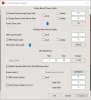
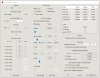
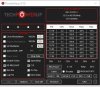
is there something in thrtotlestop I can use to get 1,5W after sleep?
edit: In FIVR, I cehck
disable and lock turbo power limits, then
I put the laptop to sleep again, for 1 minute, then I wake the laptop and this time power is 1,5 W, even with ''high performance'' scheme....
What does it mean?Last edited: May 2, 2019 -
I have an i7-7700HQ and I was wondering if I should UV the CPU and the cache equally? Like both -125mV.
-
I would think so - of course, you will have to find out what works for your CPU. I found that -148 works well for my 6700 HQ. 125 v is in the right range, from what I have seen others post.
Best,
Joe -
What would happen if one does not set them equally? I am curious because of this post: http://forum.notebookreview.com/thr...undervolt-and-gpu-undervolt-overclock.826524/
The OP has the core UV different and so is the cache, but it seems like there was a change in the temps. Maybe it was HW-specific? -
The b0b video about the i7-8750h has a good bit on this. The last part of the video shows what will happen if you do seperate undervolts for the core and cache. Quite interesting. He is able to push the core very far on the undervolt, so much so that it starts to choke the processor. It ends up not being able to reach its max turbo/clocks, so he loses out on a bunch of FPS. However, it is fantastic thermally and still stable. Perhaps this could be a method of playing very low requirement games or for a battery saver profile. I assume if he were to try pushing both the core and cache that far the system would crash.
Someone may correct me if I'm wrong and I'm sure YMMV by CPU and such. -
I had thought (because I read it here) that, for my 6700HQ, I needed to set cache and core undervolts to the same value in order to have the undervolt recognized. However, I just tried it, and it seems I can shift either core or cache independently and have the voltage change recognized (at least for the voltages reflected in TS). I am not sure if it is possible to verify the voltages with another program, e.g. HWInfo. It would seem that more playing is in order. Will let you know if I learn anything.
Best,
Joe
Later - I returned all voltages to default and ran a long TSBench. Pkg power went back up to 47 range, and temps to ~89-90. VID on TS main page was in 1.3 range. Dropping core only by 148 mv did not reduce power or temps - and VID on main screen remained same. Reducing core and cache by 148 mv and all else by 80 dropped power use to 34 watt range, and temps to high 60's. VID was down on main TS pge. My conclusion is that, even though you can set volts independently with TS, the decrease is not implemented unless core and cache are both decreased.
Best,
JoeLast edited: May 2, 2019Mr.K-1994 likes this. -
Doing a little digging, it seems that Intel XTU is unable to apply the undervolt unless the core and cache are set equally. ThrottleStop does not have this restriction, but since it was best practice with XTU I think a lot of TS users followed suit. 8750H users in particular seem to be winning with the staggered undervolt. I've been testing it on my 7300HQ but have inconclusive results thus far. I find I can run hours of benchmarks, but certain games will crash. So, I tend to have to run absolutely everything before I can determine stability.
Mr.K-1994 likes this. -
https://imgur.com/4YgL3tq
Hey, guys, I am getting this error right after the windows update. any FIVR settings are not sticking because of this. my system is throttling again on battery at random times, which I was able to solve with TS. Running the i78750H
How do I solve this?
@unclewebb -
You are using the latest version of TS? How about uninstalling that particular update?
-
What update? Be a little more specific. Post your Windows version and build number. Open up a command window and post that number.
If the FIVR window opens up, everything in there should work except for the Disable and Lock Turbo Power Limits feature. If this is causing problems, try disabling the Windows memory integrity check.
http://forum.notebookreview.com/threads/the-throttlestop-guide.531329/page-1005#post-10896646Mr.K-1994 likes this. -
I just recently got a small upgrade. To Version 1809 (OS Build 17763.475) Win10x64Pro.
No issues with TS. Papusan likes this.
 -
Yeah, same here. ThrottleStop have worked flawlessly with all Windows 10 versions and builds
tilleroftheearth and joluke like this.
-
Unclewebb, my C State tab shows 0.0 in every category and on the main screen I have only ever seen C0% with anything else than 0.0. Do you know why this is? Even after a little research I am not entirely sure what they represent, other than that I have seen people say that they should not all be 0.0. Thanks
Dell XPS 15 9560 -
@jar3259 - When your computer is idle, open up the C States window and post a screenshot that includes ThrottleStop and the C States window. What version of Windows are you using? Some antivirus or other Windows 10 safety option might be preventing ThrottleStop from accessing your C state data.
When a CPU core is actively working on a task, it is in the C0 state. When it has nothing to do, it should go into the C1 state. After C1, the cores can drop down to C3, C6, C7. When all of your cores are in the same C state, then the entire CPU package can drop into the same C State. The C State data in ThrottleStop tells you what C states your CPU are using. Unless you accidentally or deliberately turned them off, they are supposed to work.
Here is how an Intel 8th Gen CPU should look when idle.
![[IMG]](images/storyImages/tazlvt9.png)
Most manufacturers seem to disable package C9 and package C10 so the lowest package C state one usually sees is package C8 but even that one can be elusive. The individual cores should be spending 99% of their time in the low power C7 state. This one usually works fine but most people have a lot of useless crap running on their computers in the background that prevents the CPU cores from being idle.
If none of the C states are being used when idle, that is a problem or perhaps a blessing depending on who you are talking to. Some people who produce music prefer to have all of the C states disabled so the CPU can run at a constant speed and so it is constantly in a state where it is ready to work without any latency or hesitation.
The problem I am having with the C states is that I recently switched to Windows 10 1809. My 4th Gen CPU used to use package C6. Package C7 or lower were not available back then. With the new and improved OS, package C6 is gone and now all I see is package C3. After I do a Sleep - Resume cycle, now package C3 is gone too and the CPU can only use package C2. This reduces battery run time, it is a known problem for many laptops but so far, no one is taking any responsibility for this new "feature". This used to work fine but now it is broken.
![[IMG]](images/storyImages/kTb85Vk.png) Last edited: May 6, 2019
Last edited: May 6, 2019 -
Very interesting. My Skylake (6700 HQ) will spend lots of time in C7 at idle (97-100%); no higher sites are seen for the CPU. Package states up to C10 are displayed, but it spends idle time in C2 and C3 - C3 can get as high as 80%. C6 and higher states are always displayed as 0 for the package. I am also running version 1809 (17763.475). I thought that the higher states for the package were not implemented for my processor, but your note suggests that Win10 version may also have an effect. Of course, our friends in Redmond may not have implemented a way for us to alter it,....
Best,
Joe -
I also received this error:
https://imgur.com/lhG0bMu
My OS version 1809 and build is 17763.475
And you are right, only disable and lock power limits is not working, which originally solved my battery throttling problem.
I have checked and my memory integrity is off:
https://imgur.com/A75Z5Dk
Now what do I do?
fresh reinstall of TS? -
Tried running TS with highest privilege aka Admin privilege?
-
Today I did a clean install of Windows 10 - 1809 - 17763.253 which I downloaded from TechPowerUp.
https://www.techpowerup.com/forums/threads/download-windows-10-th-rs.216164/
After it was installed, I ran Windows Update and now I am running the same version as you, 17763.475. ThrottleStop is working OK for me, including the Disable and Lock Turbo Power Limits feature. I usually install the free version of Avast but so far I am still depending on Windows Defender to save me.
What antivirus program are you using? The problem I have had with Windows Defender in the past is that a program that runs fine one day might be silently black listed another day. The program will never run again with zero explanation from Defender. If you really need the Disable and Lock ThrottleStop feature, try installing a different antivirus program.
I installed Windows 10 for a second time because I was trying to find the missing package C states. Not sure where they were hiding but the low power package C6 state has been found.
The only thing that I did differently today was I did not install the Intel Rapid Storage Technology driver and I did not install Samsung Magician. Not sure if one of these programs or some other driver was nuking the package C states before. Now I have over 90% in package C6. Package C7 was never supported on this 4th Gen mobile CPU so that is as good as it gets.
![[IMG]](images/storyImages/hPlnGUS.png) FrozenLord, tilleroftheearth, Vasudev and 1 other person like this.
FrozenLord, tilleroftheearth, Vasudev and 1 other person like this. -
Hi! I tried Disable and Lock Turbo Power Limits to try to bypass 15w and take it to 20w TPL but can't make it work.
I don't receive any error while installing driver or anything.
Does it work on I7 8565u?
I read a lot of confusing info (at least to me) regarding this feature and CPUs supported.
Thanks in advance! -
@pantezuma - Your i7-8565U is supported but whether or not the Disable and Lock feature can unlock your CPU depends on what features the motherboard manufacturer has left open. After you selected this option, did you also increase the Turbo Boost Long and Short Power Limits in the TPL window? With those limits increased, try running the TS Bench to load your CPU. While your CPU is loaded, open up the Limit Reasons window and see if anything is turning red in there. Post a few screenshots so I have something to look at.
The Disable and Lock feature is helping a very similar 8550U run at more than double its rated TDP. This is on a Lenovo thin and light laptop. Only inadequate cooling is holding it back. Thermal throttling has just begun as confirmed by the check mark in the PROCHOT box.
![[IMG]](images/storyImages/eo0J744.png)
-
This is the first time I use ThrottleStop. I have been reading some documentation here and there and watching some videos in YT about it. I have been playing around with the application and I think I got the hang of it more or less.
I just have a question regarding the "overclock" checkbox that's under the groupbox "Turbo Ration Limits" in the FIVR window. What does it exactly do? The value beside it reads "80" and can't be changed, I have a 9900K processor. Sorry if this has been answered before, I did some search and didn't find anything about it.
By the way, great tool, I think it's much better and lightweight than XTU. Thank you very much @unclewebb for all your hard work here.Last edited: May 8, 2019 -
Thanks for your reply.
The laptop is a Lenovo e490s.
I guess I did everything you said.
It's incredible how your laptop non power throttled is working 44% faster than mine for multi threaded tests.
Take a look at the screenshots:
https://imgur.com/a/UQ1hZi9
The limit reasons window says PL1 for Core and EDP Other for Ring.
Thanks in advance!Last edited: May 8, 2019 -
Hello again!
My last laptop CPU (i5-8300h) undervolted nicely. Unfortunately the rest of the unit didn’t perform as it should (thanks Dell!) so I now have another laptop and a whole new set of undervolting questions, sorry.
My new Acer Helios 300 PH315-51 i7-8750h power throttles even at its maximum stable undervolt of -0.1504mV core/cache. For the Core, under limit reasons, I get PL2 throttling during the short power limit (56w) and PL1 throttling thereafter at the long power limit (45w). I also get Ring EDP other at idle and during power throttling.
I think the power limits are locked by Acer for this chip but if anyone has any advice for reducing power limit throttling it would certainly be appreciated.
As for Ring EDP Other, what is it? And can I do anything about it?It seems like the power throttling is the problem so should I even be concerned by the EDP Other?
Thanks again.
Ps. Quite drunk local homeless man enjoyed his fish supper. -
I do have the Widnows defender running only. I'll shift to avast then. but the windows defender settings will stay? Do still need to do a fresh install of both? Thanks for the replies man! you are more than appreciated.
-
Tell me which engine version are you using? Check About section of WD.
WD doesn't flag TS as malware or its dlls as malware. -
I tried some of your advice and so far am pleased. I was not seeing C6 even on battery power. So I started closing applications and uninstalling a few things to fix it. Namely, Windows Defender and Intel Rapid Storage Tech driver. After configuring my Group Policy to disable Defender permanently, I switched to Kaspersky Free. Seems a lot smaller, with less background services.
I also stopped using 'High Performance' power plan, and moved to 'Balanced' on battery. That , combined with the above changes, and moving the battery profile slider to "Max Battery" allows C2, C3, C6, C7, & even C8 to be active on my Acer Nitro 5. Very happy, as I am seeing as low as 0.5W power usage on 'Battery' profile and 45W on 'Performance' (if I run stock voltage).
My next test is thermal graphite pads, which are in the mail. No more pastes for me if the pads are decent.
EDIT - This was with dGPU idle, WiFi on, BT on, no USB accessories, screen dimmed maximum. Important to note that as soon as the dGPU wakes up, C3 is as deep as it will go. So, there is some procedure in closing apps to let the hardware 'sleep'.Attached Files:
Last edited: May 8, 2019 -
-
You can use speedshift values for fine-grain tuning of CPU power consumption. 0-80 : Aggressive clocks 128: Balanced and anything above 180 is battery saver.4W4K3 likes this.
-
I cannot find the about section. Apparently its Windows Security now :0
-
Use this link https://www.howto-connect.com/find-windows-defender-version-info-windows-10/
I'm using WD engine v4.18.1904.1 -
Nope not working
I mean there no such thing as defender, its windows security now and it is different, can't seem to apply both the solutions. -
I have my 'Performance' profile set to EPP value 0, and my Battery profile set to EPP value '128'. Within Windows, if I maximize the battery savings it auto dims the screen and puts a little green leaf over the battery icon in the Taskbar which is cute. Previously, I wasn't aware I could use both TS and Windows to enable/disable some power options.
-
I think battery saver is turned on regardless of battery charge thresholds. You can disable that to turn ON to 20% battery which will get rid off auto dimming.
This is my engine version on W10 v1903 -
Anyway to disable all C states except for C3 in order to retain Turbo Boost?
-
Also when disabling all C states with the registry change I get a driver error in Device Manager under Processors reading:"A driver (service) for this device has been disabled. An alternate driver may be providing this functionality. (Code 32)". That error only manifests when disabling all C states with the registry trick from the guide. Why does that error show up and is it safe to ignore?
-
Intel Ice Lake 10mn chips ramping from June
Hy unclewebb,
Do you have already samples of the new Intel Ice Lake processors? Can you make the program compatible with them?Vasudev likes this. -
@unclewebb Today I was experimenting with different SST values and guess what those values in turn control Turbo boost as well.
<127 Turbo boost is enabled and boosts to advertised clocks, 180 and above causes CPU to max out at stock clocks and doesn't turbo unless we choose value of 130-140 to boost it 28-31x.
Have you noticed it? I accidentally noticed it. OEMs can decide to throttle behind the scenes (via BIOS) using higher EPP Values eventhough XTU and similar tools say Turbo boost is working. I guess it applies to Linux/OS X as well. -
@unclewebb sorry for the late response. Here is my C state and main screen at idle. I am on Windows 10.
Last edited: May 9, 2019 -
I do not think Intel is a big fan of my work. They have never sent me anything, ever. This project has always been financed from my own pocket. Adding Ice Lake support to ThrottleStop is probably not going to happen.
I only know about the registry tweak that disables all of the C states including C3 which partially disables turbo boost. On my 4700MQ I can use this trick and still have access to the 34 multiplier but this blocks the 36 multiplier. I have not tried this trick recently. A driver error in the Device Manager does not sound good.
I think I did. That is why I do not recommend setting Speed Shift EPP to anything greater than 80. I prefer full performance over power savings. The standard setting of 128 can reduce maximum performance in some situations and going higher will kill more turbo boost. How much performance you lose depends on the CPU and the type of load you are running.
All of your C states are disabled in that screenshot. That is usually not a good thing when you are using a laptop. Your laptop is not very idle. Any idea what is running in the background? Did you follow some forum advice and deliberately disable your C states? Doing that and using the Disable Turbo option reduces maximum performance. Disabling the C states can increase power consumption and heat. If you have done this deliberately then it looks good. If not, maybe check the registry to see if you can find out what the problem is. I will search this forum thread. If I find the C state registry tweak, I will post a link so you can see if this needs to be reversed.
http://forum.notebookreview.com/threads/the-throttlestop-guide.531329/page-75#post-7783166
@geust123455 - This trick still works in Windows 10 but I see what you mean. The Device Manager shows exclamation points for each of the cores.
![[IMG]](images/storyImages/auqwOyt.png) Last edited: May 10, 2019Xatanú likes this.
Last edited: May 10, 2019Xatanú likes this. -
@unclewebb Should I let the SST on at 180 when undervolting for battery life? Or at 80 when undervolting for performance.
-
Hi @unclewebb, please, take a minute to review my question if you have some time:
What's the "overclock" checkbox that's under the groupbox "Turbo Ration Limits" in the FIVR window intended for? By default it's unchecked and the value beside reads 80. I have tried checking it and I don't appreciate any difference (my processor is a 9900K).
Thank you very much for everything! -
Thanks. 128/127 is too slow, I found 0, 80 and 180 to be best for Max performance, web browsing/gaming and on battery.
You might wanna pin this link to OP so that, all users can tweak windows for better C States %age(better battery life or power savings) http://forum.notebookreview.com/thr...e-on-windows-enabling-deeper-c-states.815602/ -
Maybe. I rarely use my laptop on battery power so I am not an expert on this subject. Do some testing. See what works best for you and your laptop. I like a fast laptop even when running on battery power. Fast = efficient. I think a quick burst of speed allows the CPU to get tasks done quickly. This allows the individual cores to spend a bigger percentage of time in the low power C7 state. A slow CPU consumes slightly less power compared to a fast CPU but it stays in this slow and sluggish state for a much longer period of time. Slow is highly overrated. Maybe an EPP setting of 80 is OK for battery run time too. People think that when on battery power that a slow CPU is best. I disagree. It also depends a lot on what type of app you are running.
The Overclock box needs to be checked if you are going to run your 9900K or any CPU beyond its default Intel specs. The default maximum multiplier is 50 so for a lot of people, that might be enough as is. Some people want to run the 50 multiplier whether 1, 2, 3, ... or 8 cores are active. This is running a 9900K beyond its default spec so I am pretty sure that the ThrottleStop Overclock box needs to be checked to accomplish this. Do some testing and run the built in TS Bench test to see what multipliers you get.
The maximum possible multiplier for the 9900K is approximately 80. I do not own a 9900K and I do not have proper documentation from Intel so I am not 100% sure about that. So far, no one has contacted me to complain that this setting in ThrottleStop only goes up to 80. I think being able to overclock a 9900K up to 8000 MHz (80 X 100 MHz) should be adequate for the majority of users.
@Vasudev - Thanks for the link. I will definitely add it to the first post in this thread. Lots of good info in there for people looking to minimize power consumption. In Windows 10 -1809, I am still having a problem where package C3 and package C6 are not available after I resume from sleep. They both work fine after I initially start up. There must be a bad driver or something, somewhere. Lots of good C state tips in that link should help me track this bug down. I am back to blaming Microsoft.bennyg, Vasudev, joluke and 1 other person like this. -
@unclewebb I don't have anything really running in the background.
I mostly followed what is posted here:
https://www.reddit.com/r/Dell/comments/99o8k9/my_journey_to_finally_cool_down_the_xps_15_9560/
Would disabling the Intel Thermal Management stuff have caused this?
I don't recall disabling C States, so if there is a simple way to do that and I did it by mistake, please let me know.
My work is in audio, so when I need the extra processing power I will turn on turbo, but I just don't like to see the temperature in the 80s. -
Intel considers any temperature under 100°C to be a "safe operating temperature". No need to worry about whether your CPU feels comfy or not. It is designed to look after itself and it will live a long life as long as the temperature is safe.
![[IMG]](images/storyImages/5KFXoSf.png)
To check on your C states, run the regedit program and navigate to this item.
HKEY_LOCAL_MACHINE\SYSTEM\CurrentControlSet\Services\intelppm
![[IMG]](images/storyImages/XjjZFPg.png)
Inside this folder is a REG_DWORD value called Start. If this is set to 4, it will disable the majority of your C states. By default, Windows usually sets Start to 3. If this needs to be changed, double click on Start, change it to 3 and then reboot for the change to take effect.
The amount of time your CPU cores spend in the C0 state is a good indication of how idle your CPU is and it will show you how much stuff must be running in the background. After a clean install of Windows, less than 0.5% is normal for a 4 core CPU.
![[IMG]](images/storyImages/9R0zeAf.png)
The picture you posted is nowhere close to that. Open up the Task Manager, go to the Details tab and find out what is running on your computer when it is supposed to be idle. The low power C states will not be used if the CPU is busy spinning its wheels, trying to process 101 or 1001 background tasks.
Why is Clock Modulation checked in ThrottleStop? Very few recent computers use this throttling method anymore so there is usually no need to check this. Check the Mod column in ThrottleStop or in the ThrottleStop log file. If Clock Modulation is not checked and this column of data constantly shows 100.0 when it is loaded, that means your laptop is not using this throttling method so no need to check this box to fight against something that is not happening.4W4K3, pressing, Vasudev and 1 other person like this. -
Thank you very much for your response @unclewebb. Everything is clear now.
The maximum overclock I plan to perform is 5.2 MHz or even 5.3 MHz if I'm lucky, but maybe I will reach the power limit at 5.2 MHz, it's a laptop. Apart from that I think anything over 6 MHz in my machine would require liquid cooling and for 8 MHz liquid nitrogen for sure, but the voltages needed to run at that frequency would fry the VRMs of my laptop, LOLLast edited: May 11, 2019 -
I think 80-85C is fine on stock fan curve on XPS. If you can increase it, then temps will be 10C below your current reading because high speed fans will push hot air out of the system.
-
Hey! I made it work.
But now I have two different problems.
1) Disable and Lock Turbo Power Limits only seems to work after Sleep. It won't work after cold boot or restart. Really strange...
2) My laptop Lenovo e490s (I7-8565u) seems to throttle the CPU at 80°C. In TS Bench I can just reach 18W before it starts throttling so I can't even dream on reaching the numbers on your screenshot.
Do you have any ideas or info on those two subjects?
Thanks so much for your help!Last edited: May 11, 2019 -
@unclewebb The registry value was normal and at idle the only thing I had running aside for normal Windows processes was Backblaze, a backup service. I turned that off, but the C0% did not change. There are over 100 background processes running in task manager details, but they all look to be Windows processes, and about half are svchost.exe.
I have turned off Clock Modulation and turned on BD PROCHOT. -
[QUOTE="unclewebb, post: 10908932, member: 296710" In Windows 10 -1809, I am still having a problem where package C3 and package C6 are not available after I resume from sleep. They both work fine after I initially start up. There must be a bad driver or something, somewhere. Lots of good C state tips in that link should help me track this bug down. I am back to blaming Microsoft.[/QUOTE]
C states can also be caused by a seemingly unrelated cause. For example, disabling write caching on my SSD causes my m3-7Y30 to limit itself to Package C2 state, instead of the C8 state. It will dip into C8 for about 1 second every 5 seconds or so, but it uses 0.8W during C2 instead of 0.4W in C8 state. Massive battery saving potential.
For me, disabling/enabling the page file also reduces/increases C State package residency. I can't remember which one it was but I honestly can't imagine any relation between the two.
The ThrottleStop Guide
Discussion in 'Hardware Components and Aftermarket Upgrades' started by unclewebb, Nov 7, 2010.