Problems? See this thread at archive.org.
Page file? I don't think so! I disabled System Restore and was able to hit lower C states more regularly. I think Page file must be set to fixed value.
-
-
What number should I input for PP0 Current Limit for maximum performance?
-
You did not include any relevant information in your post. No screenshots, no laptop or CPU model number info, no nothing. When you go see a dentist, do you hold your mouth tightly closed and then try to get him to guess what the problem might be? Definitely not a good idea, especially if he charges by the hour.
Do you have any specific throttling problem that you are trying to correct? Are you talking about the popular 8750H? Many laptops do not use the PP0 Current Limit setting so you might see that it is set to 0. If your laptop uses this setting, crank it up to 200 or so and see if that makes any difference. Your CPU is only going to draw as many amps as it needs. Setting this sky high will prevent throttling. Your laptop will not have a nuclear melt down if it is too high. Too high is definitely better than setting this too low.geust123455, Papusan and joluke like this. -
![[IMG]](images/storyImages/WGbfhms.png)
![[IMG]](images/storyImages/73YUHoe.png)
![[IMG]](images/storyImages/tNeo2t3.png)
![[IMG]](images/storyImages/9y0eOo3.png)
It's a 8750H. I have disabled most C states with the registry trick and I ran 10 consecutive cinebench R15 runs resulting with a score of 1276 and no throttling on the clocks. But Throttlestop still reports throttling in the throttling tab(yellow) as in the image linked. Also, what changes must I make to the settings for maximum performance?4W4K3 likes this. -
This "trick" does not allow your CPU to use the 40 or 41 multiplier anymore. Result: power consumption is up, core temperatures are up and performance is down. For your Turbo Ratio Limits, you might as well set them all to 39 or set them to their default values; 41, 41, 40, 40, 39, 39.
The Set Multiplier option is not used when Speed Shift is enabled. When you see SST in green on the main TS window, do not check the Set Multiplier option. There is also no need to check the Clock Modulation option unless you have evidence that your computer is using this type of throttling. Run a TS Log File and check the CMOD column. Are there any numbers less than 100.0 when Clock Modulation is not checked?
PL1 refers to the Turbo Boost Long Power Max which you have set to 69. Why not bump both turbo power limits up to 80 or 100 and see if that makes PL1 go away. Remember to click on the individual headings in Limit Reasons before you start any testing. This resets the throttling flags that are stored within the CPU. EDP OTHER on RING is likely being caused by PL1. The two are linked. When PL1 lights up, EDP OTHER - RING usually also lights up. Increase your power limits and this will probably go away.
Run a TS Log File while Cinebench is running. If there is even a tiny amount of throttling, it almost always shows up as a slightly reduced multiplier when the CPU is loaded. Easier to see this in a log file than trying to keep an eagle eye on TS. In the Options window you should also use the Add Limit Reasons to Log File option.
People hitting over 1300 in Cinebench with the 8750H are typically running better than average memory and definitely in dual channel. What does CPU-Z show for your memory and timings?
Bob of All Trades (YouTube) likes to set the CPU Core voltage offset lower than the Cache. Not sure why but on the recent 9750H he was testing, this does seem to make a difference. Maybe it is just tricking the CPU.
Edit - He was using (-250mV core and -125mV cache).
Try adjusting this while the CPU is loaded and see if there is any difference in terms of heat, power consumption or CPU speed.
Thanks for posting lots of pics. It is so much easier than me having to ask the same questions over and over again.Last edited: May 14, 20194W4K3, tilleroftheearth, Papusan and 1 other person like this. -
![[IMG]](images/storyImages/3l9rWMn.png)
I increased the power limits and the limit reasons are still there. They only appear at windows boot-up, and once reset they never show up again even after stress testing. Everything looked fine in the log file during cinebench and a couple of games. -250mV on the cache and -125mV on the core resulted in a system hang so I went back to my old setup but bumped the undervolt to -144 on both and got to 1284 on cinebench. Thank you so much for answering so far.
-
I screwed up! I meant to say -250mV on the core and -125mV on the cache.
Here is the Bob of All Trades video using a 9750H that shows this.
https://tinyurl.com/y6almxqk
At the 5:55 mark he takes the core from -125mV to -250mV. No crashes and he seems to get a boost in MHz after doing that. Too bad he has CPUID HWMonitor taking up screen real estate in his video. I would have liked to have seen the multi in ThrottleStop go up. I trust the TS multi more than some family members.
That is normal. While Windows is booting up, ThrottleStop has not applied any of its settings. That helps ensure a smooth boot with less chance of a crash during boot. No more throttling flags lighting up after you boot up during normal use (or not so normal use) is great to hear.
Now that your CPU is running great, how about enabling your C states again? I feel like a shady used car salesman trying to push those things on people. I like a cool running CPU and you actually get a 5% performance increase when running single threaded tasks with the C states enabled. They are free too. Something for nothing. Try running a few 1 or 2 Thread TS Bench tests with and without the C states enabled to prove this.
I will see if I can find out what memory timings the Cinebench 8750H 1300 club are using.
Go spread the word about TS. Every 8750H owner should give TS a try.Last edited: May 14, 2019 -
-250mV on the core works. No crashes during boot or stressing but it made little to no difference. All the gains come from undervolting the cache so I stick with upping the cache more rather than the core. Very good to know that those warnings are normal and go away, so I don't have to worry about them
. I benched SSD speeds with crystaldiskmark and the differences of C states off and on were only within margin of error so I enabled them back on as per your suggestion and everything is running perfectly fine now. Thank you so much. I'll definitely recommend TS to everyone. Wish Intel recognized your work and gave you their full support.
Last edited: May 14, 2019 -
Hi @unclewebb
Sorry to bother you, again.
Do you have any idea why this could be happening? I mean TPL modifications only work after setting my computer to Sleep.
I tried delaying the Task but no success... -
Is the last version working with Intel I7 9750?
-
Some people have claimed that reducing the CPU Core offset voltage lower than the CPU Cache offset voltage works on some of the recent CPUs. I tried this trick on an 8th Gen U and I also did not see any change in performance, power consumption or core temperatures. I hope someone with an 8750H can post some tests to try to prove this one way or the other.
I thought I just posted that information at the top of this page. I will post it again so you do not have to scroll up. If you want me to come over there and push the mouse button for you too, that is where I draw the line!
I am pretty sure I know exactly why this is happening. I have heard of this problem on other laptops so it is not a unique problem. It sounds like one of the power limit registers is initially locked by the bios. When you start up Windows for the first time, you will not be able to make any changes to this register. After you do a Sleep - Resume cycle, this power register becomes unlocked so now ThrottleStop is able to adjust it without any problems. Hopefully you do not have Intel XTU or any of its remnants still installed. Unless you have access to a modified bios, there is probably nothing you are going to be able to do about this limitation. At least ThrottleStop works fine after you resume.Vasudev likes this. -
Hello again @unclewebb, I have a coupe of questions:
1. I have set a profile with static voltage on both core and cache (same value), but I have observed that it keeps fluctuating all the time and is not constant. For example, if I set the voltage to 1.0537 (with all multipliers @ 46), the voltage keeps fluctuating between 1.0500V (sometimes a little bit lower) and 1.3000V. Is this normal? Is there anything I could do in TS to prevent this from happening and be able to get a constant voltage all the time, or it depends on BIOS and other factors and there is nothing I could do?
2. When testing the undervolting settings to check if they are stable or not, I normally perform some tests, prime95, TS benchmark, Cinebench, and also keep some time at idle. When running the TS bench, sometimes it displays an error count, but the system does not crash, and the rest of the tests with prime95, cinebench, etc go well without crashing/errors. Is this an indicator that the undervolt values are not stable or is it normal? May I keep those undervolt values if the system does not crash even when TS bench shows some errors, or should I look for more conservative values? (e.g. when setting adaptive offset of -160.2mV @ 43 in all multipliers all the tests are fine and apparently the computer is stable but I get a LOT of errors in TS Bench but the system does not crash. If I set a higher offset I don't get any errors in TS Bench)
Thank you very much for all your help and hard work!Last edited: May 14, 2019 -
I have done zero testing of static voltage so you are on your own. Very few people seem to be using the static voltage option in ThrottleStop. On desktop motherboards, I believe the voltage is controlled externally by a separate voltage regulator. When you go in the bios and request a fixed or static voltage, you actually get something pretty close to that. It might droop a little when fully loaded but it usually stays very close to what you request. I do not think the static voltage that ThrottleStop lets you set is comparable to that. I would probably stick with the TS Adaptive voltage setting and use either a negative or positive offset. Usually you only need a negative offset but if you are running high multipliers, maybe you might need a little bit of extra voltage. If your laptop has a fixed voltage setting available in the bios, give that a try and disable the TS voltage control.
Prime95 and most modern torture test kind of benchmark programs usually bombard a CPU with a heavy percentage of AVX instructions. The TS Bench is the opposite. It does not use any AVX instructions. It was specifically created to give a good workout to the other side of your CPU. The TS Bench and Prime95 are not exactly typical real world apps but I think being TS Bench stable might actually be more important than being Prime95 stable. Why? Very few real world apps torture your CPU with AVX instructions the way Prime95 or LinX (Linpack) testing does.
The TS Bench performs millions of calculations and then goes back and performs the exact same calculations a second time. If the first result does not equal the second result, that is a problem and the TS Bench flags that as an error. Think about it. Either the first calculation was wrong or the second calculation was wrong or it is even possible that they were both wrong.
First time through, 2 + 2 = 4 and second time through, 2 + 2 = 5 or 2 + 2 = 105. I think that's a problem. I have talked with a couple of guys in the last few months that were just like you. They were questioning if TS Bench stable was important. It did not seem important because just like you, they had no problem passing all of the main stream benchmarking programs. They decided to ignore the TS Bench results and off they went to play some games. Guess what happened? BSOD! The TS Bench was right. Their CPU was not 100% stable.
CPU stability can vary as a CPU wears in and it can vary from one day to the next depending on room temperature, etc. If you are not against the wall temperature wise, give your CPU a hair more voltage so you can be 100% stable in all benchmark programs, including the TS Bench. -
8700K running i7-8750H clock speed and 2666Mhz ram. 3.9GHz all 6 cores...
![[IMG]](images/storyImages/lBKanzO.png)
![[IMG]](images/storyImages/5bG2ZLM.png)
Yees But I fixed it for you
 Last edited: May 14, 2019Queen 6, Vasudev and tilleroftheearth like this.
 -
Thank you very much for all your help.
I don't want to run a potentially inestable system and get a BSOD in the worst moment, so I will experiment with more conservative values and perform more tests, specially TS Bench until all seems rock solid.
Regarding static voltages, I have seen @MrFox using them in one of his videos. If I was able to get the static voltage to stick and don't fluctuate I think I would use static instead of adaptive as it should be easier to tune up and less prone for the system to hang when idle for going too low in voltage at low frequencies. The ideal for me would be to have a voltage curve and be able to tune it up like I do in Synapse or Kernel Audiutor in Android custom kernels or in Afterburner for the GPU. I don't know if that would be possible to implement. If not, I think it would be very useful to be able to set a minimum voltage when using adaptive to prevent crashes at low frequencies when idle.
I will keep experimenting. -
8750H - 2666MHz RAM, 3.9GHz all cores, but mine's in the 3K+ club
Q-6Last edited: May 15, 2019Vasudev likes this. -
heres mine
And these are all the errors I get, and the result is that my Diable and lock feature doesn't work:
The last one is the one I am constantly getting now.
@unclewebb
How can I use the disable and lock feature again?
Vasudev likes this. -
Open task scheduler and check conditions/triggers tab.
-
I am running the same Windows version as tilleroftheearth with the same results. No issues.
@terrorific - Do not add ThrottleStop to the Task Scheduler until you get things figured out. Think real hard. Did you do anything unusual after downloading ThrottleStop? Did you maybe install it into a folder and then move that folder to a different location or different hard drive? When you move folders around, Windows can change some of the file permissions which can cause problems.
I have all of the ThrottleStop files including the RwDrv.sys file in a folder called C:\Program Files(x86)\ThrottleStop. I would suggest doing the same. Double click on ThrottleStop.exe in that folder and see if it starts OK. After that, open up the FIVR window. Does it show the Install button beside the Disable and Lock feature? If it shows the Install button, that means ThrottleStop could not find the RwDrv.sys file because it is not inside the ThrottleStop folder. Download and unzip RwDrv.zip and make sure the RwDrv.sys file is installed.
Is there anything else you can think of that you might be doing differently than everyone else? Perhaps you are in a limited Windows account instead of an account with admin privileges. Just a few random suggestions. I have installed Windows 10 a couple of times recently and I have not experienced any problems. I am using Windows Security with the core isolation feature turned off.tilleroftheearth and Vasudev like this. -
No @unclewebb I have done nothing. Everything was working fine and just one fine day, the day after the next of the update, these messages start to pop right at start-up. Everything was working fine, my laptop was heavy power limit throttling on battery. Disable and lock feature coupled with reduced IccMax for a battery profile solved that problem, I have not changed anything. Although my TS in Drive D. Now, only the disable and lock power limit feature is not working, so my laptop os throttling again on battery, everything else, the undervolt(both battery and pugged in) and TPL(only plugged) are working as before.
And I cannot see the install button, that means the feature is installed and working on TS? windows is not letting it bypass it like before.
@Vasudev I have not changed anything in there since I first set it up according to the tutorial.
@unclewebb should I just wipe out TS and do over? and install it in C drive? how about doing the windows all over again? -
Rename Throttlestop.ini to Throttlestop.ini.old or even Throttlestop.ini.backup. Make sure you close TS completely before renaming and launch TS with new ini with default values.
-
did a subtle oc to my 6820hk and a bit of the gpu. what ya think? any feedback appreciated.
trying to figure out best values for power limits and turbo timer etc and amps. kinda tricky not fully sure how to get it proper.
max temps is high 80s in intense gaming, stress test is low 90s.
idle high 30s (when nothin in background) high 40s with dropbox, nvidia etc all open.
gaming performance is even better, can play everything on max
![[IMG]](images/storyImages/4-00-Stable.png)
![[IMG]](images/storyImages/Time-Spy-Skore-5824.png) Last edited: May 19, 2019Vasudev likes this.
Last edited: May 19, 2019Vasudev likes this. -
If you originally ran TS when it was on your C: drive and then moved the TS folder to your D: drive, that might be causing the problem. I would try deleting your TS folder, download it again and immediately unzip it to your D: drive and run it from there.
I do not know what is causing the problem you are having. It could be the above, maybe Windows Defender is angry or who knows. All I know is that with a clean install of Windows 10, TS works fine for me and it continues to work fine, including the Disable and Lock feature. It works OK for the vast majority of people in this thread and around the world or I would be hearing a lot more negative feedback.
Good to hear. That is the whole point of TS. Thanks for sharing lots of pics so other users will know the important stuff that needs to be adjusted for maximum performance.c69k, Papusan, Vasudev and 1 other person like this. -
I did not change anything. I will do fresh install of the windows.
Does anybody know how to completely reinstall windows without losing my steam data? -
Cut and Paste it to another drive and after clean install paste it back or let it reside on another which is entirely dependent on your choice.
Post Clean install, run Steam.exe and it will prompt Repair Steam services and choose Repair option and your Steam installation will be usable out of the box with all game saves and progress.Papusan and tilleroftheearth like this. -
@maffle contacted me last October and told me that after resuming from sleep, his Dell XPS 15 - 9570 was disabling most of the low power package C states and it was being limited to package C2. I had to tell him that without an XPS 15 to play with, I did not know where to start to try and solve this problem for him.
I recently did a clean install of Windows 10 - 1809 on my 4th Gen laptop, got all the drivers and Windows updates installed and somehow ended up with the exact same problem. When first starting up, the CPU could spend up to 90% of its idle time in package C6 but after resuming from sleep, it was limited to package C2.
![[IMG]](images/storyImages/kTb85Vk.png)
Minor problems like this irritate me so I decided to reinstall Windows 10. I slowly installed everything to try and track down the problem. I literally killed a couple of days installing old and new drivers. Booting up, rebooting, playing around, randomly changing various powercfg options. I was not really accomplishing anything so I opened up a command window and entered,
powercfg -energy
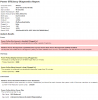
It takes about a minute for Windows to run an energy report and that report showed this problem.
![[IMG]](images/storyImages/sHB8Cmn.png)
That sounded similar to what was going on so I opened up the Device Manager and had a look for that device.
It only has the default Microsoft driver installed so I went to the Intel website to download an updated driver.
https://www.intel.ca/content/www/ca/en/support/articles/000005537/software/chipset-software.html
Great. At this point I had about given up solving this problem but I ended up getting lucky. I mostly use this laptop as a desktop computer with an external monitor and Logitech USB keyboard and mouse. After installing Windows 10 -1809, I started resuming from sleep by either turning on the mouse or pressing a key on the keyboard.
It was great that this feature was finally working correctly. It resumed fine but it turned out that resuming this way was killing the deep package C states. If I lift the lid and push the power button to resume from sleep, the package C states work correctly. How stupid and what a waste of time trying to troubleshoot this bug. I am not 100% sure whether it is a bad driver or perhaps just my old Logitech G15 keyboard that is to blame. I tried installing the Windows 10 approved Logitech software package but that did not solve the problem
When plugged in, it does not make a huge difference whether the deep package C states work or not. When running on battery power, I would suggest getting as many of the Intel power saving features working as possible. To run a comparison test, I installed BatteryBar which does a great job of reporting the battery Discharge Rate. The data reported is measured power consumption and it represents power consumption of the entire laptop. When idle, Discharge Rate data is a lot more relevant compared to the calculated (estimated) power consumption data that Intel CPUs and most monitoring programs report.
Here are the results.
![[IMG]](images/storyImages/t7oqRsh.png)
Interesting. By using an external monitor, the laptop screen is disabled so overall power consumption is fairly low. Disabling the low power C3 and C6 package C states has resulted in an increase in power consumption when idle of almost 50%. If you are using a laptop as a laptop with the built in screen on, the percent difference will not be as dramatic but still, something as simple as one bad driver can significantly reduce ones battery run time.
Over 7 months after @maffle first contacted me, this problem in the Dell XPS 15 - 9570 has still not been fixed.magnetoeric, Vasudev, Papusan and 4 others like this. -
I have the same error reporting in powercfg test. Combing through the DM settings it definitely looks like the USB can power down and has various power states. Not sure if the Intel driver sees each setting, or if that's even how it works.
One feature of this laptop (Acer Nitro 5) is USB Power even while OFF. It charges devices like iPhones even when powered down. Could this be the reason? I'm sure I can disable it and try the test again.[/USER]Attached Files:
Vasudev likes this. -
-
@4W4K3 - Do you have the same problem with your CPU using fewer package C states after you resume from sleep? I know this is not just a Dell problem. Any issues like this are rarely reported. People just assume, "that is how it is". Oh well.
That might be part of the problem. There is no Intel driver. Only the default one from Microsoft.
My 4th Gen has that feature too. There is a setting in the bios so I can toggle this feature on or off. I think I already tested this but it did not make any difference. I might go try testing this one more time. If I had a dollar for every time I rebooted during the last week, I would be rich. -
I think so. Part of the issue for me is Optimus doesn't 'disable' to dGpu until after a reboot when switching to battery power. Its just stays on but idle. So its not getting past C3. After reboot, C6, 7, & 8 are accessible.
-
I re-ran the test and did not get the errors again. I did not change the USB charge on Off setting.
After a normal reboot, I selected Battery pofile in TS, unlpugged my AC adapter, changed battery icon to "Max battery", and re-ran the test. The difference was the dGPU was OFF (reporting 0 temperature) instead of idle because of the initial reboot. I'm not sure what would trigger the dGPU to go from idle to off on battery, other than a reboot. It's set to 'Optimal Power" in nvidia CP.
Hopefully not too off the original topic.Attached Files:
-
-
If you're using Lenovo Idea/Thinkpads remove their Lenovo Power Gauge app or something. It sucks more battery in background. Unpinning from taskbar tray icon will work too.
-
After a clean install of Windows, I avoid installing any manufacturer specific apps. Some users are forced to install junk ware to get control of their fans but I do not have any problems like that. Windows 10 automatically took care of most of the drivers so the reinstall was as painless as possible.
This laptop does not like being restarted by using an external USB keyboard. Other than that, everything else is OK. -
You could try installing (modded) intel usb3 drivers for windows 10:
https://www.win-raid.com/t834f25-USB-Drivers-original-and-modded.html -
I've used Throttlestop to great effect on a 2017 Macbook Air, giving a significant performance boost by undervolting and keeping temps low. However, I am unable to duplicate that success on an older Dell Latitude E6430. The CPU in question is an Ivy Bridge i7-3720qm, whereas the Macbook Air had an i7-5650u.
In Throttlestop on the Dell, there is no "FIVR" button where I can adjust voltages. Instead I see TRL and TPL where the FIVR button was, and no option to lower voltages. Am I missing something, or is it because this CPU is older than the one in the Macbook?
EDIT: Did some additional research and found the answer on another forum. Apparently the FIVR was introduced with Haswell, one generation after my laptop CPU. So it is too old. Too bad, because this smoking hot Dell hits 104C under load.Last edited: May 23, 2019 -
Hi guys,
I have an Intel E3-1280 v3 (Haswell) CPU, and I used ThrottleStop to lock all cores at the maximum turbo speed, which is working great. When loading all 8 threads however the CPU was downclocking 100Mhz, which I fixed by increasing the PP0 Current Limit from its default 95 amps to 100. (I was getting the "EDP Current" limit.)
Running Cinebench and Dolphin Emulator however still cause the CPU to downclock some or all cores to stock clock speed with the same "EDP Current" limit displayed, which I believe is because they use AVX2 instructions. I wanted to try increasing the PP0 Current Limit a bit more, but wasn't sure what a safe range of values would be for it. Could I cause damage to the CPU going too high? -
Just a power limits. No damage will occur so just increase it. Only too high voltage/100C over prolonged time ain't so healthy for the chips
Ashtrix, Jdpurvis, unclewebb and 1 other person like this.
-
Go for it! Desktop Haswell processors with unlocked multipliers can run comfortably at 4.5 GHz and beyond without any throttling. Most decent motherboards automatically set the PP0 Current Limit sky high so it does not impede overclocking. I would recommend doing the same.
Can you post a screenshot of the FIVR window? Do these Xeons support limited overclocking of +4 bins?
Words of wisdom.Ashtrix, Vasudev, Jdpurvis and 1 other person like this. -
Here are both the FIVR and TPL windows:
![[IMG]](images/storyImages/qvXB0Yd.png)
![[IMG]](images/storyImages/YiHCtsx.png)
Actually the Haswell Xeons do not support the +4 bin overclock unfortunately. But, if the microcode is downgraded via a BIOS mod to version 0x7 or lower, you can lock the all core turbo frequency to the maximum. I had to increase the current limit by 5 amps to avoid all the cores downclocking to 3.9Ghz however during the TS Bench test.
When running programs that use AVX2 instructions though, I still see cores being downclocked to the base clock speed (3.6Ghz) and the limit "EDP Current" being displayed in red (it will also appear in yellow if I just use the computer for a bit, although the clock speed remains ~4Ghz). Even increasing the current limit to 200 amps didn't change this though, so would there be another option I should look into? (If it helps any, after using the computer for a while I see PL 1 and PL 2 pop up as well but I've never seen them in red.)
Also an odd thing I noticed - after restarting my computer the PP0 Current Limit is locked. If I put it into sleep mode though and wake it up again, I notice that it unlocks and I am able to increase it (shown in the window above). Is there a reason for this? -
I realise today, that when i'm on battery, throttlestop recognize it, and switch to Battery profil/mode (i rarely use my pc on battery 98% of my usage on AC ).
Is there a difference between performance / gaming / Battery mode in throttlestop ? When people use power profil in windows or throttlestop recognize it too ? ( The 3rd profil is my stock stat ).
Edit : got my answer, read again 1st page, sry for this... xDLast edited: May 29, 2019 -
@unclewebb with AMD's new cpu might eventually make its way into mobile cpu in next few yrs, any plans for TS to support AMD as well?
-
No, I guess. Intel Copyrights and IP might disallow Kev. from integrating the feature. For now, on Linux you can use open source cmd line version to control it and extend it further using tuned-adm. On windows, AMD Ryzen master might be needed.ole!!! likes this.
-
TS has been so important since the core 2 duo days, even used it to overclock my T7600G in xps m2010 from like 2007/8 lol.
im just hoping ryzen master is as easy as TS and includes great user interface and ease of use like TS.Vasudev likes this. -
I know. I don't use any Intel laptops/desktops w/o TS.Che0063 likes this.
-
Just a comment about undervolting and stability:
I was really happy with my -110mv undervolt on I7 8565u till one day after suspend my laptop didn't resume and lost a lot of work.
With that level of undervolting I was having errors in TS Bench, but only in single thread test, so decided to ignore it.
Guess single thread is the most demanding cause as more threads are added, TPL throttling starts to play a role and no core will achieve its max speed.
Previously I used a lot of other benchmark and testing software for hours with no errors so I decided to ignore TS Bench, my fault.
Now I'm at -0,95mv which will pass a 1024MB Single Thread TS Bench test without errors and hoping this time I got it right!
Hope someone will find this mild warning useful and maybe not ignore TS Bench as I did!
Last edited: Jun 5, 2019 -
go do prime 95. once u pass that u'll pass most software.
-
Prime95 passed (for hours), but not TS Bench 1024 mb Single Thread.Last edited: Jun 5, 2019Ashtrix, unclewebb, Papusan and 1 other person like this.
-
To ensure my undervolts are stable across a variety of real-world situations:
- I scour forums to see what others are reporting as stable for a CPU / CPU family. That gives an "aggressive range" as forum posts may not be fully bench tested or reliable.
- Next, I start with very conservative undervolts & run lots of benchmarks, play some games, and run some of my productivity programs.
- Then, I slowly increase the undervolts and continue extensive testing at each level.
- Once I pinpoint the level where the undervolt hints at instability, I reduce the undervolt significantly (e.g if my laptop CPU is slightly unstable at -145mv, maybe I will run -125mv.)
- Over a few years, my CPUs tend to require a bit more voltage. They also need repaste, although that is off topic.
There is an undervolting balancing act. For example, reducing the undervolt by 20mv, causes temperatures to rise a lot in my thin laptop, so need to balance stability and thermal / power throttling. Also, if your undervolt is too aggressive, CPU speeds may be reduced. -
p95 with avx
-
The TS Bench test does not use any AVX instructions. It works the other side of the CPU like no other test. Most other stress tests run non stop AVX instructions which is very demanding but not very real world.
That is why it is important to be stable in Prime95 as well as being stable in the TS Bench test. A 1 or 2 thread TS Bench test is closer to the real world than most tests. The task will be constantly swapped from core to core to core. At the same time, it forces the non-K CPUs to use the highest multiplier.
Great to hear about some TS Bench success stories. An error in this test is bad news and should be avoided. -
I tested my laptop with Prime95 (older and newer versions), with and without AVX (single and multi threaded tests) and many other tests all around the internet, including the ones that also test GPU. Hours and hours of testing.
The ONLY (and I really want to emphasize ONLY) test that failed was TS Bench Single Threaded.
Maybe I should have payed attention to that warning and save myself a lot of rework!
tilleroftheearth and unclewebb like this.
The ThrottleStop Guide
Discussion in 'Hardware Components and Aftermarket Upgrades' started by unclewebb, Nov 7, 2010.