Problems? See this thread at archive.org.
My throttlestop keeps closing itself. I have not had any updates to the os. Do i need to reinstall TS?
-
Windows Insider Build 21364 had this issue for me. I've rolled back in the meantime to the stable 19042 build. Too many bugs for me to deal with.
Wtf is MS thinking about the new "News and Interests" thing on the taskbar? Literally who -
Are you using the Task Scheduler to start ThrottleStop? Did you follow the guide?
http://forum.notebookreview.com/threads/the-throttlestop-guide.531329/#post-6865107
The #1 reason users have this problem is because they are telling the Task Scheduler to kill ThrottleStop.
If you are running an Insider Preview build of Windows then bugs should be expected. I avoid fixing anything in ThrottleStop until Microsoft does a final release of Windows. They sometimes come to their senses by then.Vasudev, tilleroftheearth and Papusan like this. -
Got a ThinkPad X12 tablet recently and had the odd problem of PL1 on my i5-1130G7 going down to only 10W in the highest performance mode and be under 60c. Uninstalled Intel Dynamic Tuning and blocked it from reinstalling and I have 15W available all the time and it only goes over 80 if boosts up to 40W for awhile.
Wish TPL window was linked to the 4 profiles in throttle stop so I could set limits for mobile/battery usage.
Was wondering if there was some sort of interface for Intel's DTT. Being able to change the cTDP on Tigerlake would be nice. Not sure how it's set up. Have you looked into it at all?Vasudev, tilleroftheearth and Maleko48 like this. -
Agree. What's even more weird is that I looked at some photos of this latitude cooler and it's not terrible. It's small for sure but it still has some heat pipes. However, if with the BIOS set on max performance I can't even hear the fan kicking when the CPU is at 100°C so they are either ultra silent (which I don't think, considering they are probably cheap and small) or they use a very conservative speed-power profile which doesn't make any sense.
Unfortunately this CPU doesn't like huge undervolts. I'm at -0.07V since 0.1V didn't look fully stable at all.
Are there any TS users that posted some kind of "maximum efficiency" guide? Like, what you guys do to maximize battery life without gutting performances too much? Remove turbo? Lower turbo freq? Just limit TDP from TPL tab?
Because I often run scientific software but I'm not always time bound and I was always the "max performance" kind of guy, but this laptop might be used often on battery and I have to find the "good spot". -
3.2-3.4ghz is the sweet spot for intel cpus imo. On my 6 core 9750h it consumes around 30w at 3.2ghz 35w at 3.4ghz, 42w at 3.6ghz, 51w at 3.8ghz and 64w at 4ghz under all core load in tsbenchtilleroftheearth likes this.
-
This is actually something that I hate on my 10875H cpu uses 100W on TS bench 130W on prime95 before power throttling to 45W which lowers the clocks to 3Ghz rather than 4.3Ghz on multicore if it will be throttled to 3Ghz why did I paid for a 4.3Ghz multicore boost cpu with better cooling and higher limits it could achieve excellent performance.
I even checked the VRM datasheets and every mosfet is 40Amp constant load max is 80Amp and there are 4 phases so it could easily supply up to 200W to cpu. The only problem is cheap low power ac chargers throttling and cooling -
Have you done the imon slope trick to bypass the cpu power limit?
-
Personally, If you are really loading hard your CPU for work, it could be some scientific workload. If that's the case, be aware that many scientific workloads don't benefit from hyperthreading at all.
In my case, I was getting the same performance, if not better, by disabling hyperthreading and throwing 4 threads at the CPU instead of 8. The benefit is that while having the same performance I also have better thermals and thus power efficiency (didn't check it but if temperatures are lower...).
The tests I did were on a 7820HK, no clue if 10th - 11th gen have a different hyperthreading implementation but I don't think so. -
Not yet since my ac charger 230W is simlpy not powering up the laptop. Ac charger disconects on load I need to send it to warranty

It is gaming and video encode mostly -
No luck then. You might still be good in disabling hyperthreading but you can actually lose a bit of performance then.
-
On my 8250U, I found I could undervolt -200mV when having turbo boost disabled (<2.1GHz) but only -140mV with turbo boost enabled.
As many poeple have stated, a lot of the time the benefits brought by "efficient clock speed operation" is nullified by having a CPU that quickly ramps up to max speed to complete its task in the shortest time possible. -
Well, a faster clock doesn't compensate inefficiency since the clock vs power is clearly non linear (either exponential or power growth). However, energy = power * time.
Since time for task completion scales pretty much linearly with clock, dilating the time by lower the clock brings more efficiency and thus less energy consumption per task.
The cons is that you really need not to be time bound.
PS: thank you for the chart. I didn't really remember the clock-power relationship was so smooth and non linear. -
Currently working on a Lenovo T440 with i7-4510U and got some weird behaviour on PL1 and pL2. Everything is done without installing any Lenovo software except hotkey and Power Management driver (otherwise there will be an device missing driver in device manager). BIOS settings are set to maximum performance.
Without throttlestop, PL1 is 15W 2 GHz and PL2 is 25W 2.8GHz. Everything worked as expected.
Setting TDP Level to 2 worked as well. PL2 is still 25W but PL1 is 21W 2.6GHz.
Here comes the confusing part. With TDP Level 2 and -75mV undervolt, PL2 maintains 25W, 2.8GHz only uses 21W but PL1 becomes red at 18W 2.6GHz.
What am I missing here? Why would the PL1 changes with undervolt and caps frequency at 2.6GHz?
Thanks in advance. -
i have it starting per the example. i use an old win 10, 17***. I have started logging task scheduler to see if a reason pops up
-
@Kers - Do you have the FIVR - Disable and Lock Turbo Power Limits box checked?
Just like the turbo power limits, the TDP Level can be set internally. The value that is set internally can override the TDP Level value that ThrottleStop is requesting. It gets a little confusing. Each TDP Level has a unique power limit and a unique base frequency. I toggle Disable Turbo to see what base frequency is being used. This gives me a better idea of what TDP Level the CPU is really using.
Many 4th Gen U CPUs set power limits internally and you cannot override them by using ThrottleStop. You can play around with these settings but you might not be able to get this CPU to run how you would like it to run.
Can you double check your settings? The Task Scheduler Conditions tab is what screws up most people.
https://i.imgur.com/b4wPCiS.png
The Task Scheduler has worked consistently since the Windows Vista era. Your version of Windows 10 should not be a problem. The only reason ThrottleStop exits is if the Task Scheduler tells ThrottleStop to exit. When this happens, you will end up with some ghost icons in the system tray that will disappear when you move the mouse over top of them. Is this happening to you?tilleroftheearth likes this. -
Box was always checked during the test. hwinfo says that TDP level 2 base frequency is 2.6GHz which matches my observation. The question is why would it stop boosting to 2.8GHz while there is enough power limit? Could it be that the boost time is limited? If boost time limit is reached, does TS still shows red PL1?
-
The boost time is always limited. At some point, the CPU will switch from the short term PL2 limit to the long term PL1 limit.
If ThrottleStop is showing PL1 in red then the PL1 power limit is limiting the CPU. The PL1 power limit can be set in at least 3 different places. ThrottleStop lets you control the main power limit in its TPL window. You can disable the secondary power limit by checking the Disable and Lock option but there is still a third power limit that can be set internally by the EC. ThrottleStop and Intel XTU do not have access to that one.
If PL1 is red, it is the power limit that is limiting the CPU speed. I am not sure what testing you were doing. If you were running a more demanding test like Prime95 Small FFTs, the GHz would need to be reduced further to keep the CPU from exceeding PL1.
It is difficult to look at a screenshot and know what power limit or what TDP Level is in control of the CPU. All of these limits overlap and the CPU can instantly shift from being controlled by one limit to then being controlled by a different limit.
Have you tried using the PowerCut feature on your 4th Gen U? I think PowerCut works on them. This tricks the CPU into reporting low power consumption and might help you get around some of these power limits.Papusan likes this. -
PowerCut has no effect since it’s still disabled after checking the box.
Yes I was running small FFT. I’m not sure if you get what I mean. With TS setting TDP Level 2, it stays at 2.6G@21W forever. Adding -95mV undervolt, it stays at 2.6G@18W forever. Both show limit reason as PL1 while their power figures are actually different. It’s almost like “If boost time is up, reduce to base frequency regardless of power”.
I will get a spi flasher soon so I can flash the unlocked BIOS. Hopefully that can unlock the last 0.2GHz.
Thanks again for this wonderful software. I’ve used it on Core 2 Duo, Core i 1st/2nd/4th/6th/7th/8th Gen. Really missed TS after switching to AMD.Last edited: Apr 27, 2021 -
To enable PowerCut you need to first select and apply a fixed VCCIN voltage. I use 1.80 V for this setting on my 4th Gen 4700MQ. I lose stability at 1.75 V. Some CPUs can go lower. I have gone as high as 2.29 V without starting a fire. Once the FIVR monitoring table shows that you are using a fixed VCCIN voltage, then you can try to enable PowerCut. Only do this when your computer is idle.
Now this is starting to make sense. It is the Clamp option in the power limit register that determines if the CPU will throttle below its base frequency. When Clamp is checked, the CPU will throttle as much as necessary to bring power consumption down to the power limit. If Clamp is not checked, the CPU will only throttle down to the base frequency but not below it.
Play around with the Clamp option while your CPU is loaded. When checked, power consumption might go down to the rated TDP, 15W. I do not think an unlocked BIOS is going to make any difference.
I will have to find a new hobby if I ever switch to AMD. It has been a lot of fun trying to support as many Intel CPUs as possible. Some new users of TS do not realize that it supports almost everything from Core 2 Duo to 11th Gen.
There are some major changes coming with Alder Lake. It might finally be the end of the road for TS.
dmanti, FrozenLord, Papusan and 1 other person like this. -
Is it something impossible to do for Alder Lake or AMD cpus? Or would it simply require too much time?
It would be sad to lose TS support honestly. I wouldn't even mind paying for since it's such a good (and rare) piece of software. -
No idea. I do not own or have access to either of those so I am not sure what is possible.
For Alder Lake, Intel is making some major changes. I have no plans to buy any new hardware so ThrottleStop will probably not support these.
I say that every time Intel releases something new. If you search this forum, you might find that I have said that once or twice before.
Kind of like one of those crazy guys that sits on the street corner with his sign,
"The End is Near".
Last edited: Apr 27, 2021dmanti, Vistar Shook, 4W4K3 and 4 others like this. -
Wait, can't we just buy you the hardware then?
dmanti, FrozenLord, Papusan and 1 other person like this. -
Throttlestop is the best third party cpu program in existence. I and thousands of others use it literally every day from start up to shutdown. It's the one program I tell everyone they should get asap. So, stopping is simply not an option
-
I recently picked up a generic white-label Chinese mini PC with a Celeron J4125 CPU in it w/onboard Intel HD Graphics 600. I have TS installed on it, but my options are quite limited (not surprised given its mix of old and new tech). The clock speed reporting on it is out of whack or at least I'm not sure what scheme it uses, but I love TS's ability to monitor power and temps and update them in realtime on my taskbar. The limit reasons indicators are working for me too which is also helpful.
My next goal right now is to mod the BIOS on it to hopefully get around the 10W TDP and the power limits currently set in the AMI Aptio V BIOS. After 12 or 13 seconds of turbo at 12W, the 10W power limit kicks in. I have modded the cooling system on it, so my next goal is to extract a bit more performance from it. Fun times ahead.Papusan likes this. -
I did exactly what you said about powercut but it's still disabled after all.
Clamp is not checked from the beginning.
My new thesis is that there is a hidden AVX offset. For SSE load it can sustain 2.8G but AVX/AVX2 load drops it to 2.6G after boost time is used up even though the power consumption is still below PL1. The red PL1 limit could be a bug. However, AVX Offset in FIVR is greyed out, unchecked, and 0.
The closest thing to TS on AMD side is https://github.com/FlyGoat/RyzenAdj and GUI built on it https://gitlab.com/ryzen-controller-team/ryzen-controller/. You can't undervolt there but for removing throttle it works fairly well. I heard that the author FlyGoat fries his laptop's VRM because it works too well.
-
AVX offset was not introduced until later. There goes that theory.
I don't think so. There is a hidden PL1 limit that ThrottleStop does not have access to. Post a couple of screenshots of TS with different load types and with PL1 throttling in progress as reported by Limit Reasons. How about a screenshot of the TPL window? A lot of 4th Gen mobile CPUs locked the main power limits.
When you tried PowerCut, did the VCCIN voltage you entered show up in the monitoring table? Does it show Locked in the monitoring table near this setting? Some screenshots help me improve my wild guesses. -
Hey, so I've Undervolted my CPU in Throttlestop 9.3 and got good results, but I've been wondering if I still need to do something more.
Do I need to enable speedshift or is that enabled already by default? If so, do I also need to enable speedshift inside the TPL menu? What are those min (1) and max (38) values that appear in there?
Also, should I really disable BD PROCHOT? My laptop has a shared heatpipe between the CPU and the GPU. -
Have a look on the main screen. Do you see SST in green? That means Speed Shift is enabled. The BIOS enables this automatically on most recent computers. I prefer checking the Speed Shift box in the TPL window. That ensures that the Speed Shift Min and Max values are being sent to the CPU. This is optional. On your computer, it might not be necessary.
Kind of like options in the BIOS that say Auto. What does Auto mean? No one knows. Best to select either Enabled or Disabled and then you know for sure the status of that setting.
Speed Shift Min and Max represents the minimum and maximum multiplier. If you set Max to 30, this will limit your CPU to approximately 3000 MHz. ThrottleStop reports the default Min and Max values. For most situations, I would use these default values.
Do you have a BD PROCHOT throttling problem? Is this showing up in Limit Reasons? Is this showing up in the log file? If you need help, share some information. In a matter of a few seconds I can scan through a log file and immediately see some obvious problems if there are any obvious problems.
You only need to check or uncheck an item in ThrottleStop if you are having a problem and are trying to fix that specific problem. If you do not have a problem, you do not need to do anything.Papusan likes this. -
https://imgur.com/a/7Xl557w
As you can see
Default: AVX2 PL1 15W 2.2G, SSE PL1 15W 2.6G
TDP Level 2: AVX2 PL1 21.3W 2.6G, SSE PL1 15.4W 2.6G
Undervolt: AVX2 PL1 16.9W 2.6G, SSE never reaches PL1 2.8G
Multiplier limited to 26: Even though nothing GPU intensive is running, it shows iGPU PL1
PowerCut: No matter what I try, it's always disabled
Why would PL1 change from 21.3W to 16.9W when undervolt? -
Hello, tried to use your settings for OC 10900K (you shared before) - just cant follow Override(Adaptive voltage)-stuck with Fixed voltage, same time have a questions about my BIOS settings screenshots. If it possible let me know positions to correct it please and clear my foggy head ;-))
mb Gigabyte Vision G Z490, i9-10900K at 51x (48x cache) stable, AIO NZXT 360mm
Didn't find how to attach screenshots here - My Bios album screenshots https://photos.app.goo.gl/hoQXznyRTvv1FgxQ8
a) clear some statements like: As Bulldozer said, important is only Voltage under loading!??
For example to set Fixed voltage as 1.4V for 51-52x and then with normal (High) LLC under loading it will drop till 1,28-1,3V and will be still ok for CPU and long life?
or better use 1.35V with Turbo LLC? Or it all depends on drops off amplitude up and down - turbo with 1.36V is ok but not with 1.4V?
Main open questions:
a) CPU - I can't make it work at any voltages close to 1,25-1,3 as many reviewers-overclockers have. May they mean it after stress test drops by VR OUT?
For now I have setup: Fixed Vcore set = 1.380V (VR OUT in HwInfo shows 1.378V) LLС-level High or 1.35 with Turbo LLC !?
In CPUID = 1.380V and with Drop-off under loading in Cinebench20 - VR VOUT = going down till 1.289V and still working ok!
Same time if I set the same in Bios - can't load windows with 1.28-1.3V value in BIOS.
With stress tests- in Prime95 in SmallFFTs with Disable AVX2 was stable even with 1.35-1.36V only with TURBO LLC, what is it no good!? - because of Drops and returns amplitude too high for Turbo LLC?
Getting temperature in Cinebench20 with this Voltage till 94C :-( I have good 9 Fan (6 in, 3 out) middletower because of 1.380V?
Is it more proper check CPU with PRime95 SmallFFts NO AVX2?
Tried btw for a short period - 1.4V for 52x could be not enough to load windows and run stress-tests.
=====================================================================================================================
========================================================================================================================
b) I Have no idea how to set up a recommendation by everybody "Override Voltage" at Gigabyte (Adaptive too).
How am I supposed to use it after FIXED CORE for example 1.380V at 51x and High LLC?
PS. BTW Can't find SVID to switch it OFF as in ASUS mb instructions. Does it exist in Gigabyte mb?
PS2. CFG Lock OFF is ok?
========================================================================================================================
Thank you for any answers and sorry so much questions to clear out. -
This looks OK. Your CPU is power limit throttling based on the 15W TDP limit. ThrottleStop reports 14.9W. No matter what type of code you are running, the CPU will slow down so it does not exceed 15W. Try checking the Disable and Lock box while this test is running. If your CPU is still throttling to 15W, it is likely the EC that has set this 15W power limit.
TDP Level 2 changes the default base frequency. In TDP Level 0, the base frequency is 2000 MHz. It looks like this increases to 2600 MHz in TDP Level 2. These U CPUs have 3 different base frequencies depending on what TDP Level they are in. Use ThrottleStop to switch TDP Levels from 0 to 1 to 2 and run something simple like a TS Bench 1 Thread test to put some load on the CPU. Select Disable Turbo to see what speed the CPU runs at. This should show you what the default frequency is for each TDP Level.
When you are doing your power limit testing in TDP Level 2, the CPU is power limit throttling but only slowing down to the 26 multiplier. I am not sure if this is happening because you cleared the Clamp option in the TPL window or perhaps when using TDP Level 2, the Clamp option is automatically cleared. Either way, when Clamp is not checked and the CPU is power limit throttling, the CPU only slows down to its base frequency but not any lower. In TDP Level 2, 26 is the base multiplier so that looks correct. To test this further, check the Clamp option while this test is running. Not sure if this will make any difference since your power limits are set sky high.
In your screenshots where the CPU is running at the full 28 multiplier, it is not power limit throttling so the CPU is able to run at its full rated speed. It can use the 28 multiplier when 2 cores are active.
When you undervolt the CPU, it will consume less power. You are seeing a change in power consumption but the power limit itself is not changing. PL1 is probably still 15W. If Clamp is not checked then the CPU only slows down to its base frequency.
Some random Intel GPU throttling is not unusual. There are two things that might be able to control this. Try checking the Power Balance box in the TPL window. Try settings like 0 and 31 or 16 and 16 or 31 and 0. This can help distribute the available power between the CPU and Intel GPU. When it is time to throttle, this setting basically helps the CPU decide whether it should throttle the CPU cores or the Intel GPU first. It does not always make a huge difference.
The other thing to try is there is a hidden INI option that can be used to increase the Intel GPU power limit. Edit the ThrottleStop.INI file and add this line.
This sets the Intel GPU power limit to 48 Watts which should be more than enough. It might help get rid of the Intel GPU throttling flag from lighting up red.Code:IGPU=48
When setting sky high values, I like ones that are a little more realistic. Something like 64W should be more than enough for PL1 and PL2 for these CPUs. They can also understand 28 seconds for the turbo time limit. I have never seen a reason to use 3+ million seconds.
@Webbmaster - I am not familiar with Gigabyte motherboards. Their BIOS has a setting called DVID which might be similar to the SVID option that my Asus board has. I have no idea though. I have never sat down with a Gigabyte board so I am not sure if ThrottleStop can be used to control the voltage or not on these boards or how the BIOS should be setup to allow ThrottleStop to control the voltage.
ThrottleStop works great to control the voltage of my 10850K when running on my desktop Asus Z490 board. That is all I know.dmanti, FrozenLord and Papusan like this. -
Thanks for the explanation. It's the clamp option and the base frequency causing this behaviour. Learned one new lesson today.tilleroftheearth likes this.
-
Me too. I had to put my thinking cap on to come up with a reasonable explanation.
Thanks for all of those images you posted. Screenshots and log files help me solve these mysteries.dmanti and tilleroftheearth like this. -
I have a question.
Can throttlestop be used just to monitor component temperatures without changing anything?
From reading the primer it appeared that once you unzip and activate throttlestop it starts controlling settings.
The computer we want to monitor temps on is a Dell N5050 and it has a core i5 2450M 2.5 GHz, running Windows 7 ultimate 64bit SP1, and 8GB ram, and Samsung ssd.Last edited: May 1, 2021 -
Some Dell laptops have clock modulation throttling problems. When ThrottleStop first starts up, it will try to automatically fix any issues like that.
If all you want to do is monitor your CPU or GPU temperatures, why not run something like HWiNFO64?
If you want to see some temperature numbers in the system tray, try Core Temp or RealTemp.
I need to find a new hobby. Torture testing my CPU is probably not healthy for me or my CPU.
![[IMG]](images/storyImages/E2Fgum6.png) FrozenLord, 4W4K3, Vistar Shook and 3 others like this.
FrozenLord, 4W4K3, Vistar Shook and 3 others like this. -
Because I wasn't aware of any of them, but I will try them now. Thanks. -
Get a 11900K or even better a W3175X and torture it with AVX512
-
Because HWINFO64 use more clock cycles and not as power efficient Getting used to ThrottleStop is also a good thing to have in your backpack for later. Double gain unclewebb
Spartan@HIDevolution and tilleroftheearth like this.
-
I honestly think that is acceptable power consumption since it is 10 cores and running at 5.2Ghz I had a 5930K and only 6 cores running at 4.4Ghz would get these power consumption.
The real issue is the thermals TIM and IHS quality should improve and even these temps would easily be handled by high end air coolers (noctua or be quiet etc.)
1.5V is crazy high cpu voltage too. For that voltage power usage is even looking betterLast edited: May 2, 2021 -
Damn, at 330W you could almost cook an egg on a super small pan.
Could give it a try and start some overclocking-to-cook streams. -
@unclewebb
first off, thank you for all the good work with ThrottleStop. As a technical writer/lead and professional programmer myself I know how much work and research (and testing) are involved in such tools.
I have a few questions (googling it or searching in different forums has provided no real answer) but I'll settle for 2:
1- You have stated the following about the PL clamp checkboxes:
"The Clamp option should never be checked. On the non U CPUs, when turbo throttling kicks in, the CPU will reduce the multi no lower than the default multi. In this mode, throttling kills the turbo part of the processor. When Clamp is enabled, it throttles the CPU as much as needed to literally clamp the CPU down to the currently set power limit. Instead of only slowing down to the default multi, with Clamp enabled, it can slow all the way down to the 8 multi."
The first time I installed TS I noticed that PL1 had the clamp checkbox ON. Is this a TS default setting or something that TS reads from BIOS and thus provides this piece of information?
2- Something curious I noticed:
after a successful undervolt (core and LLC ring) of an i5 10300H of about -110mV and redefining the turbo ratio limits in FIVR, at most I have 1 core at around 4.3 GHz and all 4 cores at 4.191GHz. This CPU performs this rather well, no throttling, no Limit Reasons even during high loads, temps at most 86 to 87ºC (the weather is also slowly getting warmer). Core clocks max and min are always between these values.
If I click on the monitoring grid, specifically on the grid header FID, the first time nothing unusual happens...but a second click seems to "suspend" for a few milliseconds this perfect "heart beat" and all cores go immediately to base clock (ie, 2.495 GHz).
I tested this many times and it happens without a miss.
Is there a setting or something else I am missing?
Thank you, again, for making the lives of many users so much easier.Vistar Shook likes this. -
At default settings, most laptops have the Clamp option checked. When you first run ThrottleStop, if a ThrottleStop.INI configuration file is not found, it will read the baseline settings from however the BIOS setup the CPU. If the BIOS sets the Clamp option in the CPU then Clamp will initially be checked when you run ThrottleStop.
It is OK to have Clamp checked. If you do not want your CPU consuming more than 45W then setting PL1 to 45 and checking the Clamp option is the best way to accomplish that. The original purpose of ThrottleStop was maximum performance so I tend to recommend getting rid of all of these throttling schemes.
You have discovered a ThrottleStop secret. Older versions of ThrottleStop used to have a BCLK button. Pressing this button was used to recalculate the BCLK speed. With TS 9.3, pressing the FID heading in the monitoring table recalculates the BCLK speed.
The algorithm I dreamed up to do this is overly complicated. To improve accuracy, ThrottleStop momentarily disables Intel Turbo Boost. On most CPUs, the BCLK data that ThrottleStop reports is usually fairly accurate to 4 decimal places. I think this impresses me more than some of ThrottleStop's more practical features.
That is why you see a drop in CPU speed when you press the FID button. Evil ThrottleStop really is momentarily lowering your CPU speed but only for 0.1 seconds or something like that. This evil is for a good cause. Accuracy is important to me. Who wants to use a monitoring tool if it is not accurate?
I recently learned that you can read the BCLK speed directly from 8th Gen and newer Intel CPUs. I gave that a try but the accuracy and consistency was just not there. The Intel data varies too much for me.Last edited: May 3, 2021 -
@unclewebb
do you know why if i use the "Clock Mod" setting on a 7820hk, it appears to have some weird behavior?
I'm trying to limit the battery setting way below the non turbo speed:
- Disable turbo with overclocking enabled in the FIVR still allows going above turbo
- Disable turbo with overclocking disabled in the FIVR correctly disables turbo
- Disable turbo with clock mod higher than 75% almost does nothing to max frequency
- Disable turbo with clock mod lower than 75% almost cuts the frequency really hard (i.e. at clock mod = 68.75 the max frequency is 900-1100 Mhz)
Is it some weird interaction where the clock modulation basically forces a low C0% and thus the CPU feels it can lower the frequency because there is no load? Which means it indirectly affects SpeedStep or SpeedShift technology?
On a side note, is there an effective way to limit a 7820hk to very low TDPs or frequecy (lower than base freq) only when on the battery setting? -
If your main concern is reducing power consumption on battery, you may want to check out the long discussion in the Windows 10 forum. As Unclewebb has pointed out, clock speed is not the only determinant of power consumption. In fact, a higher clock speed may allow for tasks to be completed more rapidly and for the processor to spend more time in lower C states where it will use very much less power. Speedshift can be your friend here.
Hillbrane likes this.
-
Thank you, @unclewebb .
Not to divert from BaTaB-'s post (above), just a quick feedback:
I have unchecked ALL clamps. It's the logical choice for me.
TS still shows PL1 and EDP OTHER (Intel's now über informative "OTHER") right upon start up (probably the time it takes for TS to start up and assert itself after WIN10 does its "thing"?), but overall performance is superb and temps are under control (and only shoot up as high as the aforementioned 87ºC with games such as Apex Legends).
I have had to work with defense-grade cpus in projects that require not only full disclosure from vendors but very detailed specs and documentation. Even then official data and instrumentation do not provide the degree of information and accuracy one needs.
Your job here isn't an easy one and yet TS is very well-built (and such a tiny fingerprint, resource wise).unclewebb likes this. -
Different CPU generations respond differently to Clock Modulation throttling. Even when set to 12.5%, my 10th Gen desktop continues to use the full multiplier and it runs at full speed externally. The speed it is running at internally is much different. Clock modulation basically tells the CPU that instead of doing something, you should do nothing. Kind of like when you see a work crew fixing the road. There are always a few workers doing some clock modulation throttling as they almost fall asleep and fall off their shovels.
Some CPU generations will start by slowing down internally when you are using clock modulation throttling but then after that, they will start to decrease the maximum CPU multiplier. I am not sure what different CPU generations do or what mobile vs desktop CPUs do but it sounds like your 7820HK follows this pattern.
My first question is always, why? What are you trying to accomplish? Using clock modulation throttling makes the CPU run inefficiently. Using this feature to slow your CPU down will make it feel sluggish and your CPU will end up consuming more power when you are actually trying to do something with it. If you want to save power, make sure your C states are working correctly and make sure your cores are spending at least 99% of their time in the C7 state when your computer is idle. That is how modern CPUs save power.
The only purpose of clock modulation throttling is to control your CPU when the heatsink falls off. There is no other practical use for this extreme throttling method. Even Dell came to their senses and have stopped using clock modulation throttling.
When you see something weird, show me a picture. My specialty is coming up with reasonable explanations for the bizarre. Maybe I need my own TV series.
If you want to create a slow and sluggish CPU, set Speed Shift Max to 8. That will slow your CPU down to a crawl. Your CPU will be completely inefficient at this speed. Someday soon I will enable different Speed Shift values for each profile. My programming productivity tanks after the long winter is over. I would rather be outside. You could also set Speed Shift EPP to 255. That is designed to slow a CPU down as it transitions from 800 MHz to full speed. Some recent microcode update might have changed this a little. Intel and others have realized that getting up to full speed quickly is not a bad thing.
This is normal. When booting up or resuming from sleep, the CPU will trigger some throttle warnings. This likely happens before the power limits have been setup correctly. Nothing to lose sleep over. Same with your gaming temps. Intel CPUs can run night and day at 90°C. You are more likely to get bored with your computer long before it dies from heat exhaustion.
Always good to hear when someone notices this feature. I started programming when CPUs ran at 7 MHz or less. It is difficult for me to write code that is big and bloated. It is not in my DNA.dmanti, Hillbrane, Papusan and 1 other person like this. -
hello, guys and mister @unclewebb!
I am INexpierenced user running low end around 10 year old laptop Dell Inspiron 3551,
wondering what settings to play with in Throttlestop to:
get a twitch/youtube 1080p/60 stream not to stutter (high cpu usage)
https://ibb.co/GMCDh56
https://ibb.co/DgxKDz4
My GPU
https://www.notebookcheck.net/Intel-HD-Graphics-Bay-Trail.103037.0.html
EDIT:
cannot click on GPU tab
Voltage in HWiNFO is higher - 0.7800
https://ibb.co/p3RFYr2Last edited: May 5, 2021 -
Ok so:
- I have no clue what Speed Shift Max is. If you meant Speed Shift EPP then I thought that setting it to 8 would make the CPU "faster" since you are forcing a preference for higher frequencies.
- I completely understand what clock modulation is now and I completely agree: it looks totally useless and inefficient.
- I'm looking for battery life maximization but I can't sacrifice too much in terms of performance since I'll be using this configuration when I'm making some measurements on the fly (meaning that the PC still has to run scientific software to acquire and process the measurments signals without lagging but at the same time I might as many hours without recharging)
I was trying a way to lower the operating frequency under the base value because:
- basically no one carries out energy per job (or task) benchmarks which is the only REAL way to get direct info about efficiency
- I was thinking that lowering the frequency would grant me more battery life due to the CPU power being highly non linear with respect to its frequency consumption (since higher freq = higher voltage).
I might be wrong (or it could be not as simple as that) since completing a task faster might let the CPU transition into a different Cstate which is something highly non-linear in the opposite way (even though I'm not sure this happens is some kind of software is still charging the CPU).
Now, switching to TS behavior I noticed that:
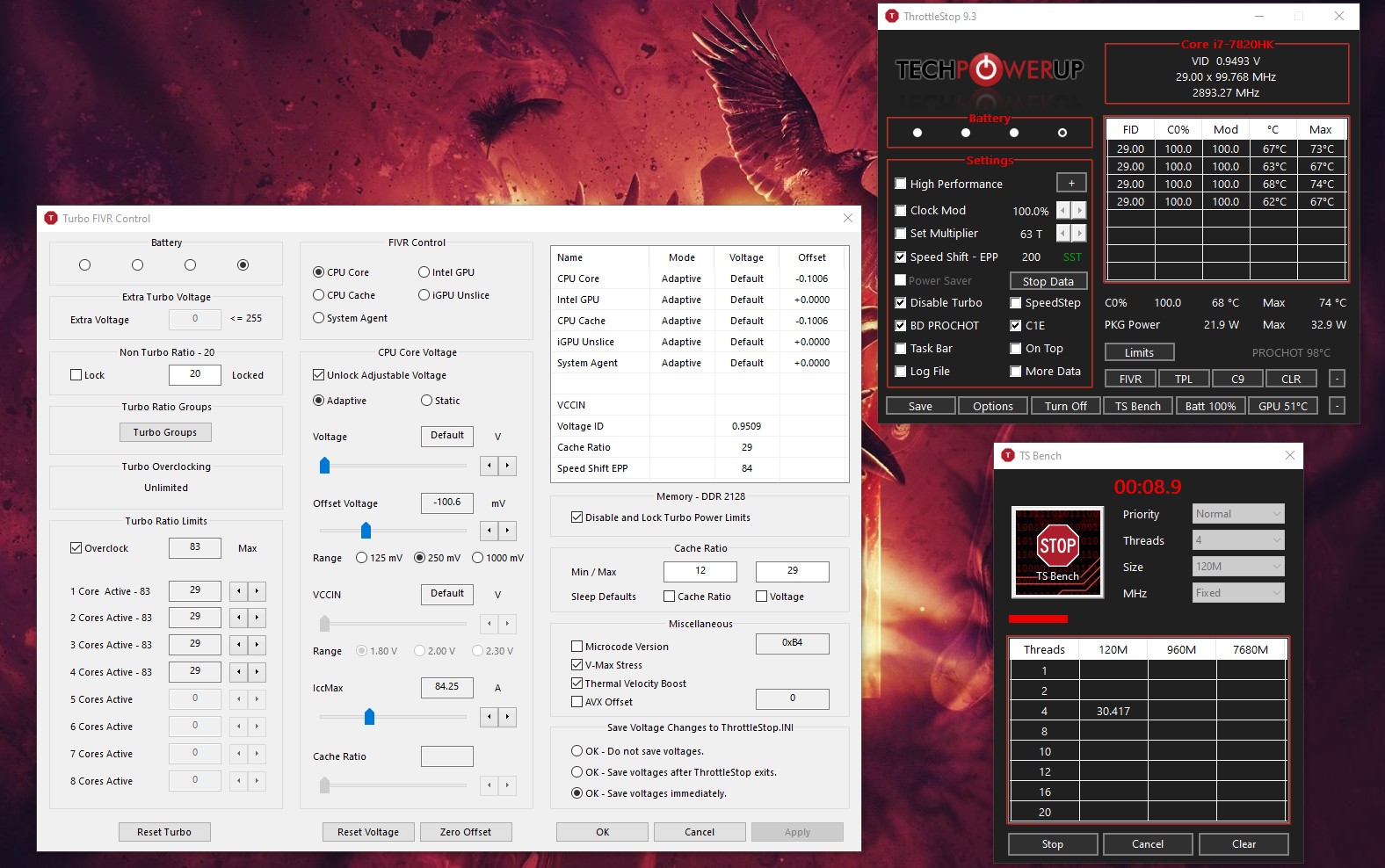
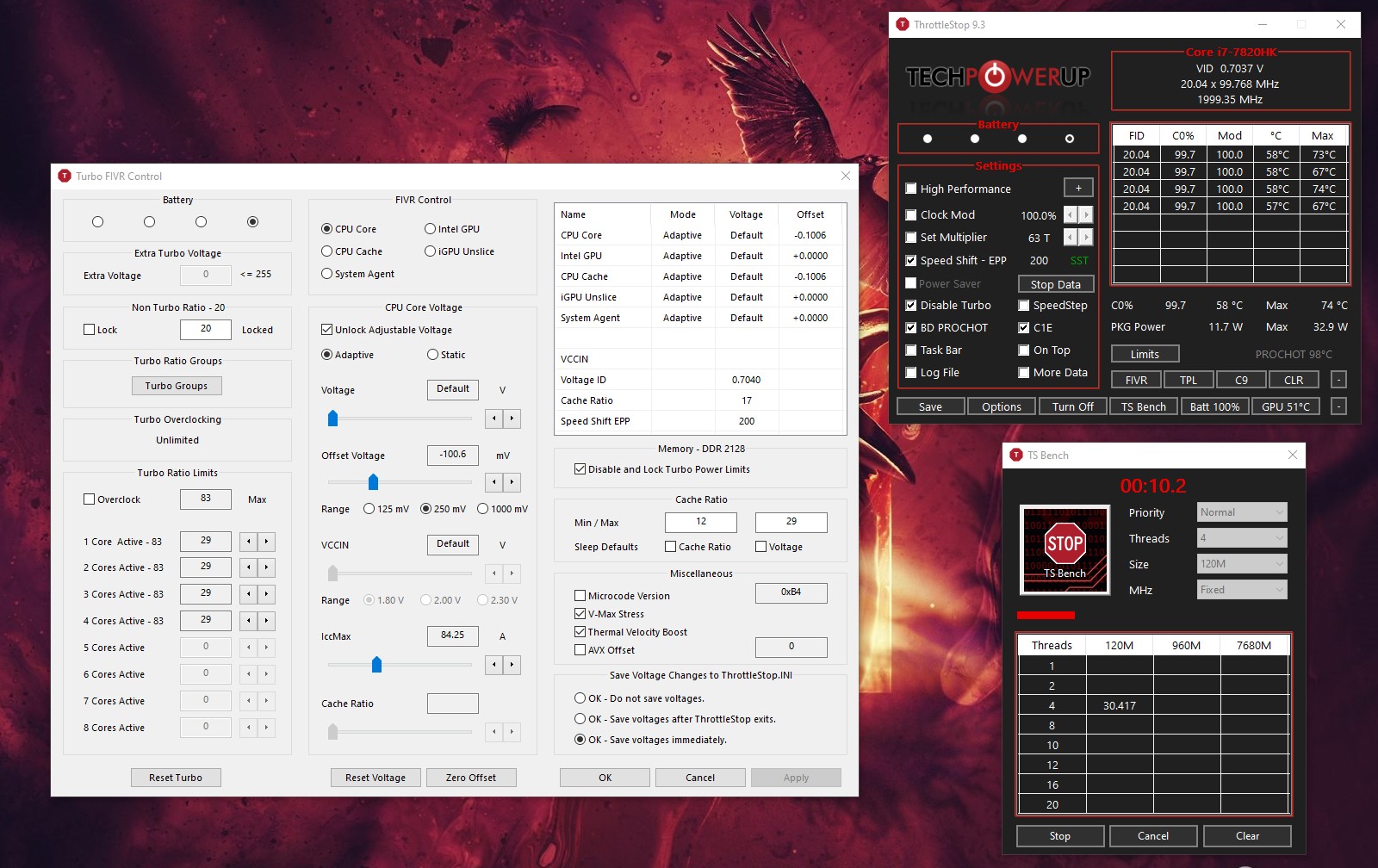
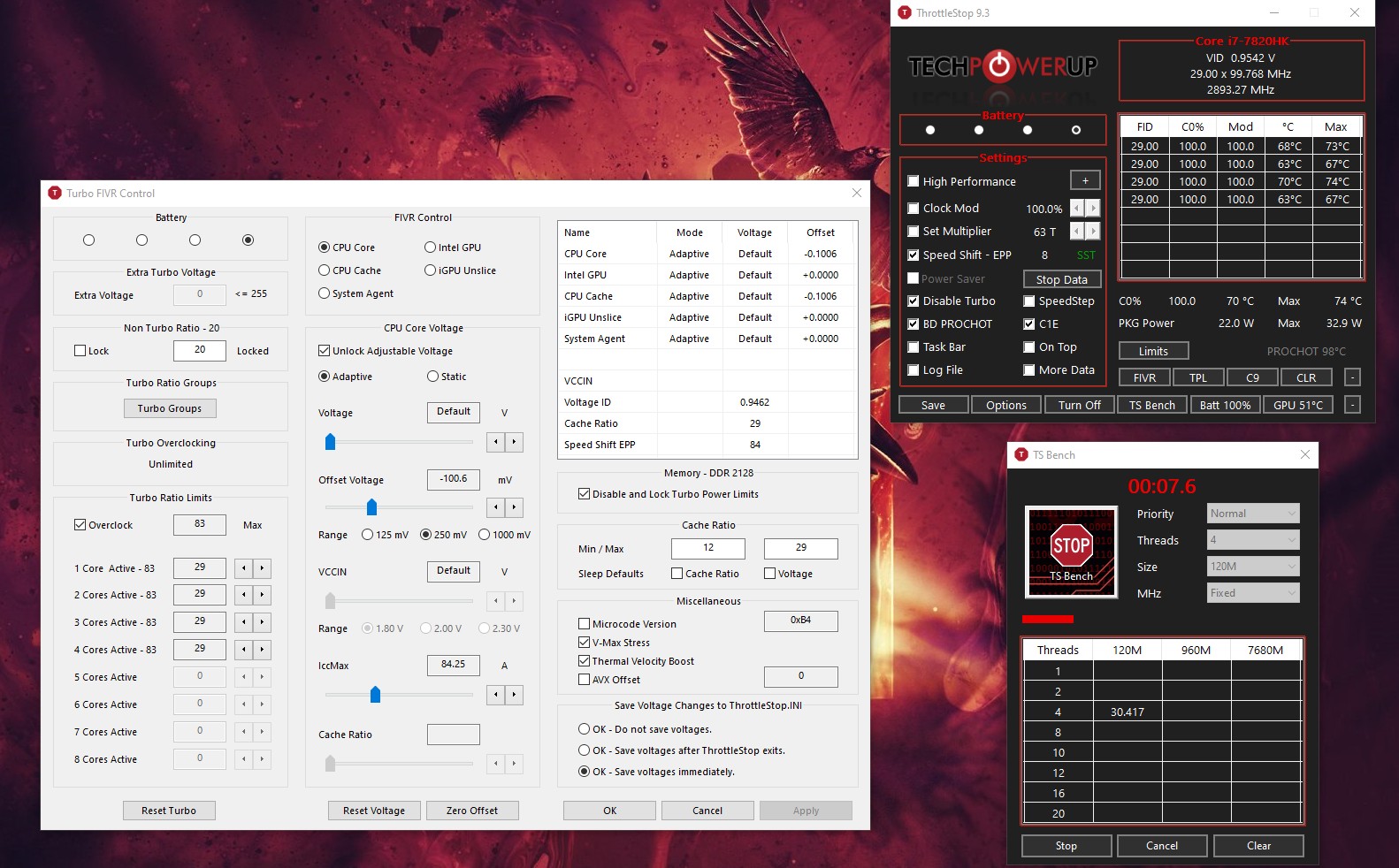
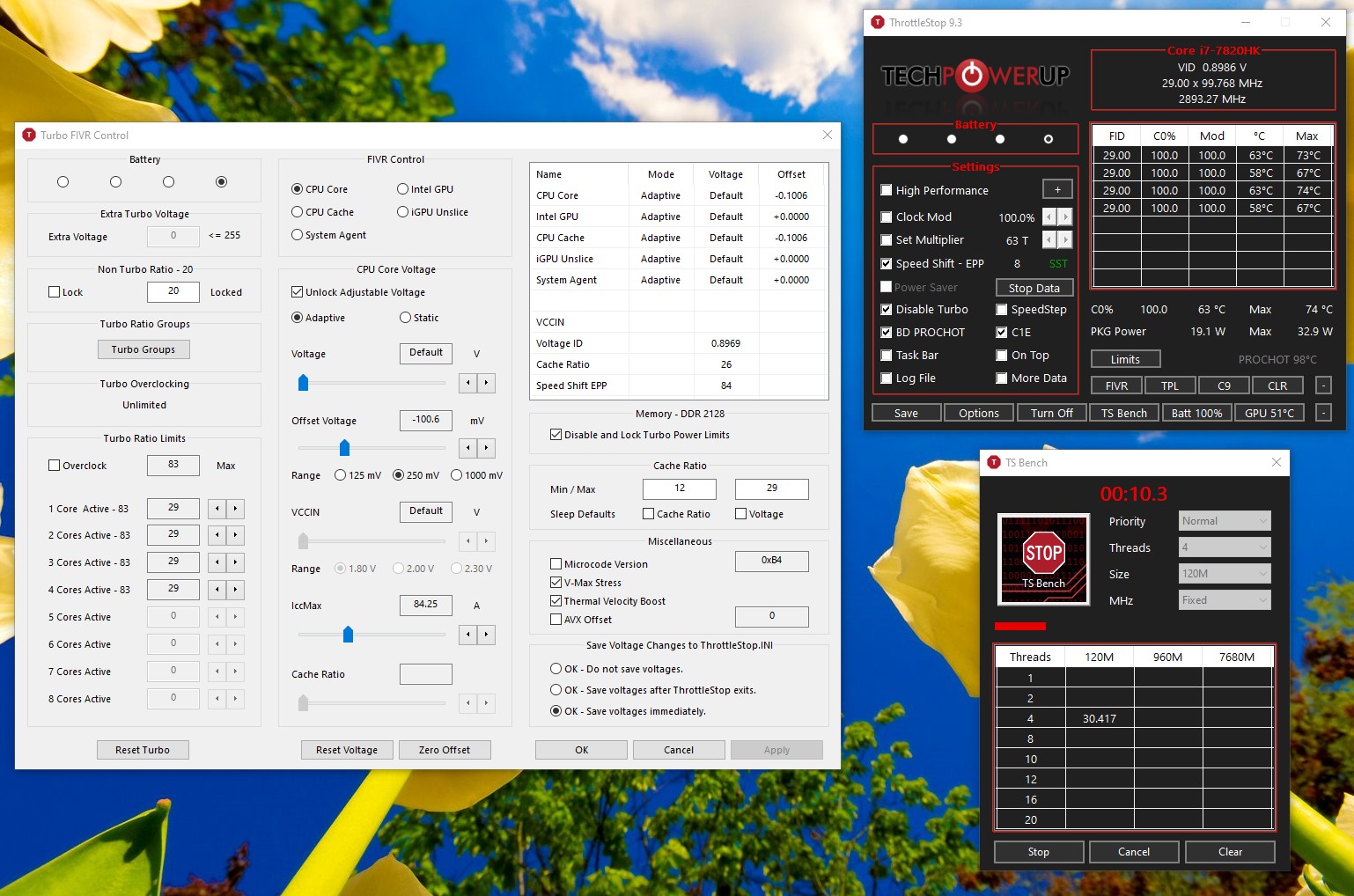
- Disable turbo works correctly but the SpeedShift EPP behave drastically different if the Overclock checkbox inside the FIVR is set ON/OFF.
- Simply checking the Overclock in the FIVR throws in more juice (V) to the CPU even when working at the same frequency (2.9 ghz) causing higher consumption (see example at EPP = 8)
- The point above also causes way more conservative behavior even at higher EPP values (for example EPP = 200) where I get much lower operating frequencies when Overclock is set to OFF
Is there a reason for such behavior? If more so considering that at EPP = 8, everything seems identical, even the operating frequencies, but the voltage is very different and I was like: wait, maybe by disabling the "overclock" I also disable the undervolting but the one with "overclock" OFF actually has a lower voltage so I'm kinda confused.
PS: 4 threads because I've disabled hyperthreading.Attached Files:
-
-
Over 7 years ago, the N3540 was an underpowered low end CPU. As you installed stuff on your computer, it has probably got even slower.
If the CPU is always at 100% it is going to stutter. When your computer was brand new, it was probably not powerful enough for 1080p60. You will need to purchase a new computer or run a task that is less demanding.
Let me get out my big red crayon.
That is the Speed Shift Max box that I talked about. If the Speed Shift box is checked and you change the red box to 8, your CPU will use the 8 multiplier.
I do not think you have to do too much for low power consumption when running on battery power. Some people like to disable turbo boost or use a really high Speed Shift EPP value so the CPU does not get up to speed too quickly. I have no idea if either of these ideas actually work. Making the CPU slow, sluggish and inefficient might not result in any power savings. It depends on what you are doing with your computer. I almost always use a desktop computer so I am not an expert on maximizing battery run time.
The Overclock box allows one to overclock both the CPU core ratio on a K series CPU and the cache ratio.
Likely during your testing, the cache speed changed so the CPU increased the voltage so it would be stable. Look in the FIVR monitoring table to see if the cache ratio changes when toggling the Overclock box. That might explain a few things.
With a desktop computer, I usually set EPP to 0 for maximum performance. My 4th Gen laptop does not use Speed Shift Technology so I have not done any thorough Speed Shift testing.
I added a new feature to ThrottleStop which might help you with your testing. Instead of having Ring Down Bin hiding in the Overclock box, now it is separate. When Ring Down Bin is checked, this keeps the cache ratio 3 less than the core ratio. On 10th Gen processors, this is almost always a good thing to do. Trying to run the core and cache at the same ratio takes a significant increase in voltage. Clearing this box when going for a world record might be OK. For everyone else, best to keep it checked for daily use.
With the new TS version, the Overclock box will only apply to the CPU cores. Your testing might go smoother now that the core ratio and cache ratio are completely separate. I will PM you a test version shortly.tilleroftheearth, FrozenLord, Papusan and 1 other person like this.
The ThrottleStop Guide
Discussion in 'Hardware Components and Aftermarket Upgrades' started by unclewebb, Nov 7, 2010.