 Problems? See this thread at archive.org.
Anybody here succeed to OC the RAM speed on Y740?
I've been trying couple of times but no luck.
OC to 2933 Mhz timing 19-19-19-40 @1,35v
-
-
Hi everyone. New owner here, just wanted to share my feedback and ask some questions too. I have this product: Legion Y740-17IRHg, i7-9750H, 17.3", Full HD, IPS, 144Hz, G-Sync, 16GB, 1TB SSD M.2, GeForce RTX 2080 Max-Q 8GB GDDR6, Free DOS.
Idle temperatures - Excellent
The CPU temperature is under 50 degrees Celsius in idle mode. The fans are completely stopped and the laptop does not make any noise which is great. I can browse and read articles, listen to YouTube, write code in Visual Studio 2019, edit documents and the laptop is completely quiet. For the power of this CPU, this is simply great.
With Hybrid mode enabled, the temperatures are lower since the GPU is not working until you play games. Without Hybrid mode enabled, the temperatures are increasing with at least 10 degrees Celsius since the heat will come also from the GPU that is always on.
BIOS version - 1.08 - Undervolting still available
My laptop came with BIOS version 1.07. I was skeptical to update to version 1.08 because I was afraid that the newer BIOS would disable undervolting, like other vendors did in their recent BIOS updates. I updated to the latest available BIOS version 1.08 and I was glad to see that undervolting is still possible. I did not notice any difference in performance or thermals with the two BIOS versions.
Gaming temperatures - Awesome, with a little work
Without using ThrottleStop, it just doesn't seem right. The CPU goes over 94 degrees Celsius and it thermal throttles. I undervolted with -140mV Cache and -250mV Core, but the temperatures were still high, over 90 degrees Celsius. In ThrottleStop, for the Game profile, besides undervolting, I also limited the turbo ratio limits to 32. This means the CPU will not go over 3.2GHz when this profile is used. As a result, the CPU and GPU are staying under 70 degrees Celsius in full load. I noticed a 20 FPS drop, but I prefer 20 degrees Celsius lower instead of 20 FPS higher. Anyway, instead of playing GTA V with Ultra settings at 100 FPS, I play it at 80 FPS. For my eyes is the same thing, but for the laptop is a big difference.
Coil whine - Yes
When the RTX GPU is stressed, I can hear a buzz from under the keyboard. I can notice it in the first minute of game play, until the fans are kicking in and then I can't hear it anymore because of the fans noise I can hear the coil whine if I use my pair of headphones with the jack connector, but if I use my USB headphones, the coil whine is not there. During game play, the fans are loud (not the loudest) but with headphones I do not hear them anymore.
Backlight bleed - Yes
In the upper left of the screen I can see an area. Then I compared it with my other Toshiba and Dell laptops and those have bigger backlight bleed problems which I never noticed until now. Anyway, it is acceptable and not a deal breaker.
Battery life - Decent
With Hybrid mode enabled, I can browse, watch YouTube videos, code, for at least 3-4 hours which is decent for a gaming laptop. I have other non-gaming laptops, without powerful hardware and their battery also last 3 hours.
Fn+Q - Quiet, Balanced, Performance
I noticed that in Quiet mode the fan speeds are higher and the temperatures are better. Balanced mode, similar to Quiet mode. In Performance mode, the performance increase is minimal but this also increases the heat. I noticed that the fan speeds are also lower which is strange. I would have expected higher fan speeds for Performance mode since the heat generation is higher due to the overclocking that is made in this mode.
Lenovo Vantage - Installed and uninstalled
I installed it initially but I noticed that, besides having an indicator of the current selected thermal mode, I don't use it for anything else. I uninstalled it since I will keep the Thermal mode in Balanced or Quiet mode anyway. Switching the Hybrid mode can be done from BIOS too, so I could not find any reason to keep Lenovo Vantage installed.
Keyboard lighting
I wish the default color would have been white instead of blue. I installed iCue software and I made the keyboard color white, but I think it is a little bit too much. I really don't like installing hundreds of MB to be able to toggle a switch. The same goes for Lenovo Vantage too. I uninstalled it and I will get used to blue
Final thoughts
This is a great machine which offers a lot of performance when needed and a quiet experience when not gaming. Before buying and keeping this laptop, I tried the new ASUS G14 which was a very big disappointment. So, I am very happy with my new laptop.
Questions:
1. In HWiNFO64 or in any other software do you see the fan speeds ? I could not find them anywhere.
2. In MSI Afterburner there is a list of hardware info that can be displayed through Riva Tuner while gaming. Do you have here there the GPU power ? I have only CPU power.
3. When Hybrid mode is enabled, G-Sync is disabled. Do you actually see any difference with Hybrid mode enabled and G-Sync disabled vs Hybrid mode disabled and G-Sync enabled ? Besides, battery life and thermals. I mean, in gaming.
Thank you.Last edited: Jun 3, 2020 -
@alexandrud
Why newer bios would disable undervolting? It is safe to update to whatever future version is released. Changing CPU parameters as designed by Intel cannot be turned off because Lenovo Vantage would stop working and the Power Limit profiles would be inaccessible on the fly. Especially considering vast spectrum of available settings in Lenovo debug bios to be accessible by their repair centers.
Fan speeds are not reported even in debug bios unfortunately.
You could add sensor data to RTSS from HWinfo64 but I have never used the overlay feature. HWinfo64 is reporting GPU Power right below Core Voltage data. -
-
Now that is really strange to lock those settings but we should be fine with our hardware - no reason to do it really for Lenovo.
Last edited: May 6, 2020 -
Ran a Heaven 4.0 bench with current config, results for people who like numbers, final score was 1992.
![[IMG]](images/storyImages/0nc69ZH.png) Last edited: May 6, 2020
Last edited: May 6, 2020 -
Hi. I'm using a Legion Y740-17ICHg with I7-8750h and RTX 2070 Max-Q. I tried undervolting my CPU but any CPU Core offset or CPU cache offset doesn't get applied. I also run BIOS v1.11 if that would help.
![[IMG]](images/storyImages/UUSUxsN.png)
-
@GeraltTheWitcher
Why VCCIN is set unlocked?
It should be set to default unless you want to overclock higher. That's a FIVR voltage. -
I tried setting VCCIN to default and then changing the offsets. It is still not getting applied. I guess the issue is with me using an Insider Preview version of Windows. I read somewhere that some preview versions don't allow undervolting (I may be wrong though).
-
Revert to default settings, then unlock only Offset Voltage and adjust it.
If it doesn't work, try and set it via debug bios.
I will post my config in an hour once I am at home.Last edited: May 7, 2020 -
I undervolted only Core and Cache.
iGpu is disabled in bios.
![[IMG]](images/storyImages/TFZare7.png)
-
How do you enable debug mode for BIOS ? Is there any setting that worth entering in this mode ? Does this mode reset after a restart ?
-
1. Enter bios in normal way.
2. Hold Fn button
3. Slide quickly your right hand finger on all letter keys in order from left to right: each row, from Q to P, from A to L, from Z to M
4. Release Fn, hit F10 to save settings and exit
5. Access bios the normal way and there will be additional options.
So in the general you just need to slide your finger fast on each of the letter row on the keyboard while holding Fn, then saving changes and reboot and enter bios again to have access to hidden settings.
Hidden settings disappear each time you exit bios but the set values are stored - you just need to slide all the letter keys while holding Fn to access hidden settings each time.
Debug bios have tons of settings, most interesting is Overclocking mode where you can overclock stuff, adjust RAM, Power Limits etc. -
Thank you. I entered in BIOS debug mode. I must say I never saw so many configurable options available in any BIOS, ever. There are hundreds of them. Anyway, I would not adventure to change anything from there without being sure that the changes that I do will not brick the laptop Did you actually change values from there, do you have a list of items that can be changed and which may improve something ?
-
Automatic Bios update keeps bricking my Y740, this is third time now. I stoped it the first time from installing, but it kept asking and on the 4th time it installed, failed, and it wont power on...again...for the third time. At a loss for words but not surprised, who ever structured the Bios updates for the Legion line...at a loss for words. Has anyone ever got a refund from Lenovo? I have requested a refund, 4th time I have had to send it in for repair.
Last edited: May 7, 2020 -
~
Did you reset Throttlestop settings to the default and after that undervolt core+cache? Delete Throttlestop settings *ini file just in case and start again.
I did change them for RAM only since I was trying to figure max undervolt for my cpu via Throttlestop, fiddled with Powerlimits etc. -
Is anyone here using "AC and DC Load line = 1" tricks?
-
Did you change anything from debug BIOS version before applying the BIOS update ? Which is the software that enforces you the automatic BIOS updates, can't you just disable this feature ? From which version to which version bricked the laptop for you ?
I personally updated from 1.07 to 1.08, then I reverted back to 1.07 and then I decided to update back to 1.08. I had 3 BIOS flashes on my side without problems. -
My touchpad surface already has a shiny area in the middle just after a few weeks with very little use. It seems to be indeed made out of plastic and wears off quickly. What a bummer.
-
I am still having this issue and am incredibly frustrated with it. Anyone else having it? Has anyone been able to solve it? My power draw is higher with Optimus ON then with Optimus off. I have idle 30W power draw, Nvidia gpu icon is black/white. CPU is around 0.78Ghz and also showing very low wattage draw in HWinfo64 (~7W power draw)
Wtf is going on... Laptop is also super hot to the touch. -
Maybe this is a software problem ? Have you tried to reinstall Windows 10 and check the temperatures before installing the drivers, after installing the drivers that you usually install and again after installing certain programs that you usually install ? Without the external monitor connected, do you have the same problem ?
-
I'm sure its software related. I was hoping to find a solution other than nuke and pave but there doesn't seem to be one. It's frustrating to have to re-setup everything on the laptop, programs, settings, customization, drivers, etc. All my testing has been with no peripherals.
-
-
I got the same issue out of nowhere. Maybe some windows update thing?
Edit: also fans run almost all time now when plugged in. My AMD laptop has been running hotter aswell since a few days.Last edited: May 11, 2020 -
Can you download/install BatteryInfoViewer and let us know your idle power draw with Hybrid mode on and then with Hybrid mode off?
-
Here is the thread I started on it:
http://forum.notebookreview.com/thr...st-bizarre-issue-ive-ever-come-across.832075/ -
Do a clean install of Windows, make a system disk image to quickly restore it.
Just fire up monitoring software and live graph to see what uses which component. Maybe in Optimus, some app is checked to use Nvidia GPU all the time or it could be a driver issue?
I would reinstall with official Lenovo drivers, fire up monitoring software and check it. If it is ok I would leave it at that, if not then I would go and find latest driver for each component on its vendor site. -
I'd like to but I just discovered that I'm stuck at 800 mhz when on battery.. can you or anybody confirm if you have the same issue? Or any advice? BIOS reset didnt help. Im on 1.07 for the 15IRHG.
Edit: charged over 35% and it went back to normal. So under 35% it seems to engage some sort of battery saver.Last edited: May 11, 2020 -
So discharge rate according to batteryinfoview:
Hybrid mode, 50% brightness, balanced mode: 33,7 watts at idle
Dedicated mode, same settings: 15 watts
Also CPU clocks up faster in dedicated mode.
Another edit (sorry for those frequent posts): i uninstalled and deleted the intel hd driver dated may 5th 2020 and let windows update install its driver dated november 2019. Discharge rate dropped to 22 watts. So maybe a driver issue? Could somebody who doesnt have these issues tell us his driver version?
Edit 2: seemed to be a fluke. After another restart I'm back at 36w idle. The only thing I can make out is that the "system" process uses about 8 % cpu.
I wanted to add that my nvidia icon in the taskbar is always green.. some of you stated that it showed black/whitem ive never seen that. I read in an linux forum from 2018 that there was a similar problem in optimus mode where the nvidia gpu could not be used but was still powered on.Last edited: May 11, 2020 -
Yup, you now have the same issue. Also, you are looking at the wrong Nvidia icon. The Nvidia logo is always green. We are talking about a different icon. It looks like a square with a grid pattern; it's hidden by default. To enable it, open the Nvidia control panel. In the top row, select "Desktop" and "Display GPU Activity Icon in Notification Area". This icon will be grayed out when dGPU is sleeping and colored when active.
Please test hybrid mode on. Confirm that the GPU icon is black and white and that you have 33W idle power draw. If that is the case, we have the same issue. -
Yes its black/white and says inactive.
I found out something else (probably not related to this issue?): when i do a stress test with aida, prochot gets triggered and cpu clocks at a steady 800 mhz. How could i game on battery then? Maybe some of you could confirm that?
Thanks.
Eric
Edit: in hwinfo64 i see that the nvidia gpu sporadically comes on using about 15 watts for a few seconds. The info icon remains black/white.Last edited: May 12, 2020 -
Why did you buy a notebook with unimpressive battery life for games lol
It is mentioned pretty much in all reviews. -
Thanks for the helpful post. I don't think you know what I'm talking about. Im talking about performance here, not battery life.
-
Is there any way I can go back to BIOS 1.06 from 1.07? Y740-15ICHg
-
You won't be able to game on battery; and that's normal. No modern laptop batteries have a sufficiently high enough discharge rate to allow full performance on battery. If you somehow overrode this (Ie. removed safety parameters) your laptop would quite literally burst in flames.
-
Enable the option in BIOS to be able to install an older BIOS version and install version 1.06. More info here. The latest one is 1.11. Why do you want to downgrade ?
-
I read that its better not to update to 1.11? What are your thoughts?
-
I was wondering,
I have also removed the black mesh that was attached to the back cover a few days ago, and i have a feeling that i have made a mistake as my temperatures rose by a few degrees(5-7c), so i wanted to be sure if removing the black mesh can be the cause for the temperature rise, or it can be caused by something else?
If so, can i put another black mesh as a replacement in order to lower the temperature? -
Definitely not. But it will also be hardly an improvement to remove it in the first place.
-
Now that i am thinking about it, in the past few days the ambient temperature in my house rose pretty substantially compared to last week,
it might be the cause, right?
I am also using a cooling pad,
So I thought by removing the black mesh it will allow for more air to be pushed to the heatsink to cool it down even more. -
You removed the black metal mesh correct? I am asking cause this legion y740 back cover has the exterior(plastic honeycomb) the grey black metal metal and a linen cloth mesh.if you removed the metal mesh and so you can see the internals from the back cover honeycomb holes then you did it right! You have nothing to worry.
These 7-10 degrees may be from the last days heat,yes maybe ,maybe your fans need cleaning,or maybe you installed some programs that keep your CPU busy on idle?Last edited: May 15, 2020 -
I was talking about the black cloth as I removed it a few days ago.
And the black metal mesh with the honeycomb holes was removed 2 weeks ago, so i was wondering if the black cloth can make the temperatures rise when removed.
My idle temperatures are excellent, I see high temperatures only under load(been getting 73 max on the gpu and now I am approaching 78-79c). -
It's not the cloth ,nor the removal of the mesh that rise the temps of your lap.
You should reconsider to reaply thermal paste, or something else.
just monitor and eyecare your temps.KarenNikoghosyan likes this. -
Alright.
Thank you for the help. -
Hello community,
first of all sorry that i bother you again with my fan noise complain.
The laptop is a 9 out of 10 for me but if i consider the fan accustics which makes me get headaches and a tinnitus every day its a 2 out of 10.
I have researched the whole web about that in the last year, i nearly watched every youtube video about gaming laptops and red every thread.
My conclusion is that 70% of gaming laptops are making this high pitched / high frequent fan noise but nearly nobody on earth cares about it.
Escpecially in the low - mid RPM of the fans it kills me every day.
+ In the meantime i have ordered a new heatsink with fans for 250 euros. The new fans are making the same noise.
+ I have contacted different notebook replacement fan shops and talked to them.
+ I have contacted the manufacturer and designer of our fans for the Y740 series.
+ I have tested my old fans attached to the heatsink, when they are not build in the laptop.
I can't test the low RPM since USB 2.0 delivers about 0.5 Amps so the fan is running nearly on max RPM.
In this test scenario i also can barely hear the high pitched noise coming, i think from the bearings. But it is 10 times quieter as if the heatsink is build into the laptop.
So what improves this noise? the resonance when everything is covered by the case?
Are the fans shaking, vibrating and thats why i hear that?
I have two questions i just can ask them other Y740 owners, no one else can confirm me that.
The manufacturer of our fans is Delta.
The part numbers: ND85C10 (CPU) and ND85C11 (GPU).
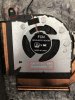
Why do both my original heatsink and my replacement heatsink have fans from FCN ? Part number DFS2001055R0T EP.
No web shop on the whole world know this part number.
They look 100% as the delta but has the FCN logo and a different part number branded on it.
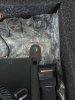
Also please take a look at the picture (red marks).
My old heatsink has this golden screw nut fixed to the fan.
I think that's wrong! The correct place for this is at the bottom of the whole case.
Is this causing or improving the sound i hear all day?
Does anyone of you has this at his unit too??
This is what i hear nearly every day since a year: https://vocaroo.com/sj5q55fM2ae
(careful in the end its going to get loud).
In real the sound is 10 times more annyoing that in this sample audio file.
My smartphone mic is not so sensitive to catch it as it real sounds like.
So this is one of my last attempts to get rid of it.
I can't calm down myself because there are people saying their unit does not make this noise at all.
So i always have in my mind my unit has a bad design or something is wrong.
If everything does not help i will sell the laptop losing a few hundreds of euros and my dream of a gaming laptop is gone forever.
Thanks in advance for your support.
Best regards,
Itzap -
My laptop makes the same noise. It comes from the left fan.
-
Hey all,
I have a Y740 15IRHg with 9th gen CPU and 2070 Max-Q on 1.08 BIOS and I’m trying to back flash to 1.05 or 1.03, mine came with 1.05 and Fn+Q max fans enabled which is what I’m trying to get back to. The problem is, I can’t find a BIOS lower than 1.06 anywhere, is there anybody here with the same model as me that has these BIOS?
Thanks! -
Do you have this sound all the time ? In my case, if I am not gaming, the fans are completely stopped and the laptop is silent completely. I write code in Visual Studio, watch YouTube, write documents, downloading files, fans are stopped. If I play a 3D game like GTA V, the fan noise is similar to yours. I also have a noisy coil whine from the GPU, as bonus The fans make most noise in Quiet Mode, while their speed is decreased when using Balanced or Performance modes. Anyway, while gaming, I use a pair of headphones so that the fan noise is not a problem anymore. Try to use headphones or get used to the sound the fans are making. Usually, high end laptops with powerful hardware have noisy fans. I don't think you can find a better gaming laptop regarding the fan noise. At least this laptop can be silent on light usage. There are a lot of laptops that are generating a lot of fan noise during idle which is even more annoying.
ericxps likes this.
-
Hello alexandrud, hello ericxps,
thank you both for your contribution about my "case" !
I can totally confirm what you wrote alexandrud, in quiet mode on low load or when the RPM is low-middle or while they ramp up i can hear that whistle at it's loudest tone.
And yes this gaming laptop is overall / measured just by the decibel they produce the quietest gaming laptop i've ever found in the internet.
I had the razerblade 15, gigabyte aero 15 and some dell XPS and alienware laptops in the last years.
They all made this tone even worse then the Y740.
On Blanced profile the fans totally stopped till the max core reached 57°C.
I normally use this while doing "none gaming" stuff and yes then i can sit in a room and its 100% quiet.
Youtubevideos will get my CPU after 10 mins to 57°C and then the fans start.
Thats quiet normal or near to cause the heat is spreading over the heatsink can't get out.
Put it on quiet or performance mode while doing this none gaming stuff, that's what kills me the most.
Also when i play games the most are not so intense but the fans run at the RPM which you get when you have performance mode and the CPU cores are at the high 50's.
I can accept if there is no way to fix that. But i cannot accept if something is wrong in my case and that's why they are doing it so loud.
As i have my old heatsink and fans as spare part now i did some more tests with it today:
If the center of the heatsink is on a platform, at all RPMs you nearly cannot hear that noise!
But you can, it is 100% coming from the motor or blades.
If the heatsink is laying on a flat surface, the fans sound totally different, like motorcycles. (no nothing is touching the fan or the blades they can run free)
If the heatsink is laying on a flat surface with the textile mesh under it it sounds like a quadrocopter brushless motor, but not with a high pitched tone.
If i cover the fans with a flat surface (same situation as they are build in the case). I can hear that high pitch tone very clear!!!
So can we decrease this high pitchted whistle tone by adding small foam tapes under or above the fans?
The factory itself has added these foam tapes, can more decrease the loudness of this sound?
This guy could be my clone he did something, but did not provide how it sounds like and if that could help me/us as well:
https://forums.lenovo.com/t5/Lenovo...nnoyance-My-search-for-a-solution/m-p/4249183
I know many people who read this will roll their eyes but if you have really good ears this will drive you crazy.
A forum is there to discuss, i really hope some more people give their meaning to that.
Have a nice evening and i say thanks to everyone who could give his meaning even if it blames me.
-
Im not rolling my eyes as I find it annoying aswell ;-) when installed, do both fans sound the same or is at also only the left one? Maybe its just the noise of the wind blowing through the heat sink like a flute. Despite the annoying issues I have with my machine I think they are just minor when compared with other laptops though. You have to suffer one way or another I guess
Lenovo Legion Y740 17" 15"
Discussion in 'Lenovo' started by victorgm, Jan 30, 2019.


