 Problems? See this thread at archive.org.
Thanks, that's awesome. I'm curious what's happening on the Details tab -- anything interesting over there?
Remind me if the Resource Monitor is still around, or did it get absorbed into the Task Manager?
EDIT: OK, duh, I see the link to it on the first image (Performance) -- that will be a useful place to explore.
-Matt
-
-
This laptop is utterly fantastic. Finally got mine, and it works great. SSD in and everything.
I'm wondering - is there an alternate way to get the serial number of the laptop, or is it just on that sticker on the outside? I'm curious to know if I can remove the sticker, but I also fear that I'll lose it, disorganized as I am. -
Wow, that's great news. Really glad you like it.
I hate sounding stupid, but I checked under mine (S02UB) and didn't really see a serial number. You don't mean the Win7 product code, do you? Or is there a Samsung-specific ID #?
-Matt -
The serial number on my S01US is printed in dark grey directly on the plastic bottom. Look directly under the touchpad.
-
I meant the samsung serial number. I ended up running a program that yanked out the serial number from the BIOS.
I needed it to register with the site. And thanks, YJG
-
No problem. When I was registering mine for the warranty I was tearing my hair out trying to figure out why none of the numbers on the two stickers would work. I caught the dark grey print out of the corner of my eye and wanted to smack myself for being so blind.
-
i was out of the loop for a while from the forum.. is the new samsung 7 out already?
-
The S/N should also be on a label on the box. Take a photo and store it somewhere.
See this thread.
John -
Actually John I remember getting so angry because the SN isn't actually on the box. It's got a sticker with some numbers here and there, but non are actually the serial number.
Also, my problem is back. I've created a custom event log that monitors events 42 and 1 which are sleep and wake respectively. Unfortunately, even when the laptop wouldn't go to sleep event viewer seemed to think so. However, I actually think I've narrowed the problem down to "WSD Print Device" and "WSD Scan Device" in Device Manager. Whenever both are disabled, sleep works perfectly every time. When either one of the two is enabled, sleep doesn't work again. So I guess no wireless printing for me. -
I'm considering getting this today from Best Buy. Hope I'm happy with it since each laptop has its own set of pros/cons. On balance this seems like a great choice for me.
Will post initial thoughts later tonite or tomorrow. -
That's unusual. Having the data on the box label helps track which computers go where.
The WSD drivers are not specifically wireless but for access through the web. They aren't something I use and I have printed to local network printers using WiFi. Unless you know that you need the functionality provided by the WSD drivers I would suggest you disable them (best to do it through MSCONFIG) and see if you lose any functionality.
John -
thanks for the link john.. but i posted my question on that thread and no one is answering it. all i want to know if its released now so i can buy it.
-
Read the thread and follow the links. Last time I looked there were some places where the new models can be ordered but availability seems a little uncertain. Work out from the details here which model you want and then Google for shopping links in your country.
John -
How in the world did you figure out it was the wireless printer? Sounds like an impressive bit of detective work!
Fantastic -- and to make you feel even better, the S01US was around in 2012 for ~$1,000, while the S01UB was $1,000. The S02UB at $900 is an AMAZING price.
-Matt -
It actually happened by chance. I was mucking around in Device Manager and saw those two drivers there that were new to me. So I tried disabling them on a whim and it worked. They were part of the driver package for my roommate's Brother printer as specified by its properties. Uninstalled all of it (having to use printui /s /t2 in the command prompt; thank god for google) and everything's working perfectly now.
-
So I'm typing this on my new Samsung! Got it from Best Buy for $899, which as noted above is a great price!
Couple quick notes: 1) I had a Sony Vaio stolen this week and it had a very nice 1080P monitor. I didn't know how much I'd like hte 1600x900, but this seems fine to me right now. Time will tell though and I gotta love the "new" Best Buy 30 day return policy. I don't believe that was their policy when I bought the Vaio 2.5 years ago. 2) The build quality of this unit, as noted previously, is far superior to my Vaio (IMHO). 3) Also, the keyboard has a really nice feel to it so far.
So, what should I do first to tune this thing up? I'm d/l all the Windows updates and it has Norton Antivirus installed (Best Buy also gave me Kaspersky that has a one year subscription, but I don't plan on loading that). Anything I should do first day with this unit to help it run as well as possible? -
Awesome! So glad you're having a good experience.
That depends on whether you plan to stick with Win 8 or downgrade back to Win 7. Which way are you leaning at this point?
In the meantime, check out this thread on running a custom color profile as an alternative to the default settings.
-Matt -
Thanks Matt.
I honestly don't know if I'll stick with Win 8. This is my first experience with it and, it is different . . . I'm just trying to setup my Mail account for that tile but I don't want, and don't need, a Microsoft account. Can't I use my Yahoo! and Gmail accounts?
Thanks again. I'll check out the link. -
It's not a tune-up matter, but run Samsung Recovery Solution and make some backup discs.
John -
@WSR: To follow up on John's important advice, the post linked here lists the steps I recommend taking on your new Samsung PC. Doing all that may be overkill, but it does ensure that you can always get back to the factory state. If you ever have a problem that requires you to contact Samsung support, they'll likely ask you to restore the factory installation to verify that you didn't mess it up. And if you decide to sell the PC someday, it's also nice to be able to restore it back to brand new state. At the very least, use the steps described to backup System Software, back up your Initial Image and make a USB Admin Tool. The last two are done by F4 booting Recovery and pressing [CTRL]+[ALT]+[F10] to enter Management Mode, password SECCLX.
Regarding Win8 vs Win7, I just installed Win8 on my test partition, mostly so that I can answer some of the Win8 related questions here. Last time I checked it out was the Consumer Preview. I still don't like the Modern Metro Mess and how it penalizes non-touch screen users. BUT, that said, it's not as bad as I remember once you discover the hidden interface tricks; and it does have some real benefits over Win7.
For me, Win8 installation was a breeze, and everything seems to work with the latest drivers.
If you DO decide to downgrade to Win7, you will probably have a smoother ride if you avoid UEFI mode (which is how your Win8 PC was delivered). Check this thread for some of the risks of UEFI. Let us know before you dive in, if you chose to downgrade; there is plenty of information here and helpful people to make it a safer journey. -
Thanks Dannemand. I really appreciate the advice.
I already made some changes to the system, such as installed Google Chrome, so should I restore it to yesterday when I unboxed it (presuming there is a restore point available), then perform the backup?
Is the backup software "Samsung Recovery Solution III"? I don't know where to find it if it is. Thanks again! -
Hi all. I'm looking for help with an issue I have with my Samsung Series 7 NP700Z5C-S03US (purchased in November).
My screen brightness is set in the maximum position but it is still very low/dim. The screen used to be much brighter so the change is very visible. I can still operate the laptop but watching videos for example where there is a lot of darkness is very annoying. This has happened a few times before but the problem has always gone away automatically or after a reboot. Now it is not.
My issue is not that the the screen brightness keeps adjusting automatically. I've turned off that feature (auto brightness control/ambient illumination). The problem simply is that the maximum brightness level is too low. I updated my Intel 4000 driver just in case but there was no change. I've tried googling for a solution for three hours but I haven't really found anything that is applicable to my situation.
Anyone experienced a problem like this before? Do any of you have an idea of how to approach the problem? I seriously hope the problem isn't in the hardware or in the LCD screen itself and that it's a software issue. Right now the dim screen is annoying the hell out of me. -
Your screen brightness issue may be a defect in your panel if you can't seem to adjust it properly. The max screen brightness is actually quite bright, so I'd set up some sort of warranty replacement with Samsung before your warranty runs out if I were you.
Also WSR after setting up your system image and whatnot, personal things I like to do when setting up a new install is disabling the page file (on systems with plenty of RAM), updating the graphics drivers, disabling User Account Control, and installing CCleaner and Revo uninstaller.
On this laptop, I'd recommend going into task scheduler and removing the startup delay of EasySpeedUpManager, SCCSpeedboot, and SmartSetting so that your function buttons will work immediately upon booting, rather than 30 seconds in. I also disabled MovieColorEnhancer and SAgent upon boot. -
Have you checked the various settings in the Display section of (Easy) Settings?
Otherwise, assuming that it's a Windows 7 machine without any possible Secure Boot / UEFI problems then I would try running a Linux Live CD. If the screen is still dim then I would suspect the hardware. if the brightness is OK then it suggests that something in the Windows installation is corrupted.
John -
I experienced this issue in Win8; but turning Auto Brightness off solved it. What escaped me at first, is that there are TWO places in Win8 to enable/disable Auto Brightness: Under Display -> Enable adaptive brightness in Power Profiles (Desktop) as well as under Charms -> Settings -> Change PC settings -> General -> Screen -> Adjust my screen brightness automatically (Metro). Once I disabled the latter, full brightness returned.
I don't know if this applies to you as well.
Samsung Settings for Win8 does NOT contain any Brightness options -- as is the case in Easy Settings for Win7.
I apologize if it was common knowledge already
-
You don't have to restore the system (which would lose your current setup) in order to make the backups I mentioned. They are merely backups of various parts of the Recovery Partition (including the so-called Initial Image) required to get the PC back to factory state -- should you ever need that.
That said, making a backup of your system once you have it setup is important as well. Samsung Recovery Solution can do that too, though a system image created with Windows 7 File Recovery or with a 3rd party imaging tool may be better options.
You should be able to use Samsung Recovery Solution from inside Windows to backup your System Software. At least I can do that with SRS5 in Win7 on my Sammy, and I would expect you can do the same on your Win8 Sammy using the newer SRS6. (You said Samsung Recovery Solution III which puzzled me?!?)
I just tried to install Samsung Recovery Solution in Win8, and I am unable to backup System Software directly. I suspect it is because my System Software (stored on the Recovery Partition) is all for Win7 and SRS sees the difference.
In any case, the other backups you need to do must be made by booting into Recovery, pressing F4 immediately after power on. And you can backup System Software in here as well. Timing of that F4 is essential, and you may need several attempts. Don't press and hold F4, instead press it repeatedly 2-3 times per second starting immediately after power on.
NOW, as others have found, booting F4 (Recovery) or F2 (BIOS) is even more difficult under Win8 because of its new Fast Startup feature (NOT to be confused with Samsung's old Fast Boot or Fast BIOS modes nor with Intel Rapid Start). This Win8 feature (enabled by default) turns Shut down into a micro-hibernation: Windows doesn't fully restart after Shut down, it merely resumes (similar to after hibernation) and reloads a small memory image. That means you will never see those F2 and F4 messages, which are displayed by the PC when you do a regular cold power on.
Thus, as far as I can tell, the safest way to enter BIOS (F2) or Recovery (F4) on a Win8 PC is to disable Fast Startup: Control Panel -> Power Options -> Choose what the power button does -> Change settings that are currently unavailable -> Turn on fast startup (uncheck). Now you can fully shut down and boot BIOS (F2) or Recovery (F4) on next power up.
Fast startup is otherwise a great feature and the reason for Win8's fast startup time. So I would keep it enabled for daily use. If you need to restart, just choose Restart. If you need BIOS or Recovery, temporarily disable Fast Startup.
You guys can hear I am new to Win8 I apologize if all this was already common knowledge. I just remember Win8 users posting problems booting F2 and F4 -- and now I can definitely understand why
-
Thanks guys!
Can I use one USB stick for all these backups, a boot disk and a USB admin tools disk? -
Unfortunately no.
USB Admin Tool needs to be a USB stick by itself, but it takes less than 512MB, so you can use an old one you have lying around.
System Software is a few GB and can go on a USB stick, an external drive or a blank DVD (what I did).
The image backup is probably around 16GB, and can go on a USB stick (preferable) or external drive.
And if you want to make a full file and folder backup of your Recovery Partition (as described in that post I linked) that's probably about 25GB on yours (22.5GB on my older Z3A). -
Okay, I want to ensure I'm doing this right.
I went into Recovery, by hitting f4, then hitting ctrl-alt-f10, then typing the password. I then went to Image and exported the Image from the recovery area to a specific location. Did that copy the entire recovery partition? Also, I presume I can backup the system software and the recovery partition onto the same USB flash drive. Is that correct?
Sorry for all the questions, I just want to ensure I get this right.
This machine, otherwise, is awesome so far. Can't wit to begin using it more fully once this is done! -
@WSR: It's OK, I should have been more specific. You probably figured it all out while I was asleep, but here goes for the record:
The Recovery Partition contains the following:
1) Windows PE and Samsung Recovery software (folders boot, EFI, Restore, Sources, WinClon and files bootmgr, imagex.exe, WinClon.WCL). USB Admin Tool is a bootable copy of this software on a USB stick and allows you to re-create a Recovery Partition on a disk with all the necessary software and working F4.
2) Initial Image (files init.woo, init.wcl, init.w01, init.w02 etc). This contains the factory delivered Windows installation. If you create a new Recovery Partition with USB Admin Tool, you need to put this Initial Image back onto it. USB Admin Tool will prompt for a USB stick to copy the Initial Image for you -- or you can copy it afterwards using the Import function on the Image tab in Management Mode.
3) System Software (folder SystemSoftware). This contains all the drivers and utilities for your model and your original Windows version. It also contains SW Update (or Easy Software Manager for older models). Recovery allows you to make a backup of this on a blank DVD or to an external USB drive or stick, which makes new installations a snap -- even without an internet connection
You already backed up your Initial Image, that's great! Now go to the Tools tab in Management Mode and create USB Admin Tool on a USB stick (512MB or larger). And finally, go back to the main screen (click the home icon in the lower left corner), choose Backup and backup System Software.
Note: If you don't see the option to backup System Software, then maybe newer models don't contain these on the Recovery Partition, relying entirely on SW Update to download drivers. Recovery itself works fine without it.
The additional step I suggested of making a full file and folders backup of the entire Recovery Partition is an optional pre-caution. It allows you to simply copy everything back after you have created a new Recovery Partition. For me it is actually the easiest and best way, but it must be done using other tools ( see this post).
Once you have these, you can recover from almost anything and still get the PC back to new factory state condition.
I hope this clarifies
-
No need to apologize, this is great information. I also was not to sure how to boot F4 mode.
I backed up the System Software (which contains the drivers etc) onto a DVD using SW Update. Is that the correct way of doing it?
Now using your advice, I'll back up the Recovery Partition onto an external HDD. Also on the link you posted, you mentioned to back up the 100MB Reserved Space, what is that for? -
Thank you, Sonic
Yes, backing up System Software with SW Update is fine. As I posted in my last response to WSR, I am not even sure if it is still a function in Recovery on the new models. And either way it's just optional, to speed up installation: You can always just download Intel WiFi drivers and SW Update, which is all you really need after a new Windows install.
Good question about backing up the 100MB SYSTEM partition (I believe it's 350MB in Win8): You don't really need that, it is easily recreated. Where it comes in handy is to avoid the USB installation issue where Windows won't boot after initial setup, because it created its SYTEM partition on the iSSD instead of on the HDD -- but the iSSD isn't bootable. One of the ways to avoid that is to preserve the original SYSTEM partition on the HDD (or restore it from a backup) and make sure it's still flagged Active/Bootable. But there are several other ways to work around that issue, as documented so well by hanime in this thread:
http://forum.notebookreview.com/samsung/697841-guide-how-install-windows-7-8-via-usb-np700z.html -
Could someone explain what all these partitions are in the attached picture? My 1TB drive only shows 907GB when I check the c:\ drive under File Explorer, but what are all the other partitions for? Thanks.
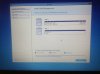
-
That's a lot of partitions. I don't have the stock drive in mine, but I'll try. MS is the 100MB system reserved partition for Windows, all Windows installations have this partition. C is normal. I'm guessing Y right there is a built in system image and recovery partition. And S may be the partition storing that recovery software (if you hit f4 on boot or something). I don't know what W and Z are.
-
I have been doing some more research on the high RAM usage that I was having and I have found that my Non Paged Pool is 1.1GB which is quite high. I found out that a lot of people with Samsung laptops have had something called IntelliMemory which used up a lot of RAM. Link
I can't find IntelliMemory on my laptop, but the non paged pool is unusually high as in the thread that I linked. It's exactly the same situation. Can someone help me identify why the non paged pool is so high? -
The poolmon utility looks useful:
Troubleshooting Pool Leaks Part 2
Have you given it a try yet, and if so, what did you observe?
-Matt -
Do I need to download Windows Driver Kit 8 in order to use it? I'm not sure how to use the poolmon utility.
-
Yep...unfortunately the WDK is about a gig, but it looks like your best shot. I'd download it and
If you make it to that point, chime back in and we'll see what happens when you run poolmon.
-Matt -
Very helpful thread. Just got my Samsung (which, in a lot of ways, is very similar to my MacBook Pro) and two things were bugging me:
1) Screen brightness issue which I got fixed thanks to this thread.
2) Need to install a SSD.
I haven't perused this thread in depth, so my solution is probably here. But in case it isn't, here's the issue in a nutshell.
Have a blank SSD and have never cloned a drive. I "burned" a factory disc image using "Recovery" to my external SSD drive. Installed it. It went into a "boot loop." All I really want to do is replace the 1TB HDD with my SSD and all will be well. If someone can direct me to the exact solution, I'll be a happy camper.
Thank you! -
How would I go about creating a D:\ drive partition for all my data while keeping the C;| drive partition large enough for Windows and everything else? I recall this was the preferred method previously, but is it even necessary nowadays with today's HDD? Thanks!
-
@WSR: I would DEFINITELY create a separate Data partition. It makes life so much easier when you can just restore a backup image of your Windows partition if the system acts up, without worrying about losing data.
1) Defrag your WIndows drive (to make it shrink better).
2) Open Windows Disk Manager, right-click your Windows Partition and select Shrink Volume. I'd say 60GB should be plenty for your Windows Partition (mine is 48GB). It may not allow you to shrink it that much, though.
3) Still in Disk Manager, right-click the blank space and create a new Data partition; format it, give it a name and drive letter.
BTW, I DID see your question about the many partitions on your disk. I don't know why the new Win8 PCs come with that many partitions. It used to be just the 100MB SYSTEM partition and one Recovery Partition -- and of course a Windows Partition and an optional Data partition.
I'd love to spent a few days with one of these new machines some time to find out what the heck is going on.
Anyways, hope this is useful.
Edit: Oh, and I think you can start enjoying your new toy now. You've been doing your housekeeping all right
-
Thanks Dannemand. I appreciate the information.
Using the picture below as a reference, the following is the description for each partition. I'm hoping someone can help me understand what each is for and whether I can delete them or resize them. Ultimately, I want a C drive (for Windows 8) and a D drive (for data).
The following is the description for each partition:
DISK:0
[W:] Recovery [1] [0~0] 0.5GB
[S:] ESP [2] [0~0] 0.3GB
MSR [3]: [0~0] 0.1GB
[C:] [4] [0~907] 907.6GB
[Y:] Recovery [5]: [908~929] 22.0GB
[Z:] Recovery [6]: [930~931] 1.0GB
DISK 1
[?:] Unknown[1]: [0~7] 7.5GB
So which partition can I safely delete and/or resize to have a 60GB partition for Windows and the balance for data? Thanks!
ATTACH=CONFIG]92157[/ATTACH]
This Photo from Disk Management may be easier to see the partitions.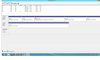
-
@WSR: I am terribly busy these days, so this will have to be a fast one.
My recommendation is to leave those partitions alone for now. All combined, the system & recovery partitions are less than 24GB on a 1TB drive. And since your disk is GPT partitioned (as opposed to the old MBR partition table) there is no restriction on the number of partitions.
(A 1TB drive will only give you about 930GB usable space because drive vendors define GB differently from everybody else. Business Schools teach MBA students that this is very clever and nobody will notice.)
The 300MB EFI partition is part of your UEFI BIOS setup. Do NOT delete this!
The 7.46GB partition is used by ExpressCache (located on the iSSD drive). Leave that one alone too.
As for the remaining ones, I am still puzzled why the new Samsung Recovery needs that many partitions. If you were doing a new clean install, I'd say you can delete them since you made Recovery backups. But as long as you're running your Samsung delivered Win8 installation, I wouldn't touch these partitions. Except for the big 22GB one, you wouldn't save much anyway.
Just shrink the big C: partition and create a new Data partition. You'll be fine. -
I appreciate your help and respect your time. Thanks for everything!
-
@WSR: One thing I forgot to mention: Shrinking a partition can take a VERY long time. It doesn't always, but don't start it unless you can leave it for an hour or longer - without using the PC.
-
Let you all know Nivida released a new video driver a couple of day ago 2/18 I think and I am running it now. No big noticeable improvement but at least my Netflix is stable now with the newest version driver.
Now where did I put that Starcraft 2 disc. I cannot believe I misplace the discs and been trying to find it for days to try out my new laptop ;(
Bill -
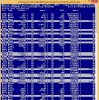
Finally managed to run poolmon. Here is the screenshot:
-
Having a terrible time with my NP700Z5C-S02UB. Programs and apps are taking a longtime to open and operate. So long so that sometimes it would just time out. It take literally minutes to open a program..like Google Chrome or Explorer, etc. Using task manager, I can see that disk activity is at 100 almost all the time with occasional dips for about 1-2 seconds. I do not have anything running, This computer is virtually useless. Nothing runs because it has to wait for disk access which is occupied by (?). Let me know what kind of info you need to help me resolve this issue. Keep in mind this is happening with nothing running than whatever it starts with in Win 8.
-
Awesome, now the next step is decoding all that data!
It looks like ECMC and EtwB (both nonpaged) are eating up quite a bit of memory. We can follow this example:
Troubleshooting Pool Leaks Part 2
Open a command prompt window, move to the c:\Windows\system32\drivers directory, and type (without quotes) "findstr /s ECMS *.sys" and see if it finds the string/file (didn't work for me on Win 7). Try also with EtwB and report back what happens. Once we find the drivers we can pinpoint which programs are drawing so much RAM.
I think John and/or Dannemand will have better advice to offer, but my first impression is this is not a machine issue, it's a software problem. How many days have you had the S02UB, and has it ever worked correctly? Have you installed any software since you brought it home? The first thing I would do is boot into Safe Mode and see if you still have the same issues -- on my S02UB you get there by turning off the machine, then turning it back on and pressing ESC once, then selecting F8 (Advanced Options) and finally selecting the Safe Mode option. In Win 7, you can also run msconfig, and on the Boot tab there's a Safe Boot option that will run when you restart.
-Matt -
Sound like you been infected with some type of Malware. Do a google search on Malwarebytes and download the free version. Update its' database to the latest and do a full scan.
Bill
Samsung Series 7 Lovers - Here's The NP700Z5C Ivy Bridge!
Discussion in 'Samsung' started by yknyong1, Apr 23, 2012.


