Problems? See this thread at archive.org.
pavle24 did you download the universal extractor program? If so, run the application and then select the .exe you downloaded. Then select the extraction location and push ok a couple times.
-
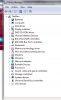
well i managed to install the vaio camera capture utility. but when i go in it i get a blue screen saying no input. i have tried to install the other files that need universal extractor with the default settings it shows but i have no luck. so i went into device manager and saw that the camera was saying "device working properly" and below "windows could not start a related device driver"
oh and another thing... would it just be easier if i was to install a 32 bit version of windows 7? i understand that the vista drivers would work taking them from the recovery cds it asks you to make? -
Can anyone help me out with this question from my post a couple back?
One question I didn't install #11 11. SFEP (Sony Firmware Extension Parser driver) 8.0.1.1: as I jumped ahead and installed the memory card driver first and then realized there was an order and started at #1. Do I need this? What's it do? How do I install it now that I don't have any uninstalled devices anymore with yellow marks. -
biosol,
The SFEP is a device driver which enables many of the special keys including the Fn functions on VAIO laptops.
On my Windows 7 install, the SFEP was detected by Windows and the driver was installed through Windows (or Microsoft) Updates. Most likely this is the case with your laptop, hence the reason you do not see a yellow marker.
You can confirm this by locating the device labeled Sony Firmware Extension Parser Device under Human Interface Devices in your Device Manager. Check the version number on the driver tab: it should read "8.0.1.1". This is the current version available via the Microsoft Update catalog.
--L. -
Oh thanks. You're right, it's installed and the version is 8.0.1.1
Can anyone help with installing the latest video driver and camera filter and camera capture utility? My camera driver is installed and working, but I don't understand where it says to download the filter and capture and use the same install as #9 which is to extract the .exe and add the driver through the device manager. That's how I installed the camera driver... I must be reading it wrong. I tried running the .exe and it didn't install.
When I tried the graphics driver I got an error of DPInst.something was wrong/missing/whatever. Well, maybe I have the latest already, I just checked DM and it's Intel 8.15.10.1912 9/11/09. Anyone know if that's the latest for the 965 video chipset?
Thanks. -
My base system device has a yellow marker and still the device labeled Sony Firmware Extension Parser Device is is 8.0.1.1 how exactly do i install the SFEP driver cause when i download the driver from sony vaio site it doesn't have any .exe inside to do the installation
 , so i have a pretty hard time installing it :O
-
I'm following the guide right now from a clean install. The mass storage controller isn't installing. Any ideas? I have a FZ-190.
-
I had the same problem on my FZ-190 until I installed the card reader drivers then it worked fine.
-
In Skype and another program that uses the webcam I'm getting a yellowish tint. Is this because I couldn't install the webcam filter? Is so, the webcam driver is installed and working, how can i install the filter? Thanks.
-
The webcam filter driver is only for Vaio camera capture utility. I am not sure what your problem is.
-
Follow my guide or let Windows Update install the SFEP driver.
-
Sounds like the white balance is not adjusted correctly. Open the Vaio Camera Capture Utility. Then in the right pane click on the "Camera..." button. Is the "Auto" box checked? If not try checking it. This allows the camera to TRY to adjust the color balance automatically. If it IS checked, the camera is having trouble adjusting itself. This is usually because the scene has an over abundance of one color or another and the camera just can;t figure out what "white" really is. In that case you can uncheck the box and use the red and blue sliders to adjust the white balance yourself.
Gary -
Thanks for the reply. I wasn't able to install either the filter nor the Vaio capture utility. According to the guide it says to follow Step #9 which is to extract the file and through Device Manager update the camera driver. I did that for the driver, but I don't understand or I'm reading it wrong how to install it. Can you help me with that? I've tried just running the .exe but they didn't install. Thanks.
-
Hey, I have a vaio vgn ar 770, what will I need to change from your guide to install windows 7 properly? I assume just the drivers correct?
-
Just extract the driver package, and install it by running the setup files found inside the "tempexe" folder.
-
Hi guys. I'm using this guide to install Windows 7 Pro 64-bit on my vaio FZ210CE.
I've installed the AV Launcher, but I cant get the AV mode button to do anything at all. I even changed the registry entry as instructed to set it to calculator - it does not do anything. What might I have done wrong? I'd like to program the AV Mode button to load the Arcsoft webcam software. Coolguy, did you say in your post that you could not get the AV Launcher to work on your system? You said something about it not working with your video card, so I'm not really sure what you meant. Please clarify.
Please help, and thanks for the guide! -
Thanks coolguy, I did extract and run the setup files are you instructed. I can't find them in the list of installed programs nor on the start menus list of programs. Is there a way I can verify that if they are actually installed? Thanks.
-
Hi all,
This guide is awesome, but I have an only problem, I follow all steps and intall al drivers well, but only for my nvidia I cant install it, I modified the listdevices.txt and I changed the nvmt.inf, then setup.exe dont work because the program didnt find hardware in my laptop, anyone can help me please?
I have a Sony Vaio VGN-FZ21S and my graphic card is a NVIDIA GeForce 8600M GS. -
hi, I also have the fz21s (nice laptop) and I found the NVIDIA driver at: http://support.vaio.sony.eu/os/vista/64bit/
But I didn't find the Webcam driver. I tried what I read in this forum (.exe file with the instaler) and it appears to install it, but it doesn't work. Anyone can help? thanks! -
Thx, but I know that, I have already that driver installed, but I want a update driver, because in opengl video mode dont work with that driver.
-
Are you guys able to get the AV button to function?
-
Hey coolguy... will the drivers you posted work for my vgn-ar770? or do I need to go seek out other drivers?
-
I was just wondering if anyone has gotten the AV Mode button to work (to function at all). I'd like to know if it is even possible in Windows 7 64 bit before I waste more hours of my life on trying to figure it out.
-
coolguy has instructions in the guide he wrote as the first post of this very thread for installing the VAIO Launcher software used with the AV Mode button. He also provides instructions to change the program launched by the button.
--L. -
I am verrrrrrry well aware of that. However, coolguy states: "The AV mode launcher was not working with the Nvidia card, so I left it."
I was wondering if he or someone else could clarify what he means exactly. Does he mean it did not work for him? I cannot get it to work. Can anyone confirm that it works on an FZ with Win7 64?
-
I thought this was what you were looking for.
I only use the Instant Mode feature of the AV Mode button, so I can't really speak to the Windows utility (I recall it only being a program launcher).
--L. -
lbohn -- I'd like the button to do something in Windows - perhaps load the calculator or maybe the webcam software. Don't you find it disturbing that it sits there with no functionality when you're in windows? At this time, I can't get it to do anything at all, even though I followed coolguy's guide carefully. Help would be greatly appreciated.
-
Unfortunately, I've never found it (or the S1 button) to be of any use on either of my VAIOs. I doesn't bother me giving up the program launching capabilities, as both Vista and 7 have much more useful tools (the Search box in Vista & 7 and the Superbar in 7) for launching programs. It is personal preference, I suspect.
I did have the button working on my FZ under the Windows 7 Beta: I was running the x86 version and it was "delicate", to say the least. However that was not unlike much of the other Sony software before the various bits were updated for Windows 7 RTM.
The amount of tweaking required to enable a hardware program launcher just wasn't worth it for me, so I eschewed it under my x86 RC and x64 RTM installs.
To your issue: Have you tried installing the VAIO Launcher software with Vista SP2 compatibility and administrator rights? What about applying the former to the installed executable?
--L. -
lbohn -- I have not tried that. At this time, I can load the aml.exe (this is the AV launcher installed executable) by double-clicking on it. The AV button does nothing, even if I point it to another program, such as calculator, via the registry. It seems that Windows is not sensing the button being pressed. Does this clue you into a possible cause of the problem? I will try to install the VAIO Launcher with Vista SP2 compatibility and admin rights later tonight. Thanks.
-
lbohn - I tried what you suggested, and the AV Mode button still does not respond. Any other suggestions?
-
The purpose of the AV button is to open media without booting up the OS, which didn't work with the Nvidia GPU from the beginning. However, by installing the Vaio launcher software, the AV mode button can be made functional only for lauching applications and this works with my FZ-190.
-
Follow the steps in my guide.
-
If you have same hardware, my guide will work.
-
Instant Mode works perfectly on my FZ470 with a nvidia 8400M GT.
--L. -
Are you talking about the AV mode? It didn't work as supposed to in my FZ-190 from the start.
-
The first "generation" FZ models with Nvidia video did not support the "instant mode" use of the AV button, Sony even made this abundantly clear on their website at the time. In latter FZ models with Nvidia video DID get support for the "instant mode".
Gary -
Yep. I can instantly boot my FZ to watch a DVD (no Blu-rays) or listen to some music occasionally. I don't use the AV mode inside Windows since it's just a program launcher. My FZ must one of the later models which received proper support for Instant Mode, per Gary's note.
If you are interested in the functionality of the Instant Mode, you should give GeeXboX a look. I used this on my old FS790 to do exactly the same thing - boot "instantly" to watch DVDs and listen to music. GeeXboX and Sony's Instant Mode are both custom Linux installs for playing multimedia files. However since I've had my FZ, I haven't needed to use GeeXboX. I do see that it's still being developed and they now have a Win32 installer which can add GeeXboX to the existing Windows bootloader -- somewhat similar to Instant Mode.
--L. -
I also can instantly boot my FZ to watch a DVD etc... But the AV button does not do anything in Windows 7 - even though I followed coolguy's guide.
-
Cooooool Guide indeed
-
Thanks a lot! Installed Windows 7 yesterday and it's 100% now. A have a Vaio VGN-FZ485U and the guide worked for me.
-
I had updated installation instructions for the Intel 965PM chipset driver, added Laptopvideo2go Nvidia 195.62 64-bit driver link.
-
With me everything works except the S1 and the AV mode buttons...
When I'm pressing the S1 button the program VESSchellExeProxy.exe appears very shortly in the task manager, but nothing really happens... (by the way in the control center there's nothing about the s-button)
For the AV mode button it's different, I've something in the control center, but it's chinese or japanese... I unfortunately don't understand...
But when I press the button nothing happens even after I've changed the values in the registry... It's really very strange... :-/ -
You must install the Sony utilities in the order mentioned in my guide to get the S button functionality. Refer to the registry modifications in my guide to make use of the AV mode button.
-
I followed your guide from the beginning to the end... And everything in the right order... (except the bluetooth and the webcam drivers because they didn't want to work (I found working ones for my webcam...) )
Maybe it's a problem caused by the fact I've got a FZ38M and not a FZ190E ... -
Thanks for sharing
-
After doing a reinstall last night, I used this guide as a reference, although I didn't follow every step, but after installing the following, in this order, my FN keys now work.....
....however, when I did a clean install of Vista, I didn't install any of the above but could still adjust he brightness, but only with the original Sony-Vista driver, which is why I tell people it's never worked for me since that driver, just like my S-Video connection has never worked, unless I use that original driver. As you can see, I haven't installed Vaio Launcher, so I don't have a reg entry to edit my S1 and AV key, but that isn't a big issue.
I may even take the above off, as I've now got resources being used just in case I need to adjust the brightness, which I can do anyway using Win Key + X.
At least I know how to get them working now.
EDIT: I didn't use the drivers that are linked to in this guide, I got them from here...
- vaio-link.com/PUB/VAIO/WIN7UPGRADE/Attached Files:
-
-
I followed your guide and finished with an amazing copy of Windows 7 running flashing fast in my Vaio FZ190. Yet, I updated the registry to use a utility named "nircmd" to mute-unmute my laptop on the S1 button. Yet it didn't work. I've been playing around on having an application launch (for example notepad) and I've had unsuccessful results.
Could you please tell me an example of what to put in the registry as to be able to make the button work?
Thanks a lot for the guide, as it really helped me a lot!
Sincerely,
Jose -
I can answer that as I just did it.
Create a shortcut with a name of ToggleMute and a target of
You should change it, of course, to point to wherever you put the NirCmd.EXE. Then inCode:"C:\Program Files\Utilities\NirCmd\nircmd.exe" mutesysvolume 2
HKEY_LOCAL_MACHINE\SOFTWARE\Wow6432Node\Sony Corporation\Setting Utility Series\SButton\AppPath (for 64 bit user)
or
HKEY_LOCAL_MACHINE\SOFTWARE\Sony Corporation\Setting Utility Series\SButton\AppPath (for 32 bit users)
Put the following:
Again you might need to change the path to wherever you put the shortcut.Code:C:\Program Files\Utilities\NirCmd\togglemute.lnk
I tried putting the the application path and parameters in the AppPath key in the registry. But the parameters didn't get passed. Then after talking to Ramesh, he suggested the shortcut instead. And it worked great!
Gary -
great job, tks!
-
Wow it worked great. Thanks a lot for this tip!
Windows 7 Clean install Guide for Vaio FZ
Discussion in 'VAIO / Sony' started by coolguy, Oct 28, 2009.