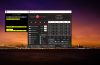
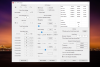
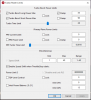
Problems? See this thread at archive.org.
Well, that is really unfortunate since almost every notebook manufactured today malfunctions using stock firmware without assistance from ThrottleStop to right all of the wrongs.
I would recommend not using the latest Windows build for anyone that values having a system that is stable and doesn't malfunction. ThrottleStop is working great for me on 1909 and every prior version of Windows since ThrottleStop was first released. I cannot remember if I started using it on a system running WindowsXP or Vista, but it has always been a blessing to have it all these years. I cannot imagine not using it on my laptops at this point.
Thanks for sharing the misery you have encountered on the Insider slow ring. Sorry to hear you found a bump in the road.
-
-
If the problem is being caused by the RwDrv.sys file then you can still use ThrottleStop. Just don't use the Disable and Lock Turbo Power Limits feature. This is the only thing that depends on that driver. Does the rest of ThrottleStop work OK?
This is not the first time that Microsoft has nuked ThrottleStop in one of their Windows 10 preview builds. Thank you @Mr. Fox for confirming that ThrottleStop is working OK in Windows 10 - 1909.
The good news is that I am looking into replacing the RwDrv.sys driver as well as the WinRing0 driver that ThrottleStop has successfully used for the last decade. I will find a way to keep the dream alive one way or the other. Laptops that can run at their full rated speed. What a concept!
Edit - Just heard from a happy Lenovo owner. The new zero offset voltage option seems to have solved his problem with his Y540 - 9750H laptop randomly not resuming from sleep. -
![[IMG]](images/storyImages/OSEzEm7.png)
None of these options will work until I press Turn On, right? But why then Disable Turbo works even without enabling ThrottleStop? It makes no sense in terms of UI.Mr. Fox likes this. -
Turn On/Off only affects the first 3 options--Clock Modulation, Chipset Modulation, and Set Multiplier.
-

You are 100% correct. The Turn On - Turn Off button in ThrottleStop is a confusing mess. I do have plans to get that fixed up so it is much clearer. I just haven't got around to it yet. Procrastination issues.
Here is the first ThrottleStop forum that I could find.
http://forum.notebookreview.com/threads/s-xps-1645-throttling-info-and-updates.446193/
It has a couple of pics of ThrottleStop 1.80 with a version of that button. Life was simpler back then. I have had to pack in a lot of extra features, for a lot of different Intel processors over the years without the UI becoming grossly obese.
Almost time for the 10 year TS anniversary. Most users are happy with the results so they tend to forgive me for being UI challenged. Would you rather use XTU? Sure it looks nice but it doesn't always work, especially after resuming. That is not for me.Last edited: Nov 14, 2019 -
Wow, how time flies. Sure, 10 years is a long time in PC years, kind of like dog years. But, it feels like a blink of an eye to me. Congrats on the decade of unfaltering excellence, bro.
XTU... Honestly, I don't even think that it looks that nice. Plus, it wastes way too much screen space and wastes CPU clock cycles/system resources because it is unnecessarily bloated. I really love how compact the ThrottleStop UI is. In a PC world overrun with bloated full-screen crap and big tiles, fat borders, pastel-colored puke and abusive over-use of white-colored themes, instead of tasteful icons and a compact UI, it is refreshing to have programs that do not look like worthless and disgusting UWP tablet-jockey rubbish. It's also nice that ThrottleStop just works. Can say as much for XTU. It used to be fairly reliable, but it's not any more. In that respect it has something in common with Windoze OS X app crap. Too many dependencies to be a good product. Portable apps that you can drag and drop any place you want them are really the only way to fly.Last edited: Nov 15, 2019 -
First of all, thank you for your work on this wonderful tool!
XTU is definitely an unreliable thing, you right. While you say about your procrastination issues, I've got another. I'm trying to understand any software without reading a guide So you can understand my frustration when I'm trying to use ThrottleStop. But that's in the past someway, I read the guide and understood some things.
I've got a laptop with Intel Core i7-8750H. When I run intense CPU app i've got some short time turbo boost, over 50W,
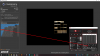
but then it drops to default 45W.
Any way to lock it forever?
As I understand I need to set values here:
But it's not working. Doesn't affect time short turbo boost works...Mr. Fox likes this. -
Do you have this enabled? If not, give that a try. There will be an "install" button to download the RwDrv.sys file.
Papusan likes this. -
I installed this file and set everything as on the image. No changes. But now I can't move this slider and uncheck these boxes. Why?
Okay, i've checked limit reasons and saw following stuff:
While i've got 58W PL 1, PL 2 and EDP OTHER are yellow. When it goes down to 45W PL1 and EDP OTHER became red. What does it mean?Mr. Fox likes this. -
It might be because the "Lock" boxes are checked. Uncheck them and then try shutting down and cold booting. If that still does not work then delete the ThrottleStop.ini file and reapply your settings from scratch.
You can set the power limits higher than what the CPU is capable of without any adverse effects. I just set them to the maximum value allowed (4095 and 1023) and leave them there. I do that on all computers. All you are doing is removing caps on power limits. It won't affect thermals or voltage.
Your CPU can probably pull between 75-100W sustained if the firmware isn't botched up too badly. My 9750H holds about 83W and full turbo clocks in Cinebench R20 without triggering any yellow or red reasons. The stock power limits are too low.Last edited: Nov 15, 2019 -
What does clamp checkbox do? And mean.
-
Maybe @unclewebb can elaborate. I am not certain what it does, or that it works with modern CPUs. It could be something that is for older CPUs/chipsets, but I do not see any documentation on it in the guides.
-
My theory has always been, if you need a guide, you probably should not be using ThrottleStop. Luckily the user community has come forward and now there are lots and lots of guides and YouTube videos available that can show a person how to use ThrottleStop.
If you have set ThrottleStop to 58 Watts and you have checked the FIVR - Disable and Lock Turbo Power Limits feature and your CPU is still throttling to 45 Watts, that means the laptop you bought is a bit of a dud. The manufacturer has decided to set a hard limit of 45 Watts in the EC and it is refusing to let you, the person that paid the bill, to go beyond 45 Watts. I guess that is within their legal right but personally, I would put it back in the box and tell them that they can have it.
I think "Back in the Box" will be my new slogan. If you cannot get full speed out of your CPU while using ThrottleStop, Back in the Box it goes.
Follow @Mr. Fox like a stalker. His new laptop has a 9750H that is literally on top of the world. You will not see him wasting his time trying to work around some pathetic manufactures 45 Watt throttling limit. No patience for that.
Clamp applies to both old and new Core i CPUs. For an example, the 8750H has a default speed of 2.2 GHz. When a CPU reaches a turbo boost power limit, if Clamp is not checked, at most, it should only throttle away the turbo boost so your CPU should not drop below 2.2 GHz. If you check the Clamp option, your CPU will first throttle away all the turbo boost and it might continue to throttle and run below 2.2 GHz. It will throttle and throttle some more so it does not exceed whatever the power limit is set to. The Clamp option is a bigger problem for the low power U CPUs that have ridiculously low (15W) turbo power limits. That is why I do not use the Clamp option. Extra throttling is not for me.
Because you checked the Lock option. This locks the turbo power limit register so nothing can change it, not even ThrottleStop. To unlock this is a bit of a pain. Easiest thing to do is exit ThrottleStop, delete the ThrottleStop.INI config file, shut down your computer and then restart it. Hopefully the bios is smart enough to unlock the power limit register.
One last thing to try. In situations where the Disable and Lock feature is not solving your problem, try going into sleep mode and then resuming. This confuses some laptops and allows the Disable feature to start working so you can get beyond 45 Watts. This is a long shot so do not get your hopes up too high.Last edited: Nov 15, 2019 -
wow 5.5, that's nice. I have a 5.9 sitting in my 64m as my best from a couple weeks ago! 8750h Thanks to TS that is
-
There is most certainly some playing around to do when it comes to these voltages. I have heard they are linked but my past 3 laptops this wasn't the case. I almost feel like the cache is messing with the core voltage in some exponential way. setting a large cache undervolt can drop the core voltage much lower then just setting the core voltage alone
Core voltage never gives me blue-screens, until I touch the cache in conjunction with the core voltage.
I have ran TS over and over with some numbers and right now, i have theses. (attached) This causes the internal TS bench to use 60+ watts at .9852v. if I put the cache even .2 more, it'll bluescreen. but I can max out the core voltage with some improvents under load but so small I can't really say for sure. Resetting the core voltage to 0 causes a 1.2v under TS load. whoa
Setting cache to 0 causes a 1.1v to be used under TS load lol
so clearly i am still confused how the two interact.Attached Files:
Mr. Fox likes this. -
-
There is a fair amount of inconsistency in firmware from one model/manufacturer to the next. They all do things pretty sloppy and haphazard. Other than thermal management challenges, you should be able to run the same (or very similar) settings on all brands with the same CPU, but that's not the case. The way one system reacts to settings can be totally different than another brand with identical specs due to varying levels of firmware engineering incompetence mixed with plain old-fashioned not given a damn how things turn out. Very stupid and unfortunate that things are that way.ha1o2surfer likes this.
-
One more thing to discuss. After a few days testing the system and seeing the excellent results in the @Mr. Fox test at -250v, I put the laptop turbo mode with max stable undervolt and:
- Although I only manage to lower stable -110v, his equipment works at a higher voltage (1.19v vs 1.03v) and power (78w vs 62w) than mine. I even have better temperatures and I wonder how to push more the performance.
- I get worse results in turbo mode (high performance) than balanced at 50% ????
Perhaps some equipment drops much more voltage because they come with greater factory excess. What I have clear is that with TS I have managed to lower temperatures (5ºC in games) increasing the performance, so thank you very much @unclewebb.
url= https://ibb.co/DL9FzzM]![[IMG]](images/storyImages/Resultados.jpg) [/url
[/url
-
You and me both man, I've been experimenting and working with this lately as well. Besides of my "VR Thermal" limit issues as mentioned a couple pages back (which I've now definitely pinpointed to be a cooling issue), I'm also trying to find the optimal stable settings for UV and to get my 9750h to run as good as it can. It will do 5.66 on 64M TS bench, 89.67 on 1024M on a fully set up system full of background tasks.
If I do some trickery with the cooling (the VR Thermal thing) I am able to get it to run stable at 40x and it will pull about 70 watts at most. Without any UV, it will pull up to 85w, maybe even more. Clearly a substantial difference in heat. Currently I'm at -105mv cache/-210mv core. VID will then fluctate around 0.9950v under load in TS bench. If I drop core to the same as cache, load VID will be fluctating around 1.0v, but it might simply be variations from run to run. So at best, the extra -100mv offset on core seem to translate into -5mv... effectively. I can push cache down quite a bit more, it will work seemingly stable for days as low as -130 to 140mv, but will occasionally start to throw TS bench errors from -115mv, not consistently, but occasionally (I hate this inconsistency). So, I've adopted a safe margin and experiment with a formula where I simply set core uv to twice that of cache. If it's stable, it's stable, and if actual load VID is lower, that can't be a bad thing, regardless how small It definitely has no significant impact on temperatures or watts pulled though. Might be some very minimal bragging rights to the uninformed.
Last edited: Nov 17, 2019ha1o2surfer likes this. -
I'm having similar setup on my laptop too. Core at -155 and cache at -139. I can uv core by -160, but somehow only gta 5 crashes my system. And uv cache even slightly would give weird artifacts.
-
Hi !
I recently upgraded to Windows 1909 and noticed that SpeedShift did not seem to work. Since I need this feature to keep my laptop cool and silent, I reverted back to 1809 for now.
Is this a known bug ? Is there a fix, so that I can upgrade ?
Thanks for this awesome tool ! -
Hey,
I have a laptop that can charge with both USB-C and its power 'brick' - However when I head to work I don't bring 'the beast.'
- Is there any way I can set Throttlestop to apply a tertiary profile when USB-C charging is detected specfically?
Needles to say, it doesn't get enough juice when charging on USB-C if there's any slightly tingly gpu program running, and I'm running G-sync instead optimus (requires reboot, so I don't).
I also would like to have it charging at some decent 'pace' too instead of break-even/ slowly-leaking/ slowly-charging.
When I plug it in with USB-C, it will naturally hit the Performance profile - which is 'not optimal for work' whereas when I hit home and plug it in with the beast, I would want it to hit the performance profile as intended.
I do have it set up for a battery profile, but that's not what I'm talking about... -
I am still using Windows 10 - 1809. It might be a while before I do any ThrottleStop testing on Windows 10 - 1909.
It is now. Thanks for reporting that the ThrottleStop Speed Shift adjustment is not compatible with Windows 10 - 1909.
Since you have gone back to 1809, you will not be able to do any testing for me. If anyone else is using 1909, try doing this.
Set the Speed Shift EPP value on the main screen of ThrottleStop, open up the FIVR window and check the monitoring table. Does it show something different for Speed Shift EPP? Try using different Windows power plans to see if ThrottleStop or Windows is in control of the EPP setting. The Windows High Performance power plan used to set EPP to 0 and would not actively interfere with this setting. That allowed ThrottleStop to control EPP without any issues. Maybe that is no longer the case in 1909. If ThrottleStop does not give you any control over the EPP setting that the CPU is using as verified by the FIVR value, you will have to allow Windows to manage this setting.
@nighthaven - I am not sure how to test for charging by power brick or charging by USB-C. At the moment, all you can do is set up multiple profiles within ThrottleStop and manually switch between them. Set up some keyboard shortcuts to simplify this. -
Hi! I tested SShift today in 1909. I could always change the values, even trying different power plans. In my case, TS rules over Windows; so good news
Papusan, unclewebb, tilleroftheearth and 1 other person like this.
-
I'm seeing the same with build 1903 that I for some reason have. Works just fine.
-
SpeedShift working fine in my Win 10 1909 build too.
Is it possible to get XTU and Throttlestop playing nice together? I like that I can switch clock speeds on my CPU quickly using the profiles on TS but I have found a way to access the built in XTU menu in my BIOS and would like to apply the undervolts at BIOS level rather than OS.tilleroftheearth likes this. -
On many systems XTU settings do not actually change BIOS values. It varies by system as well as the settings to be applied. Most laptop manufacturers (evil bastards) take steps to block the BIOS changes, just as they hide the menu access in the BIOS UI. So, in most cases XTU settings are temporary and applicable only in Windows. In that respect, no different than ThrottleStop and nothing to be gained.Papusan likes this.
-
But as I was saying, I have access to the XTU menu in the BIOS, and it works.Mr. Fox likes this.
-
Yes, I do as well and that is a good thing to have. But, maybe I am not explaining it well enough. If true functionality is present, then you don't need XTU installed. If XTU changes the BIOS settings permanently then it really works and you can uninstall XTU after making the changes. The changes will stick forever, or until you clear the CMOS. (That's how it used to be, when XTU was actually a good and respectable product. And, before Nazi control freaks started doing digital castration with firmware cancer.)
If it only works with XTU installed, then it's not really doing anything that ThrottleStop doesn't do. Your XTU menu in the BIOS is merely unblocking XTU access, which also unblocks it for ThrottleStop and other Windows software at the same time.Papusan, Fire Tiger, amihail91 and 1 other person like this. -
Maybe I've worded my question wrong.
Am I able to revert the changes I've made in Throttlestop and use it as a Profile switcher app while dialing in the undervolts through the BIOS XTU menu?
Or - if I reset my Throttlestop profile and dial the undervolts in through the BIOS menu, will Throttlestop realize this when I open it for the first time?Last edited: Nov 19, 2019Mr. Fox likes this. -
I've come across an issue here with MSI Afterburner. Maybe it's well know, but I just had a d'oh moment.
What I see:
1. At idle, the CPU pulls an extra 10-15w according to Throttlestop and Hwmonitor. This persist if I kill Throttlestop.
2. This carries over into under load as well, say in TS Bench. Without Afterburner running my uv'd 9750H will pull at most 60ish watts in TS Bench and I get no limit triggers. With Afterburner it will draw 70ish, other settings being the same. However, total system load when running a game are more or less the same according to HWmonitor. The system seem to be butting up against the max TDP limits (especially GPU) and will pull around 165w, which makes sense, as it's sold with a 180w powerbrick.
It gets weirder though.
3. If I load up for instance Photoshop which will use the Nvidia GPU, suddenly everything is back to "normal". As if Afterburner wasn't running.
Screenies:
Afterburner running, Nvidia GPU not active. Watts around 16-22.
![[IMG]](images/storyImages/2019-11-19_165103.jpg)
![[IMG]](images/storyImages/2019-11-19_165121.jpg)
Afterburner killed, watts mostly in the 2.8 - 6 range. Quite some background stuff running though.
![[IMG]](images/storyImages/2019-11-19_165327.jpg)
![[IMG]](images/storyImages/2019-11-19_165354.jpg)
And finally, Afterburner running and Nvidia GPU activated, not idling quite as low, but well under 10w and down to 3ish.
![[IMG]](images/storyImages/2019-11-19_165548.jpg)
![[IMG]](images/storyImages/2019-11-19_165600.jpg)
Any ideas whats causing this? It's not like a major problem, but I see no reason why the system should not stay as cool as possible, also when idle. I almost never run off of battery, so thats the least of my concerns. Also, there is definitely, based on benchmarking, a performance hit from running Afterburner, even with a slight GPU core/mem OC. -
If you make changes with XTU without ThrottleStop running and then launch ThrottleStop, it will try to apply your profile settings and undo what you set with XTU. You would need to first delete the ThrottleStop.ini file to "adopt" the XTU settings and then save that as a profile. If you do not have XTU running and change settings with Throttlestop, then launch XTU you may see an error message from XTU that says something to the effect that other software is in control.
That is pretty strange. I haven't noticed this before. It might be happening without me noticing.
What it could be is Afterburner is doing something to tweak the Intel HD Graphics when it is launched. That might explain the increased CPU power consumption with Afterburner running. All that would need to happen is to have another 3D process running in the background to create a bit of load on the Intel iGPU to cause a bump in the power consumption. If you have web browser hardware acceleration enabled in the browser setting, even something as innocuous as the web browser being open will create a small amount of GPU load. That often increases with the number of tabs that are open, and varies depending on the web content in the open tab(s).
You can run GPU Shark to see what 3D processes are running in the background.Papusan, M4cr0s, Vasudev and 1 other person like this. -
Set the voltage in the bios.
Before running ThrottleStop, delete the ThrottleStop.INI config file.
Start ThrottleStop so it can create a new config file. TS will read your CPU's current settings.
Open up the FIVR window and make sure Unlock adjustable voltage is not checked for core, cache, etc.
When these boxes are not checked, ThrottleStop should be able to run without it adjusting your voltage.
Now the question is, why do you want to do this? Time and time again, XTU has not applied voltages consistently, especially after resuming from sleep. If there is a slight glitch when booting up, XTU might decide that your under volt is not stable and it might reset it to zero, with or without your knowledge. Do you really want something like that running on your computer? Why? By comparison, ThrottleStop has an excellent track record of applying the voltages 100% consistently.
@M4cr0s - Not sure what is going on but I do know that it can be tough doing any meaningful testing if you have a lot of stuff running in the background on your system. When idle, you should be seeing individual cores spending 99% of their time in C7 and the reported C0% on the main screen should be 0.5% or less. I can remember other users reporting similar problems but I cannot remember if their issues were ever solved. Play it safe. Only run TS when gaming. There is not a lighter weight monitoring app on the planet!
![[IMG]](images/storyImages/Wm8AwVj.png)
-
Hi everyone!! esplecially @unclewebb
I've been using throttlestop for a while now and i think it's a fantastic software, It has really helped my PC to cool temperatures down, but since i'm a newbie about everything related to undervolt i had to read a looooot of information on throttlestop and how ti works....but there are many things and features that I still do not understand because of my ignorance on the subject.
So i'm here looking for some advice, my goal is to keep the temperatures as low as possible and at the same time have the maximum possible performance from my pc (HP pavilion gaming cx0999nl).
i know screeshots are very appreciated, so I attach some of them so that you can see my throttlestop configuration which I feel quite stable but I have the feeling of being able to do more, perhaps not in terms of undervolt but in terms of performance, maybe adjusting some throttlestop setting.Last edited: Nov 19, 2019 -
@Sig. Duck - Most your settings look good. Some people have had success setting the CPU core offset voltage to a much higher number compared to the cache offset voltage. If the CPU is stable with the cache at -125 mV, they have used numbers like -250 mV for the core.
The other thing I noticed is that you have Speed Shift EPP set to 80 on the main screen but if you look at your FIVR screenshot, the monitoring table in the top right corner is reporting that your CPU is using an EPP value of 127. This usually means that Windows is in charge of the EPP setting and ThrottleStop is being ignored. If you want Windows to control EPP then you do not need to check or set the Speed Shift - EPP value on the main screen. If you want ThrottleStop to be in control of EPP then try using a different Windows power profile. In the Power Options I use the Windows High Performance power profile and this setting allows ThrottleStop to be in control of EPP. Not sure about what the latest versions of Windows 10, so do some hands on testing.
You might also want to try using the FIVR Disable and Lock Turbo Power Limits feature. You did not mention if you are having any unusual throttling problems. If you do not have any problems then there is no need to adjust anything.Sig. Duck likes this. -
Thanks very much @unclewebb for your reply.
i'm using windows 10 build 1909 and throttlestop seems working fine
you're right, my windows power profile is set to "balanced mode" thus Windows control EPP and that's why EPP valure is 127 instead of 80. Even though I'm in balanced mode, I noticed that throttlestop control EPP value but only when pc is charging.
Do you think it's better to switch to "High performance power profile" and let Throttlestop control speedshift all the time? if so, my concern is that it could reduce battery life
this feature caught my attention, but I don't understand exactly what it is for...i know it's related to "turbo boost power limits" in TPL menu, but again i don't know what "turbo power limits" meants and what are the correct values I should set instead of the default onesLast edited: Nov 19, 2019 -
Aye, I need to attempt to test this in a more structured manner. To mention some, I run things like Google Drive Sync, the bare necessities of Adobe background services for Creative Cloud to actually work (man they fill up your system with so many tasks). proprietary fan control software, Outlook client and always Chrome with a gazillion tabs. some chat clients like Skype and Whatsapp...and the list goes on and on. It's a nightmare. Hard to keep the "what has to run" list short when you use the laptop for "everything". Oh, and then you have Steam and various other launchers that have to run based on what you are doing.
But I digress, I do use Hwmonitor + Rivatuner for OSD in games. Couple of reasons for that. Howmonitor can show pretty much anything it can read in OSD, thats awesome. It allows me to see approx wattage pulled by GPU/CPU, and when knowing what is max TDP, that is quite interesting and revealing info. A lot of games work a bit differently from what I though. Also, I want temps, FPS and at times clockspeed since I'm anal about such. It can be hotkeyed too. Additionally, there's stats in Hwmonitor you just don't get from Throttlestop (but I do love TS) and I can't live w/o a proper monitoring software on a modified laptop where I need to see whats happening and what I've screwed up.
Now, I have however done quite a bit of testing about this vs performance, mainly using actual ingame benchmarks, but also 3Dmark with its tendency to drift back and forth in scores quite a bit. Hwmonitor set to 2-second polling and Rivatuner puts very little load on the system in the sense that it do not affect ingame performance much. In fact it's hardly possible to detect. The story might be different on a slightly older duos or quadcores.
So. Much. Crap. And thats just the top of the iceberg.
-
-
I'm using Win10 Pro 1903. Getting mixed results with which system dominates depending on if I'm plugged in or on battery.
Plugged In: Each time I change the power slider on the battery tray, Windows very briefly takes over control, but TS takes it back. I have my max
Best performance: 63 (TS immediately sets my power profile setting, 0)
Mid Point: 84 (TS immediately sets to 0)
Best Battery Life: 84 (TS immediately sets to 0)
On battery: TS takes back control on the "Best Performance" setting, but does not on the other three.
Best Performance: 64 (TS sets to my battery setting of 223)
Better Performance: 127 (TS does not regain control)
Better Battery: 178 (TS does not regain control)
Battery Saver: 178 (TS does not regain control)
Hey guys, I've been working to understand why a couple of my cores get much hotter when under TSBench load. Bench scores and stability seem to be fine, but core 4 is thermal throttling pretty bad, followed by core 2. After my initial repaste, all cores never throttled ... until I reinstalled windows and started getting my tweaking stuff in place.
I'm also getting PL1 and Ring:Other throttle flags before the thermal limit is reached.
-
Greetings.
I was been using the Throttlestop on Windows. Recently, I changed my OS to Linux/FreeBSD(dual boot). I have been searching a way to Undervolt my CPU since.
I learned that 0x150 register is used to control voltage, but it doesn't exist on Ivy Bridge and older series. I have pentium T3200.
I read the intel developers manual but couldn't get any clue.
Which MSR is used on pentiums for Undervolting?
@unclewebb -
On Core 2 Duo related CPUs, check out MSR 0x199. That MSR should contain both the multiplier and VID voltage request. When using Windows it is best to use the High Performance power profile so Windows does not overwrite this register.
@lucidchaos - If you are having problems with some cores running much hotter than others while all cores are equally loaded, you might have to try redoing the thermal paste, again. Sometimes the heatsink does not sit flat on the CPU so some cores run hotter than the others. Next time you take it apart, have a really good look for any sign of unevenness.
As for Speed Shift, if Microsoft considers an EPP setting of 63 or 64 to be best performance, that is nothing but a lie. EPP = 0 is the one and only best performance setting. I still use the Control Panel - Power Options to set the power profile and I always set it to High Performance.
On my computer, Windows 10 had the High Performance power profile hiding so I opened up a command window and used this command.
powercfg /s SCHEME_MIN
To go back to the Balanced power profile you can enter this command:
powercfg /s SCHEME_BALANCED
Using the high performance power profile seems to be the best way to keep Windows from interfering with ThrottleStop. After using the above command, then you can find the High Performance option in its usual spot.
![[IMG]](images/storyImages/cB4OvcJ.png)
@Mr. Fox - I think I see a new TS Bench record. Congratulations.
Papusan, lucidchaos and Mr. Fox like this. -
Another round of #1 scores for 9750H using the Turdbook Fixer app from @unclewebb....
https://hwbot.org/submission/4285452_
https://hwbot.org/submission/4285455_
![[IMG]](images/storyImages/c2jUWRn.jpg)
https://hwbot.org/submission/4285439_
https://hwbot.org/submission/4285440_
![[IMG]](images/storyImages/RBaWxjr.jpg) Papusan, tilleroftheearth, HORRIFIDO and 1 other person like this.
Papusan, tilleroftheearth, HORRIFIDO and 1 other person like this. -
After seeing your processors tuned so well (congrats @Mr. Fox), I started testing the i9750H with the Cinebench R20.
With the same values that the TS test passed without alerts (neither yellow nor red), some yellow alerts appear on the R20 and also, Throttling but with maximum temperatures of 82 ºC????
How can this be possible?
The result, if anyone is interested, was 3125 points.Mr. Fox likes this. -
Is it possible to edit options in the BIOS to get this tickbox to un-greyed out?
-
Well, 3125 is not a bad score and 82°C is a good temperature for a thin and light notebook. If you can stay below the thermal throttling point on any of these chintzy thin and light turdbooks that, in and of itself, is a major accomplishment.
Sounds like you are making good progress on the tuning as well. Sometimes the yellow and red reason flags cannot be resolved by tuning. Sometimes the firmware is so botched up by the manufacturer that no amount of tuning can correct it.
What is your system/model?Last edited: Nov 21, 2019 -
Is an Asus Rog Strix Scar III G531GV.
Im happy with the temperatures, especially for the silence in idle or low charge, but as i said, throttling started close to 82°C and the clock went to 39x instead of 40. I thought that this only happens close to junction temperature, around 95°C? -
Yes, by Intel specs, but the notebook OEM can manipulate that and cause throttling sooner. Dell/Alienware is notorious for doing this. If you have raised all of the power limits and chosen the option to "Disable and lock turbo power limits" there is little more you can do without unlocked BIOS and mods to change the flags in the BIOS/EC code. If you have not already done so, remove the check mark from the BD PROCHOT box and click the "save" button. Unchecking that box might bring some improvement in premature thermal throttling.Papusan, HORRIFIDO, Vasudev and 1 other person like this.
-
What CPU do you have? The 8750H?
In the ThrottleStop Turbo Overclocking area if it shows +0, that means your CPU does not support overclocking. The maximum multiplier is locked at the factory by Intel and cannot be increased by using ThrottleStop, XTU or any other software. That is why the Overclock box is greyed out. Your CPU does not support this feature. -
I uncheck BD PROCHOT and first test was OK (3109 points) but at the second try, close to the first (temp around 65ºC) with throttle again (around 85% of the test) but better result???? (3120).
-
@unclewebb
A few posts back about the MSI Afterburner issue, you commented on the C-states. I have since then looked into this and got things to work as I think they are supposed to with a little tweaking and some culling of background services. I haven't been able to figure out what the deal is with Afterburner though, but at the moment I don't run it.
This is now typical idling with Chrome with about 40 tabs running and my usual array of tray apps and background services. Even after a day and a half of running, it looks the same way after a restart of Chrome (as you know memory leaks and things tend to "get stuck" in browsers). The laptop runs amazingly cool when idling night now, seeing idle temps as low as 26c with 20-21c in the room.
I am still working with the VR Thermal triggers I asked about a few pages back and things are looking better after some strategically placed copper heat shims combined with the uv'ing. I am moving very slowly forward with this though, because I try to pinpoint exactly where the problem is. Maybe I can get rid of that issue completely. Bottom line, this device is running fairly well now and feels very, very stable. Only crashes I've seen lately are from known bugs/issues in certain programs/games. Throttlestop is proving to be a huge help and I and others owe you a lot.
Also, TS Bench is looking quite acceptable for an 9750h.
unclewebb likes this. -
When bench testing, have Limit Reasons open. When all 6 cores are active, if the multiplier drops below 40, there has to be a reason why this is happening. There must be something lighting up in Limit Reasons which will give you a clue what needs to be adjusted. Thermal throttling is only one reason. There are many other reasons that need to be investigated.
The built in TS Bench test is a light duty benchmark compared to Cinebench R20. You will need to increase one of the many limits if you want to run R20 at full speed.
That is what I always preach. Get the crud off of a computer and it can run amazingly cool regardless of speed. Glad to hear that TS is working well for you.intruder16, M4cr0s, tilleroftheearth and 1 other person like this.
The ThrottleStop Guide
Discussion in 'Hardware Components and Aftermarket Upgrades' started by unclewebb, Nov 7, 2010.